10 Best Backup Software for Mac (Free & Paid) 2026

Last updated on December 28th, 2025 at 10:03 am
Data loss can strike at any time. A coffee spill, a sudden power surge, or even a stolen laptop can erase years of work in seconds. Photos of loved ones, key work files, and music collections can vanish without warning. That’s why you need the best Mac backup software to keep your digital life safe.
The best app to backup files on Mac works quietly in the background. It creates secure copies of your data without slowing down your computer. These tools come in many forms – from Apple’s built-in options to powerful paid software with extra features. Some focus on local backups to external drives, while others send your files to secure cloud servers.
This guide covers the top backup tools for Mac in 2026. We’ve tested dozens of options to find the best Mac backup software for every need and budget. Whether you’re a home user with family photos or a pro with critical work files, you’ll find the perfect backup solution here.
Don’t wait until it’s too late – pick a tool today and protect your digital life.
Part 1: Why Do You Need A Backup Software?
Mac computers are known for their quality, but no system is perfect. Hard drives fail after years of use or suddenly without warning. Accidents happen – water spills, drops, and power surges can damage your Mac beyond repair. Without proper backups, these events mean one thing: permanent data loss.
The best Mac backup software creates complete copies of your files and stores them safely away from your main computer. If disaster strikes, you can restore everything quickly and get back to work.
The peace of mind from knowing your data is safe is worth far more than the cost of even the best app to backup files on Mac.
Part 2: How To Choose The Best Backup Software For Mac
Finding the right backup tool means matching features to your specific needs:
- Ease of use: The best Mac backup software doesn’t require tech skills. It should have a clean interface with clear options. Setup should take minutes, not hours.
- Backup methods: Look for tools that offer both full system backups and file-level backups. Full backups protect everything, while file backups let you restore specific documents quickly.
- Storage locations: Local backups to external drives work faster but can be lost in house fires or floods. Cloud backups cost more but protect against physical disasters. The best solutions offer both.
- Security features: Your backups may contain sensitive data. Look for tools with strong encryption to keep private information private.
- Schedule control: Automatic backups ensure new files get protected without you remembering to run the backup. Look for flexible scheduling that works with your routine.
- Version history: The ability to recover older versions of files protects you from bad edits and ransomware attacks.
- Value for money: Free isn’t always better. Balance cost against features you’ll actually use.
Part 3: Precautions To Take When Using Backup Software Mac
Even the best app to backup files on Mac can’t protect you from every problem without proper setup:
- Follow the 3-2-1 rule: Keep at least three copies of important data. Keep one copy offsite or in the cloud. This strategy protects against almost any disaster.
- Encrypt sensitive backups: Password protect and encrypt backups that contain financial records, personal photos, or business data. This prevents access if backup drives are stolen.
- Check backup logs and reports: Most backup software creates logs of each backup job. Review these regularly to catch failures early before they matter.
- Update your backup software: Run the latest version of your chosen tool. Updates fix bugs and add security patches that protect your data better.
- Set smart backup schedules: Too-frequent backups can slow your Mac. Too infrequent backups risk data loss. Find the right balance for how often your files change.
- Monitor storage capacity: Backup drives fill up over time. Set reminders to check available space or choose software that alerts you when space runs low.
Part 4: Top 5 Comparison Table: Best Backup Software Mac
| Software | Price | Cloud Storage | Local Backup | Full System Backup | File Versioning | Encryption | Auto Schedule | Mobile Access |
| Time Machine | Free | No | Yes | Yes | 30 days | Yes | Yes | No |
| Backblaze | $7/month | Unlimited | No | Yes | 30 days | Yes | Yes | Yes |
| Carbon Copy Cloner | $39.99 (one-time) | No | Yes | Yes | Yes | Yes | Yes | No |
| ChronoSync | $49.99 (one-time) | Optional | Yes | Yes | Yes | Yes | Yes | Limited |
| Get Backup Pro | $19.99 (one-time) | Optional | Yes | Yes | Yes | Yes | Yes | No |
Part 5: Top 10 Tools To Backup Files On Mac
Whether you’re a creative professional safeguarding your latest masterpiece or a casual user protecting precious memories, having reliable backup software for your Mac is essential. With countless options available, choosing the right one can be tricky.
In this part, we’ll explore the top 5 backup solutions that combine ease of use, robust features, and dependable performance—so your data stays safe no matter what.
1. Time Machine
Time Machine is Apple’s built-in backup solution for Mac. It comes free with every Mac computer. This tool saves your files automatically to an external drive or network storage. You don’t need to buy any extra software. It works right out of the box with macOS.
Time Machine creates hourly backups for the past 24 hours. It also keeps daily backups for the past month. Weekly backups are stored until your drive fills up. You can restore individual files or your entire system easily. The setup process is very simple and user-friendly. Just plug in a drive and click a few buttons. Time Machine handles everything else automatically.
Price: Free (included with macOS)
Features:
- Automatic hourly, daily, and weekly backups
- Complete system backup and restore
- Easy file recovery with timeline view
- Works with external drives and Time Capsule
- Backs up to multiple destinations
- Excludes system junk automatically
Pros:
- Completely free
- Built into macOS
- Very easy to set up
- Automatic operation
- Great for beginners
Cons:
- Only works with Mac
- Requires external storage
- Can be slow with large files
- Limited customization options
Working Process:
Step 1: Connect the external drive and select “Use as Backup Disk” when prompted.
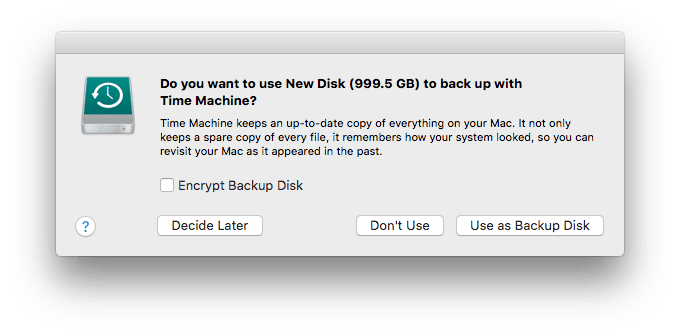
Step 2: Time Machine starts backing up automatically every hour.
Verdict: Time Machine is perfect for Mac users who want simple, automatic backups. It’s free and works well for most people’s basic backup needs.
2. Backblaze
Backblaze is a cloud backup service that stores your files online. It backs up your entire Mac to secure servers. Your data stays safe even if your computer is lost or damaged. The service has been trusted by millions of users worldwide. It offers unlimited storage space for one low monthly price.
This service runs quietly in the background. It uploads your files to the cloud automatically. You can access your backed-up files from anywhere with internet. Backblaze keeps your data for 30 days after deletion. The initial backup might take several days, depending on your internet speed. After that, only new and changed files are uploaded. This makes daily backups very fast.
Price: $6 per month per computer (unlimited storage)
Features:
- Unlimited cloud storage
- Continuous automatic backup
- Access files from anywhere
- 30-day version history
- Mobile app access
- Strong encryption security
Pros:
- Unlimited storage space
- Works from anywhere
- Automatic and continuous
- Good customer support
- Reasonable monthly price
Cons:
- Requires an internet connection
- Monthly subscription cost
- Initial backup takes time
- Limited file versioning
Working Process:
Step 1: Download the Backblaze software and create an account.
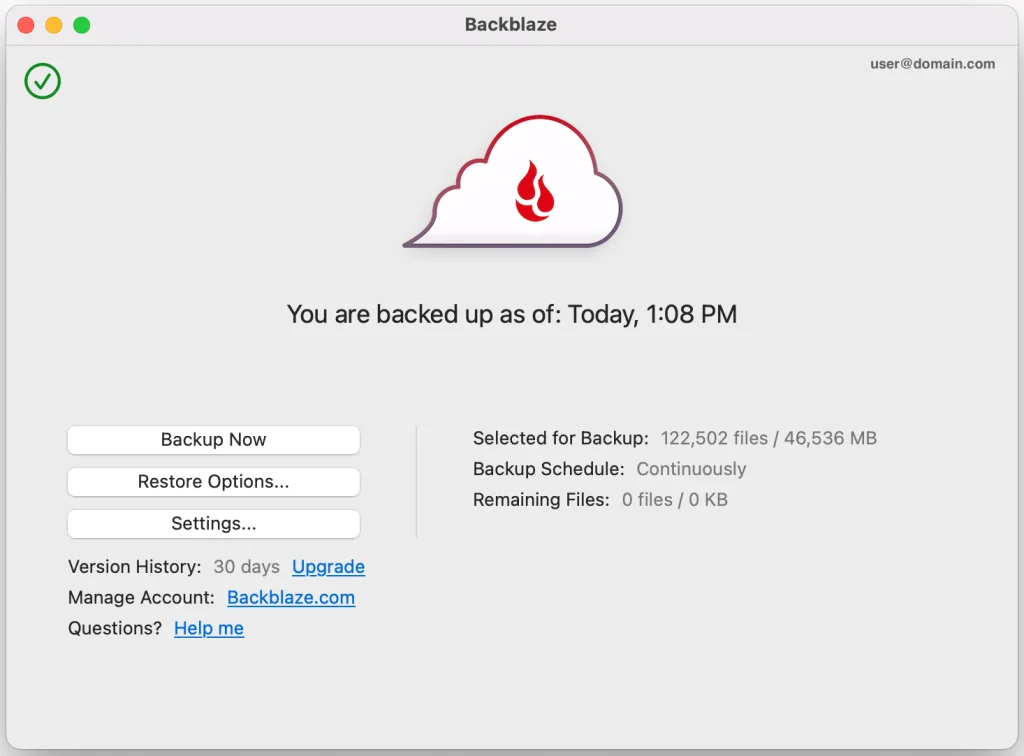
Step 2: Install and let it back up your files automatically to the cloud
Verdict: Backblaze is excellent for cloud backup with unlimited storage. It’s perfect if you want to access your files from anywhere and protect against hardware failure.
3. Carbon Copy Cloner
Carbon Copy Cloner creates exact copies of your Mac’s hard drive. It makes bootable backups that you can start your Mac from. This tool is popular with professionals and tech-savvy users. The software has been around for over 20 years. It’s known for being extremely reliable and fast.
The software offers advanced scheduling options. You can set up multiple backup tasks with different rules. Carbon Copy Cloner also syncs files between different locations. It provides detailed reports about backup operations. The tool can handle large drives and complex file systems. It also includes safety features to prevent data loss. You can exclude certain files or folders from backups easily.
Price: $39.95 (one-time purchase)
Features:
- Creates bootable backup copies
- Advanced scheduling options
- Incremental backup support
- File synchronization
- Detailed backup reports
- Safety net feature for deleted files
Pros:
- Makes bootable backups
- Very reliable and fast
- One-time purchase
- Advanced customization
- Excellent documentation
Cons:
- More complex than Time Machine
- Requires technical knowledge
- No cloud backup option
- Higher learning curve
Working Process:
Step 1: Select the source disk and destination disk in the interface.
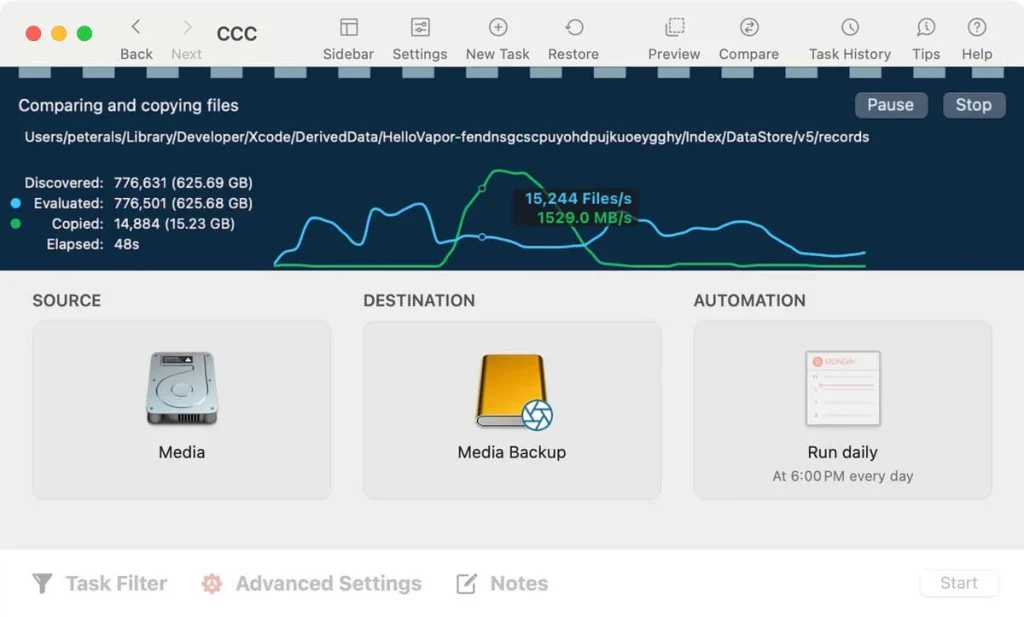
Step 2: Click the “Start” button to create an exact copy of your drive
Verdict: Carbon Copy Cloner is ideal for users who need bootable backups and advanced control. It’s worth the price for professional users and those who want maximum reliability.
4. ChronoSync
ChronoSync is a versatile backup and sync tool for Mac. It can back up to local drives, network locations, and cloud services. The software offers both simple and advanced backup options. It’s been serving Mac users for many years with regular updates. The tool works well for both individual users and businesses.
This tool excels at keeping files synchronized between different locations. You can set up bidirectional sync between folders. ChronoSync also offers scheduling and filtering options. It works well for both personal and business use. The software can handle complex sync rules and conditions. You can preview changes before applying them. It also supports many cloud services like Dropbox and Google Drive.
Price: $49.99 (one-time purchase)
Features:
- Bidirectional file synchronization
- Multiple destination support
- Advanced filtering options
- Scheduled backup tasks
- Cloud service integration
- Bootable backup creation
Pros:
- Excellent sync capabilities
- Supports many destinations
- Flexible scheduling
- Good value for money
- Regular updates
Cons:
- Interface can be confusing
- Steep learning curve
- No unlimited cloud storage
- Complex for basic users
Working Process:
Step 1: Create a new document and select the source and target folders.
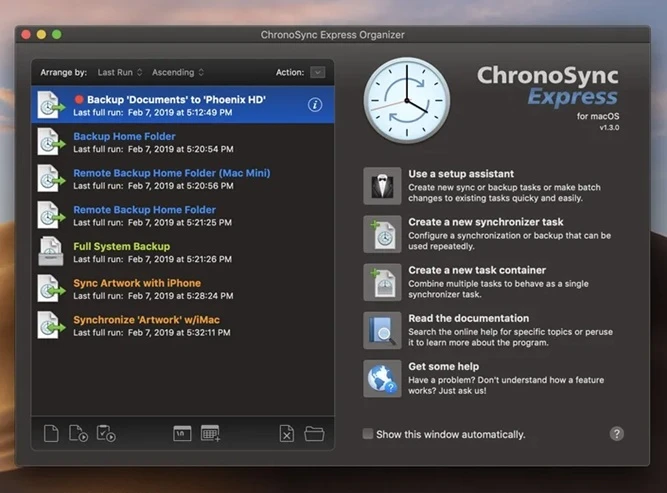
Step 2: Choose sync or backup mode and run the task
Verdict: ChronoSync works best for users who need file synchronization and flexible backup options. It offers great value but requires some time to learn properly.
5. Get Backup Pro
Get Backup Pro is a user-friendly backup solution for Mac. It offers simple backup creation with a drag-and-drop interface. The software can back up to various destinations, including cloud services. It’s designed for users who want powerful features without complexity. The tool offers great value for its affordable price point.
This tool focuses on ease of use without sacrificing features. You can create incremental backups to save space. Get Backup Pro also offers file versioning and compression. It includes templates for common backup scenarios. The software can compress backups to save storage space. You can encrypt sensitive data for extra security. It supports popular cloud services and network drives.
Price: $19.95 (one-time purchase)
Features:
- Drag-and-drop backup creation
- Incremental backup support
- Multiple destination options
- File compression and encryption
- Backup templates included
- Version history tracking
Pros:
- Very affordable price
- Easy-to-use interface
- Good compression ratios
- Supports cloud services
- Regular updates
Cons:
- Less advanced than competitors
- Limited scheduling options
- Smaller user community
- Basic reporting features
Working Process:
Step 1: Drag files or folders into the Get Backup Pro window.
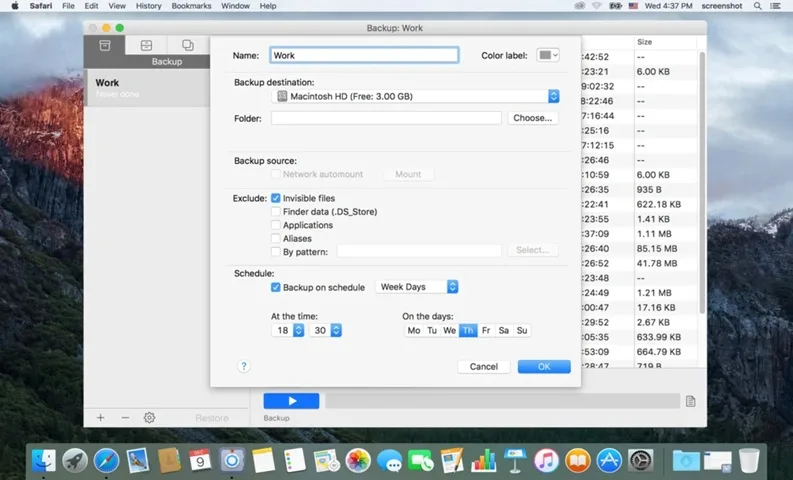
Step 2: Choose the destination and click the “OK” button
Verdict: Get Backup Pro offers excellent value for basic backup needs. It’s perfect for users who want simple backup creation without spending much money.
Author’s Tip
After testing dozens of backup solutions, I’ve found that the best Mac backup software is the one you’ll actually use consistently. For most people, I recommend starting with Time Machine. Connect any external drive, turn it on once, and your Mac handles the rest. The hourly backups happen without any effort on your part.
For complete peace of mind, pair Time Machine with a cloud service like Backblaze. This combination gives you both local and offsite backups. Local backups let you restore files quickly without internet downloads. Cloud backups protect you from disasters like fire, flood, or theft that could destroy both your Mac and local backup drives.
Remember: the cost of backup is tiny compared to the value of your irreplaceable files and the time it took to create them.
Conclusion
Data backup isn’t optional anymore – it’s essential.
The best Mac backup software matches your specific needs and habits. Consider what types of files you create, how often they change, and where you want to store them. Think about your budget, technical skills, and how much time you can spend setting up your backup system.
Pick a solution from our expanded list and set it up right away – before your next coffee spill or hard drive failure. Future you will be incredibly grateful when that inevitable data emergency strikes and you can restore everything with a few clicks.
FAQs
How often should I backup my Mac?
The best backup schedule depends on how much you use your Mac and how important your files are. For most home users, daily backups work well. If you work professionally on your Mac creating important documents, photos, or videos, consider more frequent backups. The best Mac backup software can run hourly or even continuous backups without noticeable performance impact. Critical work files should be backed up immediately after creation or editing.
Is Time Machine good enough for backing up my Mac?
Time Machine provides excellent basic protection for most Mac users. It backs up your entire system automatically and makes restoration simple with its visual timeline interface. However, it has limitations: it only stores backups locally, requires a connected drive, and offers limited versioning options. For complete protection, consider pairing Time Machine with a cloud backup service like Backblaze or iDrive. This gives you both fast local recovery and protection against physical disasters.
Do I need to pay for backup software when Apple provides Time Machine for free?
Free options like Time Machine work well for basic backup needs. However, paid backup software offers valuable extra features that justify the cost for many users. Cloud backup services provide offsite storage safe from local disasters. Paid tools often include better encryption, longer version history, and more control over what gets backed up and when. The best app to backup files on Mac depends on your specific needs and how valuable your data is.
Author Bio:
Dinesh Lakhwani 

Dinesh Lakhwani, the entrepreneurial brain behind “TechCommuters,” achieved big things in the tech world. He started the company to make smart and user-friendly tech solutions. Thanks to his sharp thinking, focus on quality and the motto of never giving up, TechCommuters became a top player in the industry. His commitment to excellence has propelled the company to a leading position in the industry.
Popular Post











Recent Post

How to Switch Windows 10 to a Local Account: Complete Guide
Windows 10 allows users to sign in with either a Microsoft account or a local account. When you set up a new computer, the system often suggests using a Microsoft account. This account connects your device to Microsoft services such as Outlook, OneDrive, and the Microsoft Store. It also syncs settings, themes, and passwords across […]

How To Change Default Apps For File Types In Windows
Windows is designed to make using your computer easy. One way it does this is by assigning default apps to different file types. This means when you open a file, Windows automatically opens it with a specific program. For example, photos may open with Photos, music with Groove Music, and PDFs with Edge. These default […]

How To Adjust The Mouse Pointer Speed: Complete Guide
Using a computer every day means you use the mouse a lot. The mouse pointer moves on the screen and helps you click, scroll, and select items. Many people never think about the speed of the mouse pointer. They have used the default setting for years. This can cause small problems over time. A slow […]

How to Change Mouse Scrolling Settings In Windows
A mouse is one of the most used computer tools. People use it every day. They scroll through emails. They scroll through documents. They scroll through websites and images. The movement becomes automatic. Most users do not notice it. That is why problems often go unnoticed. Scrolling problems show up slowly. At first, it feels […]

Keyboard Light Settings: Keyboard Lighting Control [Complete Guide]
Keyboards are no longer simple typing tools. Well, yes! Over time, they have evolved to include features that improve comfort, visibility, and overall experience. One of the most useful features today is keyboard lighting. It helps users work comfortably in low-light conditions. It also reduces strain when typing for long hours. Many users first notice […]

Customizing Pointer Appearance: Complete Guide
The way your mouse pointer looks on your computer may seem like a small detail. But customizing pointer appearance can make using your PC more comfortable and visually appealing. Many users do not realize that they can change the pointer size, color, and style to fit their needs. Whether you want a bigger pointer for […]

How To Choose a Computer Monitor: Monitor Buying Guide
Buying a monitor looks easy. Many people think all screens are the same. That belief causes regret later. A monitor is not just a display. It is a daily tool. You read on it. You work on it. You relax with it. Small problems become big over time. Poor brightness hurts eyes. Bad size causes […]

How To Get Help With File Explorer in Windows 11 [Complete Guide]
File Explorer is one of the most important tools in Windows 11. It is used to open folders, view files, and manage stored data. Almost every action on a Windows computer depends on it in some way. When users open documents, save downloads, or organize photos, File Explorer is always involved. Because it is used […]

How To Fix A Frozen Computer: Complete Guide [Windows 11/10]
A frozen computer is one of the most common problems Windows users face. The screen stops responding. The mouse pointer does not move. Keyboard inputs do nothing. You may hear the fan running loudly. Sometimes the system looks alive, but nothing works. This situation often happens when you are busy or working on something important. […]

How to Upgrade Computer RAM: Complete Guide
Upgrading RAM is one of the simplest ways to improve a computer. It helps the system feel faster and smoother. Apps open quicker. Browsers handle more tabs. Games and tools run with less delay. Many users search for how to upgrade computer RAM because it gives real results without high cost. You do not need […]

