5 Best App Uninstallers for Windows 11/10/8/7 in 2026

Last updated on December 28th, 2025 at 9:52 am
Having trouble removing programs on Windows? You’re not alone.
Windows’ default uninstaller frequently misses leftover files and registry entries. These remnants build up and clutter your system. Over time, they can reduce your PC’s speed and efficiency.
A good software uninstaller fixes this. It removes apps completely. It also scans for leftover files, folders, and registry keys. This keeps your system clean and fast.
Part 1: Why You Need a Software Uninstaller For Windows 11?
The built-in Windows uninstaller is limited in what it can do. It often leaves behind leftover files and registry entries. That’s why using a dedicated program uninstaller is a smarter choice.
- Complete Removal: Standard uninstalls often miss hidden leftovers like registry entries and temp files. A reliable app remover digs deeper. It scans your system and wipes out these traces completely.
- Batch Uninstallation: Remove multiple programs at once. This saves time when cleaning up your system.
- Force Uninstall: Some stubborn apps won’t uninstall normally. Specialized tools can force remove these programs.
- Registry Cleaning: Leftover registry entries slow down your PC. Good uninstaller software cleans these automatically.
- Space Recovery: Hidden leftover files take up disk space. Thorough removal frees up valuable storage.
- System Performance: Clean removal prevents conflicts between programs. This keeps Windows running faster.
- Security Benefits: Old program files can have security holes. Complete removal eliminates these risks.
- Easy Management: View all installed programs in one place. Sort by size, date, or usage to decide what to remove.
Part 2: Built-in Manual Uninstaller Vs Uninstaller Software
Windows comes with a basic program removal tool. But dedicated uninstaller apps offer much more. Let’s compare both options:
| Feature | Windows Built-in | Dedicated Software |
| Complete Removal | Partial | Complete |
| Registry Cleaning | No | Yes |
| Leftover File Scan | No | Yes |
| Batch Uninstall | No | Yes |
| Force Uninstall | Limited | Yes |
| Program Info | Basic | Detailed |
| User Interface | Simple | Advanced |
| Speed | Slow | Fast |
Part 3: How To Choose the Best App Remover for Windows: Factors to Consider
Picking the right program uninstaller is crucial. Not all tools are created equal. Consider these factors when choosing:
- Detection Accuracy: The tool should find all program traces. This includes files, folders, and registry entries.
- Safety Features: Good software protects system files. It should never delete critical Windows components.
- User Interface: Look for a clean, easy-to-use design. Complex interfaces slow down the removal process.
- Speed: Fast scanning and removal save time. The best App Uninstaller for Windows works quickly.
- Batch Processing: Ability to remove multiple programs together. This is essential for major cleanups.
- Backup Options: Certain uninstallers create backups before removing apps. This safety net allows you to restore files if something breaks. It’s a smart feature that adds peace of mind during cleanup.
- Support: Regular updates and customer support matter. Choose tools with active development.
- Cost: Free vs paid options available. Decide based on your needs and budget.
Part 4: Top 5 Tools Comparison Table
Here’s a quick overview of the best software uninstaller for Windows tools. This table shows key features and ratings. It helps you compare options before choosing the right program uninstaller.
| Tool | Price | Registry Clean | Batch Uninstall | Force Remove | Rating |
| Revo Uninstaller | Free/Paid | Yes | Yes | Yes | 4.5/5 |
| IObit Uninstaller | Free/Paid | Yes | Yes | Yes | 4.3/5 |
| Geek Uninstaller | Free | Yes | No | Yes | 4.2/5 |
| Ashampoo Uninstaller | Paid | Yes | Yes | Yes | 4.1/5 |
| CCleaner | Free/Paid | Yes | Limited | Yes | 4.0/5 |
Part 5: Top 5 Tools – Best Software Uninstaller for Windows 11 and 10
Now let’s look at each program uninstaller in detail. These tools offer the best way to remove programs on Windows completely. Each has unique strengths for different user needs.
App 1: Revo Uninstaller Pro
Revo Uninstaller stands out as a top software uninstaller for Windows. It offers both free and premium versions. The tool uses advanced scanning to find leftover traces.
The program creates system restore points before removal. This safety feature protects your system. Revo Uninstaller is fully compatible with Windows 11, Windows 10, and even older versions. It runs smoothly across all supported systems.
Reasons To Like:
- Advanced scanning algorithms find hidden files
- Real-time installation monitoring tracks all changes
- Multiple uninstall modes for different needs
- Browser extension removal is included
- Safe mode ensures system stability
- Portable version available
Not To Like:
- The free version has limited features
- The interface looks outdated
- Slow scanning on older PCs
- Some false positives in scan results
Working Steps:
Step 1: Select the program from the list. Click “Uninstall.”
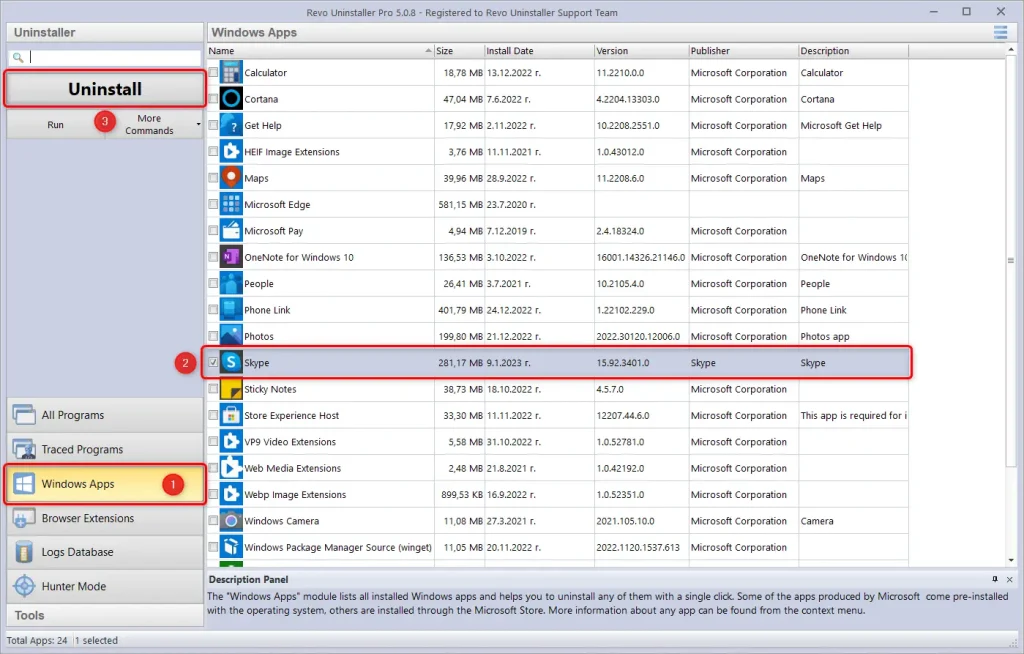
Step 2: Let Revo scan for leftovers and remove them automatically
Verdict: Revo Uninstaller Pro delivers excellent results for program removal. The advanced scanning finds traces that other tools miss. It’s worth the investment for serious PC maintenance.
App 2: IObit Uninstaller 15
IObit Uninstaller excels as an App Remover for Windows systems. It combines powerful removal with a user-friendly design. The tool specializes in removing stubborn programs and browser plugins.
This program uninstaller offers real-time protection. It monitors installations to ensure complete future removal. The interface is modern and intuitive for all users.
Reasons To Like:
- Powerful engine removes stubborn apps
- Browser toolbar and plugin removal
- Software health checker included
- One-click system optimization
- Regular database updates
- Clean, modern interface
Not To Like:
- Ads in the free version
- Automatic update notifications
- Some bloatware detection issues
- Limited advanced options
Working Steps:
Step 1: Choose programs to remove and click “Uninstall”.
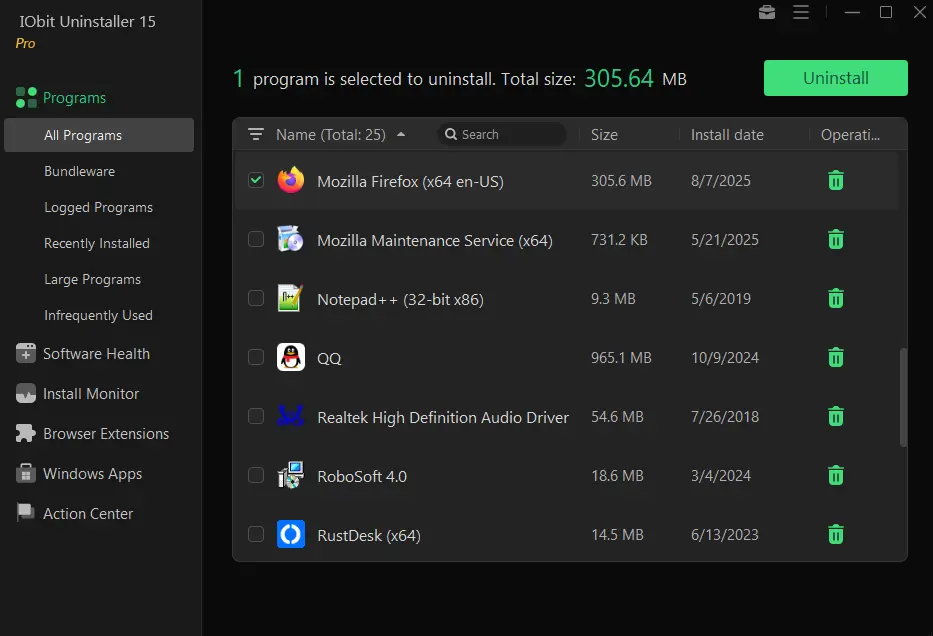
Step 2: Run a powerful scan to clean remaining traces
Verdict: IObit Uninstaller offers great value for everyday users. The free version does a solid job with basic uninstall tasks. For more powerful tools and a cleaner, ad-free interface, consider upgrading to the Pro version.
App 3: Geek Uninstaller
Geek Uninstaller is a lightweight program uninstaller tool. It requires no installation and runs from anywhere. This portable design makes it perfect for quick cleanup tasks.
The software focuses on simplicity and effectiveness. It removes programs completely without complex settings. Geek Uninstaller works fast on all Windows versions.
Reasons To Like:
- Completely portable, no installation needed
- Fast and lightweight operation
- Force removal for stubborn programs
- Registry cleaning included
- Free with no ads
- Simple, clean interface
Not To Like:
- No batch uninstall feature
- Limited advanced options
- Basic interface design
- No real-time monitoring
Working Steps:
Step 1: Open the Geek Uninstaller app. It will instantly display a list of all installed programs on your system.
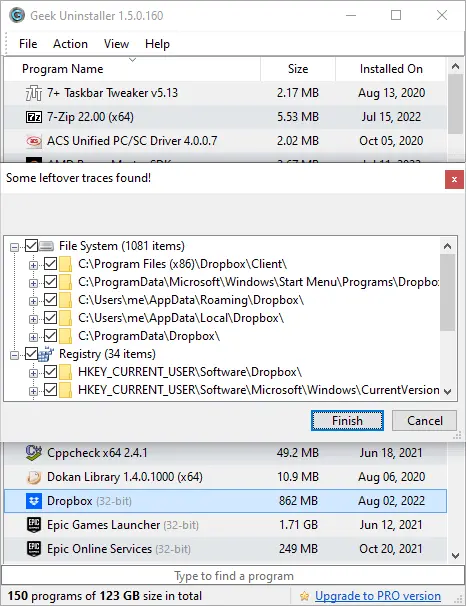
Step 2: Click on the program you want to remove, then hit the “Finish” button. Geek Uninstaller will run the standard uninstall process and then scan for leftover files and registry entries to clean them up.
Verdict Geek Uninstaller is perfect for users who want simplicity. The portable nature and free price make it attractive. It handles basic removal tasks very well.
App 4: Ashampoo Uninstaller
Ashampoo Uninstaller provides comprehensive program removal solutions. It monitors installations to track every change made. This ensures complete removal later when needed.
The tool offers detailed program information and removal options. Users can see installation dates, sizes, and usage data. This helps decide which programs to remove.
Reasons To Like:
- Installation monitoring for complete tracking
- Detailed program information display
- Snapshot comparison feature
- Deep registry scanning
- Secure file deletion
- Professional interface design
Not To Like:
- Paid software only
- Resource-intensive operation
- Complex for basic users
- Long scanning times
Working Steps:
Step 1: Select monitored programs for complete removal tracking.
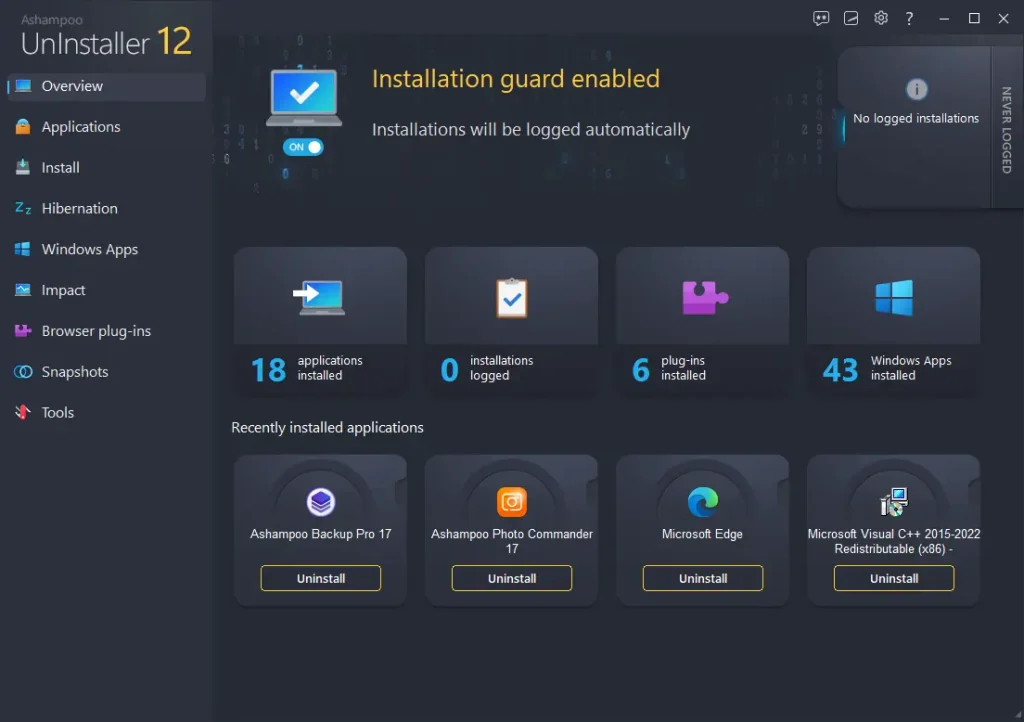
Step 2: Use deep scan mode to Uninstall software on Windows thoroughly
Verdict: Ashampoo Uninstaller suits power users who need detailed control. The monitoring feature ensures perfect removal. Price may deter casual users seeking free alternatives.
App 5: CCleaner
CCleaner combines program removal with system cleaning tools. It’s well-known for registry and junk file cleaning. The uninstaller feature works alongside other optimization tools.
This best App Uninstaller Windows offers both free and paid versions. The interface is familiar to millions of users worldwide. CCleaner handles basic program removal effectively.
Reasons To Like:
- Combines multiple system tools
- Familiar interface for most users
- Regular updates and support
- Registry cleaning included
- Startup program management
- Browser cleaning features
Not To Like:
- Basic uninstaller compared to specialists
- Past privacy concerns
- Heavy software for simple tasks
- Limited force removal options
Working Steps:
Step 1: Go to the Tools section and select the Uninstall option.
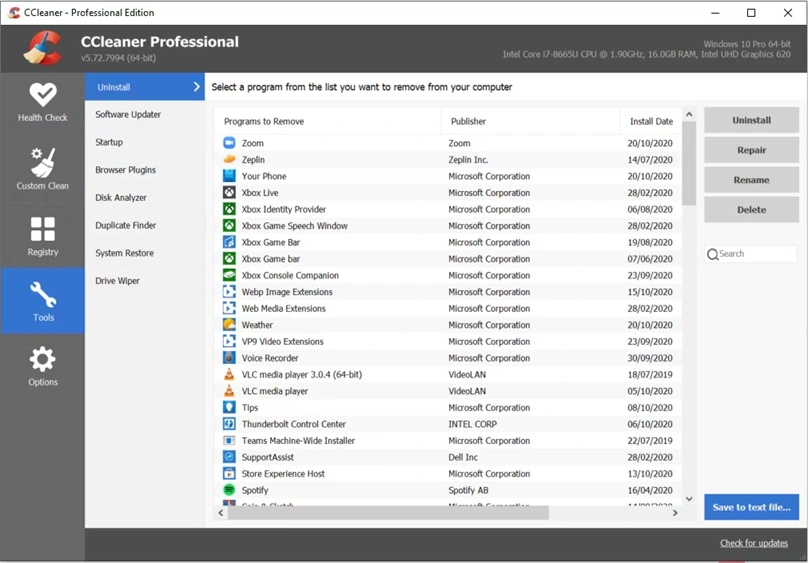
Step 2: Choose programs and run additional cleanup afterward
Verdict: CCleaner works well for users who want all-in-one solutions. The uninstaller is basic but functional. Consider it if you already use CCleaner for other tasks.
Part 6: How to Manually Uninstall Programs on Windows
Sometimes you need to remove programs on Windows manually. This happens when automatic uninstallers fail. Windows provides built-in methods for program removal.
The process involves using the Control Panel or the Settings app. Both methods access the same removal system. Manual removal works for most standard programs.
Step 1: Open Windows Settings and go to “App” or use Control Panel “Programs and Features”.
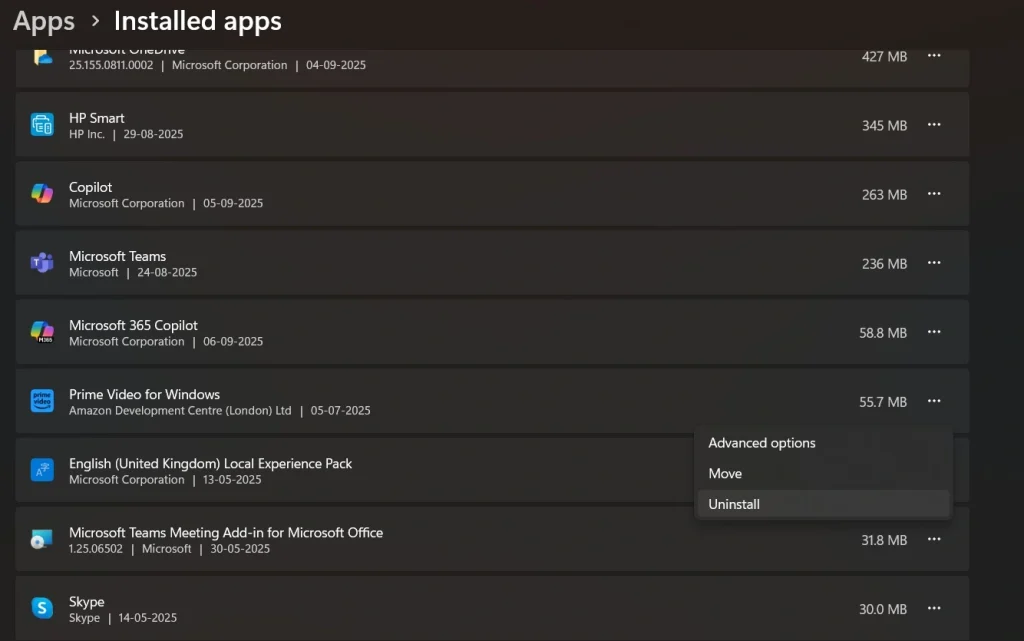
Step 2: Find your program in the list, select it, and click “Uninstall” to remove programs on Windows.
Author’s Tip
Always create a system restore point before major software removal. This protects your system if something goes wrong. You can quickly restore Windows to working condition.
Use multiple removal methods for stubborn programs. Try the built-in uninstaller first, then use specialized tools. Some programs need force removal to delete completely.
Keep your software uninstaller for Windows updated regularly. New versions handle more programs and fix bugs. Updated tools work better with the latest Windows versions and programs.
Conclusion
Choosing the right App Remover for Windows improves your PC performance. These tools remove programs completely, unlike built-in options. Clean removal prevents system slowdown and conflicts.
The five tools reviewed offer different strengths and features. Revo Uninstaller Pro leads for advanced users needing complete control. IObit Uninstaller balances power with ease of use perfectly.
Free options like Geek Uninstaller work well for basic needs. Paid tools offer advanced features like installation monitoring. Choose based on your specific requirements and budget constraints. Regular program cleanup keeps Windows running smoothly for years.
FAQs:
Q: What’s the difference between Windows’ built-in uninstaller and third-party tools?
Windows’ built-in removal often leaves behind files and registry entries. Third-party software uninstaller for Windows tools scan for these leftovers. They provide complete removal, including temporary files, registry keys, and hidden folders.
Q: Can uninstaller software damage my Windows system?
Good program uninstaller tools include safety features to protect system files. They create backups and avoid deleting critical Windows components. Always choose reputable tools and create restore points before major removals.
Q: Do I need to pay for a program removal tool?
Free options like Geek Uninstaller and Revo Free work well for basic needs. Paid versions offer advanced features like real-time monitoring and batch removal. Choose based on how often you need to remove apps and programs.
Author Bio:
Dinesh Lakhwani 

Dinesh Lakhwani, the entrepreneurial brain behind “TechCommuters,” achieved big things in the tech world. He started the company to make smart and user-friendly tech solutions. Thanks to his sharp thinking, focus on quality and the motto of never giving up, TechCommuters became a top player in the industry. His commitment to excellence has propelled the company to a leading position in the industry.
Popular Post











Recent Post

How To Change Default Apps For File Types In Windows
Windows is designed to make using your computer easy. One way it does this is by assigning default apps to different file types. This means when you open a file, Windows automatically opens it with a specific program. For example, photos may open with Photos, music with Groove Music, and PDFs with Edge. These default […]

How To Adjust The Mouse Pointer Speed: Complete Guide
Using a computer every day means you use the mouse a lot. The mouse pointer moves on the screen and helps you click, scroll, and select items. Many people never think about the speed of the mouse pointer. They have used the default setting for years. This can cause small problems over time. A slow […]

How to Change Mouse Scrolling Settings In Windows
A mouse is one of the most used computer tools. People use it every day. They scroll through emails. They scroll through documents. They scroll through websites and images. The movement becomes automatic. Most users do not notice it. That is why problems often go unnoticed. Scrolling problems show up slowly. At first, it feels […]

Keyboard Light Settings: Keyboard Lighting Control [Complete Guide]
Keyboards are no longer simple typing tools. Well, yes! Over time, they have evolved to include features that improve comfort, visibility, and overall experience. One of the most useful features today is keyboard lighting. It helps users work comfortably in low-light conditions. It also reduces strain when typing for long hours. Many users first notice […]

Customizing Pointer Appearance: Complete Guide
The way your mouse pointer looks on your computer may seem like a small detail. But customizing pointer appearance can make using your PC more comfortable and visually appealing. Many users do not realize that they can change the pointer size, color, and style to fit their needs. Whether you want a bigger pointer for […]

How To Choose a Computer Monitor: Monitor Buying Guide
Buying a monitor looks easy. Many people think all screens are the same. That belief causes regret later. A monitor is not just a display. It is a daily tool. You read on it. You work on it. You relax with it. Small problems become big over time. Poor brightness hurts eyes. Bad size causes […]

How To Get Help With File Explorer in Windows 11 [Complete Guide]
File Explorer is one of the most important tools in Windows 11. It is used to open folders, view files, and manage stored data. Almost every action on a Windows computer depends on it in some way. When users open documents, save downloads, or organize photos, File Explorer is always involved. Because it is used […]

How To Fix A Frozen Computer: Complete Guide [Windows 11/10]
A frozen computer is one of the most common problems Windows users face. The screen stops responding. The mouse pointer does not move. Keyboard inputs do nothing. You may hear the fan running loudly. Sometimes the system looks alive, but nothing works. This situation often happens when you are busy or working on something important. […]

How to Upgrade Computer RAM: Complete Guide
Upgrading RAM is one of the simplest ways to improve a computer. It helps the system feel faster and smoother. Apps open quicker. Browsers handle more tabs. Games and tools run with less delay. Many users search for how to upgrade computer RAM because it gives real results without high cost. You do not need […]

How To Clean Your Computer Keyboard: Complete Guide
A computer keyboard is touched more than almost any other device you own. It is used during work, study, gaming, and casual browsing. Fingers carry natural oils, sweat, and dirt. Small food crumbs fall between keys without notice. Dust settles each day slowly. Over time, this creates a hidden layer of grime. Many users do […]

