Advanced Driver Updater: Features and Working Process
Last updated on August 11th, 2025 at 6:18 am
Introduction:
The unsung champions, known as drivers, serve as the crucial bridge between our hardware and operating systems. Drivers ensure a harmonious interaction that enables our devices to function seamlessly. Despite their significance, drivers often operate behind the scenes, quietly working their magic.
But what if there was a way to not only recognize their importance but also optimize and update them effortlessly? That’s where an Advanced Driver Updater steps in.
In this article, we will talk about the advanced driver updater tool, exploring its remarkable features and working process. We will also provide you with step-by-step instructions on how to update drivers using Advanced Driver Updater.
Whether you’re a tech enthusiast looking to squeeze every drop of performance from your system or a casual user aiming for a smoother computing experience, understanding the role of an automatic driver updater tool can help you make the most of your technology.
What is Advanced driver updater?
Developed by Systweak Software, Advanced Driver Updater is your go-to solution for swiftly identifying and rectifying outdated drivers on your PC, ensuring your system runs smoothly and error-free. In a world where technology evolves at a breakneck pace, keeping your PC’s performance at its peak is paramount, and this sophisticated tool to update drivers is here to help you achieve just that.
Within its extensive database, Advanced Driver Updater houses a vast repository of drivers, making it the preferred choice for users seeking to install or update their drivers. With a comprehensive collection of driver updates at your fingertips, you can rest assured that your hardware components will always be equipped with the latest versions, optimizing your system’s efficiency and performance.
Advanced Driver Updater Features:
Wondering why this tool is considered one of the best driver updaters? Here are the top features of the Advanced Driver Updater tool.
1. Automated Driver Scanning:
Advanced Driver Updater automates the process of scanning your system for outdated or missing drivers, saving you valuable time and effort.
2. Extensive Driver Database:
It boasts a vast and up-to-date database containing a wide range of drivers for various hardware components, ensuring compatibility with most devices.
3. One-Click Driver Updates:
The task of updating drivers with this tool is a breeze. The software downloads and installs the latest driver versions with ease.
4. Scheduled Driver Scans:
Set up scheduled scans to regularly check for driver updates, ensuring your system stays optimized and secure over time. Advanced Driver Updater to automatically check for driver updates at regular intervals—daily, weekly, or monthly, depending on your preference.
5. Backup and Restore:
Advanced Driver Updater provides a reliable backup and restore feature, allowing you to save your current drivers before updates and revert to them if any issues arise. It provides you with a safeguard for peace of mind.
This nifty driver updater tool enables you to effortlessly back up compatible drivers and, in case the need arises, restore them with a simple click, sparing you from the hassle and uncertainty of driver-related mishaps. Your system’s stability and functionality remain under your control, ensuring a seamless computing experience.
6. Driver Exclusion List:
Customize your driver update preferences by excluding specific drivers from the update process, useful for avoiding potential compatibility problems.
7. Detailed Driver Information:
Get comprehensive information about your drivers, including version numbers and release dates, to help you make informed update decisions.
8. Minimizes System Crashes:
Outdated or incompatible drivers are a common culprit behind system crashes and freezes. Advanced Driver Updater actively reduces the risk of such disruptive events by regularly scanning your system, identifying problematic drivers, and promptly updating them to their latest, stable versions
9. Driver Update History:
Keep track of all driver updates and changes made to your system for reference and troubleshooting purposes.
10. Fix hardware Errors:
Many hardware issues stem from either defective, absent, or obsolete drivers. Advanced Driver Updater possesses the capability to address these issues effectively, sparing you the need for costly and time-consuming PC repairs. This not only saves you valuable time but also preserves your hard-earned money.
These impressive features collectively make Advanced Driver Updater an indispensable tool for maintaining your PC’s performance, security, and compatibility with the latest hardware and software updates.
How to Update Drivers Using Advanced Driver Updater Tool?
Well, it’s time to finally use the Advanced Driver Updater tool on your PC. Here are the steps to update drivers using the Advanced Driver Updater tool:
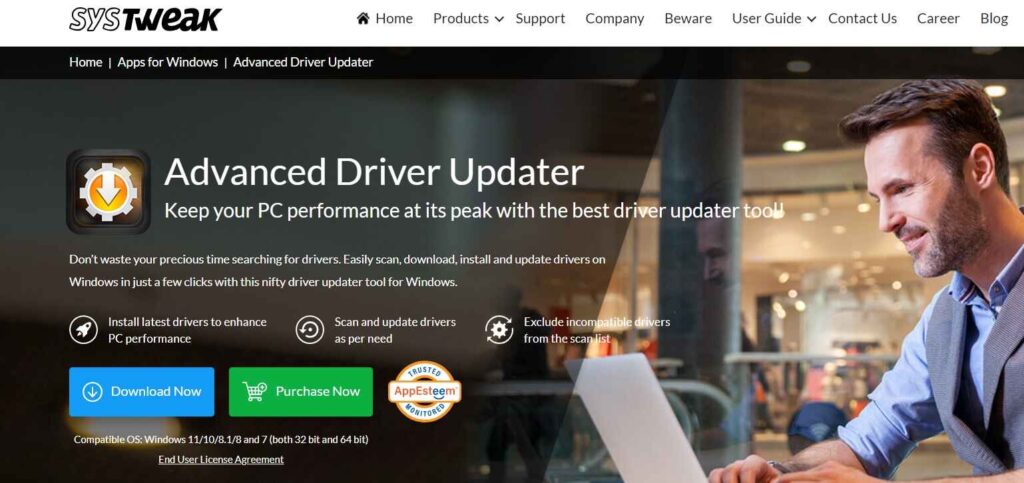
Step 1: Visit the official webpage of Advanced Driver Updater. Hit on the “Download Button”. Run the setup file, and begin by downloading and installing the Advanced Driver Updater software on your computer. After installation, launch the application.
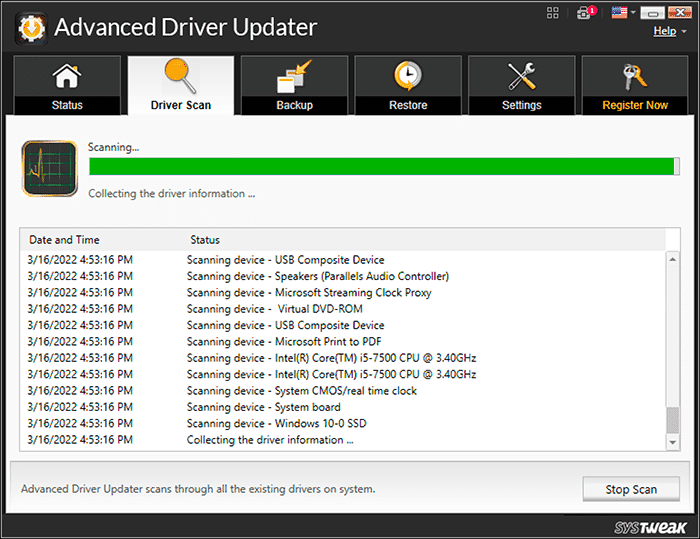
Step 2: Upon launching, the tool will perform an initial scan of your system to identify outdated or missing drivers. This automatic scan provides an overview of the current driver status on your PC.
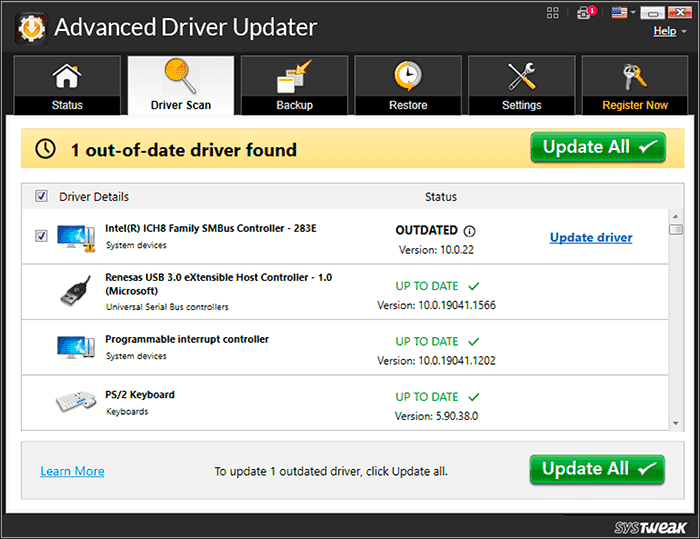
Step 3: Once the scan is complete, the tool will present you with a list of drivers that require updates. You can review this list, which typically includes driver names, current versions, and available updates.
Step 4: Now, it’s time to select the drivers you want to update. You can choose to update all drivers at once or select specific ones based on your preferences. The tool usually allows you to check or uncheck drivers in the list.
Step 5: After selecting the desired drivers, initiate the update process. Advanced Driver Updater will connect to its extensive database and download the latest versions of the selected drivers.
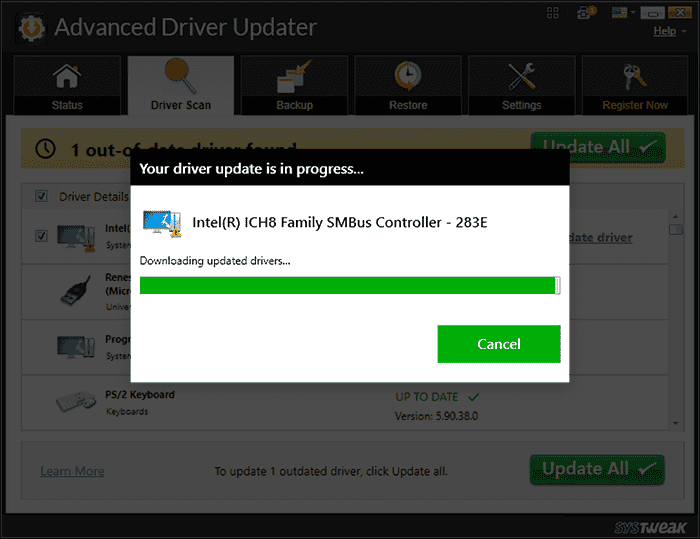
NOTE: Before proceeding with the installation of new drivers, consider creating a backup of your current drivers. While the tool usually does this automatically, it’s a good practice to double-check and ensure you have a backup in case you need to roll back to previous versions.
After the installation is complete, it’s essential to verify that the drivers have been updated successfully. Check the driver versions to ensure they match the latest ones available in the tool’s database. Also, test your system to ensure it functions smoothly with the updated drivers.
Pricing Plan: Advanced Driver Updater
Advanced Driver Updater by Systweak Software offers a straightforward pricing model with occasional promotional offers. Here’s the latest pricing structure:
| Plan | Details |
| Single User License | $39.95 (discounted from $69.95) |
| Annual Subscription | $39.95/year for 1 PC |
| Free Trial | Available with limited functionality |
| Bundle Offer | Includes Systweak Photo Organizer for free during promotional periods |
| Money-Back Guarantee | 60-day risk-free refund policy |
| Additional Discounts | Optional add-ons like the Advanced PC Cleanup Tool at 75% off during checkout |
Key Inclusions:
- Automatic driver scanning and updates
- Driver backup and restore
- Scheduled scans and exclusions
- Offline driver updates
- Enhanced gaming and system performance
Comparison Table: Advanced Driver Updater vs Competitors
Here’s a side-by-side comparison of Advanced Driver Updater with some top alternatives:
| Feature / Tool | Advanced Driver Updater | Driver Talent | Auslogics Driver Updater | Avast Driver Updater | Bit Driver Updater |
| Price | $39.95/year | $8.99 one-time | $49.95/year | $42.99/year | $14.77/3 months |
| Free Trial | Yes | Yes | Yes | Yes | Yes |
| Driver Backup/Restore | Yes | Yes | Yes | Yes | Yes |
| Offline Update | Yes | Yes | No | No | No |
| Scheduled Scans | Yes | No | Yes | Yes | Yes |
| Gaming Optimization | Yes | No | Yes | Yes | Yes |
| User Interface | Simple & intuitive | Basic | Modern | Sleek | Clean |
| Support | 24/7 Support | Email & Chat | Email & Phone |
Conclusion
So, we learned all about what is advanced driver updater, its functioning, and more importantly highlighted the Advanced Driver Updater features. In conclusion, Advanced Driver Updater emerges as an indispensable tool for anyone seeking to enhance their computer’s performance, stability, and security. By automating the driver update process, it simplifies the often complex task of driver management.
With this tool by your side, you can ensure that your PC operates at its peak potential, free from the woes of outdated or incompatible drivers. Say goodbye to system crashes, sluggish performance, and hardware errors – and welcome a smoother, more efficient computing experience with Advanced Driver Updater.
FAQs:
Is it necessary to update drivers regularly?
Yes, regular driver updates are essential to ensure your hardware functions correctly, improve system stability, and address security vulnerabilities. Outdated drivers can lead to performance issues and system errors.
How often should I schedule driver scans?
It depends on your usage and preference, but scheduling a weekly scan is a good starting point. Adjust the frequency based on how frequently you install new hardware or experience driver-related problems.
What if an updated driver causes issues?
In such cases, you can use Advanced Driver Updater’s rollback feature to revert to the previous driver version. It’s a quick way to restore system stability while troubleshooting the issue.
Author Bio:
Dinesh Lakhwani 

Dinesh Lakhwani, the entrepreneurial brain behind “TechCommuters,” achieved big things in the tech world. He started the company to make smart and user-friendly tech solutions. Thanks to his sharp thinking, focus on quality and the motto of never giving up, TechCommuters became a top player in the industry. His commitment to excellence has propelled the company to a leading position in the industry.
Popular Post











Recent Post

How To Fix Issues Downloading from the Microsoft Store On Windows
Introduction: Downloading apps from the Microsoft Store should be a simple task. You open the Store, search for an app, and click install. In most cases, the process works without any problem. However, there are times when the download does not start. In some cases, it may stay stuck at a certain percentage. You may […]

How To Fix Windows Update Issues Easily On Windows [2026]
Introduction Windows updates play an important role in keeping a computer stable and secure. They bring new features, fix known bugs, and improve overall performance. When updates work as expected, the system runs smoothly. However, when they fail, users often face slow performance, missing features, or security risks. This is why it becomes important to […]

How To Check If Your PC Is Infected? [Complete Guide]
Computers now sit at the center of almost everything we do. Well, yes! From sending emails to watching videos, we depend on them without much thought. Because of this, even a small issue can disrupt daily tasks. One common problem is hidden malware. It does not always show clear signs at first. It can enter […]

Repair Apps And Programs: Repair Apps That Aren’t Working
Computers have become an essential part of everyday life, supporting work, study, communication, and entertainment. Most of these activities rely on apps and programs, so when one stops functioning, even simple tasks can be disrupted. Common problems include error messages, frozen screens, or apps that fail to open. On Windows systems, such issues often arise […]

Troubleshooting Microphone Privacy Settings: Complete Guide
Sound is a basic part of how we use computers today. People attend meetings, record audio, speak to others, and use voice tools almost every day. A working microphone makes all these tasks easy. When the microphone fails, even simple work becomes difficult. Many users first think the device is broken. In reality, the issue […]

Windows Sound Settings – Sound Control Panel: Complete Guide
Sound plays an important role in how we use a computer every day. It supports both work and leisure. You need it for meetings, videos, music, and alerts. When audio fails, even simple tasks become difficult. Many users feel stuck when sound issues appear. This usually happens because they are not familiar with Windows Sound […]

Run a Troubleshooter For PC Issues Windows: Complete Guide
A computer plays an important role in everyday life. People use it for work, study, communication, and entertainment. When a problem appears, it can interrupt everything. Even a small issue can waste time and create frustration. Many users feel unsure about how to fix such problems. They often think they need expert help. In reality, […]
![Adjusting Audio Output Settings Complete Guide [2026]](https://www.techcommuters.com/wp-content/uploads/2026/03/Adjusting-Audio-Output-Settings-Complete-Guide.webp)
Adjusting Audio Output Settings: Complete Guide [2026]
Sound is part of almost everything we do on a computer. It lets you watch videos, join calls, play music, and hear alerts. When the audio stops working the right way, it can interrupt both work and daily use. That is why adjusting audio output settings matters for every user. Many people get unsure when […]

Artificial Intelligence Explained: Concepts, Terminology, Benefits, and Future Trends
Artificial Intelligence, or AI, is basically computers doing things that usually need a human brain. We’re talking about stuff like learning from experience, figuring out problems, understanding language, and making decisions. It’s not magic, just a lot of data, pattern-spotting, and math behind the scenes. Now, AI doesn’t actually think or feel like we do. […]

Resolving Microphone Detection Problems: Latest Guide [2026]
Microphones are important tools in daily life. People use them for office meetings, online classes, interviews, gaming, customer support, and content creation. When a system fails to detect a microphone, communication stops at once. This situation can cause stress and confusion. Many users believe the microphone is damaged. In reality, most problems are simple and […]

