












The photos folder looked normal at first glance. Then the storage warning popped up. One trip photo appeared four times. A tax PDF sat in three different folders. Two old setup files were still in Downloads, and each one was over 500 MB. Nobody plans this mess. Copies pile up slowly. A download runs twice. […]
How to Keep Num Lock On After Startup on Windows 10 [Top 3 Solutions]
If you have a habit of jumping on number pad to log in to your favorite site with numeric password soon after your system starts, or you want to send email and you have set numeric password for your email account, but wait! You aren’t able to do that, right?
It happens because Num lock isn’t turned on automatically soon after start up process completes. This is one of the annoying issues users face very often on Windows system. Now that you know the issue persist, but you have no clue how to fix it, then we are here to help you.
Let’s discuss how to keep num lock on after startup on Windows 10 following few simple steps.
Why enabling Num Lock is important?
Before you head to the steps to turn it on automatically after startup, let’s quickly disucss why keeping num lock enabled is important. Num lock gives you control over your number pad on keyboard on your Windows PC or laptop. You can disable it when number pad is not in use or you can quickly turn it on by pressing the Num Lock key just above number pad.
How to keep Num Lock on after startup?
Following few simple tweaks in system settings, you can keep Num Lock on right after startup on Windows 10. But how to do that? Let’s discuss.
Solution 1: Turn off Fast Startup
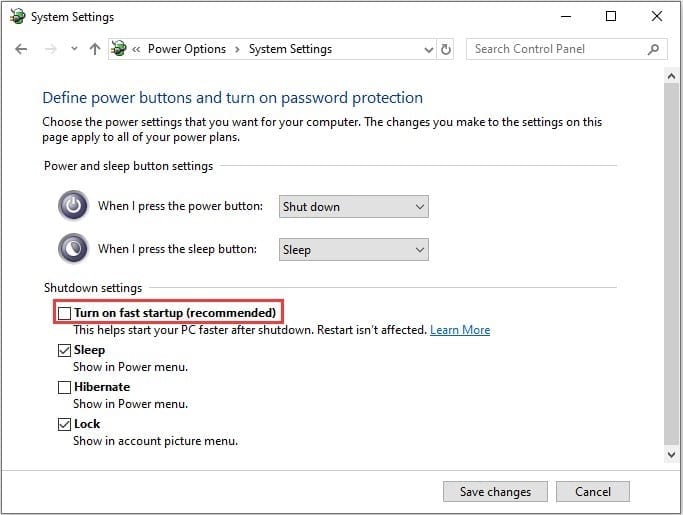
Fast Startup is a useful feature that combines the functions of both cold shutdown and the hibernate feature. It is designed to boost your computer startup process and save some time. While it is useful feature, but it may interfere with the system keyboard, including turning off the num lock key. To keep Num Lock on after startup, you can consider turning off fast startup. To do this, follow these steps:
- Open Run box by pressing Win + R keys.
- Here, type powercfg.cpl and hit Enter.
- Now on the Power Options window from the left pane, click Choose what The power button does.
- Next select Change settings that are currently
unavailable. - Press Yes when prompted on User Account Control window.
- Under Shutdown Settings, uncheck Turn on fast startup (recommended) option.
- Click Save changes.
Solution 2: Turn off Num Lock in System BIOS
You can turn off Num Lock in computer BIOS by following few quick steps. It helps you keep Num lock on after startup on Windows 10. To turn the Num lock off in your computer’s BIOS, follow these steps:
- To start you need to boot into
your system’s BIOS. To do this, you need to press the correct hotkey when the
PC is powering ON. You may find this key mentioned on Windows startup screen.
Some common keys to boot into BIOS are F2 and Delete keys. - Once you have booted into BIOS,
you need to search for an option that says whether or not the Num Lock is to be
turned on at startup. Once found disable this option. - Save the changes and exit the
BIOS. - Restart your PC to see the
changes.
Solution 3: Use Registry Editor
Next solution is to tweak Registry settings to keep num lock on after startup on Windows 10. To do this, follow these steps.
Note: We strongly recommend avoiding this step, if you don’t have idea about how registry works as one single edit done wrongly could cause multiple system issues unnecessarily.
- Search regedit in the search bar on the taskbar and press Enter to open Registry Editor.
- Press Yes when prompted.
- Now that you are on Registry
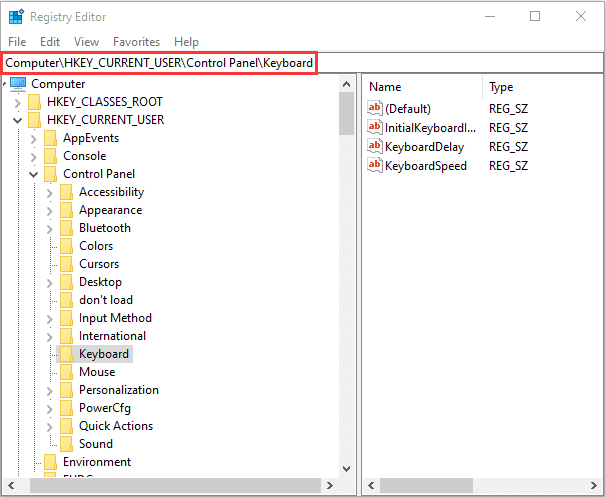
Editor window, navigate to: - Computer > HKEY_CURRENT_USER
> Default > Control Panel > Keyboard - Now in the right pane search InitialKeyboardIndicators registry
value and double-click on it. - Click Modify.
- Now you need to modify the
Value data to 2147483648. - Click Ok.
- Exit the registry editor and
reboot your PC.
Conclusion
Keeping Num Lock on after startup in Windows 10 may seem like a small adjustment, but it improves daily convenience. Many users depend on the numeric keypad for quick data entry. Turning it on manually every time can slow down routine work. This issue is usually linked to startup settings or BIOS configuration. Once the correct change is applied, the system remembers your preference and starts the way you expect.
It is a good idea to check both Windows settings and BIOS options if the problem continues. Sometimes, Fast Startup or registry values can also affect this behavior. Taking a few minutes to review these areas can fix the issue permanently. Regular system checks and updates help maintain such settings over time. With the right setup, your keyboard will be ready to use as soon as your system starts.
FAQs
1. Why does Num Lock turn off after every restart?
This usually happens due to default startup settings in Windows or BIOS. Some systems are configured to keep Num Lock off by default. Fast Startup can also affect this behavior. Adjusting these settings helps ensure Num Lock stays enabled after each restart.
2. Can I enable Num Lock permanently in Windows 10?
Yes, you can enable it permanently by changing certain system settings. This can be done through the registry or BIOS configuration. Once set correctly, Num Lock will remain on every time your system boots without needing manual activation.
3. Does Fast Startup affect Num Lock settings?
Yes, Fast Startup can sometimes override certain keyboard settings, including Num Lock. It loads a partial system state instead of a full boot. Disabling or adjusting Fast Startup may help keep Num Lock enabled consistently.
Author Bio:
Dinesh Lakhwani 

Dinesh Lakhwani, the entrepreneurial brain behind “TechCommuters,” achieved big things in the tech world. He started the company to make smart and user-friendly tech solutions. Thanks to his sharp thinking, focus on quality and the motto of never giving up, TechCommuters became a top player in the industry. His commitment to excellence has propelled the company to a leading position in the industry.
Popular Post
Recent Post

Wise Duplicate Finder Review: Real Results from Wise Duplicate Finder
Read my honest Wise Duplicate Finder review. See features, pricing, pros and cons, and real PC test results. Find out if this free duplicate cleaner can free up your Windows storage.

How to Recover Deleted Files from Pen drive, USB Drive, SD Card
Introduction: On tech forums, you’ll often see posts like this: “I connected my pen drive to my laptop this morning, but the folder was empty. All my college project files had vanished. I don’t have a backup. Can someone help me?” Stories like this are very common. Pen drives, USB drives and SD cards are […]

How To Recover Files Deleted from the Recycle Bin [Windows 11]
Losing a file can happen in seconds. You clear your desktop, hit Delete, and empty the Recycle Bin. Then, just when you need that file again, it seems to have vanished. This guide will walk you through ways to restore files removed from the Recycle Bin. We will begin with simple fixes, then look at […]

Disk Drill Data Recovery Tool Explained: Full Review and Guide
It happens in a split second. You delete a folder by mistake. Your drive stops showing up. A photo album from your last trip just vanishes. And your stomach drops. Lost files feel personal. They are not just data. They are memories, work hours, and sometimes years of effort packed into a few gigabytes. When […]

Recover Deleted Files In Windows 11 With Software & Without
Introduction What is the first thing that goes through your mind the second an important file vanishes from a Windows 11 PC? For most people, it is a mix of panic and disbelief, followed by a frantic click through every folder that file could possibly be hiding in. It happens in a split second: one […]

EaseUS Data Recovery Wizard: Everything To Know
Data loss does not always come from a big disaster either. Most cases start small and boring. A drive gets formatted by mistake. A laptop freezes mid-save and restarts on its own. A memory card stops showing up after being pulled out too fast. None of these feel like emergencies at first, until you realize […]

Recuva Data Recovery Tool: Is it Actually Worth it?
When I first tried Recuva Data Recovery, I wanted to see if it could really bring back lost files. The tool is free, small in size, and promises quick recovery, which made me curious enough to test it on my own PC. The setup was fast, and the wizard guided me step by step. I […]

GetData Recover My Files Data Recovery Tool: Honest Review
A hard drive error brings a special kind of silence. Well, yes! The screen freezes, then a message appears saying the drive can’t be found or must be formatted. In that moment, years of photos and work files feel at risk. It never happens at a good time. Coffee spills near a laptop, a memory […]

Windows File Recovery: A Complete Review [Tried & Tested]
Imagine this. You spend hours perfecting a video project. You hit save. Then your laptop freezes, reboots, and when the screen comes back. The file is gone. Your stomach sinks. It’s not just you. Lost files happen all the time. A dropped hard drive, a bad update, an accidental delete, or a corrupted partition can […]

