












A slow computer makes it hard to focus. Programs take too long to open. Free space keeps shrinking until the disk is almost full. This happens to most PC owners at some point. Even new machines can slow down after a while. That is the exact problem cleanup tools are built to solve. They comb […]
Make The Most Out Of Skype – Use Skype Like A Pro
Since 2003, Skype has become a regular mode of communication. Skype is one of the best Text and Video chat platforms for personal and professional users. You can connect to anyone on Skype across the world on a Voice or Video call. All you need to go for a Skype download on your device and create a Microsoft Skype Account and go for a Skype login to connect the world.
Though you must be using Skype Account since long however there are still ways that you might not be aware of. There is always a scope of improvement in the experience using tips and tricks to do small tweaking and enhance the quality or do more.
We have explored a few most useful and unknown tricks of Skype in this article.
Setup A Skype Caller ID
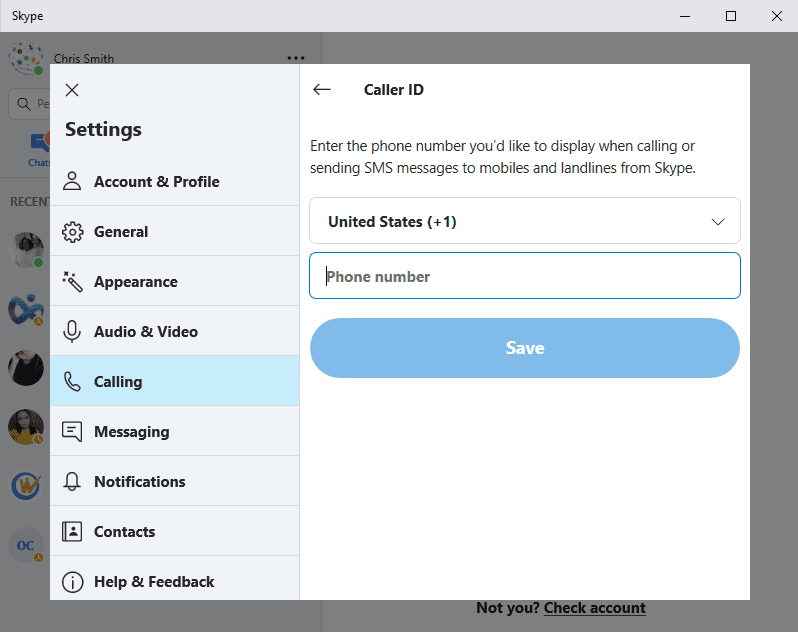
Setting up a Skype Caller ID is very important while calling mobile numbers or landline numbers.
Step 1. Click on three dots to open the menu on the top and click on ‘Settings’.
Step 2. Click on ‘Calling’ option from the left-hand side panel.
Step 3. Click on the ‘Caller ID’ option and enter a phone number to display whenever you make a call.
Remove All Skype Ads
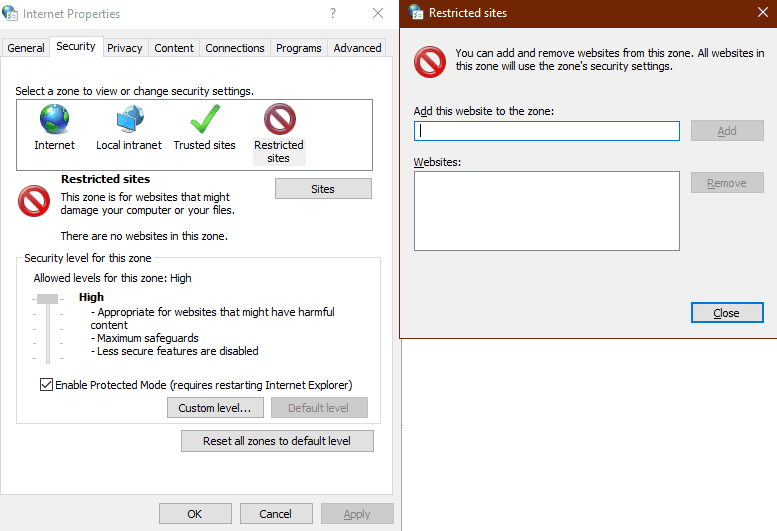
Skype Ads are annoying as they popup while using Skype for communicating. You can block all the Skype Ads using this simple trick on your PC.
Step 1. Get into ‘Control Panel’ and go to ‘Network and Internet’.
Step 2. Click on Internet Options and a new window will open up. You may also try (Win + R) top open Run command window and type in ‘inetcpl.cpl’ and press Enter.
Step 3. Go to the ‘Security’ tab and select ‘Restricted Sites’. The ‘Site’ button will become accessible, click on it.
Step 4. On the next page enter this: ‘https://apps.Skype.com/’, and click on Add button.
Note: You will need to restart your PC and open Skype to get the changes in effect and all Ads will not be visible.
Skype Call Forwarding
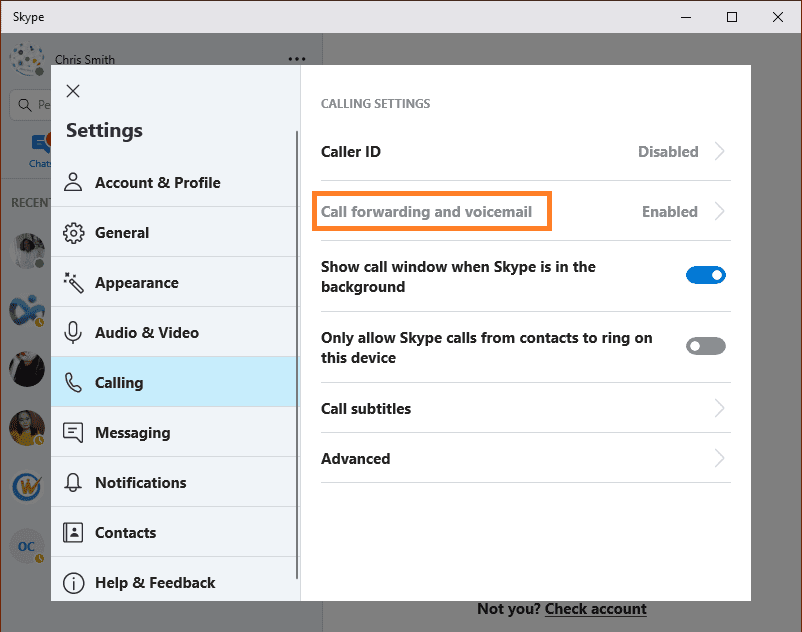
To set up Skype call forwarding, follow these steps:
Step 1. Click on three dots to open the menu on the top and click on ‘Settings’.
Step 2. Click on ‘Calling’ option from the left-hand side panel.
Step 3. Click on the ‘Call Forwarding and Voicemail’ option. Enter a Phone number to forward any call and enable the radio button.
Create a Skype Meeting Using Outlook
Microsoft Outlook can be used to setup a Skype Meeting without wasting time to schedule meetings on other tools. Chances of errors are higher on other tools. Someone might forget to join on time while others don’t have appropriate browser plugins installed or some other issue. Avoid all this hassle by simply using a Skype for Business account.
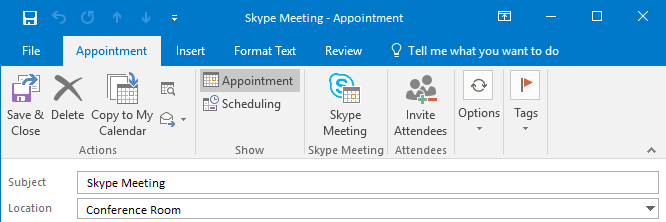
Step 1. While creating an appointment on Outlook, Go to ‘Skype Meeting’ on the Appointment tab.
Step 2. This will send an Email invitation with an embed link in the description. People can click on the link to join the meeting or setup a reminder to click and Join Meeting whenever it pops up.
Step 3. Skype for Business will automatically launch to join the meeting.
Note: If you are unable to see the ‘Skype Meeting’ option on your Outlook, Go to File menu ‘Options’ ‘Add-ins’. Go to ‘Manage’ dropdown option click on ‘COM Add-ins’ and click on ‘Go’. Put a check in front of ‘Skype Meeting Add-in for Microsoft Office’ and click on ‘Ok’.
Use Skype Shortcuts
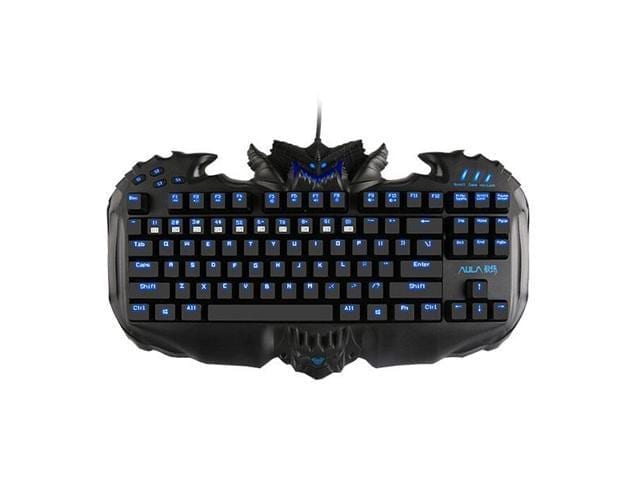
If you know a few basic simple keyboard shortcuts, life becomes easy during a meeting or a call to manage or take control over the meeting.
| Pause/Resume Video | Win + F5 |
| Place a Call on Hold | Ctrl + Shift + H |
| End a Call | Alt + Q |
| Stop Sharing Your Screen | Ctrl + Alt + S |
| Regain Control of a Shared Screen | Ctrl + Alt + Spacebar |
| Accept an Incoming Invitation | Win + Shift + O |
| Decline an Incoming Invitation | Win + Esc |
| Mute/Unmute Audio | Win + F4 |
There are hundreds of keyboard shortcuts for Skype. We have listed a few basic shortcuts and rest can be accessed on Support.Microsoft.com.
Record A Call OR Meeting
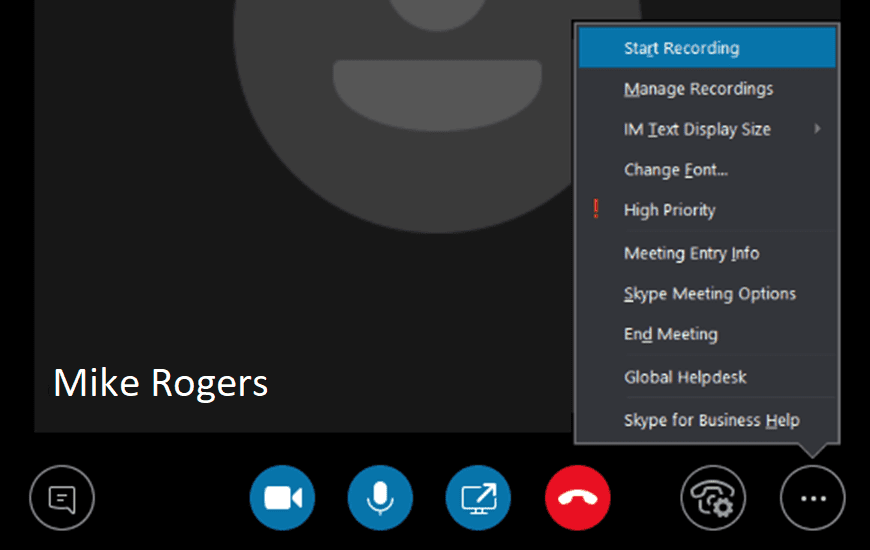
There are people who get complete blank once the meeting is over or after the call ends. To overcome this, you can record all your Skype meetings. Skype latest version not only records a call, but also records call activity, audio, video, screen share, and instant messages. You can do the same by following these steps:
Step 1. When a Skype meeting or Conference is initiated, click on Meeting options (…) and then click on ‘Start Recording’.
Note: Everyone connected to the meeting will be notified that you’re recording the session. A red circle symbol will appear at the top of the call throughout the session. The meeting can be paused or stopped as per the need. As soon as the meeting finishes, the recording will end and will be automatically saved in MP4 format.
Where to Look for A Recorded Session?
To find the recorded session, open the main screen of Skype for Business and go to ‘Settings’ dropdown list. Click on ‘Tools’ ‘Recording Manager’. Here you can find metadata of your recordings, like file name, date and length. You can also browse the files on your PC and play the recordings or share it with someone.
Change Privacy Relationship for Contacts
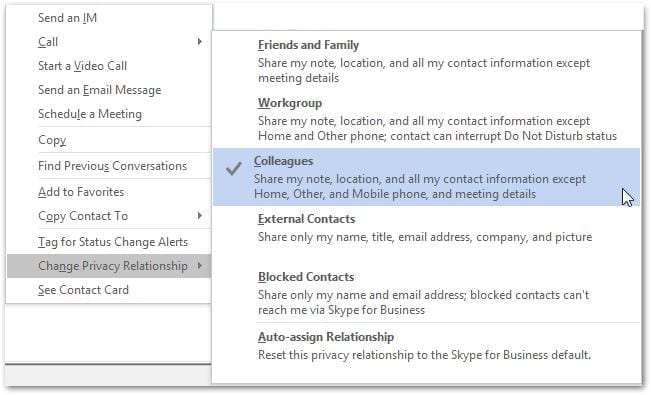
You can customize contact categories out of Five Relationship Levels in your Skype contact category. Every individual contact can be assigned within one of these categories. Each relationship level is assigned with different permissions. For example, Friends and Family can’t see your meeting details and Workgroup can interrupt your ‘Do Not Disturb’ status.
Right-click on their name and select ‘Change Privacy Relationship’. You can review the current category and change according to your preference. You can also select multiple contacts to change the relationship category but pressing Ctrl key and clicking on multiple contacts one by one. If you want to revert the changes of relationship categories, you may click on Auto-assign Relationship at the bottom.
Initiate A Whiteboard, Poll OR Q&A In Skype

This is a very interesting feature of Skype meeting. Add more fun and creativity to your meetings by adding these small features to it. To add any of these, click on ‘Present Content Button’ click on ‘More’, and then choose any of the above three options (Whiteboard, Poll, or Q&A). These options will be displayed on everyone’s screen once selected.
Selecting Whiteboard will open a white drawing area with tools to draw or highlight something just like MS Paint. The whiteboard will minimize if you switch to other presenting options, but the content will remain intact for further use.
If you go for a Poll option, it will open a window to vote out options. You can gather choices of other participants by using a Poll option. You can select ‘Poll Actions’ to adjust the settings, like hiding the votes from attendees, saving the results, or closing the poll.
If you go with Q&A, it will switch the standard chat window into a Question and Answer module. If any attendee asks a question, you’ll receive a notification to type a response and press Enter. This will display the question and answer to everyone in the meeting. You can also save the recorded Q&A session for further references.
Open a PowerPoint Presentation in Skype
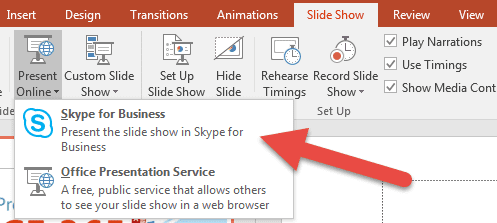
If you want to share a PowerPoint Presentation, the integration with PowerPoint allows you to do so.
Step 1. Open the presentation in PowerPoint.
Step 2. Click on the ‘Slide Show’ tab and click on ‘Present Online’ and select ‘Skype for Business’.
This will start sharing the presentation with a current meeting or you can initiate a new meeting with PowerPoint Presentation. You can do the same with other Office applications. Simply go to the ‘File’ menu and click on ‘Share’ and click on ‘Present Online’. Select ‘Skype for Business’ from the dropdown to start presenting any file.
Backup Skype Chat History
To backup Skype chat history, press (Win + R) to open ‘Run’ command and type %appdata%\Skype and click on ‘Ok’.
Windows Explorer will open up the folder with your ‘Skype ID’ as a name. Here we are searching for a file called ‘main.db’, this file contains all your Skype chat history. You can copy and paste the file to a different location to create a secured backup on your PC.
Wrapping Up
If you have Skype latest version or you have tried Skype update, you would be able to gain access to all these Skype tips and tricks. All you need to do is use your Microsoft Account to go for Skype login on App or use Skype web and configure these settings.
You can also go for Skype download on your smartphone and use the Skype App. Use these simple tips and tricks while using Skype and leave your best impression on your connections.
For more such tips, tricks and tech related updates subscribe to this Blog and if you are more into tech-related videos do watch and subscribe to our YouTube channel. You could also reach us on Facebook and Pinterest.
For any suggestions and queries, you may drop a comment and we shall revert soon.
Author Bio:
Dinesh Lakhwani 

Dinesh Lakhwani, the entrepreneurial brain behind “TechCommuters,” achieved big things in the tech world. He started the company to make smart and user-friendly tech solutions. Thanks to his sharp thinking, focus on quality and the motto of never giving up, TechCommuters became a top player in the industry. His commitment to excellence has propelled the company to a leading position in the industry.
Popular Post
Recent Post

Fortect Software Review: The Ultimate PC & Mobile Cleaning, Optimization & Security Tool
Slow computers are a common problem for almost every Windows user. Well, yes! Over time, your PC picks up junk files. These files sit quietly in the background. They take up space and slow things down. Programs open slower. Windows takes longer to boot. Even simple tasks like opening a folder can feel sluggish. There […]

CCleaner PC Optimizer Review: A Complete Guide for Windows Users
If your computer has started to feel slow, you are not alone. Most Windows PCs slow down over time. Junk files pile up. The registry gets messy. Too many apps open when you start your PC. All this adds up and makes even a good machine feel tired. This is where a PC cleaner tool […]

Auslogics Duplicate File Finder: Full Review and User Guide
A computer quietly gathers clutter over time. This includes duplicate photos, repeated downloads, and forgotten backups hiding in random folders. This buildup slowly eats away at storage and can make even a fast PC feel sluggish. Manually finding and deleting duplicates is tedious. It means checking every folder, comparing file names, and guessing which copies […]

CCleaner Duplicate File Finder: Key Features, Pricing, Step-by-Step Guide and More
Every computer collects junk over time. Right? Well, yes! Photos often get copied twice. Documents get saved in two folders by mistake. Old downloads pile up and never get deleted. This slowly eats up your storage space, and most people do not even notice until their drive is almost full. That is where a duplicate […]

Duplicate File Finder Pro: A Complete Review, Everything You Should Know
Computers collect thousands of files over time. Well, yes! Many of them end up being duplicates created by backups, downloads, or accidental copies. These extra files take up valuable storage space and make it harder to keep everything organized. Finding and removing them manually can take hours. Right? Duplicate File Finder Pro is a tool […]

Top 3 Duplicate File Finder for Windows 11 & Windows 10
If your PC storage keeps filling up even after you delete big files, duplicate files could be the real reason. Most of us save the same photo twice, download a document more than once, or copy a whole folder by mistake. Over months and years, these duplicate files pile up quietly. You do not even […]

Monitor Screen Calibration Guide: Everything You Should Know
Your monitor shows colors every single day. But are those colors actually correct? Most people never stop to check this. They just use the screen as it comes out of the box. This habit can lead to wrong colors in photos, videos, and work files. Colors may look too warm or too cold without you […]

How To Check Installed RAM and RAM Slots [Complete Guide]
RAM plays an important role in how smoothly a computer runs. Short for Random Access Memory, it stores the data and instructions that Windows and active applications need at any given moment. From opening multiple browser tabs to running games and productivity software, RAM helps keep everything responsive. A system with limited memory may experience […]

What is Microsoft Autopilot Everything You Need To Know
Technology has changed the way companies manage computers. Well, yes! Employees now work from offices, homes, and remote locations. Setting up devices manually for every worker takes time and effort. It can also create mistakes that slow down productivity. This is where Microsoft Autopilot becomes useful. It helps businesses prepare and deploy Windows devices with […]

