









Your Windows screen does not stay on forever. After a certain amount of idle time, it turns off or locks automatically. This is a normal feature found on both laptops and desktop PCs. It helps save battery power and reduces electricity use. It also keeps your files and personal information safe when you step away […]
Fixing Lock Screen Timeout – Screen Timeout Settings
Your Windows screen does not stay on forever. After a certain amount of idle time, it turns off or locks automatically. This is a normal feature found on both laptops and desktop PCs. It helps save battery power and reduces electricity use. It also keeps your files and personal information safe when you step away from your computer. The setting that controls this is called the screen timeout or lock screen timeout.
For many people, the default timing does not feel right. Some users find that the screen locks too quickly. This often happens while reading a long article, going through documents, or watching a video without moving the mouse. Others face the opposite problem. Their display stays on for far too long, even when the PC is not in use. On laptops, this can drain the battery faster than expected.
The good news is that changing this setting is easy. Windows already includes the tools you need. You do not have to install extra software or be a computer expert.
In the steps below, you will learn how to adjust the screen timeout and choose a setting that better suits your daily use.
Fast Answers to Common Questions
What causes a screen to lock fast?
A short timer setting is the main cause. Many devices ship with a default time of one or two minutes. This helps save power right away. But it can feel too short for normal tasks. You can always change this value later.
Can a Windows update change my timer?
Yes, it can. A recent update may reset your timer back to default. This happens without any warning to you. This is one reason your screen may lock faster than before. Checking your settings after each update is a smart habit.
Does a longer timer hurt my battery?
Yes, a longer timer uses more battery power. Your screen stays lit for longer each time. A shorter timer saves more power across the day. Try to pick a time that fits your daily habits well.
Can I stop my screen from locking at all?
Yes, most devices let you pick never as an option. This works well for short tasks like a call or a video. But this is not good for daily use. Your battery drains fast and your screen stays open longer than it should.
What Is Really Going On with Your PC’s Lock Screen?
Your screen timer setting determines how long your display stays on before Windows turns it off or locks the device. This option is available within the system settings menu. However, many users never open these settings unless they run into a problem. As a result, they continue using the default timeout value, even if it is too short or too long for their daily activities. What works well for one person may not be suitable for another, especially if they spend long periods reading, watching videos, or giving presentations.
In some cases, the timeout setting may change without the user realizing it. Certain applications can modify power settings automatically to improve performance or save energy. Battery saver modes may also shorten the screen timeout period to extend battery life.
On work or school computers, system administrators often enforce specific lock screen policies through company or organizational rules. Because of these factors, your screen may continue locking at unexpected times, even after you have manually adjusted the setting yourself.
5 Solutions to Fix Lock Screen Timeout
There are many ways to solve this timing problem on Windows. Some tools are simple and built for daily use. Other tools go deeper into your system files. Below are five solutions that work for most users. Try them one by one until your screen behaves the way you want.
Method 1: Use the Settings App
The Settings app is the easiest place to start. Windows places this option right inside your personal settings. You do not need any extra tools for this method.
You can also reach this page from your lock screen page. Windows added a quick link there for faster access. This link saves you a few extra clicks each time.
This method works on both Windows 10 and Windows 11. It takes less than a minute from start to finish.
Step 1: Open Settings, then go to Personalization, then click on Lock screen, then click on the link near the bottom for screen timeout.
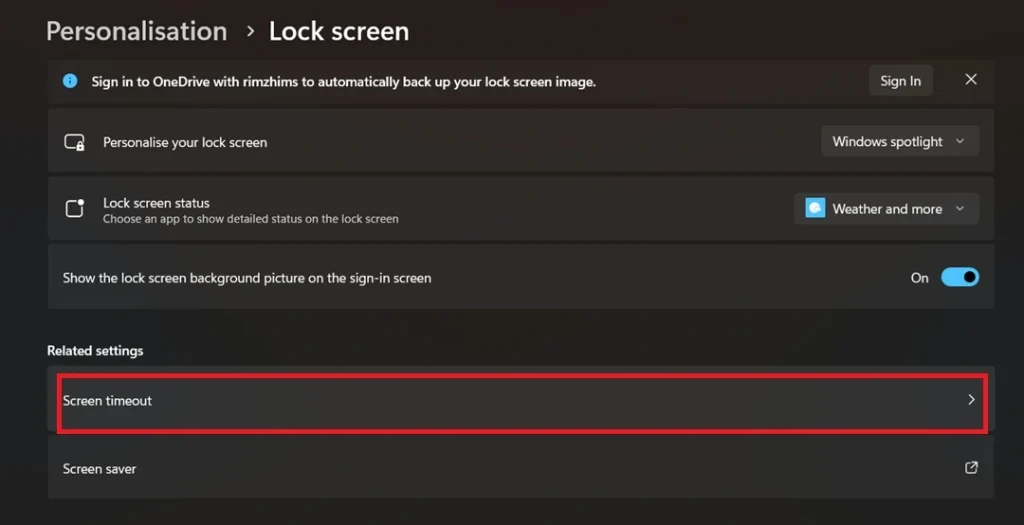
Step 2: Pick your desired time from the drop-down list for both battery power and plugged-in mode.
Method 2: Use Control Panel Power Options
Control Panel is an older tool inside Windows. Many long-time users still trust this tool over newer ones. It offers more detailed power choices than the basic Settings app.
This tool also lets you build separate power plans. Each plan can carry its own timer value. This helps if you switch between work mode and travel mode often.
This method suits users who like more control over their device. It also works fine on older Windows machines.
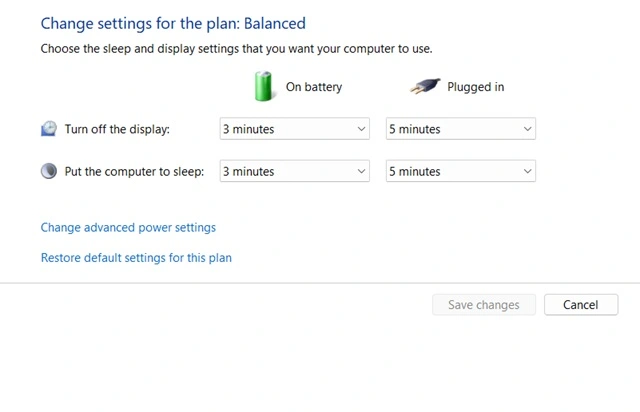
Step 1: Open Control Panel, then click on Hardware and Sound, then choose Power Options from the list shown.
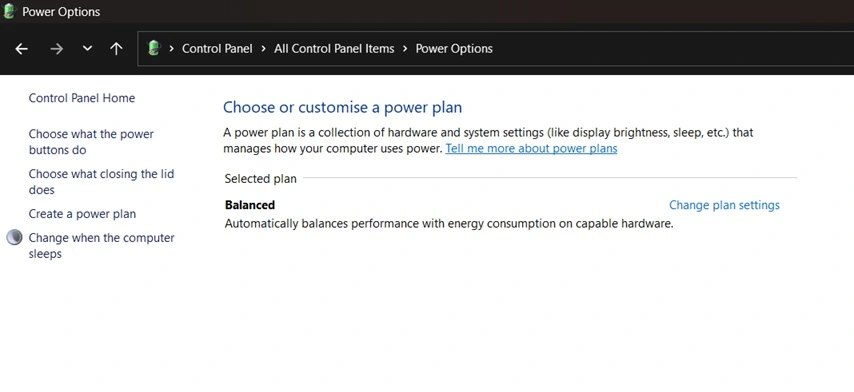
Step 2: Click on Change plan settings beside your active plan, then pick a new time and click Save changes.
Method 3: Use Group Policy Editor
Group Policy Editor is a strong tool inside Windows. It is mostly used on work and school computers. This tool helps when normal settings do not stick around as expected.
Some office networks force a fixed timer through policy rules. These rules come from the IT team in charge. This tool lets you check those rules, if your account has the right access.
This method needs a bit more care than the others above it. A wrong change here can affect other parts of your system, too.
Step 1: Press the Windows key plus R, type gpedit.msc, then press Enter to open the editor window.
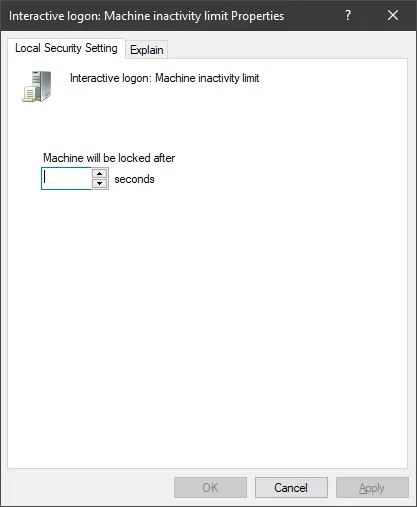
Step 2: Go to Computer Configuration, then Windows Settings, then Security Settings, then Local Policies, then adjust the machine inactivity limit value.
Method 4: Use Command Prompt with Powercfg
Command Prompt gives power users a fast path to fix this issue. The powercfg command can set or check your timer right away.
This method skips all menus completely. It uses just one short line of typed text to make the change.
This works well as a backup when other tools fail to save your changes properly.
Step 1: Open Command Prompt as administrator, then type powercfg /change monitor timeout ac and your wanted minutes.
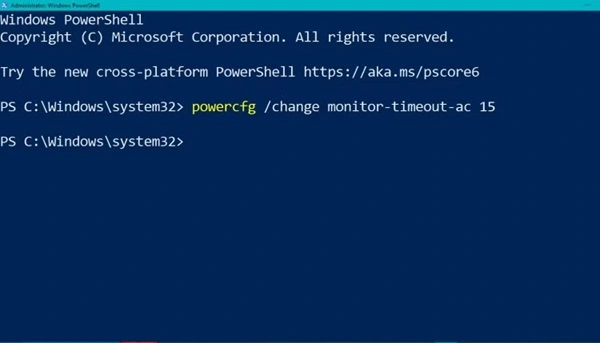
Step 2: Type powercfg /change monitor timeout dc and your desired minutes for battery mode, then press Enter.
Extra Tricks for Better Screen Control
Beyond the basic fixes above, a few smart habits can help you manage your screen timing even better. These tips save power and stop annoying lockouts during important tasks.
- Use Presentation Mode: Turn this on before a call or meeting. It stops your screen from sleeping while you talk.
- Keep Drivers Updated: Old graphics drivers can mess with your sleep timing. Update them often for smooth results.
- Check Third-Party Apps: Some apps add their own power rules quietly. Remove ones that fight with your chosen setting.
- Try a Mouse Jiggler Tool: Some free tools move your mouse a tiny bit on their own. This tricks your system into staying awake.
- Set Different Times for Each Mode: Pick a shorter time for battery use. Pick a longer time for plugged-in use.
- Watch for Pending Updates: A pending update can reset your timer without warning. Install updates fully to avoid this issue.
- Ask IT About Work Devices: IT teams often lock this setting on company laptops. Ask them if your change will not save.
- Restart After Big Changes: A quick restart helps your new setting take full effect across the system.
Conclusion
Changing your screen lock timeout is simple once you know where to look. Windows provides several ways to adjust this setting, allowing you to choose the method that works best for you. Most users can make the change through the Settings app or Control Panel.
If these options do not solve the problem, advanced tools such as Registry Editor can give you more control. Setting the right timeout can improve both battery life and everyday convenience.
After changing the setting, use your computer for a few days to see how it feels. You can always adjust it again until you find a timeout that fits your routine.
FAQs:
Why does my screen lock again after I change the setting?
If your screen keeps locking after you change the timeout setting, another feature may be overriding it. A pending Windows update, power-saving mode, or third-party app can sometimes reset these settings. On work or school PCs, IT policies may also enforce a specific lock time. Restart your computer after making changes, as this often helps the new settings take effect.
Is it safe to use Registry Editor for this fix?
Yes, Registry Editor is safe to use if you follow the instructions carefully. Since the registry stores important system settings, making incorrect changes can cause issues. Always back up the registry or create a restore point before making any edits. This allows you to undo changes if needed.
Can I set different values for battery and plugged-in mode?
Yes, Windows lets you choose separate screen timeout values for battery and plugged-in modes. This helps save battery power while away from a charger and keeps the screen on longer when you are working at your desk.
Author Bio:
Dinesh Lakhwani 

Dinesh Lakhwani, the entrepreneurial brain behind “TechCommuters,” achieved big things in the tech world. He started the company to make smart and user-friendly tech solutions. Thanks to his sharp thinking, focus on quality and the motto of never giving up, TechCommuters became a top player in the industry. His commitment to excellence has propelled the company to a leading position in the industry.
Popular Post
Recent Post
How to Recover Unsaved Word Document? [Complete Guide]
It can be frustrating when a Word document suddenly disappears. You may have spent hours writing a report, assignment, or letter. Then your computer crashes, the power cuts out, or Word closes before you save the file. In that moment, it may seem like all your work is gone. This happens more often than most […]

What Is A Zero-Day Attack And How Can You Defend Against One?
Picture this. A hacker finds a secret crack in your favorite app. You don’t know it’s there. The company that built the app doesn’t know either. But the hacker does. And they use it right away, before anyone can stop them. This is the heart of a zero-day attack. It strikes when a flaw is […]
Iolo System Mechanic PC Cleanup Software: Hands-On Performance Review
PCs feel fast on the first day. Every click is quick. Apps open right away. With time, things slow down. Programs take longer to load. Files open slowly. Fans get loud even during light use. This happens to almost every computer, no matter how careful you are. The reason is clear. Junk files build up […]

Advanced SystemCare PC Cleanup Tool: A Detailed Review
You turn on your PC and wait. And wait. The same laptop that once opened apps in a snap now feels tired. This is not bad luck. It just happens over time. Files pile up. The registry gets messy. Old drivers stay installed long after they are useful. Junk data quietly eats up space on […]

Avast Cleanup PC Cleaner and Optimizer: Everything You Need to Know
A slow computer makes it hard to focus. Programs take too long to open. Free space keeps shrinking until the disk is almost full. This happens to most PC owners at some point. Even new machines can slow down after a while. That is the exact problem cleanup tools are built to solve. They comb […]

Fortect Software Review: The Ultimate PC & Mobile Cleaning, Optimization & Security Tool
Slow computers are a common problem for almost every Windows user. Well, yes! Over time, your PC picks up junk files. These files sit quietly in the background. They take up space and slow things down. Programs open slower. Windows takes longer to boot. Even simple tasks like opening a folder can feel sluggish. There […]

CCleaner PC Optimizer Review: A Complete Guide for Windows Users
If your computer has started to feel slow, you are not alone. Most Windows PCs slow down over time. Junk files pile up. The registry gets messy. Too many apps open when you start your PC. All this adds up and makes even a good machine feel tired. This is where a PC cleaner tool […]

5 Best PC Cleaners for Windows 11 & 10 | Top PC Optimizers
Remember when your PC felt fast? Every click was quick. Every app opened in seconds. Now it feels like a different machine. Windows takes forever to boot. Programs freeze for no reason. Even opening a browser feels like a chore. You are not alone in this. Almost every PC slows down over time. Files pile […]

Auslogics Duplicate File Finder: Full Review and User Guide
A computer quietly gathers clutter over time. This includes duplicate photos, repeated downloads, and forgotten backups hiding in random folders. This buildup slowly eats away at storage and can make even a fast PC feel sluggish. Manually finding and deleting duplicates is tedious. It means checking every folder, comparing file names, and guessing which copies […]


