











Learn how to customize screen saver settings in Windows 11 with easy steps, safety tips, and simple tricks to personalize your PC screen.
Change Power and Sleep Settings in Windows: Latest Guide
Introduction:
Computers power our work, study, and play. Many people use them for hours without thinking about energy use. A few quick tweaks can boost performance and save power. They also help your PC stay fast and efficient. This guide shows how to adjust power and sleep settings in Windows step by step.
Power and sleep settings control how your computer behaves when it is not in active use. These options decide when your screen turns off and when your system goes into sleep mode. When used correctly, they help balance performance and energy consumption. They also protect your system from unnecessary strain and overheating. Proper settings can make daily use more comfortable and efficient.
Many users rely on default system settings. However, default options may not suit every user. Some people need longer screen time, while others prefer quick sleep mode to save power. Learning how to change power and sleep settings in Windows gives you better control over your device. It allows you to match system behavior with your personal needs and usage habits.
Advantages and Disadvantages of Power Settings
Power and sleep settings offer many benefits, but they also come with a few limitations. Understanding both sides helps you make better choices.
Key Pros and Cons You Should Know
Power settings are designed to improve efficiency and comfort. However, improper adjustments may affect performance. Here are the important points to consider.
- Saves electricity
When a computer sits idle, optimized settings help cut down unnecessary power use. Over time, this lowers overall energy consumption. - Improves battery life
Laptops benefit greatly from sleep settings. They use less power when not in use, which extends battery life. - Reduces heat generation
Lower activity means less heat. This protects internal components from damage. - Extends device lifespan
Controlled power usage reduces wear and tear. This helps hardware last longer. - Faster resume
Sleep mode allows quick access to your work. You do not need to wait for a full system restart. - Interruptions during work
If sleep time is too short, the system may pause your work often. This can be frustrating. - Background tasks may stop
Some downloads or updates may pause in sleep mode. This can delay important tasks. - Not suitable for all users
Heavy users may find frequent sleep mode inconvenient. It may affect productivity.
Precautions Before Changing Power Settings
Before making any changes, it is important to take a few precautions. These steps help you avoid unwanted issues.
Adjusting power settings is simple, but careful handling is important. The following points will guide you.
- Understand your usage
Know how you use your computer daily. This helps you choose the right settings. - Avoid extreme values
Do not set sleep time too short or too long. Balanced settings work best. - Check battery condition
Laptop users should ensure their battery is in good condition before making changes. - Save your work
Always save files before the system enters sleep mode. This prevents data loss. - Monitor system performance
After changes, observe how your system behaves. Make adjustments if needed. - Keep updates active
Ensure system updates are not blocked by sleep settings. - Avoid frequent changes
Constant changes can create confusion. Stick to stable settings. - Use default as backup
If something goes wrong, you can always return to default settings.
Helpful Questions for Better Understanding:
- Why should I adjust power settings on my computer?
Adjusting power settings helps you control how your computer uses energy and handles performance. It allows you to reduce unnecessary power usage, which can lower electricity costs and extend battery life on laptops. At the same time, you can set your system to match your daily routine, whether you need longer active time or quicker sleep. This balance improves both efficiency and overall user experience. - Does sleep mode affect performance?
Sleep mode does not reduce your computer’s performance. It simply pauses your system and saves your current work in memory while using very little power. When you wake the system, everything resumes from where you left off without delay. This makes it a convenient option for short breaks without shutting down your work. - Is it safe to change power settings?
Yes, it is completely safe to change power settings. These options are built into the system for user control and are designed to be adjusted as needed. As long as you choose reasonable values, there is no risk to your computer. You can always modify the settings again if something does not feel right. - Can I restore original settings later?
Yes, you can easily restore the original settings at any time. Windows provides a default option that resets all power plans to their original state. This is useful if you make changes that do not work well for your needs. It gives you a simple way to return to a stable and familiar setup.
Simple Methods to Change Power and Sleep Settings in Windows
You can adjust these settings in several ways. Each option is straightforward. Pick the method that fits your needs. Learning them makes changing power and sleep settings in Windows simple and stress‑free.
Method 1: Using Settings Menu
The Settings menu is the easiest way to make changes. It is quick to open and simple to use. Most people choose this option because the layout is clear and well organized.
This method works well for beginners. All options are placed in one section. You can quickly adjust screen and sleep timing. It does not require technical knowledge.
You can also preview changes instantly. This helps you understand how each setting works. It is a quick and safe way to manage power options.
Step 1: Open Settings and go to System, then select Power & Battery.
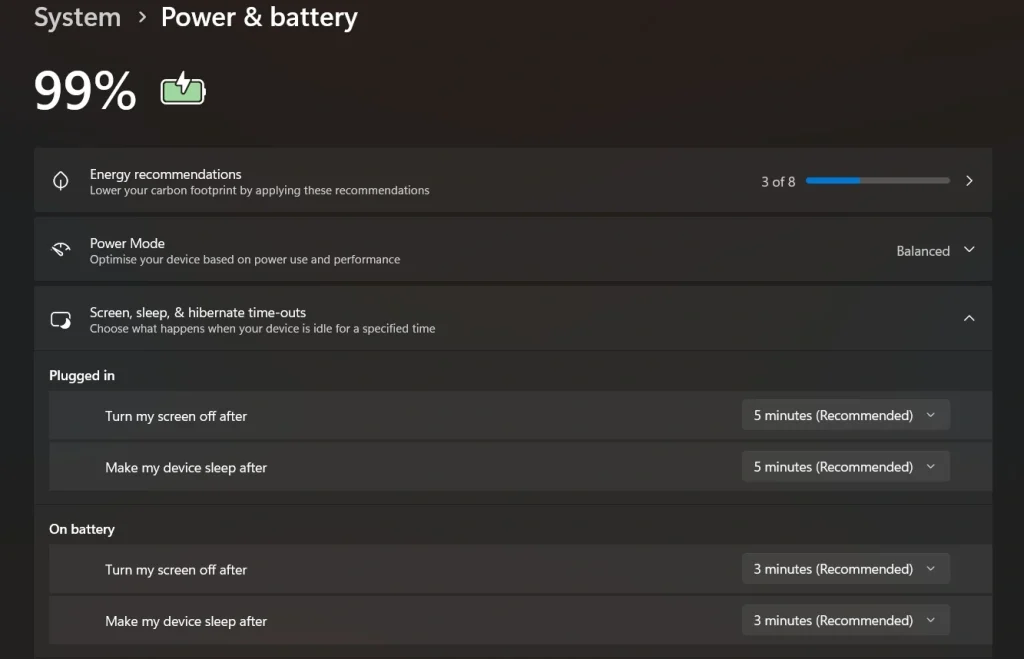
Step 2: Adjust screen, sleep time, and hibernate time-outs based on your preference.
Method 2: Using Control Panel
The Control Panel gives access to more advanced options. It is helpful for users who want detailed control. It also includes custom power plans.
This method is slightly more detailed. It allows you to create custom plans. You can fine-tune power usage and performance.
It is helpful for users who want better optimization. It gives more flexibility than basic settings.
Step 1: Open the Control Panel and select Power Options.
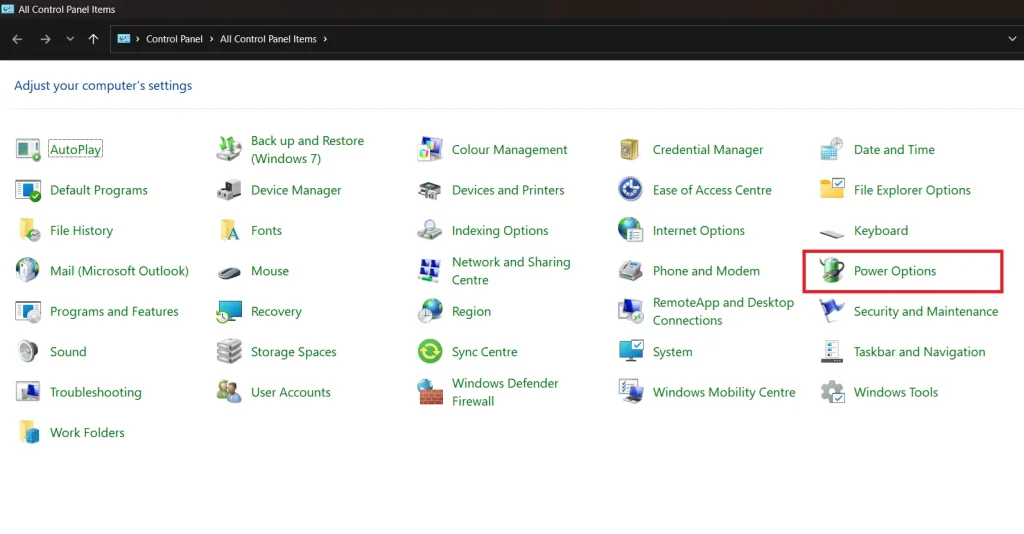
Step 2: Choose or customize a power plan according to your needs.
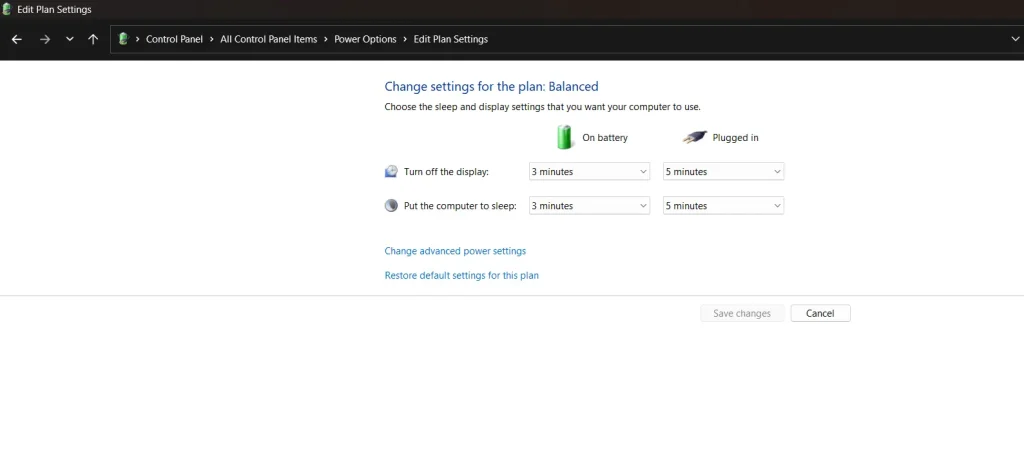
Method 3: Using Advanced Power Settings
Advanced settings provide deeper control over system behavior. This method is useful for experienced users.
It allows you to adjust detailed options like processor power and sleep timers. You can create a balanced system setup.
This method is ideal for users who want complete control. However, changes should be made carefully.
Step 1: Go to Power Options and click on Change plan settings.
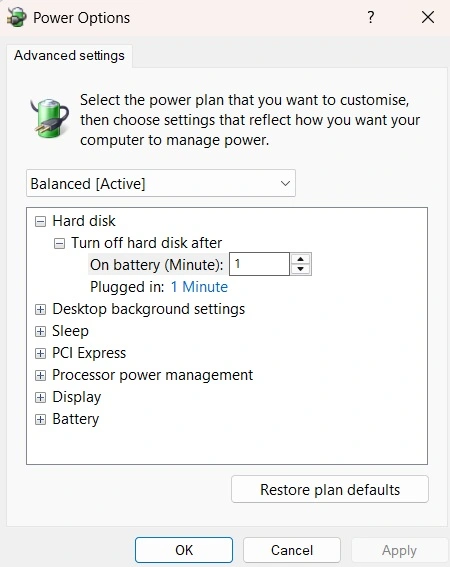
Step 2: Select Advanced settings and modify options as needed.
Author’s Tip
Always choose settings based on your daily routine. If you use your computer for long hours, avoid short sleep timers. It may interrupt your work. Instead, set a longer time for better flow.
Laptop users should focus on battery saving. Lower screen time and faster sleep mode can help. This improves battery life and reduces charging cycles. It also keeps the device cooler.
Make small changes and test them. Do not change everything at once. Observe how your system responds. This approach helps you find the perfect balance between performance and energy use.
Conclusion
Power and sleep settings play an important role in system performance. They help control energy use and improve efficiency. With the right setup, your computer can work better and last longer.
Many users ignore these options, but they are easy to manage. Learning how to change power and sleep settings in Windows gives you better control. It helps you create a setup that matches your needs.
Take time to review your settings. Make careful adjustments and test them. A well-balanced system improves both comfort and performance. Small changes can lead to better results over time.
FAQs:
How often should I update power settings?
You should update power settings only when your usage pattern changes. For example, if you start using your system for longer hours or switch from work to casual use, you may need different settings. There is no need to adjust them regularly, as stable settings usually work well over time.
Do power settings affect system speed?
Yes, power settings can influence system speed and performance. High-performance mode allows your computer to run at full capacity, which may increase speed but also uses more power. Balanced mode, on the other hand, saves energy by limiting performance slightly. Choosing the right option depends on your needs.
Can power settings damage my computer?
No, power settings will not damage your computer. They are designed to be safe and user-friendly. Even if the settings are not ideal, they may only affect how the system behaves, such as sleep timing or performance levels. You can always adjust them again without any risk to your device.
Author Bio:
Dinesh Lakhwani 

Dinesh Lakhwani, the entrepreneurial brain behind “TechCommuters,” achieved big things in the tech world. He started the company to make smart and user-friendly tech solutions. Thanks to his sharp thinking, focus on quality and the motto of never giving up, TechCommuters became a top player in the industry. His commitment to excellence has propelled the company to a leading position in the industry.
Popular Post
Recent Post

Driver Easy Windows Driver Updater Tool Review: Tried & Tested
In-depth information about Driver Easy’s functions and features can be found in our review. Learn how to update drivers more easily with this tool for a more seamless computer experience.

Is Avast Driver Updater Worth It? A Hands-On Analysis
A full review of Avast Driver Updater covering features, setup steps, pricing, pros and cons, and real PC results, to help you decide if it is worth buying.

IObit Driver Booster 13 (PRO) Review: [Tried & Tested]
IObit Driver Booster 13 is built for one purpose: keeping your PC drivers up to date. Well, yes! Outdated drivers can cause crashes, slowdowns, and hardware issues. This tool scans fast and updates with one click. The interface is simple. Even beginners can use it without confusion. Updates are pulled from a huge database, covering […]

Auslogics Driver Updater: A Detailed Walkthrough [2026]
This comprehensive review covers the key features, pros, and cons, pricing, and a final verdict on Auslogics’ driver update utility. Learn how it stacks up against manual driver maintenance.

5 Best Driver Updater Tools for Windows to Use (Free and Paid)
Introduction: Most people blame their PC for problems that a driver caused. A driver works like a bridge between your hardware and your operating system. When this bridge cracks, strange things start to happen. Screens flicker without reason. Printers go silent mid-task. Games freeze or crash out of nowhere. Manually finding the right driver is […]
Fixing Lock Screen Timeout – Screen Timeout Settings
Your Windows screen does not stay on forever. After a certain amount of idle time, it turns off or locks automatically. This is a normal feature found on both laptops and desktop PCs. It helps save battery power and reduces electricity use. It also keeps your files and personal information safe when you step away […]
How to Recover Unsaved Word Document? [Complete Guide]
It can be frustrating when a Word document suddenly disappears. You may have spent hours writing a report, assignment, or letter. Then your computer crashes, the power cuts out, or Word closes before you save the file. In that moment, it may seem like all your work is gone. This happens more often than most […]

What Is A Zero-Day Attack And How Can You Defend Against One?
Picture this. A hacker finds a secret crack in your favorite app. You don’t know it’s there. The company that built the app doesn’t know either. But the hacker does. And they use it right away, before anyone can stop them. This is the heart of a zero-day attack. It strikes when a flaw is […]

Iolo System Mechanic PC Cleanup Software: Hands-On Performance Review
PCs feel fast on the first day. Every click is quick. Apps open right away. With time, things slow down. Programs take longer to load. Files open slowly. Fans get loud even during light use. This happens to almost every computer, no matter how careful you are. The reason is clear. Junk files build up […]

