











Your Windows screen does not stay on forever. After a certain amount of idle time, it turns off or locks automatically. This is a normal feature found on both laptops and desktop PCs. It helps save battery power and reduces electricity use. It also keeps your files and personal information safe when you step away […]
Top 15 Microsoft Defender Tips And Tricks [New Guide]
Microsoft Defender is a powerful security tool built into Windows. It protects your computer from viruses, malware, and other online threats. Many people don’t realize how capable this free security solution has become in recent years.
Microsoft Defender tips and tricks can transform your PC security experience. The built-in protection has evolved from basic antivirus to a complete security suite. You don’t need to be a tech expert to use these tips, as they’re designed for all skill levels.
This comprehensive guide shares 15 essential Microsoft Defender tips and tricks to enhance your security setup. By following these recommendations, you’ll unlock the full potential of this robust security tool.
Let’s explore how these Microsoft Defender tips and tricks can create a stronger defense system for your digital life.
Top 15 Tips and Tricks Microsoft Windows Defender
1. Run Quick Scans Daily
Quick scans are an efficient way to check your system for threats. They focus on areas where malware commonly hides, like temporary files and download folders. Running these scans takes just minutes but provides a good first line of defense.
Setting up daily quick scans ensures regular protection without disrupting your work. This habit catches many threats before they can spread through your system. Think of it as a daily health check for your computer.
Steps to set up daily quick scans:
- Open Windows Security. Click on “Virus & threat protection”. Under “Quick scan,” click “Scan now” for immediate scanning.

- For scheduling, click “Scan options” then “Automatic scan”. Toggle on “Scheduled scan” and select frequency as “Daily”
2. Use Offline Scanning
Some sophisticated malware activates only when Windows is running. These threats deliberately hide from normal scans. Offline scanning tackles this problem by running before Windows fully loads.
Offline scanning helps remove tough malware that regular scans can’t. It takes more time and needs a system restart but is more effective. Use it when persistent threats won’t go away.
Steps to run offline scan:
- Open Windows Security. Click “Virus & threat protection”. Under “Current threats,” select “Scan options”. Choose “Microsoft Defender Offline scan”.

- Click “Scan now”. Your PC will restart to perform the scan
3. Set Up Controlled Folder Access
Ransomware attacks lock up your files and demand payment. Controlled Folder Access prevents unauthorized apps from changing files in protected folders. This feature acts like a guard for your important documents.
This powerful Microsoft Defender tip creates a shield around your most valuable data. You can customize which folders receive this extra protection and which apps can access them. This feature alone can save you from costly ransomware attacks.
Steps to enable Controlled Folder Access:
- Open Windows Security. Select “Virus & threat protection”. Under “Ransomware protection,” click “Manage ransomware protection”. Toggle on “Controlled folder access”.

- Click “Protected folders” to add or view protected locations. Click “Allow an app through Controlled folder access” to add trusted programs
4. Check Your Protection History
Microsoft Defender keeps detailed records of all security actions. The Protection History shows threats detected, actions taken, and scan results. This information helps you understand your security status.
Reviewing this history regularly helps spot patterns or recurring threats. If you see the same issue appearing multiple times, you may need to investigate further. This valuable knowledge helps you make better security decisions.
Steps to check Protection History:
- Open Windows Security. Click “Virus & threat protection”. Select “Protection history”. Review the list of detected items and actions taken.

- Click on any item for more detailed information. Use filters at the top to sort by threat type if needed
5. Use Cloud Protection
Cloud protection enhances Microsoft Defender by connecting to Microsoft’s security network. It detects threats faster using artificial intelligence. When one device spots a new danger, all users get protected quickly, creating a stronger defense.
Steps to enable Cloud Protection:
- Open Windows Security. Click “Virus & threat protection”. Select “Manage settings”. The option is placed under “Virus & threat protection settings”. Toggle on “Cloud-delivered protection.”

- Also, enable “Automatic sample submission” for best protection. Click “Block at first sight” to make sure it’s enabled
6. Schedule Full Scans Weekly
While quick scans check the most common trouble spots, full scans examine your entire system. They look at every file and folder on your computer. This comprehensive approach finds deeply hidden threats.
Weekly full scans serve as a thorough security check-up. Schedule them for times when you’re not using your computer, like overnight or during lunch breaks.
Steps to schedule weekly full scans:
- Open Windows Security. Select “Virus & threat protection”. Click “Scan options”. Choose “Full scan” and click “Scan now” (for immediate scan).

- For scheduling, click back and select “Automatic scan”. Toggle on “Scheduled scan” and set frequency to “Weekly”. Choose a day and time when you won’t be using your computer
7. Add Exclusions for Performance
Some trusted programs or files trigger false alarms in Microsoft Defender. Adding these to exclusions prevents unnecessary scanning. This improves system performance and reduces interruptions.
Exclusions work well for development folders, virtual machine files, or trusted business applications. However, use this Microsoft Defender tip carefully. Only exclude locations or files you’re absolutely certain are safe.
Steps to add exclusions:
- Open Windows Security. Click “Virus & threat protection”. Under “Virus & threat protection settings,” select “Manage settings”. Scroll to “Exclusions” and click “Add or remove exclusions.”

- Click “Add an exclusion” and choose from file, folder, file type, or process. Browse to select the item you want to exclude. Confirm your selection
8. Block Unrecognized and Unwanted Apps
Before 2020, blocking potentially unwanted programs (PUPs) in Windows required manual PowerShell commands. With the update to Windows Security, users gained a built-in defense, making it much easier to keep their systems free from unnecessary and potentially harmful applications.
This added protection enhances security by automatically detecting and preventing PUPs without extra effort. By enabling reputation-based protection, users can stay ahead of unwanted software and maintain a cleaner, more efficient system.
Steps to enable Block at First Sight:
- Open Windows Security. Click App & browser control.

- Under Reputation-based protection, turn it On if prompted. Click Reputation-based protection settings to customize further.
9. Use Custom Scan for Specific Folders
Sometimes you only need to check specific files or folders. Custom scanning targets just the areas you select. This is perfect for checking new downloads or external drives.
Custom scans save time when you’re concerned about particular content. For example, when you receive files from an unknown source or connect an old USB drive. This focused approach gets quick results without scanning your entire system.
Steps to run a custom scan:
- Open File Explorer. Navigate to the folder you want to check. Right-click on the folder. Select “Scan with Microsoft Defender.”

- Wait for the scan to complete. Review results in the notification or in Protection History
10. Set Up Hardware Security
Modern computers include special security features at the hardware level. Core isolation and memory integrity protect critical parts of Windows. These features prevent malware from accessing sensitive areas.
Hardware-based security creates a fortress around vital system processes. It uses virtualization technology to isolate important security functions from the rest of the system. This Microsoft Defender tip adds a powerful layer of protection against sophisticated attacks.
Steps to enable hardware security:
- Open Windows Security. Click on “Device security”. Under “Core isolation,” click “Core isolation details.”
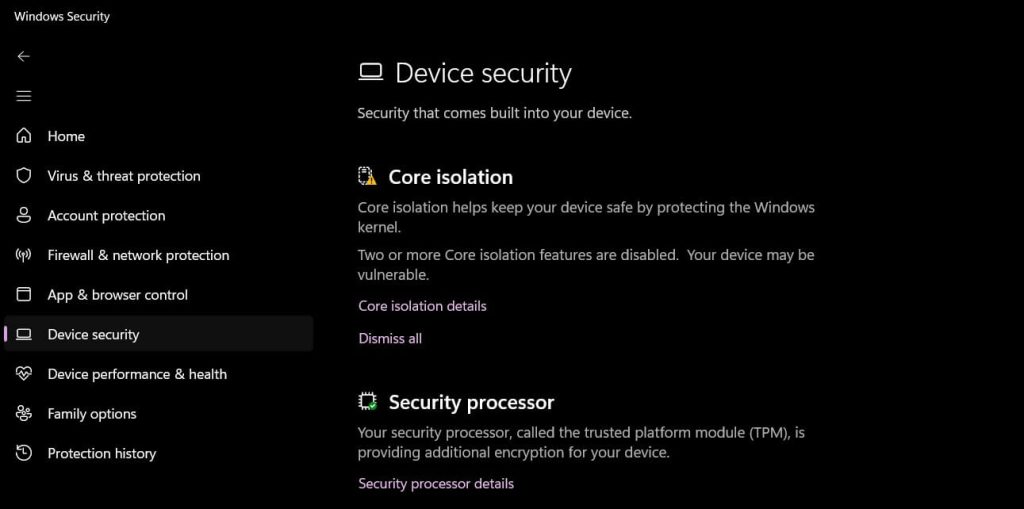
- Toggle on “Memory integrity” (if available for your hardware). Restart your computer when prompted. After a restart, confirm the feature is active
11. Check Security Report Card
Microsoft Defender provides an overall security score for your device. This report card highlights strong points and areas needing attention. It offers simple recommendations to improve your security.
Regularly checking this score helps maintain optimal protection levels. The report breaks down security by categories like account protection, firewall, and device security. This overview makes complex security measures easy to understand and implement.
Steps to check your security report card:
- Open Windows Security. View the main dashboard with colored icons. Look for any yellow or red warnings. Click each category to see detailed recommendations.
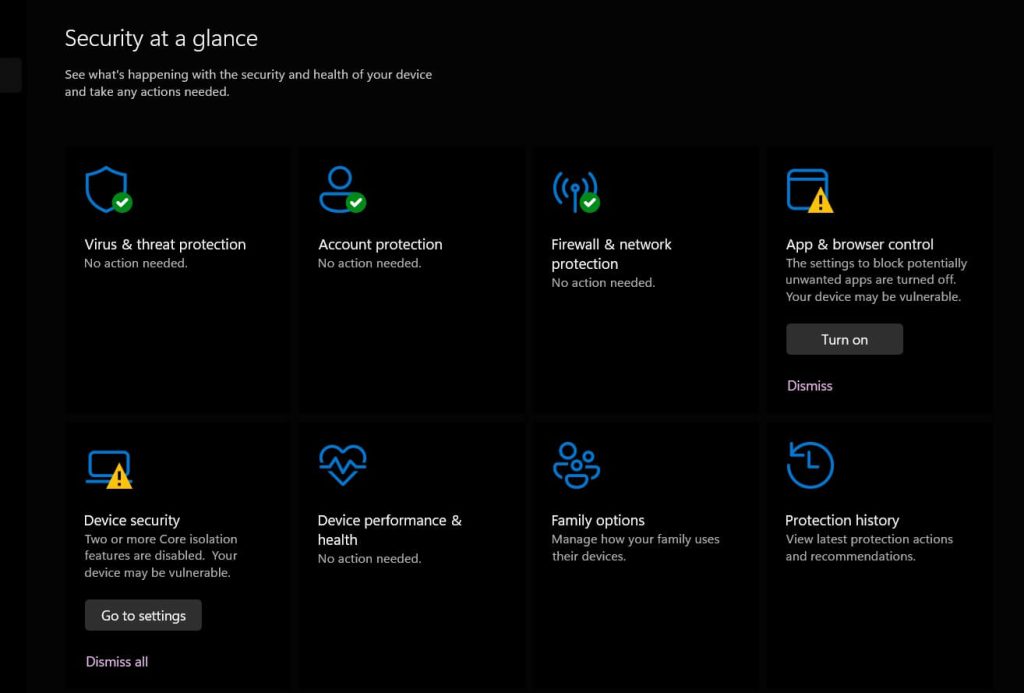
- Follow the suggested steps to improve your score. Return regularly to check your progress
12. Update Defender Regularly
Security definitions contain information about known threats. Regular updates keep Microsoft Defender current with new malware. This ensures the best possible protection against emerging threats.
Microsoft releases new security definitions daily, sometimes hourly. Each update improves detection capabilities for newly discovered threats. Making sure these updates install properly is one of the most important Microsoft Defender tips and tricks.
Steps to check and update Microsoft Defender:
- Open Windows Security. Click “Virus & threat protection”. Under “Protection Updates,” click “Check for updates.”

- Wait for the update check to complete. If updates are available, they’ll install automatically. Confirm the “Last update” time is recent
13. Use Tamper Protection
Tamper protection prevents unauthorized changes to your security settings. Some malware tries to disable Microsoft Defender first. This feature blocks those attempts, keeping your protection active.
This crucial Microsoft Defender tip ensures your security stays on, even during attacks. Without tamper protection, malware could potentially turn off your defenses. Think of it as a lock for your security settings.
Steps to enable Tamper Protection:
- Open Windows Security. Click “Virus & threat protection”. Under “Virus & threat protection settings,” select “Manage settings”. Scroll down to find “Tamper Protection.”

- Toggle it to “On” if not already enabled. Verify the setting is active by trying to disable real-time protection
14. Set Up Family Options
Microsoft Defender includes tools to protect children online. Family options filter inappropriate content and set screen time limits. They also provide reports on digital activities.
This feature extends Microsoft Defender’s protection to your entire family. Parents can receive activity reports and manage what content children can access. It creates a safer online environment without installing additional software.
Steps to set up Family Options:
- Open Windows Security. Click on “Family options”. Select “View family settings.”

- Sign in with your Microsoft account. Click “Add a family member”. Enter their email address and set permissions. Customize content filters and time limits as needed
15. Try Microsoft Defender Application Guard
Application Guard opens untrusted websites in an isolated container. This prevents malicious sites from accessing your main system. It’s like having a separate, disposable computer for risky browsing.
This advanced Microsoft Defender tip and trick creates a barrier between potential threats and your important data. If you visit a malicious site inside Application Guard, any harmful code stays trapped in the container. When you close the window, the threats disappear.
Steps to enable Application Guard:
- Open Windows Features (type “Windows Features” in the search bar). Check “Microsoft Defender Application Guard”. Click “OK” and restart when prompted.

- After a restart, open Microsoft Edge. Click the three dots menu, then “New Application Guard window”. Use this special window for untrusted sites
Conclusion
Microsoft Defender tips and tricks transform a basic security tool into a powerful protection system. The features covered in this guide provide comprehensive defense against modern threats. With these settings optimized, your digital security significantly improves.
Start applying these Microsoft Defender tips and tricks today to strengthen your digital security. Begin with the basics like daily quick scans and cloud protection. Then, gradually implement advanced features like Controlled Folder Access and Application Guard. Your online experience will be safer and more secure with these simple changes.
FAQs:
Is Microsoft Defender good enough for home users?
Yes, Microsoft Defender is now excellent for home users. Independent testing labs routinely rank it among top security solutions. When properly configured using the tips and tricks above, it provides comprehensive protection against viruses, ransomware, and other malware. The integration with Windows gives it advantages over third-party options, including better performance and seamless updates. For most home users, no additional security software is needed.
How often should I run a full scan with Microsoft Defender?
Run a full scan weekly for optimal protection. Daily quick scans catch most threats, but weekly full scans provide thorough system examination. Schedule these comprehensive scans during times you’re not using your computer, such as overnight or during lunch breaks.
Can Microsoft Defender replace paid antivirus software?
For most users, Microsoft Defender can completely replace paid antivirus software. The tips and tricks in this article unlock its full potential, providing enterprise-grade security at no additional cost. Defender now includes features previously found only in premium security suites, such as ransomware protection, hardware-based isolation, and cloud-based threat intelligence.
Author Bio:
Dinesh Lakhwani 

Dinesh Lakhwani, the entrepreneurial brain behind “TechCommuters,” achieved big things in the tech world. He started the company to make smart and user-friendly tech solutions. Thanks to his sharp thinking, focus on quality and the motto of never giving up, TechCommuters became a top player in the industry. His commitment to excellence has propelled the company to a leading position in the industry.
Popular Post
Recent Post

How to Recover Unsaved Word Document? [Complete Guide]
It can be frustrating when a Word document suddenly disappears. You may have spent hours writing a report, assignment, or letter. Then your computer crashes, the power cuts out, or Word closes before you save the file. In that moment, it may seem like all your work is gone. This happens more often than most […]

What Is A Zero-Day Attack And How Can You Defend Against One?
Picture this. A hacker finds a secret crack in your favorite app. You don’t know it’s there. The company that built the app doesn’t know either. But the hacker does. And they use it right away, before anyone can stop them. This is the heart of a zero-day attack. It strikes when a flaw is […]

Iolo System Mechanic PC Cleanup Software: Hands-On Performance Review
PCs feel fast on the first day. Every click is quick. Apps open right away. With time, things slow down. Programs take longer to load. Files open slowly. Fans get loud even during light use. This happens to almost every computer, no matter how careful you are. The reason is clear. Junk files build up […]

Advanced SystemCare PC Cleanup Tool: A Detailed Review
You turn on your PC and wait. And wait. The same laptop that once opened apps in a snap now feels tired. This is not bad luck. It just happens over time. Files pile up. The registry gets messy. Old drivers stay installed long after they are useful. Junk data quietly eats up space on […]

Avast Cleanup PC Cleaner and Optimizer: Everything You Need to Know
A slow computer makes it hard to focus. Programs take too long to open. Free space keeps shrinking until the disk is almost full. This happens to most PC owners at some point. Even new machines can slow down after a while. That is the exact problem cleanup tools are built to solve. They comb […]

Fortect Software Review: The Ultimate PC & Mobile Cleaning, Optimization & Security Tool
Slow computers are a common problem for almost every Windows user. Well, yes! Over time, your PC picks up junk files. These files sit quietly in the background. They take up space and slow things down. Programs open slower. Windows takes longer to boot. Even simple tasks like opening a folder can feel sluggish. There […]

CCleaner PC Optimizer Review: A Complete Guide for Windows Users
If your computer has started to feel slow, you are not alone. Most Windows PCs slow down over time. Junk files pile up. The registry gets messy. Too many apps open when you start your PC. All this adds up and makes even a good machine feel tired. This is where a PC cleaner tool […]

5 Best PC Cleaners for Windows 11 & 10 | Top PC Optimizers
Remember when your PC felt fast? Every click was quick. Every app opened in seconds. Now it feels like a different machine. Windows takes forever to boot. Programs freeze for no reason. Even opening a browser feels like a chore. You are not alone in this. Almost every PC slows down over time. Files pile […]

Auslogics Duplicate File Finder: Full Review and User Guide
A computer quietly gathers clutter over time. This includes duplicate photos, repeated downloads, and forgotten backups hiding in random folders. This buildup slowly eats away at storage and can make even a fast PC feel sluggish. Manually finding and deleting duplicates is tedious. It means checking every folder, comparing file names, and guessing which copies […]

