











Imagine this. You spend hours perfecting a video project. You hit save. Then your laptop freezes, reboots, and when the screen comes back. The file is gone. Your stomach sinks. It’s not just you. Lost files happen all the time. A dropped hard drive, a bad update, an accidental delete, or a corrupted partition can […]
How to fix Remote Desktop stops working in Windows 11, 10?
Windows offers an in-built feature of a remote desktop to allow a seamless connection between a remote PC and the host system. It is widely used in remote assistance and remote working. Windows 11 and 10 users often feel the need to use a remote desktop which may create issues due to different reasons. Hence, many face the issue of remote desktops stopping working.
Let us go through all the key causes of the remote desktop non-functioning in detail. We’ll then examine the top methods used to fix the remote desktop stops working problem. It is easy for beginners and professionals to use these methods independently without any external technical support.
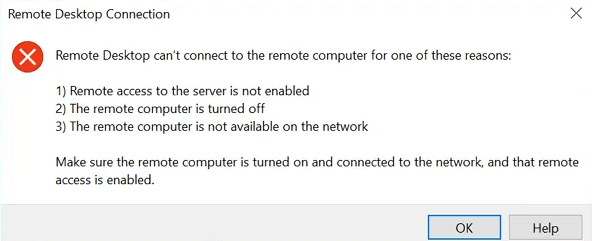
Top reasons: Remote Desktop Stops Working
Before jumping to the quick fixes for remote desktop issues, it is essential to go through the key reasons. Significant causes are responsible for the failed integration of the host and user system. Some of the causes in the remote desktop that may cause improper functioning are:
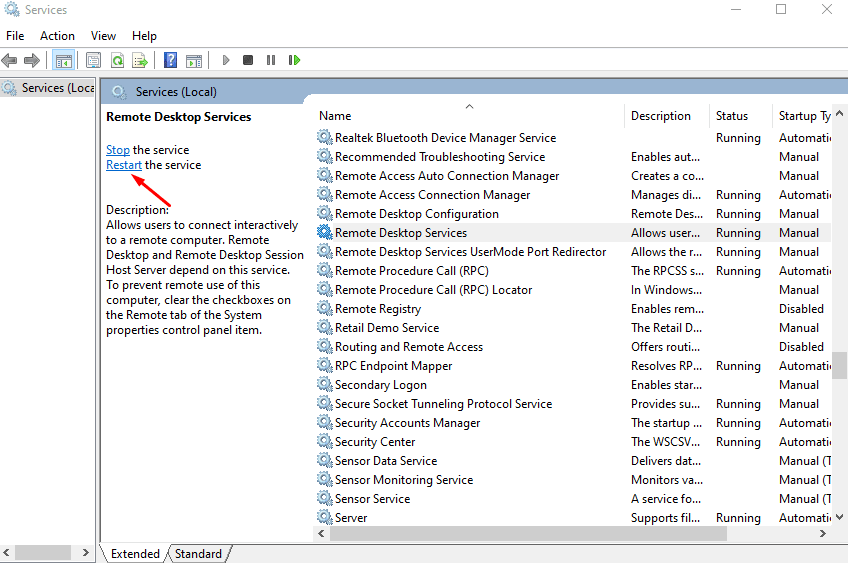
1. Inactive remote desktop protocol (RDP) services
The disabled Remote Desktop Protocol (RDP) services may interrupt the remote desktop and Windows 11, 10 connection. Hence, RDP services must be enabled to ensure seamless remote desktop work.
2. Overprotective antivirus
Any third-party antivirus application package may stop the remote desktop from connecting with Windows 11 and 10. This antivirus protection may interfere with the system firewall and needs to be disabled or even uninstalled until the remote desktop starts working with the host Windows 11 and 10.
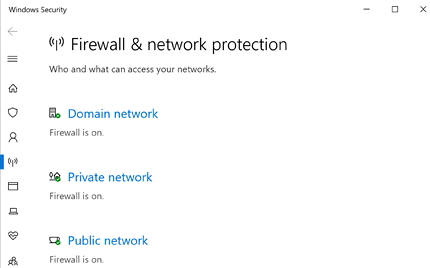
3. Firewall protection
The remote desktop may have stopped working due to Windows Firewall issues. It may have blocked the network connection between the host and the client. Hence, the firewall protection needs to be turned off to use remote desktops seamlessly on Windows 11 and 10.
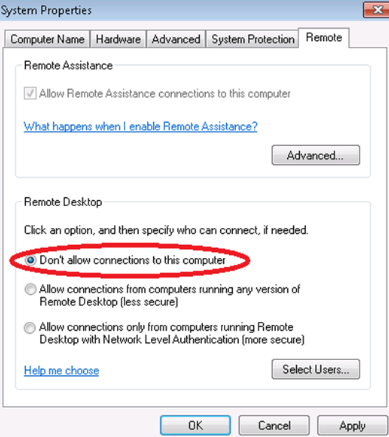
4. Disabled remote desktop
It may be possible that the remote desktop is disabled on the client or host computer, causing issues with remote desktop functioning. Hence, it is essential to turn the remote desktop facility on both sides- client and host.
5. The disabled remote desktop access server
The disabled remote desktop access server may cause a connection error while connecting with the remote desktop to the computer. It is because the remote computer and the host computer require proper access for a seamless connection. Hence, one of the primary reasons for remote desktop issues is the disabled remote desktop access server.
Top fixes: remote desktop stops working
After going through the key reasons, it becomes easy to understand the solutions for handling remote desktop stops working issues. Some of the quick and effective fixes for remote desktop working are:
1. Adding the IP address of the host PC
It is easy to add the IP address of the host PC for seamless remote desktop working on Windows 11 and 10. The quick steps for the same are:
- Go to the “File Explorer” in the bottom line and open the “C:/ Windows/ System32/ Drivers/ etc” and select the hosts. Click on the “Open with” option.
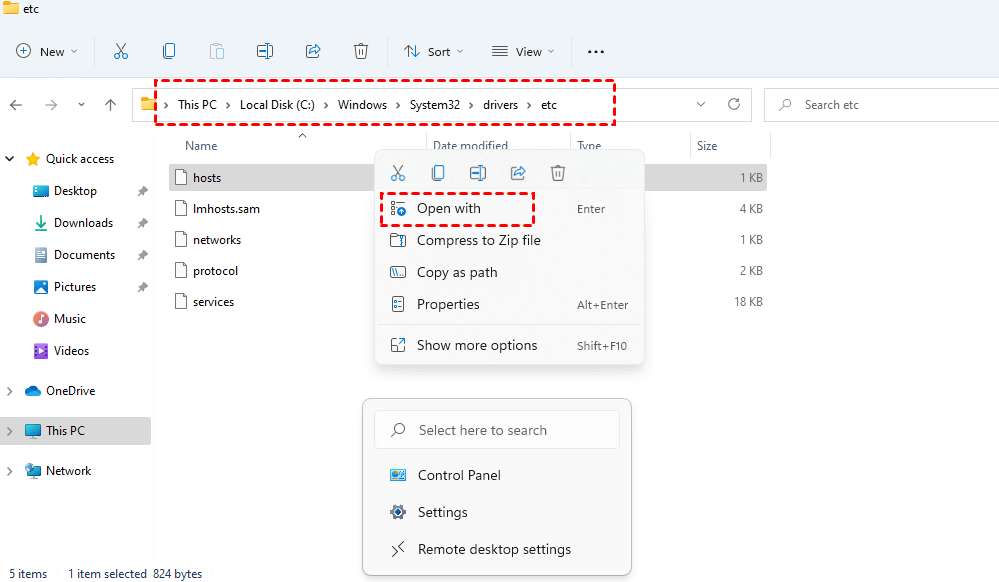
- Select “Notepad” and press “OK.”
- Enter the IP address of the host computer and press the “File” or “Save” option.
alt text: saving ip address of the host computer
2. Enabling network discovery
Windows 11 and 10 may not be able to connect remotely due to network discovery issues. Hence, the steps to enable network discovery on your system are:
- Go to “Control Panel.”
- Select the “Network and Internet” category.
alt text: network and internet
- Go to the “Networking and Sharing Centre” and click on the “Change advanced sharing settings.”
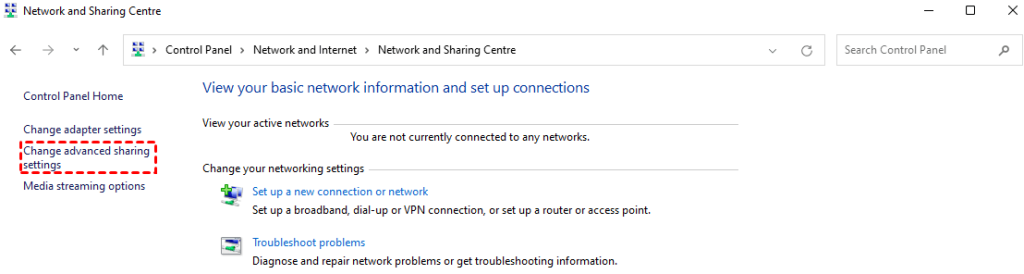
- Select the “Turn on network discovery” and click “Save changes.”
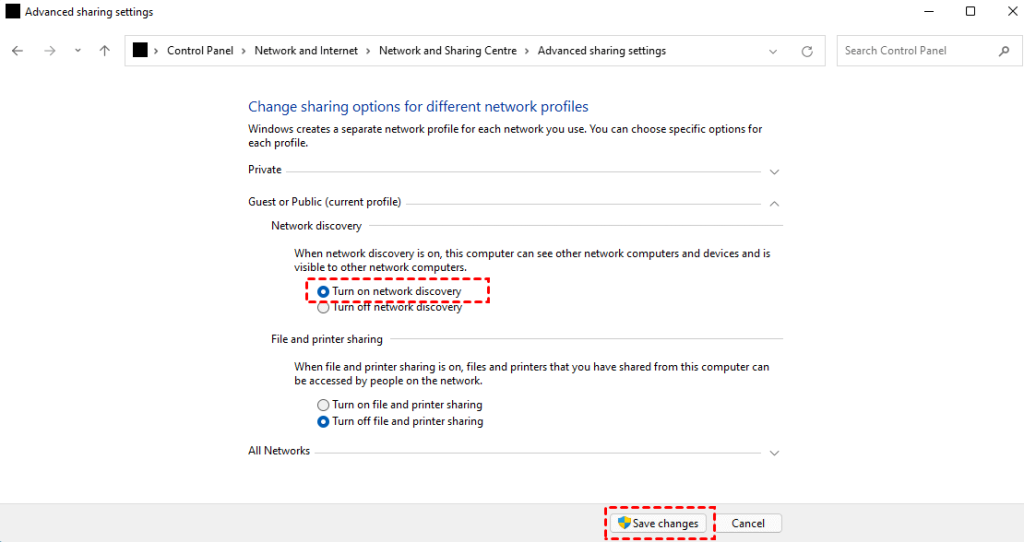
3. Confirming the startup type in remote desktop services
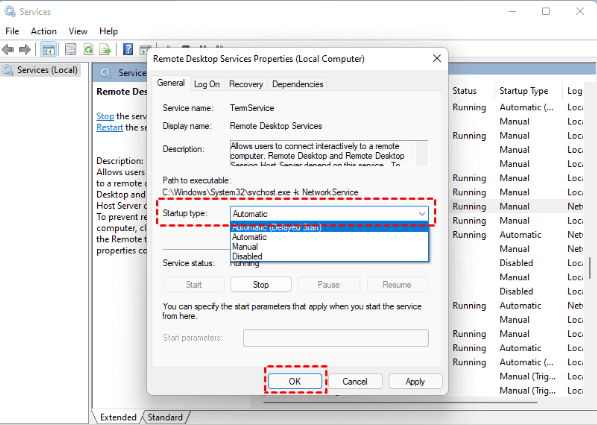
It is essential to confirm the startup type to automatic in the remote desktop services. The quick steps for the same are:
- Press “Win + R” and type “services. msc” to open the “Services” menu.
- Search “Remote Desktop Services” and double-click on it.
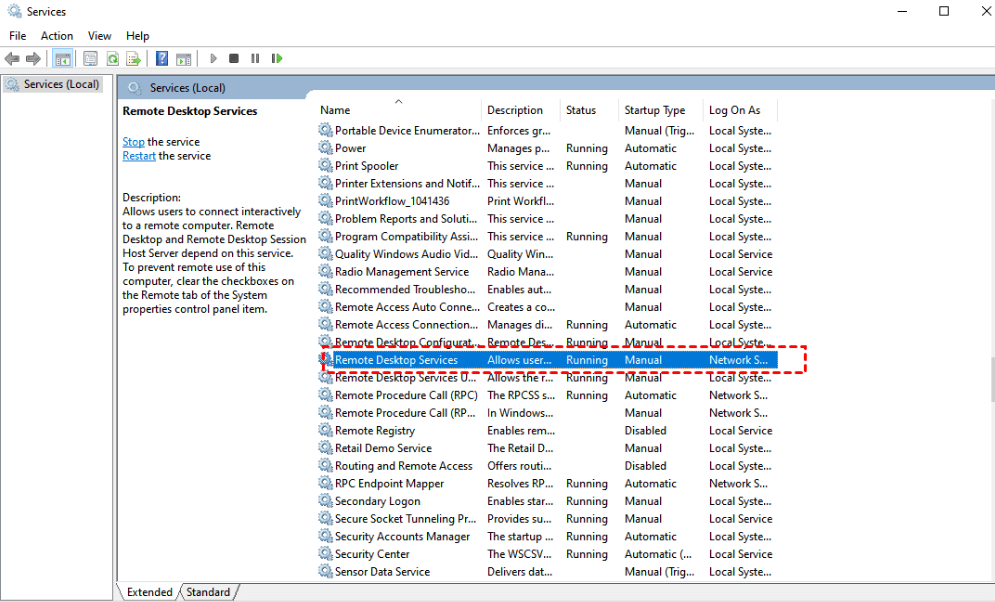
- Search “Startup type” and select “Automatic.” Click “OK” after it.
4. Allow Remote Desktop Protocol (RDP) through Windows Defender Firewall
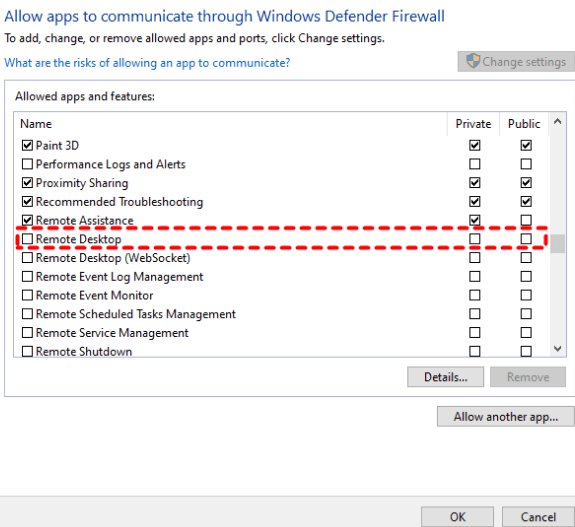
The RDP enabling through Windows Defender Firewall can be achieved with the following quick steps:
- Go to the search box and type “Windows Defender Firewall.”
- Go to the “Allow an app or feature through Windows Firewall” and click the “Change Settings” option.
- Go to the “Remote Desktop” option and select the “Private” option to turn it on.
5. Enabling the remote desktop
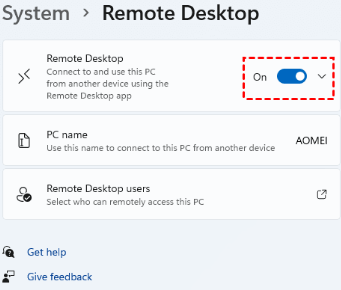
The quick steps to enable the remote desktop support on the system are:
- Click “Windows + I” to open the system settings and locate the “Remote Desktop” option in the right pane.
alt text: remote desktop
- Click on the “Remote Desktop” and then turn it on.
Wrapping Up:
Hence, it is easy to learn all about the non-working of the remote desktop in Windows 11 and 10. Different reasons amount to issues in the remote desktop, like disabled remote desktop access server, disabled RDP services, and disabled remote desktop. Further, the remote desktop may stop working due to overprotective antivirus or firewall protection.
So, no more issues in finding quick fixes for remote desktop issues that even beginners can handle easily. These include enabling the remote desktop, allowing RDP through Windows defender firewall, etc. Further, it is easy to check the startup type in the remote desktop services or turn on the network discovery on the systems.
While facing remote desktop stops working issue, it is easy for the users to add the host system’s IP address.
FAQs:
1. Why can’t I connect to my PC using Remote Desktop?
Remote Desktop may be disabled in system settings, or your firewall might be blocking the connection. Check if the PC is on the same network and using the correct IP address. Also, verify that Network Level Authentication is properly configured and that the user account has permission to connect.
2. How do I fix Remote Desktop after a Windows update?
Some updates can break Remote Desktop, so try uninstalling recent patches if the issue started after an update. Update your graphics and network drivers, restart Remote Desktop Services, and consider using the Microsoft Store version of the Remote Desktop app for better compatibility.
3. What advanced settings should I check if Remote Desktop still doesn’t work? Look into Group Policy settings that might block Remote Desktop, and check the registry key fDenyTSConnections to ensure it’s set to 0. You can also change the default RDP port to avoid conflicts and make sure no third-party security software is interfering with the
Dinesh Lakhwani
Author Bio:
Dinesh Lakhwani 

Dinesh Lakhwani, the entrepreneurial brain behind “TechCommuters,” achieved big things in the tech world. He started the company to make smart and user-friendly tech solutions. Thanks to his sharp thinking, focus on quality and the motto of never giving up, TechCommuters became a top player in the industry. His commitment to excellence has propelled the company to a leading position in the industry.
Popular Post
Recent Post

5 Best Data Recovery Software For Windows 11 and Windows 10
A crashed drive can ruin a whole day. One minute your photos, work files, and tax records sit safe on your PC. The next minute they are gone. A power cut, a bad update, or one wrong click can wipe out years of memories and months of work in seconds. That sinking feeling is why […]

How To Update NVIDIA Drivers On Windows 11/10 PC
Learn how to update NVIDIA drivers on Windows 11/10 with simple methods, safety tips, and easy steps for smoother gaming and better PC performance.

Top AI Features Hidden Inside Windows 11
Explore the top AI features in Windows 11, from Copilot to Recall, plus safety tips and simple steps to use each tool the right way.

Customize Your Screen Saver Settings in Windows [Easy Steps]
Learn how to customize screen saver settings in Windows 11 with easy steps, safety tips, and simple tricks to personalize your PC screen.

Driver Easy Windows Driver Updater Tool Review: Tried & Tested
In-depth information about Driver Easy’s functions and features can be found in our review. Learn how to update drivers more easily with this tool for a more seamless computer experience.

Is Avast Driver Updater Worth It? A Hands-On Analysis
A full review of Avast Driver Updater covering features, setup steps, pricing, pros and cons, and real PC results, to help you decide if it is worth buying.

IObit Driver Booster 13 (PRO) Review: [Tried & Tested]
IObit Driver Booster 13 is built for one purpose: keeping your PC drivers up to date. Well, yes! Outdated drivers can cause crashes, slowdowns, and hardware issues. This tool scans fast and updates with one click. The interface is simple. Even beginners can use it without confusion. Updates are pulled from a huge database, covering […]

Auslogics Driver Updater: A Detailed Walkthrough [2026]
This comprehensive review covers the key features, pros, and cons, pricing, and a final verdict on Auslogics’ driver update utility. Learn how it stacks up against manual driver maintenance.

5 Best Driver Updater Tools for Windows to Use (Free and Paid)
Introduction: Most people blame their PC for problems that a driver caused. A driver works like a bridge between your hardware and your operating system. When this bridge cracks, strange things start to happen. Screens flicker without reason. Printers go silent mid-task. Games freeze or crash out of nowhere. Manually finding the right driver is […]

