9 Ways to Bypass Blocked Sites Without Using Proxies or VPNs

Last updated on November 10th, 2024 at 4:29 pm
If your government or local ISP blocks certain websites, it must be really frustrating. While these blocks may be the reason for any violations by these websites, most of the cases involve these websites getting blocked for no apparent valid reasons.
The Internet is full of knowledge and information, but these blocks can really be irritating if one of your favorite websites is blocked for silly reasons. While you can simply use a VPN or proxy to access and bypass blocked websites, these software usually cost you a monthly charge.
If you’re looking for some ways to bypass blocked websites alternatively, continue reading.
How to ByPass OpenDNS?
OpenDNS provides DNS-based web filtering by mapping domain names to different IPs that lead to blocked pages. However, there are ways to avoid this and access restricted content. The key is to route your traffic outside of OpenDNS’s purview.
- Use alternate DNS servers – Configure non-OpenDNS servers like Google or Cloudflare DNS to avoid blocked name resolutions. Can be set on devices or the router.
- SOCKS proxies – Route traffic through an intermediary proxy server that ignores OpenDNS filtering. Browser extensions like Proxymate make this easy.
- VPN services – Encrypt traffic through VPN servers, bypassing OpenDNS entirely. Paid services like NordVPN provide fast, reliable connections.
- Disable OpenDNS on router – If you have admin access, you can disable the OpenDNS configuration on your router to stop filtering.
- Use HTTPS sites – OpenDNS mainly filters unencrypted HTTP traffic. Accessing sites over HTTPS bypasses blocking in many cases.
The most reliable methods are using a paid VPN service or proxy, followed by switching to alternate DNS servers. Properly configured, these options will allow you to bypass OpenDNS blocks while maintaining fast browsing speeds and privacy.
How to Access blocked websites without using VPNs or Proxies
If you’re thinking that Virtual Private Networks or VPN and Proxies are the only solutions to bypass blocked websites, you really need to learn about the following 5 ways to bypass blocked sites without using proxies or VPNs.
1. Modify the Host File
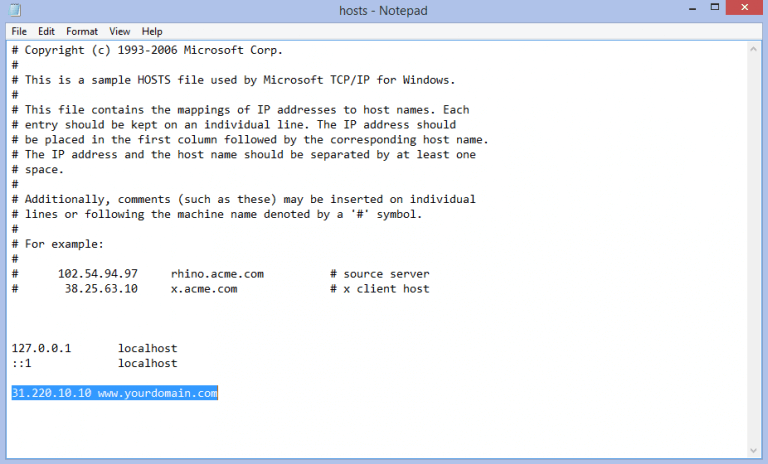
Modifying the host file can bypass blocking by mapping domain names to different IPs locally. The host file acts as a local DNS server, used before external lookups. You’ll need admin access to edit it – on Windows open it in Notepad, on Mac/Linux use sudo in the terminal. Add a line mapping a blocked domain to 127.0.0.1 to serve your own content rather than the real site.
This only works on your computer and requires knowing the site’s real IP, but can be an effective bypass.
2. Use Google Translate
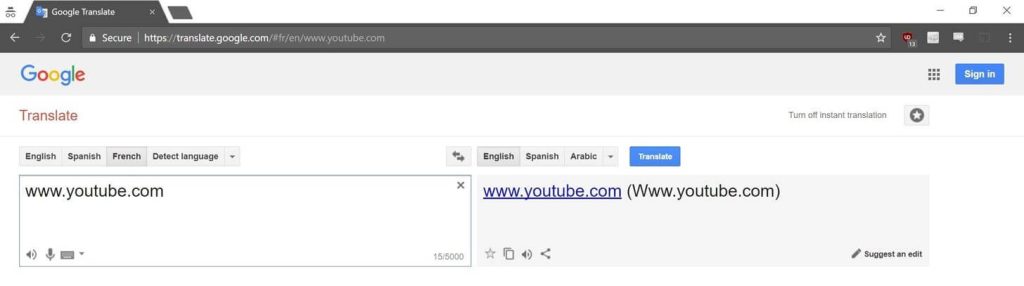
Google Translate can also bypass filters by forcing Google to fetch the full page to translate. Go to translate.google.com and paste the URL into the translate box. Have it translate to another language, then switch back.
Google will retrieve the page to translate it, allowing you to view and navigate the content. This doesn’t work on all sites, as some content won’t be rendered and translated. It’s useful for accessing limited text-based content quickly.
3. Use Mirror Sites
Finally, mirror sites and cached pages can provide access to blocked content, albeit often outdated. Look for sites hosting identical or similar content at a different domain. Search engine caches also store snapshots of pages that can sometimes be accessed despite blocks.
However, content is often outdated and account systems won’t work on mirrors. Still, it can provide a quick workaround to access info.
4. Use Web Proxies
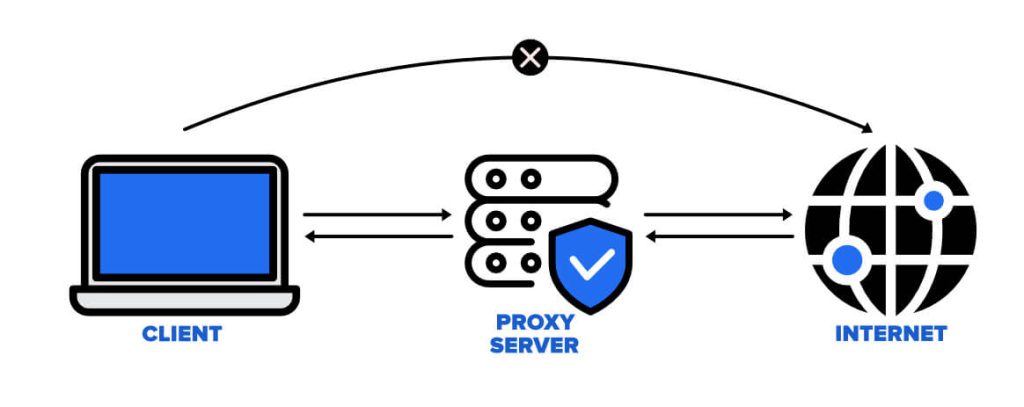
Web proxies provide a simple web form where you can enter any URL you want to access. The proxy server will fetch the content for you and display it on their website, getting around IP-based blocking since the requests come from the proxy’s IPs.
While easy to use, web proxies require you to search and navigate each site through their interface rather than directly, and they can sometimes be slow.
Overall, web proxies are a quick and convenient way to bypass blocks, but don’t offer as much functionality as a full VPN.
5. Use HTTPS instead of HTTP
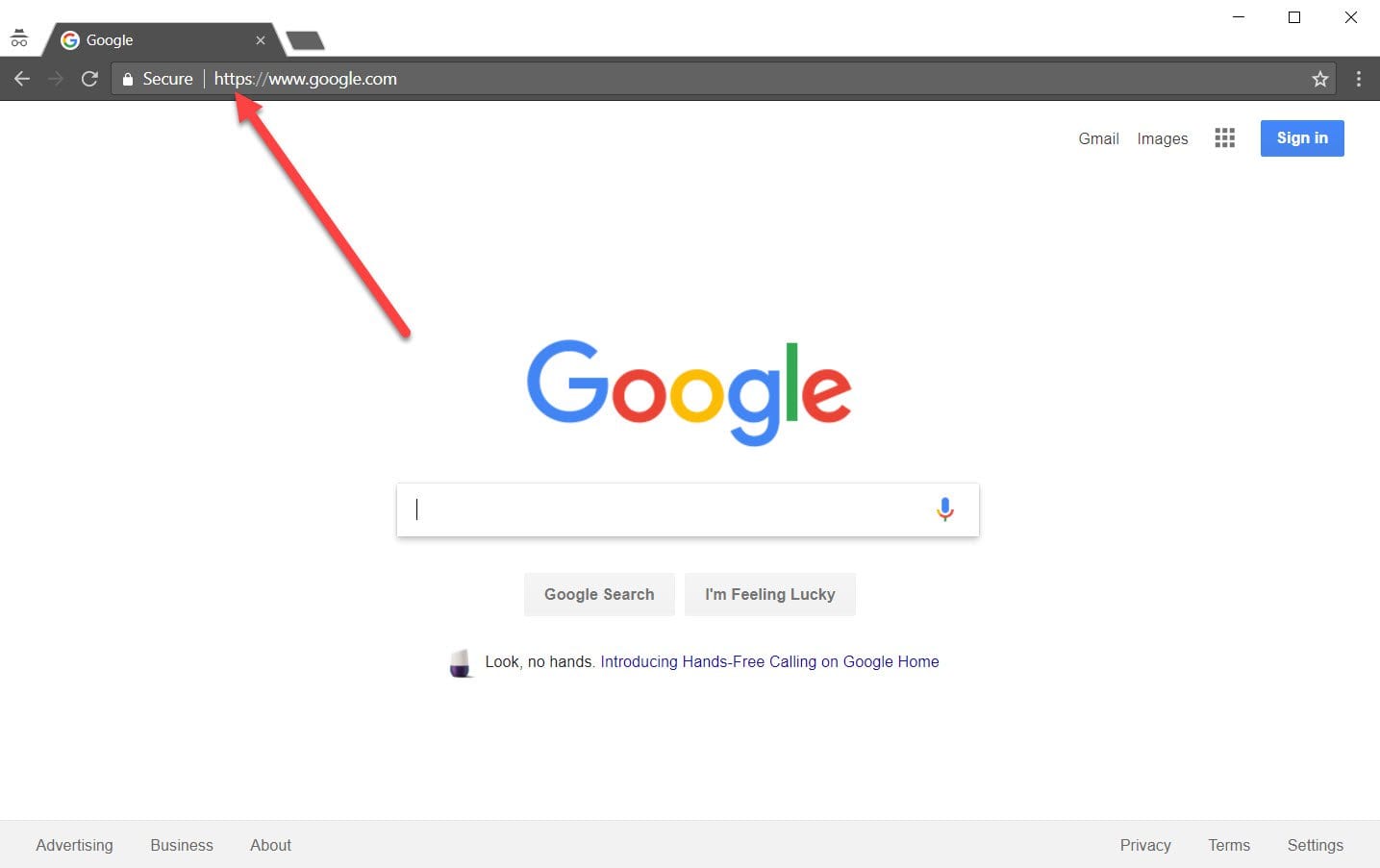
One of the simplest and easiest ways to access and bypass blocked websites is to try HTTPS instead of the default HTTP. Usually, the S in HTTPS is often related to a secure connection, but it goes beyond that. Most of the local networks block websites with the common port of 80, where all the HTTP traffic ends.
But there’s a loophole in such blocking, as port 443 is often left open in such cases. You can simply exploit this loophole and gain access to blocked websites by forcing it to a secured connection by inserting S after HTTP in your address bar, before the website address. Although this method is pretty simple, it may not always work.
6. Try IP of the blocked website
Every website URL has an IP address, which is usually not public. Generally, when authorities try to block a specific website, they do it by inputting the website’s URL into their system and proceeding to block it. But, if you can find the IP address of that website, you can easily access it.
To find out the IP address of a website, you can simply open the command prompt on your computer and type ‘ping www.blockedURL.com’, and hit enter. Replace the blocked URL with the website address that you’re denied access to.
By doing so, you will get the IP address of that particular website, which you need to copy and paste into your browser to bypass the block.
7. Alter your DNS server
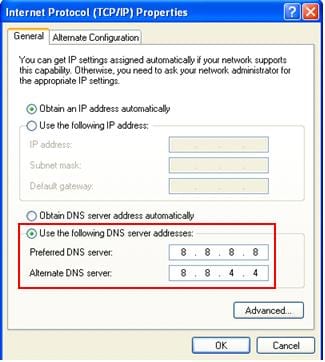
This is one of the most underrated ways to bypass blocked websites, as not many people are aware of it. One of the prominent ways your ISP blocks certain websites is by restricting the DNS servers related to them. By changing your DNS server to a third-party one, you can easily access the blocked websites seamlessly.
To change your DNS server, you need to go to your Network & Internet settings on your computer and proceed to the DNS section. Two of the most popular DNS servers are OpenDNS and Google DNS. 8.8.8.8 and 8.8.4.4 are Google’s DNS servers, whereas 208.67.222.222 and 208.67.220.220 are the DNS servers of OpenDNS.
8. Google Cache
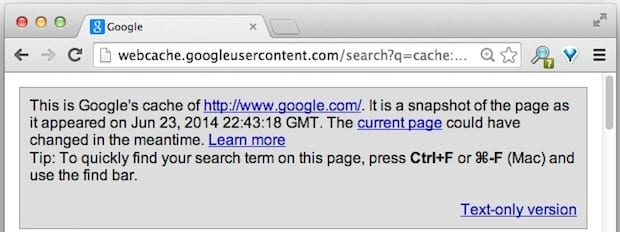
This is probably not for you if you’re looking to bypass a blocked website completely. But, this method works like a charm if you’re trying to visit a blocked website for basic purposes. With this method, you can simply access any blocked website by typing cache: before the website address.
This prompts a response from Google, which responds with a cached website version. Note that it may not be the latest version of that website, but still you can bypass the blockage pretty easily.
9. Your Smartphone’s WiFi Hotspot
One of the easiest ways to bypass blocked websites is through tethering to your smartphone. Make sure that you’ve got a quality data plan, to avoid any type of mishaps here. You can start by enabling a Personal Hotspot in your smartphone and proceed with connecting your computer to it.
Once you’re done, you can easily access blocked sites without using Proxies or VPNs, but by simply making use of your smartphone.
Conclusion
The above-mentioned methods are proven to be very effective and reliable for people who are wondering how to access blocked websites without using proxies or VPNs. Try any of these ways to easily access restricted websites and enjoy full access without any issues. Make sure that you’ve got a reliable internet connection to make the process smooth.
Author Bio:
Dinesh Lakhwani 

Dinesh Lakhwani, the entrepreneurial brain behind “TechCommuters,” achieved big things in the tech world. He started the company to make smart and user-friendly tech solutions. Thanks to his sharp thinking, focus on quality and the motto of never giving up, TechCommuters became a top player in the industry. His commitment to excellence has propelled the company to a leading position in the industry.
Popular Post











Recent Post

How to Switch Windows 10 to a Local Account: Complete Guide
Windows 10 allows users to sign in with either a Microsoft account or a local account. When you set up a new computer, the system often suggests using a Microsoft account. This account connects your device to Microsoft services such as Outlook, OneDrive, and the Microsoft Store. It also syncs settings, themes, and passwords across […]

How To Change Default Apps For File Types In Windows
Windows is designed to make using your computer easy. One way it does this is by assigning default apps to different file types. This means when you open a file, Windows automatically opens it with a specific program. For example, photos may open with Photos, music with Groove Music, and PDFs with Edge. These default […]

How To Adjust The Mouse Pointer Speed: Complete Guide
Using a computer every day means you use the mouse a lot. The mouse pointer moves on the screen and helps you click, scroll, and select items. Many people never think about the speed of the mouse pointer. They have used the default setting for years. This can cause small problems over time. A slow […]

How to Change Mouse Scrolling Settings In Windows
A mouse is one of the most used computer tools. People use it every day. They scroll through emails. They scroll through documents. They scroll through websites and images. The movement becomes automatic. Most users do not notice it. That is why problems often go unnoticed. Scrolling problems show up slowly. At first, it feels […]

Keyboard Light Settings: Keyboard Lighting Control [Complete Guide]
Keyboards are no longer simple typing tools. Well, yes! Over time, they have evolved to include features that improve comfort, visibility, and overall experience. One of the most useful features today is keyboard lighting. It helps users work comfortably in low-light conditions. It also reduces strain when typing for long hours. Many users first notice […]

Customizing Pointer Appearance: Complete Guide
The way your mouse pointer looks on your computer may seem like a small detail. But customizing pointer appearance can make using your PC more comfortable and visually appealing. Many users do not realize that they can change the pointer size, color, and style to fit their needs. Whether you want a bigger pointer for […]

How To Choose a Computer Monitor: Monitor Buying Guide
Buying a monitor looks easy. Many people think all screens are the same. That belief causes regret later. A monitor is not just a display. It is a daily tool. You read on it. You work on it. You relax with it. Small problems become big over time. Poor brightness hurts eyes. Bad size causes […]

How To Get Help With File Explorer in Windows 11 [Complete Guide]
File Explorer is one of the most important tools in Windows 11. It is used to open folders, view files, and manage stored data. Almost every action on a Windows computer depends on it in some way. When users open documents, save downloads, or organize photos, File Explorer is always involved. Because it is used […]

How To Fix A Frozen Computer: Complete Guide [Windows 11/10]
A frozen computer is one of the most common problems Windows users face. The screen stops responding. The mouse pointer does not move. Keyboard inputs do nothing. You may hear the fan running loudly. Sometimes the system looks alive, but nothing works. This situation often happens when you are busy or working on something important. […]

How to Upgrade Computer RAM: Complete Guide
Upgrading RAM is one of the simplest ways to improve a computer. It helps the system feel faster and smoother. Apps open quicker. Browsers handle more tabs. Games and tools run with less delay. Many users search for how to upgrade computer RAM because it gives real results without high cost. You do not need […]

