Top 10 Password Manager for Windows 11/10/8/7 for 2026

Last updated on December 23rd, 2025 at 4:25 pm
In today’s digital age, we have loads of accounts – like email, social media, online banking, and shopping sites. That means we’ve got tons of passwords to remember. It’s risky to use the same password for everything, but keeping track of unique ones for each account can be tough. A password manager proves invaluable in such situations.
A password manager is a tool that securely stores all your passwords in one spot. It can also create strong, random passwords for new accounts. With these tools, you just need to remember one main password to access all your others. This makes logging into websites and accounts quick and easy. For Windows users, there are plenty of great options available.
In this article, we will cover the 10 best software to manage passwords on Windows 11, Windows 10, Windows 8, and Windows 7.
Before You Start, First Know the Answer To These Questions:
1. Why isn’t autofill working on some sites
Some websites use custom login fields or security blockers. Try updating the browser extension, enabling accessibility permissions, or manually entering the password once so the manager learns the site structure.
2. My vault won’t sync between devices. What should I check
Check your internet connection and that you’re signed in with the same account. Also, ensure sync is enabled in settings. If the problem persists, log out and back in or update the app to the latest version.
3. Is it safe to store sensitive notes and documents in a password manager
Yes, as long as the manager uses strong encryption and zero-knowledge design. Many let you store secure notes and files alongside passwords, but always check the specific encryption claims and backup policies.
How We Have Made This List
This list was created after checking each password manager for security, ease of use, and long-term reliability. The aim was to choose tools that protect user data, work smoothly on Windows systems, and offer steady value without unnecessary features.
Top Factors Considered
• Security level
Reviewed the strength of encryption, zero-knowledge design, and the way each tool protects stored passwords.
• Ease of setup
Checked how simple it is for new users to install the tool, import passwords, and start using the vault.
• Cross-device access
Looked at how well each manager syncs data across computers and phones without causing confusion.
• Password generation quality
Observed the strength and flexibility of the built-in generator for creating strong, unique passwords.
• Auto fill accuracy
Tested how reliably each manager fills login forms inside browsers and Windows apps.
• Data backup and recovery
Reviewed the availability of secure backup options, emergency recovery steps, and export features.
• Extra security tools
Noted helpful additions such as breach checking, dark web alerts, password health reviews, or secure sharing.
• Overall stability on Windows
Measured how smoothly each password manager runs on Windows 11, 10, 8, and 7 without errors or slowdowns.
Top 5 Password Managers for Windows
These five tools stand out because they mix strong protection with simple daily use. The table helps readers compare features quickly and choose what matches their comfort level.
| Tool Name | Key Strength | Extra Features | Best For |
| NordPass | Strong encryption and clean design | Password health check, breach scan | Users who want a secure and simple manager |
| LastPass | Good sync and flexible browser support | Sharing options, password check | Anyone who wants easy cross-device access |
| Dashlane | Premium feel with strong security tools | Dark web scan, password insights | Users who want helpful security guidance |
| 1Password | Trusted security with smooth daily use | Watchtower alerts, secure vaults | Families and professionals who want reliable control |
| KeePass Password Safe | Fully local and free with strong encryption | Plugins for advanced users | People who prefer offline control without subscriptions |
10 Best Password Manager for Windows 11/10/8/7
#1 NordPass
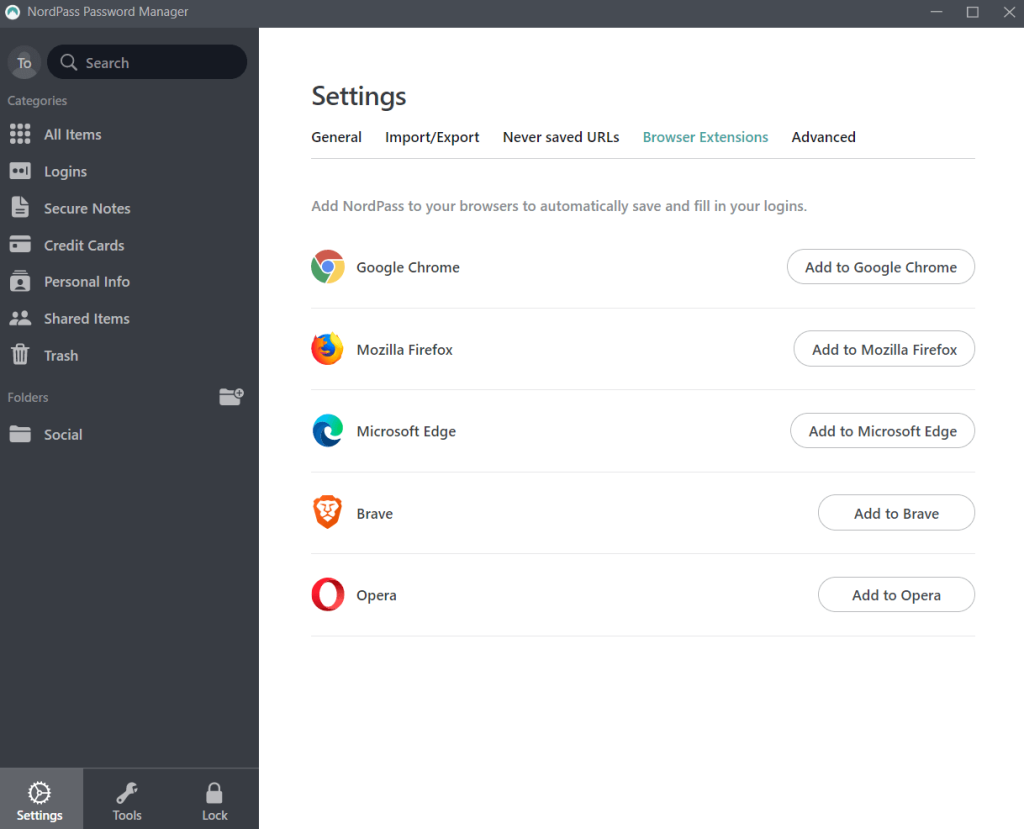
NordPass is a secure and user-friendly password manager offered by NordVPN. It stores passwords securely using top-grade encryption. NordPass has a clean and intuitive interface that is easy to navigate. It can auto-fill logins, generate strong passwords, and share passwords securely.
NordPass allows you to organize passwords into folders. You can also add notes to passwords to remember additional details. It has handy password analysis features that alert you to weak, duplicate, or compromised passwords. NordPass also has a data breach scanner that checks if your passwords have been involved in known data breaches.
Key Features:
- Secure AES-256-bit encryption password storage with zero-knowledge architecture.
- Cross-platform compatibility.
- Password generator for strong, unique passwords.
- Autofill and form capture.
- Secure notes and sharing capabilities.
Pros:
- Very secure.
- Intuitive interface.
- Good organizational features.
- Free and paid versions are available.
Cons:
- Limited password import options.
- No personal data storage.
Compatibility: Windows 10 and later.
NordPass offers both personal and business plans. The pricing plans for companies start from $1.79 per user / per month and offer a 14-day free trial.
#2 LastPass
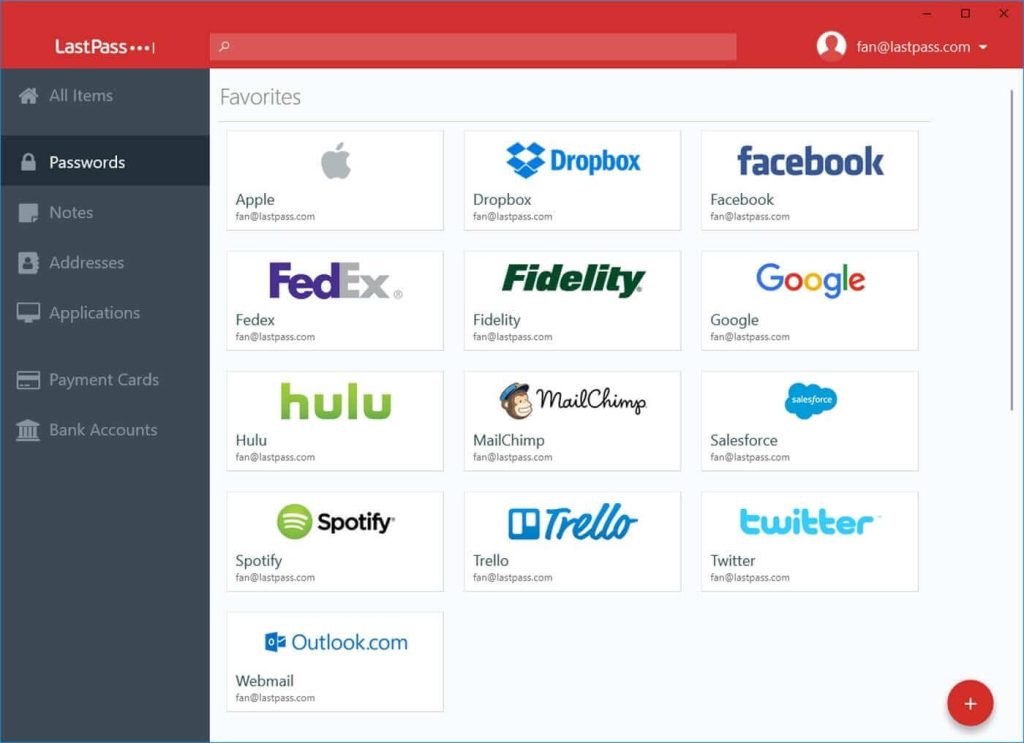
LastPass is one of the most popular and best password manager for Windows out there. It offers top-level encryption and zero-knowledge security. LastPass can store an unlimited number of passwords for free. It works across all operating systems, browsers, and mobile devices.
LastPass has a user-friendly interface with password auto-fill, storage, and generation capabilities. It organizes passwords into encrypted vaults. The LastPass browser extension allows for easy auto-fill of login credentials. Users can also share passwords securely. LastPass will even change stored passwords automatically if a site has been breached.
Key Features:
- AES-256 encrypted password storage.
- Zero-knowledge architecture.
- Unlimited password storage.
- Auto-fill capabilities.
- Password generator.
Pros:
- Highly secure encryption.
- Easy auto-fill across devices/browsers.
- Customizable folders for organization.
- Good free option.
Cons:
- Occasional syncing issues.
- Password sharing requires a premium subscription.
Compatibility: Windows 11 and Windows 10.
#3 Dashlane
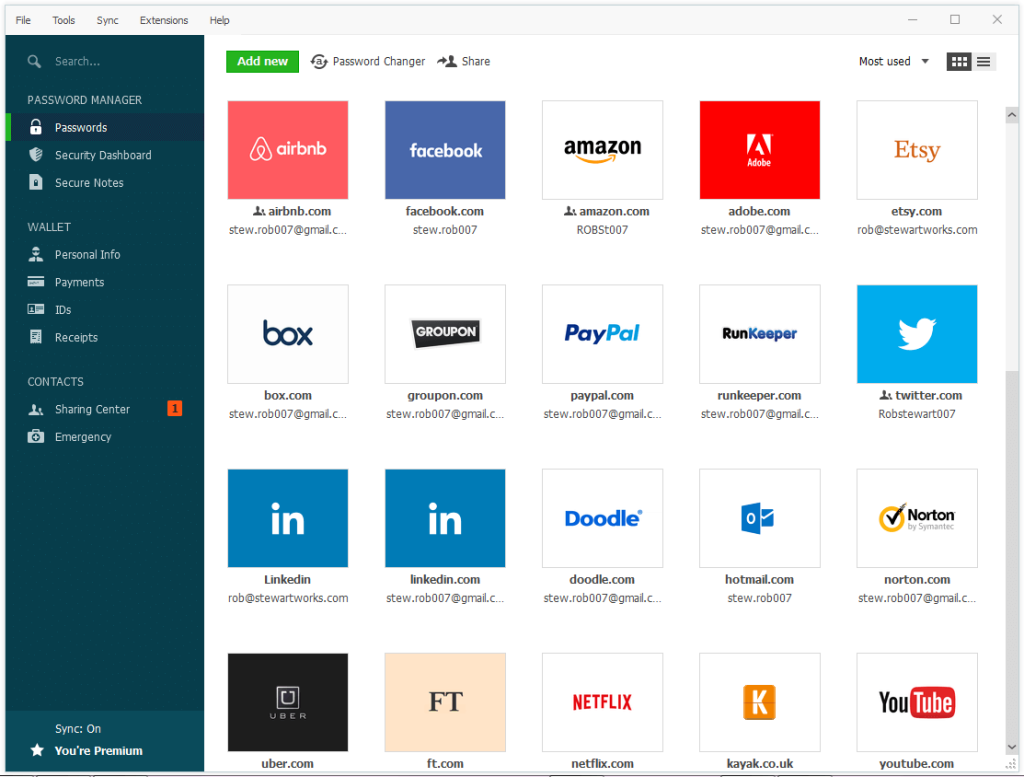
Dashlane is focused on security and ease of use. This application stores passwords safely using AES-256-bit encryption. It also changes auto-fills and updates passwords seamlessly.
Dashlane’s user interface features well-designed menus and setup wizards. These make it simple to import passwords, set up accounts, and configure preferences. Dashlane can capture and store passwords as you browse different sites. The password generator helps you create super-secure passwords.
Useful features include a password strength auditor, secure password sharing, dark web monitoring, and digital wallet storage. Dashlane monitors your personal data on the dark web and sends alerts if credentials are compromised.
Key Features:
- Autofill login credentials.
- Password generator.
- Dark web monitoring.
- Secure digital wallet storage.
Pros:
- Very secure encryption.
- Easy autofill across devices.
- Excellent interface and UX.
- Dark web monitoring.
Cons:
- Expensive premium version.
- Limited free version.
Compatibility: Windows 11 and Windows 10.
#4 1Password
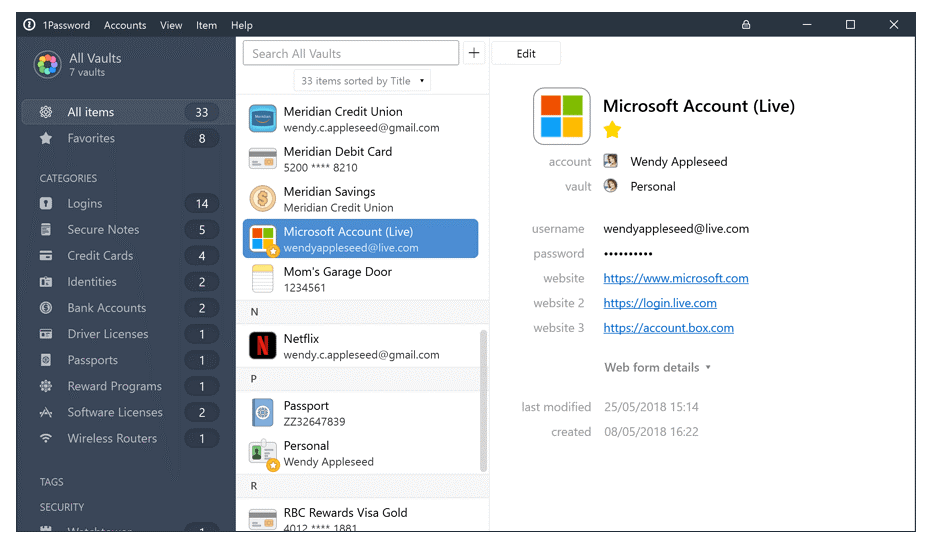
1Password is a versatile, intuitive password manager trusted by both individuals and businesses. This software uses AES-256-bit encryption and secret key encryption to keep passwords protected.
The 1Password interface makes it easy to create strong, unique passwords, auto-fill login forms, and store other confidential information. It supports biometric authentication with Touch ID or Windows Hello. You can use 1Password’s Watchtower feature to monitor websites and get alerts about password breaches or compromised accounts.
One of the standout features of 1Password is its excellent multi-platform support. This allows you to securely access passwords on all your devices. 1Password also integrates with Windows browsers like Chrome, Edge, and Firefox for seamless auto-fill.
Key Features:
- AES-256 bit encryption.
- Biometric authentication.
- Multi-platform support.
- Watchtower security monitoring.
- Flexible subscription plans.
Pros:
- Seamless experience across platforms.
- Strong encryption and security.
- Smooth browser integration.
- Great value for subscription plans.
Cons:
- No lifetime purchase option.
- Limited tech support on cheaper plans.
Compatibility: Windows 10 and later.
#5 KeePass Password Safe
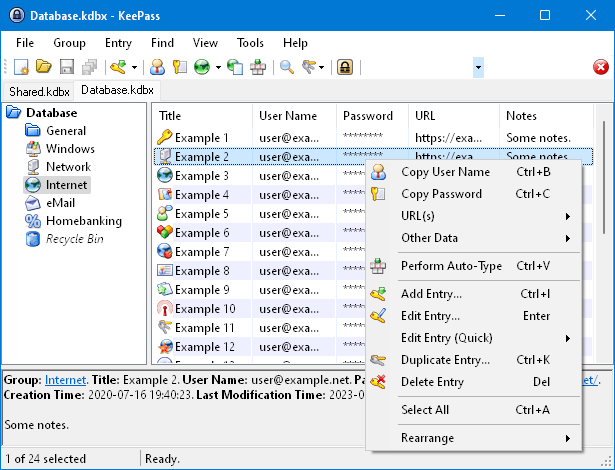
Here comes the next pick on our list of the finest password managers for Windows. KeePass Password Safe is a free, open-source password manager trusted for its security and customization options. It stores passwords in an encrypted, local database protected by one master key or password.
KeePass allows you to organize passwords and other data into folders and groups. You can customize fields and create database backups securely. Other handy features include password generation, two-factor authentication, and a password strength indicator.
Key Features:
- AES-256 bit encryption.
- Offline, local password database for enhanced privacy.
- Plugin support.
- Auto-type feature for automatic login form filling and credential management.
- Highly customizable.
- Free and open source.
Pros:
- Very secure encryption.
- Highly customizable.
- Free and open source.
- Stores passwords locally.
Cons:
- Steeper learning curve.
- No cloud syncing by default.
- Limited auto-fill capabilities.
Compatibility: Windows 7 / 8 / 10 / 11 (each 32-bit and 64-bit).
#6 Enpass Password Manager
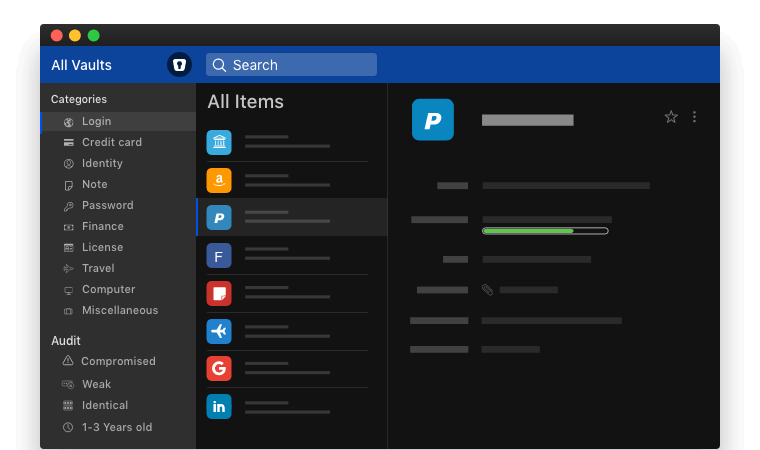
Enpass makes password management easy across all devices and browsers. It uses industry-standard encryption to secure passwords in local storage. That means your passwords stay off the cloud for improved security.
This software features a straightforward design for vault creation, auto-fill, and password sharing. The bookmarklet tool allows you to capture and store new logins instantly as you browse. Enpass can also suggest strong passwords and check your current passwords for weaknesses
Enpass enables you to organize password vaults into hierarchical folders. You can also store other data like secure notes, credit cards, identities, and documents. The apps integrate seamlessly across Windows, Mac, iOS, Android, and Linux devices.
Key Features:
- AES-256 bit encryption.
- Local, offline storage.
- Apps for all platforms.
- Secure cloud syncing across devices (supports multiple cloud storage providers).
- Folder-based organization.
- Affordable subscriptions.
Pros:
- Robust encryption.
- Simple, intuitive interface.
- Low-cost subscriptions.
- Good organizational structure.
Cons:
- Limited password sharing.
- No secure file storage.
- Sparse free version.
Compatibility: Windows 10 and later.
#7 LogMeOnce
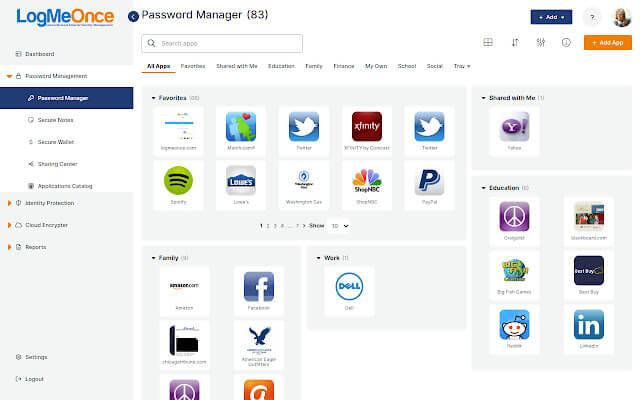
LogMeOnce is a password manager with a unique approach – it focuses on extreme security and access control. This software uses AES-256 bit and RSA-2048 bit encryption with salted password hashing. The master password never leaves your device.
With LogMeOnce, you have granular control over password access. Admins can restrict users and set time limits or number of views. The emergency access tools allow you to grant temporary password access to designated friends or family. You can store passwords, cards, notes, and files securely in categorized vaults.
Key Features:
- Multi-factor authentication options for enhanced security. (AES-256 bit and RSA-2048 bit encryption).
- Salted password hashing.
- Emergency access tools.
- Single Sign-On (SSO) functionality for seamless access to multiple accounts and applications.
- Biometric authentication.
- Built-in password generator for creating strong, unique passwords.
- Mugshot facial recognition.
Pros:
- Bank-level encryption security.
- Full control over password access.
- Mugshot adds additional protection.
Cons:
- Expensive plans.
- Steep learning curve.
- No browser integration.
Compatibility: Windows 7/8/10/11.
#8 RoboForm
RoboForm provides top-level security and convenience through biometric authentication and form filling. Your passwords are secured using AES-256 encryption and zero-knowledge storage.
This manager features a master password and biometric login to access your stored passwords. The autofill capability seamlessly enters usernames and passwords on login forms across sites and apps. RoboForm’s identity manager safely stores personal info for fast form filling.
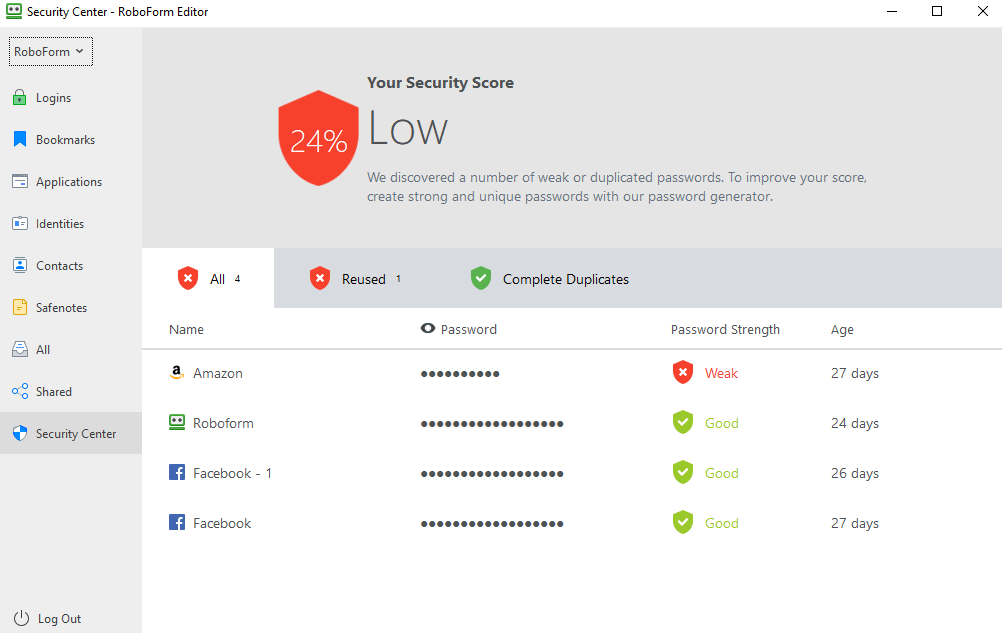
For password health, RoboForm checks for weak or compromised passwords and allows easy password changing. You can also securely share passwords among family members or teams.
Key Features:
- AES-256 bit encryption.
- Biometric authentication.
- Form filling and autofill capabilities for easy login and form completion.
- Identity management.
- Multi-platform compatibility (Windows, macOS, iOS, Android).
Pros:
- Biometric login for added security.
- Seamless auto-fill saves time.
- Good identity management features.
- Intuitive interface.
Cons:
- Limited organization options.
- No breach notifications.
- Short free trial period.
Compatibility: Windows Vista, 7, 8, 10, 11 as well as Windows Server.
#9 Sticky Password
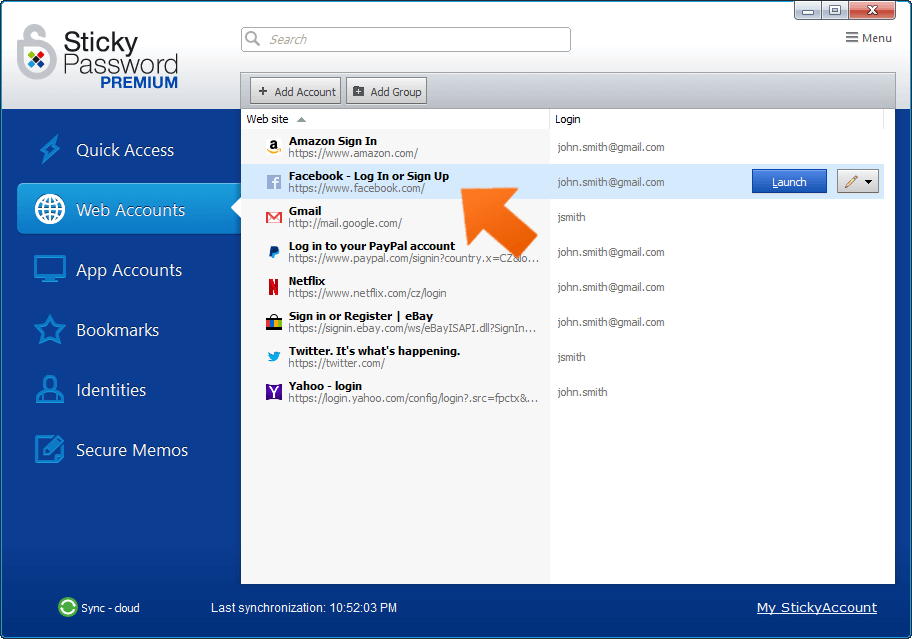
As the name suggests, Sticky Password provides a quick and easy way to manage your passwords securely. It uses advanced AES-256 encryption to protect passwords and data locally on your device.
Sticky Password has browser plugins, apps for Windows and mobile devices, and portable USB authenticators. This enables password access from any device. The tool automatically captures and fills in login credentials as you browse different sites.
Password management is easy with Sticky Password’s clean, intuitive interface. It allows you to import passwords from browsers and set up one-click logins. You can also generate, store, and fill in secure passwords instantly. For additional security, Sticky Password checks password strength and notifies you of breaches.
Sticky Password offers a free version with basic password management for unlimited passwords and users. Premium plans with business collaboration and encryption tools start at $29.99 per user annually.
Key Features:
- AES-256 encryption.
- Local data storage.
- Offline access to passwords and data when an internet connection is not available.
- Automatic password capture and management for new accounts and logins.
- Browser plugins for autofill.
- Unlimited password storage.
Pros:
- Strong local encryption.
- Easy automated logins.
- Unlimited password storage.
- Affordable paid plans.
Cons:
- No biometric login.
- Limited password importing.
- Less secure than cloud syncing.
Compatibility: Windows 11. Windows 10, Windows 8 (Desktop mode only), Windows 7, Windows Vista
#10 PassCamp
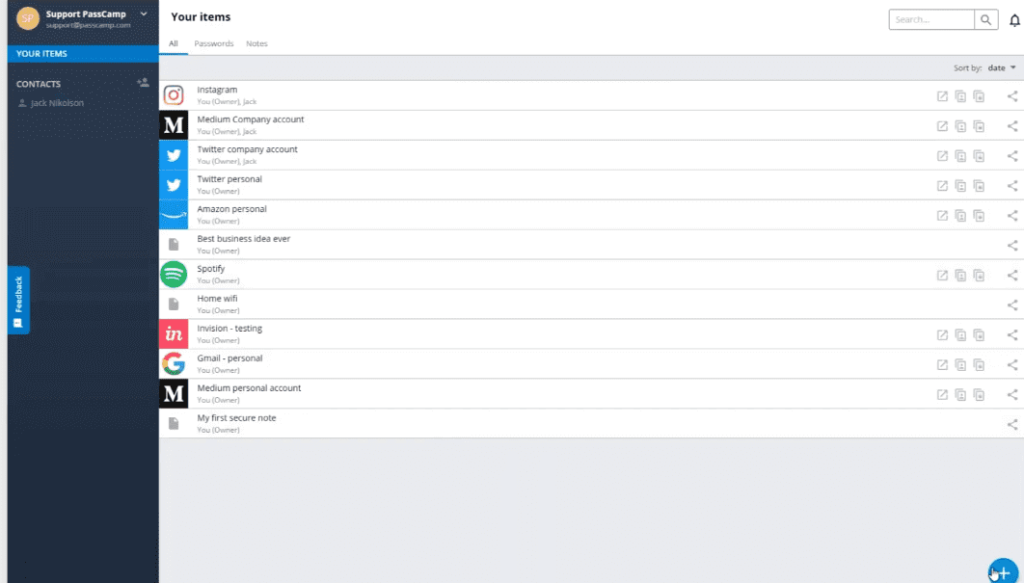
Developed by Passware, PassCamp is a highly secure password manager for individuals and teams. It uses a proprietary encryption algorithm and zero-knowledge architecture for maximum security.
Passcamp makes creating strong, unique passwords easy with its password generator. The autofill function allows fast, accurate login to sites and apps. It also checks
Passcamp makes creating strong, unique passwords easy with its password generator. The autofill function allows fast, accurate login to sites and apps. It also checks the strength of saved passwords and monitors websites for breaches.
Key Features:
- Zero-knowledge architecture.
- Proprietary encryption.
- Seamless integration with popular web browsers for easy autofill and form completion.
- Team permission controls.
- Audit trail and activity monitoring for enhanced security and compliance.
- Two-factor authentication (2FA) support for an extra layer of account security.
- Secure password sharing via encrypted links, ensuring privacy and confidentiality.
Pros:
- Extremely secure encryption.
- Excellent for team management.
- Granular access controls.
- Good password hygiene features.
Cons:
- Fairly expensive.
- Steep learning curve.
- No identity or card storage.
Compatibility: Windows Vista, 7, 8, 10, 11.
Conclusion
Here are the 10 best password managers for Windows. These tools provide a secure, convenient way to store the multitude of passwords we need in today’s digitally connected world. The top options for Windows users offer features like bank-grade encryption, biometric access, password generation and autofill, and seamless syncing across devices.
With programs like NordPass, LastPass, Dashlane, and the others on this list, you can keep your online accounts safe behind strong passwords without having to memorize them all. A password management tool ensures you have unique, complex passwords for every account and website. It also saves time by logging you into sites with one click.
The best tools not only protect existing passwords but also help proactively monitor accounts and websites for emerging threats. Premium versions provide further security and convenience with virtual private networks (VPN), secure file storage, identity theft protection, and more.
FAQs
Do password managers really improve security
A good password manager creates strong passwords and stores them inside an encrypted space that only the user can unlock. This reduces the risk of using weak or repeated passwords. It also protects login details even if a website suffers a breach.
Are password managers safe to use on older Windows versions
Most top managers still support older systems. They use their own encryption, so the version of Windows does not weaken the stored passwords. As long as the tool continues to receive updates, it remains safe to use on older devices.
Can a password manager slow down my computer
These tools run lightly in the background and open only when needed. They may use a small amount of memory for browser extensions, but they do not affect normal computer speed or daily performance.
What happens if I forget the master password
Some users worry about this but avoid asking. The master password is the only key to the vault, so most managers cannot recover it for security reasons. Some tools offer emergency kits or recovery contacts. It is wise to store the master password in a safe offline place.
Will a password manager work if I use different browsers on the same computer
Users often assume each browser must be handled separately. Most managers support browser extensions for all common browsers, so the vault stays the same and syncs instantly no matter which browser is used.
Do I need a password manager if my browser already saves passwords
Browsers store passwords but lack advanced security checks and deeper protections. A dedicated manager scans for weak passwords, alerts users to breaches, and keeps everything inside one secure vault. It offers a stronger and more complete form of protection.
Author Bio:
Dinesh Lakhwani 

Dinesh Lakhwani, the entrepreneurial brain behind “TechCommuters,” achieved big things in the tech world. He started the company to make smart and user-friendly tech solutions. Thanks to his sharp thinking, focus on quality and the motto of never giving up, TechCommuters became a top player in the industry. His commitment to excellence has propelled the company to a leading position in the industry.
Popular Post











Recent Post

How to Switch Windows 10 to a Local Account: Complete Guide
Windows 10 allows users to sign in with either a Microsoft account or a local account. When you set up a new computer, the system often suggests using a Microsoft account. This account connects your device to Microsoft services such as Outlook, OneDrive, and the Microsoft Store. It also syncs settings, themes, and passwords across […]

How To Change Default Apps For File Types In Windows
Windows is designed to make using your computer easy. One way it does this is by assigning default apps to different file types. This means when you open a file, Windows automatically opens it with a specific program. For example, photos may open with Photos, music with Groove Music, and PDFs with Edge. These default […]

How To Adjust The Mouse Pointer Speed: Complete Guide
Using a computer every day means you use the mouse a lot. The mouse pointer moves on the screen and helps you click, scroll, and select items. Many people never think about the speed of the mouse pointer. They have used the default setting for years. This can cause small problems over time. A slow […]

How to Change Mouse Scrolling Settings In Windows
A mouse is one of the most used computer tools. People use it every day. They scroll through emails. They scroll through documents. They scroll through websites and images. The movement becomes automatic. Most users do not notice it. That is why problems often go unnoticed. Scrolling problems show up slowly. At first, it feels […]

Keyboard Light Settings: Keyboard Lighting Control [Complete Guide]
Keyboards are no longer simple typing tools. Well, yes! Over time, they have evolved to include features that improve comfort, visibility, and overall experience. One of the most useful features today is keyboard lighting. It helps users work comfortably in low-light conditions. It also reduces strain when typing for long hours. Many users first notice […]

Customizing Pointer Appearance: Complete Guide
The way your mouse pointer looks on your computer may seem like a small detail. But customizing pointer appearance can make using your PC more comfortable and visually appealing. Many users do not realize that they can change the pointer size, color, and style to fit their needs. Whether you want a bigger pointer for […]

How To Choose a Computer Monitor: Monitor Buying Guide
Buying a monitor looks easy. Many people think all screens are the same. That belief causes regret later. A monitor is not just a display. It is a daily tool. You read on it. You work on it. You relax with it. Small problems become big over time. Poor brightness hurts eyes. Bad size causes […]

How To Get Help With File Explorer in Windows 11 [Complete Guide]
File Explorer is one of the most important tools in Windows 11. It is used to open folders, view files, and manage stored data. Almost every action on a Windows computer depends on it in some way. When users open documents, save downloads, or organize photos, File Explorer is always involved. Because it is used […]

How To Fix A Frozen Computer: Complete Guide [Windows 11/10]
A frozen computer is one of the most common problems Windows users face. The screen stops responding. The mouse pointer does not move. Keyboard inputs do nothing. You may hear the fan running loudly. Sometimes the system looks alive, but nothing works. This situation often happens when you are busy or working on something important. […]

How to Upgrade Computer RAM: Complete Guide
Upgrading RAM is one of the simplest ways to improve a computer. It helps the system feel faster and smoother. Apps open quicker. Browsers handle more tabs. Games and tools run with less delay. Many users search for how to upgrade computer RAM because it gives real results without high cost. You do not need […]

