How to Troubleshoot Xbox Game Bar Not Working On Windows 10: 8 Fixes
Last updated on December 12th, 2025 at 10:05 am
Introduction:
Xbox Game Bar is a powerful and versatile tool that has become an essential part of the gaming experience for Windows 10 users. This handy feature allows you to capture stunning in-game screenshots, record gameplay footage, broadcast your gaming sessions, and access a range of gaming-related features right from your desktop.
However, as with any software, users may occasionally encounter issues where the Xbox Game Bar fails to function as intended. Whether it’s an inability to launch the Game Bar, capture screenshots, record gameplay, or access other features, these problems can be frustrating and disrupt the seamless gaming experience that users have come to expect.
But don’t worry, there are several solutions available to help you troubleshoot Xbox game bar Windows 10 issues you might be experiencing with the Xbox Game Bar on your Windows 10 system.
Why is Xbox Game Bar Not Working on Windows: Top Reasons
Before we delve into the solutions, it’s crucial to understand some of the common reasons why the Xbox Game Bar might not be working as expected on your Windows 10 system:
- Game Bar is disabled: The Xbox Game Bar feature might be turned off in your system settings, preventing you from accessing it during gameplay. This could be due to a previous configuration change or an accidental toggle.
- Registry issues: The Windows Registry is a centralized database that stores critical system settings and configurations. Corrupted or incorrect registry entries related to the Xbox Game Bar could be causing conflicts and preventing it from functioning correctly.
- Compatibility issues: Some games or applications may not be fully compatible with the Xbox Game Bar, leading to conflicts and preventing its use. This could be due to specific game engines, anti-cheat systems, or other software incompatibilities.
- Xbox app issues: Problems with the Xbox app itself, such as outdated versions, corrupted files, or conflicting settings, can also affect the Game Bar’s functionality. These issues may arise from improper updates, software conflicts, or other system-related problems.
- Antivirus or firewall interference: In some cases, overly aggressive antivirus or firewall software might be blocking or interfering with the Xbox Game Bar’s ability to run smoothly. These security programs may mistakenly identify components of the Game Bar as potential threats and prevent them from functioning correctly.
- Driver conflicts: Outdated or incompatible graphics drivers can sometimes cause issues with the Xbox Game Bar, preventing it from capturing screenshots, recording gameplay, or accessing other features properly.
- System resource constraints: If your system is running low on available resources, such as RAM or CPU power, it may struggle to handle the additional load imposed by the Xbox Game Bar, leading to performance issues or functionality problems.
Troubleshoot Xbox Game Bar Windows 10: Best Solutions
Solution 1: Manually Enable the Game Bar in Settings
The first and most straightforward solution is to check if the Xbox Game Bar feature is enabled in your system settings. Often, users may inadvertently disable the Game Bar or have it turned off due to a previous configuration change. By manually enabling the feature, you can quickly resolve any issues caused by a simple toggle switch.
Follow these steps to enable the Game Bar manually:
Step 1: Press the Windows key + I to open the Settings app. Click on the “Gaming” option.

Step 2: Under the “Game Bar” section, toggle the “Game Bar” option to the “On” position.
If this setting was disabled, enabling it should resolve the issue and allow you to access the Xbox Game Bar during gameplay.
Solution 2: Check the Registry
If manually enabling the Game Bar didn’t work, the issue might be related to incorrect or corrupted registry entries. The Windows Registry is a critical component that stores system settings and configurations, and any problems within it can lead to various software malfunctions, including issues with the Xbox Game Bar.
You can try modifying the registry to fix this problem:
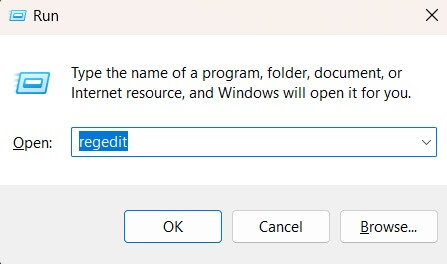
Step 1: Press the Windows key + R to open the Run dialog box. Type “regedit” and press Enter to launch the Registry Editor.
Step 2: Navigate to the following registry key: HKEY_CURRENT_USER\Software\Microsoft\Windows\CurrentVersion\GameDVR
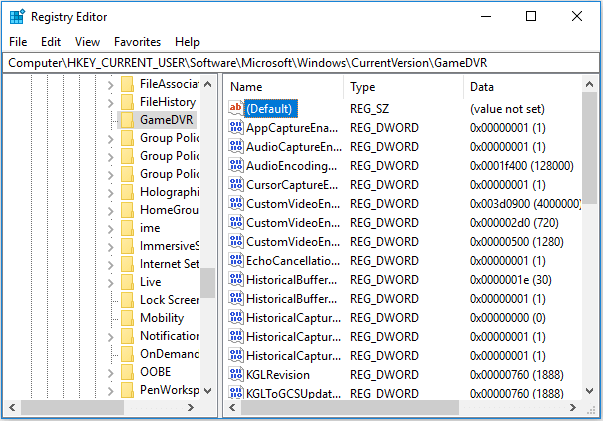
Step 3: In the right pane, look for the “AppCaptureEnabled” and “GameDVREnabled” values.
If these values are not present, right-click in the right pane and select “New > DWORD (32-bit) Value.”
Step 4: Name the new value “AppCaptureEnabled” and set its value to “1.”
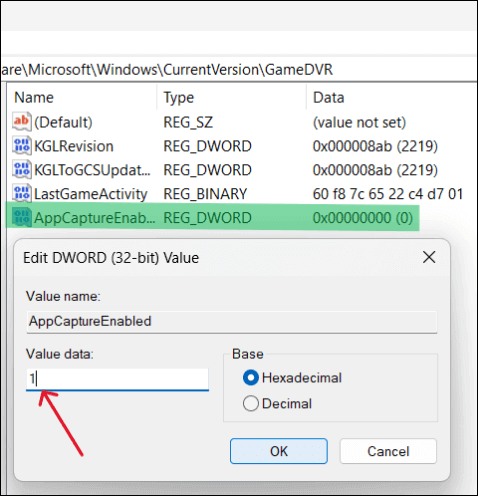
Step 5: Create another new DWORD value named “GameDVREnabled” and set its value to “1” as well.
Close the Registry Editor and restart your computer for the changes to take effect. This should troubleshoot the Xbox game bar not working issue on Windows.
Modifying the registry can be risky if not done correctly, so make sure to follow the steps carefully.
Solution 3: Do Not Run the Game in Full-Screen Mode
Here comes the next solution to troubleshoot Xbox game bar Windows 10 issue. Well, some games might not play well with the Xbox Game Bar when running in full-screen mode. This is because the Game Bar relies on being able to overlay its interface on top of the game window, which can be problematic when the game occupies the entire screen.
Running the game in windowed or borderless windowed mode can often resolve this issue by allowing the Game Bar to function correctly without clashing with the game’s full-screen mode.
Try running your game in windowed or borderless windowed mode to see if that resolves the issue:
Step 1: Launch the game you’re having trouble with. Look for video settings or graphics options within the game’s menu.
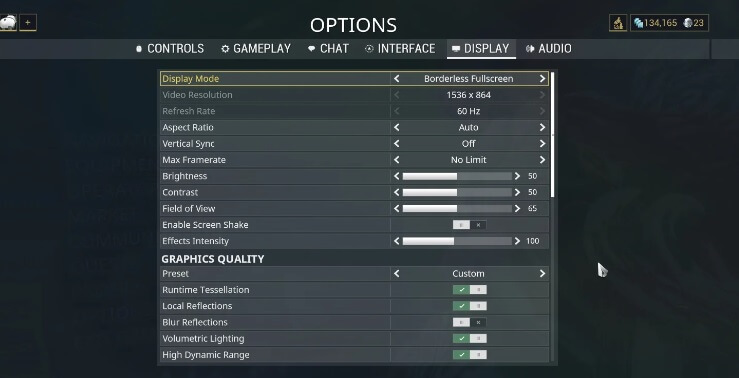
Step 2: Change the display mode from “Full-Screen” to “Windowed” or “Borderless Windowed.” Save the changes and restart the game.
With the game running in windowed mode, the Xbox Game Bar should now function correctly, allowing you to record gameplay and take screenshots.
Solution 4: Reset the Xbox App
If the issue persists despite trying the previous solutions, resetting the Xbox app might help resolve any underlying problems causing the Game Bar malfunction. Resetting the app will clear any cached data, settings, or configurations that might have become corrupted or conflicted over time, potentially restoring the proper functioning of the Xbox Game Bar.
Follow these steps to troubleshoot Xbox game bar Windows 10 issue:
Step 1: Press the Windows key + I to open the Settings app. Click on the “Apps” option.
Step 2: In the “Apps & features” section, scroll down and find the “Xbox” app in the list. Click on the “Advanced options” link.
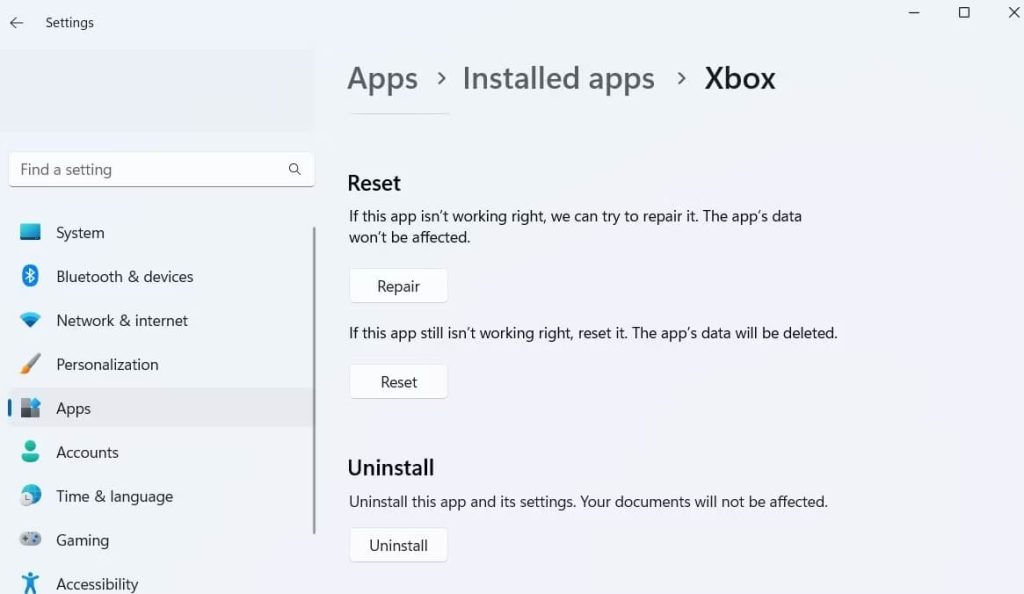
Step 3: Scroll down and click the “Reset” button. Confirm the reset when prompted.
After resetting the Xbox app, try launching a game and using the Game Bar again. The reset should clear any cached data or settings that might have been causing conflicts.
Solution 5: Reinstall the Xbox
If resetting the Xbox app doesn’t work, you might need to uninstall and reinstall it completely to resolve any deep-seated issues with corrupted files, settings, or configurations. While this may seem like a drastic step, it can effectively eliminate any persistent problems that might be preventing the Xbox Game Bar from working correctly.
Follow these steps to uninstall and reinstall the Xbox app:
Step 1: Press the Windows key + I to open the Settings app. Click on the “Apps” option.
Step 2: In the “Apps & features” section, scroll down and find the “Xbox” app in the list. Click on the “Uninstall” button. Confirm the uninstallation when prompted.
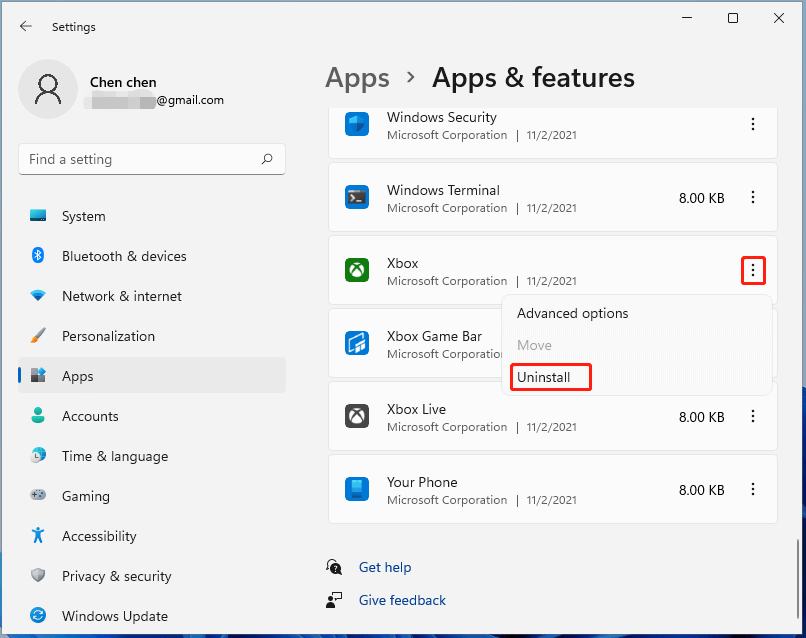
Step 3: Once the uninstallation is complete, restart your computer.
Step 4: After restarting, open the Microsoft Store and search for “Xbox” or “Xbox app.”Find the official Xbox app and click the “Install” button to reinstall it.
Once the reinstallation is complete, launch a game and check if the Xbox Game Bar is now working correctly.
Solution 6: Update Graphics Drivers
Outdated or corrupted graphics drivers can sometimes interfere with the proper functioning of the Xbox Game Bar. Try updating your graphics drivers to the latest version:
Step 1: Press the Windows key + X and select “Device Manager” from the menu.
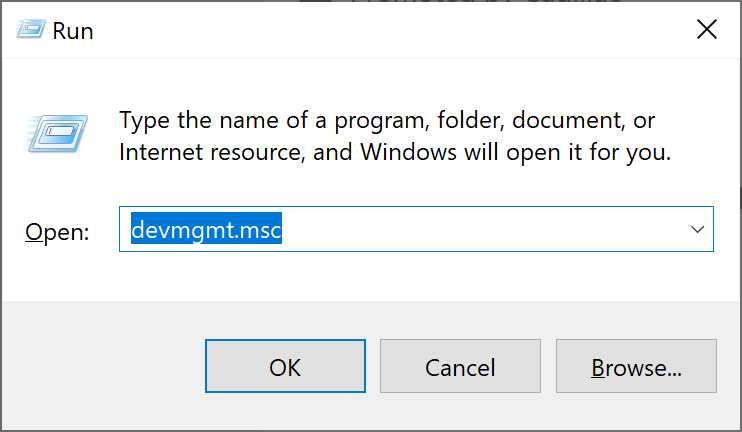
Step 2: Expand the “Display adapters” category. Right-click on your graphics card and select “Update driver.”
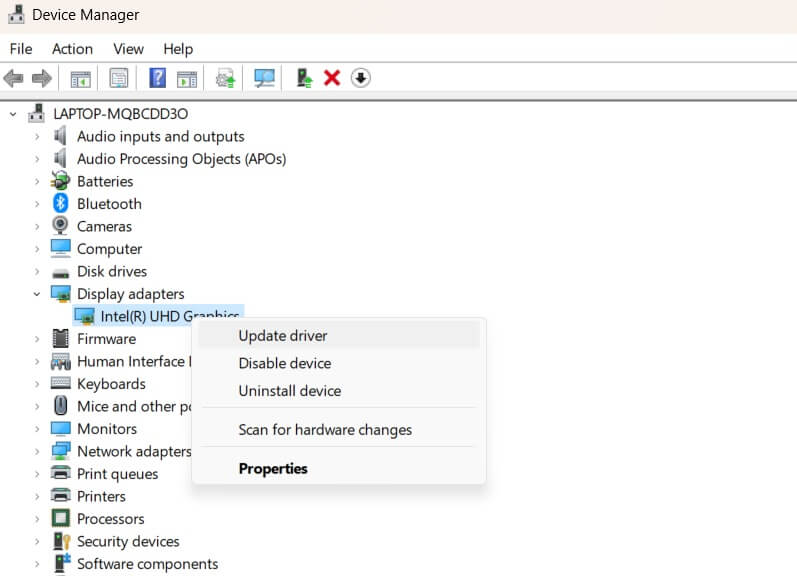
Step 3: Click on the “Search automatically for updated driver software” option.
Step 4: Follow the on-screen instructions to allow Windows to search for and install the latest graphics drivers.
After updating the graphics drivers, restart your computer and check if the Xbox Game Bar is working correctly.
Solution 7: Disable Antivirus or Firewall Temporarily
In some cases, overly aggressive antivirus or firewall software might be blocking or interfering with the Xbox Game Bar’s ability to run. Try temporarily disabling your antivirus or firewall software to troubleshoot Xbox game bar Windows 10 issue:
Step 1: Open your antivirus or firewall software. Look for an option to temporarily disable or turn off the real-time protection.
Step 2: Disable the real-time protection or the entire program temporarily.
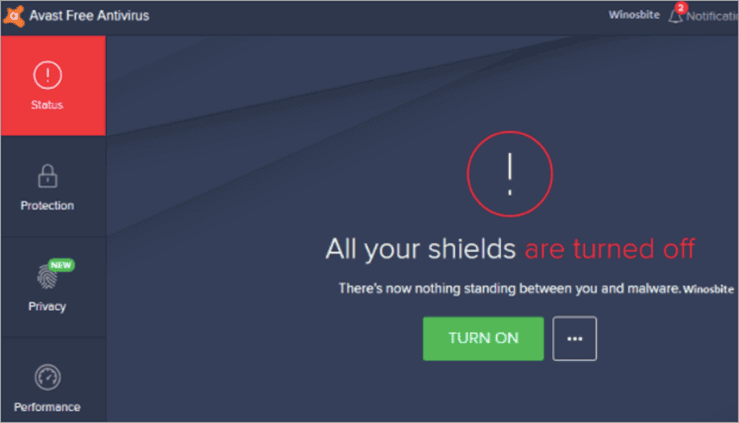
Step 3: Launch a game and check if the Xbox Game Bar is now working correctly.
If the Game Bar functions correctly with the antivirus or firewall disabled, you may need to whitelist or add exceptions for the Xbox app and associated processes in your security software’s settings.
Solution 8: Perform a Clean Boot
If none of the above solutions work, you can try performing a clean boot to isolate and identify any third-party software or services that might be causing conflicts with the Xbox Game Bar:
Step 1: Press the Windows key + R to open the Run dialog box. Type “msconfig” and press Enter to launch the System Configuration utility.
Step 2: Click on the “Services” tab. Check the “Hide all Microsoft services” box at the bottom.
Step 3: Click the “Disable all” button to disable all non-Microsoft services.
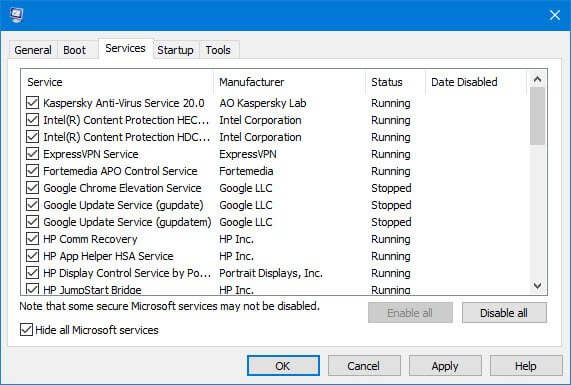
Step 4: Click the “Startup” tab. Click the “Open Task Manager” link. In Task Manager, click on the “Startup” tab.
Step 4: Right-click on each startup item and select “Disable” to disable all startup items. Close Task Manager and return to the System Configuration utility. Click “OK” to apply the changes and restart your computer.
After the clean boot, launch a game and check if the Xbox Game Bar is now working correctly. If it does, you’ll need to identify and re-enable the services and startup items one by one until you find the culprit causing the conflict.
Conclusion
This wraps our guide on how to troubleshoot Xbox game bar Windows 10 issues using different methods. The Xbox Game Bar is a valuable tool for gamers on Windows 10, but it’s not uncommon to encounter issues that prevent it from functioning correctly. By following the solutions outlined in this article, you should be able to troubleshoot and resolve any problems you might be experiencing with the Xbox Game Bar.
Remember, if none of the solutions work, it’s always a good idea to consult Microsoft’s official support channels or seek assistance from gaming communities for additional guidance.
FAQs:
Q: Why is my Xbox Game Bar not working?
There could be several reasons why the Xbox Game Bar is not working, including disabled settings, registry issues, compatibility problems, outdated drivers, or conflicts with other software.
Q: How do I enable the Xbox Game Bar in Windows 10?
You can enable the Xbox Game Bar by going to Settings > Gaming > Game Bar and toggling the “Record game clips, screenshots, and broadcast using Game Bar” option to the “On” position.
Q: Can antivirus or firewall software interfere with the Xbox Game Bar?
Yes, in some cases, overly aggressive antivirus or firewall software might block or interfere with the Xbox Game Bar’s ability to run correctly. You can try temporarily disabling these programs or whitelisting the Xbox app and associated processes.
Q: Should I reinstall the Xbox app if I’m having issues with the Game Bar?
Yes, reinstalling the Xbox app can help resolve any corrupted files or settings that might be causing conflicts and prevent the Game Bar from functioning correctly.
Author Bio:
Dinesh Lakhwani 

Dinesh Lakhwani, the entrepreneurial brain behind “TechCommuters,” achieved big things in the tech world. He started the company to make smart and user-friendly tech solutions. Thanks to his sharp thinking, focus on quality and the motto of never giving up, TechCommuters became a top player in the industry. His commitment to excellence has propelled the company to a leading position in the industry.
Popular Post











Recent Post

How to Switch Windows 10 to a Local Account: Complete Guide
Windows 10 allows users to sign in with either a Microsoft account or a local account. When you set up a new computer, the system often suggests using a Microsoft account. This account connects your device to Microsoft services such as Outlook, OneDrive, and the Microsoft Store. It also syncs settings, themes, and passwords across […]

How To Change Default Apps For File Types In Windows
Windows is designed to make using your computer easy. One way it does this is by assigning default apps to different file types. This means when you open a file, Windows automatically opens it with a specific program. For example, photos may open with Photos, music with Groove Music, and PDFs with Edge. These default […]

How To Adjust The Mouse Pointer Speed: Complete Guide
Using a computer every day means you use the mouse a lot. The mouse pointer moves on the screen and helps you click, scroll, and select items. Many people never think about the speed of the mouse pointer. They have used the default setting for years. This can cause small problems over time. A slow […]

How to Change Mouse Scrolling Settings In Windows
A mouse is one of the most used computer tools. People use it every day. They scroll through emails. They scroll through documents. They scroll through websites and images. The movement becomes automatic. Most users do not notice it. That is why problems often go unnoticed. Scrolling problems show up slowly. At first, it feels […]

Keyboard Light Settings: Keyboard Lighting Control [Complete Guide]
Keyboards are no longer simple typing tools. Well, yes! Over time, they have evolved to include features that improve comfort, visibility, and overall experience. One of the most useful features today is keyboard lighting. It helps users work comfortably in low-light conditions. It also reduces strain when typing for long hours. Many users first notice […]

Customizing Pointer Appearance: Complete Guide
The way your mouse pointer looks on your computer may seem like a small detail. But customizing pointer appearance can make using your PC more comfortable and visually appealing. Many users do not realize that they can change the pointer size, color, and style to fit their needs. Whether you want a bigger pointer for […]

How To Choose a Computer Monitor: Monitor Buying Guide
Buying a monitor looks easy. Many people think all screens are the same. That belief causes regret later. A monitor is not just a display. It is a daily tool. You read on it. You work on it. You relax with it. Small problems become big over time. Poor brightness hurts eyes. Bad size causes […]

How To Get Help With File Explorer in Windows 11 [Complete Guide]
File Explorer is one of the most important tools in Windows 11. It is used to open folders, view files, and manage stored data. Almost every action on a Windows computer depends on it in some way. When users open documents, save downloads, or organize photos, File Explorer is always involved. Because it is used […]

How To Fix A Frozen Computer: Complete Guide [Windows 11/10]
A frozen computer is one of the most common problems Windows users face. The screen stops responding. The mouse pointer does not move. Keyboard inputs do nothing. You may hear the fan running loudly. Sometimes the system looks alive, but nothing works. This situation often happens when you are busy or working on something important. […]

How to Upgrade Computer RAM: Complete Guide
Upgrading RAM is one of the simplest ways to improve a computer. It helps the system feel faster and smoother. Apps open quicker. Browsers handle more tabs. Games and tools run with less delay. Many users search for how to upgrade computer RAM because it gives real results without high cost. You do not need […]

