Top 5 PDF Editor with OCR Feature for Windows & Mac 2026
Last updated on February 1st, 2026 at 3:00 pm
Over the years, the PDF editor has become an important application. Yet, PDF editing can be tricky when it comes to using PDF files online. Hence, here we enlist the top PDF editors with OCR features.
Once you go through the list, you will be able to determine the best and most effective options for PDF editors with OCR features that meet your business needs.
Q1. How do I choose between Adobe Acrobat and ABBYY FineReader?
If you need top OCR and wide language support, ABBYY FineReader is strong. It excels in text recognition and layout retention on complex scans. If you want a broader PDF toolset with editing, signing, form creation, and cloud tie-ins, Adobe Acrobat serves wider tasks. Both are powerful, but your workflow decides value.
Q2. Can I use these tools on both Windows and Mac?
Most here support both platforms. Nitro Pro is Windows only, so Mac users must pick among PDFelement, Acrobat, ABBYY, and Foxit. Check system requirements and features on your version. Desktop performance and feature sets may differ by OS.
Q3. Do these editors cost a lot?
Costs vary. Adobe Acrobat and ABBYY FineReader often come as subscription or one-time with higher price tags. Nitro, PDFelement, and Foxit offer tiered plans that can be cheaper. You get what you pay for in OCR strength and extra features. Evaluate trial versions first.
What is OCR, and how is it beneficial in the context of PDF Editing?
Optical Character Recognition, abbreviated as OC,R is a widespread technology used to read the text inside images. This means OCR technology helps convert virtually any kind of scanned document or image with text into machine-readable text data.
Using it, a hard copy of any document is changed into a machine-readable text document. Once a scanned paper passes through OCR processing, the text becomes editable by PDF, word processors, Google Docs, etc.
When it comes to digitizing old newspapers, indexing documents for search engines, supporting the blind and visually impaired, etc, OCR technology proves to be immensely beneficial.
Top 5 PDF Editors with OCR (Windows & Mac 2026)
Choosing a PDF editor with strong OCR (optical character recognition) makes a big difference when you must edit scanned documents or extract text from images. OCR lets you turn a photo or scan into editable and searchable text.
In 2026, tools for Windows and Mac have matured. Some balance ease of use with powerful tools. Others are built for heavy professional work. The table below compares five leading editors so you can pick the right one for your needs.
| Feature / Tool | PDFelement | Adobe Acrobat | ABBYY FineReader PDF | Nitro Pro | Foxit PhantomPDF Editor |
| OCR Accuracy | High accuracy for standard fonts, good layout retention | Excellent accuracy on complex scans | Best-in-class OCR with advanced language support | Strong OCR, slightly less precise on mixed layouts | Good OCR, fast text capture |
| Platform Support | Windows, Mac | Windows, Mac | Windows, Mac | Windows only | Windows, Mac |
| Text Recognition Languages | 20+ common languages | 30+ languages | 200+ languages and dialects | 20+ languages | 20+ languages |
| Edit Scanned PDFs | Yes, full edit | Yes, robust tools | Yes, with strong text flow | Yes, includes text edit | Yes, clean interface |
| Export OCR to Word/Excel | Yes | Yes | Yes | Yes | Yes |
| Batch OCR | Yes | Yes | Yes | Yes | Yes |
| User Interface | Clean, easy | Professional, full-featured | Technical, detailed | Business-oriented | Simple, efficient |
| Annotations & Markups | Full set | Full set | Yes | Yes | Yes |
| Form Creation | Basic | Advanced | Limited | Advanced | Advanced |
| Cloud Integration | Yes | Yes | No | Yes | Yes |
| Performance | Fast on large files | Stable, heavy features | Fast, high load possible | Quick, lean | Quick |
| Best Use Case | SMB and general users | Enterprise and power users | Heavy OCR workflows | Business professionals | Teams and individuals |
Best PDF Editor for Windows & Mac in 2026
1. PDFelement
System Compatibility: macOS, Windows, iOS, & Android
Price: Multiple types (Subscription and Lifetime, start with $29/ quarter)
Trial Version: limited functionality
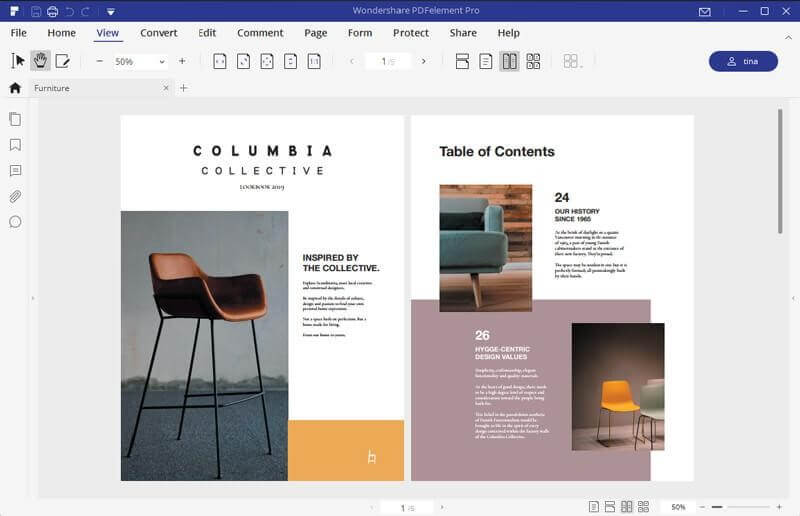
PDFelement is one of the best solutions with a variety of PDF editing features like conversion, editing, OCR, annotation, digital signatures, and form processing. Using this popular PDF editing software, you can easily edit any PDF file and can step above the competition. Its automatic form recognition feature enables you to edit and create an editable form with just one click.
Moreover, using the Optical Character Recognition technology offered by PDFelement, users can easily read and edit text inside images like scanned photos and documents. If you need search the scanned image in PDF, you may also need this advanced feature.

Features:
- All-in-one PDF Editor
- Accurate text recognition on images, edit with one click
- Supports 20+ languages
- Converts standard PDF file format to longer archiving PDF
format
Pros
- Clear and intuitive user interface
- OCR technology that allows editing and extracting PDF and
batch processing - Varied set of PDF editing features
- Helps convert documents
Cons
- Free limited functionality trial version
2. Adobe Acrobat
System Compatibility: macOS & Windows
Price: Acrobat Standard DC: starts at $14.99
Trial Version: limited functionality
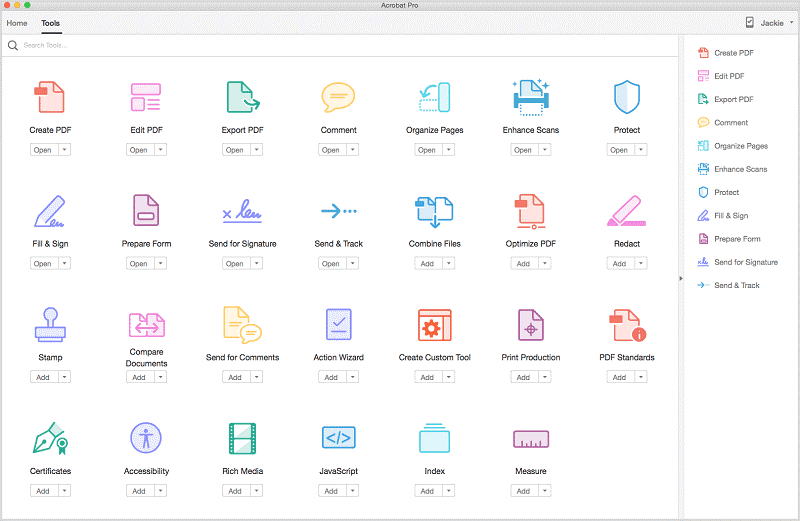
Undoubtedly, Adobe Acrobat has set the ground for PDF editing, and it is popularly used. This top PDF editing tool for Windows is amazing, but when it comes to large businesses, it isn’t the tool you would want to use. Unlike PDFelement Pro, Adobe Acrobat DC is best for only individual and small businesses. Using it you can convert, annotate, edit scanned PDFs via OCR technology, and do a lot more.
Features:
- Best PDF with top-notch features
- User-friendly PDF editor
- Offers OCR Technology to edit scanned documents
- Converts a standard PDF file format to a longer archiving PDF
format
Pros
- Best PDF with top-notch features
- Simple and easy-to-use PDF editor
- Offers OCR Technology to edit scanned documents
- Allows to save work on the cloud
Cons
- Expensive, not pocket-friendly
- Suitable for small businesses and individuals
3. ABBYY FineReader PDF
System Compatibility: macOS, Windows, iOS, & Android
Price: $199 one-time payment & $299 for corporate
Trial Version: limited functionality
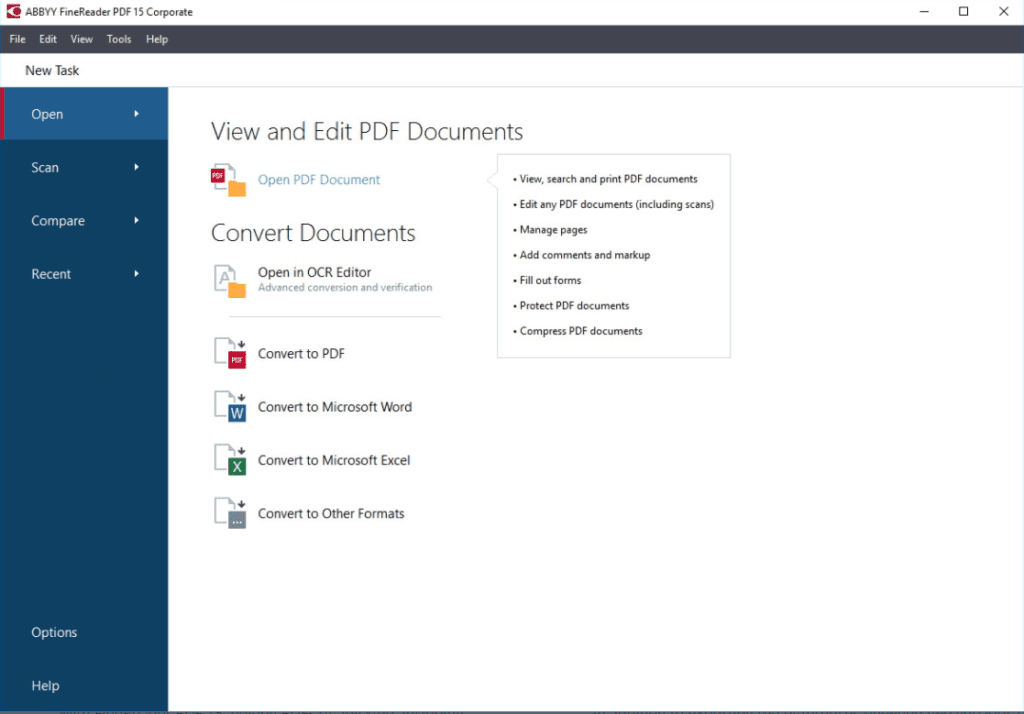
Second, on our list of top PDF editors with OCR is ABBYY FineReader. This smart PDF solution is empowered by AI-based OCR technology, and it helps convert, edit, share, and collaborate with all kinds of documents. Using it you can digitize paper documents, deploy one PDF solution for complete organization, compare documents in different formats, and do a lot more.
Features:
- Edit all kinds of PDF, including scanned documents
- Export document comparison in a PDF and as Word document
in the track-changes mode - Digitize paper documents and scans with OCR
- Create, convert, collaborate, edit, and organize PDFs
Pros
- User-friendly interface
- OCR technology to edit scanned documents
- Convert, merge, and edit PDF
- Advanced document comparison features
Cons
- Limited functionality trial version
- Can’t view the history of document changes
4. Nitro Pro
System Compatibility: Windows
Price: $159
Trial Version: limited functionality
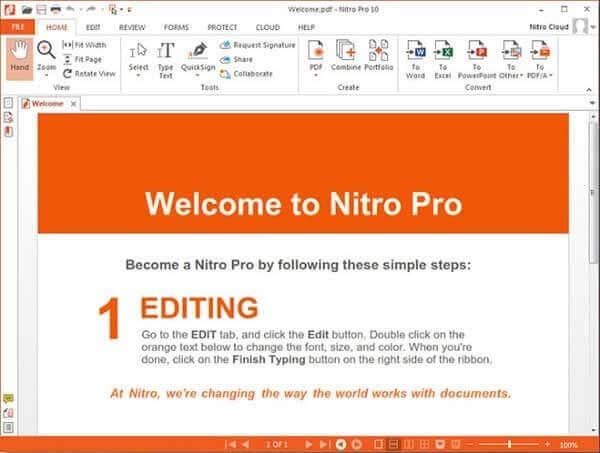
Using this PDF editor, you can convert Word, PowerPoint, and Excel files to editable PDFs, create PDFs from virtually any document, image, or file type. Nonetheless, you can also request secure, legally binding electronic signatures, send, track, and confirm electronic signatures with real-time notifications. This tool also lets create searchable and editable PDFs from scans with OCR.
Features:
- Password-protect PDFs
- Highlight, underline, and cross out text with annotations
- Customizable home tab
- Build, fill PDF forms and detect scanned images using automatic deskskew
Pros
- Simple to use
- Best PDF editor for beginners
- Split, combine, edit, or markup PDF files
- Pocket friendly
Cons
- Limited options to create PDF in the trial version
- Works only with Windows
5. Foxit PhantomPDF Editor
System Compatibility: macOS & Windows
Price: starts at $ 16.99
Trial Version: limited functionality
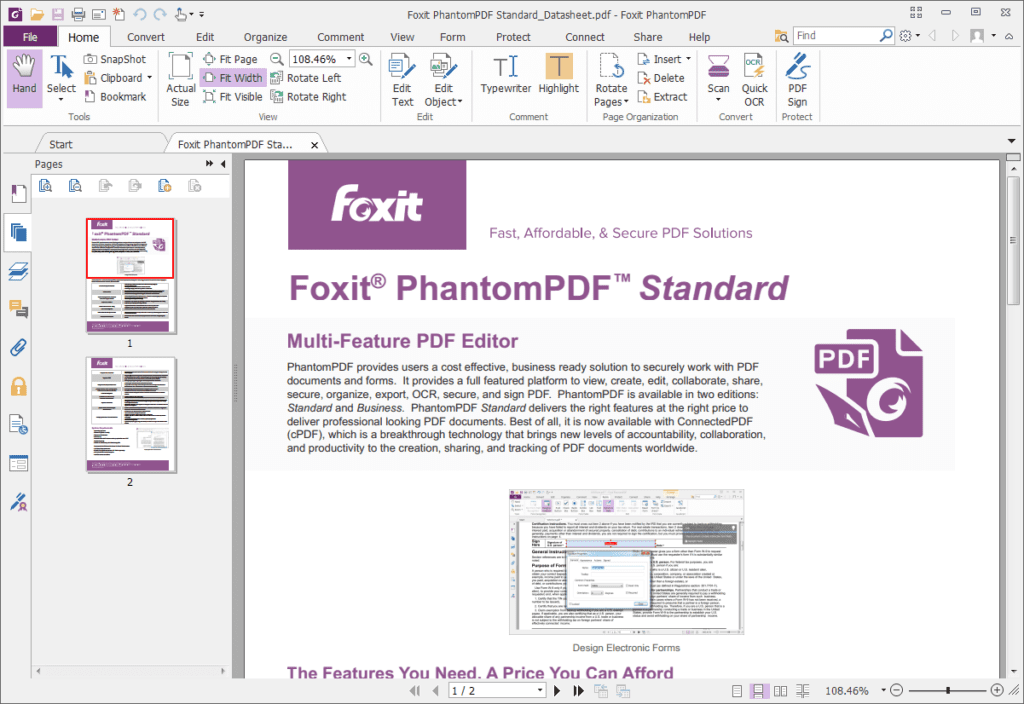
Crete, edit, sort pages, add headers/footers, watermarks, and export PDF. Also, convert paper into digitized, editabl,e and searchable PDFs. Collaborate with other users and let the complete team participate. PhantomPDF provides powerful PDF capabilities that allow authors to update their documents themselves. You can also use it to merge PDF documents or split them. Not only this, but you can also edit scanned PDFs and convert existing scans to PDF.
Features:
- OCR based PDF Editor
- Easily convert PDF to HTML and to text
- Convert webpages to PDF
- Redact, encrypt, and sign PDF
Pros
- Does not take much disk space
- Quick and fast PDF editor
- User friendly
- Offers good PDF editing tools
Cons
- Cannot be installed on multiple PCs
- A plethora of features that confuse the beginner
Conclusion
Choosing a PDF editor with OCR in 2026 affects speed and accuracy. Adobe Acrobat suits enterprises and advanced users. It offers deep tools and strong OCR for complex layouts. Cloud support is reliable. ABBYY FineReader PDF focuses on precision. It supports many languages and delivers excellent recognition, though the interface feels technical. PDFelement works well for daily editing. It is easy to use and handles OCR smoothly. Foxit PhantomPDF Editor stays fast and clean. Nitro Pro serves Windows users and fits office workflows.
Think about your actual needs. Simple scans need simple tools. PDFelement and Foxit handle them well. Heavy files and complex forms need stronger engines. Acrobat and ABBYY suit those tasks. Nitro Pro sits in between and works well for teams. Pick the tool that matches your platform and workflow.
FAQs
Q1 Why choose a PDF editor with OCR?
OCR turns images and scanned pages into text you can edit and search. Without OCR you can view a scan but not change or extract the text. That limits work on contracts, books, and forms.
Q2 Does OCR affect the layout of my documents?
Yes, but quality varies. High-end tools keep columns, tables, and spacing close to the original. Lower-end tools may shift text or lose table lines. Pick a tool that matches your layout needs.
Q3 Is OCR accurate on handwritten text?
Handwritten OCR is less reliable than typed text. Most editors here handle printed fonts well. Handwriting may require extra correction. Some tools offer better handwriting support, but results still vary.
Author Bio:
Dinesh Lakhwani 

Dinesh Lakhwani, the entrepreneurial brain behind “TechCommuters,” achieved big things in the tech world. He started the company to make smart and user-friendly tech solutions. Thanks to his sharp thinking, focus on quality and the motto of never giving up, TechCommuters became a top player in the industry. His commitment to excellence has propelled the company to a leading position in the industry.
Popular Post











Recent Post

How To Fix Issues Downloading from the Microsoft Store On Windows
Introduction: Downloading apps from the Microsoft Store should be a simple task. You open the Store, search for an app, and click install. In most cases, the process works without any problem. However, there are times when the download does not start. In some cases, it may stay stuck at a certain percentage. You may […]

How To Fix Windows Update Issues Easily On Windows [2026]
Introduction Windows updates play an important role in keeping a computer stable and secure. They bring new features, fix known bugs, and improve overall performance. When updates work as expected, the system runs smoothly. However, when they fail, users often face slow performance, missing features, or security risks. This is why it becomes important to […]

How To Check If Your PC Is Infected? [Complete Guide]
Computers now sit at the center of almost everything we do. Well, yes! From sending emails to watching videos, we depend on them without much thought. Because of this, even a small issue can disrupt daily tasks. One common problem is hidden malware. It does not always show clear signs at first. It can enter […]

Repair Apps And Programs: Repair Apps That Aren’t Working
Computers have become an essential part of everyday life, supporting work, study, communication, and entertainment. Most of these activities rely on apps and programs, so when one stops functioning, even simple tasks can be disrupted. Common problems include error messages, frozen screens, or apps that fail to open. On Windows systems, such issues often arise […]

Troubleshooting Microphone Privacy Settings: Complete Guide
Sound is a basic part of how we use computers today. People attend meetings, record audio, speak to others, and use voice tools almost every day. A working microphone makes all these tasks easy. When the microphone fails, even simple work becomes difficult. Many users first think the device is broken. In reality, the issue […]

Windows Sound Settings – Sound Control Panel: Complete Guide
Sound plays an important role in how we use a computer every day. It supports both work and leisure. You need it for meetings, videos, music, and alerts. When audio fails, even simple tasks become difficult. Many users feel stuck when sound issues appear. This usually happens because they are not familiar with Windows Sound […]

Run a Troubleshooter For PC Issues Windows: Complete Guide
A computer plays an important role in everyday life. People use it for work, study, communication, and entertainment. When a problem appears, it can interrupt everything. Even a small issue can waste time and create frustration. Many users feel unsure about how to fix such problems. They often think they need expert help. In reality, […]
![Adjusting Audio Output Settings Complete Guide [2026]](https://www.techcommuters.com/wp-content/uploads/2026/03/Adjusting-Audio-Output-Settings-Complete-Guide.webp)
Adjusting Audio Output Settings: Complete Guide [2026]
Sound is part of almost everything we do on a computer. It lets you watch videos, join calls, play music, and hear alerts. When the audio stops working the right way, it can interrupt both work and daily use. That is why adjusting audio output settings matters for every user. Many people get unsure when […]

Artificial Intelligence Explained: Concepts, Terminology, Benefits, and Future Trends
Artificial Intelligence, or AI, is basically computers doing things that usually need a human brain. We’re talking about stuff like learning from experience, figuring out problems, understanding language, and making decisions. It’s not magic, just a lot of data, pattern-spotting, and math behind the scenes. Now, AI doesn’t actually think or feel like we do. […]

Resolving Microphone Detection Problems: Latest Guide [2026]
Microphones are important tools in daily life. People use them for office meetings, online classes, interviews, gaming, customer support, and content creation. When a system fails to detect a microphone, communication stops at once. This situation can cause stress and confusion. Many users believe the microphone is damaged. In reality, most problems are simple and […]

