Top 10 Secret WhatsApp Tips and Tricks You Should Know

Last updated on August 15th, 2024 at 4:48 pm
What comes to your mind first when we talk about some useful messaging app?
WhatsApp right!
Well, WhatsApp was a revolution in a form of the nifty application when it started gaining pace amongst smartphone users. It has brought people closer with immense features it had incorporated in a small app to make user’s life easy.
When people were struggling to send messages, sending audio & video files, sending documents, making calls from different apps, WhatsApp has put all these features in a single app. Further, things were improved with WhatsApp’s takeover by Facebook that brought plenty other useful features.
For example, the live feed is a useful addition that allows you to send live feeds through images and videos in a quick accession. Though the features are immense and you might know most of them still there are some hidden WhatsApp tips and tricks you would like to know.
In this article, we have discussed some of these secret WhatsApp tips & tricks to improve user experience.
WhatsApp Tips & Tricks
1. Apply Filters to Images Before You Send Them
This is an interesting feature that helps you add filters to your images before you send them to your contacts.To do this, you need to select the image that you wish to send and click on “Swipe up for filters” option (just below the image) to add filters to your image.
Here, you will find options like image filters, crop image, add smileys, add text or caption, and change text color before you send pictures to your contacts.
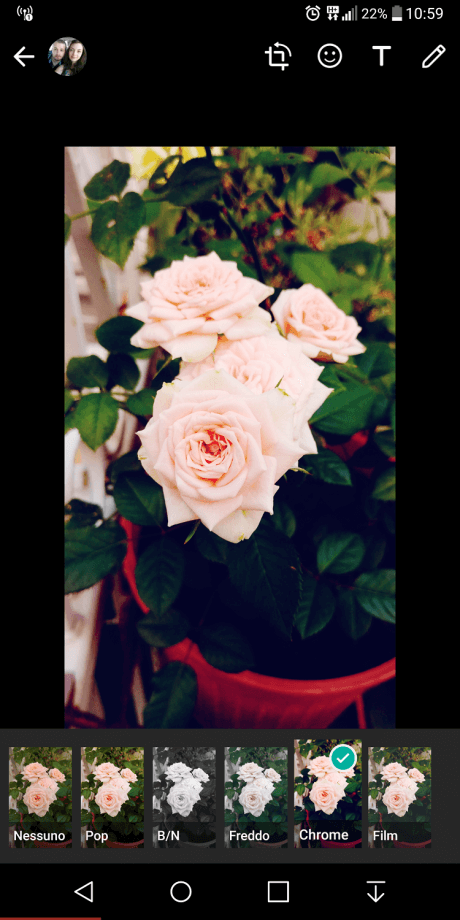
Source: startlr
2. Backup WhatsApp Chats
This is another useful WhatsApp trick that helps you take backup of all your important data on WhatsApp. To back up your data, go to Settings > Chats > Chat Backup and click on BACK UP button.
Here, it will backup your data on internal storage and on cloud servers, Google Drive on Android and iCloud on iOS devices.
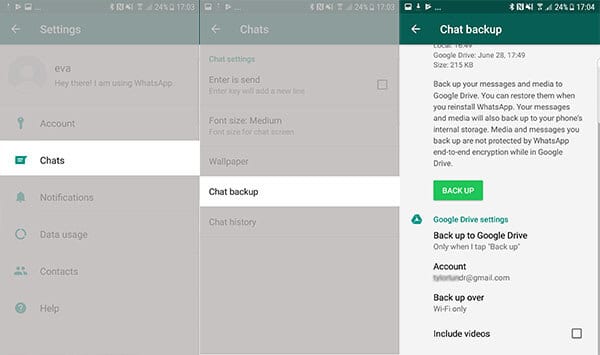
Source: recovery-android
3. Format Your Text
In recent updates, WhatsApp has allowed users to edit or format text in this app the way they are doing in their documents on their computers. With this update, you can make necessary edits like making text bold, italic or strikethrough with an easy tweak.
Here, to bold text in your content use asterisks like *make it bold*, to strikethrough use tilde like ~make it strikethrough~ and to make your text italic use underscore _make it italic_.
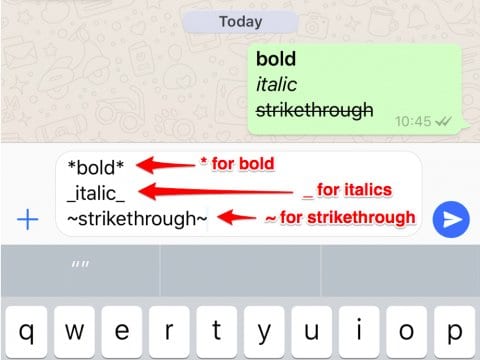
Source: businessinsider
4. Use WhatsApp in a Web Browser
To follow this WhatsApp trick, you need to access WhatsApp web on your system browser by typing www.web.whatsapp.com . Here, it will display a QR code that you need to scan from WhatsApp on your phone by heading to Options menu > WhatsApp Web.
Once you scan the QR code, you will gain access to WhatsApp account on your system browser. It allows you to add multiple systems following the same process. Now when you are in your browser, it helps you send any file from your system. Further, you can store received files on your system too.
Here, all messages will be synced across various connected devices. To log out from all connected devices, head to Options > WhatsApp Web and select “Log out from all computers” option.
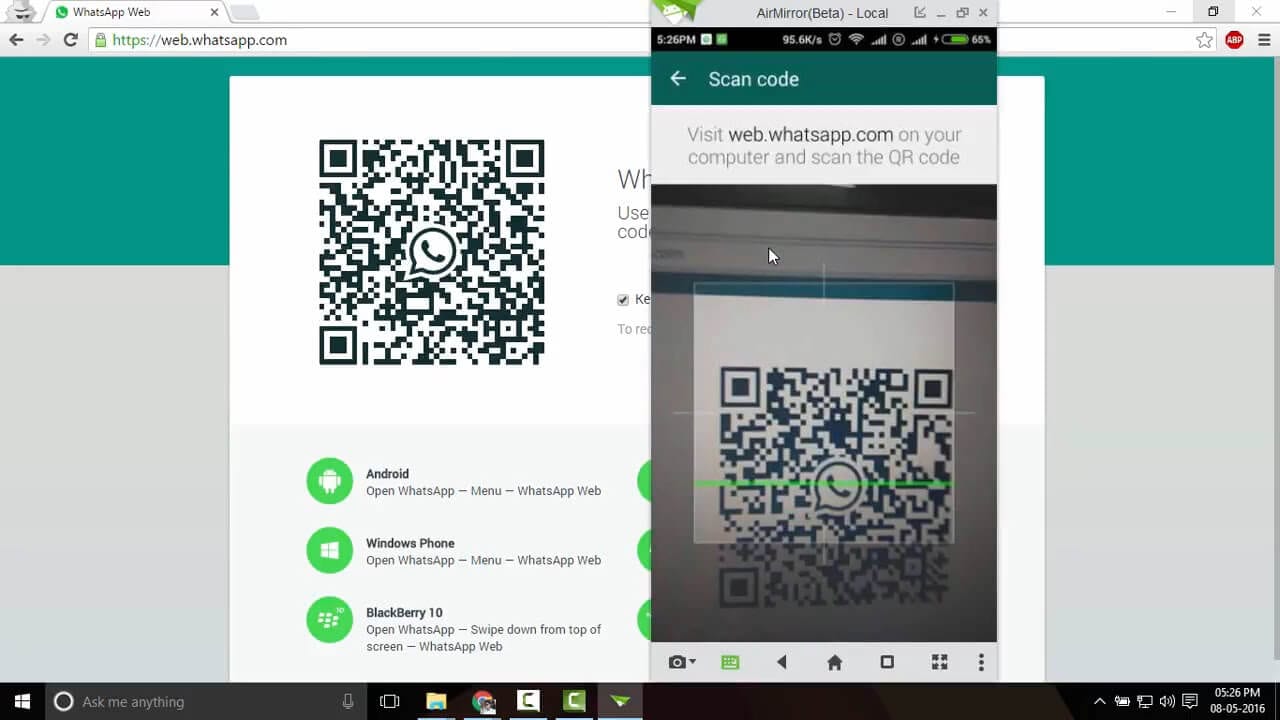
Source: youtube
5. Use Voice Assistant to Send Messages
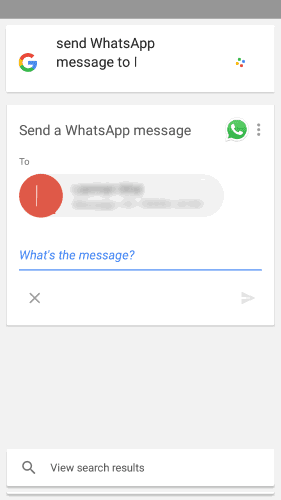
WhatsApp supports both Google Assistant and Siri to help you type handsfree. To use voice assistant on your Android device, say “Ok Google” to launch Google Assistant.
Now command it by saying “Send a message to <contact name> on WhatsApp”. Now when you have dictated the message it will ask for confirmation. Confirm it by saying “Yes” or “Send it”.
To follow this process on iOS devices, launch Siri by saying “Hey Siri” and continue with the same process.
6. Create GIF from Video File
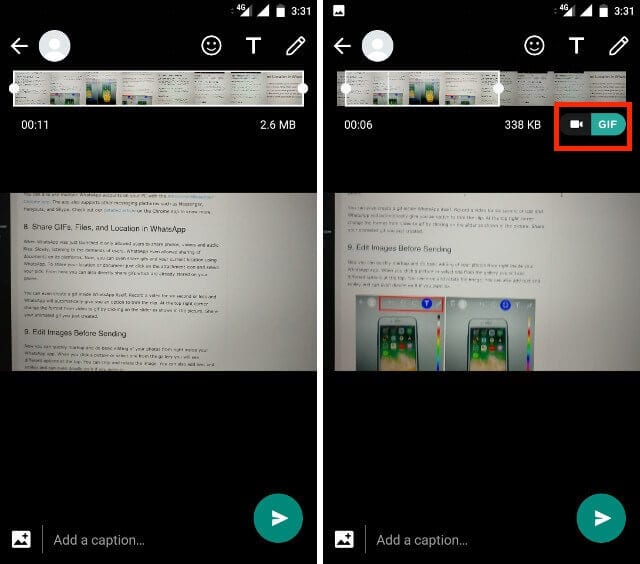
To create GIF from the video file on WhatsApp, you need to trim or create the video of length up to six seconds or less. Once you have a video with length up to six seconds you will find an option to change the format from video to GIF. This WhatsApp trick (GIF format) works only when your video length is below or up to six seconds.
Source: beebom
7. PIN Chats to the Top
Use this WhatsApp trick to PIN all your important chats on the top of the screen. To access this useful feature, log press on the chat that you want to PIN and tap on PIN icon from the menu at the top. Here, you can PIN multiple chats effortlessly.

Source: mobiletechlink
8. Backup Conversations to Email
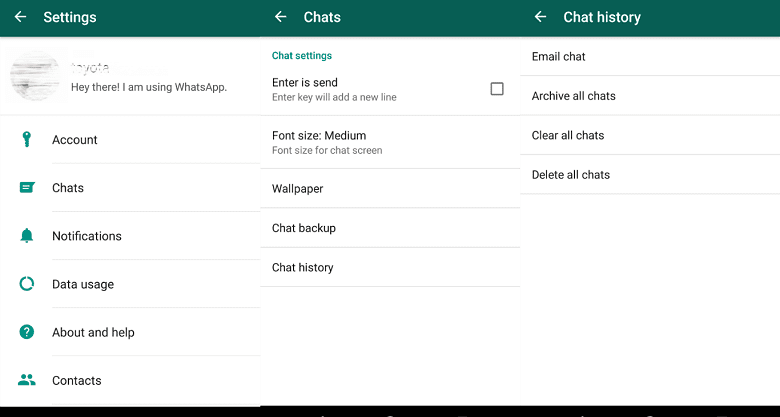
To use this feature, open the chat you wish to save and go to Options > Settings > Chats > Chat History > Email Chat and follow the on-screen instructions. Here, you can backup conversations with or without media individually.
Further, you can find options like Archive ALl chats and Clear and Delete all chats.
Source: fonepaw
9. Tag People and Quote Messages
To tag people in group messages simply type “@” (without quotes), followed by the name of the person (as per saved in your phone contacts).
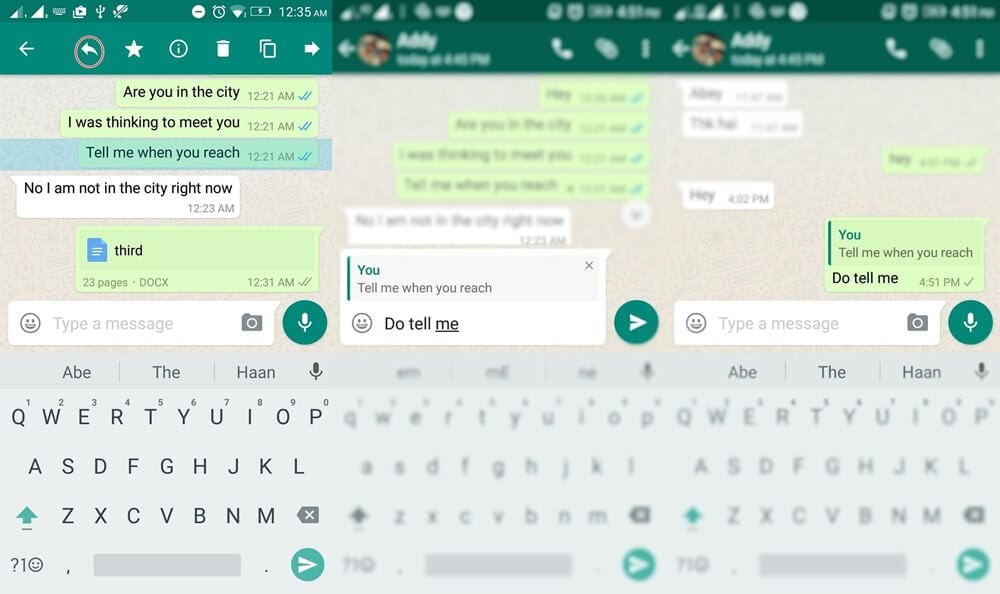
Here, tagged person will get the notification even if he has muted the notifications for that group. Further, you can also quote messages from people to show that you are replying to a specific message by following a simple process.
To do this, open the chat, tap and hold the message that you want to reply on in the action bar, type your message and click on send button.
Source: hongkiat
10. Direct Reply Using Popup Notification
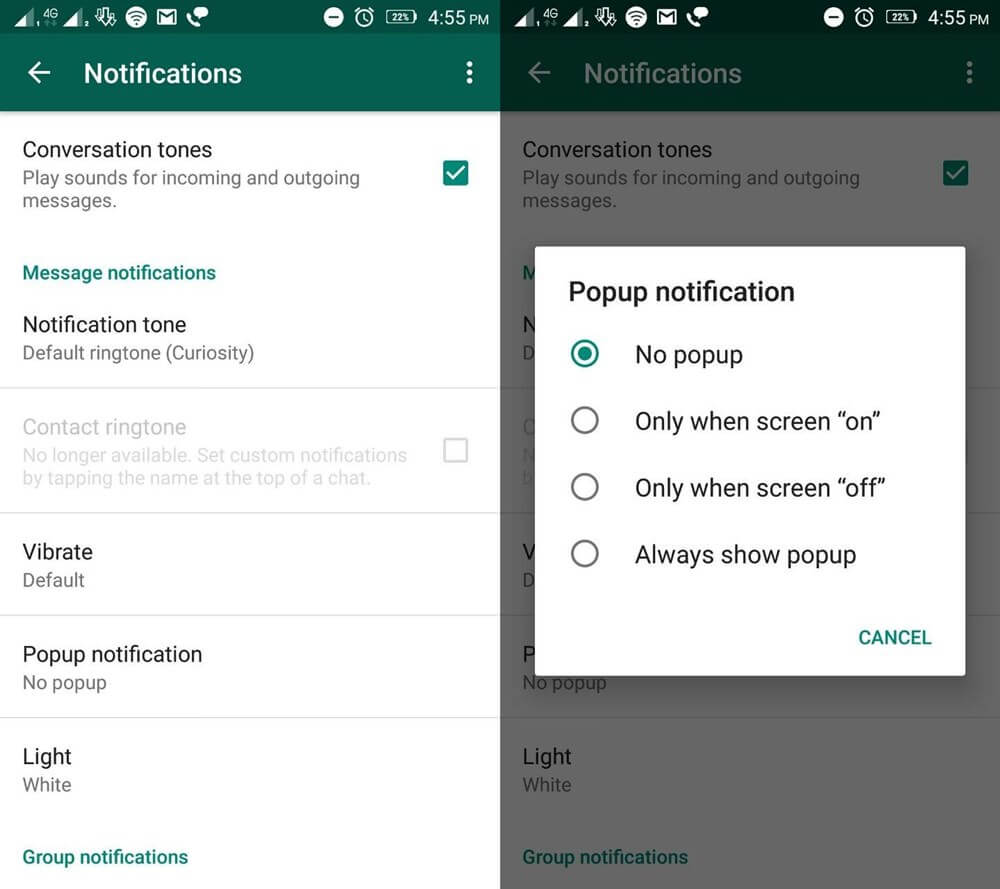
Use this recent feature from WhatsApp to reply directly to your incoming messages even when you are outside the app. To do this, you need to enable Popup Notification by heading to Settings > Notifications > Popup Notification and choose the best option for you.
Source: hongkiat
Conclusion
WhatsApp is powerful app that brings you whole lot of useful features in a single app to improve the user experience. Here, it reduces the need for installing multiple apps to perform individual tasks.
It allows you to send messages, share audio & video files, share contacts & location, share live feeds, make calls and helps you to do numerous other tasks. Further, using some secret WhatsApp tips & tricks, you can only improve your experience with this smart app.
Author Bio:
Dinesh Lakhwani 

Dinesh Lakhwani, the entrepreneurial brain behind “TechCommuters,” achieved big things in the tech world. He started the company to make smart and user-friendly tech solutions. Thanks to his sharp thinking, focus on quality and the motto of never giving up, TechCommuters became a top player in the industry. His commitment to excellence has propelled the company to a leading position in the industry.
Popular Post











Recent Post

Resolving Microphone Detection Problems: Latest Guide [2026]
Microphones are important tools in daily life. People use them for office meetings, online classes, interviews, gaming, customer support, and content creation. When a system fails to detect a microphone, communication stops at once. This situation can cause stress and confusion. Many users believe the microphone is damaged. In reality, most problems are simple and […]

How To Switch To A Dark Background Theme In Windows [2026]
Most people spend many hours each day in front of a computer screen. Office work, online classes, editing, browsing, and streaming all require long screen time. A bright white background may look clean at first. However, over time, it can feel sharp and tiring. The strong contrast between white backgrounds and black text may cause […]

How to Switch From Local To Microsoft Account On Windows
Many users begin with a local account when they set up a new Windows computer. A local account works only on that single device. It stores settings, files, and preferences locally. It does not connect to online Microsoft services. For basic offline use, it works well. However, as digital needs grow, many users want better […]

How to Switch Windows 10 to a Local Account: Complete Guide
Windows 10 allows users to sign in with either a Microsoft account or a local account. When you set up a new computer, the system often suggests using a Microsoft account. This account connects your device to Microsoft services such as Outlook, OneDrive, and the Microsoft Store. It also syncs settings, themes, and passwords across […]

How To Change Default Apps For File Types In Windows
Windows is designed to make using your computer easy. One way it does this is by assigning default apps to different file types. This means when you open a file, Windows automatically opens it with a specific program. For example, photos may open with Photos, music with Groove Music, and PDFs with Edge. These default […]

How To Adjust The Mouse Pointer Speed: Complete Guide
Using a computer every day means you use the mouse a lot. The mouse pointer moves on the screen and helps you click, scroll, and select items. Many people never think about the speed of the mouse pointer. They have used the default setting for years. This can cause small problems over time. A slow […]

How to Change Mouse Scrolling Settings In Windows
A mouse is one of the most used computer tools. People use it every day. They scroll through emails. They scroll through documents. They scroll through websites and images. The movement becomes automatic. Most users do not notice it. That is why problems often go unnoticed. Scrolling problems show up slowly. At first, it feels […]

Keyboard Light Settings: Keyboard Lighting Control [Complete Guide]
Keyboards are no longer simple typing tools. Well, yes! Over time, they have evolved to include features that improve comfort, visibility, and overall experience. One of the most useful features today is keyboard lighting. It helps users work comfortably in low-light conditions. It also reduces strain when typing for long hours. Many users first notice […]

Customizing Pointer Appearance: Complete Guide
The way your mouse pointer looks on your computer may seem like a small detail. But customizing pointer appearance can make using your PC more comfortable and visually appealing. Many users do not realize that they can change the pointer size, color, and style to fit their needs. Whether you want a bigger pointer for […]

How To Choose a Computer Monitor: Monitor Buying Guide
Buying a monitor looks easy. Many people think all screens are the same. That belief causes regret later. A monitor is not just a display. It is a daily tool. You read on it. You work on it. You relax with it. Small problems become big over time. Poor brightness hurts eyes. Bad size causes […]

