Software Performance Optimization Tips: Complete Guide

Software often slows down over time, turning once-fast programs into frustrating delays. While many assume their device is outdated, the real issue often lies in how the software runs. With a few simple habits and checks, users can restore speed and avoid costly upgrades.
This guide offers clear, beginner-friendly software performance optimization tips. It covers cleaning, adjusting, updating, testing, and monitoring your system, while showing how small daily actions prevent bigger problems.
By following these steps, you can build lasting habits that keep your software running smoothly and reliably.
Part 1: Know Why Software Slows Down
Before you start improving performance, you need to understand what causes delays. Most of the time, the system slows because programs collect junk files, use more memory than needed or leave processes running in the background. These issues grow slowly, so many users do not notice them until the slowdown becomes serious.
Older versions of tools also play a role. When you use outdated software, the system needs to work harder to handle weak or missing features. Conflicts between plugins or add-ons also lead to slow performance. Once you understand these root causes, you can apply the right software performance optimization tips with stronger results.
Two simple steps to understand the slowdown:
Step 1: Open your task manager and watch what uses the most resources.

Step 2: Note the software that behaves in an unusual way and review its recent updates or changes.
Part 2: Clean and Organize Regularly
Cleaning is one of the most effective software performance optimization tips because it removes clutter. Over time, your device fills up with temporary files, leftover update files, broken entries and unused applications. These items take up space and increase the load on the system.
Useful Cleaning Habits
- Remove temporary files created by updates or installations. Temporary files often accumulate during software updates or installations. Deleting them helps free up disk space and ensures your system runs more efficiently.
- Clear the cache from browsers to prevent heavy loading. Browser caches store data to speed up browsing, but over time, they can slow performance and cause issues with loading updated content. Regularly clearing the cache keeps browsing smooth and responsive.
- Remove duplicate media files. Duplicate photos, videos, or music can take up significant storage space. Use tools or manual checks to identify and delete duplicates, keeping your media library organized.
- Delete tools you no longer use. Unused applications or utilities consume storage and may even run background processes. Removing them reduces clutter and improves system performance.
- Clean download folders that often store large files. Download folders tend to accumulate installers, documents, and media files that are no longer needed. Periodically reviewing and clearing this folder prevents wasted space.
- Remove old logs generated by software. Many programs generate log files for troubleshooting. These can grow large over time and are rarely needed once issues are resolved. Deleting old logs helps maintain a tidy system.
- Organize documents and archives. Beyond deleting, consider sorting important files into labeled folders or archives. This makes retrieval easier and prevents unnecessary duplication.
- Empty the recycle bin regularly. Files in the recycle bin still occupy disk space until permanently deleted. Make it a habit to empty the bin after reviewing its contents.
Cleaning also prevents the system from storing corrupted entries that slow down scanning tasks. When the device has more free space and fewer conflicts, the software responds much faster.
Two simple steps for regular cleanup:
Step 1: Use your built-in disk cleanup tool once a week.
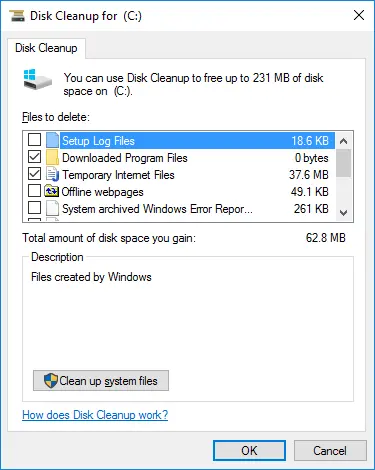
Step 2: Delete unused apps and large files every month to maintain free space.
Part 3: Improve Memory and Resource Use
Your computer relies heavily on smooth memory management. If a program uses more memory than required, the system slows, even when the hardware is strong. Many apps run background processes without your knowledge. These processes keep consuming memory and cause slow behavior.
Improving memory management makes daily work smoother. When apps use less memory, the device handles tasks faster and switches between programs without delay. This is one of the core software performance optimization tips for stable performance.
Helpful ideas for better memory handling
- Disable auto-start programs that open during boot.
- Close heavy tools when not needed.
- Remove unnecessary browser extensions.
- Restart the system after long usage sessions.
- Check for memory leaks in regularly used software.
Two simple steps to free memory quickly:
Step 1: Sort apps by memory use in your task manager.
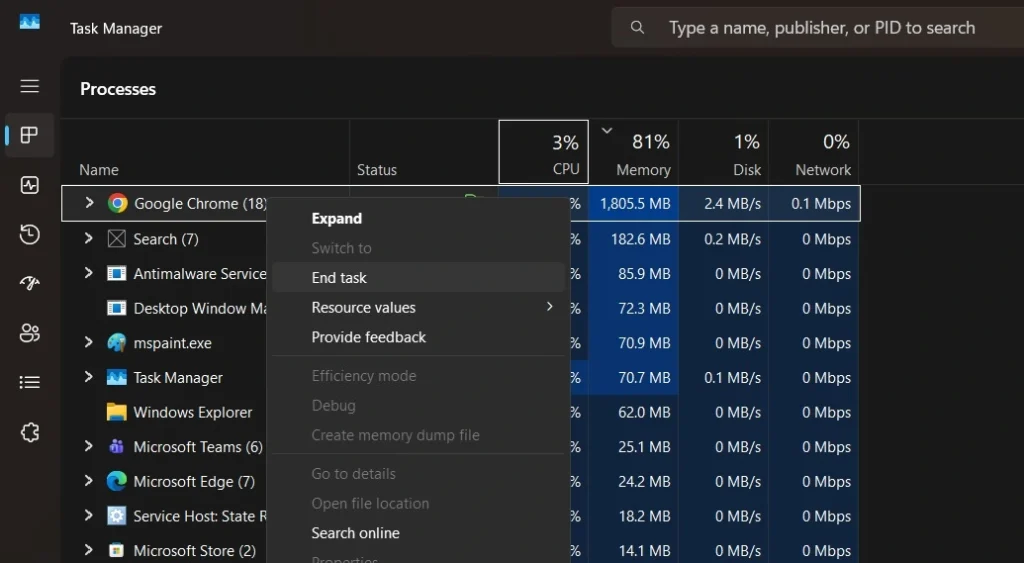
Step 2: Close the top items that are not essential at the moment.
Part 4: Update Software the Right Way
Updates improve performance, reduce bugs, and add stability. But updates must be installed with care. Some updates are large and may slow down the system during installation. Others may cause issues if installed during heavy device activity.
Updating in a structured way gives better results. Many developers release patches to correct memory leaks or performance issues. When you install these patches, your system becomes smoother. Among the most reliable software performance optimization tips, careful updating holds a strong place.
Good updating practices
- Install updates during a free time slot, not while working.
- Review the update notes to understand what is changing.
- Back up important files before large upgrades.
- Allow the system to restart to apply the new changes.
- Avoid mixing multiple update processes at the same time.
Two simple steps for safe updating:
Step 1: Enable alerts for important updates only.
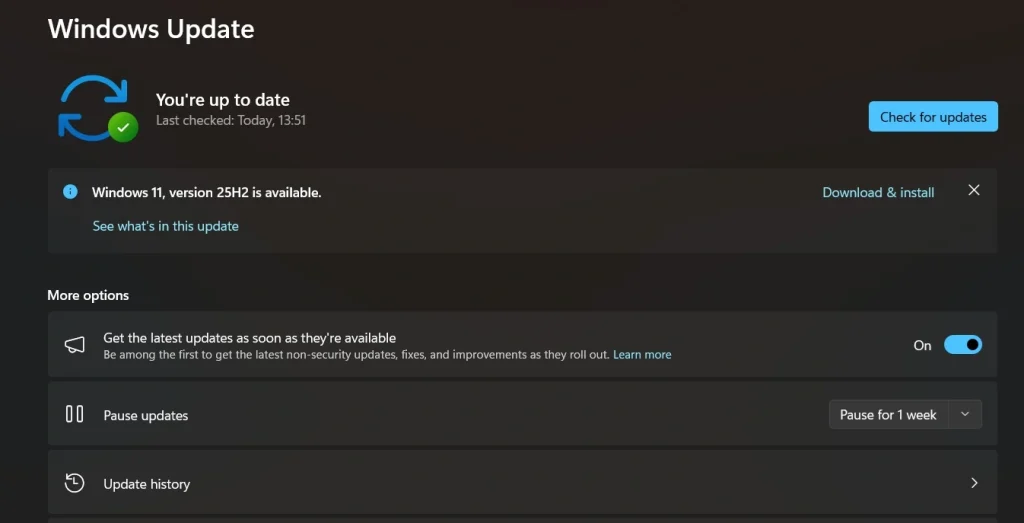
Step 2: Install updates once your system is idle.
Part 5: Use Tools to Monitor Performance
Monitoring tools help you see what slows your software. They show real-time usage of CPU, RAM, disk activity, and network load. When you see the exact cause of the slowdown, you can apply the correct fix instead of guessing.
Monitoring also helps you predict future problems. For example, if an app slowly increases memory use over time, it may indicate a leak. If the disk remains active even when you are not doing anything, you might have leftover services running in the background.
Helpful monitoring actions
- Watch CPU activity to spot sudden spikes.
- Check disk usage to identify slow software.
- Track startup items to find programs slowing boot time.
- Review long-running tasks that take too many resources.
- Observe network activity to spot slow browsing tools.
Two simple steps to monitor effectively:
Step 1: Use built-in performance monitors to get quick insights.
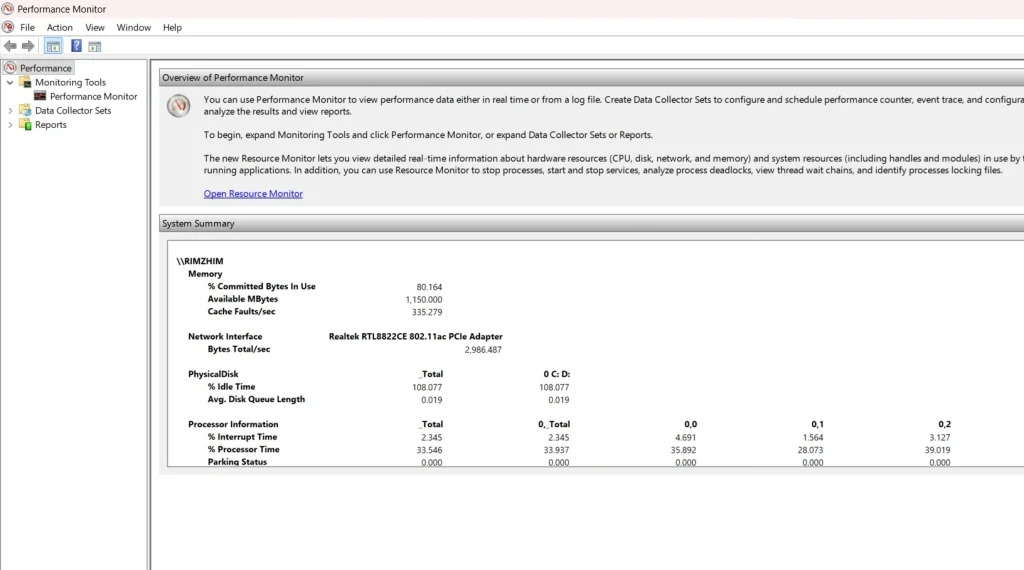
Step 2: Review results daily during heavy workloads.
Part 6: Boost Speed With Configuration Changes
Many slowdowns come from default settings. These settings may look simple, but they sometimes add delays. Adjusting a few options can make your software run faster. These settings control graphics, startup actions, file behavior, and power use.
Small changes build a strong performance boost. This is one of the most practical software performance optimization tips because it requires no technical background and no extra tools. You simply adjust what already exists.
Useful configuration changes
- Turn off visual animations if they slow down the system.
- Reduce the number of background features.
- Use offline mode for apps that do not need constant internet.
- Use lightweight versions of tools when available.
- Set the system to performance mode instead of balanced mode.
Two simple configuration steps:
Step 1: Open Settings. Go to System > About > Advanced system settings.

Step 2: Under Performance, click Settings. Choose Adjust for best performance, or uncheck effects like animations and transparency.
Part 7: Manage Storage for Better Speed
Storage affects performance more than many users realize. When the main drive becomes full the system struggles to read and write files. This increases loading times for apps and affects the speed of updates. Many slowdowns start with poor storage habits.
Managing storage is simple. You only need to keep enough free space and avoid piling up large files on the main drive. This is one of the top software performance optimization tips because it brings instant improvement.
Helpful storage habits
- Move large videos and media files to an external drive.
- Delete old downloads that are no longer needed.
- Limit the number of heavy games installed at once.
- Clear old backups that take too much space.
- Keep at least 20 percent free space on your primary drive.
Two simple steps for strong storage health:
Step 1: Sort files by size and remove the biggest ones you do not need.
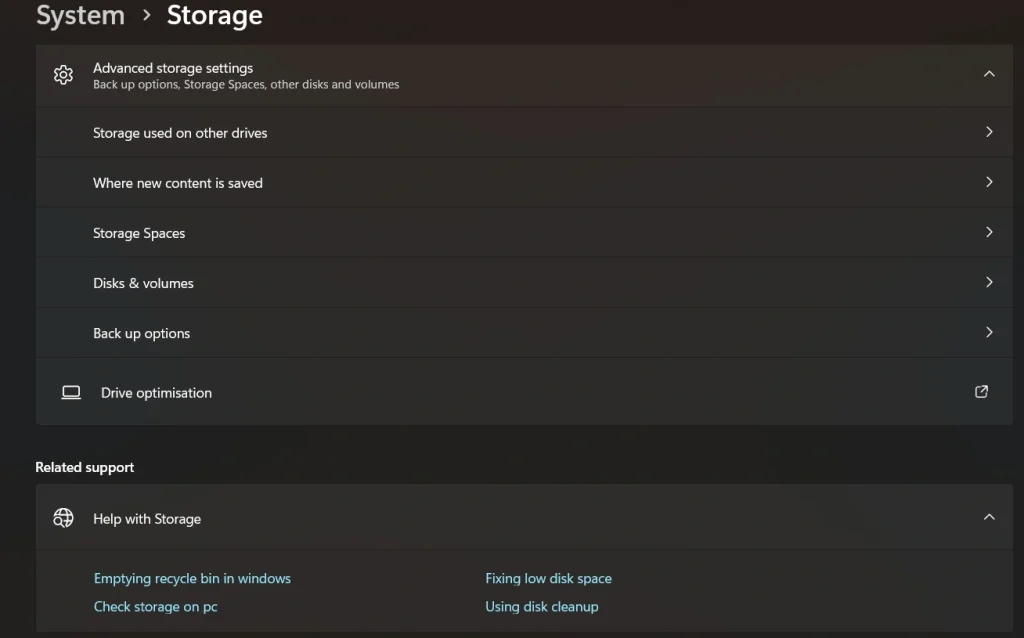
Step 2: Use cloud storage for heavy files you want to keep long-term
Part 8: Create a Routine for Long-Term Stability
Short improvements help, but long-term habits create lasting performance. A routine keeps your system clean and reduces major issues. When you follow a stable routine, the device stays fast even with heavy usage.
A good routine also gives you control. You stop reacting to problems and start preventing them. This keeps your work smooth and reduces stress. It brings all software performance optimization tips together into one steady strategy.
Build a stable routine
- Clean temporary files each week.
- Review installed programs every month.
- Update essential tools after reading notes.
- Scan for errors or corrupted entries.
- Keep backups on another device.
Two simple steps for long-term care:
Step 1: Set reminders so you never skip your routine.

Step 2: Keep a short checklist to follow every time.
Conclusion
Improving software performance does not depend on complex skills. It depends on steady care, simple checks, and smart choices. You can make your system smooth again by cleaning files, adjusting settings, updating tools, monitoring load, and keeping free space.
When these habits become part of your routine, the results stay strong. You enjoy faster speed, better stability, and more predictable software behavior. These software performance optimization tips help you build a stable system that supports your work every day. With the right steps, your device can stay fast for many years.
FAQs:
1. Why does software slow down even when the computer is strong?
Slowdowns happen because small issues build up over time. Programs collect junk files, background services keep running, and memory use increases with every session. These issues are easy to ignore at first, but together they create a steady drop in speed. Once the system becomes crowded, the software needs more time to load and respond. Regular cleaning, careful updating, and simple checks help break this cycle and keep performance steady.
2. How often should I follow optimization steps for the best results?
A light weekly routine works well for most users, and a deeper check each month adds even better stability. This pattern keeps junk files under control and prevents outdated settings from slowing the system. It also helps catch early signs of problems before they grow. When these steps become a habit, the software stays faster without the need for major repairs later.
3. Can basic steps really fix slow software, or do I need advanced tools?
Basic steps often make a real difference because most slowdowns come from simple causes. Removing unused apps, clearing large files, and adjusting a few settings reduces the load on the system right away. These actions also help the device use memory and storage more efficiently. Advanced tools help only in special cases. For daily work, simple habits are enough to restore smooth performance.
Author Bio:
Dinesh Lakhwani 

Dinesh Lakhwani, the entrepreneurial brain behind “TechCommuters,” achieved big things in the tech world. He started the company to make smart and user-friendly tech solutions. Thanks to his sharp thinking, focus on quality and the motto of never giving up, TechCommuters became a top player in the industry. His commitment to excellence has propelled the company to a leading position in the industry.
Popular Post











Recent Post

How To Change Default Apps For File Types In Windows
Windows is designed to make using your computer easy. One way it does this is by assigning default apps to different file types. This means when you open a file, Windows automatically opens it with a specific program. For example, photos may open with Photos, music with Groove Music, and PDFs with Edge. These default […]

How To Adjust The Mouse Pointer Speed: Complete Guide
Using a computer every day means you use the mouse a lot. The mouse pointer moves on the screen and helps you click, scroll, and select items. Many people never think about the speed of the mouse pointer. They have used the default setting for years. This can cause small problems over time. A slow […]

How to Change Mouse Scrolling Settings In Windows
A mouse is one of the most used computer tools. People use it every day. They scroll through emails. They scroll through documents. They scroll through websites and images. The movement becomes automatic. Most users do not notice it. That is why problems often go unnoticed. Scrolling problems show up slowly. At first, it feels […]

Keyboard Light Settings: Keyboard Lighting Control [Complete Guide]
Keyboards are no longer simple typing tools. Well, yes! Over time, they have evolved to include features that improve comfort, visibility, and overall experience. One of the most useful features today is keyboard lighting. It helps users work comfortably in low-light conditions. It also reduces strain when typing for long hours. Many users first notice […]

Customizing Pointer Appearance: Complete Guide
The way your mouse pointer looks on your computer may seem like a small detail. But customizing pointer appearance can make using your PC more comfortable and visually appealing. Many users do not realize that they can change the pointer size, color, and style to fit their needs. Whether you want a bigger pointer for […]

How To Choose a Computer Monitor: Monitor Buying Guide
Buying a monitor looks easy. Many people think all screens are the same. That belief causes regret later. A monitor is not just a display. It is a daily tool. You read on it. You work on it. You relax with it. Small problems become big over time. Poor brightness hurts eyes. Bad size causes […]

How To Get Help With File Explorer in Windows 11 [Complete Guide]
File Explorer is one of the most important tools in Windows 11. It is used to open folders, view files, and manage stored data. Almost every action on a Windows computer depends on it in some way. When users open documents, save downloads, or organize photos, File Explorer is always involved. Because it is used […]

How To Fix A Frozen Computer: Complete Guide [Windows 11/10]
A frozen computer is one of the most common problems Windows users face. The screen stops responding. The mouse pointer does not move. Keyboard inputs do nothing. You may hear the fan running loudly. Sometimes the system looks alive, but nothing works. This situation often happens when you are busy or working on something important. […]

How to Upgrade Computer RAM: Complete Guide
Upgrading RAM is one of the simplest ways to improve a computer. It helps the system feel faster and smoother. Apps open quicker. Browsers handle more tabs. Games and tools run with less delay. Many users search for how to upgrade computer RAM because it gives real results without high cost. You do not need […]

How To Clean Your Computer Keyboard: Complete Guide
A computer keyboard is touched more than almost any other device you own. It is used during work, study, gaming, and casual browsing. Fingers carry natural oils, sweat, and dirt. Small food crumbs fall between keys without notice. Dust settles each day slowly. Over time, this creates a hidden layer of grime. Many users do […]

