RecoverXData Recovery Review

Last updated on July 1st, 2022 at 6:27 pm
Data is essential for all; be it a home user or professional, all want to keep their data safe. However, due to unforeseen situations, primarily due to human error, we lose important data. This is when data recovery tools come to play. Using them, you can get deleted or missing files back. But with so many options available in the market, finding the best data recovery software becomes difficult. Therefore, to make things easy, here we are with a comprehensive review of RecoverXData.
What is RecoverXData Recovery?
Although new in the data recovery world, RecoverX Data is an excellent tool for restoring deleted data.
The recovery software offers six data recovery modes, and its trial version helps scan and review data. Recovery is known for its advanced scan engine and various data recovery options it offers.
We don’t say providing a limited functionality trial version is something extraordinary. However, it is always better to know how the tool works before you pay for it.
Sold at $ 69.96 for a lifetime and $ 49.96 for a year, RecoverXData is great. It comes with lifetime free upgrades.
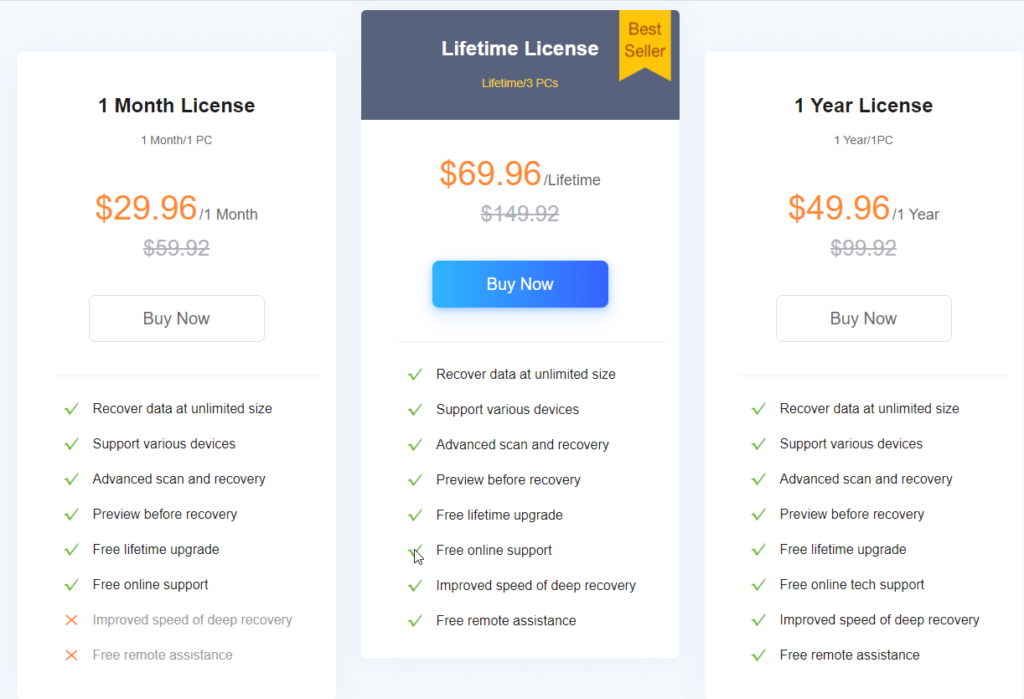
RecoverXData Recovery
Pros
- Best for recovering data lost or deleted due to any reason.
- Recover from flash drives, recycle bin, lost partition, empties recycle bin and more.
- Recover lost or deleted audio, video, photos, and other data.
- 30 days money-back guarantee
- Lifetime and free updates
- Efficient and quick data recovery
Cons
- Limited functionality trial version
Our RecoverXData Recovery review focuses on data recovery and other different aspects of this software. In short, if you are looking for a tool to restore deleted or lost data due to any reason, this is the right tool for you. The tool helps restore deleted and lost images, documents, images, and videos. Designed to undo deleted data, RecvoerX helps retrieve data lost due to any reason.
Benefits – RecoverXData
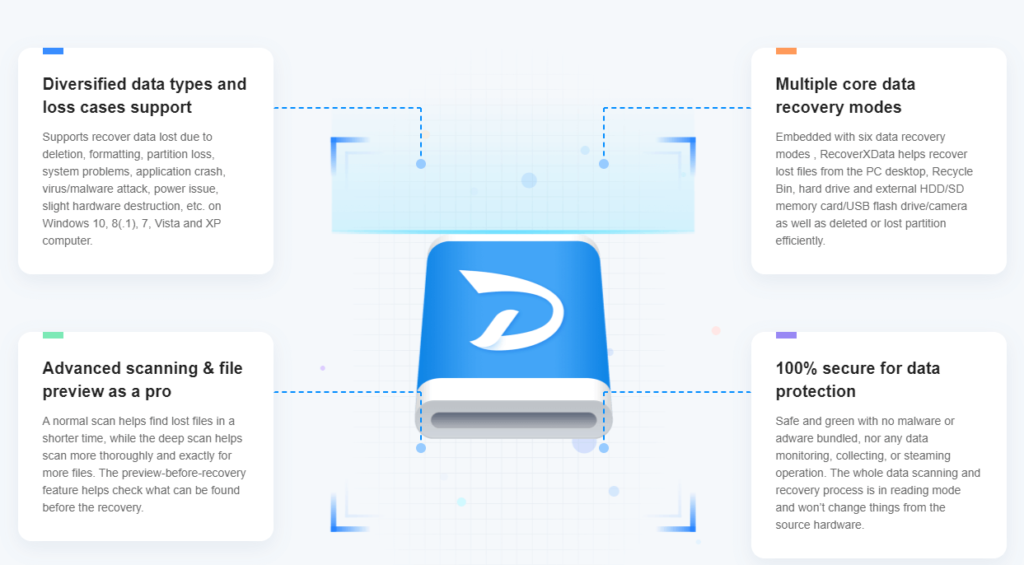
- Restore data loss due to formatting, human error, application crash, virus/malware attack, power issue, etc.
- Comprehensive scanning mode – Quick Scan and Deep Scan.
- Preview mode for easy data recovery.
- Six data recovery modes.
- Safe and reliable data recovery tool.
- RecoverXData Recovery Features.
- Available for Windows RecoverXData is the best tool to restore deleted or lost data. Its powerful features.
Detailed Review – RecoverXData
System Requirements
- Operating System – Windows 11/10 / 8.1 / 8 / 7
- Memory – Minimum 2 GB RAM
- Hard Disk – Minimum 250 MB free space
Many File Formats
Whether the hard disk or storage device is physically damaged or you accidentally deleted the data, RecoverXData is there to help.
You can use it to get back almost any file format, including documents, photos, and videos.
Six different recovery modes
The six different recovery modes –
- Recovery data from hard disk
- Data recovery from formatted disk
- Restore data from flash/memory card
- Recover from emptied Recycle Bin
- Recover from lost partition
- Deep recovery
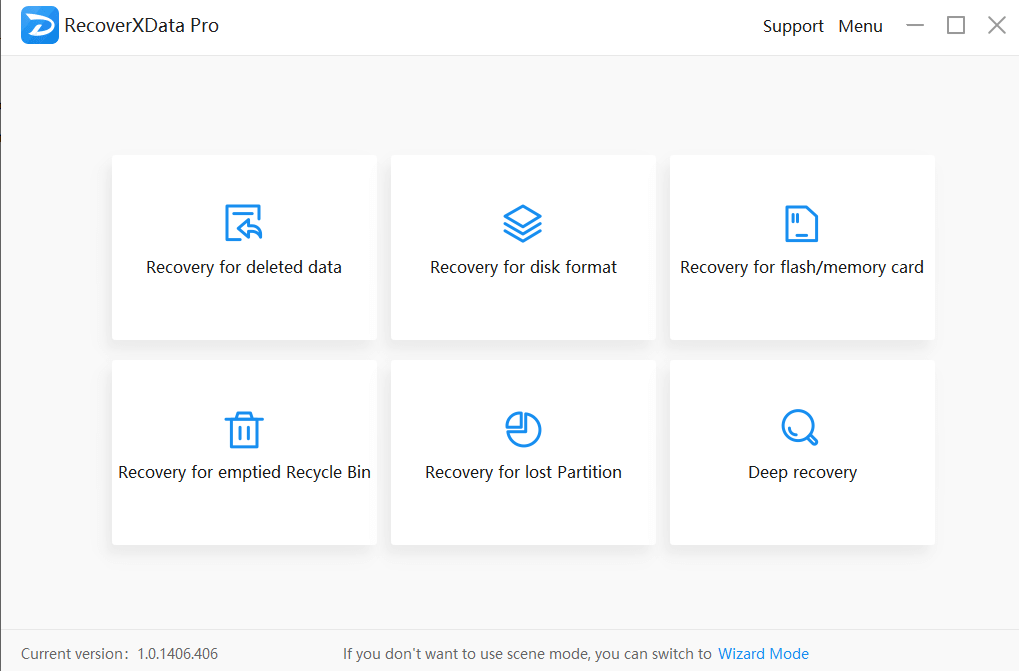
All the modes are available in both trial and paid versions of the product.
Recovery From Corrupt, Lost, or Missing Partition
Before you can access corrupted partitions, you need to format them; this makes recovering data impossible. However, with RecoverXData, you can recover the files before doing so.
The recovery tool helps restore data from NTFS, FAT, exFAT, and other partitions. In addition to this, the software helps retrieve deleted MKV files, restore files from merged partitions from Windows 11, 10, and older versions.
Recovery From Crashed Systems
Only the best hard disk recovery software can get back data from the crashed storage drive. RecoverXData does it efficiently and helps restore data even from a crashed disk. Moreover, it helps retrieve permanently deleted videos, file deleted viruses, and more.
RecoverXData Recovery Speed
In this part of our RecoverXData review, we will discuss the data recovery speed.
We tested the software for:
- Scanning speed of lost/deleted files
- File recovery speed
- Accurate results.
As most recovery tools are praised for their software speed, we were excited to test the speed of RecoverXData.
We deleted 15GB of data consisting of images, videos, pictures, and documents from the hard disk to test RecoverXData. With the Deep Scan in action, the tool took 50-55 minutes to show results. Compared to other recovery software, this speed is incredible. However, the results weren’t the same when we tried recovering data from a flash drive. RecoverXData took a longer time to restore 10GB of data from a USB stick.
But this doesn’t mean that tool isn’t practical. Though the time difference varies, still the results were excellent, we were able to get back all the deleted files. Most importantly, the tool was able to restore the contents of a compressed file.
Note: After deleting the file, Quick Scan works well if you haven’t used the system. However, we recommend Deep Scan as it is more thorough and gives better results if you have been using the system.
Interface and Ease of Use
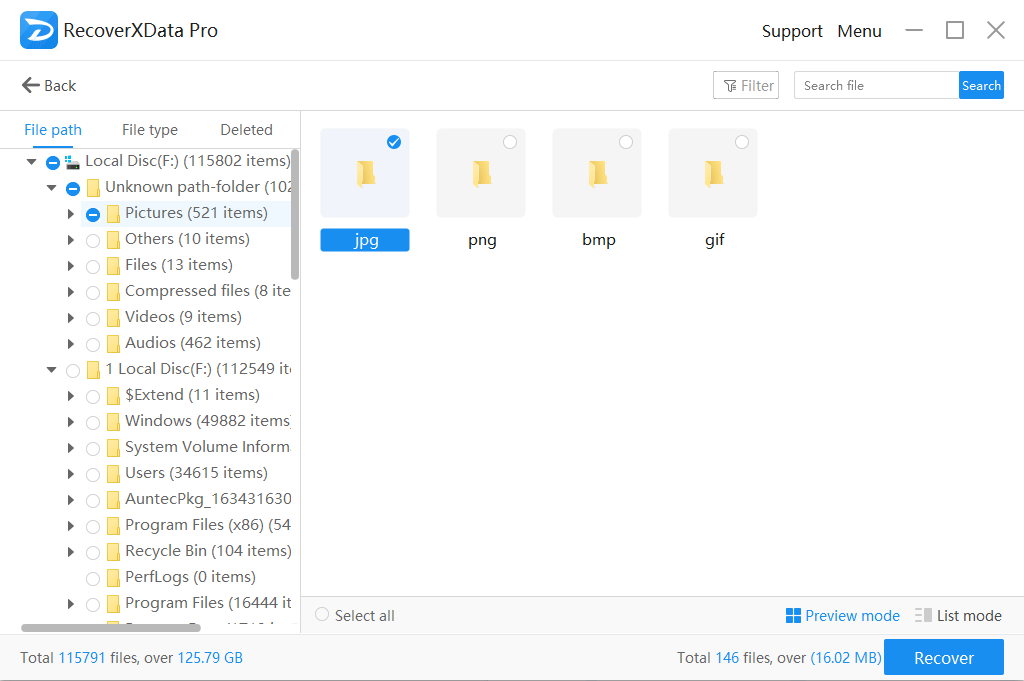
The recovery software is easy to use. On the home screen, you can see all the scan modes. Also, you can easily switch between Wizard mode and Screen Mode.
Navigating the interface and using the tool was very smooth. There was no need for any technical assistance as the options are self-explanatory, and we were able to pick the scan mode and run the scan. Also, the preview mode makes file selection easy. We were able to decide which format to recover first.
Customer Support
With these many features and benefits, RecoverXData comes with excellent customer support. The software has an extensive FAQ section, blogs are covered on different topics, and you can contact customer support for your queries.
We contacted them for a query, and the customer support executive took less than 2 minutes to attend and help us fix the issues.
How to use RecoverXData to get back lost or deleted files?
3 Steps Data Recovery
- Download and install RecoverXData.
- Launch RecoverXData.
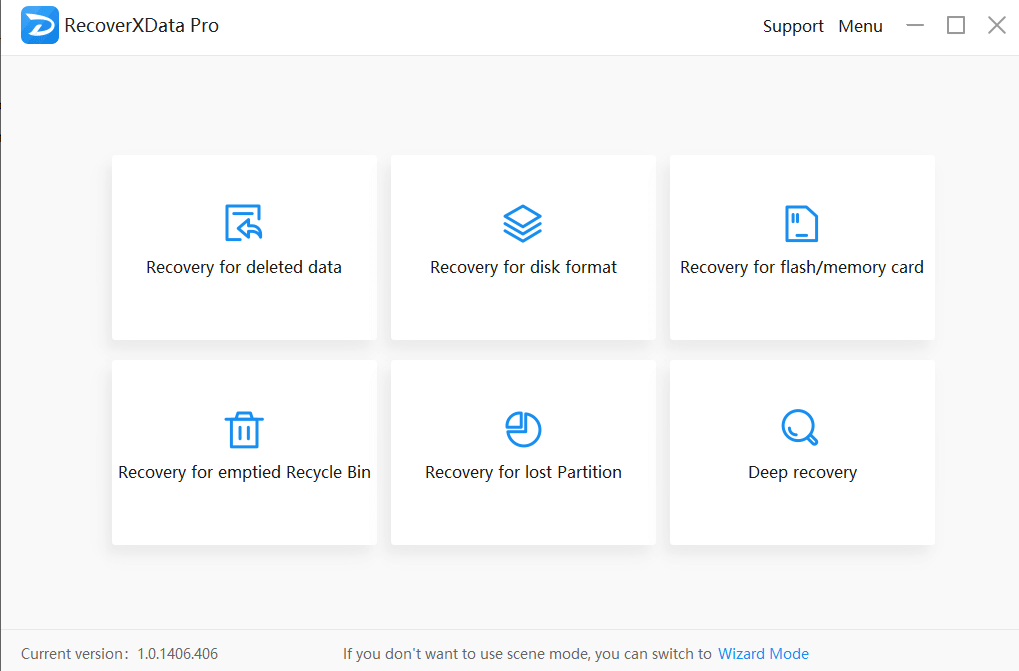
3. Select the location to scan and wait for RecoverXData to scan the selected drive for deleted or lost data.
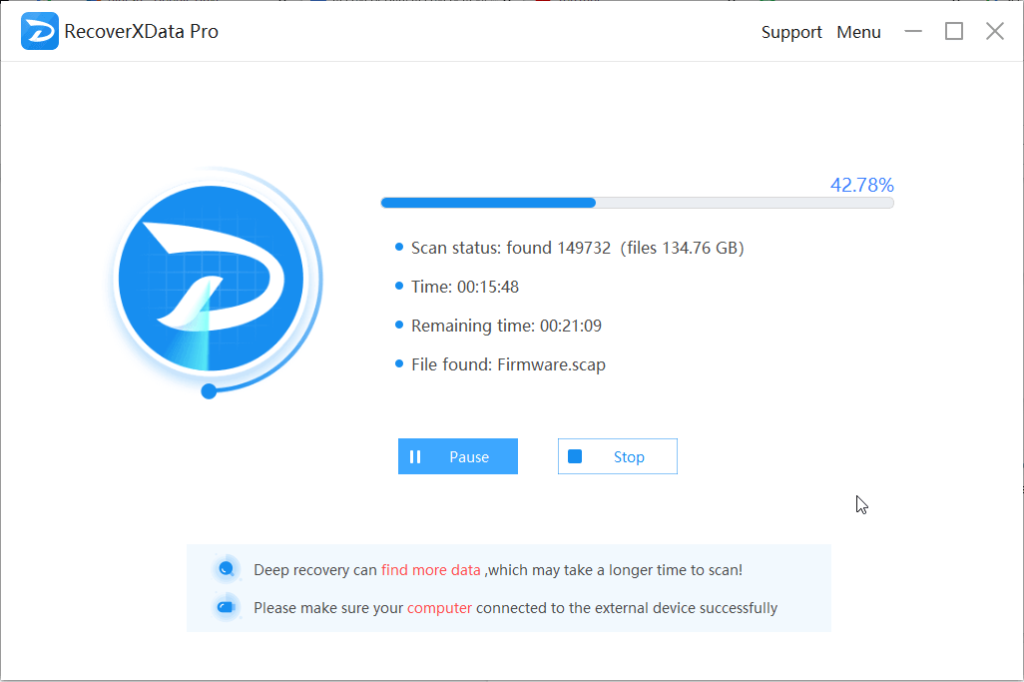
4. Review files > switch between List mode and Preview mode > select the location to save data and click Recover.
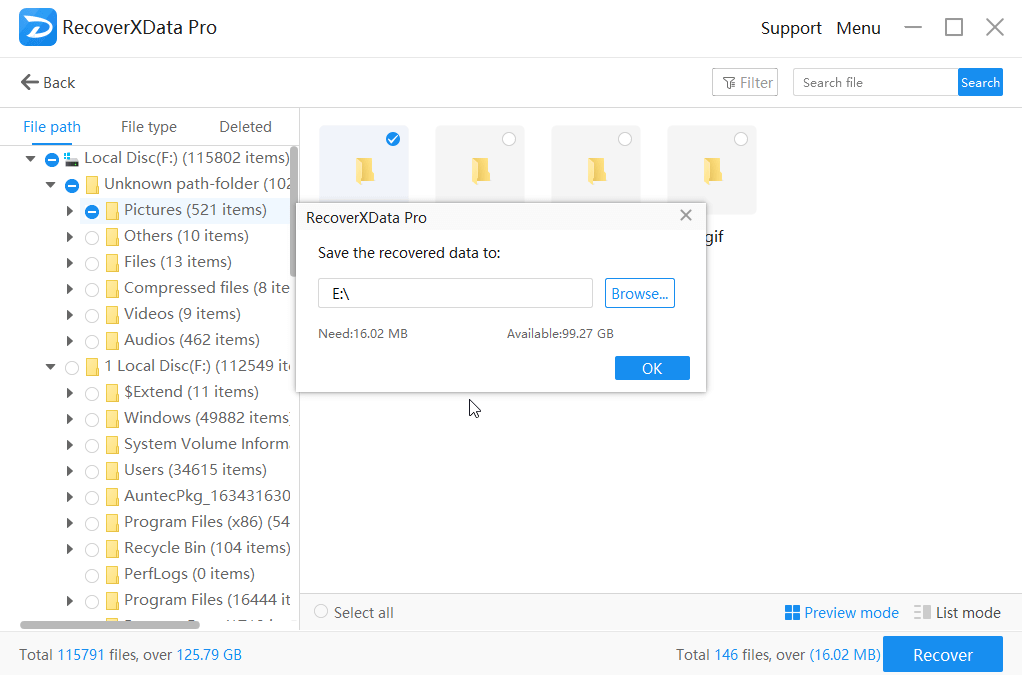
That’s it the selected data will now be saved on the selected location.
Wrap Up
Working with RecoverXData was fun as we were able to get back almost all the deleted files. Furthermore, the tool helped restore all file types. We could recover all of them, be it pictures, videos, audio, excel sheets, words documents, or any other format.
Also, the tool did not take hours to scan the system; this helped save time and get back data.
We hope you will give this tool a try, and when you do, share your feedback with us in the comments section.
Author Bio:
Dinesh Lakhwani 

Dinesh Lakhwani, the entrepreneurial brain behind “TechCommuters,” achieved big things in the tech world. He started the company to make smart and user-friendly tech solutions. Thanks to his sharp thinking, focus on quality and the motto of never giving up, TechCommuters became a top player in the industry. His commitment to excellence has propelled the company to a leading position in the industry.
Popular Post











Recent Post

Repair Apps And Programs: Repair Apps That Aren’t Working
Computers have become an essential part of everyday life, supporting work, study, communication, and entertainment. Most of these activities rely on apps and programs, so when one stops functioning, even simple tasks can be disrupted. Common problems include error messages, frozen screens, or apps that fail to open. On Windows systems, such issues often arise […]

Troubleshooting Microphone Privacy Settings: Complete Guide
Sound is a basic part of how we use computers today. People attend meetings, record audio, speak to others, and use voice tools almost every day. A working microphone makes all these tasks easy. When the microphone fails, even simple work becomes difficult. Many users first think the device is broken. In reality, the issue […]

Windows Sound Settings – Sound Control Panel: Complete Guide
Sound plays an important role in how we use a computer every day. It supports both work and leisure. You need it for meetings, videos, music, and alerts. When audio fails, even simple tasks become difficult. Many users feel stuck when sound issues appear. This usually happens because they are not familiar with Windows Sound […]

Run a Troubleshooter For PC Issues Windows: Complete Guide
A computer plays an important role in everyday life. People use it for work, study, communication, and entertainment. When a problem appears, it can interrupt everything. Even a small issue can waste time and create frustration. Many users feel unsure about how to fix such problems. They often think they need expert help. In reality, […]
![Adjusting Audio Output Settings Complete Guide [2026]](https://www.techcommuters.com/wp-content/uploads/2026/03/Adjusting-Audio-Output-Settings-Complete-Guide.webp)
Adjusting Audio Output Settings: Complete Guide [2026]
Sound is part of almost everything we do on a computer. It lets you watch videos, join calls, play music, and hear alerts. When the audio stops working the right way, it can interrupt both work and daily use. That is why adjusting audio output settings matters for every user. Many people get unsure when […]

Artificial Intelligence Explained: Concepts, Terminology, Benefits, and Future Trends
Artificial Intelligence, or AI, is basically computers doing things that usually need a human brain. We’re talking about stuff like learning from experience, figuring out problems, understanding language, and making decisions. It’s not magic, just a lot of data, pattern-spotting, and math behind the scenes. Now, AI doesn’t actually think or feel like we do. […]

Resolving Microphone Detection Problems: Latest Guide [2026]
Microphones are important tools in daily life. People use them for office meetings, online classes, interviews, gaming, customer support, and content creation. When a system fails to detect a microphone, communication stops at once. This situation can cause stress and confusion. Many users believe the microphone is damaged. In reality, most problems are simple and […]

How To Switch To A Dark Background Theme In Windows [2026]
Most people spend many hours each day in front of a computer screen. Office work, online classes, editing, browsing, and streaming all require long screen time. A bright white background may look clean at first. However, over time, it can feel sharp and tiring. The strong contrast between white backgrounds and black text may cause […]

How to Switch From Local To Microsoft Account On Windows
Many users begin with a local account when they set up a new Windows computer. A local account works only on that single device. It stores settings, files, and preferences locally. It does not connect to online Microsoft services. For basic offline use, it works well. However, as digital needs grow, many users want better […]

How to Switch Windows 10 to a Local Account: Complete Guide
Windows 10 allows users to sign in with either a Microsoft account or a local account. When you set up a new computer, the system often suggests using a Microsoft account. This account connects your device to Microsoft services such as Outlook, OneDrive, and the Microsoft Store. It also syncs settings, themes, and passwords across […]

