7 Best Free Methods to Recover Data in Windows

Last updated on May 19th, 2025 at 1:30 am
Data loss has become a common problem in our lives with the advancement of technology. We save our important files on multiple storage devices, including our Windows devices. Due to reasons like accidental deletion, formatting, system crashes, hardware failures, etc., these files get deleted from Windows PCs. Luckily, there are several recovery methods and free data recovery software available that you can use to recover lost data.
In this article, we will explore the 5 best free methods to recover data in Windows without paying a single penny. Just go with these methods to retrieve deleted files without the need for expensive data recovery services.
Common Reasons for Data Loss on Windows
As mentioned above, data loss on Windows devices can occur due to multiple reasons, ranging from accidental actions to hardware failures. Before you use any free data recovery software or apply manual methods to restore lost data, it is important to understand the exact reasons for your lost data. Here are some prominent reasons why files and folders get deleted on Windows:
- Accidental Deletion: One of the main reasons why data gets deleted is accidental deletion. Such instances usually arise when you unintentionally delete important data while organizing or cleaning up other files/folders.
- Formatting Drives: Formatting the storage drive or your device OS will delete all the data stored on the drive. To avoid such instances, it is advised to create backup of your important files and folder before you proceed with device formatting.
- Virus or Malware Attacks: Malicious software, like viruses or malware, can corrupt or delete files, making them inaccessible. Ransomware attacks, in particular, encrypt files and lead to a significant loss of important data.
- Unintentional Overwrites: You might accidentally overwrite important files by saving new data with the same filenames or by making some changes to the files, which overwrite or eventually delete older files.
- Power Failures or Surges: Sudden power failures or electrical surges can disrupt the normal functioning of your device, causing data loss. Without proper backup power solutions, critical data may be corrupted or lost during unexpected shutdowns.
How do I Recover Data on Windows [Best 5 Free Methods]
Here are commonly used free data recovery methods that you can try to recover lost data on a Windows device without paying any amount:
Method 01: Recover Deleted Data on Windows From Recycle Bin
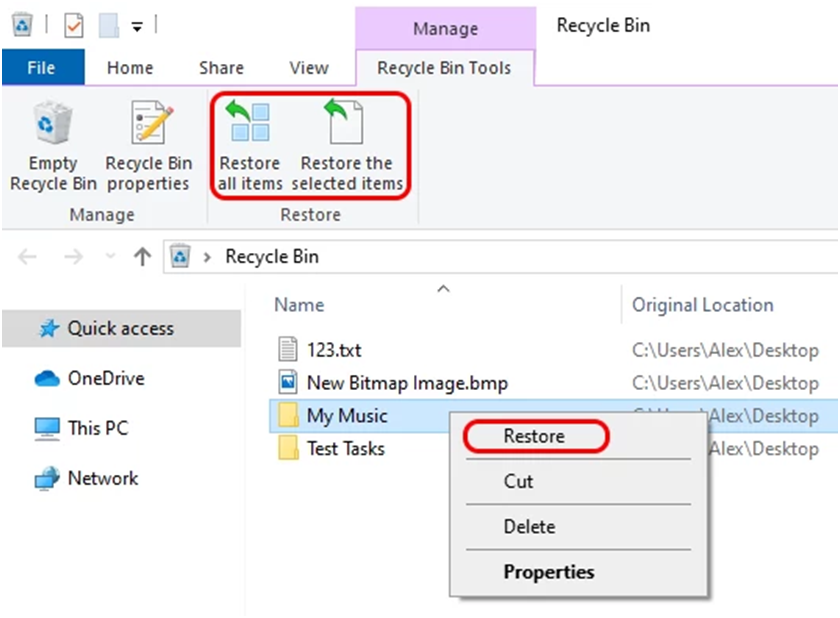
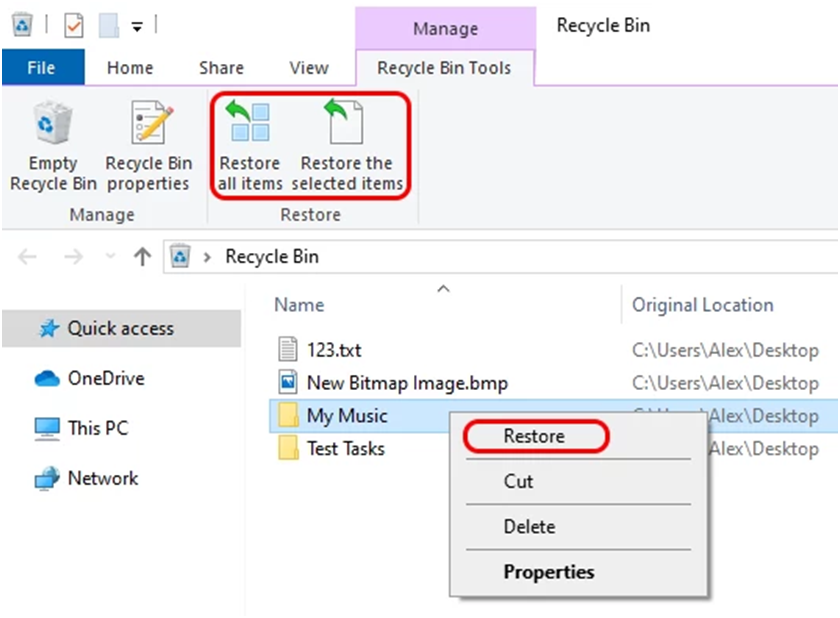
First and the simplest method that you can try to restore lost files on Windows devices is via the Recycle Bin folder. Every deleted file on Windows PC goes to the Recycle Bin folder, before getting permanently deleted, allowing you to restore it easily. To recover lost data from the Recycle Bin, you need to:
- Firstly, double-click on the Recycle Bin folder to open it.
- Now, locate and select all the files that you need to restore.
- Right-click on any selected file and select the “Restore” option.
Method 02: Restore Data Using File History Backup
If your deleted file is not present in the Recycle Bin folder, it means that it is permanently deleted from your device. In such cases, you can try recovering your lost files via backups. Windows has a built-in feature called File History which you can use to automatically back up important files in your device libraries, desktops, contacts, and favorites.
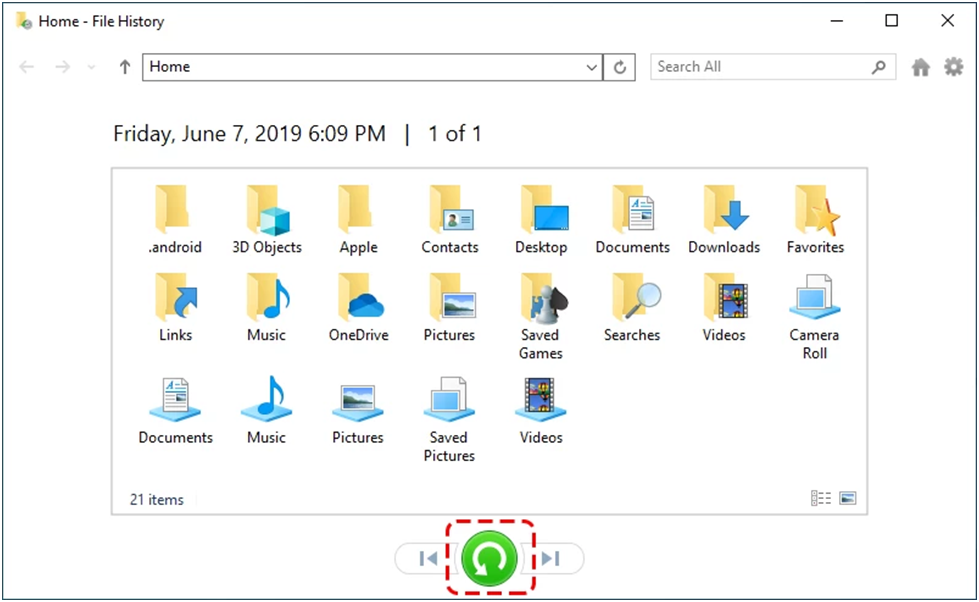
If you have enabled the File History backup option on your Windows device, follow the below steps to restore your lost data using it:
- Start by searching File History in your device’s search box and click Restore your files with File History.
- Locate the folder where your deleted files were earlier stored.
- Click the green Restore button to undelete the selected files back to their original location.
Method 03: Restore Using Previous Version Backup
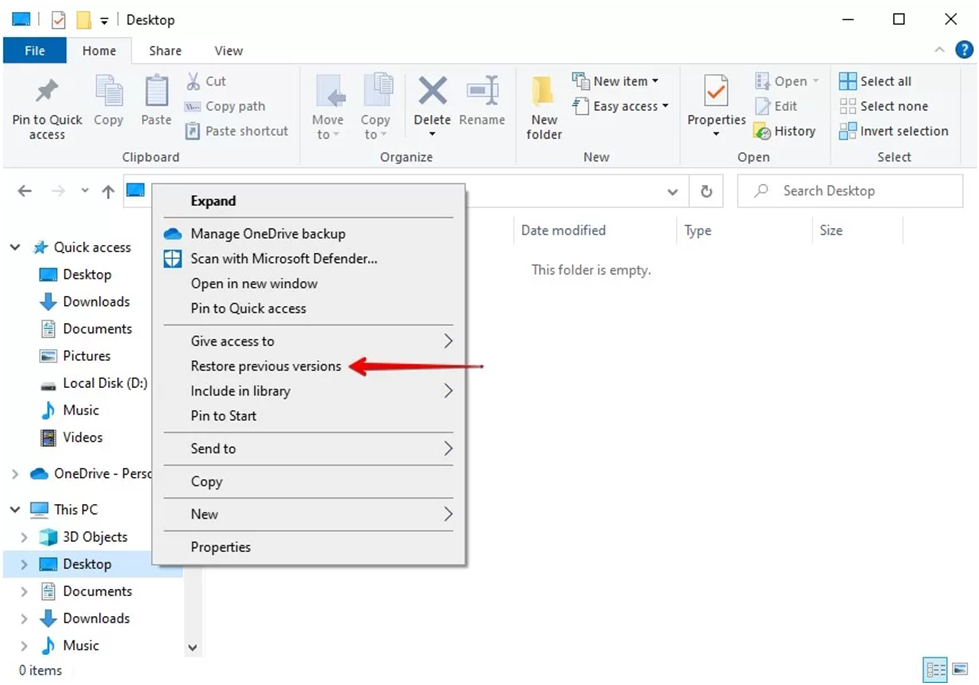
Another alternative to recover lost data in Windows devices using backups is via another built-in feature,i.e., Backup and Restore. This option allows you to create full system backups and restore lost data when it gets deleted. All you need is:
- Locate the folder from where you need to restore deleted data. Right-click on that folder and select the “Restore Previous Versions” option from the context menu that appears.
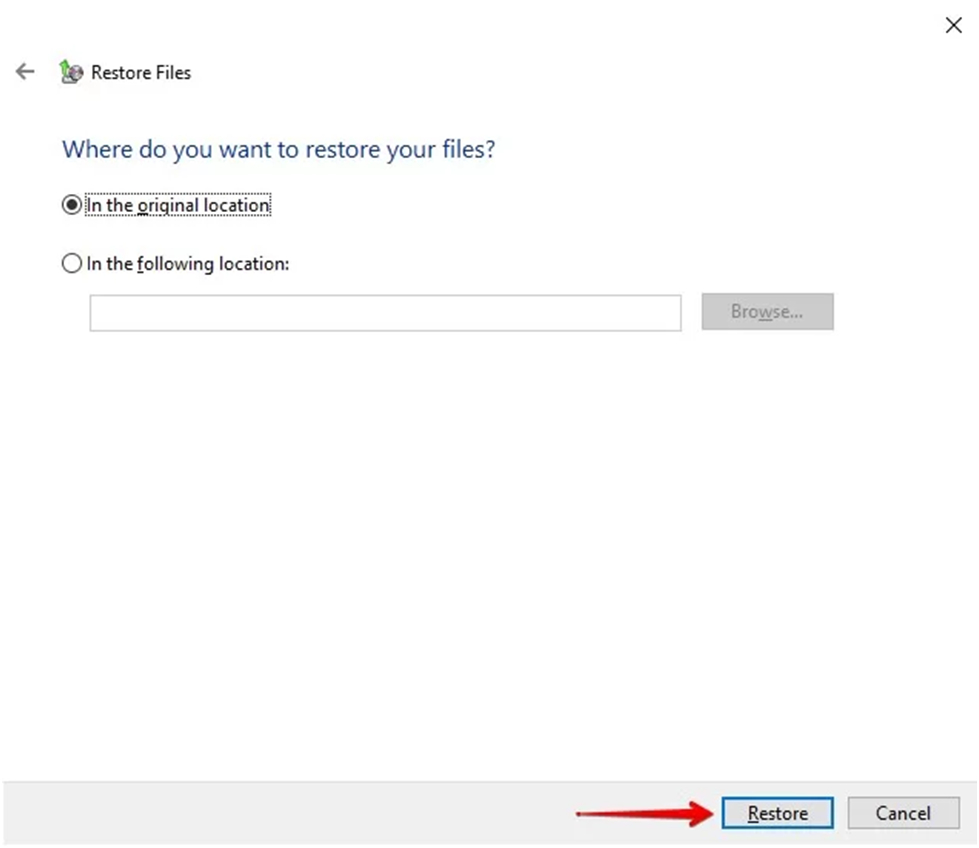
- Now, from the “Previous Version” window, select the version that you need to restore.
- Click the “Restore” button or “Copy” button, depending on your Windows version, to save the selected data back to your device.
Method 04: Try Cloud Backups to Recover Lost Data
You can even try Cloud backup options, like Google Cloud, Google Drive, iCloud, etc. to automatically create backups of your files and to restore them, in case of data loss scenarios. All you need is to synchronize your device with these cloud backup options. To recover lost data using Google Drive, you need to:
- Firstly, access the Google Drive website in any browser and sign in with your Google account.
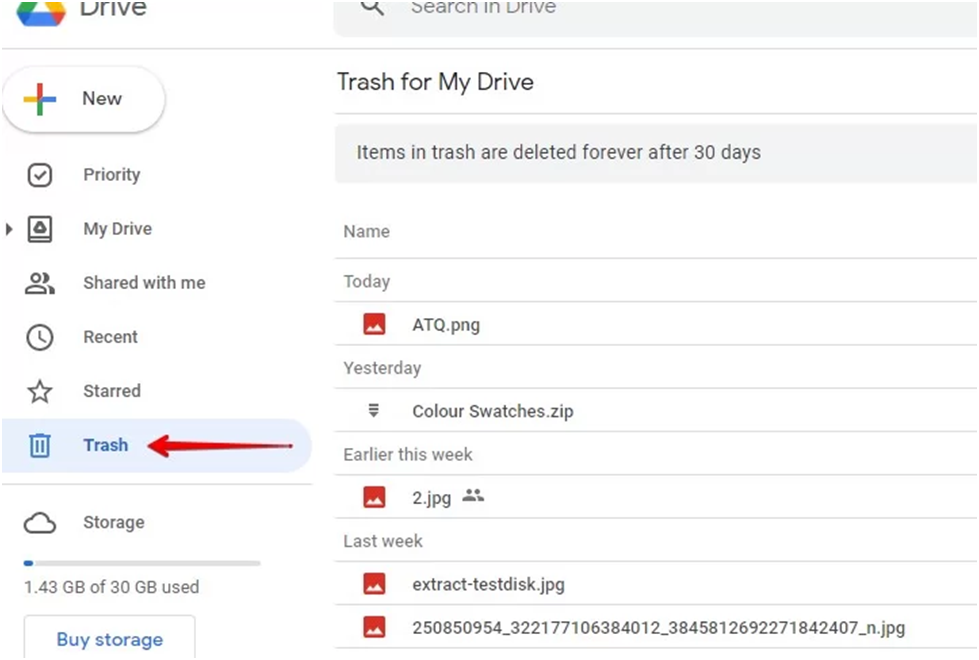
- Go to the Recently Deleted or Trash folder and select the files/folders that you need to restore.
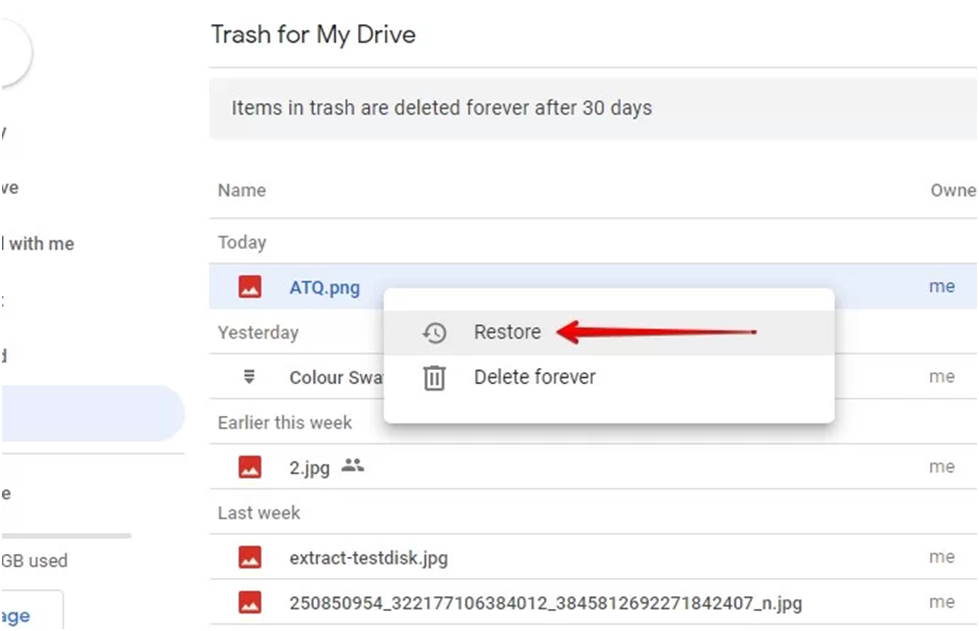
- Right-click on selected files and choose the Restore option to return the file to its original location.
- After completion of the restoration process, check if the recovered files or folders are present at the original location.
Method 05: Use Free Data Recovery Software
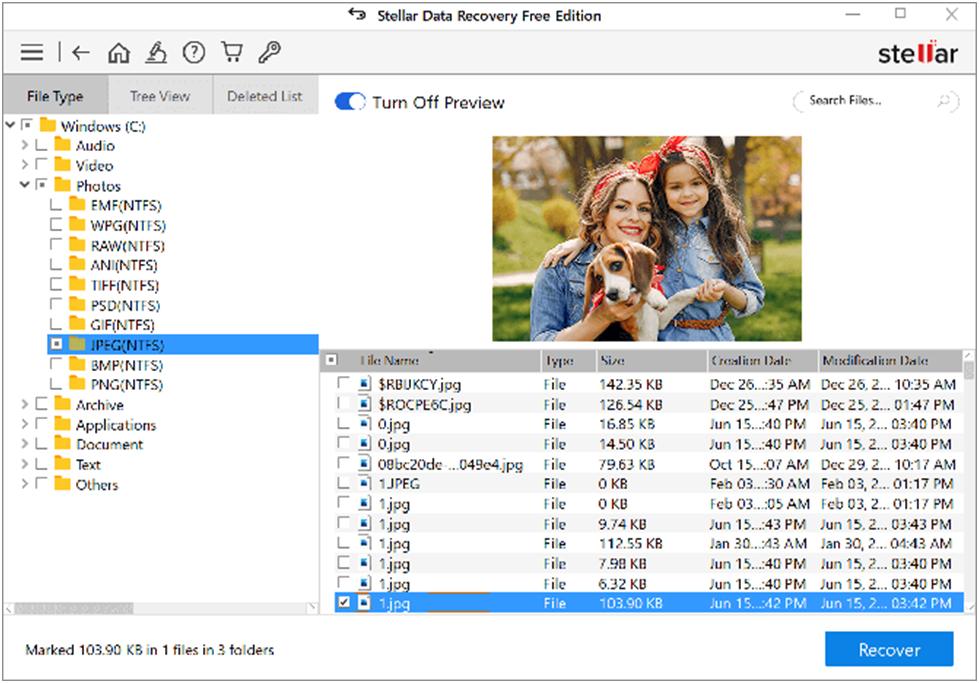
Instances may occur when the above-mentioned methods fail to restore the required data files on your Windows device. In such cases, next in the list of 5 best free methods to recover data in Windows devices is a free data recovery software. There are several recovery tools available that you can use to restore lost or deleted data on your device without paying any additional cost. Stellar Data Recovery Free is one of those tools to recover lost data from hard drives, memory cards, external drives, and more.
The Stellar Data Recovery Free tool allows you to recover lost photos, videos, documents, and other file types in three simple clicks. This tool allows you to easily recover up to 1 GB of data for free. Follow the below-given steps to learn how to recover lost data on Windows using this free data recovery software:
Step 1: Download and install the Stellar Data Recovery Free tool on your Windows device. Launch the software and from the homepage, select the type of data you need to recover and click Next.
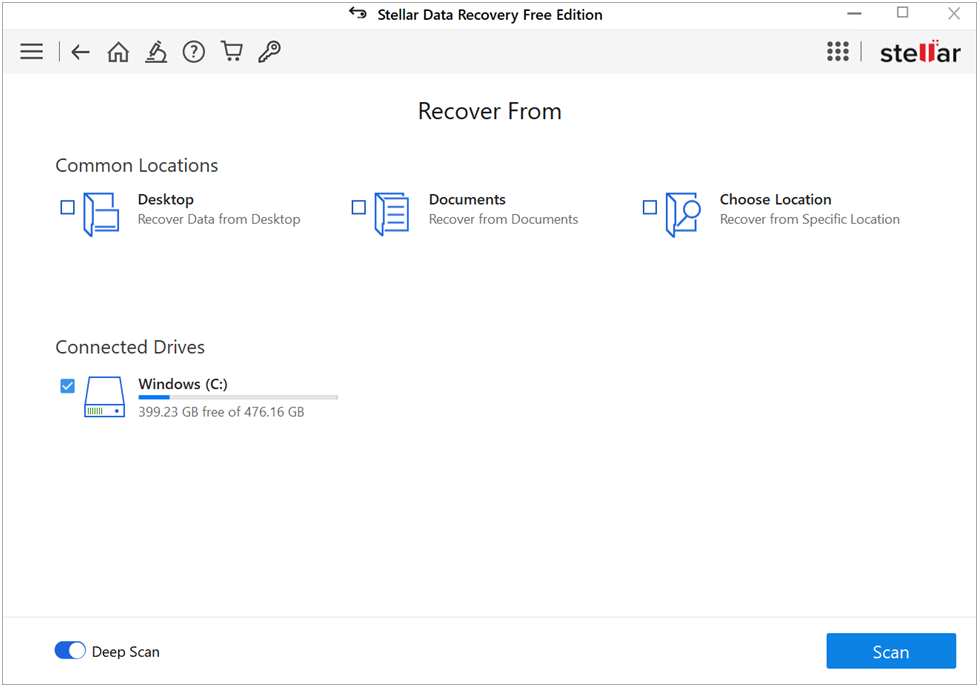
Step 2: Now, select the folder location where the deleted file was earlier stored and click Scan to start the scanning process.
Step 3: Once scanning is completed, preview the recoverable files and click Recover to save recovered data to the desired location.
Method 06: Run the CHKDSK Command
The chkdsk command in the Command Prompt can be used to scan your hard drive for recoverable files. When you run chkdsk /r, the command performs a thorough scan of the file system on your hard drive, looking for any recoverable data. The /r parameter instructs chkdsk to not only check the file system for errors but also attempt to recover readable information from any bad or corrupted sectors on the drive.
Once the scan is complete, chkdsk will display a report detailing any issues found and the files that were successfully recovered. This information can then be used to access and restore the recovered data, making chkdsk a valuable tool for data recovery on Windows systems.
Here are the steps to use the CHKDSK command on Windows to recover data:
Step 1: Press the Windows key + R to open the Run dialog. Type “cmd” and press Ctrl + Shift + Enter to open the Command Prompt as an administrator.
Step 2: In the Command Prompt, type the following command and press Enter: chkdsk /r
The /r parameter tells chkdsk to scan the entire drive and attempt to recover readable information from any bad sectors.
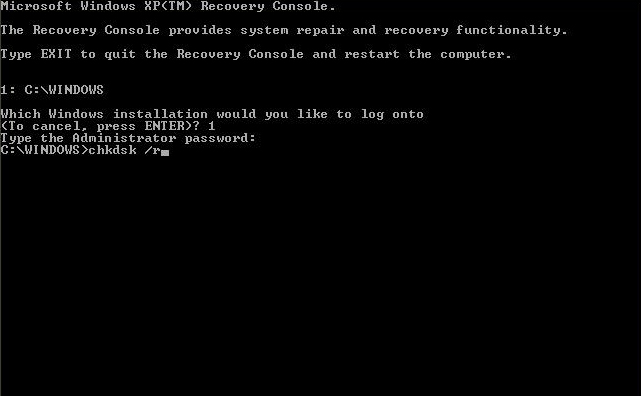
Step 3: The chkdsk process will now start scanning your hard drive. Depending on the size of your drive, this may take some time.
Step 4: Once the scan is complete, chkdsk will display a report of any issues found and the files that were recovered. You can then try to access the recovered files by navigating to the appropriate folder or drive.
Note: The chkdsk command is a powerful tool, so it’s essential to be careful when using it. It’s a good idea to create a backup of your important data before running chkdsk.
Method 07: Use an External Hard Drive Backup
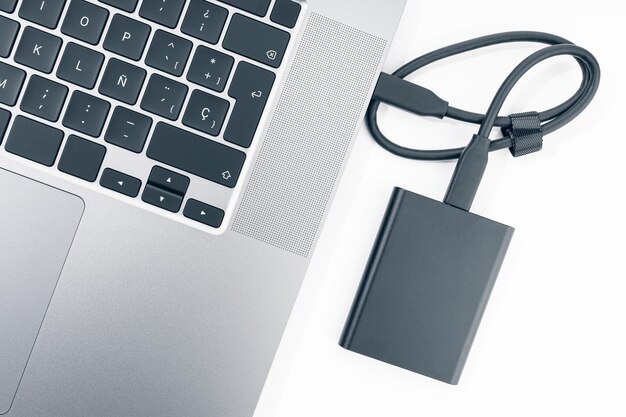
Using an external hard drive backup is a highly effective method for recovering deleted data, as long as you have maintained a consistent backup routine and the deleted files are present in the backup.
Setting up an external hard drive backup is a common way to ensure you have a secondary copy of your important files and data. Restoring data from an external hard drive backup is generally a straightforward and reliable process, as the files are typically preserved in their original state.
To use an external hard drive for data recovery:
Step 1: Connect the external hard drive to your Windows computer.
Step 2: Open the backup software you used to create the backups (e.g., Windows Backup and Restore third-party backup tools).
Step 3: In the backup software, navigate to the “Restore” or “Recovery” section. Select the backup set that contains the deleted files you want to recover.
Step 4: Choose the specific files or folders you need to restore and select the option to restore them.
The backup software will then copy the selected files from the external hard drive backup to your local computer, effectively recovering the deleted data.
Conclusion
If you encounter data loss issues, go with the above-mentioned 5 best free methods to recover data in Windows. Start by checking the Recycle Bin folder, then utilize built-in backup options like File History or Backup and Restore, after that use free data recovery software like Stellar Data Recovery Free for the successful recovery of your lost data without the need for expensive professional assistance.
FAQs:
How long can deleted files be recovered?
The ability to recover deleted files depends on several factors, such as how long the files have been deleted, whether the deleted space has been overwritten by new data, and the type of storage media (hard drive, SSD, etc.) and its file system. Generally, the sooner you attempt data recovery, the higher the chances of success. Deleted files may be recoverable for days or even weeks, but the longer you wait, the more likely the deleted space has been overwritten.
Can I recover deleted files from an SSD?
Recovering deleted files from an SSD can be more challenging compared to a traditional hard disk drive (HDD). SSDs use a process called wear leveling, which spreads out data across the entire drive. This can make it harder for data recovery tools to locate and reconstruct deleted files. However, data recovery from SSDs is still possible, especially if you act quickly. Using specialized SSD data recovery software or services may provide better results.
Do I need to install data recovery software on the same drive as the deleted files?
It’s generally not recommended to install data recovery software on the same drive where the deleted files are located. Installing the software on the same drive can increase the risk of the deleted space being overwritten, reducing the chances of successful recovery. It’s best to use a separate storage device, such as a different hard drive or a USB flash drive, to install and run the data recovery software. This helps preserve the integrity of the deleted data on the original drive.
Remember to act promptly and avoid overwriting deleted data by saving new files at the same location to maximize the chances of successful data recovery.
Author Bio:
Dinesh Lakhwani 

Dinesh Lakhwani, the entrepreneurial brain behind “TechCommuters,” achieved big things in the tech world. He started the company to make smart and user-friendly tech solutions. Thanks to his sharp thinking, focus on quality and the motto of never giving up, TechCommuters became a top player in the industry. His commitment to excellence has propelled the company to a leading position in the industry.
Popular Post











Recent Post

Keyboard Light Settings: Keyboard Lighting Control [Complete Guide]
Keyboards are no longer simple typing tools. Well, yes! Over time, they have evolved to include features that improve comfort, visibility, and overall experience. One of the most useful features today is keyboard lighting. It helps users work comfortably in low-light conditions. It also reduces strain when typing for long hours. Many users first notice […]

Customizing Pointer Appearance: Complete Guide
The way your mouse pointer looks on your computer may seem like a small detail. But customizing pointer appearance can make using your PC more comfortable and visually appealing. Many users do not realize that they can change the pointer size, color, and style to fit their needs. Whether you want a bigger pointer for […]

How To Choose a Computer Monitor: Monitor Buying Guide
Buying a monitor looks easy. Many people think all screens are the same. That belief causes regret later. A monitor is not just a display. It is a daily tool. You read on it. You work on it. You relax with it. Small problems become big over time. Poor brightness hurts eyes. Bad size causes […]

How To Get Help With File Explorer in Windows 11 [Complete Guide]
File Explorer is one of the most important tools in Windows 11. It is used to open folders, view files, and manage stored data. Almost every action on a Windows computer depends on it in some way. When users open documents, save downloads, or organize photos, File Explorer is always involved. Because it is used […]

How To Fix A Frozen Computer: Complete Guide [Windows 11/10]
A frozen computer is one of the most common problems Windows users face. The screen stops responding. The mouse pointer does not move. Keyboard inputs do nothing. You may hear the fan running loudly. Sometimes the system looks alive, but nothing works. This situation often happens when you are busy or working on something important. […]

How to Upgrade Computer RAM: Complete Guide
Upgrading RAM is one of the simplest ways to improve a computer. It helps the system feel faster and smoother. Apps open quicker. Browsers handle more tabs. Games and tools run with less delay. Many users search for how to upgrade computer RAM because it gives real results without high cost. You do not need […]

How To Clean Your Computer Keyboard: Complete Guide
A computer keyboard is touched more than almost any other device you own. It is used during work, study, gaming, and casual browsing. Fingers carry natural oils, sweat, and dirt. Small food crumbs fall between keys without notice. Dust settles each day slowly. Over time, this creates a hidden layer of grime. Many users do […]

Computer Mouse Buying Guide for Beginners and Advanced Users
Buying a mouse looks easy at first. Many people think all mouse work the same way. Well, that idea often leads to regret later. A mouse affects comfort, speed, and daily work. It matters for office tasks, gaming, design, and study. The right choice reduces strain and improves control. The wrong one feels annoying every […]

How To Overclock a Computer: A Complete Guide
Overclocking is the process of making your computer run faster than its factory settings. It mainly affects the processor, graphics card, and sometimes memory. Many people choose this method to improve performance without buying new hardware. It is popular among gamers, video editors, and users who run heavy software. When done properly, overclocking can give […]

How To Find Password Saved on This Computer: Complete Guide
Many people forget their login details at some point. It happens often. We create many accounts every year. Each one needs a username and a password. Over time, it becomes hard to remember all of them. That is why computers offer ways to store login details. These saved details help users sign in faster. They […]

