Make The Most Out of Your iMac with These M1 Apps
Last updated on August 31st, 2024 at 6:09 pm
Apple devices are a symbol of luxury and exclusivity, and they are packed with various robust features and specifications, which help them stand out from the rest. There are various Apple devices that you can use for your work and daily life, and one of them is the iMac.
The iMac is the latest installment of the Macintosh lineup of personal computers. It embodies a sleek design with advanced and robust features that help you do things more efficiently and in productivity.
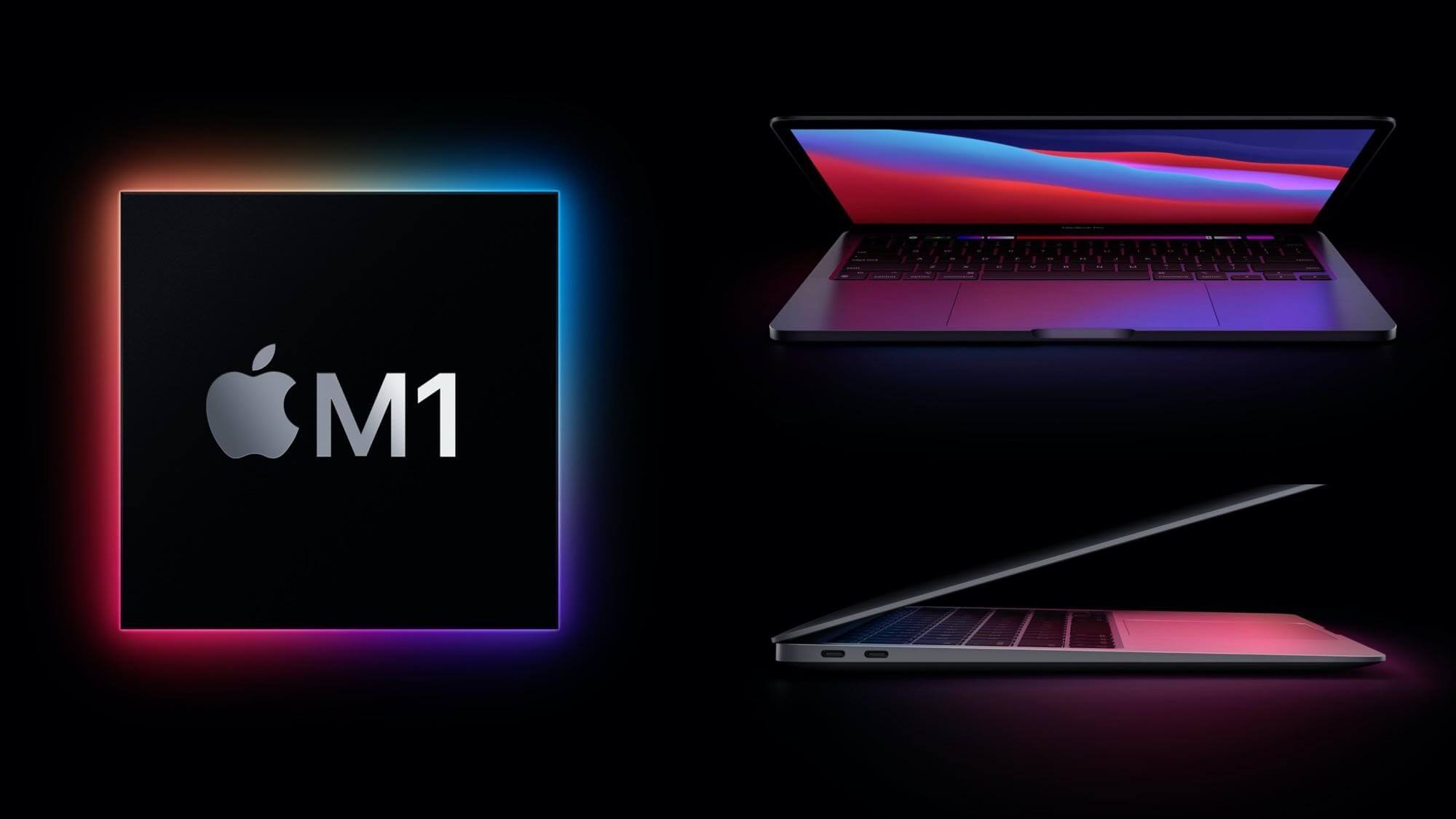
A couple of years ago, Apple developed its M1 chip, which offers ultra-fast performance. Before this, Apple also made use of Intel chips like Windows computers. The M1 chip has caused the sales of its devices to skyrocket. If you have an iMac, let’s look at the best M1 apps to help you make the most out of it.
1. Pixelmator Pro
If you have to use a graphic designing application now and then, or your work depends on it, you don’t have to buy an expensive subscription to Adobe Photoshop because the M1 chip now supports Pixelmator Pro.
It is an advanced and robust image and photo editing app that works smoothly on your iMac and allows you to cut, edit, resize, manipulate, and frame photos.
It comes with a one-time cost compared to an expensive monthly fee that doesn’t provide any value for money. Plus, it comes with several exciting features, such as background removal, masking, selection, and much more.
2. Spark
Spark is a third-party email client available on the iMac with the M1 chip. It is fast becoming one of the most popular email apps on the App Store, and it features a fresh and fluid user interface. It also features automated email sorting and customization features for business and power users.
Moreover, it is compatible with other email clients, such as Gmail, iCloud, Outlook, Microsoft Exchange, etc. You can also integrate it with collaboration tools like Asana, Slack, Trello, Zoom, etc.
3. Tweetbot
If your personal or professional life involves the use of Twitter, you will love Tweetbot. It is a smooth and fluid iMac app that works well with the new M1 chip. The best thing about this app is that although it has a paid subscription, you don’t have to deal with any paid apps, sponsored tweets, suggestions, and other distractions on your timeline.
Therefore, you can enjoy hassle-free and smooth scrolling on your Twitter account. The clean design and chronological interface of Tweetbot are something you would enjoy.
4. Alfred 4 for Mac
Although the iMac has an advanced search feature that helps you search for files and documents easily, it doesn’t mean that you can’t try out Alfred 4 for Mac, which features a lightning-fast search tool that helps you search for important files and folders within a couple of seconds.
Moreover, the app has a robust app launcher that allows you to design custom workflows, Google searches, and several other customization options. Once you start using it, you wouldn’t want to go back to the regular search feature on your iMac.
5. DaisyDisk
No matter how big the hard disk on your iMac is, you eventually run out of storage space, and your computer starts lagging, thus hampering your productivity. This is where DaisyDisk comes in. It is an app that runs smoothly on the iMac with the M1 chip.
The app scans your entire storage drive and provides you with an entire picture of your storage space, categorized according to files and folders. It shows a circular graph with the color-coded representation of different folders and a list that helps you understand how your device’s storage is being utilized. DaisyDisk is a highly useful app to keep your iMac clutter-free.
6.1Password
One of the biggest problems people have is remembering the passwords to their online accounts. Some also get their important credentials stolen, thus leading to data or financial theft. Luckily, there is a solution in 1Password, a highly useful password vault app on the M1-powered iMac.
Not only does the app store all your passwords with enhanced encryption, but it also helps you generate passwords that no one can crack or guess. Moreover, the app can be integrated into Safari and Chrome browsers. You can use it to encrypt much more than passwords, i.e., financial information, sensitive documents, and much more.
7. Skoove
If you have always been a music enthusiast and want to learn the piano, you can use Skoove, an ultra-powerful and robust piano learning app on the iMac. Thanks to the newly-developed M1 chip, the app has become user-friendly and fast.
The app uses artificial intelligence to listen as you play the piano or keyboard and offers personalized suggestions and feedback to help you improve your performance. Moreover, it has numerous exciting lessons and activities that you can use to learn everything about the piano and music theory, including notes, scales, patterns, intervals, 4/4 time signature, and much more.
8. Authy Desktop
In the past few years, cybersecurity threats have increased exponentially, so you have to take your device’s security into your own hands. You can do that with the help of Authy Desktop, an iMac app that helps you set up two-factor authentication (2FA).
The app generates a new and unique code for you whenever you need to log in to an account or application. Usually, people have authentication apps on their phones, but Authy Desktop helps you do the same on your iMac.
This concludes our guide on using the apps mentioned above to make the most out of your iMac. There are hundreds of other useful apps that you can use according to your needs and requirements. The M1 chip is one of the best creations from Apple, and we can’t wait to see how they can make it any better in the coming years.
Author Bio:
Dinesh Lakhwani 

Dinesh Lakhwani, the entrepreneurial brain behind “TechCommuters,” achieved big things in the tech world. He started the company to make smart and user-friendly tech solutions. Thanks to his sharp thinking, focus on quality and the motto of never giving up, TechCommuters became a top player in the industry. His commitment to excellence has propelled the company to a leading position in the industry.
Popular Post











Recent Post

How To Fix Issues Downloading from the Microsoft Store On Windows
Introduction: Downloading apps from the Microsoft Store should be a simple task. You open the Store, search for an app, and click install. In most cases, the process works without any problem. However, there are times when the download does not start. In some cases, it may stay stuck at a certain percentage. You may […]

How To Fix Windows Update Issues Easily On Windows [2026]
Introduction Windows updates play an important role in keeping a computer stable and secure. They bring new features, fix known bugs, and improve overall performance. When updates work as expected, the system runs smoothly. However, when they fail, users often face slow performance, missing features, or security risks. This is why it becomes important to […]

How To Check If Your PC Is Infected? [Complete Guide]
Computers now sit at the center of almost everything we do. Well, yes! From sending emails to watching videos, we depend on them without much thought. Because of this, even a small issue can disrupt daily tasks. One common problem is hidden malware. It does not always show clear signs at first. It can enter […]

Repair Apps And Programs: Repair Apps That Aren’t Working
Computers have become an essential part of everyday life, supporting work, study, communication, and entertainment. Most of these activities rely on apps and programs, so when one stops functioning, even simple tasks can be disrupted. Common problems include error messages, frozen screens, or apps that fail to open. On Windows systems, such issues often arise […]

Troubleshooting Microphone Privacy Settings: Complete Guide
Sound is a basic part of how we use computers today. People attend meetings, record audio, speak to others, and use voice tools almost every day. A working microphone makes all these tasks easy. When the microphone fails, even simple work becomes difficult. Many users first think the device is broken. In reality, the issue […]

Windows Sound Settings – Sound Control Panel: Complete Guide
Sound plays an important role in how we use a computer every day. It supports both work and leisure. You need it for meetings, videos, music, and alerts. When audio fails, even simple tasks become difficult. Many users feel stuck when sound issues appear. This usually happens because they are not familiar with Windows Sound […]

Run a Troubleshooter For PC Issues Windows: Complete Guide
A computer plays an important role in everyday life. People use it for work, study, communication, and entertainment. When a problem appears, it can interrupt everything. Even a small issue can waste time and create frustration. Many users feel unsure about how to fix such problems. They often think they need expert help. In reality, […]
![Adjusting Audio Output Settings Complete Guide [2026]](https://www.techcommuters.com/wp-content/uploads/2026/03/Adjusting-Audio-Output-Settings-Complete-Guide.webp)
Adjusting Audio Output Settings: Complete Guide [2026]
Sound is part of almost everything we do on a computer. It lets you watch videos, join calls, play music, and hear alerts. When the audio stops working the right way, it can interrupt both work and daily use. That is why adjusting audio output settings matters for every user. Many people get unsure when […]

Artificial Intelligence Explained: Concepts, Terminology, Benefits, and Future Trends
Artificial Intelligence, or AI, is basically computers doing things that usually need a human brain. We’re talking about stuff like learning from experience, figuring out problems, understanding language, and making decisions. It’s not magic, just a lot of data, pattern-spotting, and math behind the scenes. Now, AI doesn’t actually think or feel like we do. […]

Resolving Microphone Detection Problems: Latest Guide [2026]
Microphones are important tools in daily life. People use them for office meetings, online classes, interviews, gaming, customer support, and content creation. When a system fails to detect a microphone, communication stops at once. This situation can cause stress and confusion. Many users believe the microphone is damaged. In reality, most problems are simple and […]

