How to Use VPN on Synology NAS

Last updated on January 24th, 2025 at 5:28 pm
We all want to secure our remote access for daily needs & projects. But how to get it done is a big question. Using a VPN this problem can be easily solved as it creates an encrypted tunnel to secure network connection. Acronym for Virtual Private Network (VPN) hides IP addresses allowing users to navigate to sites without risking personal data.
VPN establishes a secure connection between the server and the user by providing a safe passage to navigate the websites. It also unblocks streaming sites. In short, it is a great way to ensure your network connection stays private on a public network.
What is NAS?

NAS is the acronym for Network Attached Storage – a storage device connected to a network without any monthly subscription fee. This is an established connection to our office or home network so that the documents saved on it can be accessed effectively.
NAS services are accessed with the use of the internet and it opens a gateway to share the documents with family and friends. But sometimes the NAS service is at risk, to strengthen its security using a VPN while accessing the files and documents is recommended.
Moreover, Synology NAS is capable of acting as a VPN client and connecting to servers.
How to set up a VPN?
- Login to your Synology NAS.

- Open the control panel then select Network> Network Interface.
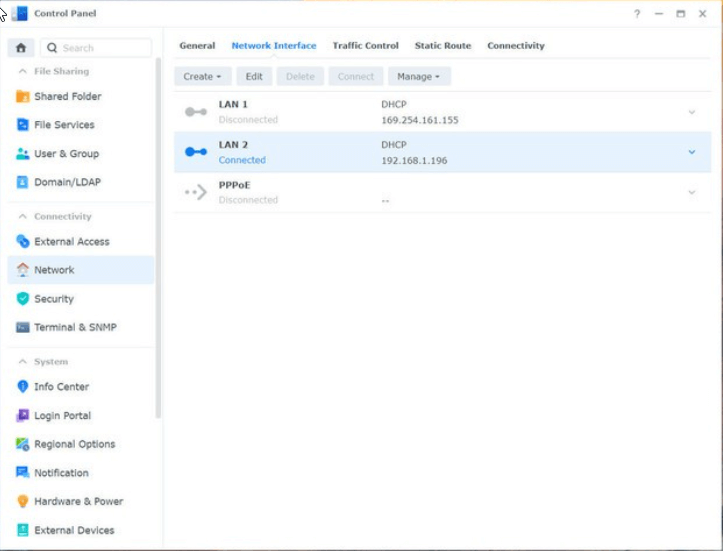
- Click on create
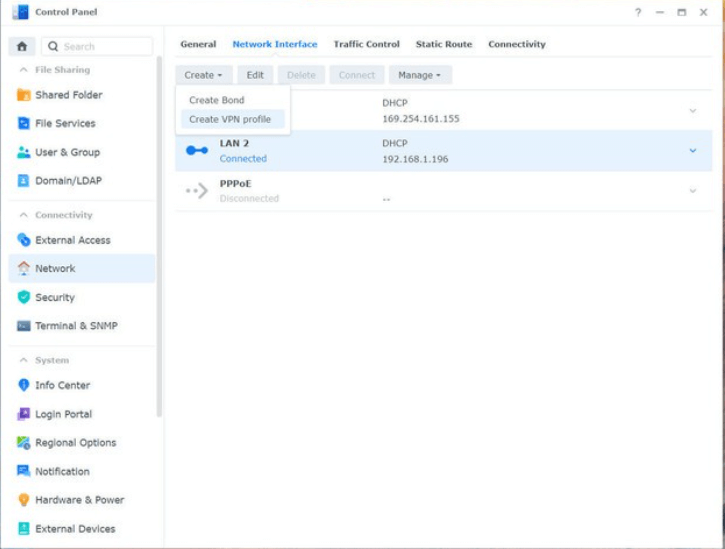
- Now click on create a VPN profile
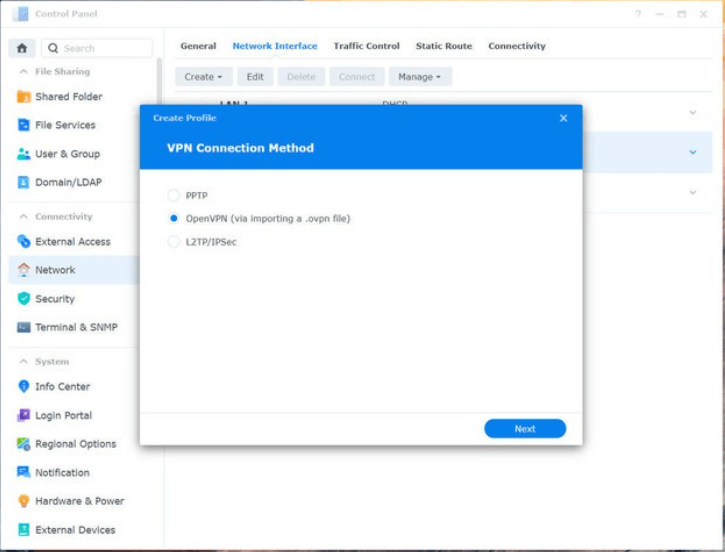
- Select OpenVPN (via importing a .ovpn file) > Next
- Enter the following:
Profile name: name for your connection
Username: OpenVPN Username
Password: OpenVPN Password
Import .ovpn file: browse the hard drive for the downloaded file from your account page
- Click Next and follow on-screen instructions.
This is an Open VPN that is used to browse the documents securely among the authorized people.
Configuring The Registry
In addition to this, we suggest configuring the registry. To do so , follow these steps:
- In the Windows search bar type regedit,> press enter key.
- Navigate to “Computer\HKEY_LOCAL_MACHINE\SYSTEM\CurrentControlSet\Services\PolicyAgent.”
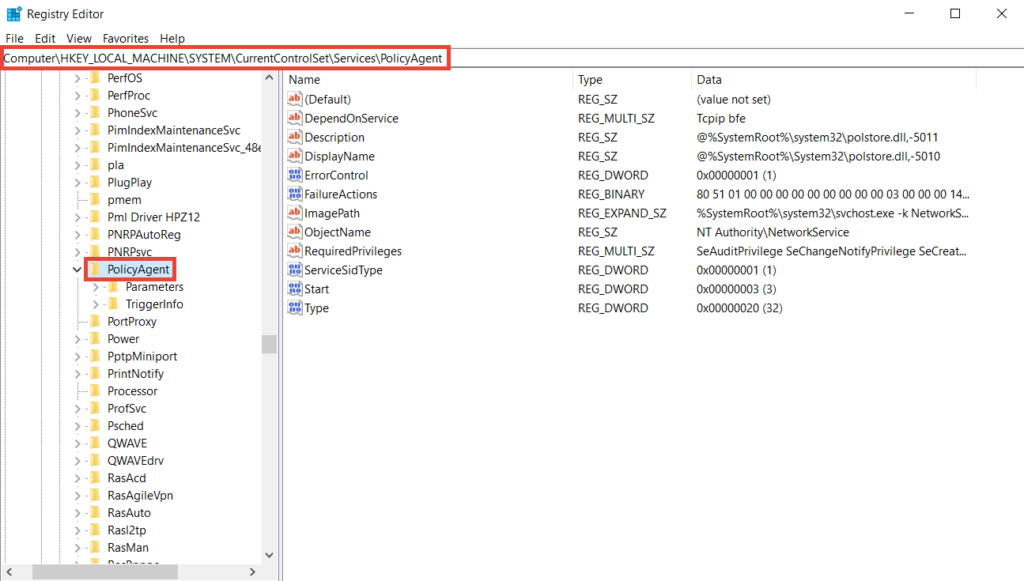
3. Right-click PolicyAgent,> New > DWORD (32-bit) Value.
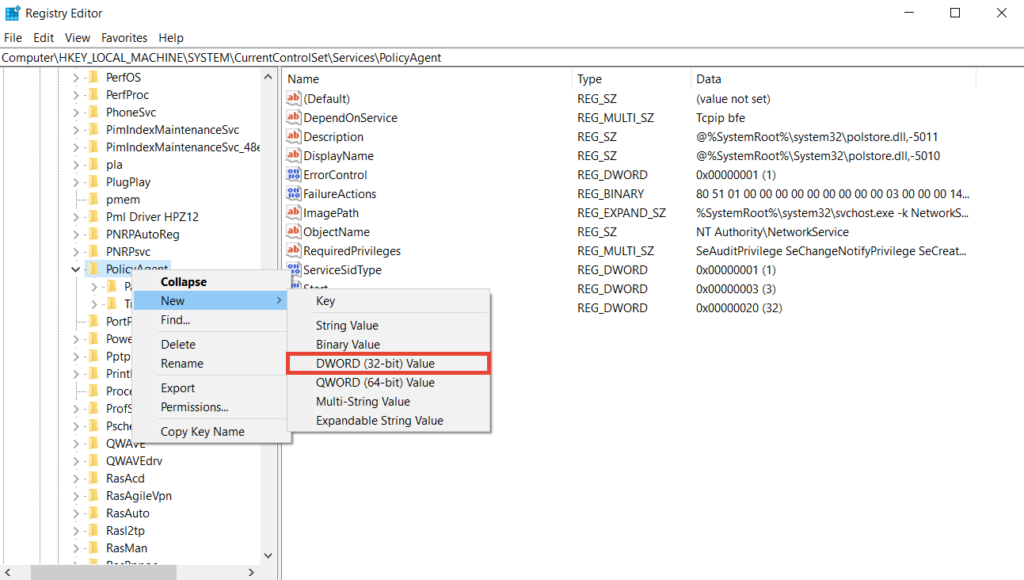
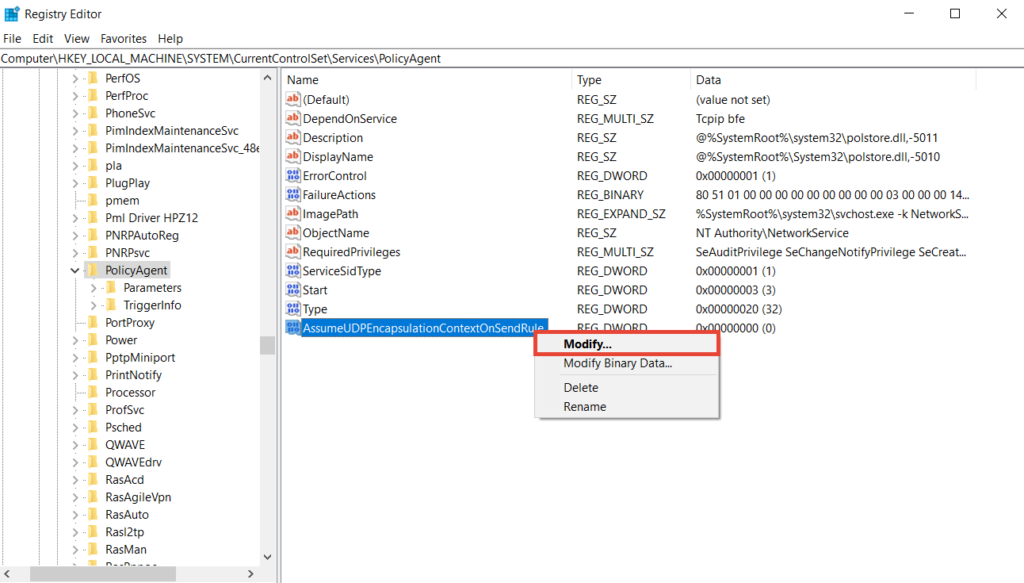
4. Type “AssumeUDPEncapsulationContextOnSendRule” > Enter.
5. Right-click AssumeUDPEncapsulationContextOnSendRule > Modify.
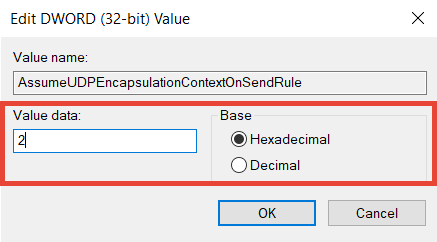
6. Type “2” in the Value data box > choose Hexadecimal >OK. As shown in the screenshot below:
8. Exit Registry Editor and reboot Windows.
Set up PPTP and L2TP/IPSec VPN Connections
a. Press Windows + I.
b. This will open Windows Settings.
c. Here click Network & Internet > VPN. Click Add a VPN connection.
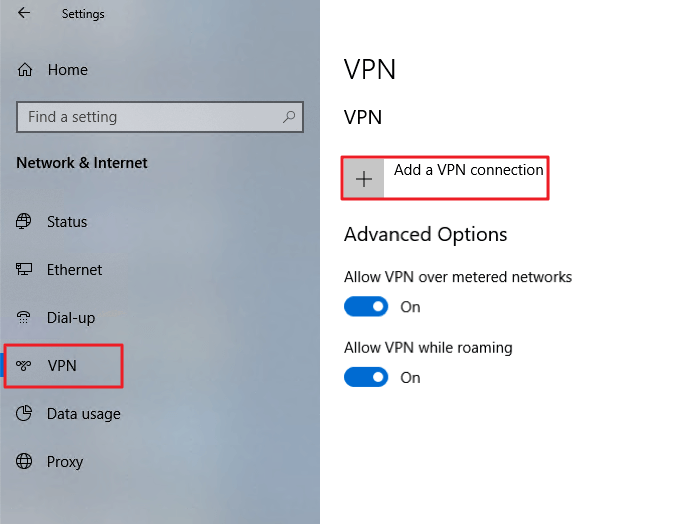
d. Fill out the respective fields.
e. Save the VPN profile.
f. Click the VPN profile you created > Connect. When connected, you will be able to securely access resources shared within the Synology NAS’s local area network.
Configure Gateway Settings for VPN Clients
a. In the Windows search bar type Control Panel > open it.
b. Next click, Network and Internet > Network and Sharing Center > Change adapter and settings.
c. Right-click the VPN connection > Properties.
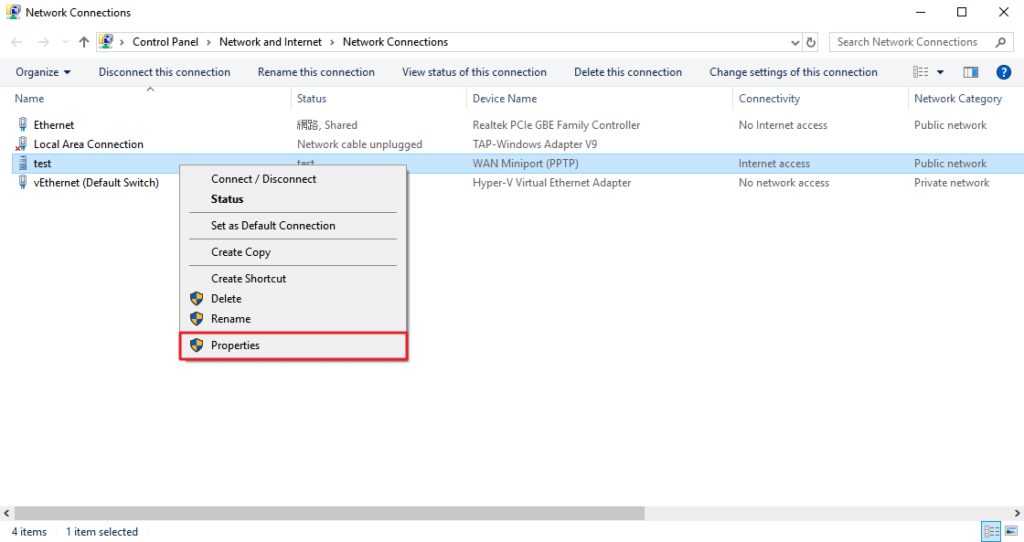
d. Click the Networking tab> select Internet Protocol Version 4 (TCP/IPv4) > click the Properties button.
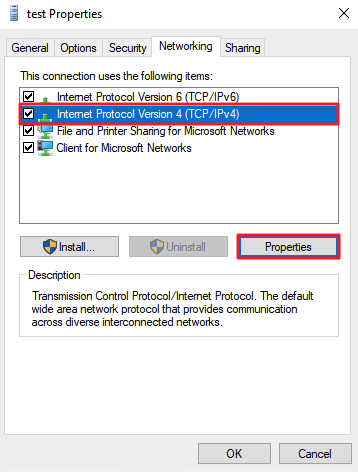
e. Click Advanced.
f. Under the IP Settings, tab check mark the Use default gateway on remote network > Ok.
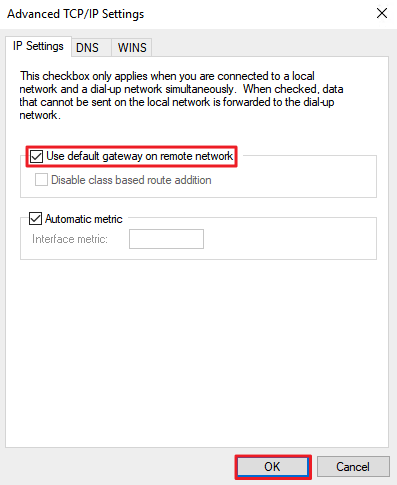
That’s it you can now use VPN on Synology NAS.
Conclusion: –
Now browsing NAS has become more effective with the use of VPN because it will protect our documents from cybercriminals by providing a safe passage to browse them.
In this article, we have discussed how to use a VPN to navigate to the NAS service. Let us know about your experience of using the NAS Synology VPN in the comment box below.
Author Bio:
Dinesh Lakhwani 

Dinesh Lakhwani, the entrepreneurial brain behind “TechCommuters,” achieved big things in the tech world. He started the company to make smart and user-friendly tech solutions. Thanks to his sharp thinking, focus on quality and the motto of never giving up, TechCommuters became a top player in the industry. His commitment to excellence has propelled the company to a leading position in the industry.
Popular Post











Recent Post

How To Fix Issues Downloading from the Microsoft Store On Windows
Introduction: Downloading apps from the Microsoft Store should be a simple task. You open the Store, search for an app, and click install. In most cases, the process works without any problem. However, there are times when the download does not start. In some cases, it may stay stuck at a certain percentage. You may […]

How To Fix Windows Update Issues Easily On Windows [2026]
Introduction Windows updates play an important role in keeping a computer stable and secure. They bring new features, fix known bugs, and improve overall performance. When updates work as expected, the system runs smoothly. However, when they fail, users often face slow performance, missing features, or security risks. This is why it becomes important to […]

How To Check If Your PC Is Infected? [Complete Guide]
Computers now sit at the center of almost everything we do. Well, yes! From sending emails to watching videos, we depend on them without much thought. Because of this, even a small issue can disrupt daily tasks. One common problem is hidden malware. It does not always show clear signs at first. It can enter […]

Repair Apps And Programs: Repair Apps That Aren’t Working
Computers have become an essential part of everyday life, supporting work, study, communication, and entertainment. Most of these activities rely on apps and programs, so when one stops functioning, even simple tasks can be disrupted. Common problems include error messages, frozen screens, or apps that fail to open. On Windows systems, such issues often arise […]

Troubleshooting Microphone Privacy Settings: Complete Guide
Sound is a basic part of how we use computers today. People attend meetings, record audio, speak to others, and use voice tools almost every day. A working microphone makes all these tasks easy. When the microphone fails, even simple work becomes difficult. Many users first think the device is broken. In reality, the issue […]

Windows Sound Settings – Sound Control Panel: Complete Guide
Sound plays an important role in how we use a computer every day. It supports both work and leisure. You need it for meetings, videos, music, and alerts. When audio fails, even simple tasks become difficult. Many users feel stuck when sound issues appear. This usually happens because they are not familiar with Windows Sound […]

Run a Troubleshooter For PC Issues Windows: Complete Guide
A computer plays an important role in everyday life. People use it for work, study, communication, and entertainment. When a problem appears, it can interrupt everything. Even a small issue can waste time and create frustration. Many users feel unsure about how to fix such problems. They often think they need expert help. In reality, […]
![Adjusting Audio Output Settings Complete Guide [2026]](https://www.techcommuters.com/wp-content/uploads/2026/03/Adjusting-Audio-Output-Settings-Complete-Guide.webp)
Adjusting Audio Output Settings: Complete Guide [2026]
Sound is part of almost everything we do on a computer. It lets you watch videos, join calls, play music, and hear alerts. When the audio stops working the right way, it can interrupt both work and daily use. That is why adjusting audio output settings matters for every user. Many people get unsure when […]

Artificial Intelligence Explained: Concepts, Terminology, Benefits, and Future Trends
Artificial Intelligence, or AI, is basically computers doing things that usually need a human brain. We’re talking about stuff like learning from experience, figuring out problems, understanding language, and making decisions. It’s not magic, just a lot of data, pattern-spotting, and math behind the scenes. Now, AI doesn’t actually think or feel like we do. […]

Resolving Microphone Detection Problems: Latest Guide [2026]
Microphones are important tools in daily life. People use them for office meetings, online classes, interviews, gaming, customer support, and content creation. When a system fails to detect a microphone, communication stops at once. This situation can cause stress and confusion. Many users believe the microphone is damaged. In reality, most problems are simple and […]

