How to Use the New Bing With ChatGPT
Last updated on August 26th, 2025 at 4:25 pm
Introduction:
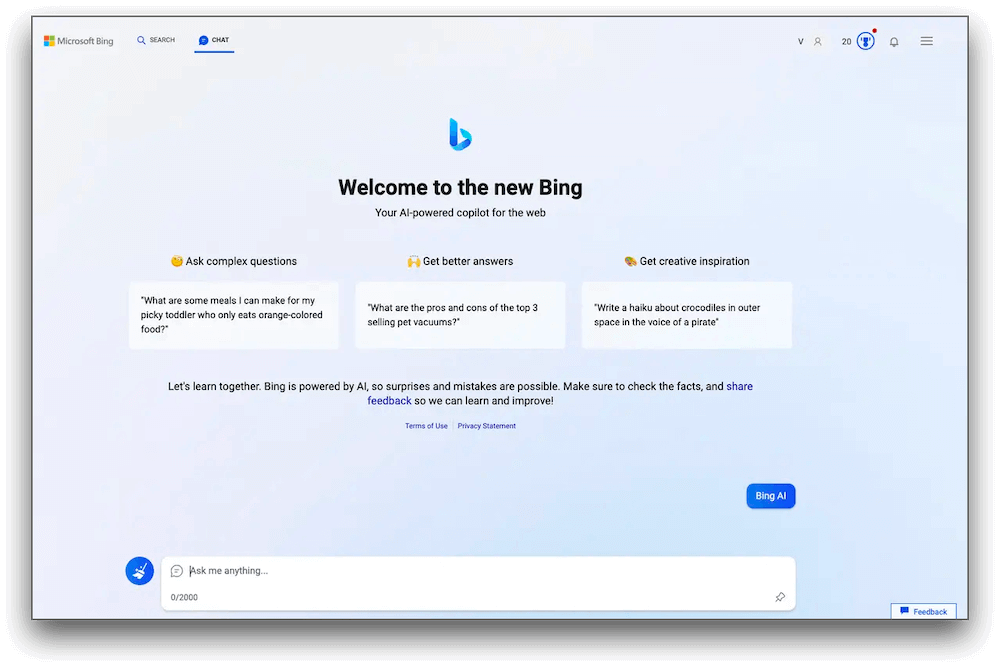
Gone are the days of sifting through endless search results. With Bing, powered with ChatGPT, you can now ask questions in plain language and receive instant, personalized answers tailored to your needs. It’s like having a conversation with a knowledgeable search assistant right at your fingertips. So, agree or not, you are definitely in for a treat.
But it doesn’t stop there. Here comes the exciting part. Bing with ChatGPT goes beyond text-based queries by introducing features like voice search and image recognition. Whether you want to find information, locate images, or even ask complex questions, this dynamic duo has got you covered. Looks like the beginning of a new era, right?
In this blog, we have listed a comprehensive guide on how to use new Bing with ChatGPT to unleash its full potential.
The Big News!
Introducing the latest announcement from Microsoft: the all-new Bing with ChatGPT! And the best part? Microsoft is taking search engine technology to the next level by integrating its renowned Bing search engine with the ChatGPT chatbot from OpenAI. This powerful combination brings you more human-like conversational answers, making your search experience even more intuitive and informative.
The announcement of the new Bing, Microsoft’s chatbot integration, took place on February 7, 2023. Since its launch, the updated search engine has been made available to a select group of users. Interestingly, this revelation followed closely after Google introduced their own AI chatbot, Google Bard, which occurred just a day earlier.
If you’re eager to be among the first to explore the new Bing-powered by this groundbreaking AI technology, read ahead to know all about it.
How to Use New Bing with ChatGPT? (Windows)
Using the new Bing with ChatGPT is a breeze! Here’s a simple guide to get you started:
Step 1: Open the Microsoft Edge web browser on your device and visit Bing’s webpage.
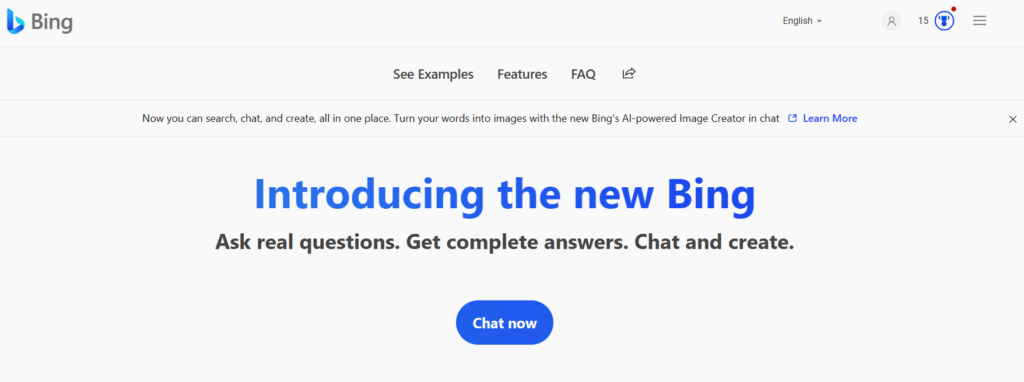
Step 2: Hit on the “Chat Now” button to get started.
Step 3: Type your question to start chatting with the AI-powered chatbot.
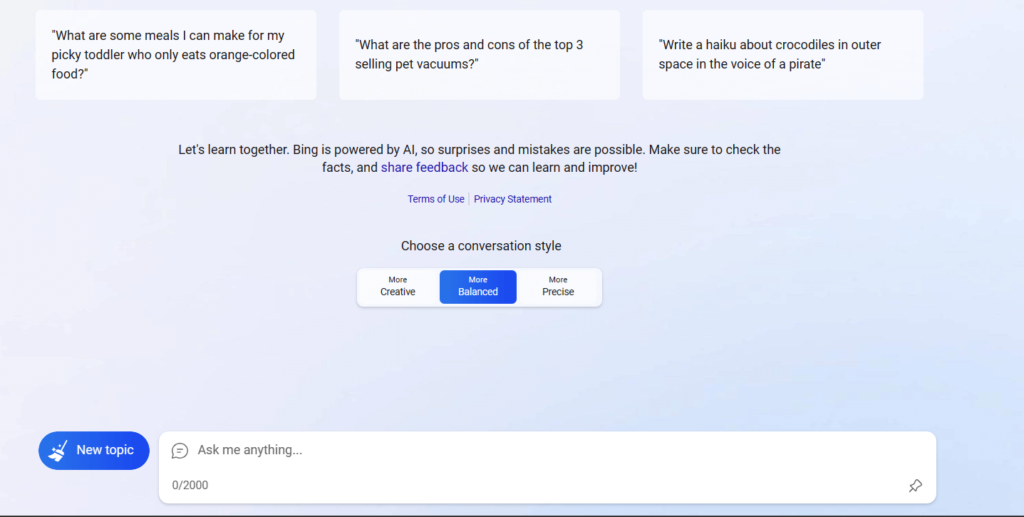
Step 4: Once you have the answers, you can even ask follow-up questions to keep the conversation flowing.
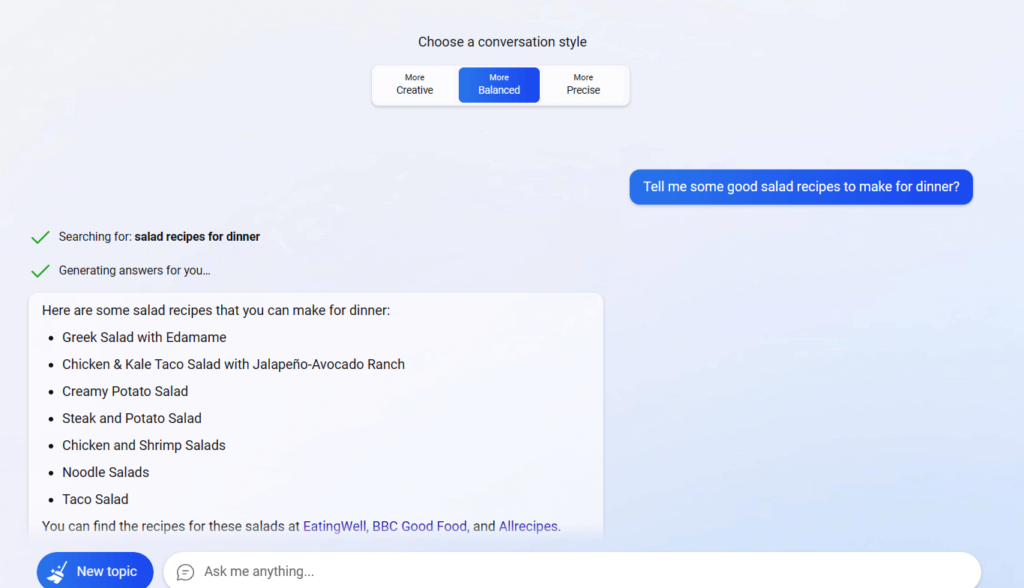
You can even choose a conversation style to receive responses including creative, balanced, or precise based on your requirement.

Step 5: Not only does Bing offer text-based answers, but it also goes above and beyond by providing images and related web links to enhance your overall search experience. This comprehensive approach ensures that you receive not only informative responses but also visual content and additional resources to further enrich your search results.
NOTE: The process is straightforward, but it’s essential to keep in mind that the AI is currently in preview, resulting in certain limitations. For instance, while you can initiate a conversation, there are restrictions on the number of queries you can ask within a session, allowing up to 15 queries. Additionally, there is a limit of 150 sessions per day.
Use Advanced Features
Take advantage of advanced features such as voice search and image recognition. Use your voice to ask questions or upload images to search for visually similar content.
Also, keep an eye out for any new features or updates introduced by Bing with ChatGPT. Microsoft is continually enhancing its search engine, so you can expect improvements and exciting additions over time. Remember, while using the new Bing with ChatGPT, feel free to experiment and explore different queries.
How to Use New Bing with ChatGPT on Mac?
To use the new Bing on your Mac, follow these steps:
- Open your preferred web browser on your Mac, such as Safari, Google Chrome, or Firefox.
- In the address bar, type in “www.bing.com” and press Enter or Return. This will take you to the Bing search engine website.
- Once on the Bing homepage, you can start using it just like any other search engine. Enter your search query or question in the search bar located at the top of the page.
- As you type your query, Bing will provide suggestions and auto-complete options to help you refine your search. You can either select one of the suggested queries or continue typing your own.
- Press Enter or click on the magnifying glass icon to perform the search. Bing will then display the search results page with a list of relevant web pages, images, videos, news, and other information related to your search query.
New Bing VS OpenAI ChatGPT: What’s Better?
Along with the new Bing, you get the best of both worlds. It combines the strengths of both Bing and ChatGPT to provide a more enhanced search experience. The integration of ChatGPT into Bing allows for more conversational and personalized responses to user queries. It enhances the search engine’s ability to understand natural language questions and provide relevant answers. Additionally, Bing’s features such as image recognition and visual search further enrich the search experience.
FAQs:
Is the New Bing Free to Use?
Yes, the new Bing search engine is free to use. You can access and utilize its features without paying any additional cost. Whether you’re searching for information, images, videos, or utilizing other functionalities, you can enjoy the benefits of Bing without any subscription fees or charges.
Can I use Bing with ChatGPT on any device?
Bing with ChatGPT is accessible on various devices, including Windows 11, 10, macOS, and Linux. It can be accessed through the Bing search engine website or the Bing app. So, yes, you can use new Bing with chatGPT on any device.
Does Bing with ChatGPT support voice search?
Yes, Bing with ChatGPT supports voice search. You can use your voice to ask questions and receive spoken responses from the integrated chatbot.
How does ChatGPT enhance the search experience on Bing?
ChatGPT enhances the search experience on Bing by providing more conversational and human-like responses. It aims to understand user queries better, deliver personalized answers, and create a more interactive search environment.
Author Bio:
Dinesh Lakhwani 

Dinesh Lakhwani, the entrepreneurial brain behind “TechCommuters,” achieved big things in the tech world. He started the company to make smart and user-friendly tech solutions. Thanks to his sharp thinking, focus on quality and the motto of never giving up, TechCommuters became a top player in the industry. His commitment to excellence has propelled the company to a leading position in the industry.
Popular Post











Recent Post

How to Switch Windows 10 to a Local Account: Complete Guide
Windows 10 allows users to sign in with either a Microsoft account or a local account. When you set up a new computer, the system often suggests using a Microsoft account. This account connects your device to Microsoft services such as Outlook, OneDrive, and the Microsoft Store. It also syncs settings, themes, and passwords across […]

How To Change Default Apps For File Types In Windows
Windows is designed to make using your computer easy. One way it does this is by assigning default apps to different file types. This means when you open a file, Windows automatically opens it with a specific program. For example, photos may open with Photos, music with Groove Music, and PDFs with Edge. These default […]

How To Adjust The Mouse Pointer Speed: Complete Guide
Using a computer every day means you use the mouse a lot. The mouse pointer moves on the screen and helps you click, scroll, and select items. Many people never think about the speed of the mouse pointer. They have used the default setting for years. This can cause small problems over time. A slow […]

How to Change Mouse Scrolling Settings In Windows
A mouse is one of the most used computer tools. People use it every day. They scroll through emails. They scroll through documents. They scroll through websites and images. The movement becomes automatic. Most users do not notice it. That is why problems often go unnoticed. Scrolling problems show up slowly. At first, it feels […]

Keyboard Light Settings: Keyboard Lighting Control [Complete Guide]
Keyboards are no longer simple typing tools. Well, yes! Over time, they have evolved to include features that improve comfort, visibility, and overall experience. One of the most useful features today is keyboard lighting. It helps users work comfortably in low-light conditions. It also reduces strain when typing for long hours. Many users first notice […]

Customizing Pointer Appearance: Complete Guide
The way your mouse pointer looks on your computer may seem like a small detail. But customizing pointer appearance can make using your PC more comfortable and visually appealing. Many users do not realize that they can change the pointer size, color, and style to fit their needs. Whether you want a bigger pointer for […]

How To Choose a Computer Monitor: Monitor Buying Guide
Buying a monitor looks easy. Many people think all screens are the same. That belief causes regret later. A monitor is not just a display. It is a daily tool. You read on it. You work on it. You relax with it. Small problems become big over time. Poor brightness hurts eyes. Bad size causes […]

How To Get Help With File Explorer in Windows 11 [Complete Guide]
File Explorer is one of the most important tools in Windows 11. It is used to open folders, view files, and manage stored data. Almost every action on a Windows computer depends on it in some way. When users open documents, save downloads, or organize photos, File Explorer is always involved. Because it is used […]

How To Fix A Frozen Computer: Complete Guide [Windows 11/10]
A frozen computer is one of the most common problems Windows users face. The screen stops responding. The mouse pointer does not move. Keyboard inputs do nothing. You may hear the fan running loudly. Sometimes the system looks alive, but nothing works. This situation often happens when you are busy or working on something important. […]

How to Upgrade Computer RAM: Complete Guide
Upgrading RAM is one of the simplest ways to improve a computer. It helps the system feel faster and smoother. Apps open quicker. Browsers handle more tabs. Games and tools run with less delay. Many users search for how to upgrade computer RAM because it gives real results without high cost. You do not need […]

