How to Track App Usage in iPhone
Last updated on August 31st, 2025 at 8:12 am
Have you ever tried to measure how much time you spend on what all apps? Well, if you are a victim of social fever, you should keep track of your app usage. It’s good for kids as well to track screen time and keep a tab on their phone usage. iPhone app usage tracker can help you in this situation. There are a few inbuilt apps and numerous third-party apps that can be used as an iPhone app usage tracker.
There are certain tips and tricks that you can use to figure out how much time was spent on a particular app or overall screen time on the iPhone or iPad. You can use the iPhone app usage tracker to see exactly how many hours or minutes were spent on one or all iOS apps in the past 24 hours or past 7 days.
How to See Specific App Usage Duration in iOS
You will need iOS version 12 and above to use the below-mentioned features. Older versions may not display such intuitive features.
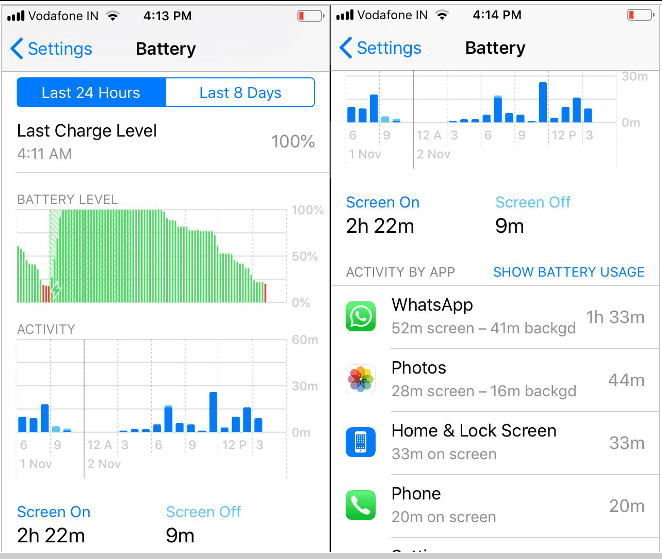
Step 1. Go to the ‘Settings’ on iOS and tap on the ‘Battery’ option.
Step 2. Scroll down to check the ‘Battery Usage’ section and tap on the little clock icon.
Here you can see the battery usage of different apps in the last 24 hours or 7 days. It also displays the percent of battery used by individual apps. If you tap on a particular app, it will display on-screen and background app timings.
You should also keep a check on the ‘On-screen’ and ‘Background’ apps.
On-Screen time is the time spent on an app when it was open on the screen. For example, if you are using Facebook, the time it remains open on the screen is known as ‘On Screen’ Time.
There are apps that keep on running in the background to keep on looking for the new feeds. That time spent in the background is known as ‘Background’ time. These apps may keep on running in the background for perhaps downloading, updating, podcasts, playing music or listening to the commentary, or performing some similar background tasks.
Check App Usage on iPhone Using Screen Time
Apple has a spontaneous way to check screen time usage. This iPhone app usage tracker is also available on iOS 12 and above. You can get complete details of your iPhone app usage using this setting.
Apple Screen Time also allows you to limit screen time for app categories along with data usage. You can set daily, or weekly limits for various categories of apps. As of now, it only allows you to limit app categories instead of individual apps, but we may expect the same settings soon.
The practice of checking your phone every now and then will be reduced using this app. This will also limit your kids to spend a particular time on any given app or game they use. This app also allows you to put an app to downtime so that it doesn’t work during a specified time frame. This can be considered as the first step to cut down your screen time.
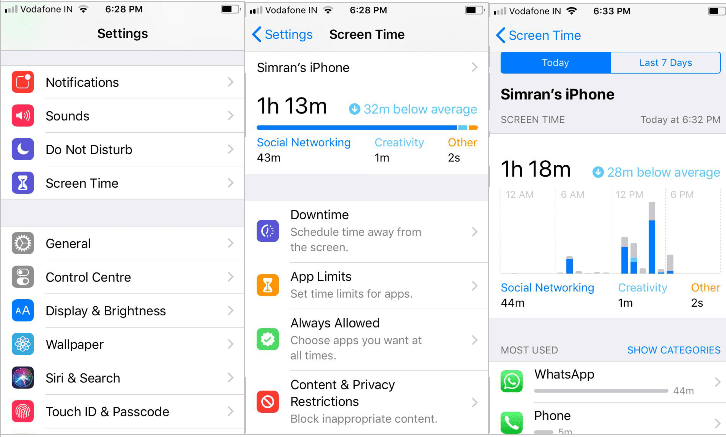
Step 1. Go to the ‘Settings’ of your iPhone and look for the ‘Screen Time’ option.
Step 2. Here you can check your daily, and weekly screen time on social networking, creativity or other phone usages. Here you can also configure ‘Downtime’ to schedule time away from the screen, ‘App Limits’ to set time limits on different apps, ‘Always Allowed’ for apps that have got unlimited app usage tag, and the most interesting and my favorite option ‘Content & Privacy Restrictions’. This option blocks inappropriate content on the screen and saves your kids from exposing vulnerability.
iPhone App Usage Tracker Using Third-party Apps
There are numerous third-party apps that work as an iPhone app usage tracker that you can download and install using the App Store to calculate your time spent on your phone. Third-party apps can give you a better experience as they are equipped with multiple other options to customize your preferences as per your needs.
iPhone App Usage Tracker Using Third-party Apps
There are numerous third-party apps to work as an iPhone app usage tracker that you can download and install using the App store to calculate your time spent on your phone.
Third-party apps can give you a better experience as they are equipped with multiple other options to customize your preferences as per your needs.
Here are our top 5 picks:
1. Moment

Moment is a comprehensive app usage tracker designed to help you manage your screen time more effectively. It provides detailed reports on your daily screen time, allowing you to see how much time you spend on each app. By breaking down app usage, including the frequency and duration of use, Moment helps you identify which apps are consuming most of your time.
Key Features:
- Detailed reports on daily screen time.
- Breaks down app usage, including frequency and duration.
- Set daily screen time limits and reminders.
- Track progress over time.
2. RescueTime

RescueTime is a powerful tool for tracking your time on your iPhone and gaining insights into your productivity. It offers detailed reports and analytics on how you spend your time, categorizing activities and assigning productivity scores to help you understand your habits better. With RescueTime, you can identify areas where you can improve your efficiency and make better use of your time.
Key Features:
- Tracks time spent on each app.
- Provides detailed reports and analytics.
- Categorizes activities and assigns productivity scores.
- Set goals and receive alerts for time management.
3. Freedom

Freedom is an app designed to help you stay focused by blocking distracting apps and websites. It allows you to create custom schedules for app blocking, ensuring that you can concentrate on your tasks without interruptions. Freedom’s focus mode temporarily disables distracting apps, helping you maintain your concentration during critical work periods.
Key Features:
- Blocks distracting apps and websites.
- Create custom schedules for app blocking.
- Detailed reports on app usage patterns.
- Focus mode to disable distracting apps temporarily.
4. Insight Timer–Meditate & Sleep

Insight Timer offers valuable insights into your app usage, helping you understand how much time you spend on different apps. The app provides detailed reports on app usage, including the number of times each app is opened and the average time spent on each app. This information helps you identify time-consuming apps and adjust your usage habits accordingly.
Key Features:
- Insights into time spent on different apps.
- Detailed reports on app usage frequency and duration.
- Identify time-consuming apps.
- Features like goal setting, reminders, and progress tracking.
5. Toggl Track: Hours & Time Log

Usage Statistics is a straightforward app for tracking and analyzing your app usage. It provides a comprehensive overview of your screen time, showing you which apps you use the most and how much time you spend on each one. The app’s detailed reports and charts make it easy to visualize your usage patterns and identify areas for improvement.
Key Features:
- Comprehensive overview of screen time.
- Detailed reports and charts for app usage.
- Set goals and receive notifications.
- Track progress over time to manage screen time effectively.
Conclusion
Tracking app usage on your iPhone helps you understand how much time you spend on different apps. Using built-in features like Screen Time, you can see detailed reports and set limits to manage your screen time better.
Third-party apps like Moment, RescueTime, Freedom, Insight Timer, and Toggl Track offer additional features. They provide detailed reports, set goals, and even block distracting apps to help you focus.
By tracking your app usage, you can create a healthier balance between screen time and real life. It helps you become more mindful of your digital habits and improve your overall well-being.
FAQs:
1. How do I enable Screen Time on my iPhone?
To enable Screen Time on your iPhone, go to Settings and select “Screen Time.” Tap “Turn On Screen Time” and follow the prompts to set up your device. You can choose to set up Screen Time for yourself or your family. Once enabled, Screen Time will track your app usage, provide reports, and allow you to set limits on app usage.
2. Can I track app usage for specific time periods?
Yes, both the built-in Screen Time feature and third-party apps allow you to track app usage for specific time periods. Screen Time provides daily and weekly reports, showing how much time you spend on each app. Third-party apps like Moment and RescueTime offer similar features, allowing you to view your usage patterns over various time frames.
3. Can I set limits on app usage to reduce screen time?
Absolutely! With Screen Time, you can set daily limits for specific apps or categories of apps. Simply go to Settings > Screen Time > App Limits, then select the apps or categories and set the desired limit. Third-party apps like Freedom also allow you to block distracting apps during certain times to help reduce screen time.
4. Are there any privacy concerns with using third-party app usage trackers?
When using third-party app usage trackers, it’s important to consider privacy. Ensure that you download apps from reputable sources and review their privacy policies to understand how your data will be used. Some third-party apps may require access to your device usage data, so it’s essential to choose apps that prioritize user privacy and data security.
Author Bio:
Dinesh Lakhwani 

Dinesh Lakhwani, the entrepreneurial brain behind “TechCommuters,” achieved big things in the tech world. He started the company to make smart and user-friendly tech solutions. Thanks to his sharp thinking, focus on quality and the motto of never giving up, TechCommuters became a top player in the industry. His commitment to excellence has propelled the company to a leading position in the industry.
Popular Post











Recent Post

How To Fix Issues Downloading from the Microsoft Store On Windows
Introduction: Downloading apps from the Microsoft Store should be a simple task. You open the Store, search for an app, and click install. In most cases, the process works without any problem. However, there are times when the download does not start. In some cases, it may stay stuck at a certain percentage. You may […]

How To Fix Windows Update Issues Easily On Windows [2026]
Introduction Windows updates play an important role in keeping a computer stable and secure. They bring new features, fix known bugs, and improve overall performance. When updates work as expected, the system runs smoothly. However, when they fail, users often face slow performance, missing features, or security risks. This is why it becomes important to […]

How To Check If Your PC Is Infected? [Complete Guide]
Computers now sit at the center of almost everything we do. Well, yes! From sending emails to watching videos, we depend on them without much thought. Because of this, even a small issue can disrupt daily tasks. One common problem is hidden malware. It does not always show clear signs at first. It can enter […]

Repair Apps And Programs: Repair Apps That Aren’t Working
Computers have become an essential part of everyday life, supporting work, study, communication, and entertainment. Most of these activities rely on apps and programs, so when one stops functioning, even simple tasks can be disrupted. Common problems include error messages, frozen screens, or apps that fail to open. On Windows systems, such issues often arise […]

Troubleshooting Microphone Privacy Settings: Complete Guide
Sound is a basic part of how we use computers today. People attend meetings, record audio, speak to others, and use voice tools almost every day. A working microphone makes all these tasks easy. When the microphone fails, even simple work becomes difficult. Many users first think the device is broken. In reality, the issue […]

Windows Sound Settings – Sound Control Panel: Complete Guide
Sound plays an important role in how we use a computer every day. It supports both work and leisure. You need it for meetings, videos, music, and alerts. When audio fails, even simple tasks become difficult. Many users feel stuck when sound issues appear. This usually happens because they are not familiar with Windows Sound […]

Run a Troubleshooter For PC Issues Windows: Complete Guide
A computer plays an important role in everyday life. People use it for work, study, communication, and entertainment. When a problem appears, it can interrupt everything. Even a small issue can waste time and create frustration. Many users feel unsure about how to fix such problems. They often think they need expert help. In reality, […]
![Adjusting Audio Output Settings Complete Guide [2026]](https://www.techcommuters.com/wp-content/uploads/2026/03/Adjusting-Audio-Output-Settings-Complete-Guide.webp)
Adjusting Audio Output Settings: Complete Guide [2026]
Sound is part of almost everything we do on a computer. It lets you watch videos, join calls, play music, and hear alerts. When the audio stops working the right way, it can interrupt both work and daily use. That is why adjusting audio output settings matters for every user. Many people get unsure when […]

Artificial Intelligence Explained: Concepts, Terminology, Benefits, and Future Trends
Artificial Intelligence, or AI, is basically computers doing things that usually need a human brain. We’re talking about stuff like learning from experience, figuring out problems, understanding language, and making decisions. It’s not magic, just a lot of data, pattern-spotting, and math behind the scenes. Now, AI doesn’t actually think or feel like we do. […]

Resolving Microphone Detection Problems: Latest Guide [2026]
Microphones are important tools in daily life. People use them for office meetings, online classes, interviews, gaming, customer support, and content creation. When a system fails to detect a microphone, communication stops at once. This situation can cause stress and confusion. Many users believe the microphone is damaged. In reality, most problems are simple and […]

