How to Solve NVIDIA Drivers Not Installing Issue?

Last updated on September 2nd, 2023 at 10:22 am
Graphics are necessary for any high-performing system. The dedicated video cards on systems are necessary for different personal and professional users. The amazing NVIDIA Graphics GPU installed on the system can offer the benefits of the much-required graphic to the users. Thus, many professionals and beginners need to install NVIDIA drivers on their systems. However, users may face issues of failed NVIDIA installation.
Let us help readers understand all about these NVIDIA drivers not installing issues in detail. We’ll go through the top reasons causing these problems, followed by the quick methods to solve this problem. It is easy to understand these methods one by one.
What are NVIDIA drivers?
NVIDIA drivers are the set of instructions or program which communicates from the Windows operating system to the device. These drivers are necessary for the display of different colors, setting the screen resolution, advanced features of video cards or GPU, etc. NVIDIA uses a special marketing term for their drivers, i.e., “Game Ready,” for introducing software updates and driver updates.
One of the prominent reasons to monitor NVIDIA drivers is due to its enhanced support and performance improvements. System users may have the best GPUs, but these are incomplete without dedicated drivers. Hence, to remove problems like graphical glitches, crashing, stuttering, low frame rates, etc., it is necessary to use updated NVIDIA drivers.
Why do NVIDIA drivers not install on the system?
After having a brief about the NVIDIA drivers, it is mandatory to go through the top reasons causing it. Some of the common NVIDIA drivers not installed on the system messages are:
- This NVIDIA graphics driver is not compatible with this version of Windows.
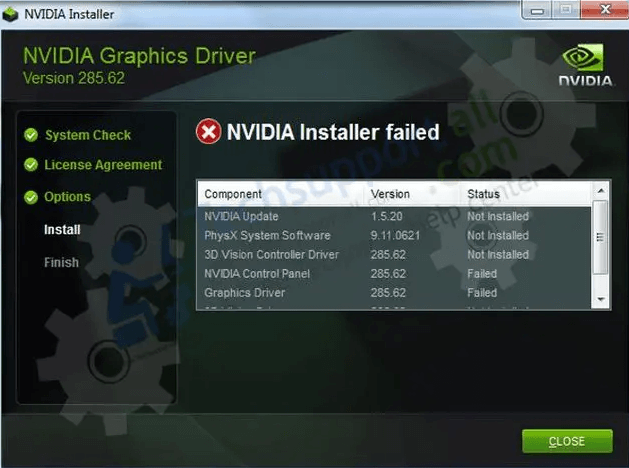
- NVIDIA Installer failed
- GeForce Game Ready Driver Installation can’t continue
- NVIDIA Installer cannot continue
The NVIDIA Graphics GPU requires the proper installation of the NVIDIA drivers. The hardware devices will not work properly if these drivers are not installed properly. Some of the common reasons leading to improper installation of NVIDIA drivers are:
- An improper version of the NVIDIA driver
- The protective action of the installed antivirus
- Extra files on the system restricting the NVIDIA driver installation
- Critical system issues causing problems in NVIDIA driver installation
Top methods to solve NVIDIA Drivers not installing issue
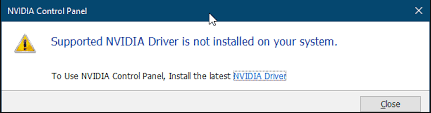
After going through the top reasons behind the NVIDIA drivers not installing issues, it is time to learn the different methods to solve this problem. Some of the solutions ensuring Smooth NVIDIA driver installation are:
- Manual driver installation:
The first method to get rid of the NVIDIA driver not installing issue is to directly download it from the official website of NVIDIA. The quick steps for manual driver installation are:
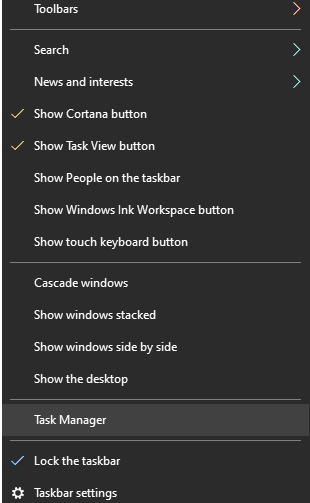
- Stop the NVIDIA processes by clicking the “Task Manager” at any area of taskbar.
- Select the NVIDIA-related processes and click “End Task” for every step.
- Press the Windows logo key and “E” simultaneously to launch File Explorer.
- Delete the files by navigating through the following directories.
- C:\Program Files\NVIDIA Corporation
- C:\Program Files (x86)\NVIDIA Corporation
- C:\Windows\System32\DriverStore\FileRepository\nv_lh document
- C:\Windows\System32\DriverStore\FileRepository\nvoclock document
- C:\Windows\System32\DriverStore\FileRepository\nvdsp.inf document
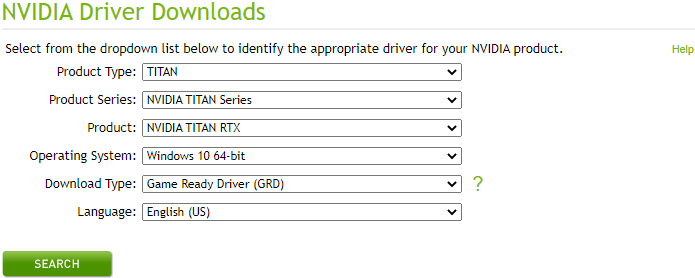
- Go to the official page of NVIDIA drivers.
- Select the details like product type, product series, product, operating system, download type, and language.
2. Disabling antivirus temporarily:
The antivirus program or GPU monitoring tool can cause NVIDIA drivers installation problems. These programs may interfere with the NVIDIA driver installation and prevent it from starting. It can be due to the changes made by the NVIDIA drivers on the system, which are protected by the antivirus.
Turning off the antivirus is not recommended as it may attract malware attacks. However, a temporary antivirus disabling can be helpful for seamless NVIDIA installation. Hence, turning off the respective antivirus on the system and reinstalling the NVIDIA driver are recommended.
3. Updating the Graphics Device Drivers:
The next method in line is to update the graphics device drivers. It is easy to go for the Windows update on the system which checks for the Graphics device drivers update also.
The second option is to go for the Device Manager. Both these can help solve the problem of NVIDIA drivers not installing due to old versions. Further, it can be the perfect solution for getting the latest version of the NVIDIA drivers with no additional help and improve the system’s performance.
Let us go through the both ways i.e., Windows update and device manager one-by-one. The quick steps for the same are:
Using Windows Update:
- Open “Start,” “Settings,” and “Updates and Security.”
- Go to “Check for Update.”
- The update manager will scan for all available updates. Select the “Download” button to download and install the updates.
Using Device Manager:
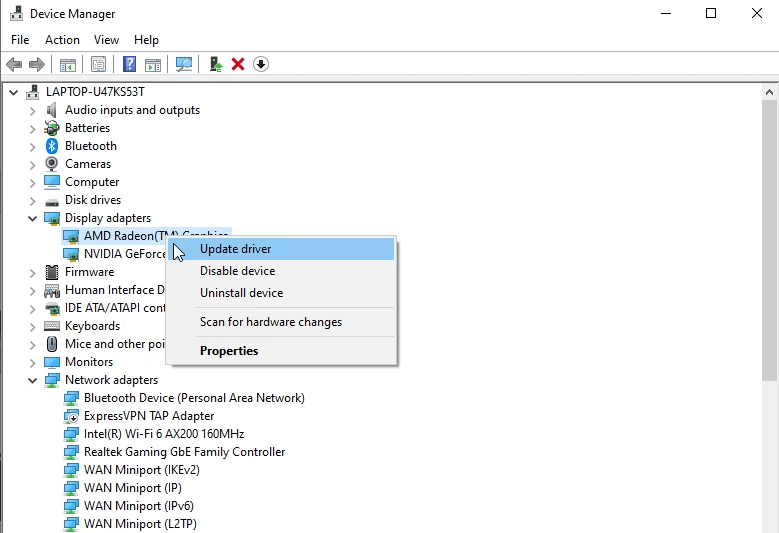
- Open Run box by “Windows key + R.”
- Type “devmgmt.msc” and click “Ok” for opening Device Manager.
- Expand the “Display adapters” section to list all integrated and dedicated graphics drivers on the system.
- Select the driver and choose “Update Driver.”
4. Renaming NVIDIA graphics folder:
If all the above three methods are not solving the problem of NVIDIA drivers installation, it is easy to rename the NVIDIA graphics folder. The change in the path of the folder due to renaming may cause certain features to work in different ways. It can be used to install the NVIDIA drivers successfully. The quick steps for the same are:
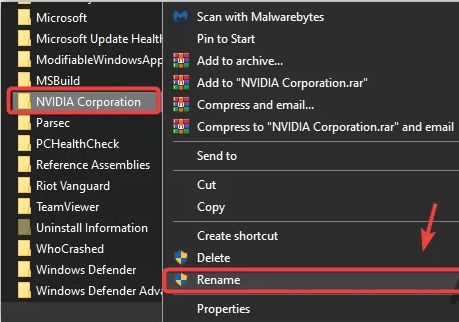
- Open “File Explorer” and go to the system drive.
- Go to “Program Files” and open “NVIDIA Corporation.”
- Select the “Rename” option and change the name of the folder.
- Run the driver setup now and check for the error.
Wrapping Up:
Hence, it is easy for the readers to understand all about the NVIDIA drivers not installing issues for their systems. NVIDIA drivers are necessary for optimizing the use of the different GPUs and eliminating the issues like low frame rates, stuttering, graphical glitches, crashing, etc. The different error messages may show the failed NVIDIA installation.
The different methods to solve the NVIDIA drivers not installing issue is to go for the manual driver installation, disabling Antivirus temporarily, etc. Users can go for updating the graphics device drivers, renaming the NVIDIA graphics folder, etc. Beginners or professionals can go for these easy methods to solve the NVIDIA driver not installing issue.
Author Bio:
Dinesh Lakhwani 

Dinesh Lakhwani, the entrepreneurial brain behind “TechCommuters,” achieved big things in the tech world. He started the company to make smart and user-friendly tech solutions. Thanks to his sharp thinking, focus on quality and the motto of never giving up, TechCommuters became a top player in the industry. His commitment to excellence has propelled the company to a leading position in the industry.
Popular Post











Recent Post

How to Switch Windows 10 to a Local Account: Complete Guide
Windows 10 allows users to sign in with either a Microsoft account or a local account. When you set up a new computer, the system often suggests using a Microsoft account. This account connects your device to Microsoft services such as Outlook, OneDrive, and the Microsoft Store. It also syncs settings, themes, and passwords across […]

How To Change Default Apps For File Types In Windows
Windows is designed to make using your computer easy. One way it does this is by assigning default apps to different file types. This means when you open a file, Windows automatically opens it with a specific program. For example, photos may open with Photos, music with Groove Music, and PDFs with Edge. These default […]

How To Adjust The Mouse Pointer Speed: Complete Guide
Using a computer every day means you use the mouse a lot. The mouse pointer moves on the screen and helps you click, scroll, and select items. Many people never think about the speed of the mouse pointer. They have used the default setting for years. This can cause small problems over time. A slow […]

How to Change Mouse Scrolling Settings In Windows
A mouse is one of the most used computer tools. People use it every day. They scroll through emails. They scroll through documents. They scroll through websites and images. The movement becomes automatic. Most users do not notice it. That is why problems often go unnoticed. Scrolling problems show up slowly. At first, it feels […]

Keyboard Light Settings: Keyboard Lighting Control [Complete Guide]
Keyboards are no longer simple typing tools. Well, yes! Over time, they have evolved to include features that improve comfort, visibility, and overall experience. One of the most useful features today is keyboard lighting. It helps users work comfortably in low-light conditions. It also reduces strain when typing for long hours. Many users first notice […]

Customizing Pointer Appearance: Complete Guide
The way your mouse pointer looks on your computer may seem like a small detail. But customizing pointer appearance can make using your PC more comfortable and visually appealing. Many users do not realize that they can change the pointer size, color, and style to fit their needs. Whether you want a bigger pointer for […]

How To Choose a Computer Monitor: Monitor Buying Guide
Buying a monitor looks easy. Many people think all screens are the same. That belief causes regret later. A monitor is not just a display. It is a daily tool. You read on it. You work on it. You relax with it. Small problems become big over time. Poor brightness hurts eyes. Bad size causes […]

How To Get Help With File Explorer in Windows 11 [Complete Guide]
File Explorer is one of the most important tools in Windows 11. It is used to open folders, view files, and manage stored data. Almost every action on a Windows computer depends on it in some way. When users open documents, save downloads, or organize photos, File Explorer is always involved. Because it is used […]

How To Fix A Frozen Computer: Complete Guide [Windows 11/10]
A frozen computer is one of the most common problems Windows users face. The screen stops responding. The mouse pointer does not move. Keyboard inputs do nothing. You may hear the fan running loudly. Sometimes the system looks alive, but nothing works. This situation often happens when you are busy or working on something important. […]

How to Upgrade Computer RAM: Complete Guide
Upgrading RAM is one of the simplest ways to improve a computer. It helps the system feel faster and smoother. Apps open quicker. Browsers handle more tabs. Games and tools run with less delay. Many users search for how to upgrade computer RAM because it gives real results without high cost. You do not need […]

