How To Scan Your Device For Malware In Windows 11 & Windows 10

Last updated on January 12th, 2026 at 12:55 pm
Malware poses a serious threat to Windows computers. Every day, millions of devices get infected with harmful software. These threats can steal your data, slow down your system, and cause major problems.
Windows 11 and Windows 10 users face constant cyber threats. Viruses, ransomware, and spyware target these popular operating systems. Your personal files, passwords, and banking details are at risk. Regular malware scans help protect your computer from these dangers. When you scan your computer for malware, you create a shield against digital attacks.
Many people think their computers are safe without regular checks. This false sense of security can be costly. Hackers use new methods every day to bypass basic protections.
Running regular malware scans on your Windows system is crucial for keeping it secure. A quick scan can help you avoid significant inconvenience and potential financial risks.
Part 1: What is the Need for Running the Malware Scan on Windows

Every day, modern Windows systems encounter thousands of new threats. Cybercriminals design malware specifically for Windows 11 and Windows 10, and your antivirus may not always detect emerging threats. That’s why regular malware scans are crucial—they help uncover risks that bypass basic security measures.
Without routine scans, malware can embed itself deep within your system. Some malicious programs operate silently, stealing your data without any noticeable symptoms.
By scanning your computer regularly, you can detect these hidden threats early, preventing severe damage to your files and personal privacy.
Part 2: Benefits of Scanning Device for Malware on Windows
Regular malware scanning provides essential protection for your Windows computer. When you scan your computer for malware consistently, you gain multiple advantages that keep your system safe and running smoothly.
- Protects Personal Data: Regular scans prevent hackers from stealing your passwords, photos, and documents when you run a malware scan on Windows.
- Improves System Speed: Removing malware helps your computer run faster and smoother after you scan your device for malware Windows.
- Prevents System Crashes: Malware scans stop harmful programs from corrupting your Windows files and causing blue screen errors.
- Saves Money: Early detection through scans prevents costly repairs and data recovery when you check computer for malware regularly.
- Blocks Identity Theft: Scanning removes keyloggers and spyware that steal your login credentials and banking information.
- Maintains Privacy: Regular scans stop malware from accessing your webcam, microphone, and personal files without permission.
- Preserves System Stability: Consistent scanning prevents malware from damaging Windows registry and system files.
- Reduces Spam and Pop-ups: Scanning removes adware that floods your browser with unwanted advertisements and redirects.
Part 3: Precautions to Take When Scanning Device for Malware

Taking proper precautions before you scan your device for malware Windows ensures effective results. These safety measures help you run a malware scan on Windows without causing system problems or missing threats.
- Close All Programs: Shut down unnecessary applications before you scan your computer for malware to avoid scanning conflicts.
- Update Your Scanner: Ensure your antivirus has the latest definitions before you check computer for malware for best detection.
- Backup Important Files: Save your crucial data to external storage before running deep scans on your Windows system.
- Disconnect from Internet: Go offline during scans to prevent malware from communicating with remote servers during detection.
- Use Safe Mode: Boot into Safe Mode for thorough scans when you suspect heavy malware infection on Windows.
- Avoid Other Tasks: Don’t use your computer for other activities while scanning to ensure accurate malware detection results.
- Check System Resources: Monitor CPU and memory usage to ensure your Windows system can handle the scanning process effectively.
- Schedule Regular Scans: Set automatic scans during off-hours when you’re not actively using your Windows computer for work.
Part 4: How To Scan Your Device For Malware on Windows 11/10
Windows 11 and Windows 10 offer multiple ways to scan your device for malware Windows systems. You can choose between built-in Windows tools or third-party software, depending on your needs. Certain methods are more effective against specific types of malware threats.
Combining different scanning methods gives you the best protection. When you run a malware scan on Windows using various tools, you catch more threats. Some malware hides from certain scanners but gets detected by others. Regular users should try at least two different methods to check computer for malware effectively.
Method 1: Windows Defender (Built-in Security)
Windows Defender comes pre-installed with every Windows system, providing essential malware protection at no extra cost. It automatically updates and runs quietly in the background, ensuring continuous security while you use your device.
This built-in tool offers dependable defense against threats, scanning your system efficiently to detect and neutralize potential risks. Its seamless operation helps safeguard your files without disrupting your workflow.
Steps:
- Use the Windows search bar. Type and select “Windows Security”. Choose “Virus & threat protection”.

- Click “Quick scan” for a basic check or “Scan options” for more choices. Select “Full scan” to scan your device for malware Windows thoroughly. Click “Scan now”. Wait for the process to complete.

- Review results and follow recommendations to remove threats. Restart your computer.
Method 2: Windows PowerShell Command Line
PowerShell offers advanced scanning options for tech-savvy users. This method helps you run a malware scan on Windows using command-line tools. PowerShell scans can detect threats that GUI tools sometimes miss.
Steps:
- Right-click the Start button. Now select “Windows PowerShell (Admin)”. Type “Get-MpComputerStatus”. Press Enter. Now check Windows Defender status.

- Type “Start-MpScan -ScanType QuickScan” for a quick malware check. Use “Start-MpScan -ScanType FullScan” to scan your computer for malware completely.

- Type “Get-MpThreat” to view any detected threats after scanning. Use “Remove-MpThreat” command to clean found malware.

- Type “Update-MpSignature” to update malware definitions. Close PowerShell when scanning and cleanup are complete
Method 3: Third-Party Antivirus Software
Many malware problems do not stop at detection. They leave behind damaged system files, broken settings, and background processes that slow the PC. This is where a more complete security tool fits naturally into a Windows malware scanning guide. Fortect Antivirus works not only as a scanner but also as a repair-focused solution for Windows 11 and Windows 10 users.
Fortect Antivirus checks your device for malware, unsafe apps, and suspicious system behavior. At the same time, it looks for corrupted Windows files that often appear after an infection. This makes it useful for users who want clean scan results and a stable system afterward, without jumping between multiple tools.
Key Features of Fortect Antivirus
- Deep malware scan for viruses, spyware, and hidden threats
- Repairs damaged Windows system files automatically
- Detects unsafe apps and unusual background processes
- Real-time monitoring to block new threats early
- Lightweight design that does not slow down everyday use
- Works smoothly on both Windows 11 and Windows 10
How to Scan Your PC Using Fortect
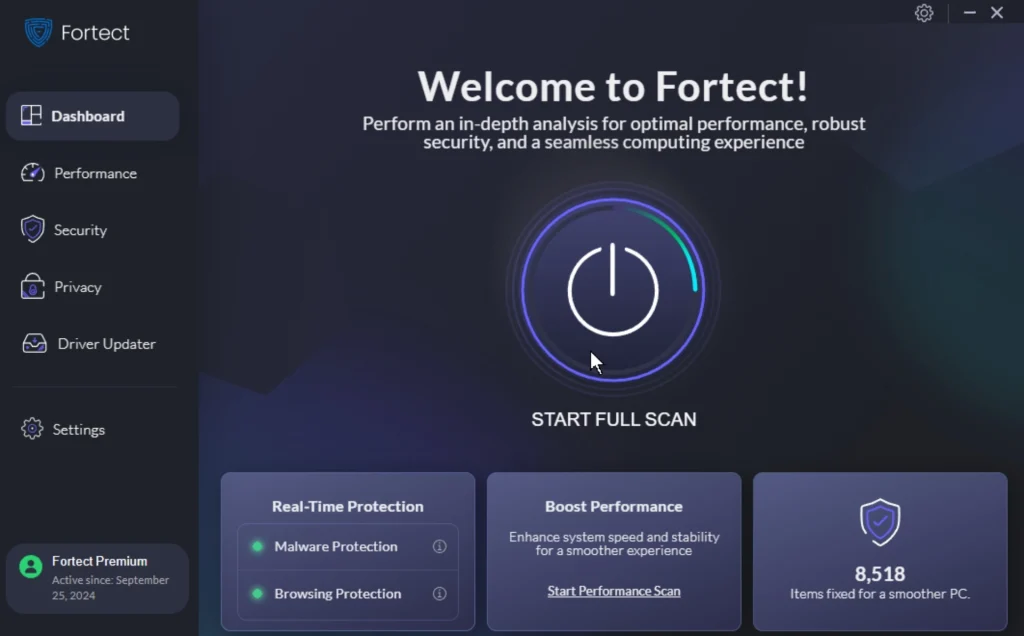
Step 1: Download and install Fortect on your Windows PC, then launch the tool and start a full system scan.
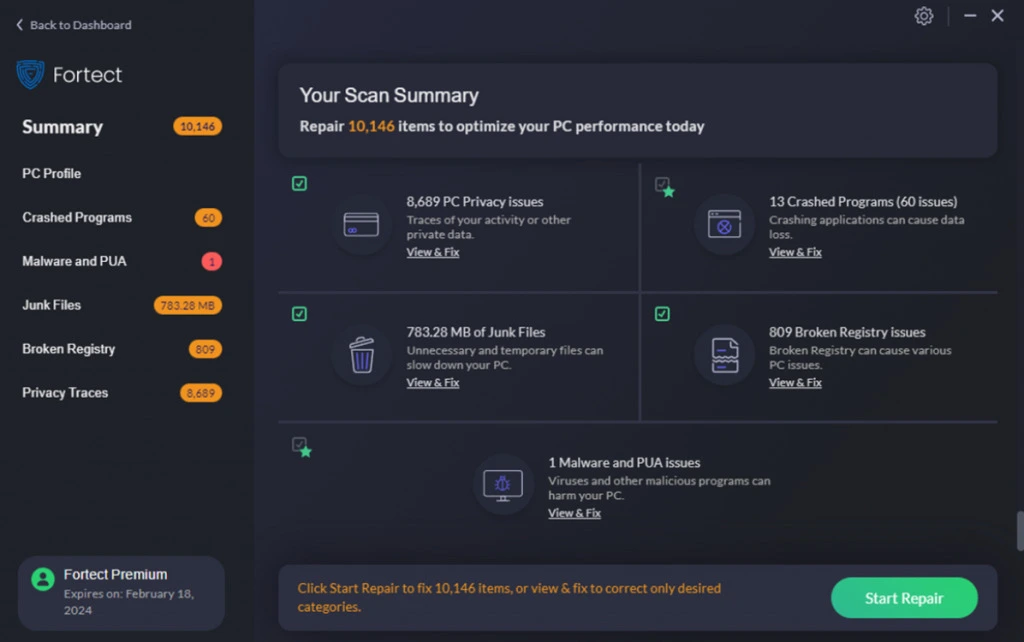
Step 2: Review the scan results and allow Fortect to remove malware and repair affected system files in one go.
Method 4: Windows Recovery Environment (Advanced)
Boot-time scanning works when regular scans fail to clean stubborn malware. This method runs before Windows starts, catching malware that hides from normal scans. Use this when you suspect a serious infection.
Steps:
- Hold the Shift key while clicking “Restart” from the Start menu. Select “Troubleshoot” from the recovery options screen. Choose “Advanced options”, then select “Startup Settings”. Click “Restart” and press F4 to boot into Safe Mode.

- Open Windows Security and run a full malware scan. Alternatively, use third-party rescue disks for deeper cleaning. Allow the scan to complete without interruption. Remove all detected threats and restart normally. Run another scan after normal boot to verify complete cleanup
Author’s Tip
Many users make the mistake of relying only on real-time protection. While this feature helps, it cannot catch everything. You need to manually scan your device for malware Windows at least once per week. Set a reminder on your calendar to run these scans regularly. This simple habit prevents most malware infections.
Don’t ignore scan results or postpone recommended actions. When your antivirus finds threats, deal with them immediately. Delayed action gives malware more time to spread and cause damage. Always restart your computer after removing malware to ensure complete cleanup. This step completes the removal process and prevents malware from returning.
Keep your scanning software updated at all times. New malware appears every hour, and outdated scanners miss these threats. Enable automatic updates for your antivirus program. When you run a malware scan on Windows with current definitions, you catch the latest threats. Updated scanners provide the best protection for your Windows system.
Conclusion
Regular malware scanning protects your Windows computer from serious threats. Whether you use Windows 11 or Windows 10, scanning prevents data theft and system damage. Make scanning a weekly habit to keep your device safe. When you scan your computer for malware regularly, you avoid costly repairs and privacy breaches.
Don’t wait until problems appear to start scanning. Prevention costs less than recovery in both time and money. Use the built-in Windows Defender or install trusted third-party software. Remember to check computer for malware weekly and update your scanning tools regularly. Your digital safety depends on consistent malware scanning habits.
Frequently Asked Questions
How often should I scan my device for malware Windows?
You should run a malware scan on Windows at least once per week for basic protection. Heavy internet users and businesses should scan daily. Quick scans can run every few days, while full system scans should happen weekly. Set automatic scans during off-hours to maintain consistent protection without interrupting your work.
Can I scan my computer for malware using free tools?
Yes, Windows 11 and Windows 10 include Microsoft Defender for free malware scanning. This built-in tool provides good basic protection for most users. You can also use free versions of programs like Malwarebytes for additional scanning. However, paid antivirus programs offer more features and better protection for business users.
What should I do if I find malware when I check computer for malware?
Immediately quarantine or delete the detected threats as recommended by your scanner. Disconnect from the internet to prevent data theft during cleanup. Restart your computer after removing malware to complete the cleaning process. Change all your passwords after cleanup, especially for banking and email accounts. Consider running a second scan with different software to ensure complete removal.
Author Bio:
Dinesh Lakhwani 

Dinesh Lakhwani, the entrepreneurial brain behind “TechCommuters,” achieved big things in the tech world. He started the company to make smart and user-friendly tech solutions. Thanks to his sharp thinking, focus on quality and the motto of never giving up, TechCommuters became a top player in the industry. His commitment to excellence has propelled the company to a leading position in the industry.
Popular Post











Recent Post

Windows Sound Settings – Sound Control Panel: Complete Guide
Sound plays an important role in how we use a computer every day. It supports both work and leisure. You need it for meetings, videos, music, and alerts. When audio fails, even simple tasks become difficult. Many users feel stuck when sound issues appear. This usually happens because they are not familiar with Windows Sound […]

Run a Troubleshooter For PC Issues Windows: Complete Guide
A computer plays an important role in everyday life. People use it for work, study, communication, and entertainment. When a problem appears, it can interrupt everything. Even a small issue can waste time and create frustration. Many users feel unsure about how to fix such problems. They often think they need expert help. In reality, […]
![Adjusting Audio Output Settings Complete Guide [2026]](https://www.techcommuters.com/wp-content/uploads/2026/03/Adjusting-Audio-Output-Settings-Complete-Guide.webp)
Adjusting Audio Output Settings: Complete Guide [2026]
Sound is part of almost everything we do on a computer. It lets you watch videos, join calls, play music, and hear alerts. When the audio stops working the right way, it can interrupt both work and daily use. That is why adjusting audio output settings matters for every user. Many people get unsure when […]

Artificial Intelligence Explained: Concepts, Terminology, Benefits, and Future Trends
Artificial Intelligence, or AI, is basically computers doing things that usually need a human brain. We’re talking about stuff like learning from experience, figuring out problems, understanding language, and making decisions. It’s not magic, just a lot of data, pattern-spotting, and math behind the scenes. Now, AI doesn’t actually think or feel like we do. […]

Resolving Microphone Detection Problems: Latest Guide [2026]
Microphones are important tools in daily life. People use them for office meetings, online classes, interviews, gaming, customer support, and content creation. When a system fails to detect a microphone, communication stops at once. This situation can cause stress and confusion. Many users believe the microphone is damaged. In reality, most problems are simple and […]

How To Switch To A Dark Background Theme In Windows [2026]
Most people spend many hours each day in front of a computer screen. Office work, online classes, editing, browsing, and streaming all require long screen time. A bright white background may look clean at first. However, over time, it can feel sharp and tiring. The strong contrast between white backgrounds and black text may cause […]

How to Switch From Local To Microsoft Account On Windows
Many users begin with a local account when they set up a new Windows computer. A local account works only on that single device. It stores settings, files, and preferences locally. It does not connect to online Microsoft services. For basic offline use, it works well. However, as digital needs grow, many users want better […]

How to Switch Windows 10 to a Local Account: Complete Guide
Windows 10 allows users to sign in with either a Microsoft account or a local account. When you set up a new computer, the system often suggests using a Microsoft account. This account connects your device to Microsoft services such as Outlook, OneDrive, and the Microsoft Store. It also syncs settings, themes, and passwords across […]

How To Change Default Apps For File Types In Windows
Windows is designed to make using your computer easy. One way it does this is by assigning default apps to different file types. This means when you open a file, Windows automatically opens it with a specific program. For example, photos may open with Photos, music with Groove Music, and PDFs with Edge. These default […]

How To Adjust The Mouse Pointer Speed: Complete Guide
Using a computer every day means you use the mouse a lot. The mouse pointer moves on the screen and helps you click, scroll, and select items. Many people never think about the speed of the mouse pointer. They have used the default setting for years. This can cause small problems over time. A slow […]

