How to Save & Optimize Battery Life on an iPhone
Last updated on February 8th, 2025 at 3:25 am
iPhone offers best user experience when it comes to different features and built-in utilities. Here, this smartphone comes packed with all necessary features to help you deal with all performance issues seamlessly.
Further, you can also use these built-in features to boost your device battery performance significantly. In this article, we have discussed few important steps to help you save & optimize battery life on an iPhone.
Tips to Save & Optimize Battery Life on an iPhone
Enable Low Power Mode
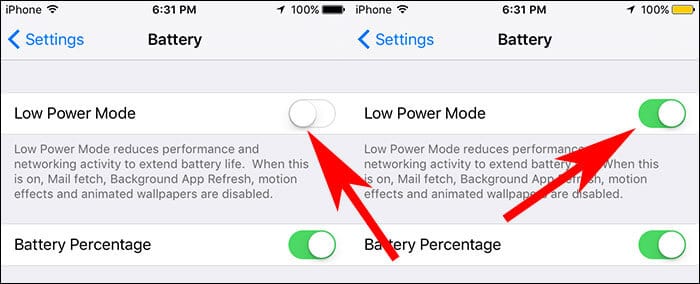
Low Power Mode is useful addition to your device that helps you save & optimize battery life on an iPhone. Apple has introduced this feature with iOS 9. Here, you can use this effective feature to instantly boost your device battery performance.
You can enable this feature with one tap option or enable it by heading to Settings > Battery. Once you enable this feature, it will block various disable or optimize different features & services on your device.
Here, it will reduce display brightness, optimizes battery performance, disable features like iCloud sync, AirDrop, and Continuity, minimizes system animations, and disable content download in the background by Mail app.
Despite it restricts certain features on your device, still you can use key functions like email & messages, access to the Internet, making and receiving calls etc. Here, Low Power Mode will be automatically switched off when your phone gets charged.
Source: igeeksblog
Optimize Device Settings
By following two simple settings hacks you can save & optimize battery life on an iPhone effortlessly. Here, first is to manage brightness level and second is to use Wi-Fi instead of mobile network.
To dim the display brightness, swipe up the bottom of the device screen to open Control Centre and drag the Brightness slider to your desired level.
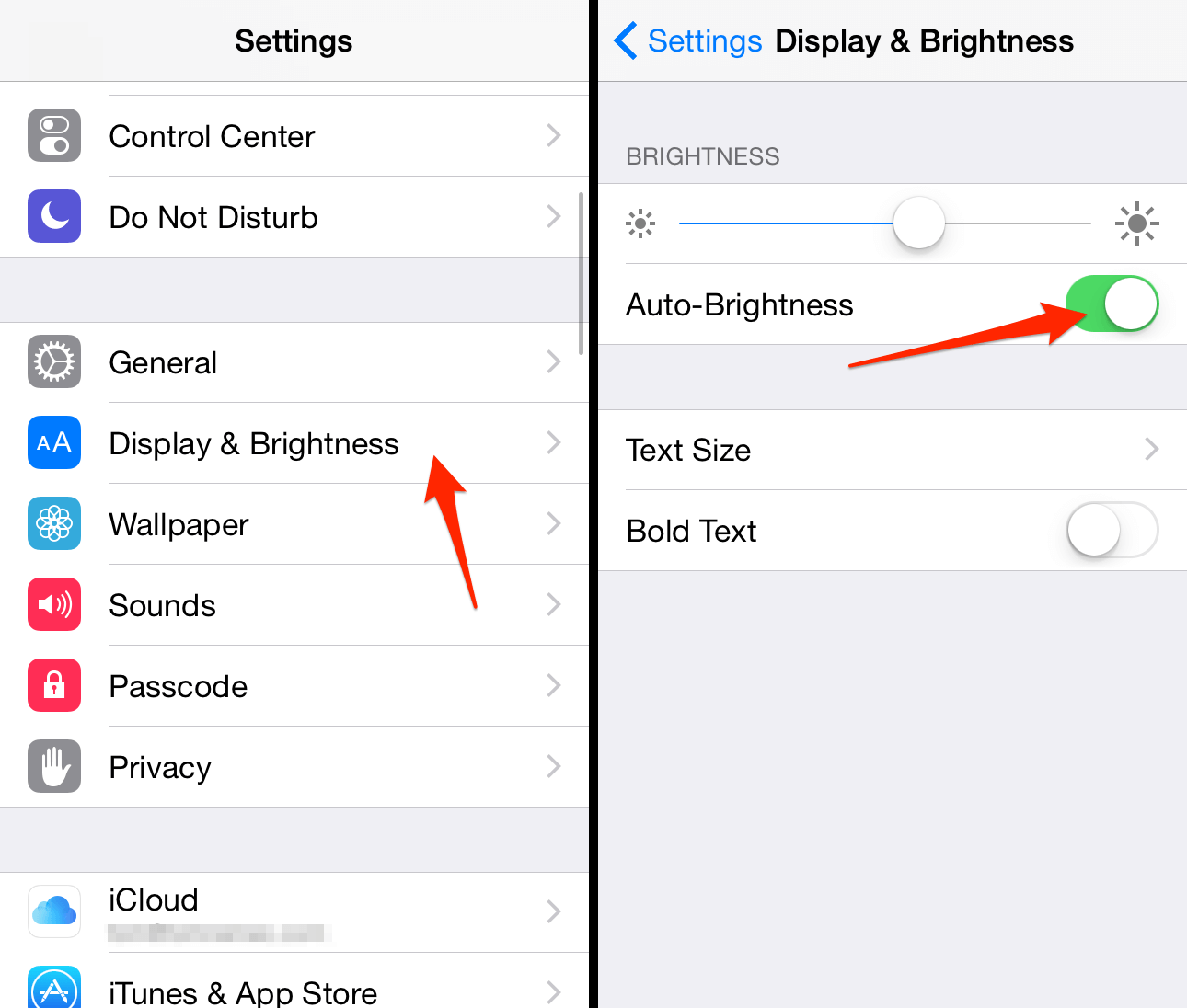
You can also set Auto-Brightness to allow device set brightness level automatically as per lighting conditions. To do this, go to Settings > Display & Brightness and turn on Auto-Brightness feature.
Source: iphone-tricks
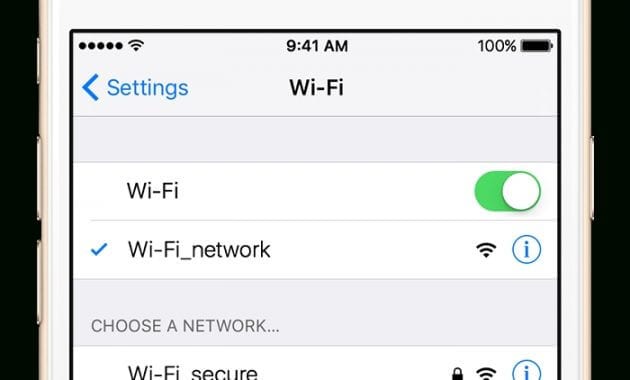
Further, you should also prefer Wi-Fi network to mobile network to use Internet data. Here, Wi-Fi uses less battery power in comparison to mobile network. To access Wi-Fi on your device, go to Settings > Wi-Fi or open it from Control Centre.
Source: watcheswill
View Battery Usage Information
iPhone allows you to view and manage battery consumption by individual app which is unique feature of this device. To view battery usage on your iPhone, go to Settings > Battery.
Under battery usage information you can find different useful details. Let’s discuss how this information could be useful for you to save & optimize battery life on an iPhone.
Background Activity
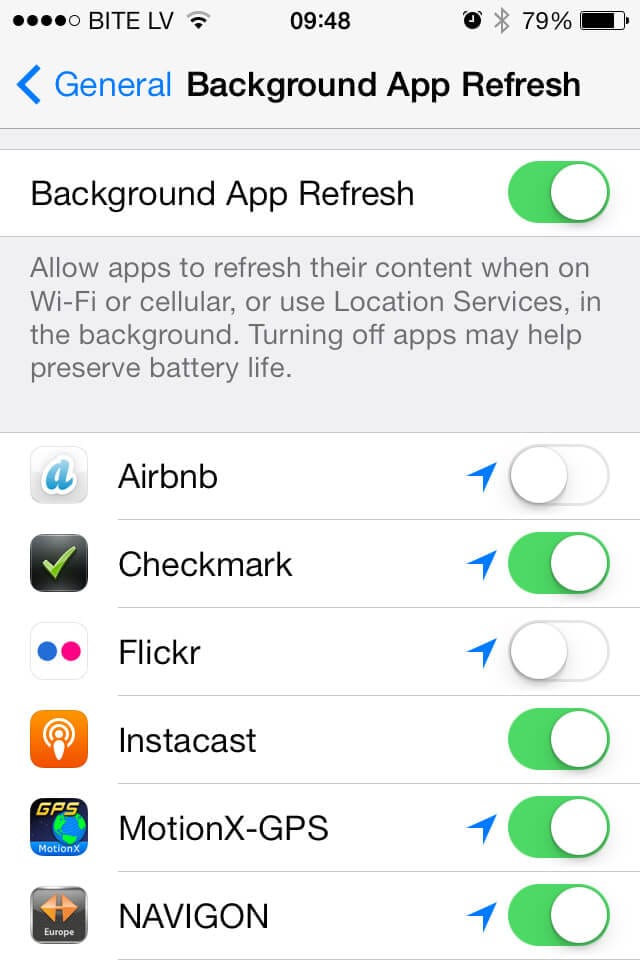
Under this feature, you can view battery consumption by different apps in the background. Here, you can disable feature that allows apps to refresh in the background.
To do this, head to Settings > General > Background App Refresh and turn off this feature. Further, you can also disable background activity by Mail app on your device.
Source: flickr
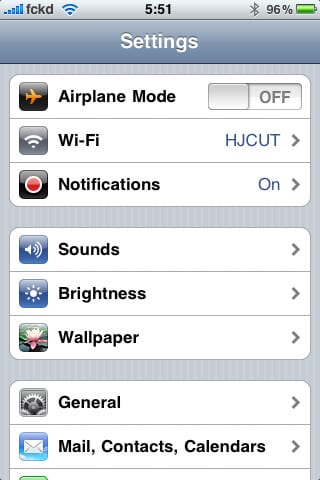
To do this, go to Settings > Mail, Contacts, Calendars > Fetch New Data. Using this feature, you can fetch data manually or increase the fetch interval.
Source: flickr
Location and Background Location
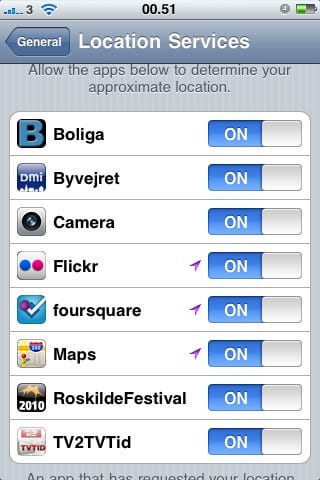
Using this feature you can manage those apps that are using location services on your device. You can turn off Location Services for the app to save & optimize battery life on an iPhone.
To do this, go to Settings > Privacy > Location Services. Here, you can find all those apps that have used location services on your device as it displays an indicator next to the on/off switch.
Source: flickr
Home & Lock Screen
If an app on your device frequently wakes your device display with notifications, then you can manage this by a small tweak in Settings. Here, you need to turn off push notifications for the said app by heading to Settings > Notifications. Here, click on the App and set Allow Notifications feature off.
No Mobile Coverage and Low Signal
No mobile coverage or low signal also affects your device battery life negatively. Here, your device keeps on searching for strong signals consuming more battery power. Further using the device in low-signal conditions also consumes more battery.
Here, you can turn off the mobile data or Wi-Fi for some time until you get a better network. You can also enable Airplane Mode if needed. Remember it will block incoming and outgoing calls. To enable Airplane mode, swipe up to open Control Centre and click on Airplane mode icon.
Update Software
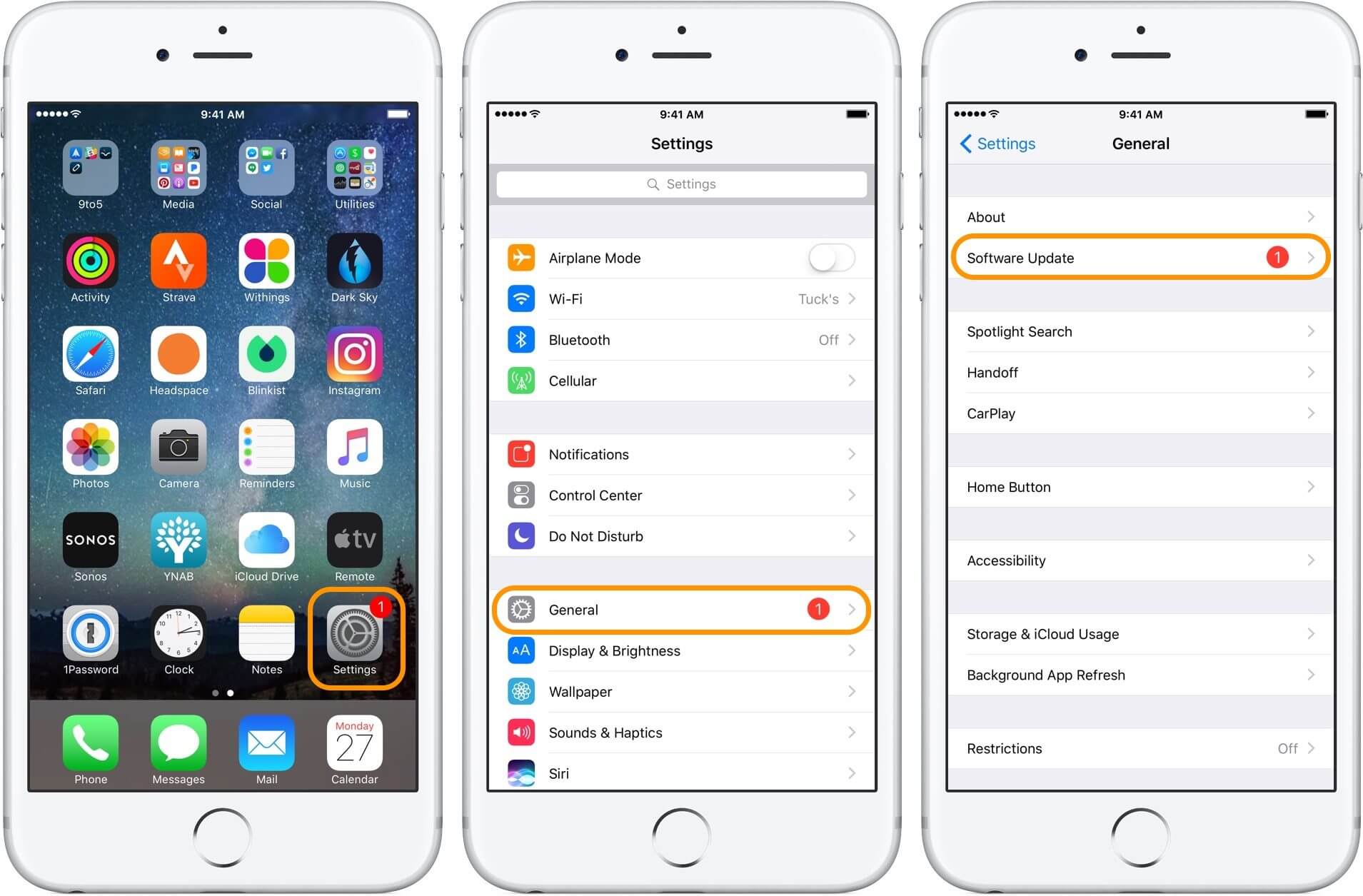
This is another useful tip to save & optimize battery life on an iPhone. You can update software on your device by heading to Settings > General > Software Update.
Here, you can remove apps temporarily (when asked) that will be reinstalled by the iOS later. Further, you can also update software via iTunes.
To do this, connect your device to your computer and open iTunes and select your iPhone. Click on Summary > Check for Update. Here click on Download and Update.
Source: 9to5mac
Use Battery Saver Apps
Try battery saver apps to instantly boost your iPhone battery life. Here, these smart tools work on advanced algorithms to keep a tab on battery draining functions on your device. Further, it also helps you manage or disable all such battery draining functions on your device with a one-tap option.
You can use these effective tools for instant and effective results.
Source: benzinga
Conclusion
iPhone devices come built-in with all necessary features to help you deal with all performance issues on your device. Here, you can find various useful features that help you improve your device performance significantly.
Further, you can use these built-in utilities & features to save & optimize battery life on an iPhone. In addition to these built-in features, you can also try battery saver apps for instant and effective results.
Author Bio:
Dinesh Lakhwani 

Dinesh Lakhwani, the entrepreneurial brain behind “TechCommuters,” achieved big things in the tech world. He started the company to make smart and user-friendly tech solutions. Thanks to his sharp thinking, focus on quality and the motto of never giving up, TechCommuters became a top player in the industry. His commitment to excellence has propelled the company to a leading position in the industry.
Popular Post











Recent Post

Resolving Microphone Detection Problems: Latest Guide [2026]
Microphones are important tools in daily life. People use them for office meetings, online classes, interviews, gaming, customer support, and content creation. When a system fails to detect a microphone, communication stops at once. This situation can cause stress and confusion. Many users believe the microphone is damaged. In reality, most problems are simple and […]

How To Switch To A Dark Background Theme In Windows [2026]
Most people spend many hours each day in front of a computer screen. Office work, online classes, editing, browsing, and streaming all require long screen time. A bright white background may look clean at first. However, over time, it can feel sharp and tiring. The strong contrast between white backgrounds and black text may cause […]

How to Switch From Local To Microsoft Account On Windows
Many users begin with a local account when they set up a new Windows computer. A local account works only on that single device. It stores settings, files, and preferences locally. It does not connect to online Microsoft services. For basic offline use, it works well. However, as digital needs grow, many users want better […]

How to Switch Windows 10 to a Local Account: Complete Guide
Windows 10 allows users to sign in with either a Microsoft account or a local account. When you set up a new computer, the system often suggests using a Microsoft account. This account connects your device to Microsoft services such as Outlook, OneDrive, and the Microsoft Store. It also syncs settings, themes, and passwords across […]

How To Change Default Apps For File Types In Windows
Windows is designed to make using your computer easy. One way it does this is by assigning default apps to different file types. This means when you open a file, Windows automatically opens it with a specific program. For example, photos may open with Photos, music with Groove Music, and PDFs with Edge. These default […]

How To Adjust The Mouse Pointer Speed: Complete Guide
Using a computer every day means you use the mouse a lot. The mouse pointer moves on the screen and helps you click, scroll, and select items. Many people never think about the speed of the mouse pointer. They have used the default setting for years. This can cause small problems over time. A slow […]

How to Change Mouse Scrolling Settings In Windows
A mouse is one of the most used computer tools. People use it every day. They scroll through emails. They scroll through documents. They scroll through websites and images. The movement becomes automatic. Most users do not notice it. That is why problems often go unnoticed. Scrolling problems show up slowly. At first, it feels […]

Keyboard Light Settings: Keyboard Lighting Control [Complete Guide]
Keyboards are no longer simple typing tools. Well, yes! Over time, they have evolved to include features that improve comfort, visibility, and overall experience. One of the most useful features today is keyboard lighting. It helps users work comfortably in low-light conditions. It also reduces strain when typing for long hours. Many users first notice […]

Customizing Pointer Appearance: Complete Guide
The way your mouse pointer looks on your computer may seem like a small detail. But customizing pointer appearance can make using your PC more comfortable and visually appealing. Many users do not realize that they can change the pointer size, color, and style to fit their needs. Whether you want a bigger pointer for […]

How To Choose a Computer Monitor: Monitor Buying Guide
Buying a monitor looks easy. Many people think all screens are the same. That belief causes regret later. A monitor is not just a display. It is a daily tool. You read on it. You work on it. You relax with it. Small problems become big over time. Poor brightness hurts eyes. Bad size causes […]

