How to Reset Network Settings on a Mac

Last updated on February 8th, 2025 at 3:23 am
Macs are usually always trustworthy, although you may experience issues attaching to the web or experiencing poor surfing speeds at times. The web may be operating well on your additional devices, which might be frustrating. That’s not always clear what’s causing an issue, or whether one exists at all.
When you discover yourself in a similar scenario, you may try to reset network settings on Mac. There are several settings that may be changed, and the intricacies might be confusing. Don’t worry; we’ll tell you what you need to attempt to fix your network problems.
Why should you reconfigure your Mac’s internet settings?
This is not always your ISP’s problem. The Area network is operational, the web is operational, there is also no power cut, YouTube appears functional on the iPhone, as well as the net is fully functional on the Smartwatch, so why is it not operational on the Mac? You’ve come to the correct spot when you’re repeating it to yourself. Web setups are extremely delicate and adding or removing or just a switch may lead to your MacBook losing internet access.
Once you change your web configurations, which can be as easy as linking to a Private network, the Mac’s Wi-Fi setup may become tangled up.
In contrast to the iPad as well as iPhone, which feature only a one-click option for resetting connection configurations, completely reset network settings on a MacBook is time-consuming. However, here’s how to rapidly reset network settings on Mac.
When other simple troubleshooting procedures, such as disconnecting or activating Wi-Fi, rebooting MacBook, or adjusting DNS, fail, you must reset network settings on Mac.
How to Reset Mac Network Configuration?
Method 1: Wipe the Wi-Fi Connections from Your Computer
Erasing Wi-Fi connections on a MacBook is the same as reconfiguring a network setup. This will update the Wi-Fi connections and, more crucially, destroy any supporting files that may be damaged and create this problem. The identical files will be generated instantly after rebooting the Mac.
- Deactivate the Mac’s, Wireless Fidelity.
- Start Finder then select Go > Go To Folder… from the upper Mac panel.
- Write the URL “/Library/Preferences/SystemConfiguration/”
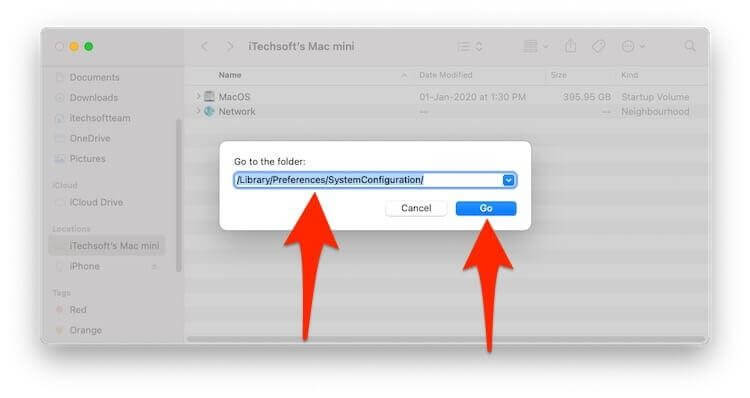
- Hit “Go”
- Choose the below files,
- com.apple.network.identification.plist
- com.apple.airport.preferences.plist
- com.apple.wifi.message-tracer.plist
- preferences.plist
- NetworkInterfaces.plist
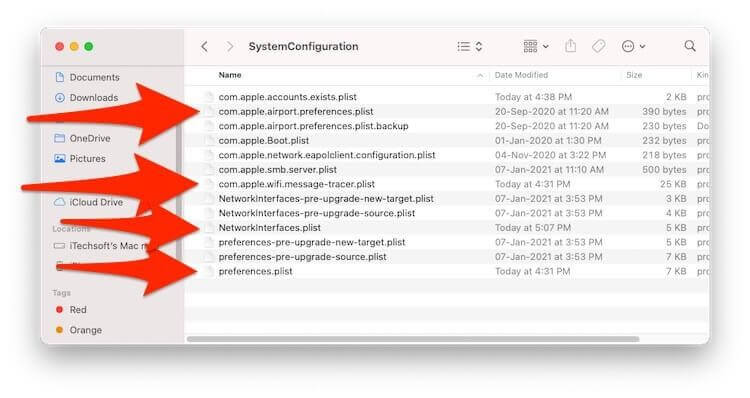
- Copy every one of those documents from the desktop as a fallback option.
- Then, from that SystemConfiguration Folder, drag these items to the Bin.
- Remove every item from the Bin.
- To reboot the Mac, go to the Apple menu and choose Restart.
Restart Internet connectivity from the Mac menu’s topmost Wi-Fi Button. To connect properly, activate the toggling after tapping on the Wi-Fi symbol, pick the Wi-Fi address, and type the pin. Additionally, we may reset the connection settings by disconnecting and reconnecting the Wi-Fi network.
Method 2: Removing and Repairing the Wi-Fi Connection
If the preceding procedure does not work for the reset network settings on MacBook, uninstall and reinstall the Wi-Fi connection on your computer. Below is how to accomplish that. During this procedure, your MacBook will create a new Wi-Fi network file.
We can construct many Wi-Fi interfaces with various service identities simultaneously and switch between them at any moment.
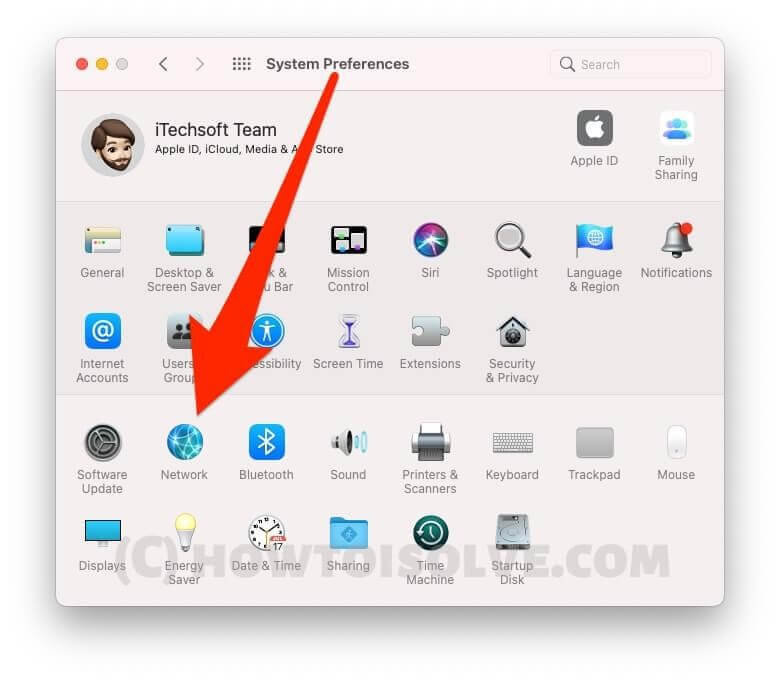
- From the Upper Mac Panel, select the Apple symbol. Choose System Details.
- Select the Network button.
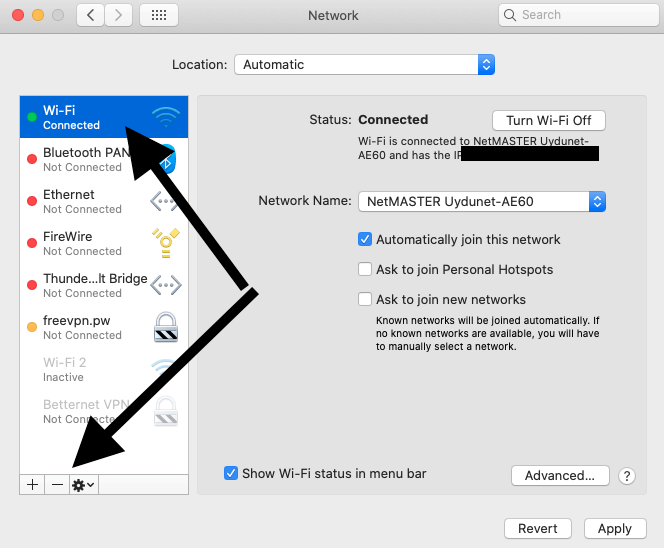
- To erase it, tap the Wi-Fi icon on the left bar and the (-) minus sign afterward.
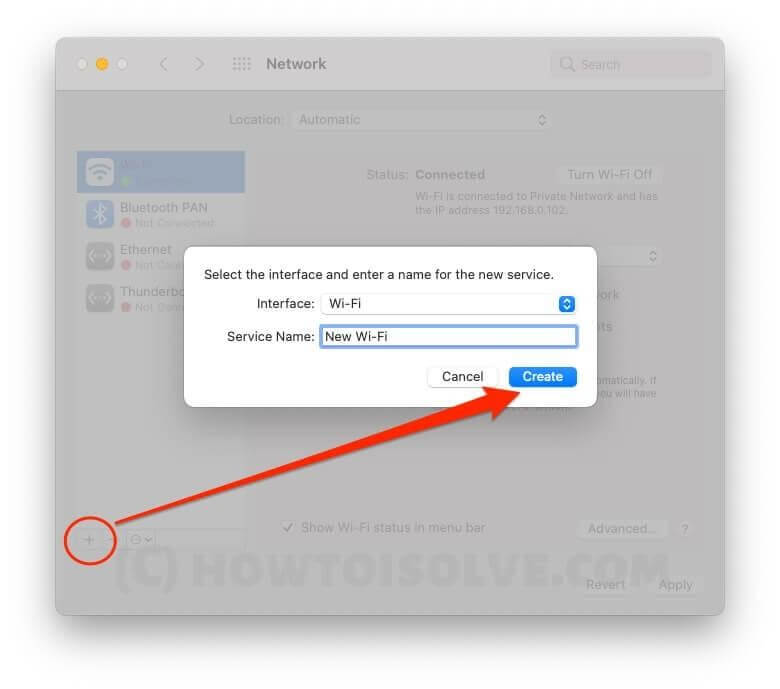
- Finally, press Apply. To include the Wi-Fi Connection, press the (+) addition icon once more. In the Connection, pick Wi-Fi, and after that, click Create.
- Next, remove any previous Wi-Fi connections. Choose Wi-Fi from your window’s sidebar and press the Minus symbol to remove it entirely.
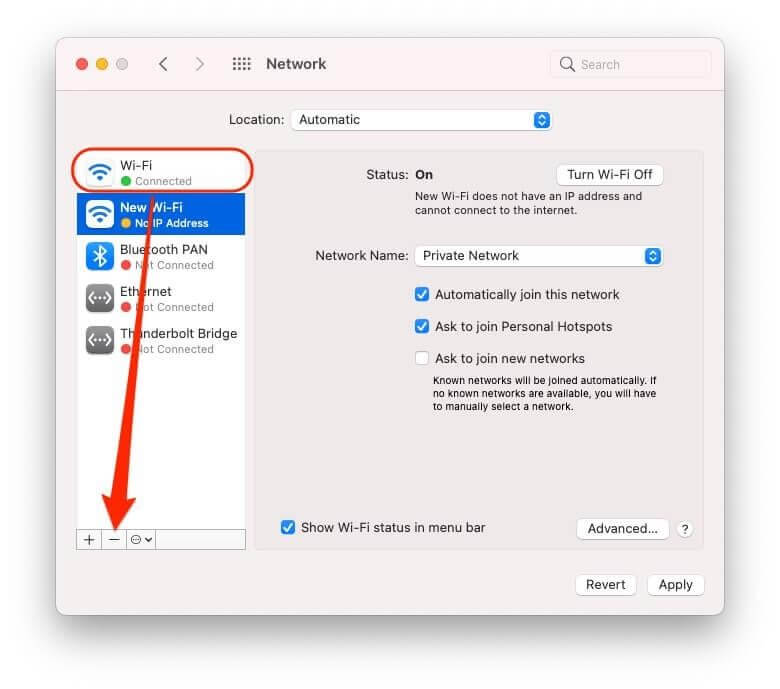
Connect to a new Wi-Fi network using the topmost Wi-Fi option or Wi-Fi setups.
If none of the previous methods work, try connecting to Wi-Fi using a different username and password. To test the Wi-Fi connectivity, we can establish numerous Administrator profiles and user profiles. To establish a new profile, follow the instructions below.
Method 3: Change Network Configuration on Mac Console
To reactivate the wireless Connectivity program and reset the connection adapter, enter the command prompt below. To resolve the inside network problem, use the Terminal instruction to switch off and Wi-Fi connections on your Mac.
- Via Spotlight, start Terminal on your Computer. Now use the code (sudo ifconfig en0 down) to turn down the network service.
- Run that command once more to reactivate the Wireless connection service.
- If the preceding command does not run on your computer, try the following (ifconfig -a) instruction.
These procedures will frequently repair many wireless connectivity difficulties the MacBook experienced, and variants have been performed frequently throughout time for multiple wi-fi situations with various system software upgrades.
A continually losing signal, a denial to establish wireless connectivity, an excessively sluggish wi-fi signal on the Mac, an impossibility to link with the outer world, and other issues can also be signs of a wi-fi issue.
When you are continuously having wi-fi connectivity troubles on your MacBook, you have to reconfigure the router as well as broadband, which normally entails removing those units from the electrical supply for 10 to 15 seconds and immediately placing these back again, then waiting for a few moments for them to reconnect the right networks.
Alternatively, you may cleanse Cache and cookies on the MacBook to fix DNS search difficulties and other website lookup-related problems.
Remember that you may also reconfigure network configuration on the apple devices, where the procedure is considerably easy.
Conclusion
Whenever you reset network settings on Mac, you effectively erase all previously saved internet as well as wireless options and setups. It is a systematic approach for repairing Wi-Fi or any other networking difficulties that stop a machine, smart gadget, or games console from operating normally. However, you may inadvertently destroy the user information as well as the updated settings throughout the procedure. A stellar information recovery program for Mac may help in such cases. This is accessible free installation.
With this free sample edition, you can just recover data approximately 1 Gigabyte. But, if you have to recover additional data, you must purchase the licensed edition; for that, you will have to spend some money.
Author Bio:
Dinesh Lakhwani 

Dinesh Lakhwani, the entrepreneurial brain behind “TechCommuters,” achieved big things in the tech world. He started the company to make smart and user-friendly tech solutions. Thanks to his sharp thinking, focus on quality and the motto of never giving up, TechCommuters became a top player in the industry. His commitment to excellence has propelled the company to a leading position in the industry.
Popular Post











Recent Post

How To Fix Issues Downloading from the Microsoft Store On Windows
Introduction: Downloading apps from the Microsoft Store should be a simple task. You open the Store, search for an app, and click install. In most cases, the process works without any problem. However, there are times when the download does not start. In some cases, it may stay stuck at a certain percentage. You may […]

How To Fix Windows Update Issues Easily On Windows [2026]
Introduction Windows updates play an important role in keeping a computer stable and secure. They bring new features, fix known bugs, and improve overall performance. When updates work as expected, the system runs smoothly. However, when they fail, users often face slow performance, missing features, or security risks. This is why it becomes important to […]

How To Check If Your PC Is Infected? [Complete Guide]
Computers now sit at the center of almost everything we do. Well, yes! From sending emails to watching videos, we depend on them without much thought. Because of this, even a small issue can disrupt daily tasks. One common problem is hidden malware. It does not always show clear signs at first. It can enter […]

Repair Apps And Programs: Repair Apps That Aren’t Working
Computers have become an essential part of everyday life, supporting work, study, communication, and entertainment. Most of these activities rely on apps and programs, so when one stops functioning, even simple tasks can be disrupted. Common problems include error messages, frozen screens, or apps that fail to open. On Windows systems, such issues often arise […]

Troubleshooting Microphone Privacy Settings: Complete Guide
Sound is a basic part of how we use computers today. People attend meetings, record audio, speak to others, and use voice tools almost every day. A working microphone makes all these tasks easy. When the microphone fails, even simple work becomes difficult. Many users first think the device is broken. In reality, the issue […]

Windows Sound Settings – Sound Control Panel: Complete Guide
Sound plays an important role in how we use a computer every day. It supports both work and leisure. You need it for meetings, videos, music, and alerts. When audio fails, even simple tasks become difficult. Many users feel stuck when sound issues appear. This usually happens because they are not familiar with Windows Sound […]

Run a Troubleshooter For PC Issues Windows: Complete Guide
A computer plays an important role in everyday life. People use it for work, study, communication, and entertainment. When a problem appears, it can interrupt everything. Even a small issue can waste time and create frustration. Many users feel unsure about how to fix such problems. They often think they need expert help. In reality, […]
![Adjusting Audio Output Settings Complete Guide [2026]](https://www.techcommuters.com/wp-content/uploads/2026/03/Adjusting-Audio-Output-Settings-Complete-Guide.webp)
Adjusting Audio Output Settings: Complete Guide [2026]
Sound is part of almost everything we do on a computer. It lets you watch videos, join calls, play music, and hear alerts. When the audio stops working the right way, it can interrupt both work and daily use. That is why adjusting audio output settings matters for every user. Many people get unsure when […]

Artificial Intelligence Explained: Concepts, Terminology, Benefits, and Future Trends
Artificial Intelligence, or AI, is basically computers doing things that usually need a human brain. We’re talking about stuff like learning from experience, figuring out problems, understanding language, and making decisions. It’s not magic, just a lot of data, pattern-spotting, and math behind the scenes. Now, AI doesn’t actually think or feel like we do. […]

Resolving Microphone Detection Problems: Latest Guide [2026]
Microphones are important tools in daily life. People use them for office meetings, online classes, interviews, gaming, customer support, and content creation. When a system fails to detect a microphone, communication stops at once. This situation can cause stress and confusion. Many users believe the microphone is damaged. In reality, most problems are simple and […]

