How to Recover Deleted Phone Numbers on Android (2026)?
Last updated on December 26th, 2025 at 1:32 am
Introduction
It may be a huge mess to lose a crucial phone number. And when it is a consequence of your sweat! Regardless of whether you unintentionally erased a contact or misplaced them due to a phone malfunction, factory reset, or malware attack. To assist you in retrieving deleted contact information from Android, we have provided various viable solutions. To recover deleted phone numbers android successfully, you may utilize a third-party tool, Recycle Trash, or your Google Account.
All are aligned through contacts. And besides, if you lose or mistakenly erase any contact information from your smartphone, communication may be hampered. The answer to one of our readers’ most consistently popular concerns is addressed in this blog article. In this article, how to recover deleted numbers on your Android phone!
Part 1: How Can You Retrieve Your Deleted Android-based Contacts Back?
To rapidly recover deleted, misplaced, or lost Android contact information, follow these simple workarounds in the order presented below.
1. Assess your call log
One of the easiest methods to recover inadvertently lost contacts from your mobile phone is to retrieve deleted numbers from call log. Just try searching under “Call Log” for the lost phone number.
This list will include a certain contact if you have already phoned them. But, since the contact’s name will not be on it, you might need help to recall the specifics by simply glancing at the number. Recall the last time you spoke with that individual to establish a connection between the contact and identity.
2. Use a caller-identifying app
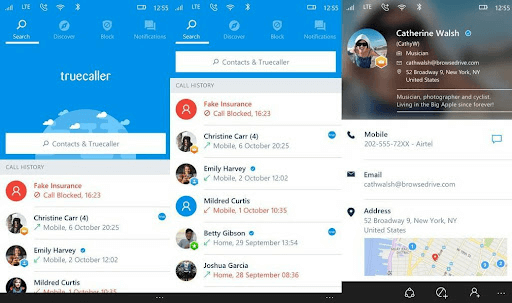
We advise utilizing a trustworthy caller-identification program such as Truecaller or Whoscall if you cannot locate the erased contact information on Android. You may easily retrieve deleted numbers from call log using these applications, which function like a telephone book.
Some applications offer more details than contact names, such as email addresses, phone carriers, and locations. If you are fortunate, you could come upon a profile photo. You may be able to recover deleted phone numbers on androidin this manner.
3. Look for the Preset Contacts App.
We suggest looking in your Contacts’ Trash Bin if you need help discovering the deleted contact details. All of the contacts you have removed are kept in the folder. The majority of Android devices come with this built-in trash/recycle bin folder whereby deleted contents are kept for at least thirty days. Everything is erased immediately after this period.
What you must do to locate and recover lost contacts from Trash Bin is as follows:
Step 1: The Hamburger symbol on the top-right side of the Contacts application on an Android device. Launch the Contacts application on your smartphone or tablet.
Step 2: Find the “Trash” folder and check for deleted phone numbers.
Step 3: After locating it, choose the contact information you want to recover and click “Restore/Recover.”
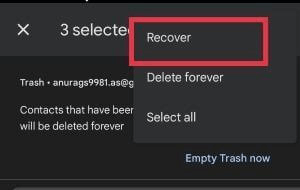
You may successfully recover lost data from your smartphone in this manner.
4. Recover the Contacts Backup in Your Gmail Account
After 30 days, the odds are good that the contacts you removed from the Recycle Bin are no longer there. If you have ever used the backup tool, Google Account Contact Details Backup makes it simple to get your data back. All you have to do is this:
Step 1: Open the settings app on your Android phone and select Google.
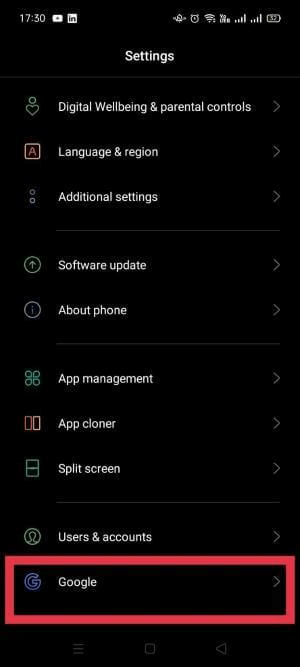
Step 2: Now is the time to hit the “Set up & recover” button.
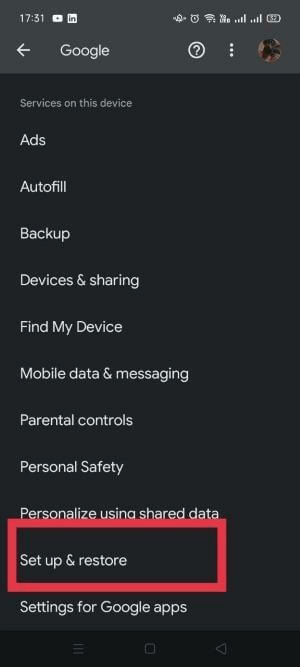
Step 3: However, at this stage, select “Restore Contacts.” Tap the “Restore” button below the file system as soon as it is available.
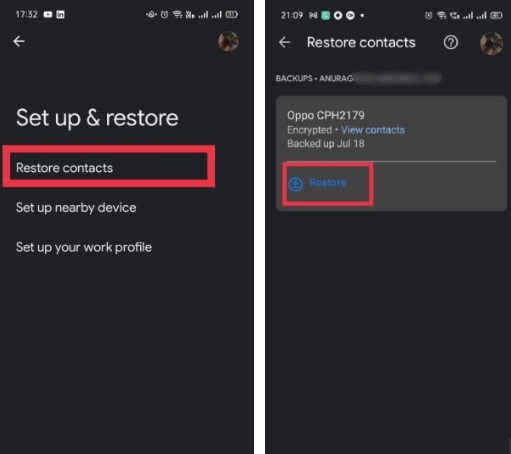
Your smartphone should now have access to all the contacts you had previously backed up once you successfully performed the “deleted contact details recovery.”
5. Make use of Google Contacts
For people who do not have access to their Android smartphones, use this technique. Although possible, retrieving lost contacts under certain circumstances might be challenging. To quickly recover all the lost Android contact details, one must use a PC, Mac, or Chromebook to access the Google Contact details page.
You must routinely sync your phone’s contact details with your Gmail account for this workaround to function. Moreover, you will just be able to find contact information removed during the last thirty days.
If these requirements are satisfied, you can recover lost phone numbers on Android.
Step 1: Use any device to navigate the Google Contacts webpage and sign in with your Google account. (These should be the same ones to retrieve deleted phone numbers iphone.)
Step 2: Use the left-side panel to find the Bin or Garbage area after subscribing.
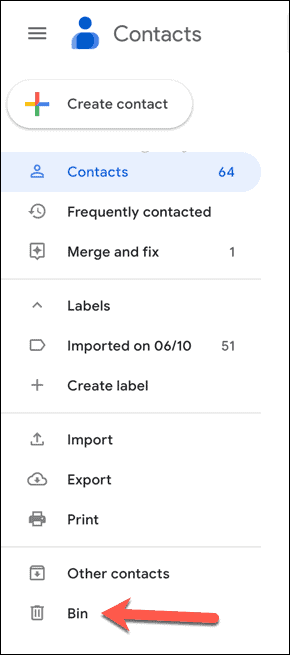
Step 3: Click the Recover option after choosing the contacts you wish to retrieve successfully.
Your Google contact details list will display all of the recovered contacts. If it does not show up, ensure all of that synchronizes properly by checking your sync options in the App settings. If the issue continues, we encourage you to personally re-add the contacts to your smartphone by examining their contact information from the Recycle bin.
There is a risk that your phonebook has duplicate contact entries if you fiddle with the synchronization settings. You may quickly eliminate clone connections if just two or four of them exist.
It is a top-notch contact software solution to retrieve deleted phone numbers iPhone. It uses a potent scanning engine that makes it simple for users to locate and eliminate duplicate and identical contacts.
Before looking for duplicates, it even makes a backup of every contact to ensure that no crucial phone numbers are lost. The program provides a well-organized Contact list and searches over several accounts for already-used contacts.
6. Use the Third-Party Contact Details Recovery App as Support.
Regarding retrieving contact details on Android, using a professional “deleted contact details recovery” tool is helpful. It is a powerful Android tablet and smartphone recovery program. You may preview and pick and choose the information you want to recover when it has finished scanning.
It is compatible with various media formats and file formats, including contacts, images, videos, music recordings, applications, messages, and WhatsApp media. The file restore software can assist you in recovering data from far more than 6000plus Android devices and can be used on a PC or Mac.
Let us discover how to restore lost contacts on Android now:
Step 1: Download, activate and configure the program to recover “lost contact details” on your PC.
Step 2: Use a USB cord to link your Android smartphone or tablet to the computer and turn on Developer Options on your phone.
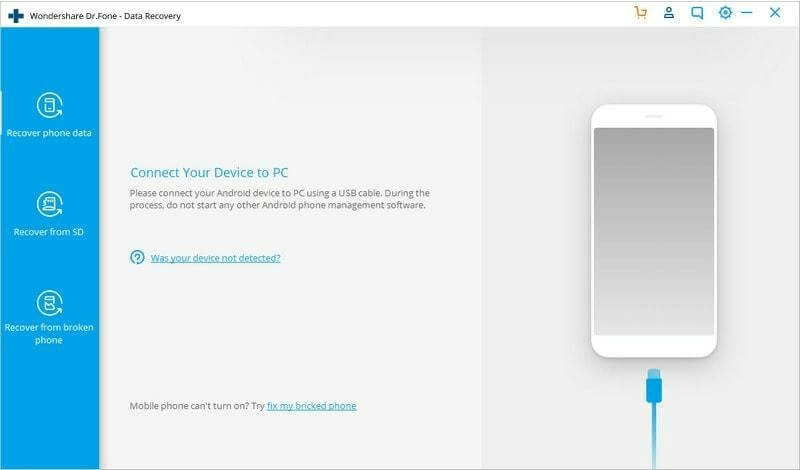
Select Settings > System to allow USB debugging. Select “About Phone”. Locate and tap the “Model Number” at least seven times. You will likely see “Developer choices” when you navigate to the previous page. Activate the USB Debugging setting.
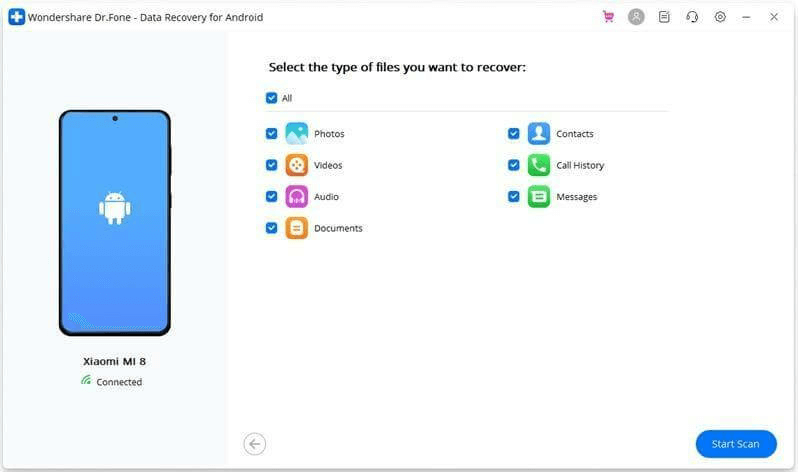
Step 3: Select the “Contacts” option and press the “Next” key on the Dr. Fine Start page. The contact details recovery program ought to search your smartphone for all the information saved there thoroughly.
Step 4: The software will ask you which file style you would want restore. Choose the box next to “Contacts” after finding it. the “Next” button.
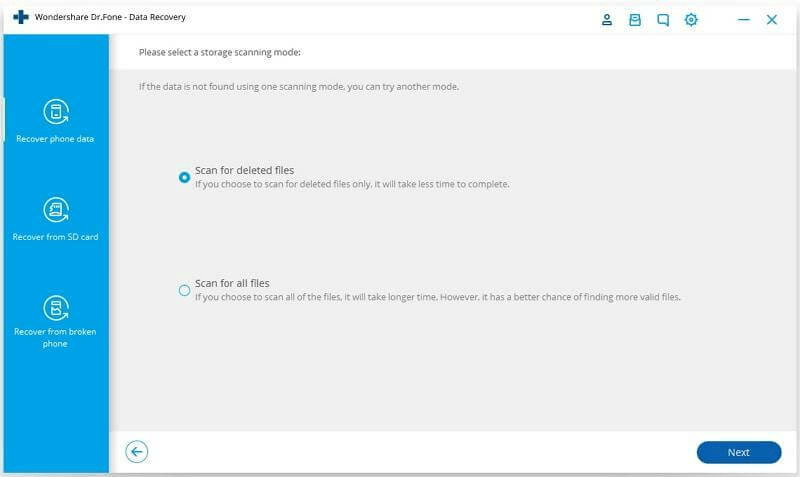
Step 5: Selecting between Basic and Professional scanners modes is step five. It is strongly recommended to use the “Scan for deleted files” option under Standard Settings to get trustworthy results. Simply select “Next” to proceed.
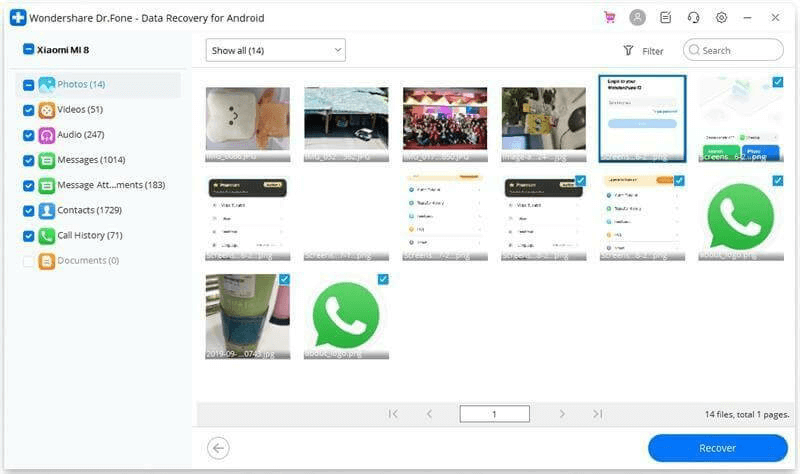
Step 6: You have the option to press the “Pause” option if you discover any misplaced, missing, or lost contacts during the inspection process rather than waiting for the entire scanning procedure to be finished. To finish recovering lost contacts, click the “Restoring” button at the end of the page.
Part 2: How to Prevent Losing Important Contacts Next Time
Backing them up if you get the time is the only way to prevent losing important contacts (and other data). Android programmers ask for your Google account registration for a reason. It enables you to sync the data on your smartphone with your Google Cloud space, an advantageous function of Google accounts.
Remember, this is kept along so you will be reassured whenever your Android smartphone fails.
Consider alternative reliable backup solutions, such as printing a duplicate of your contacts, converting them to a CSV or XLS file from your phone using an app like Android Contacts Manager, or storing them in a cloud-based service other than Google.
Whichever option you select, just be sure to spend some time storing additional copies, as there can never be enough copies of important data.
Conclusion
Our complete tutorial and range of techniques made quickly retrieving deleted, misplaced, or lost contacts easy. You can use a specialized contacts recovery application to track down every contact detail that had been unintentionally deleted.
Author Bio:
Dinesh Lakhwani 

Dinesh Lakhwani, the entrepreneurial brain behind “TechCommuters,” achieved big things in the tech world. He started the company to make smart and user-friendly tech solutions. Thanks to his sharp thinking, focus on quality and the motto of never giving up, TechCommuters became a top player in the industry. His commitment to excellence has propelled the company to a leading position in the industry.
Popular Post











Recent Post

Resolving Microphone Detection Problems: Latest Guide [2026]
Microphones are important tools in daily life. People use them for office meetings, online classes, interviews, gaming, customer support, and content creation. When a system fails to detect a microphone, communication stops at once. This situation can cause stress and confusion. Many users believe the microphone is damaged. In reality, most problems are simple and […]

How To Switch To A Dark Background Theme In Windows [2026]
Most people spend many hours each day in front of a computer screen. Office work, online classes, editing, browsing, and streaming all require long screen time. A bright white background may look clean at first. However, over time, it can feel sharp and tiring. The strong contrast between white backgrounds and black text may cause […]

How to Switch From Local To Microsoft Account On Windows
Many users begin with a local account when they set up a new Windows computer. A local account works only on that single device. It stores settings, files, and preferences locally. It does not connect to online Microsoft services. For basic offline use, it works well. However, as digital needs grow, many users want better […]

How to Switch Windows 10 to a Local Account: Complete Guide
Windows 10 allows users to sign in with either a Microsoft account or a local account. When you set up a new computer, the system often suggests using a Microsoft account. This account connects your device to Microsoft services such as Outlook, OneDrive, and the Microsoft Store. It also syncs settings, themes, and passwords across […]

How To Change Default Apps For File Types In Windows
Windows is designed to make using your computer easy. One way it does this is by assigning default apps to different file types. This means when you open a file, Windows automatically opens it with a specific program. For example, photos may open with Photos, music with Groove Music, and PDFs with Edge. These default […]

How To Adjust The Mouse Pointer Speed: Complete Guide
Using a computer every day means you use the mouse a lot. The mouse pointer moves on the screen and helps you click, scroll, and select items. Many people never think about the speed of the mouse pointer. They have used the default setting for years. This can cause small problems over time. A slow […]

How to Change Mouse Scrolling Settings In Windows
A mouse is one of the most used computer tools. People use it every day. They scroll through emails. They scroll through documents. They scroll through websites and images. The movement becomes automatic. Most users do not notice it. That is why problems often go unnoticed. Scrolling problems show up slowly. At first, it feels […]

Keyboard Light Settings: Keyboard Lighting Control [Complete Guide]
Keyboards are no longer simple typing tools. Well, yes! Over time, they have evolved to include features that improve comfort, visibility, and overall experience. One of the most useful features today is keyboard lighting. It helps users work comfortably in low-light conditions. It also reduces strain when typing for long hours. Many users first notice […]

Customizing Pointer Appearance: Complete Guide
The way your mouse pointer looks on your computer may seem like a small detail. But customizing pointer appearance can make using your PC more comfortable and visually appealing. Many users do not realize that they can change the pointer size, color, and style to fit their needs. Whether you want a bigger pointer for […]

How To Choose a Computer Monitor: Monitor Buying Guide
Buying a monitor looks easy. Many people think all screens are the same. That belief causes regret later. A monitor is not just a display. It is a daily tool. You read on it. You work on it. You relax with it. Small problems become big over time. Poor brightness hurts eyes. Bad size causes […]

