9 Quick Tips: How To Optimize Computer Performance

Is your computer running slow? Does it take forever to open programs? You’re not alone. Many people face these issues daily. The good news is that you can fix most problems yourself.
Computer performance can drop for many reasons. Old files pile up. Programs run in the background. Hard drives get full. Your system needs regular care. Think of it like maintaining a car. Regular check-ups keep things running smoothly.
Discover how to enhance your PC’s performance with clear, beginner-friendly steps. No technical know-how required—just follow the guide, and enjoy smoother, faster operation. Your computer will be glad you did!
Part 1: Common Signs and Symptoms: Your PC Needs Urgent Attention!
Your computer gives you warning signs when it needs help. Watch for these red flags. They tell you it’s time to act.
- Slow startup times – Your computer takes more than 2 minutes to boot up
- Programs freeze or crash – Apps stop working or close without warning
- Browser runs slowly – Web pages take forever to load
- Files take a long time to open – Opening documents or photos feels sluggish—each one takes noticeably longer than expected to load.
- Fan runs constantly – Your computer sounds like a jet engine
- Blue screen errors – Your screen turns blue with error messages
- Storage space warnings – Pop-ups say your disk is almost full
- Multitasking becomes impossible – You can’t run two programs at once
Part 2: How to Optimize Computer Performance?
A slow computer affects your daily work. It wastes time and causes stress. But you can fix this. The right steps will bring your computer back to life.
Most performance issues have simple solutions. You don’t need expensive software. Basic maintenance works wonders. Clean up your system regularly. Remove what you don’t need. Keep only the essentials.
Tip 1: Clean Up Your Hard Drive
Your hard drive stores everything on your computer. This includes all your files, photos, and programs. Over time, it fills up with junk files. These are temporary files that stay behind. Old downloads pile up, too. Cache files grow bigger each day. These files slow down your system. They take up valuable space. Your computer has to search through more clutter.
Think of your hard drive like a storage room. At first, it’s organized and spacious. You can find things easily. But over time, you add more stuff. You forget to throw things away. Soon, the room becomes messy. Finding anything takes forever. Your computer faces the same problem.
Cleaning your hard drive is like organizing your closet. You go through everything item by item. Remove old clothes you don’t wear. Throw away broken things. Keep only what you need. Your computer works the same way. Remove files you don’t use. Delete old programs. Keep your system lean and clean.
Step 1: Open “This PC”. Right-click your main drive (usually C:). Select “Properties,” then click “Disk Cleanup.”
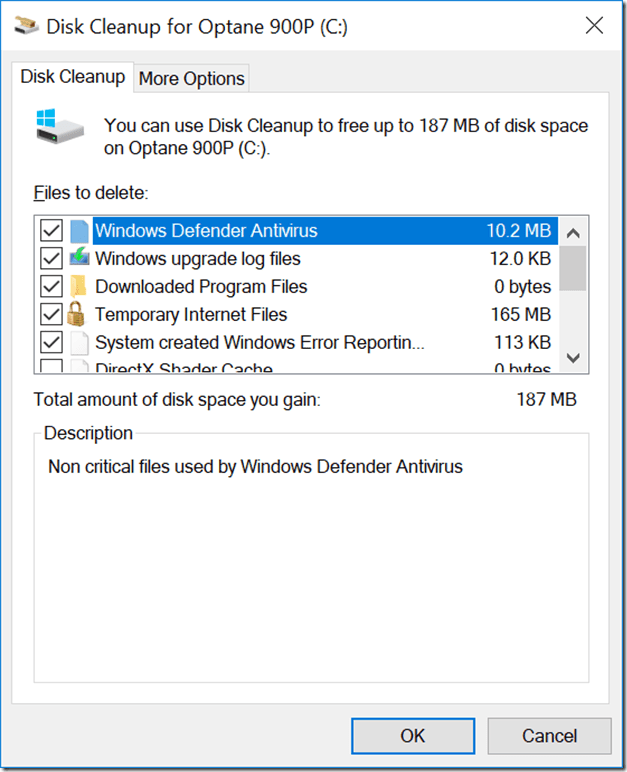
Step 2: Check all boxes except “Downloads” (unless you’re sure). Click “OK” and let it clean. This removes temporary files and system junk.
Tip 2: Uninstall Unused Programs
Every program on your computer takes up space. Most people install programs and forget about them. These unused programs still consume resources. They run background processes. Some start up with your computer automatically. This slows down boot time. Your system memory gets divided among too many programs.
Think about your smartphone. You probably delete apps you don’t use. Your computer needs the same treatment. Go through your program list carefully. Be honest about what you actually use. That game you played once last year? Delete it. Old photo editors you replaced? Remove them too. Free trials that expired? Get rid of them. Your computer will breathe easier. Wondering how to optimize computer performance? Follow these steps:
Step 1: Go to Settings > Apps > Installed Apps. Look through your installed programs.
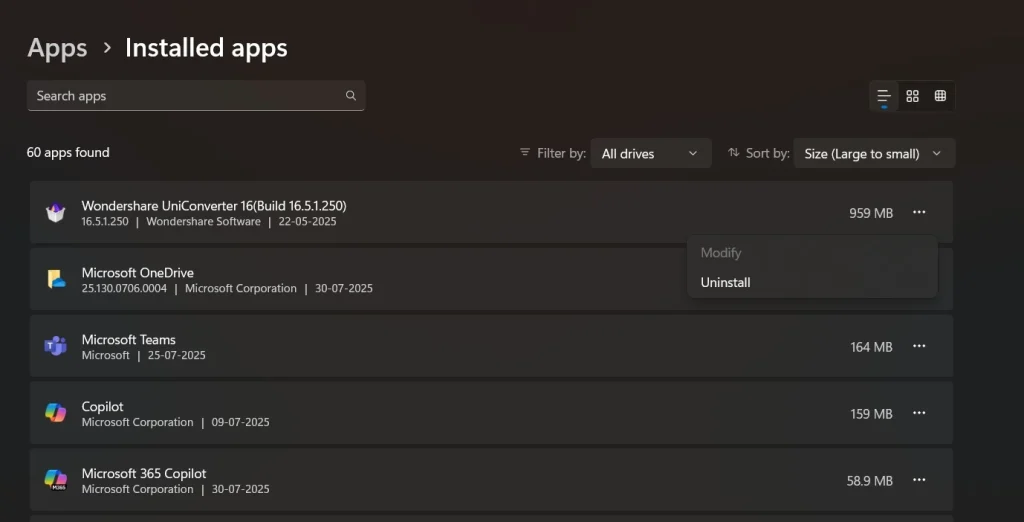
Step 2: Click on programs you don’t use and select “Uninstall.” Restart your computer when done.
Read this complete guide to uninstall apps from computer.Tip 3: Disable Startup Programs
Your computer loads many programs when it starts. This happens automatically. You probably don’t need most of these programs right away. They consume precious memory. They also make startups take much longer. Some programs are sneaky. They add themselves to a startup without asking.
Every program that starts on your computer uses resources. These resources could go to programs you actually want to use. You only need essential programs at startup. Things like antivirus software and system tools. Most other programs can wait. Let them start when you actually need them.
Step 1: Press Ctrl + Shift + Esc. This will open Task Manager. Click the “Startup” tab.
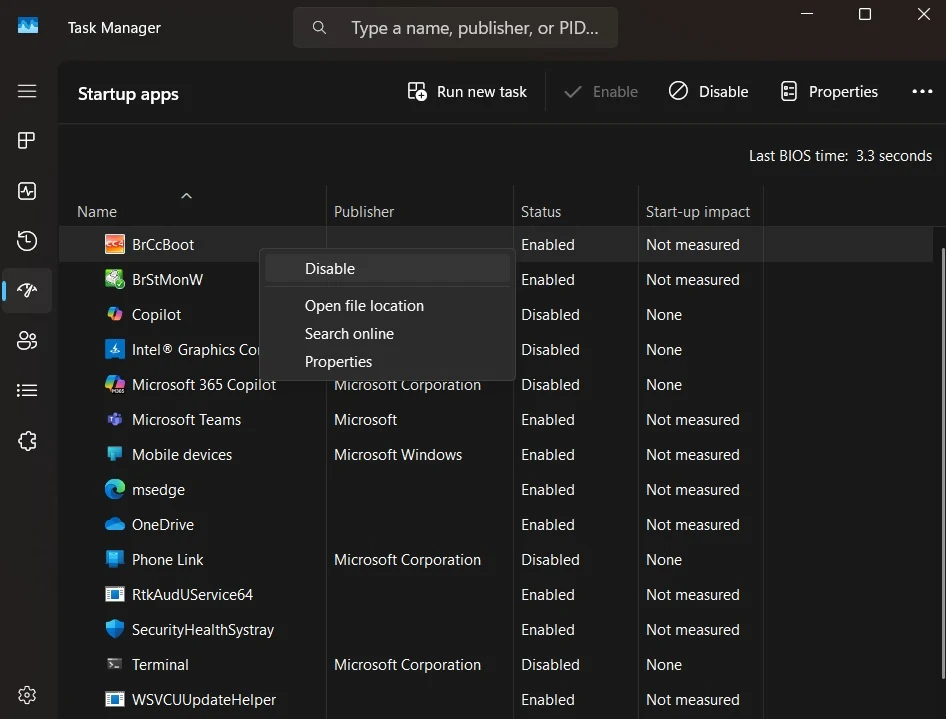
Step 2: To speed up your computer’s startup, right-click any unnecessary programs in the task manager and hit “Disable.” Pay special attention to those labeled as having “High” impact—they tend to slow things down the most.
Tip 4: Run Disk Defragmentation
Your hard drive doesn’t store files in one piece. It breaks them into small chunks. These chunks get scattered all over your drive. When you need a file, your computer hunts for all the pieces. This takes extra time. It’s like having a book with pages scattered in different rooms.
Modern computers create and delete files constantly. Over time, the scattered pieces multiply. Your hard drive becomes fragmented.
What Is Defragmentation? Imagine your files scattered like jigsaw puzzle pieces all over your hard drive. Defragmentation is the tidy-up crew—it gathers those scattered pieces and puts them back in order, just like organizing a messy room. When everything’s in the right place, your computer doesn’t have to go hunting—it grabs files faster and performs more efficiently.
Step 1: Open the Windows search box. Type “Defrag”. Open “Defragment and Optimize Drives.”
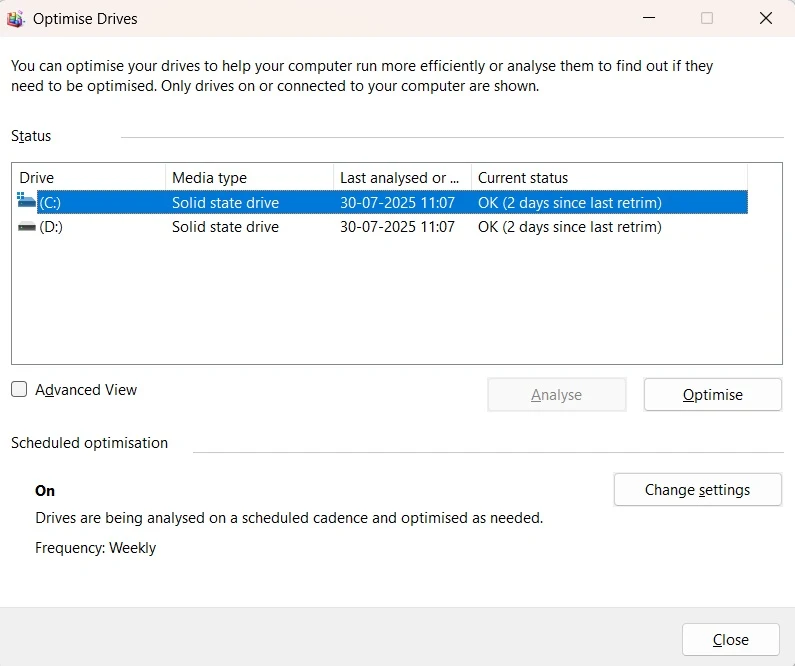
Step 2: Select your main drive and click “Optimize.” This process takes time. Let it finish completely.
Tip 5: Update Your Operating System
Software companies constantly improve their products. They fix bugs that slow down your computer. They patch security holes. They make programs run more efficiently. Your operating system is like the foundation of your house. Keep it strong and updated.
Old software often has performance problems. These problems get fixed in newer versions. Updates also improve compatibility with new hardware. They add better memory management. Some updates even reduce power consumption. Windows updates happen automatically by default. But you should check manually too. Make sure you’re running the latest version. Don’t ignore those update notifications.
Step 1: Go to Settings > Windows Update.
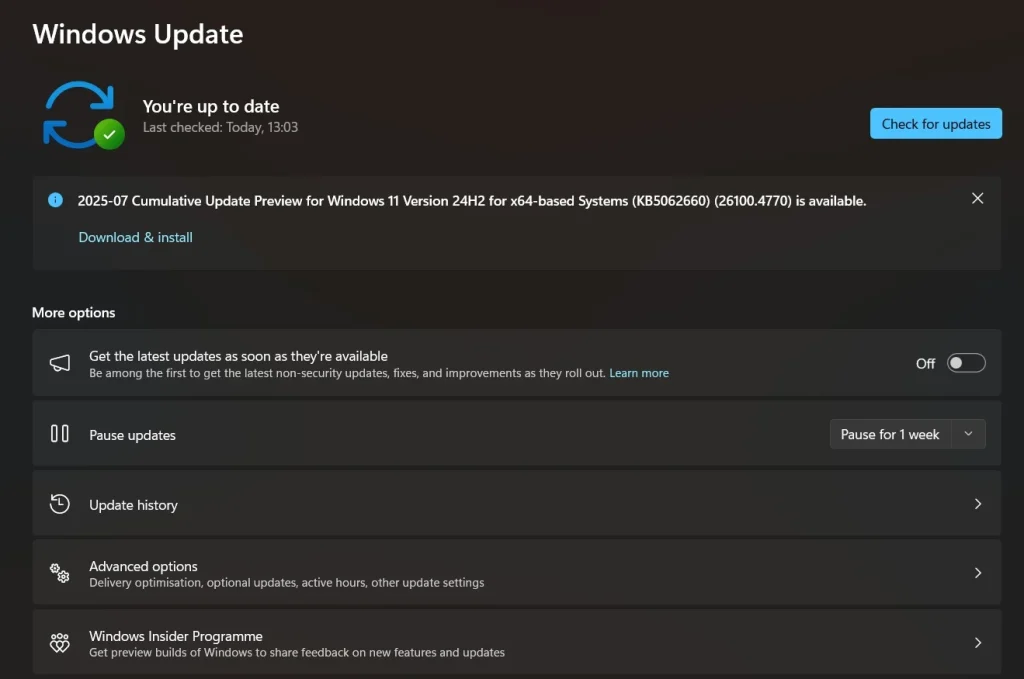
Step 2: Click “Check for updates.” Install any available updates and restart when prompted.
Tip 6: Add More RAM Memory
RAM stands for Random Access Memory. It’s where your computer stores data temporarily. Think of RAM as your computer’s workspace. A bigger workspace lets you do more things at once. When you run out of RAM, your computer slows down dramatically. It starts using your hard drive as backup memory. Hard drives are much slower than RAM.
Most older computers came with 4GB or 8GB of RAM. This was enough years ago. But modern programs use more memory. Web browsers eat up RAM quickly. Video calls consume even more. If you have 4GB or less, consider upgrading. Adding RAM is often the best upgrade you can make. It gives instant results. Your computer will feel much faster. Multitasking becomes smooth again.
Step 1: Check how much RAM you have. Press Ctrl + Shift + Esc. Look at memory usage in Task Manager.
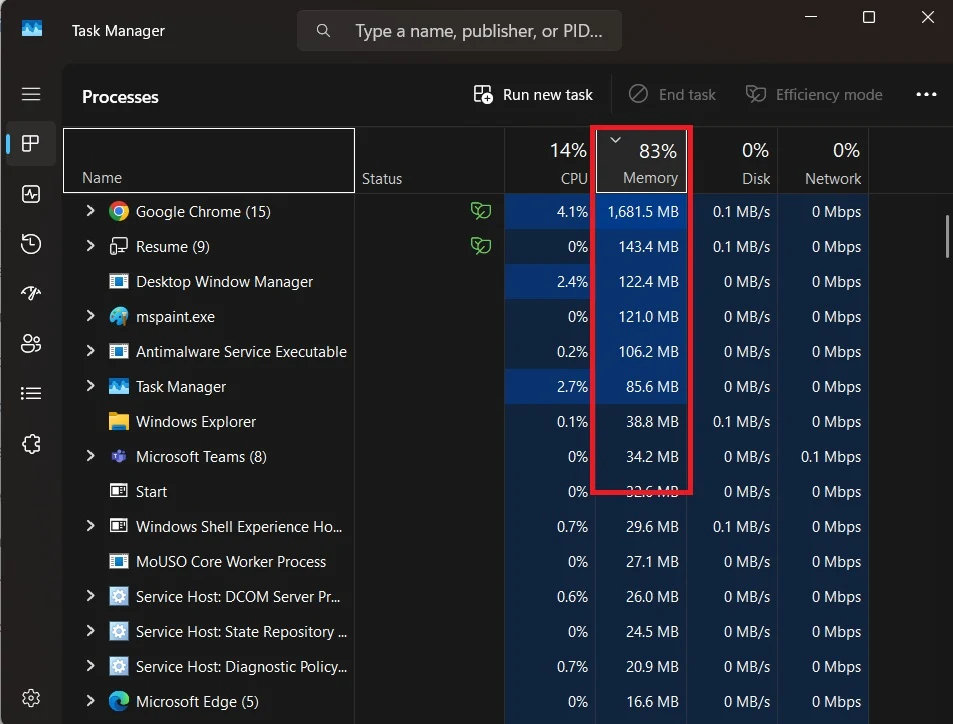
Step 2: Buy compatible RAM for your computer. Install it yourself or have a technician do it.
Tip 7: Clean Your Computer Physically
Computers generate heat when they work. They need airflow to stay cool. Dust is the enemy of good airflow. It builds up inside your computer over time. Dust blocks fans and vents. It covers heat sinks. When components get too hot, they slow down automatically. This protects them from damage.
A dusty computer sounds like a jet engine. The fans work overtime trying to cool things down. Heat also shortens the life of your components. Regular cleaning prevents these problems. Think of it as giving your computer room to breathe. Clean your computer every few months. Use compressed air to blow out dust. Pay special attention to fans and vents. Work in a well-ventilated area.
Step 1: Shut down and unplug your computer. Open the case (for desktops) or find vents (for laptops).
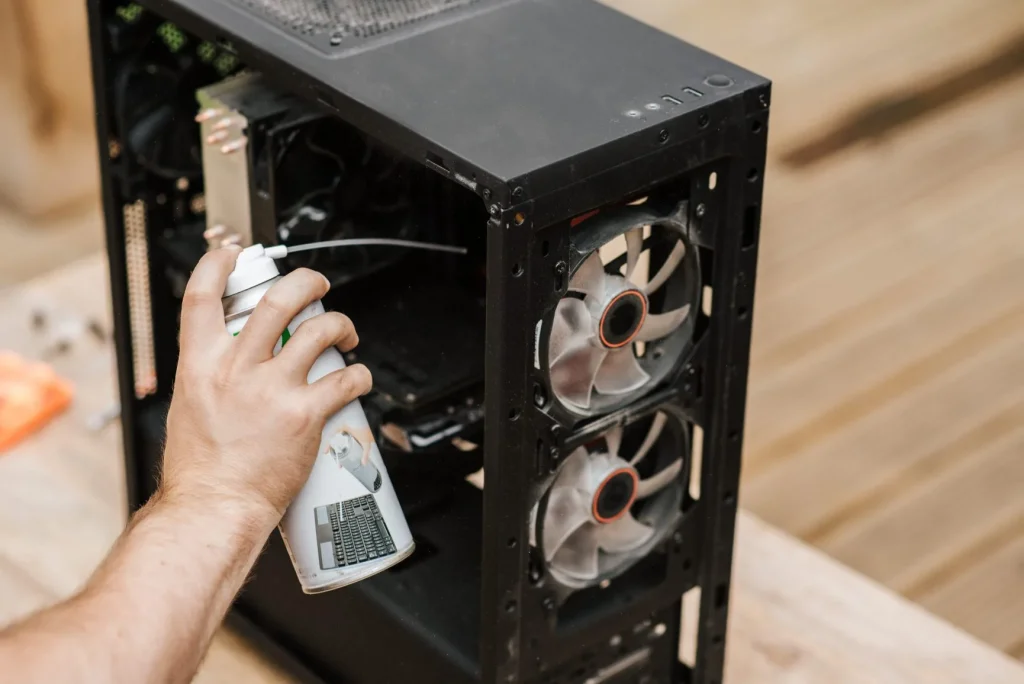
Step 2: Use compressed air to blow out dust. Work outside if possible. Dust will fly everywhere.
Tip 8: Use an SSD Drive
Traditional hard drives have spinning disks inside. These mechanical parts move to read data. This movement takes time. Solid State Drives (SSDs) have no moving parts. They use flash memory instead. This makes them much faster. An SSD can make even an old computer feel brand new.
The difference is dramatic. Your computer will start in seconds instead of minutes. Programs open almost instantly. File transfers happen much quickly. Boot times drop from 60 seconds to 15 seconds. SSDs cost more than regular drives per gigabyte. But prices have dropped significantly. The speed boost is worth every penny. It’s like upgrading from a bicycle to a motorcycle.
Step 1: Buy an SSD that fits your computer. Make sure it has enough storage space for your needs.
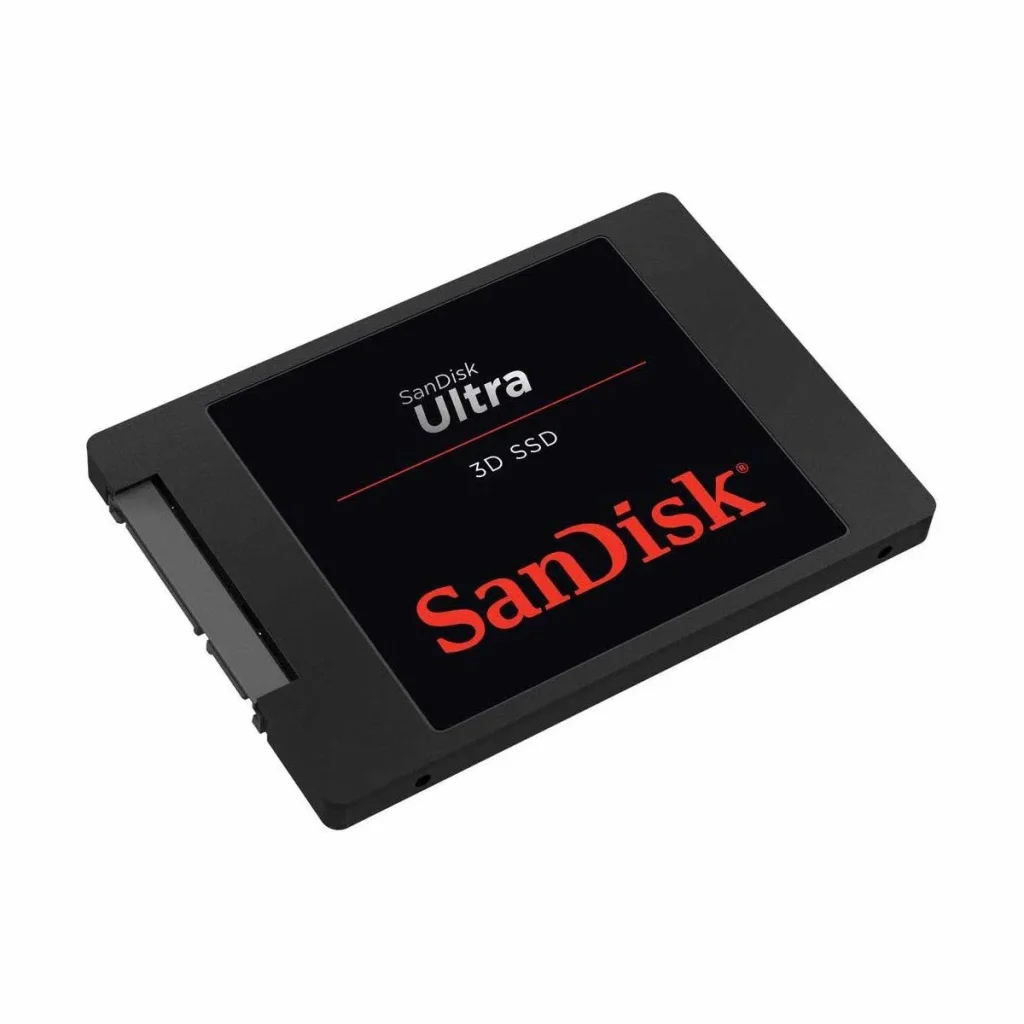
Step 2: Clone your old drive to the new SSD. Or do a fresh Windows install. This requires some technical skill.
Tip 9: Run Antivirus Scans
Viruses and malware slow down computers. They run hidden processes. They steal your computer’s resources. Regular scans catch these problems.
Use Windows Defender or another trusted antivirus. Scan your system weekly. Remove any threats it finds.
Step 1: Open Windows Security from your Start menu. Click “Virus & threat protection.”
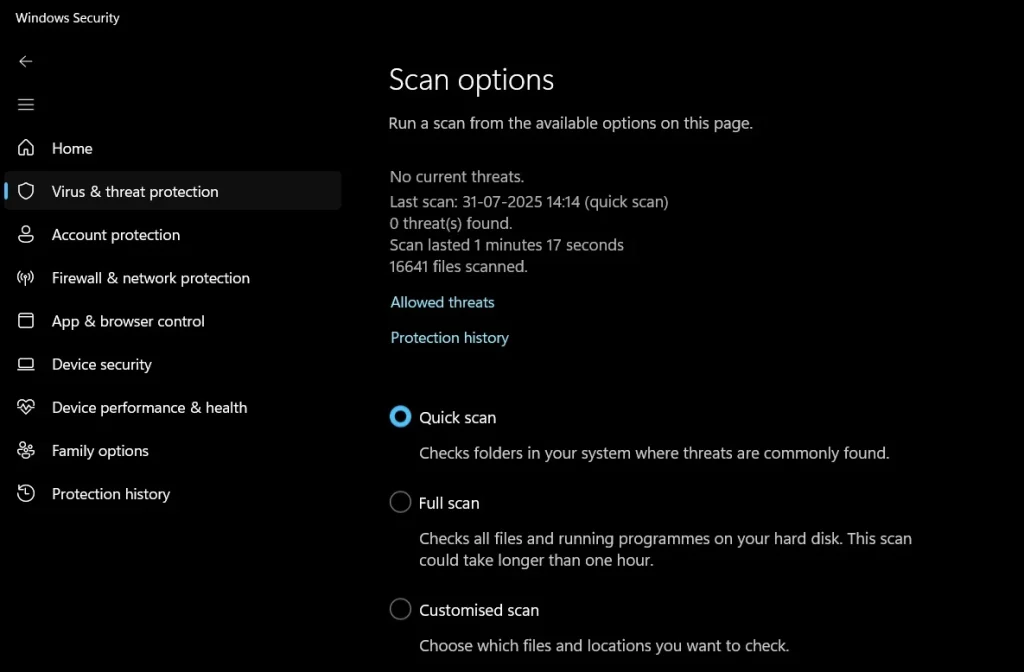
Step 2: Run a “Quick scan” weekly. Do a “Full scan” monthly. This finds and removes harmful software.
Part 4: Pro Tips to Optimize a Computer’s Performance
These advanced tips can give you extra performance gains. They require a bit more technical knowledge. But they’re still doable for most users.
- Adjust visual effects – Turn off fancy animations and transparent windows for speed
- Increase virtual memory – Let Windows use hard drive space as extra RAM
- Clean registry files – Remove broken registry entries that slow your system
- Update device drivers – New drivers often improve hardware performance
- Use ReadyBoost – Speed up older computers with a USB flash drive
- Disable background apps – Stop unnecessary programs from running automatically
- Change power settings – Use “High Performance” mode instead of “Balanced”
- Monitor system temperature – Keep your computer cool for best performance
Author’s TIP
Here’s our best advice after years of computer repair work. The single most important thing you can do is restart your computer regularly. Many people never shut down their computers. They just close the laptop or put it to sleep.
Restarting clears your computer’s memory. It stops programs that got stuck. It applies updates that were waiting. Do this at least once a week. Your computer will run much better. It’s the simplest way to optimize computer performance without any technical knowledge.
Conclusion
A faster computer improves your daily life. You waste less time waiting. You get more work done. The steps in this guide really work. Start with the easy ones first.
Remember that computer maintenance is ongoing. Do these tasks regularly. Set reminders if you need to. A little effort now saves big headaches later. Your optimized computer will serve you well for years to come.
FAQs:
Q: How often should I optimize my computer’s performance?
Basic maintenance should happen monthly. Run disk cleanup and antivirus scans weekly. Restart your computer at least once a week. Check for updates every few weeks. Physical cleaning needs to happen every 3-6 months, depending on your environment.
Q: Will these steps work on both Windows and Mac computers?
Most concepts apply to both systems. But the specific steps are for Windows computers. Mac users should look for similar tools in their system. The basic principles remain the same. Both systems need regular cleaning and maintenance.
Q: How much faster will my computer be after optimization?
Results vary based on your computer’s condition. Heavily cluttered systems see the biggest improvements. You might see 30-50% faster startup times. Programs may open twice as fast. The exact gains depend on what problems you had before starting.
Author Bio:
Dinesh Lakhwani 

Dinesh Lakhwani, the entrepreneurial brain behind “TechCommuters,” achieved big things in the tech world. He started the company to make smart and user-friendly tech solutions. Thanks to his sharp thinking, focus on quality and the motto of never giving up, TechCommuters became a top player in the industry. His commitment to excellence has propelled the company to a leading position in the industry.
Popular Post











Recent Post

Windows Sound Settings – Sound Control Panel: Complete Guide
Sound plays an important role in how we use a computer every day. It supports both work and leisure. You need it for meetings, videos, music, and alerts. When audio fails, even simple tasks become difficult. Many users feel stuck when sound issues appear. This usually happens because they are not familiar with Windows Sound […]

Run a Troubleshooter For PC Issues Windows: Complete Guide
A computer plays an important role in everyday life. People use it for work, study, communication, and entertainment. When a problem appears, it can interrupt everything. Even a small issue can waste time and create frustration. Many users feel unsure about how to fix such problems. They often think they need expert help. In reality, […]
![Adjusting Audio Output Settings Complete Guide [2026]](https://www.techcommuters.com/wp-content/uploads/2026/03/Adjusting-Audio-Output-Settings-Complete-Guide.webp)
Adjusting Audio Output Settings: Complete Guide [2026]
Sound is part of almost everything we do on a computer. It lets you watch videos, join calls, play music, and hear alerts. When the audio stops working the right way, it can interrupt both work and daily use. That is why adjusting audio output settings matters for every user. Many people get unsure when […]

Artificial Intelligence Explained: Concepts, Terminology, Benefits, and Future Trends
Artificial Intelligence, or AI, is basically computers doing things that usually need a human brain. We’re talking about stuff like learning from experience, figuring out problems, understanding language, and making decisions. It’s not magic, just a lot of data, pattern-spotting, and math behind the scenes. Now, AI doesn’t actually think or feel like we do. […]

Resolving Microphone Detection Problems: Latest Guide [2026]
Microphones are important tools in daily life. People use them for office meetings, online classes, interviews, gaming, customer support, and content creation. When a system fails to detect a microphone, communication stops at once. This situation can cause stress and confusion. Many users believe the microphone is damaged. In reality, most problems are simple and […]

How To Switch To A Dark Background Theme In Windows [2026]
Most people spend many hours each day in front of a computer screen. Office work, online classes, editing, browsing, and streaming all require long screen time. A bright white background may look clean at first. However, over time, it can feel sharp and tiring. The strong contrast between white backgrounds and black text may cause […]

How to Switch From Local To Microsoft Account On Windows
Many users begin with a local account when they set up a new Windows computer. A local account works only on that single device. It stores settings, files, and preferences locally. It does not connect to online Microsoft services. For basic offline use, it works well. However, as digital needs grow, many users want better […]

How to Switch Windows 10 to a Local Account: Complete Guide
Windows 10 allows users to sign in with either a Microsoft account or a local account. When you set up a new computer, the system often suggests using a Microsoft account. This account connects your device to Microsoft services such as Outlook, OneDrive, and the Microsoft Store. It also syncs settings, themes, and passwords across […]

How To Change Default Apps For File Types In Windows
Windows is designed to make using your computer easy. One way it does this is by assigning default apps to different file types. This means when you open a file, Windows automatically opens it with a specific program. For example, photos may open with Photos, music with Groove Music, and PDFs with Edge. These default […]

How To Adjust The Mouse Pointer Speed: Complete Guide
Using a computer every day means you use the mouse a lot. The mouse pointer moves on the screen and helps you click, scroll, and select items. Many people never think about the speed of the mouse pointer. They have used the default setting for years. This can cause small problems over time. A slow […]

