How to Fix Virus Scan Failed Error in Google Chrome?
Last updated on October 27th, 2025 at 7:05 am
Google Chrome includes a file downloader module that allows you to download various types of files (images, documents, zips, executables, audio files, and so on) from the internet.
Chrome not only downloads files but also performs a quick virus and malware scan on them. Unfortunately, the virus scan feature can begin to behave strangely and generate errors for unknown reasons. As a result, it might not download even clean files you are confident do not contain any threats.
Thankfully, some quick fixes can resolve the “Virus Scan Failed” error in Google Chrome on Windows 10 and 11. And we will discuss all those possible solutions in this post. So, let’s get started.
What is a Virus Scan Failed Error?
Under usual circumstances, a browser like Chrome would immediately detect a virus in a downloaded file and notify you. However, if you download a file and a browser, such as Google Chrome, is unable to verify the source of that downloaded file, such as its security certificate or publisher’s details, you may receive a “Failed virus detected error” or a “Virus scan failed error.”
To ensure that the downloaded file is risk-free, try the workarounds discussed in the post to keep you safe.
Why Am I Seeing a Virus Scan Failed Error?
Chrome has its malware detection system that guards against threats. If the software determines that the file is dangerous, it will stop downloading and display the error message.
Sometimes, your antivirus may block the download, so you may need to adjust a few settings to resolve this.
How do I run a malware scan in Chrome?
Step 1. Select Settings from the menu in the top right corner.
Step 2. Navigate to Reset and clean up in the left pane.
Step 3. Select Clean up computer.
Step 4. Wait for the scan to complete before removing any malicious software extensions discovered.
8 Ways to Fix Virus Scan Failed Error in Chrome
If the virus scan failed error is not letting you download files on your Chrome browser, don’t get annoyed. Instead, just follow any or all of these solutions to fix the problem on your Windows 10 or 11.
Way 1. Clear Web Browser Cache
An out-of-date or corrupted cache causes most browser issues and errors. For example, the virus scan fails when your old or corrupt cache data interferes with Chrome’s scanning operations. Therefore, purging old cache data will be beneficial.
Step 1. Open Chrome. Click on the three-dot menu from the top corner, then More tools, and then Clear browsing data. Alternatively, you can open the Clear Browsing Data panel by pressing Ctrl + Shift + Del.
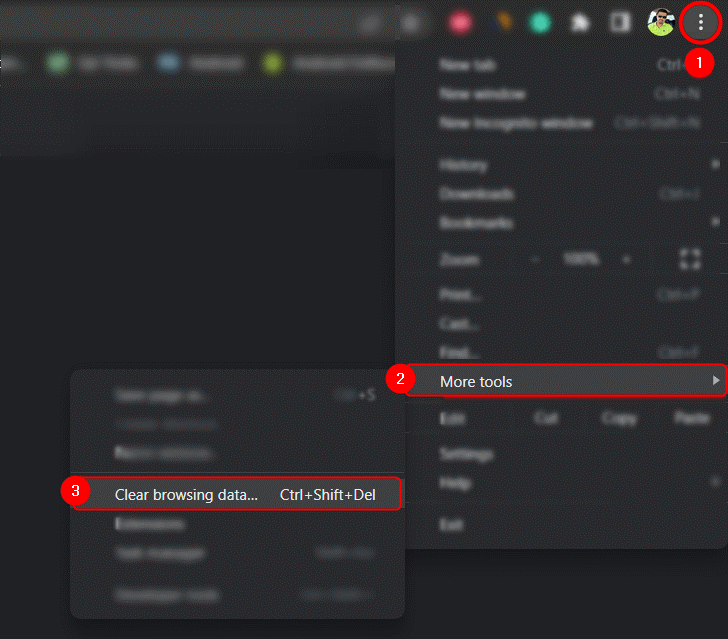
Step 2. Select All time from the drop-down menu under Time range. Next, check the boxes for ‘Cookies and other site data’ and ‘Cached images and files.’
Step 3. Finally, press the Clear data button. Then, restart Google Chrome to see if that fixes the problem.
Way 2. Uninstall Your Browser Extensions
We sometimes need to extend the functionality of our web browsers. Browsers such as Chrome, Opera, and Microsoft Edge have dedicated extension stores where you can install extensions for various purposes.
While the majority of these browser extensions are applicable, thousands of them contain adware and malware. If you cannot download files or the virus scan fails while doing so, a malicious extension may be to blame. As a result, perhaps it’s time to take a closer look at the extensions you’ve installed and uninstall any that appear suspicious.
Step 1. Launch Google Chrome, Microsoft Edge, or Opera.
Step 2. Enter the following URL into the browser’s URL bar by typing or pasting it.
Google Chrome: Chrome://extensions
Microsoft Edge: edge://extensions
Opera: opera://extensions
Step 3. You will now have access to all of the extensions that have been installed in your browser.
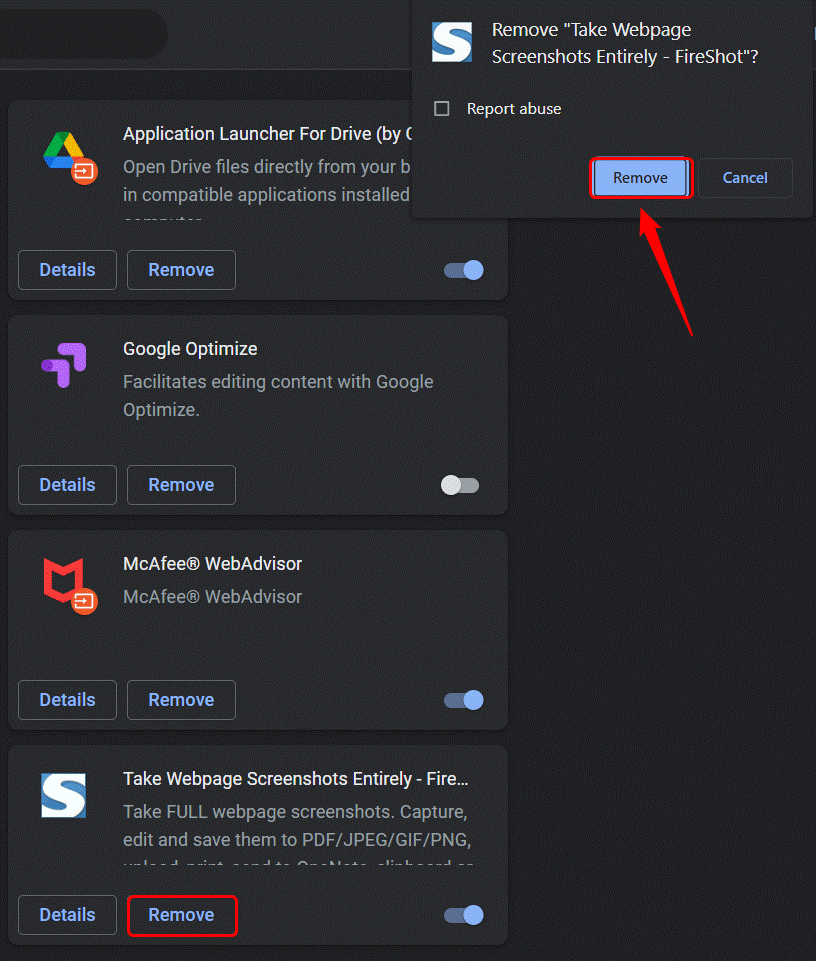
Step 4. Click on the Remove button next to the extension you want to remove.
Way 3. Use Chrome’s Malware Scanner
Few people know that Chrome has a useful built-in feature that can scan and clean your computer for viruses and malware. You can use the browser’s scanner to ensure that your computer does not contain any malicious files that could be causing the virus scan failed error. To run a cleaning process, follow the steps outlined below.
Step 1. Select Settings from the 3-dot menu icon in the top-right corner of the browser window.
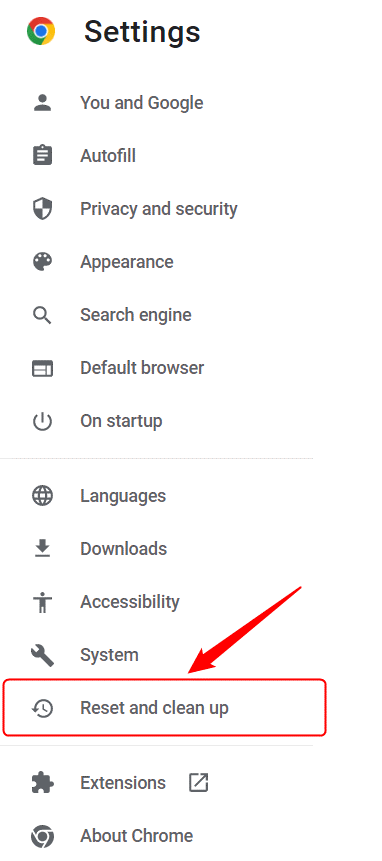
Step 2. Click the Reset and clean-up option on the Settings page.
Step 3. Select Clean up computer now.
Step 4. Click the Find button.
Step 5. Wait for the scan to finish before closing and relaunching Chrome.
Way 4. Reset Your Web Browser
Resetting your web browser to its default settings may aid in the resolution of the virus scan failure issue in Chrome, Edge, and Opera.
Step 1. Type the following URLs into the search bar of your web browser and press the Enter key.
chrome:/settings/reset
edge:/settings/reset
opera:/settings/reset
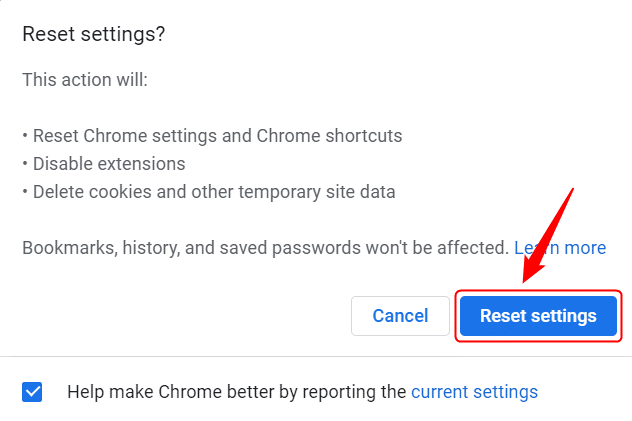
Step 2. Click the Restore settings, followed by the Reset settings button.
Way 5. Switch Off Your Antivirus Program
Windows Defender and antivirus software can be susceptible and strange at times. However, this proactive behavior on the part of antivirus software may block both malicious and safe files. Try turning it off to ensure that your antivirus program is not causing you confusion with the virus scan failed error.
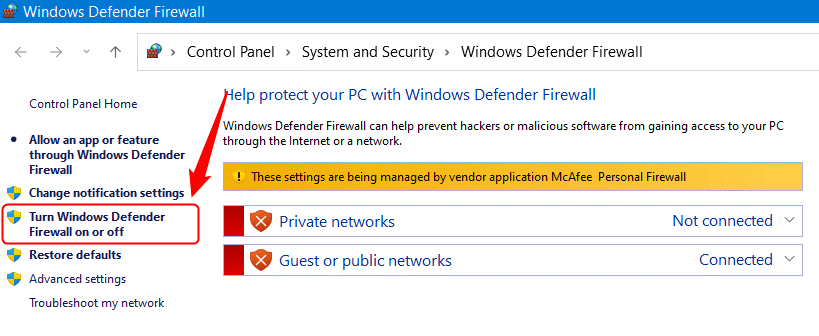
If you rely entirely on Windows Defender for your PC’s security, navigate to Control Panel > System and Security > Windows Defender Firewall and select Turn Windows Defender Firewall on or off. Then, turn it off and attempt to download a file in your web browser.
If you use an antivirus program like McAfee, right-click on the antivirus icon in the Taskbar and choose Change Settings. Then, choose Real Scanning and Firewall options and turn them off.
Way 6. Tweak with the Registry Editor
Numerous Registry Editor tweaks and hacks allow you to customize various aspects and settings on your Windows PC. However, the Registry tweak listed below is one of the most effective methods for resolving the virus scan failed error in Google Chrome, Microsoft Edge, and Opera. First, create a system restore point and make a backup of the Registry Editor and then follow these steps.
Step 1. Start the Registry Editor program. To do so, type “registry editor” into the Windows search box and select Registry Editor.
Step 2. Now, navigate to the following location.
Computer\HKEY_LOCAL_MACHINE\SOFTWARE\Microsoft\Windows\CurrentVersion\Policies\Attachments
Step 3. If you don’t want attachments, follow this path.
Computer\HKEY_LOCAL_MACHINE\SOFTWARE\Microsoft\Windows\CurrentVersion\Policies
Step 4. Right-click on Policies and select New > Key.
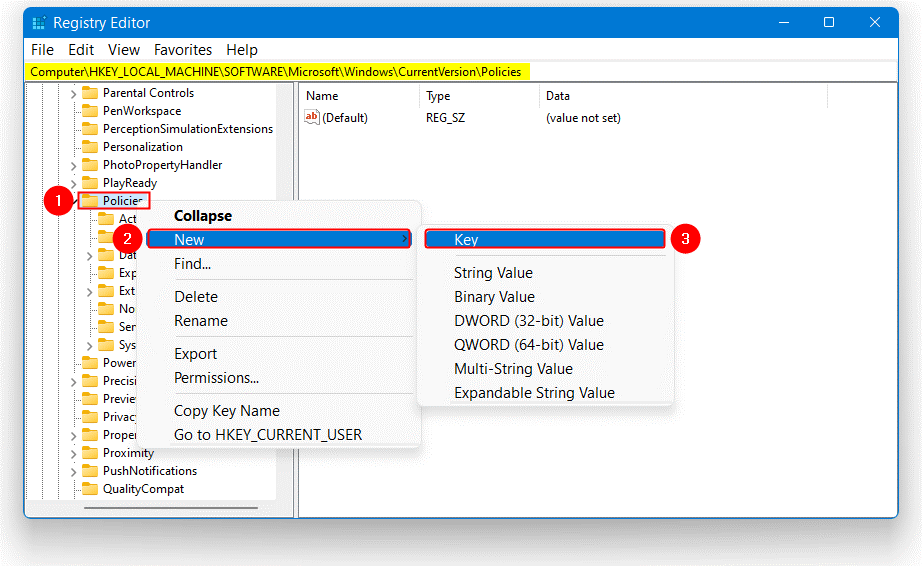
Step 5. Change the name of this new key to Attachments.
Step 6. Right-click on Attachments and select New > DWORD (32-bit) Value.
Step 7. Change the name of this new DWORD file to ScanWithAntivirus.
Step 8. Right-click ScanWithAntivirus and choose Modify.
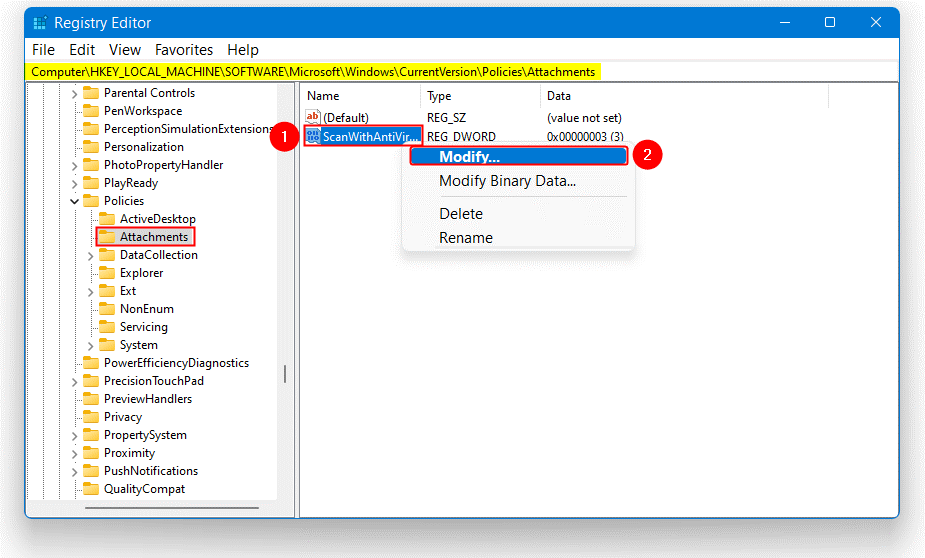
Step 9. This file’s Value data is set to 3 by default. Set it to 1 and click OK.
That’s all. Restart your computer once you close the Registry Editor window. The fix virus scan failed error should now be resolved.
Way 6. Use the Internet Properties
Many Microsoft users have suggested that tweaking with the Internet Properties has fixed the virus scan failed error for them. So, you can also try this method and see if that works for you.
Step 1. Type CPL into the Windows search bar and press the Enter key.
Step 2. When the Internet Properties window appears, navigate to the Security tab and select the Internet zone represented by the globe icon.
Step 3. Select the Custom level option.
Step 4. Scroll down in the Security Settings window to Downloads > File download.
Step 5. Click Enable.
Step 6. Scroll down to Miscellaneous, then select Launching applications and unsafe files.
Step 7. Choose Prompt (recommended)
Step 8. Press the OK button.
Way 7. Use PUP scanner
The security extensions installed on Chrome will never be as effective as a full-fledged antivirus program.
We recommend checking for PUPs to ensure there are no hidden, rogue extensions that download something without your permission.
A PUP, as opposed to cute puppies. But, in the computer context, PUP is an add-on or software wrapper you most likely did not want to have installed on your computer. It is also known as junkware. It is a third-party tool that downloads the desired product while installing optional extras such as toolbars or adware.
Those add-ons may also modify your web browser’s homepage and search settings. Many dedicated PUP scan tools are available that you can use to fix the problem. Common tools like PUP scan, PUP smart scan, etc.
Way 8. Unblock Chrome and Restore Files
You can also exempt certain files from the Windows Defender to prevent the virus scan failed error.
Step 1. On your computer, launch Windows Defender.
Step 2. Click on Protection history from the main window.
Step 3. Locate and expand the application that has been blocked in the list.
Step 4. Click Allow after expanding the Actions menu.
You can now add a specific exclusion within Windows Defender to ensure that this file is not detected as potentially malicious software, which should help with the virus scan failed message in Chrome.
You can also permanently disable Windows Defender, which we recommend.
Of course, you must then choose to install a new security program to keep everything safe and secure at all times.
However, this time choose a better security solution that receives daily updates and can correctly identify the files that are a threat to your computer.
Parting Note
Although it is not common, you may encounter a “virus scan failed error” while downloading a file in Chrome or any other browser. If you have encountered this problem and found the solutions listed above helpful, please let us know in the comments section below. Continue reading BCC for more such content, and don’t forget to share the blog with your friends.
Author Bio:
Dinesh Lakhwani 

Dinesh Lakhwani, the entrepreneurial brain behind “TechCommuters,” achieved big things in the tech world. He started the company to make smart and user-friendly tech solutions. Thanks to his sharp thinking, focus on quality and the motto of never giving up, TechCommuters became a top player in the industry. His commitment to excellence has propelled the company to a leading position in the industry.
Popular Post











Recent Post

How To Check If Your PC Is Infected? [Complete Guide]
Computers now sit at the center of almost everything we do. Well, yes! From sending emails to watching videos, we depend on them without much thought. Because of this, even a small issue can disrupt daily tasks. One common problem is hidden malware. It does not always show clear signs at first. It can enter […]

Repair Apps And Programs: Repair Apps That Aren’t Working
Computers have become an essential part of everyday life, supporting work, study, communication, and entertainment. Most of these activities rely on apps and programs, so when one stops functioning, even simple tasks can be disrupted. Common problems include error messages, frozen screens, or apps that fail to open. On Windows systems, such issues often arise […]

Troubleshooting Microphone Privacy Settings: Complete Guide
Sound is a basic part of how we use computers today. People attend meetings, record audio, speak to others, and use voice tools almost every day. A working microphone makes all these tasks easy. When the microphone fails, even simple work becomes difficult. Many users first think the device is broken. In reality, the issue […]

Windows Sound Settings – Sound Control Panel: Complete Guide
Sound plays an important role in how we use a computer every day. It supports both work and leisure. You need it for meetings, videos, music, and alerts. When audio fails, even simple tasks become difficult. Many users feel stuck when sound issues appear. This usually happens because they are not familiar with Windows Sound […]

Run a Troubleshooter For PC Issues Windows: Complete Guide
A computer plays an important role in everyday life. People use it for work, study, communication, and entertainment. When a problem appears, it can interrupt everything. Even a small issue can waste time and create frustration. Many users feel unsure about how to fix such problems. They often think they need expert help. In reality, […]
![Adjusting Audio Output Settings Complete Guide [2026]](https://www.techcommuters.com/wp-content/uploads/2026/03/Adjusting-Audio-Output-Settings-Complete-Guide.webp)
Adjusting Audio Output Settings: Complete Guide [2026]
Sound is part of almost everything we do on a computer. It lets you watch videos, join calls, play music, and hear alerts. When the audio stops working the right way, it can interrupt both work and daily use. That is why adjusting audio output settings matters for every user. Many people get unsure when […]

Artificial Intelligence Explained: Concepts, Terminology, Benefits, and Future Trends
Artificial Intelligence, or AI, is basically computers doing things that usually need a human brain. We’re talking about stuff like learning from experience, figuring out problems, understanding language, and making decisions. It’s not magic, just a lot of data, pattern-spotting, and math behind the scenes. Now, AI doesn’t actually think or feel like we do. […]

Resolving Microphone Detection Problems: Latest Guide [2026]
Microphones are important tools in daily life. People use them for office meetings, online classes, interviews, gaming, customer support, and content creation. When a system fails to detect a microphone, communication stops at once. This situation can cause stress and confusion. Many users believe the microphone is damaged. In reality, most problems are simple and […]

How To Switch To A Dark Background Theme In Windows [2026]
Most people spend many hours each day in front of a computer screen. Office work, online classes, editing, browsing, and streaming all require long screen time. A bright white background may look clean at first. However, over time, it can feel sharp and tiring. The strong contrast between white backgrounds and black text may cause […]

How to Switch From Local To Microsoft Account On Windows
Many users begin with a local account when they set up a new Windows computer. A local account works only on that single device. It stores settings, files, and preferences locally. It does not connect to online Microsoft services. For basic offline use, it works well. However, as digital needs grow, many users want better […]

