How To Fix Fortnite Lag on Windows PC?
Last updated on January 11th, 2025 at 5:20 am
Introduction
People who enjoy gaming have many high-quality game choices to choose between with PC compatibility. Some are accessible online, while others come in the form of software or apps they have to download. You are in luck if you have a high-powered Windows PC with a modern OS version that supports high-grade games like Fortnite. You can expect high-quality performance throughout.
However, the problem of lags is still a risk, which can leave a bad user experience for gamers. When playing a game like Fortnite, you need smooth functioning and controls. But if you are experiencing lags, it can occur due to issues like FPS drops and connection errors. Luckily, there are methods you can use to fix the problem of Fornite lagging on Windows- let’s break them down here.
Potential causes of Fortnite lagging on Windows PC
Before discussing the ways to fix the Fornite lagging on Windows PC issue, knowing its causes is important. Here are some common reasons for the error.
- ISP throttling– The ISP can reduce the speed of the internet connection depending on what activities you are doing online. This phenomenon is called throttling, and ISPs do it to save data allotments during high usage periods.
- Too much server loading– Overcongested servers can cause high-powered games like Fortnite to lag since many players connect and actively play matches simultaneously.
- Old-school software– If the software is not updated, that can also result in a slow network connection and consequent lagging.
- Bad network connection– In many cases, home WiFi connections can have limited data capacity or have a lower cable quality. That can affect issues during playing games like Fornite.
Ways to Fix the Lagging Issue While Playing Fortnite on Windows
Here are some of the best methods we have surmised that you can utilize to remove the Fornite lagging on Windows issue.
Method 1: Check the hardware resources on the PC
If there are not enough hardware resources on your Windows PC, that can cause lagging issues during gameplay. For example, the minimum RAM requirement in one game is 8 GB, but the computer has a RAM limit of 6GB or even just 8 GB of RAM. The game software will take up a lot of data load, so if the RAM in the device cannot support it, lags will ensue.
Here are the main hardware specifications in PC that Fortnite requires:
- Operating System- Windows 11/10/8/7
- Graphics card- Intel HD 4000
- System type- 64-bit
- Processor- Core i3 processor with 2.4 GHz
- Memory Capacity- 4 GB of RAM
- DirectX- DirectX 11.0
- HDD Space- 16 GB of storage
These are the requirements for standard-powered processing if that is your requirement. The graphics support here is good, and the processing speed will turn out to be high. However, if you are satisfied with high-level graphics settings, there are some aspects where adjustments are possible:
- Memory Capacity- 6 GB of RAM
- Video Card- Nvidia GTX 660/AMD Radeon HD 7870 (equivalent DX11 GPU)
- HHD Space- 20 GB
- Processor- Core i5 processor with 2.8 GHz
If your hardware resources meet these specifications, you can use Fortnite favorably. If not, you must consider choosing a PC with the recommended hardware resources.
Method 2: Change the game settings
Improper settings for games in the system can cause the issue of Fortnite lagging on Windows. This can also result in internet-based lagging and FPS drops. To simplify, if the graphics settings in your PC are higher than suitable for the hardware, you have to change the settings.
How to do this?
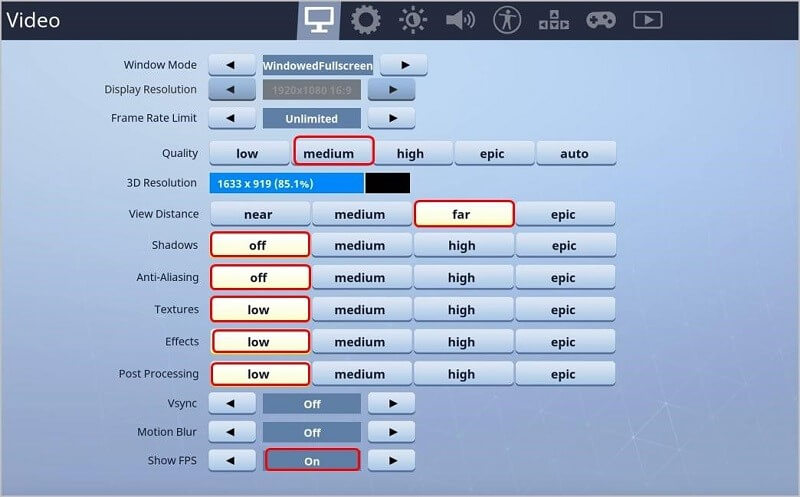
Step 1: After launching Fortnite, go to the Settings menu.
Step 2: In this section, tap on the Video Settings option. Make adjustments to the graphics settings accordingly.
- Display resolution- Adjust the resolution to be the same as the computer display.
- View distance- Medium/Far
- Quality- Low/Medium
- Textures- Low
- Anti-Aliasing- OFF
- Shadows- OFF
- Effects- Low
- Show FPS- ON
Method 3: Install the newest game patch
Epic Games, the creator of Fortnite, continues to produce new game updates. The newer updates of the software include bug fixes and performance enhancements. So, it would be best if you upgraded the game patch for Fortnite to remove the lagging problems that are potentially occurring due to outdated game patches/bugs.
Check the official website to see if new updates are available and then upgrade to it.
Method 4: Utilize Ethernet Connection
The slow internet connection can occur when you are using an unstable WiFi connection. In this situation, switching to ethernet cable will assure better performance for the devices that you are using. These include Xbox, PlayStation, or Windows, where you play Fortnite.
Method 5: Upgrade the Network Driver and Graphics Driver
Corrupted or outdated drivers in your device can cause Fortnite lagging on Windows issue. The old or damaged graphics drivers can result in FPS drops. As for the network driver, a defective one in your device can cause bad internet connections.
Both situations cause the lagging issue, and there are steps you can take to upgrade both driver types. You can download and utilize an automated driver upgrade software or do the process manually.
How to update Network drivers?
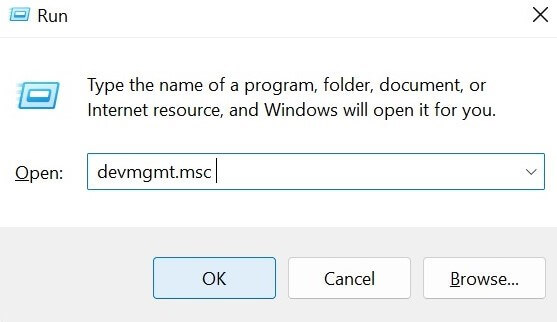
Step 1: Tap on Windows + R keys to open the Run dialog box. Then, type devmgmt.msc > OK.
Step 2: In the Device Manager window, choose the Network Adapters option and double-click on it.
Step 3: Right-click on the top of your network connection. Choose the Update Driver option from the drop-down menu.
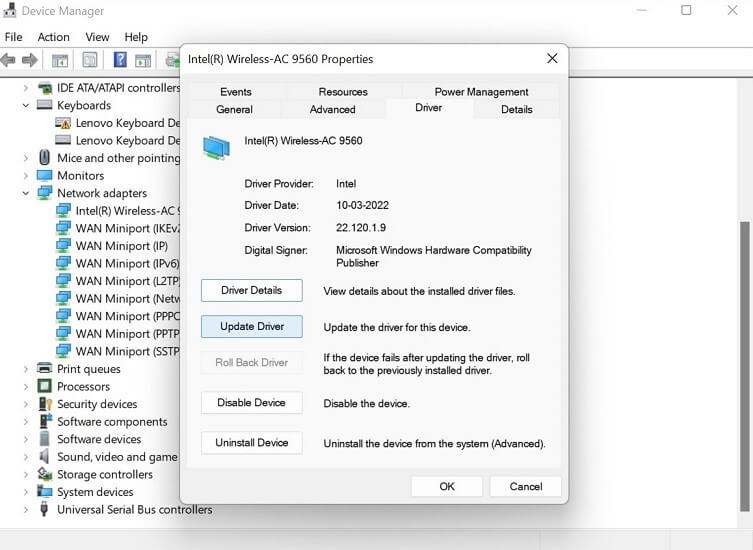
Step 4: Continue the steps to install the driver and then restart the Windows PC. The problem should resolve.
How to update Graphics drivers?
Step 1: Tap the Windows + R keys on your keyboard. This action will open the Run dialog box on Windows.
Step 2: In the text field on the Run dialog box, type in “devmgmt.msc” and press the OK button.
Step 3: The Device Manager window will open. Browse through the list and double-click on the Display Adapters option.
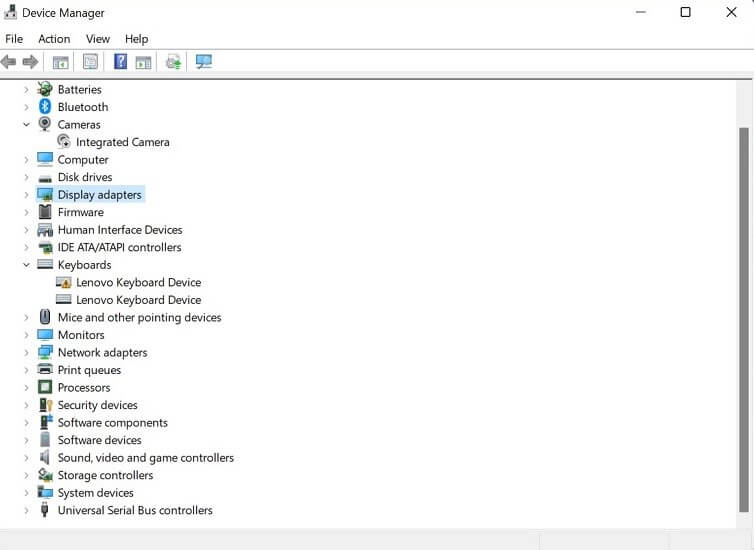
Step 4: Right-click your cursor on the graphics card for your PC and tap on the Update Driver option. When a pop-up window appears, select the “Search automatically for updated driver software” option.
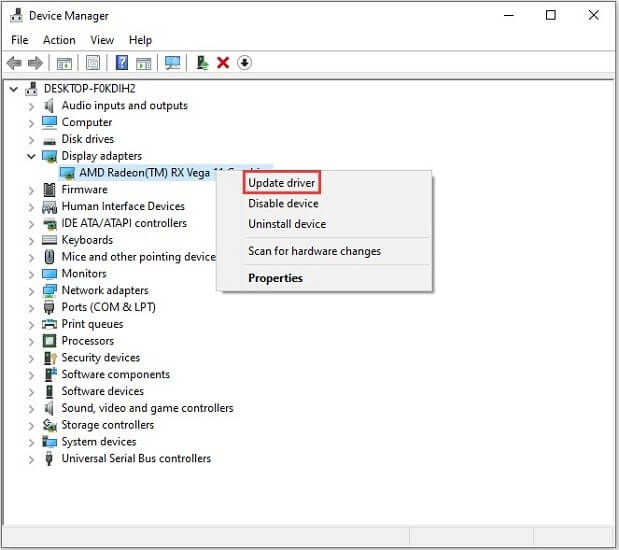
Step 5: Follow the next instructions on the screen to update the driver and restart the device after it is successfully installed. Check that the Fornite software is activating properly without lags now.
Bonus: Use a VPN
If ISP throttling or server overcrowding is causing the issue of Fornite lagging on Windows, you can rectify that via VPN. With software like Avast SecureLine VPN, you can connect to different servers globally since it supports over 700 servers across diverse locations.
During online gaming, this always protects your PC against malware or DDoS attacks, assuring a safe connection experience. You can hide your presence online from ISPs and hackers and even safely use fast public WiFi. It helps connect users automatically to the best server connection with a simple click while assuring strong privacy, data security, and performance improvement.
Best Features of Avast SecureLine VPN:
- High network capacity with support to 700+ servers for unlimited usage.
- Balanced web traffic assures zero server overcrowding.
- The high-speed capacity of 450-600 Mbps is available on average during high loads.
- Game, stream, and download files across ten devices, all connected to the same VPN.
- No content and connection restrictions, even over unsecured networks.
Conclusion
With the processes explained here, you can improve user experience and PC performance to avoid lags during gaming. Follow the steps mentioned for each version accurately for the best result.
Author Bio:
Dinesh Lakhwani 

Dinesh Lakhwani, the entrepreneurial brain behind “TechCommuters,” achieved big things in the tech world. He started the company to make smart and user-friendly tech solutions. Thanks to his sharp thinking, focus on quality and the motto of never giving up, TechCommuters became a top player in the industry. His commitment to excellence has propelled the company to a leading position in the industry.
Popular Post











Recent Post

How to Switch Windows 10 to a Local Account: Complete Guide
Windows 10 allows users to sign in with either a Microsoft account or a local account. When you set up a new computer, the system often suggests using a Microsoft account. This account connects your device to Microsoft services such as Outlook, OneDrive, and the Microsoft Store. It also syncs settings, themes, and passwords across […]

How To Change Default Apps For File Types In Windows
Windows is designed to make using your computer easy. One way it does this is by assigning default apps to different file types. This means when you open a file, Windows automatically opens it with a specific program. For example, photos may open with Photos, music with Groove Music, and PDFs with Edge. These default […]

How To Adjust The Mouse Pointer Speed: Complete Guide
Using a computer every day means you use the mouse a lot. The mouse pointer moves on the screen and helps you click, scroll, and select items. Many people never think about the speed of the mouse pointer. They have used the default setting for years. This can cause small problems over time. A slow […]

How to Change Mouse Scrolling Settings In Windows
A mouse is one of the most used computer tools. People use it every day. They scroll through emails. They scroll through documents. They scroll through websites and images. The movement becomes automatic. Most users do not notice it. That is why problems often go unnoticed. Scrolling problems show up slowly. At first, it feels […]

Keyboard Light Settings: Keyboard Lighting Control [Complete Guide]
Keyboards are no longer simple typing tools. Well, yes! Over time, they have evolved to include features that improve comfort, visibility, and overall experience. One of the most useful features today is keyboard lighting. It helps users work comfortably in low-light conditions. It also reduces strain when typing for long hours. Many users first notice […]

Customizing Pointer Appearance: Complete Guide
The way your mouse pointer looks on your computer may seem like a small detail. But customizing pointer appearance can make using your PC more comfortable and visually appealing. Many users do not realize that they can change the pointer size, color, and style to fit their needs. Whether you want a bigger pointer for […]

How To Choose a Computer Monitor: Monitor Buying Guide
Buying a monitor looks easy. Many people think all screens are the same. That belief causes regret later. A monitor is not just a display. It is a daily tool. You read on it. You work on it. You relax with it. Small problems become big over time. Poor brightness hurts eyes. Bad size causes […]

How To Get Help With File Explorer in Windows 11 [Complete Guide]
File Explorer is one of the most important tools in Windows 11. It is used to open folders, view files, and manage stored data. Almost every action on a Windows computer depends on it in some way. When users open documents, save downloads, or organize photos, File Explorer is always involved. Because it is used […]

How To Fix A Frozen Computer: Complete Guide [Windows 11/10]
A frozen computer is one of the most common problems Windows users face. The screen stops responding. The mouse pointer does not move. Keyboard inputs do nothing. You may hear the fan running loudly. Sometimes the system looks alive, but nothing works. This situation often happens when you are busy or working on something important. […]

How to Upgrade Computer RAM: Complete Guide
Upgrading RAM is one of the simplest ways to improve a computer. It helps the system feel faster and smoother. Apps open quicker. Browsers handle more tabs. Games and tools run with less delay. Many users search for how to upgrade computer RAM because it gives real results without high cost. You do not need […]

