How to Fix 0xc0000005 Error in Windows 11, 10 [2026]

Last updated on December 26th, 2025 at 2:20 am
Windows is easily one of the most robust operating systems available, and Microsoft constantly keeps updating it with new updates. Multiple pre-set troubleshooters are in place for fixing various potential issues, some with one click.
However, there is no pre-made solution for complex problems like 0xc0000005 Error Windows. To handle the situation efficiently, one must take some technical steps manually. Here, we have put together the best strategies to use for fixing the issue- read to find out.
Why does the 0xc0000005 Error Occur in Windows?
Typically, Windows users face this Error on their devices because of Access violations. The operating software cannot correctly process any files or the connected configurations when users try to open a particular command. Three types of prompts will come up depending on the cause:
- Access Violation Exception Error
- Windows Installation Error
- The Application was Unable to Start Correctly
Commonly, the problems that cause this are:
- Errors in the PC files
- Issues due to a faulty RAM condition
- Wrong configurations or other errors in the PC settings
This transpires when users try to operate both the installers and the installed programs available in the system. After that, it blocks the smooth functioning of the program or even the installation process.
Ways to Fix the 0xc0000005 Error in Windows Effectively
Consider the leading cause for the 0xc0000005 Error Windows you have noticed. Based on that, you can take specific steps to rectify the problem and avoid further complications. Keep in mind that the processes can get complex for completely non-technical users. But following the steps given accurately should work well enough, so proceed carefully.
Fix 1: Check the RAM condition
Sometimes the leading cause for the 0xc0000005 Error in Windows PCs is defective RAM. This constitutes cases when the RAM hardware or connectors are physically damaged.
To fix the Error caused due to this, you have to turn the entire system off. Then, you have to change the RAM in use with another high-quality RAM. Swapping the RAM slots and rebooting the system works for this situation. Then, run the memory diagnostics on your PC to see if the RAM functionality is stable.
Fix 2: Disable the Antivirus software
Many antivirus software types are available for Windows users to install and use for optimized connectivity and security.
Yet, while these solutions are helpful, sometimes they can clash with the executable files in some programs. You can disable it temporarily after seeing the 0xc0000005 Error Windows. If the Error still remains, it is not the antivirus causing it, and you should try other fixes.
Fix 3: Operate the System Restore function
The System Restore feature on Windows is one of the most useful solutions available that fixes different types of problems on the system. You can run this feature to rectify the PC settings causing the error 0xc0000005.
How to do this?
Step 1: Right-click your cursor on My Computer or This PC on the home screen.
Step 2: Choose the Properties option from the following menu.
Step 3: In the next window, choose the “Advanced System Settings” option.
Step 4: Click on the System Protection tab > System Restore > Next.
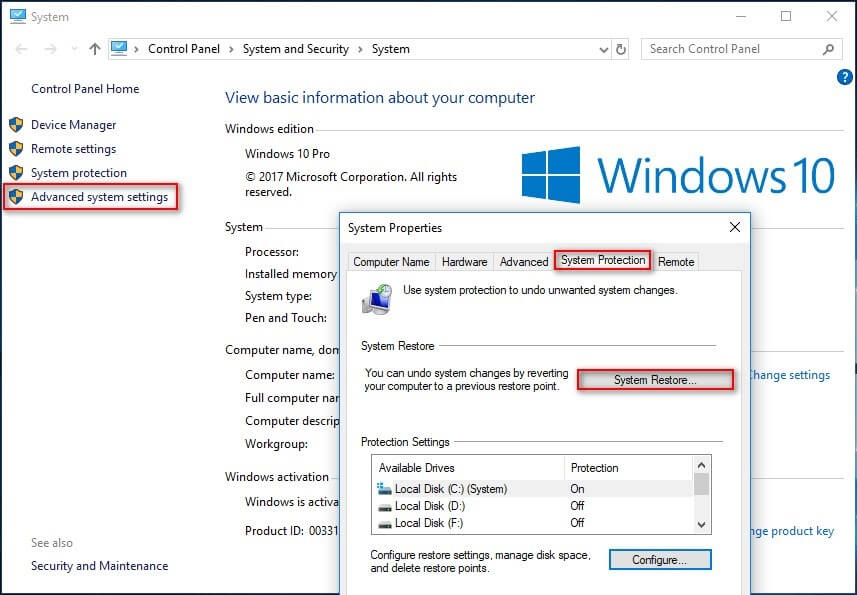
Step 5: Tick the checkmark beside the “Show more restore points” box.
Step 6: Choose one of the restore points.
Step 7: In the next dialog box, press Finish to confirm.
Fix 4: Disable the DEP in Programs
On Windows, the Data Execution Prevention or DEP is a valuable feature available to safeguard the working PC memory. However, while this helps users secure their programs, it can cause specific issues like 0xc0000005 Error Windows. This happens when this in-built feature does not support particular programs, causing it to stop functioning. So, to solve the problem, you must deactivate this specific setting on Windows.
How to do this?
Step 1: Press the Window and “R” keys together on the keyboard.
Step 2: When the Run box opens, type “sysdm.cpl” in the text box. Hit Enter.
Step 3: Under the System Settings, click on Advanced > Settings.
Step 4: Under the Performance Options window, choose Data Execution Prevention.
Step 5: Choose the “Activate Data Execution Prevention for all programs and services except for those selected” option.
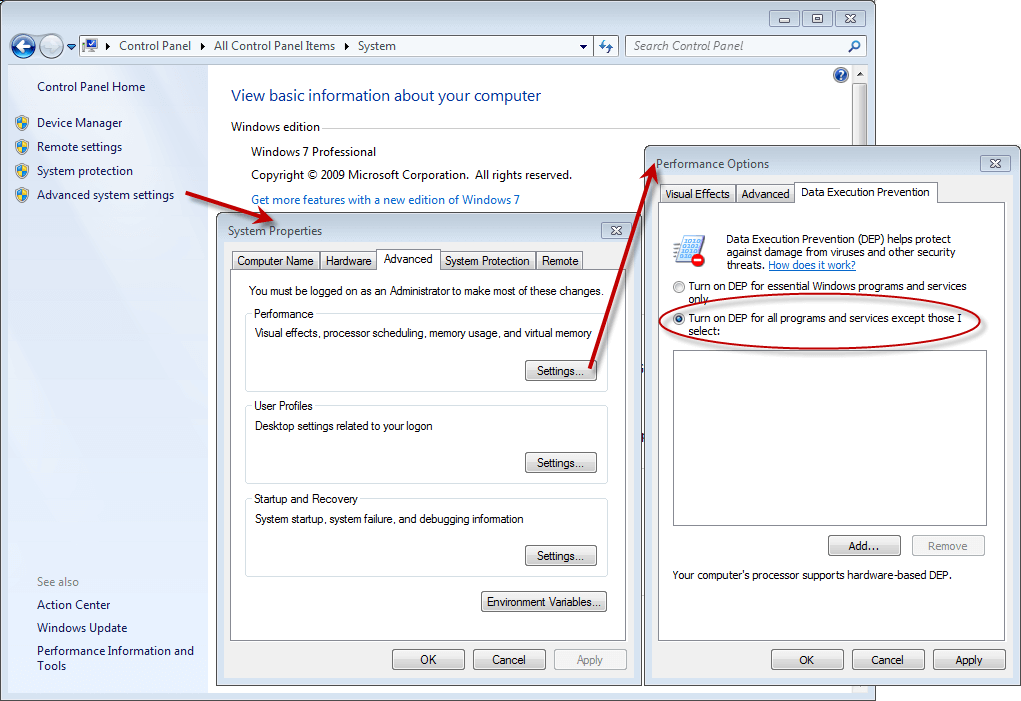
Step 6: Tap the Add button. Find the defective program’s .exe file.
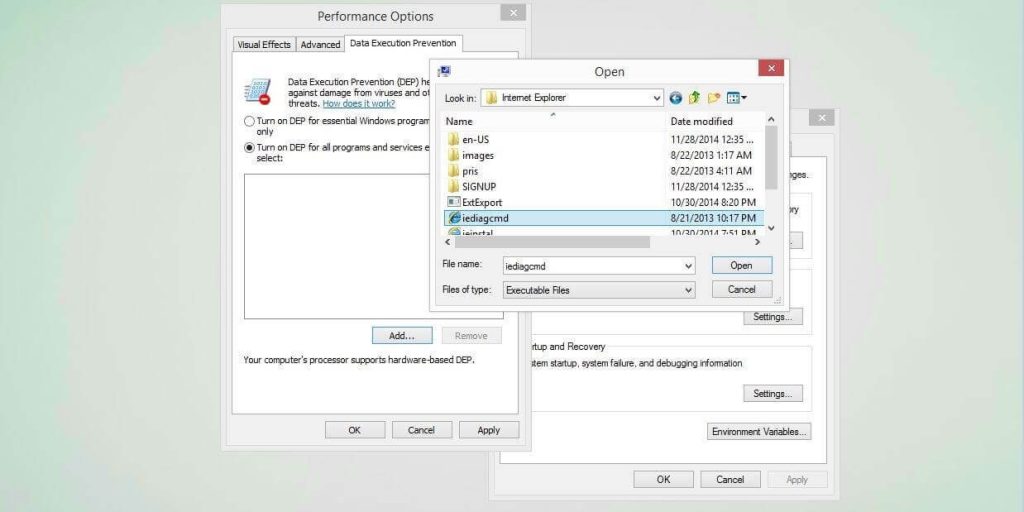
Step 7: Click on Apply to save the changes. Press OK.
Fix 5: Run a Malware Scan
Some of the errors on Windows, like the 0xc0000005problem, can occur due to malware in the system. This is possible when users try to access defective or compromised software system resources.
There are suitable pre-set security protocols on Windows against malware like bots, viruses, and Trojan horses. Plus, you can additionally use security protection software. This is useful for scanning any malware and other elements and providing complete protection.
Fix 6: Run Command with SFC
The System File Checker is a useful Windows-based tool that effectively checks the condition of the protected system files. The feature can properly detect modified, corrupted, or damaged files and replace them if necessary.
How to do this?
Step 1: Press the Start menu in the Windows taskbar.
Step 2: Type in “Command Prompt” and see the app that comes up.
Step 3: Click on the Run as Administrator option under the app when you select/right-click on it.
Step 4: Under User Account Control, click on Yes.
Step 5: In the next text box, add “sfc/scannow” > hit Enter.
Step 6: The SFC will run the system file checking. Restart the device.
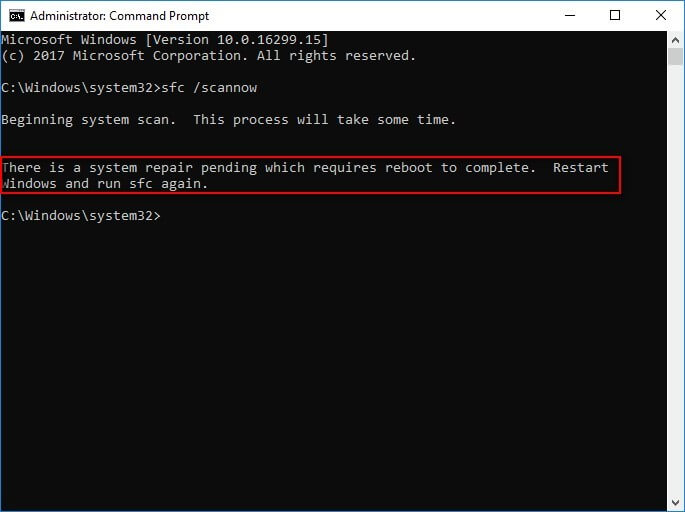
Step 7: Repeat Steps 1 to 6 again
Fix 7: Disable AppInit_DLLs Mechanism
Another complex yet suitable solution for fixing the 0xc0000005 Error is deactivating your device’s continuously running AppInit_DLL mechanism. The DLLs are specific libraries on Windows for particular processes related to optimizing storage and program load time, running in user mode.
However, sometimes this mechanism can result in some access violations. Then, one should deactivate it, possible through the Windows Registry.
How to do this?
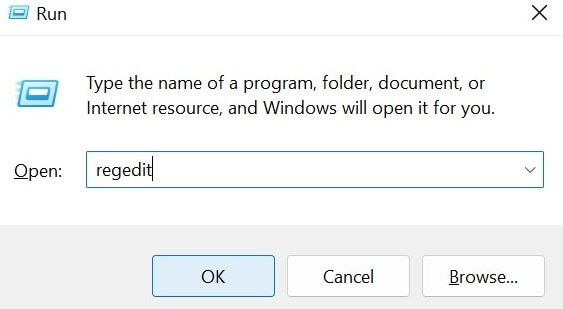
Step 1: Press Win and R on the Windows PC/laptop keyboard.
Step 2: Type “regedit” and press the OK button or hit the Enter key.
Step 3: Find the “LoadAppInit_DLLs” entry key under the next window.
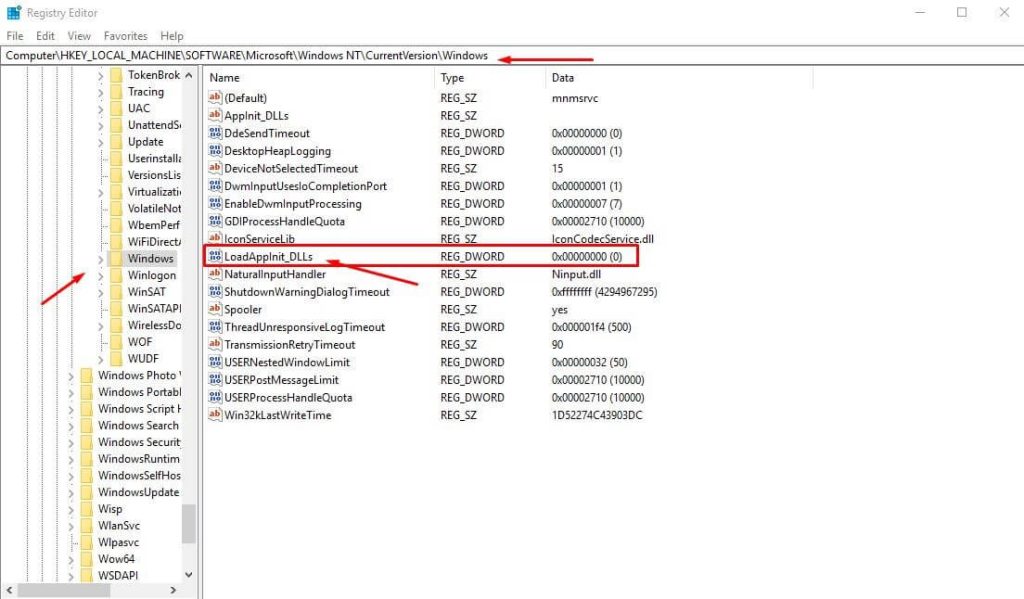
Step 4: Double-click your cursor on it and make the value 0.
Step 5: Press OK and reboot the system.
Fix 8: Evaluate the BCD
In some cases, the 0xc0000005 Error Windows users notice in their system occurs due to infected or altered files due to malware or hackers. It is vital to properly evaluate the Boot Configuration Data (BCD) and resolve the issue.
How to do this?
Step 1: Open Start > Type in “cmd” in search.
Step 2: The Command Prompt app will appear in the search list. Click on the “Run as Administrator” option under it.
Step 3: Insert “BCDEdit” > Hit Enter.
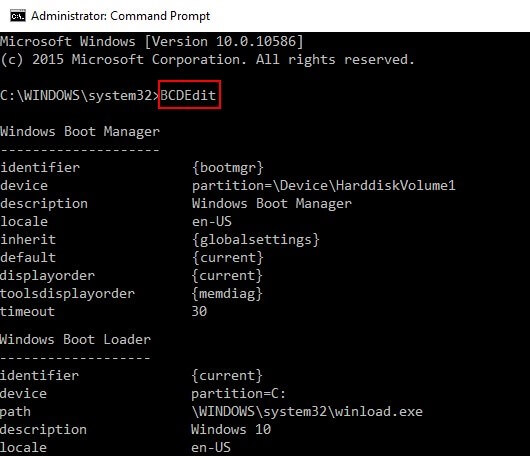
Step 4: If you see the xOsload.exe as the Boot Loader Path, delete some files first and then fix the BCD on Windows.
Open Windows Repair to boot. Access Command Prompt again.
Step 5: Under the Command Prompt window, run these commands:
Del D:\Windows\System32\xOsload.exe
Del D:\Windows\System32\xNtKrnl.exe
Del D:\Windows\System32\Drivers\oem-drv64.sys
attrib c:\boot\bcd -h -r -s
ren c:\boot\bcd bcd.old
bootrec /rebuildbcd
Step 6: Check again for the Error on your system after these commands run to understand if the process was successful.
Fix 9: Upgrade the Device Drivers while running Apps
This particular Windows error code can appear when one tries to access a specific app on their PC. If the prompt about the application not starting correctly, defective drivers can be the main issue. You have to update them to fix the Error.
How to do this?
Step 1: Click on the Start icon and type in Control Panel. Then, choose the first option to open.
Step 2: Press Device Manager. (In some Windows 11 devices, you can directly search for Device Manager via Start.)
Step 3: Choose the “Display Adapter” option in this menu. Click the arrow beside it.
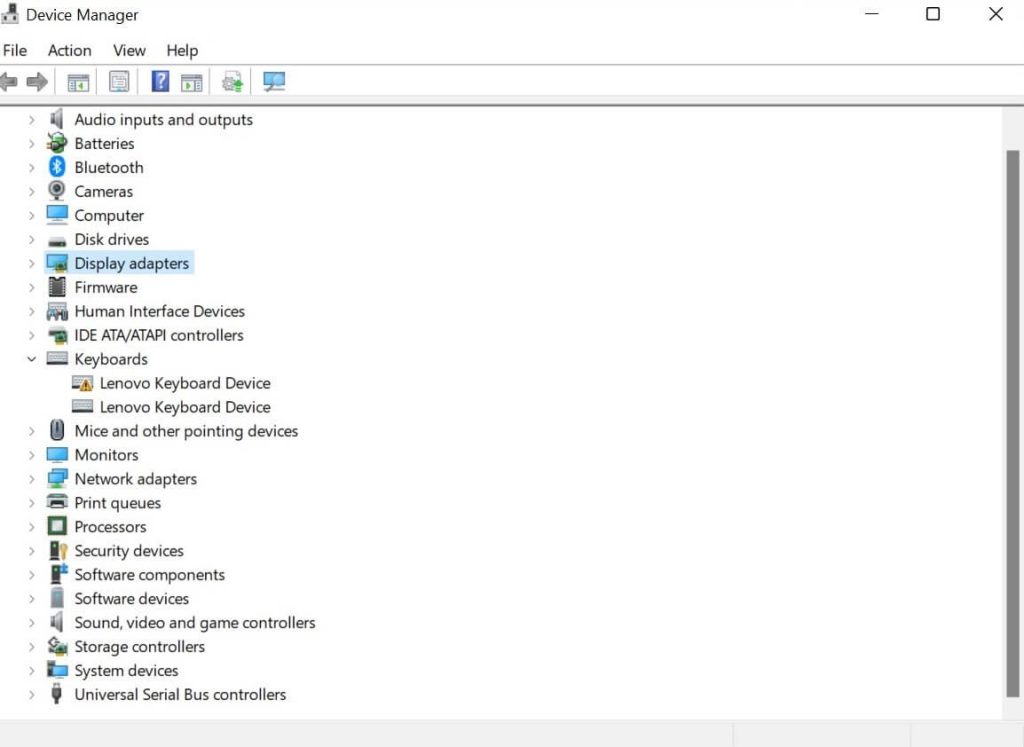
Step 4: Tap the displayed graphic card and right-click on it.
Step 5: Click on “Update Driver” from the drop-down menu.
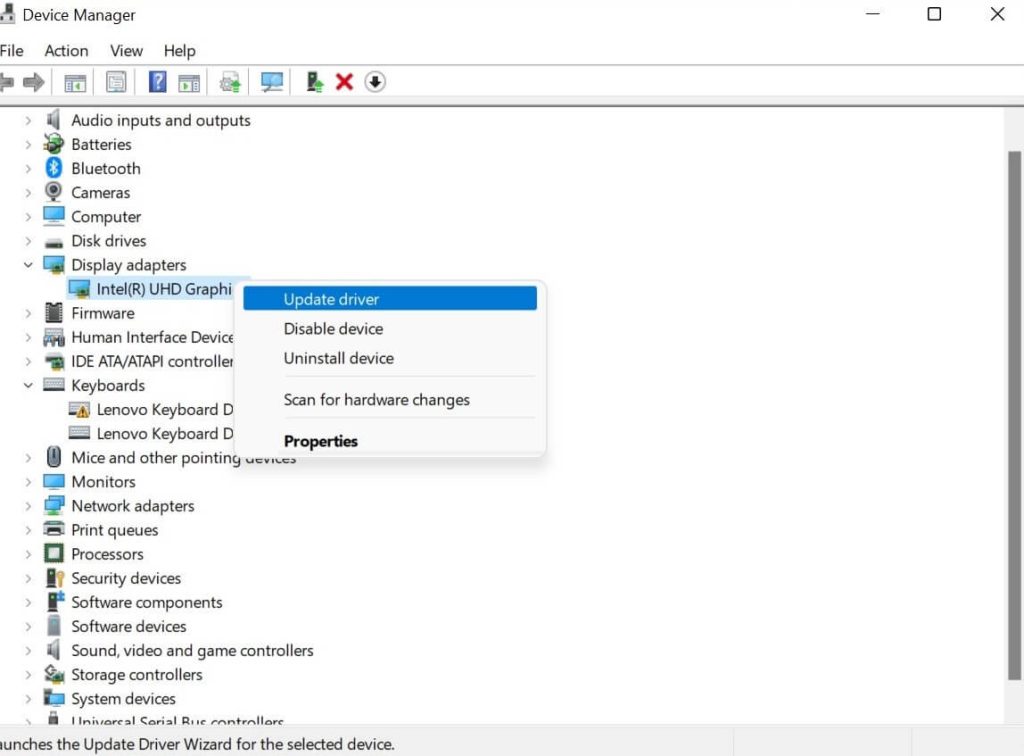
Step 6: After it updates, play another video on your PC. See if the Error persists or not.
Conclusion
You must carry ahead with these solutions cautiously, using the Windows Restore process, the SFC command, or the Registry. All the steps are listed here, so familiarize yourself with the sequence and practice.
Then, it is possible to complete the process securely.
Let us know if you found this helpful. We have more such posts- give them a read if you need them.
Author Bio:
Dinesh Lakhwani 

Dinesh Lakhwani, the entrepreneurial brain behind “TechCommuters,” achieved big things in the tech world. He started the company to make smart and user-friendly tech solutions. Thanks to his sharp thinking, focus on quality and the motto of never giving up, TechCommuters became a top player in the industry. His commitment to excellence has propelled the company to a leading position in the industry.
Popular Post











Recent Post

How To Fix Issues Downloading from the Microsoft Store On Windows
Introduction: Downloading apps from the Microsoft Store should be a simple task. You open the Store, search for an app, and click install. In most cases, the process works without any problem. However, there are times when the download does not start. In some cases, it may stay stuck at a certain percentage. You may […]

How To Fix Windows Update Issues Easily On Windows [2026]
Introduction Windows updates play an important role in keeping a computer stable and secure. They bring new features, fix known bugs, and improve overall performance. When updates work as expected, the system runs smoothly. However, when they fail, users often face slow performance, missing features, or security risks. This is why it becomes important to […]

How To Check If Your PC Is Infected? [Complete Guide]
Computers now sit at the center of almost everything we do. Well, yes! From sending emails to watching videos, we depend on them without much thought. Because of this, even a small issue can disrupt daily tasks. One common problem is hidden malware. It does not always show clear signs at first. It can enter […]

Repair Apps And Programs: Repair Apps That Aren’t Working
Computers have become an essential part of everyday life, supporting work, study, communication, and entertainment. Most of these activities rely on apps and programs, so when one stops functioning, even simple tasks can be disrupted. Common problems include error messages, frozen screens, or apps that fail to open. On Windows systems, such issues often arise […]

Troubleshooting Microphone Privacy Settings: Complete Guide
Sound is a basic part of how we use computers today. People attend meetings, record audio, speak to others, and use voice tools almost every day. A working microphone makes all these tasks easy. When the microphone fails, even simple work becomes difficult. Many users first think the device is broken. In reality, the issue […]

Windows Sound Settings – Sound Control Panel: Complete Guide
Sound plays an important role in how we use a computer every day. It supports both work and leisure. You need it for meetings, videos, music, and alerts. When audio fails, even simple tasks become difficult. Many users feel stuck when sound issues appear. This usually happens because they are not familiar with Windows Sound […]

Run a Troubleshooter For PC Issues Windows: Complete Guide
A computer plays an important role in everyday life. People use it for work, study, communication, and entertainment. When a problem appears, it can interrupt everything. Even a small issue can waste time and create frustration. Many users feel unsure about how to fix such problems. They often think they need expert help. In reality, […]
![Adjusting Audio Output Settings Complete Guide [2026]](https://www.techcommuters.com/wp-content/uploads/2026/03/Adjusting-Audio-Output-Settings-Complete-Guide.webp)
Adjusting Audio Output Settings: Complete Guide [2026]
Sound is part of almost everything we do on a computer. It lets you watch videos, join calls, play music, and hear alerts. When the audio stops working the right way, it can interrupt both work and daily use. That is why adjusting audio output settings matters for every user. Many people get unsure when […]

Artificial Intelligence Explained: Concepts, Terminology, Benefits, and Future Trends
Artificial Intelligence, or AI, is basically computers doing things that usually need a human brain. We’re talking about stuff like learning from experience, figuring out problems, understanding language, and making decisions. It’s not magic, just a lot of data, pattern-spotting, and math behind the scenes. Now, AI doesn’t actually think or feel like we do. […]

Resolving Microphone Detection Problems: Latest Guide [2026]
Microphones are important tools in daily life. People use them for office meetings, online classes, interviews, gaming, customer support, and content creation. When a system fails to detect a microphone, communication stops at once. This situation can cause stress and confusion. Many users believe the microphone is damaged. In reality, most problems are simple and […]

