How to Change Your DNS Server on a Mac?
Last updated on January 25th, 2025 at 9:40 am
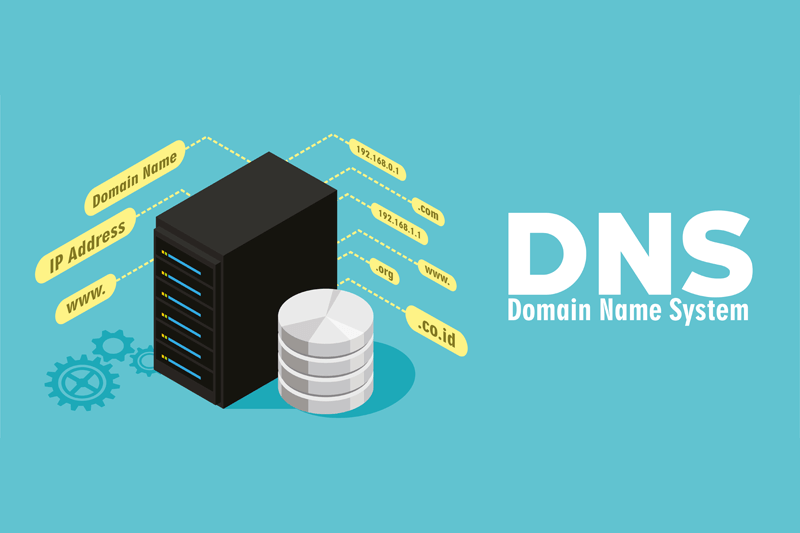
The Domain Name System or DNS is vital for website accessibility across different browsers for computer systems. Many Mac users do not know of DNS server settings, but it does affect the condition since the devices hold millions of domains and connected IP addresses. Therefore, changing domain names into the corresponding IP addresses becomes easier through DNS servers.
Methods to change DNS server on Mac
There are specific steps that users must handle to change DNS server on Mac without any error. Here are the main things you should keep in mind and carry out for improving internet speed and connectivity. Follow the methods carefully for your system.
Method 1: Accessing the DNS Settings on Mac
Before changing DNS server settings on your Mac device, you should open it to see the available server settings. Following that, you can carry out the necessary steps to make setting changes.
How to do this?
Step 1: Open the Apple home menu and then choose “System Preferences” to launch the window. Alternatively, you can click the option on the Dock.

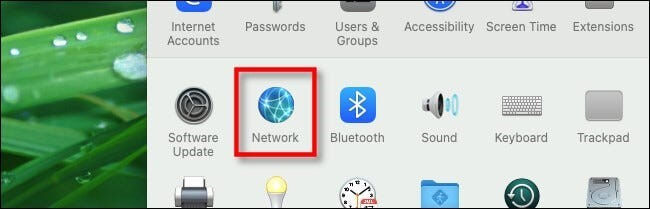
Step 2: Open the Network Preferences window through the Network option under System Preferences. It would show all active network connections.
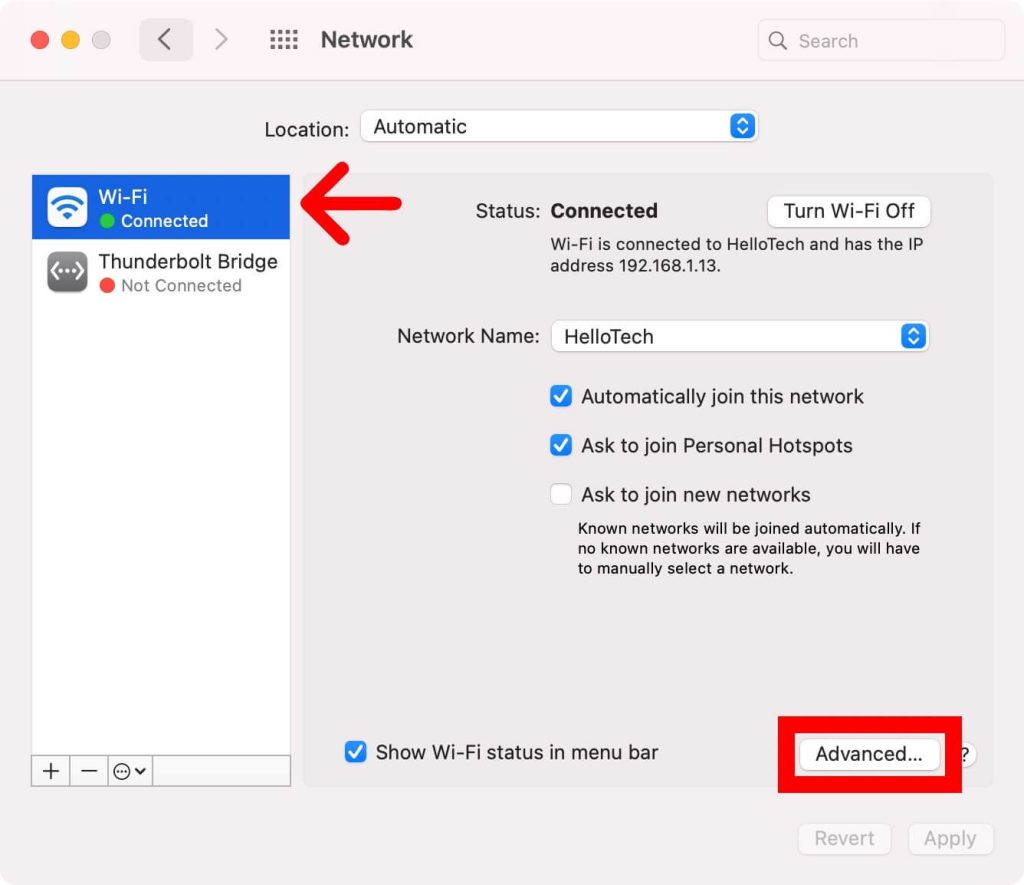
Step 3: Choose the preferred connection type for your DNS changing steps and access the Advanced window. Typically, one connection stays active, i.e., the WiFi. A green dot would appear beside the term indicating this active status. Notably, this process is similar for whichever connection a user operates with, like Ethernet, Bluetooth, or Thunderbold Bridge.
Step 4: Open the DNS tab to show two panes. One would have the list of Search Domains, and the other would list the DNS servers.
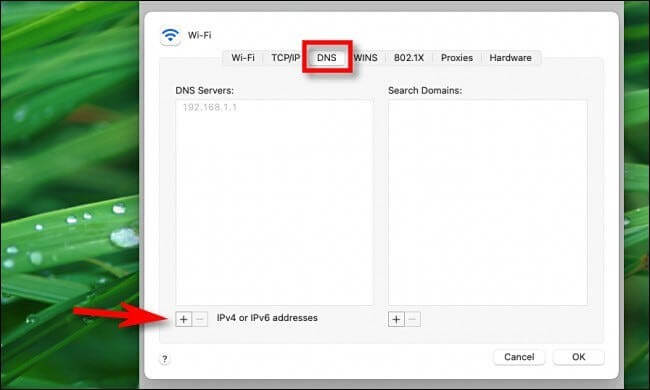
This list can appear empty, have entries in dark text, or grayed-out entries.
If it is the last type, it means that the IP addresses are running with another device, specifically the network router. You can edit the list and override it through the Network Preference window of the Mac device manually, as explained under Method 2. But this would apply to only the primary device.
Dark text entries are locally entered options, while the empty entry fields mean that DNS servers are not assigned to them.
Method 2: Change DNS Server through the System Preferences
The most straightforward method to change DNS servers while using Mac systems is to access system preferences directly. Then, follow the correct sequence to change the settings on your device.
How to do this?
Step 1: Click your cursor on top of the icon for Apple, visible on the top left-hand-side corner of the home screen.
Step 2: Then, choose the option System Preferences.
Step 3: Choose the “Network” option on the next screen.
Step 4: After doing so, the system would take you to the next screen that would feature multiple available network connections. They are present on the left sidebar. Choose your preferred network connection among the green-circled choices.
Step 5: Then, select the “Advanced” option that is available on the button-right side of the dialogue box.
Step 6: Following this, you should press your cursor on the DNS tab on the upper side of your window.
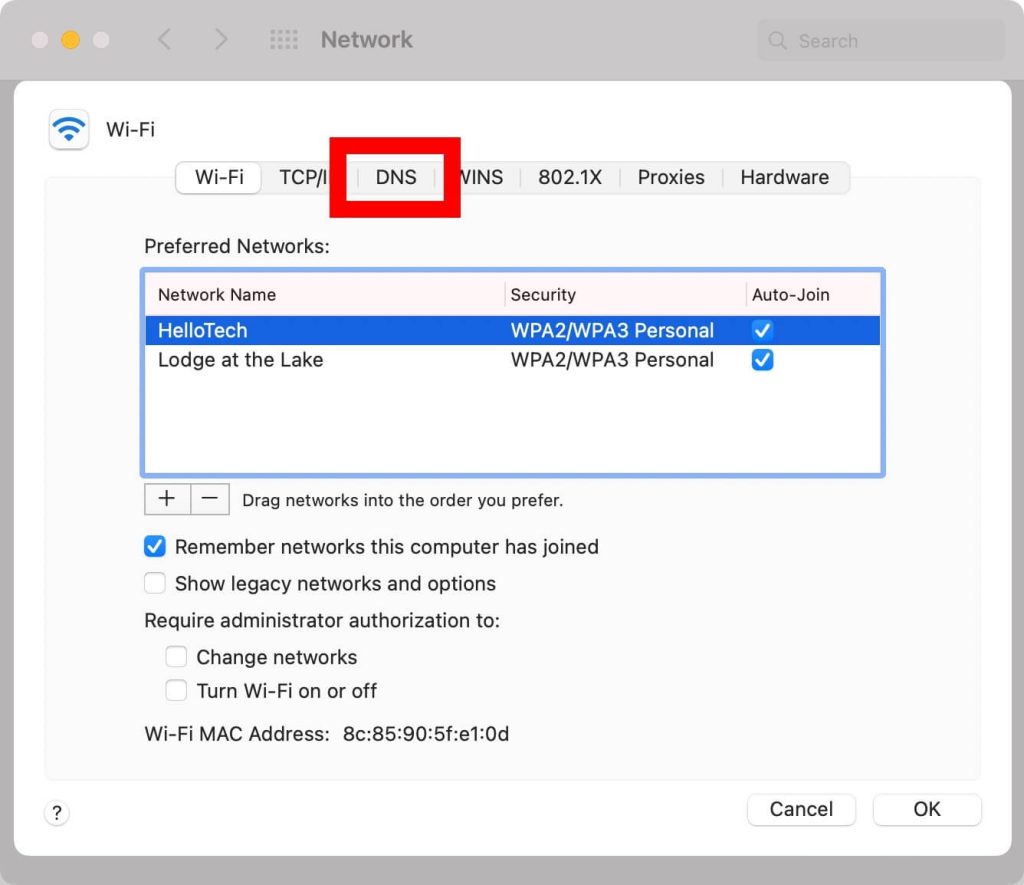
Step 7: Select the plus (+) icon below the pane for the DNS Servers list. A text input field would come up in the list. You can manually add the DNS address you will use and click on “Return” after that.
For example, if you want to access the Google DNS address, all of the addresses are given before after clicking on the plus icon.
- 8.8.4.4
- 8.8.8.8
- 2001:4860:4860::8844
- 2001:4860:4860::8888
The two addresses on top are IPv4 addresses, while the third and fourth ones are IPv6 addresses.
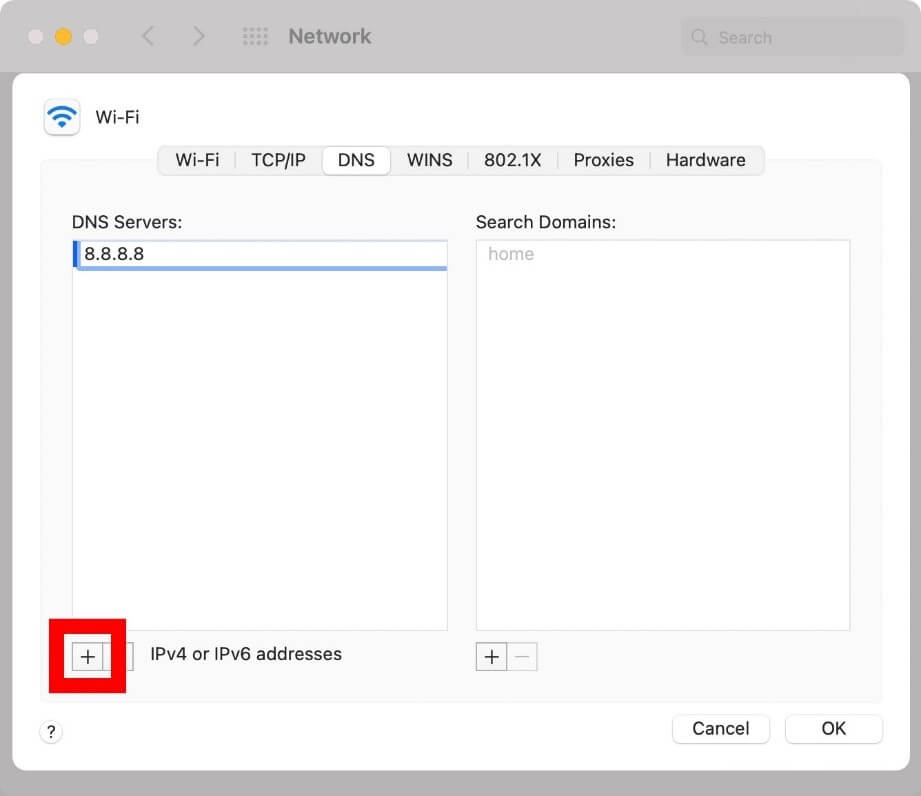
During the entry addition period, you can replace any greyed-out entries that appear to change DNS server settings. However, it is possible to delete them.
Step 8: After that, you have to add the primary and secondary DNS addresses. To resolve an URL entry when you try to change DNS server on Mac, the system would prompt about the first DNS server entry on the list. If there is zero response, it will switch to the entry after that. This continues until the system queries every server or until they receive a response.
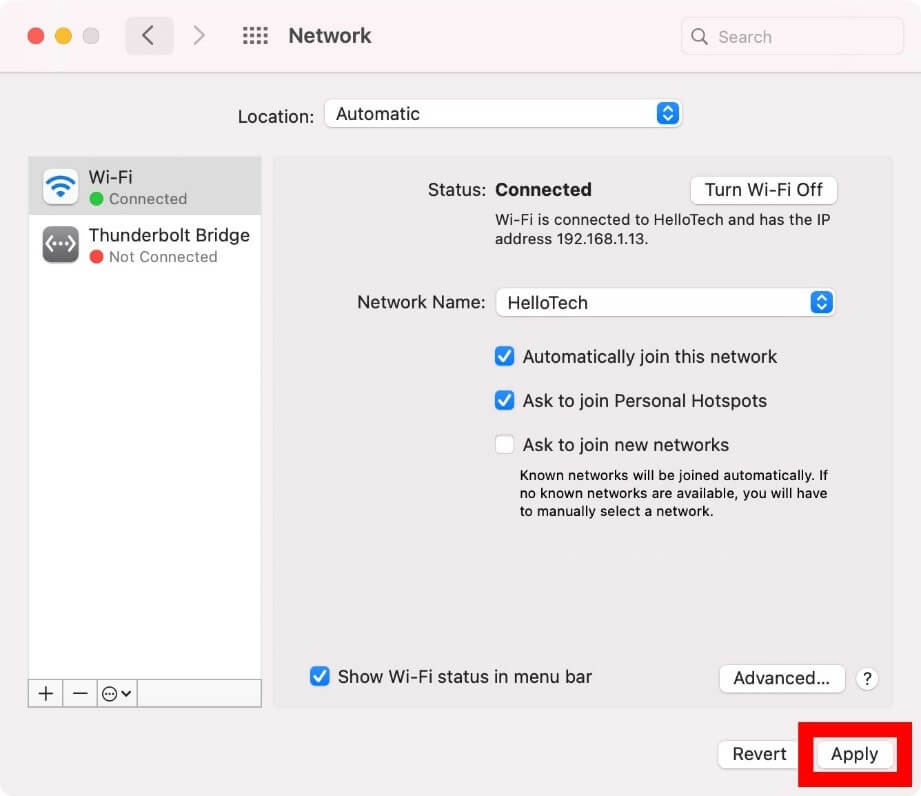
Step 9: After this, you have to click on the “OK” button, which will take you back to the pre-opened “Network” window.
Step 10: Then, you have to select the “Apply” button. It would activate the changes you made.
What are the suitable third-party DNS Servers to use?
To change the DNS server on Mac, users can operate third-party DNS servers. The standard options include Google Public DNS, OpenDNS, and Cloudflare. They are secure, contain a comprehensive database of IP address options, and assure high privacy and speed support. All three options provide usable primary DNS addresses and secondary DNS addresses.
The DNS addresses for each are:
- Google Public DNS- 8.8.4.4 and 8.8.8.8
- OpenDNS- 208.67.220.123 and 208.67.222.123
- Cloudflare- 1.0.0.1 and 1.1.1.1
Conclusion
The methods available to change DNS server settings for Mac devices are straightforward, so follow the sequence carefully. Make sure that you have an administrator account/password and access to one or more types of DNS IP addresses. Install and use the MacPaw CleanMyMac X software for safe device cleanup additionally.
We have other such posts available. If you found this helpful, please give them a read.
Author Bio:
Dinesh Lakhwani 

Dinesh Lakhwani, the entrepreneurial brain behind “TechCommuters,” achieved big things in the tech world. He started the company to make smart and user-friendly tech solutions. Thanks to his sharp thinking, focus on quality and the motto of never giving up, TechCommuters became a top player in the industry. His commitment to excellence has propelled the company to a leading position in the industry.
Popular Post











Recent Post

How To Fix Issues Downloading from the Microsoft Store On Windows
Introduction: Downloading apps from the Microsoft Store should be a simple task. You open the Store, search for an app, and click install. In most cases, the process works without any problem. However, there are times when the download does not start. In some cases, it may stay stuck at a certain percentage. You may […]

How To Fix Windows Update Issues Easily On Windows [2026]
Introduction Windows updates play an important role in keeping a computer stable and secure. They bring new features, fix known bugs, and improve overall performance. When updates work as expected, the system runs smoothly. However, when they fail, users often face slow performance, missing features, or security risks. This is why it becomes important to […]

How To Check If Your PC Is Infected? [Complete Guide]
Computers now sit at the center of almost everything we do. Well, yes! From sending emails to watching videos, we depend on them without much thought. Because of this, even a small issue can disrupt daily tasks. One common problem is hidden malware. It does not always show clear signs at first. It can enter […]

Repair Apps And Programs: Repair Apps That Aren’t Working
Computers have become an essential part of everyday life, supporting work, study, communication, and entertainment. Most of these activities rely on apps and programs, so when one stops functioning, even simple tasks can be disrupted. Common problems include error messages, frozen screens, or apps that fail to open. On Windows systems, such issues often arise […]

Troubleshooting Microphone Privacy Settings: Complete Guide
Sound is a basic part of how we use computers today. People attend meetings, record audio, speak to others, and use voice tools almost every day. A working microphone makes all these tasks easy. When the microphone fails, even simple work becomes difficult. Many users first think the device is broken. In reality, the issue […]

Windows Sound Settings – Sound Control Panel: Complete Guide
Sound plays an important role in how we use a computer every day. It supports both work and leisure. You need it for meetings, videos, music, and alerts. When audio fails, even simple tasks become difficult. Many users feel stuck when sound issues appear. This usually happens because they are not familiar with Windows Sound […]

Run a Troubleshooter For PC Issues Windows: Complete Guide
A computer plays an important role in everyday life. People use it for work, study, communication, and entertainment. When a problem appears, it can interrupt everything. Even a small issue can waste time and create frustration. Many users feel unsure about how to fix such problems. They often think they need expert help. In reality, […]
![Adjusting Audio Output Settings Complete Guide [2026]](https://www.techcommuters.com/wp-content/uploads/2026/03/Adjusting-Audio-Output-Settings-Complete-Guide.webp)
Adjusting Audio Output Settings: Complete Guide [2026]
Sound is part of almost everything we do on a computer. It lets you watch videos, join calls, play music, and hear alerts. When the audio stops working the right way, it can interrupt both work and daily use. That is why adjusting audio output settings matters for every user. Many people get unsure when […]

Artificial Intelligence Explained: Concepts, Terminology, Benefits, and Future Trends
Artificial Intelligence, or AI, is basically computers doing things that usually need a human brain. We’re talking about stuff like learning from experience, figuring out problems, understanding language, and making decisions. It’s not magic, just a lot of data, pattern-spotting, and math behind the scenes. Now, AI doesn’t actually think or feel like we do. […]

Resolving Microphone Detection Problems: Latest Guide [2026]
Microphones are important tools in daily life. People use them for office meetings, online classes, interviews, gaming, customer support, and content creation. When a system fails to detect a microphone, communication stops at once. This situation can cause stress and confusion. Many users believe the microphone is damaged. In reality, most problems are simple and […]

