How To Archive Your Emails For Free

Last updated on May 10th, 2025 at 2:46 pm
Introduction
For professionals and regular users alike, email is one of the most common modes of communication available. In the work context, officials use email to compose and send important messages and notifications to other workers, superiors, or customers. For example, many use emails as a medium of promotion and broadcast specific alerts for clients, like product purchase notifications.
One can also utilize other software to Archive older emails without deleting them or turning them into spam. Steps are available for keeping older emails safe without additional costs. Read ahead to know more about it.
Methods to Archive Emails in Different Service Providers for Free
There are different types of service providers available that people use to compose and send their emails. Some, like Outlook or Gmail, are used by organizations and individuals equally. We tried out the methods to Archive older emails for multiple such providers and detailed the steps involved here. To know about them, read ahead.
Method 1: Archive Emails via Outlook
Outlook is a common choice for many users due to its high capacity for email content, multi-OS compatibility, and simple usability. After archiving emails, the messages are transferred to the Archive folder under Outlook. However, they fall under the allotted storage limit, so keep the most crucial email content to avoid storage issues later.
In Outlook, folders like Archive, Sent Items, and Items have default configurations, and users cannot make any modifications. However, it is possible to archive older emails for IMAP and POP account holders. This is because one can create a new folder or turn an older folder in the archive section.
How to do this?
Step 1: Access the Outlook application on your desktop.
Step 2: Open the Inbox section and click on the message you want to archive.
Step 3: Choose Home > Archive.
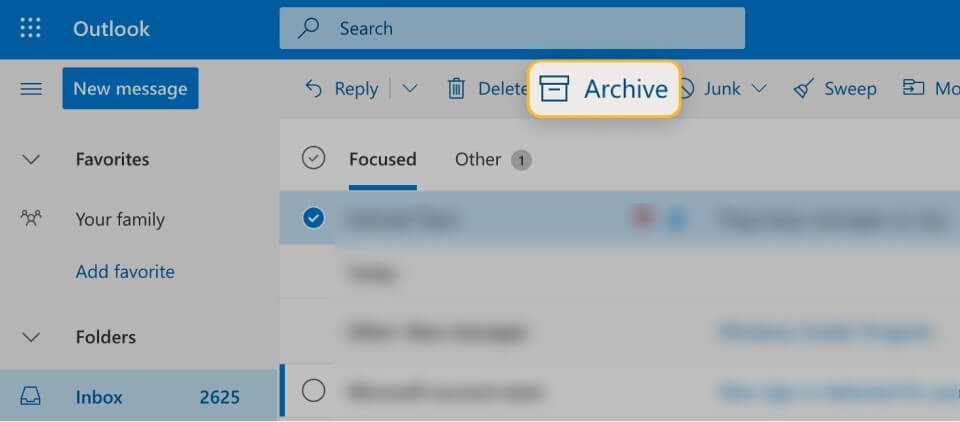
Step 4: Afterwards, you can access the email archive section of Outlook to find the stored email. You can open it through the Archive folder on the left-hand-side screen panel.
Step 5: Under the mobile app version or Outlook Online, you can find the “Archive” option from the top toolbar after choosing the email from the Inbox.
Method 2: Archive Email via Gmail
Gmail is another top service provider for emails globally and has a wide user base. It offers users 15 GB of Cloud storage for free, and a small section of it is allocated for archived emails. Overall, the content in the cloud storage enters from all associated Google apps of a user. So, knowing the right way to organize archived emails is vital to avoid losing any important message by mistake.
When you archive older emails on Gmail, they no longer appear in the Inbox but are not deleted. However, they are available under All Mail. In case you get a reply to an email you archive, that automatically comes up in the Inbox folder. Archiving the messages keeps them stored until a user intentionally deletes or moves them.
How to do this?
Step 1: Open your Gmail account.
Step 2: Hover your cursor on top of a message when you open the desktop Gmail version- multiple icons will appear on the right side of the selected message. Choose the “Archive” option from them.
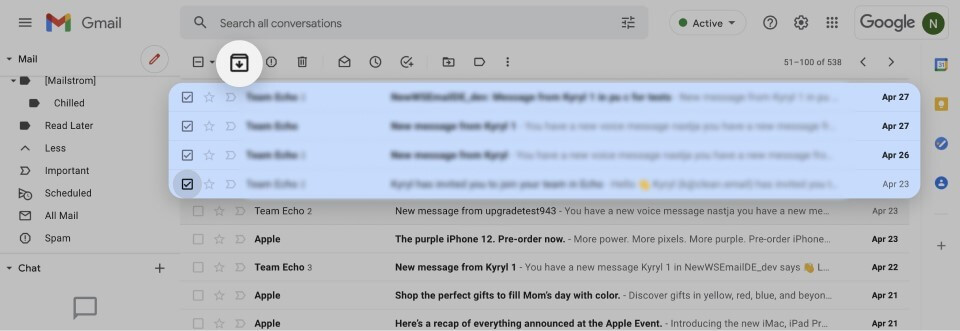
In the mobile app version, you can press hold on the message to show the icons on top of it and select Archive.
Step 3: Later, you can find the “All Mail” tab from the left pane to find the messages you archived.
Step 4: Click on the text field of the search bar for all conversations, and type in specific keywords for the message. For example, if you are looking for your email on holiday leave, search by “Holiday” or “Vacation”, as you had mentioned in the original email.
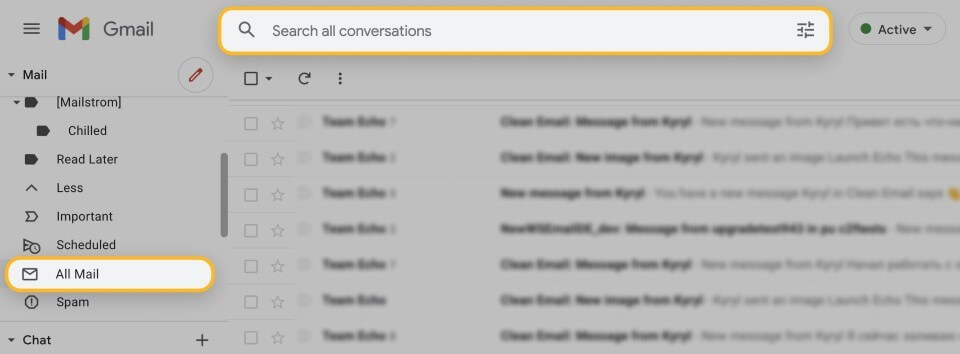
Step 5: In case it is hard to find the right message, add terms like
“has:nouserlabels”, “in:Sent”, etc.
Method 3: Archive Emails via the Mac app
In Mac devices, a specialized Mail app is available for users to register. There is an archive mailbox under it as well for storing emails for free. It is available through the sidebar of the mail, and they do not leave the mailbox until someone intentionally removes them.
How to do this?
Step 1: Access the Mail app on your Mac device.
Step 2: Click on a message or a thread of messages. For the latter, all messages under that conversation thread shifts to the archive folder.
Step 3: Open the toolbar of the Mail app and choose Archive.
Step 4: You can open the Archived messages from the Archive mailbox.
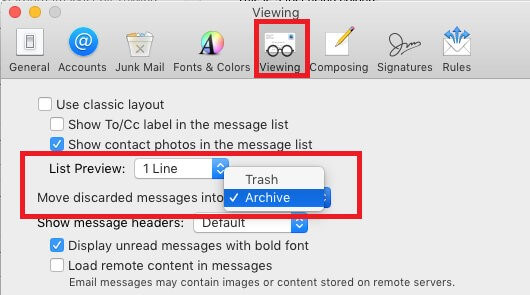
Step 5: To move them from the Mac Mail notification section, access the app > Viewing Preferences. Find “Move Discarded Messages” out of the resulting list and opt for Archive.
Method 4: Archive Emails via iCloud.com
You can archive older emails in iCloud through the Mail app. Here, you can freely store email messages from other email service providers with some steps.
How to do this?
Step 1: Through the Mail sidebar, choose the Archive folder to open.
Step 2: Drag a message you want to archive to this folder. In case the folder does not appear openly, choose the Folder icon and then click on the Archive option from them.
Step 3: To see the archived emails, open the Archive folder through the sidebar and choose the message you want to view again. Drag it directly to the inbox folder (or other folders, if necessary).
Conclusion
Email overloading can become a huge issue for many companies and regular users. This is because users have to focus longer on email management than other crucial activities. With the steps methods here, you can archive hundreds of different emails with some clicks and make the email management process simpler.
Like this, other guides are available here; read those posts to know about other topics.
Author Bio:
Dinesh Lakhwani 

Dinesh Lakhwani, the entrepreneurial brain behind “TechCommuters,” achieved big things in the tech world. He started the company to make smart and user-friendly tech solutions. Thanks to his sharp thinking, focus on quality and the motto of never giving up, TechCommuters became a top player in the industry. His commitment to excellence has propelled the company to a leading position in the industry.
Popular Post











Recent Post

How to Switch Windows 10 to a Local Account: Complete Guide
Windows 10 allows users to sign in with either a Microsoft account or a local account. When you set up a new computer, the system often suggests using a Microsoft account. This account connects your device to Microsoft services such as Outlook, OneDrive, and the Microsoft Store. It also syncs settings, themes, and passwords across […]

How To Change Default Apps For File Types In Windows
Windows is designed to make using your computer easy. One way it does this is by assigning default apps to different file types. This means when you open a file, Windows automatically opens it with a specific program. For example, photos may open with Photos, music with Groove Music, and PDFs with Edge. These default […]

How To Adjust The Mouse Pointer Speed: Complete Guide
Using a computer every day means you use the mouse a lot. The mouse pointer moves on the screen and helps you click, scroll, and select items. Many people never think about the speed of the mouse pointer. They have used the default setting for years. This can cause small problems over time. A slow […]

How to Change Mouse Scrolling Settings In Windows
A mouse is one of the most used computer tools. People use it every day. They scroll through emails. They scroll through documents. They scroll through websites and images. The movement becomes automatic. Most users do not notice it. That is why problems often go unnoticed. Scrolling problems show up slowly. At first, it feels […]

Keyboard Light Settings: Keyboard Lighting Control [Complete Guide]
Keyboards are no longer simple typing tools. Well, yes! Over time, they have evolved to include features that improve comfort, visibility, and overall experience. One of the most useful features today is keyboard lighting. It helps users work comfortably in low-light conditions. It also reduces strain when typing for long hours. Many users first notice […]

Customizing Pointer Appearance: Complete Guide
The way your mouse pointer looks on your computer may seem like a small detail. But customizing pointer appearance can make using your PC more comfortable and visually appealing. Many users do not realize that they can change the pointer size, color, and style to fit their needs. Whether you want a bigger pointer for […]

How To Choose a Computer Monitor: Monitor Buying Guide
Buying a monitor looks easy. Many people think all screens are the same. That belief causes regret later. A monitor is not just a display. It is a daily tool. You read on it. You work on it. You relax with it. Small problems become big over time. Poor brightness hurts eyes. Bad size causes […]

How To Get Help With File Explorer in Windows 11 [Complete Guide]
File Explorer is one of the most important tools in Windows 11. It is used to open folders, view files, and manage stored data. Almost every action on a Windows computer depends on it in some way. When users open documents, save downloads, or organize photos, File Explorer is always involved. Because it is used […]

How To Fix A Frozen Computer: Complete Guide [Windows 11/10]
A frozen computer is one of the most common problems Windows users face. The screen stops responding. The mouse pointer does not move. Keyboard inputs do nothing. You may hear the fan running loudly. Sometimes the system looks alive, but nothing works. This situation often happens when you are busy or working on something important. […]

How to Upgrade Computer RAM: Complete Guide
Upgrading RAM is one of the simplest ways to improve a computer. It helps the system feel faster and smoother. Apps open quicker. Browsers handle more tabs. Games and tools run with less delay. Many users search for how to upgrade computer RAM because it gives real results without high cost. You do not need […]

