Review FlexClip v2.7 – Is it the Best Online Video Editor?
Last updated on June 2nd, 2024 at 3:17 am
We love to make videos and advanced editing features of the best video editor software make it easier to save those precious moments in the most beautiful way. These smart video maker & editor tools help you perform numerous tasks effortlessly.
If you’re in the search of the best video maker tool, then you should try FlexClip. This simple yet powerful video maker tool not only helps you create beautiful videos, but you can also use it for free to start your video making journey. Let’s review FlexClip to know what makes it the preferred choice of professionals and amateur alike.
Note: We’ve covered features of both free & paid version of FlexClip.
What is FlexClip?
FlexClip is a free-of-cost online video maker & editor that offer something for everyone. Using the tool you can create amazing videos, add voice-over, make slideshows, create vlogs, ads, and more. Available both as free and paid, this tool doesn’t confuse users.
Note: For the purpose of review, I am using the Business Plan.
FlexClip Benefits:
- FlexClip has free version with no hidden charges.
- Trim videos without compromising the quality.
- Add both video and photos to make great videos.
- Record voice to make video interactive.
- Easy and quick to mount video of varying complexity.
- Support popular file formats for download.
- Multilingual
FlexClip Features:
FlexClip gives the power to create, edit, convert, or compress video. Here’s what the program is designed to do:
Create –
Business
Lifestyle
Social Media
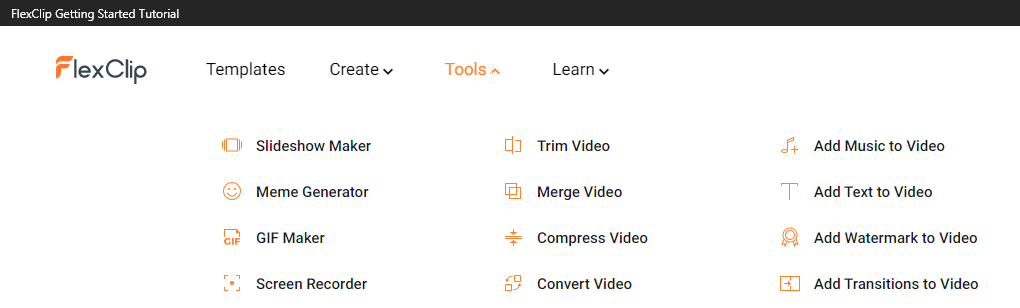
Tools –
- Trim Video
- Add Music
- Add Text
- Video Watermark
- Video Merger
- Record Voiceover
- GIF Maker
- Screen Recorder
- Convert Video
- Media Library
- Split Video
- Zoom Video
- Rotate Video
- Photo to Video
- Video Resolution
- Aspect Ratio
Most importantly this video recorder offers a royalty-free, rich content library.
Learn –
- Video Editing
- Video Recording
- Video Marketing
- Video Conversion
- Social Media
FlexClip Free vs. Paid
Without comparing the difference between the free and paid version this review will be incomplete. Like all video editors, you unlock more features with a subscription.
Before we get into details let us know the similarities.
- Both free and paid version offers the same range of video templates
- Same tools and special effects controls
- Cloud-based editing
- Downloadable Windows desktop app for offline editing
Both versions work great, however, the paid plan offers a few things more like:
Video Output Quality
The free version of FlexClip can only export 480p SD videos while paid version supports high-definition video, allowing downloading of up to 1080p full-HD videos.
Project Count
Free FlexClip video editor can only hold up to 12 projects while paid version offers up to 1000 projects per user.
What makes FlexiClip the best video editor?
- Stock Content Availability
With tons of stock videos, photos, music, and more FlexClip, is one of the best online editing programs. However, if you are using the free version, you can use only one stock video per project. However, the paid plan allows unlimited usage of available content.
- Video Length
The paid version allows creating videos for up to 30 minutes while the trial had a video cap of up to one minute.
- Watermark
Both free and paid versions are free of a FlexClip watermark and paid version offers a customizable watermark feature.
PROS
- Easy User Interface
- Thousands of templates are divided into categories to choose from
- Royalty Free Stock Videos & Music
- Web interface to access from any device
- Powerful editing tools
CONS
- No stock videos option in free version
- The free version is limited
How to use FlexClip Video Editor?
Using this online video editor is simple. Once you have downloaded you can either use the tutorial or can follow the steps below:
- Visit https://www.flexclip.com
- On the welcome screen, to create a video you will get two options –
Create by Templates
Start from Scratch
Pick any as per your choice.
If you choose to Create by Templates, you get a choice to select or search for a video template.

However, if you want to start fresh, you can select Start from Scratch. Here, again you will two modes to select from Storyboard Mode and Timeline Mode.
Storyboard Mode – helps build storylines and sort footage for quick edits
Timeline Mode – gives user complete control over the timeline. Using this mode, you can edit the minutest detail in the best possible and easiest way.
3. Once that is done, you will see the selected project.
4. Next, from the left pane click the Media option. You will find different options to add media –
Stock Media – gives you a vast library of Stock media from where you can search for videos and photos.
Local Files – pick the media saved on the PC
Recording (record screen & record webcam)
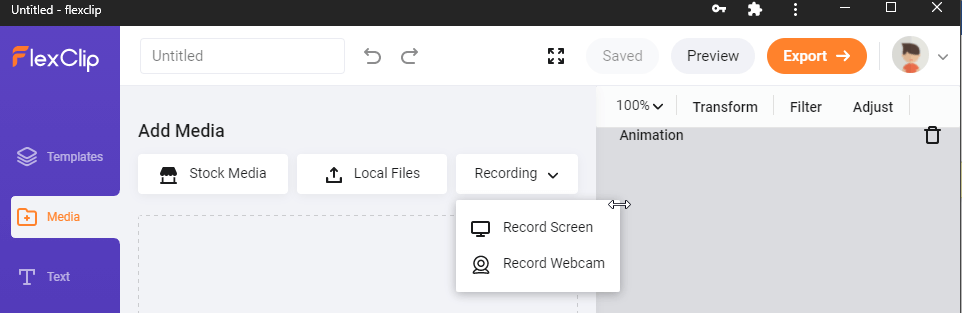
In addition to this, you can drag and drop new files also
5. To add Stock Media, click the option Stock Media, search for the media you are looking for and click the + icon to add them to media.
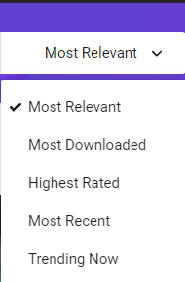
Clicking the down arrow next to the search bar gives options like Most Relevant, Most Downloaded, Highest Rated, Most Recent, and Trending Now.
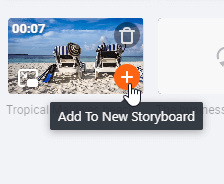
After adding the media if you want you can add selected media to Storyboard. To do so, select the added media and click the + icon.
You can also drag the file directly to the canvas.
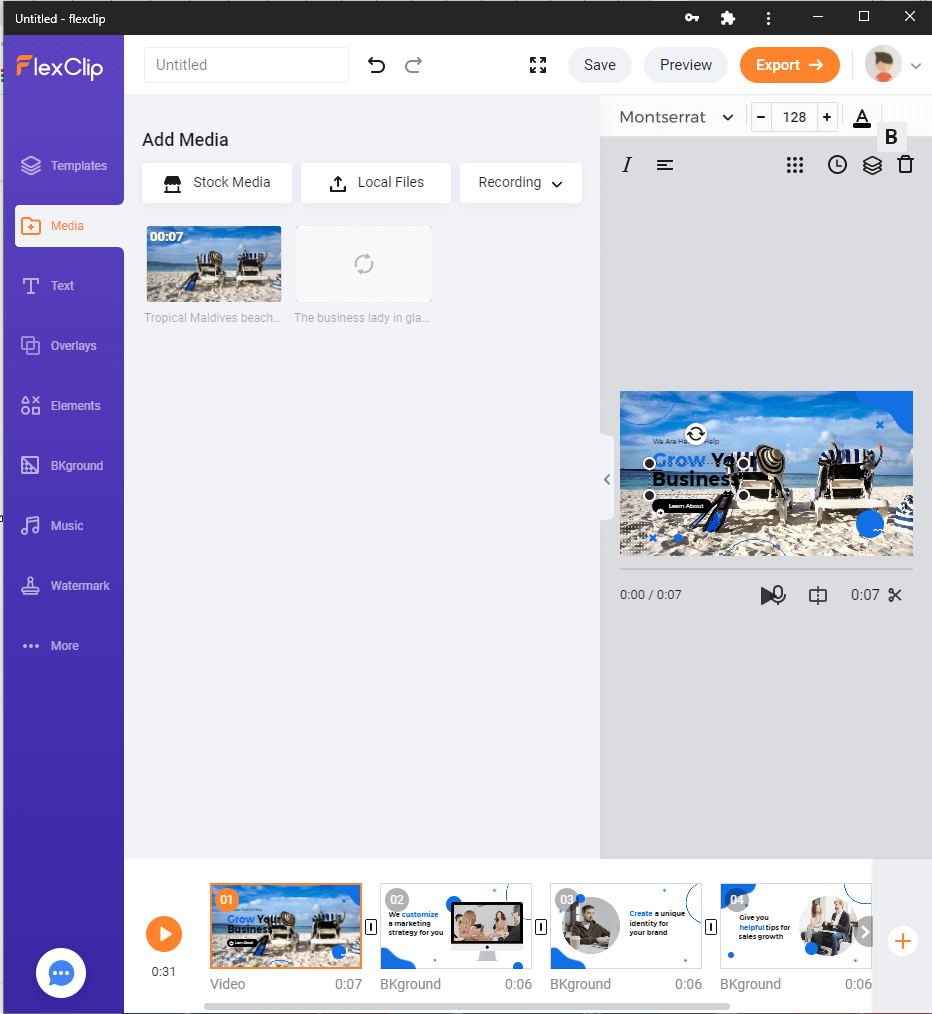
Tip – To make videos interactive, FlexClip allows creating PiPs.
PiP mode – Once the media is added to Storyboard, you can add different effects, set opacity, crop picture, fit video, and do a lot more. Storyboard allows adding unlimited pictures for PiPs.
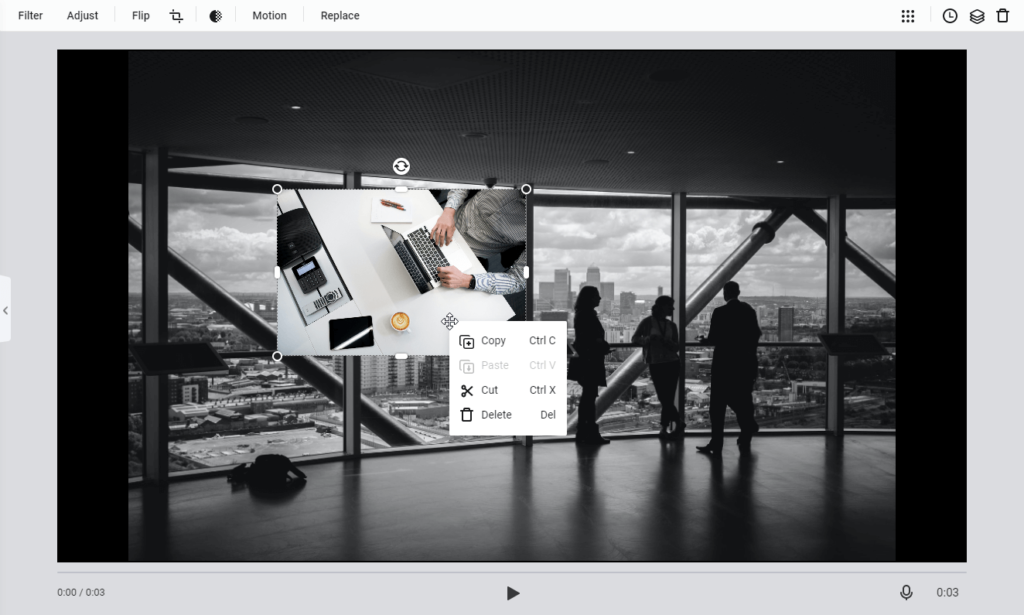
Video PiP
Here the difference is that every storyboard can only add one video to create PiP. You can drag and drop the video, adjust to fit, crop video, adjust opacity, and more.
Adjust Pip – After adding the PiP if you want to adjust time and image PiP user the time icon on the top right corner.
Crop PiP – Don’t like the way PiP appears use Crop tool to change PiPs shape. Also, you can decide on the part you want to show.

Using these steps, you can use Create By Templates. But say if at a later stage you want to add a new storyboard then? Simply click the + icon present at the end of the current Storyboard. You will again get three options to choose from:
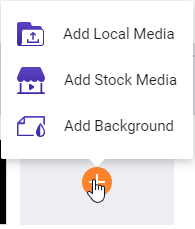
Add Local Media: Upload local videos or photos from PC.
Add Stock Media: Search millions of photos and videos from the stock media library.
Add Background: Create a storyboard with black background (default).
6. After making all the changes you are ready to manage Storyboard. To add a voiceover to the video press and hold the microphone  button.
To preview click the play  button. In addition, you can drag to rearrange the storyboard list.
7. Editing Video
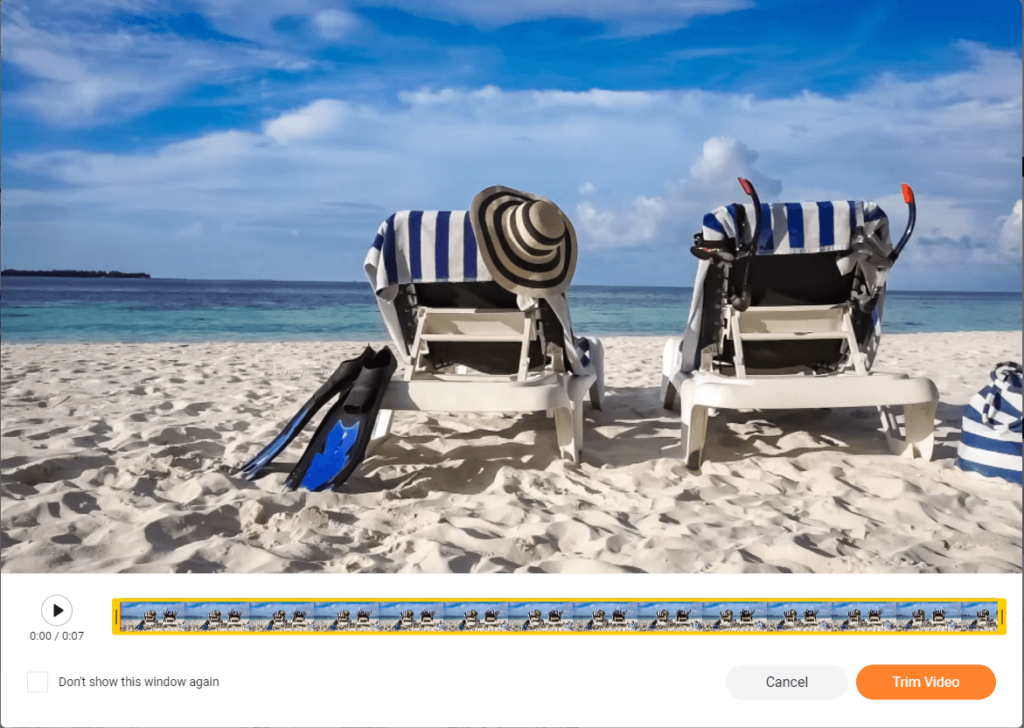
If you don’t want to use the complete stock or uploaded video, you can use the video trimmer to cut short the video. Click the  button > adjust the yellow trimming slider, preview the changes and that’s it.
Split – Use this function  to divide video into two clips.
Filter – Make your video look stunning by adding filters.
Adjust – Use this option to adjust brightness, contrast, exposure, temperature, tint and so on.
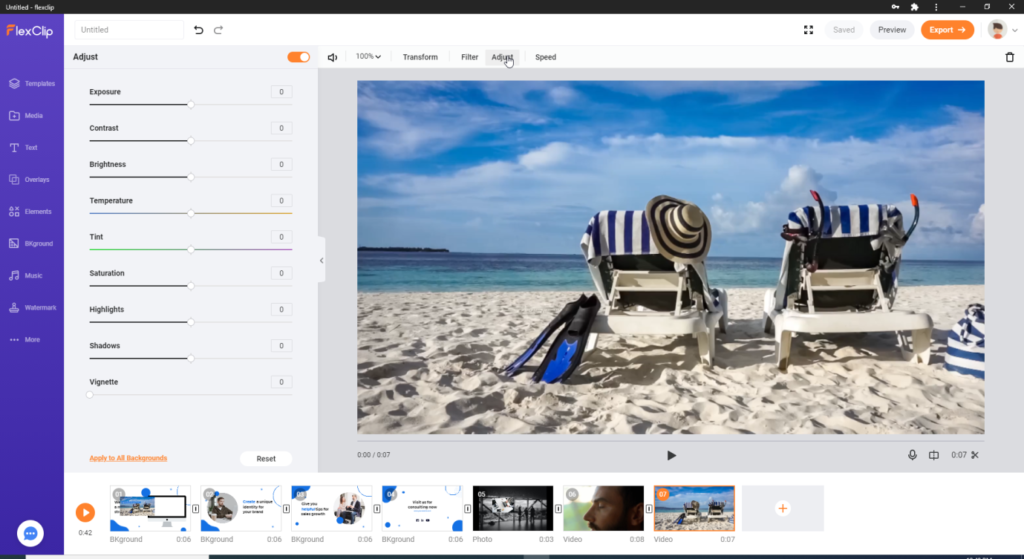
Speed – alter the speed of the video as per the requirement.
In addition to these options you can zoom, transform and delete the video.
8. Edit Photo
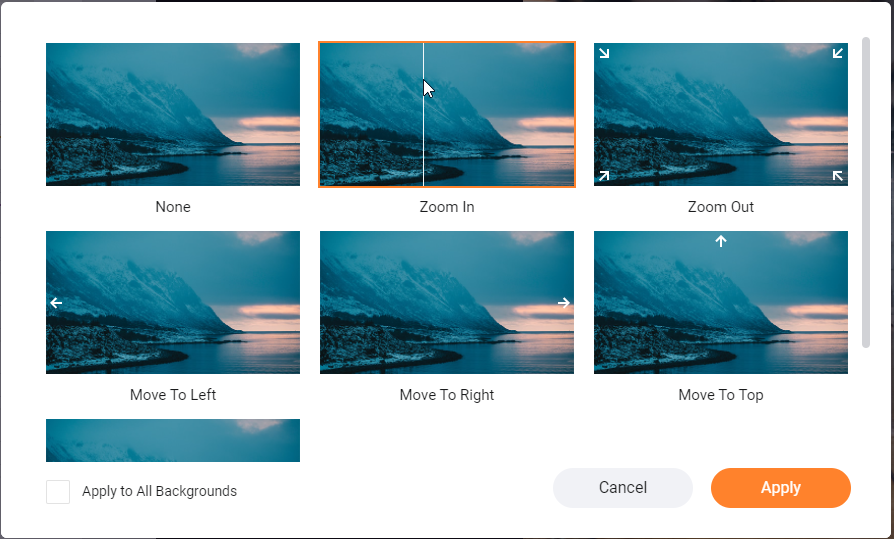
Like editing video you can edit added pictures, add animation and do a lot more.
9. Add & Edit Text
Now that things are almost done if you think something is missing try adding and editing text.
To do so, click the  button from the left pane and get to see a pre-built text animation:
Basic text and Dynamic Text.
Edit Texts
To add your own text double-click the text box, change its size by dragging corners, and move the video place to anywhere. To customize it further, click the text box and make the changes.
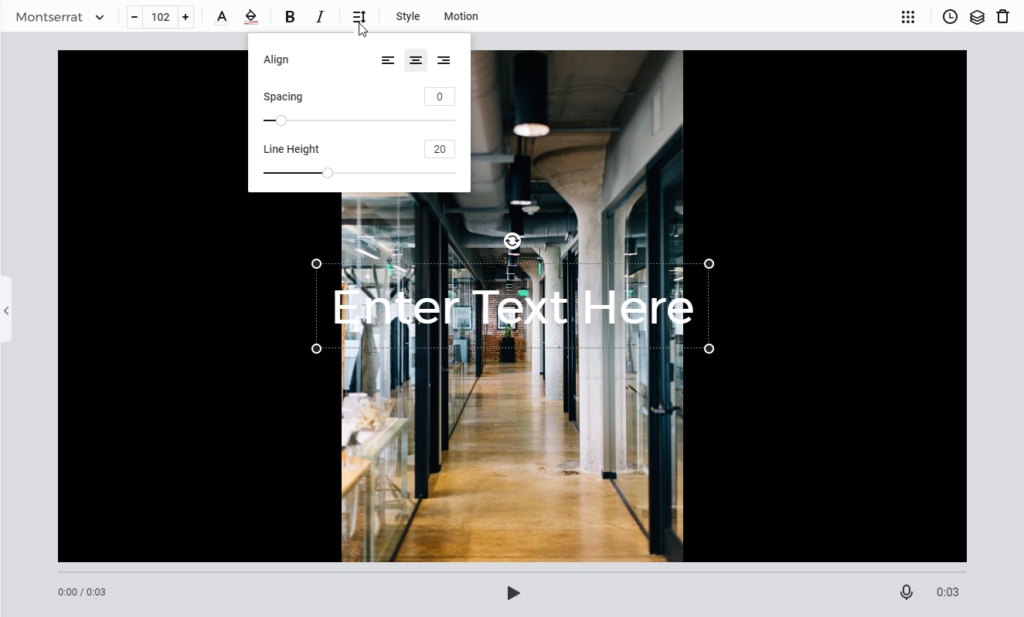
Text Style
FlexClip, alongside offering great features, also allows creating your own text. Select Style > if need be make adjustments and get the unique test.
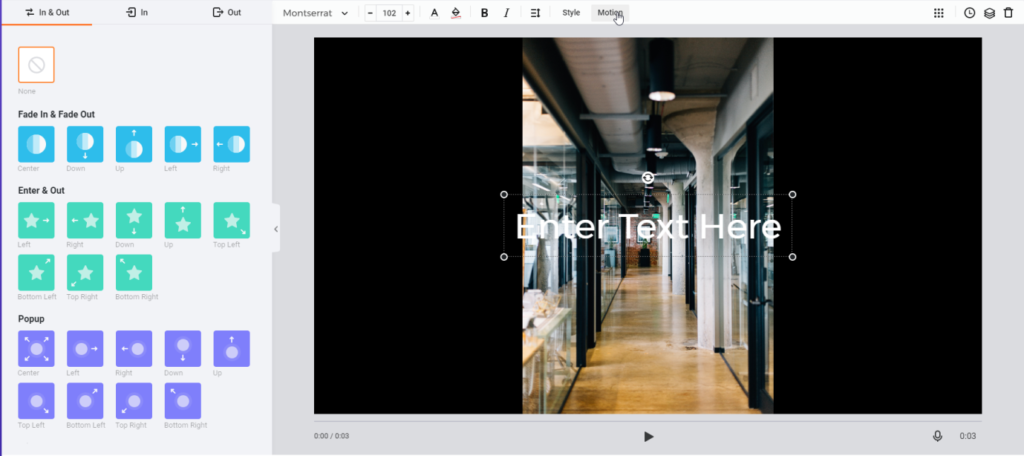
Want more? Use the Motion button to add text and create an effect that you want to.
10.. Add and edit overlay/logo – To make your videos mesmerizing, select and add a suitable logo. To add an overlay, click the Overlay button, use pre-designed templates and change the color if need be.
11. Add & edit element – Search from millions of elements to add them to video.
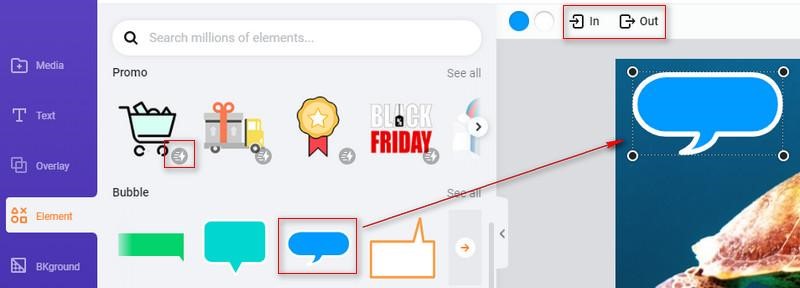
12 Rotate the video, flip & Opacity & Layer, add a background, transition effect, add or music edits. Fade in Fade out.
FlexClip Review – Verdict
Like any other video editor, FlexClip has its own strength and weakness. But this doesn’t mean it isn’t an effective tool. FlexClip offers a variety of templates, editing options, allows adding text, elements, modify images, videos, and a lot more.
All in all, FlexClip is the complete package tool, and it delivers good results. After trying the tool myself I did this review. We hope you will also give the tool a try and see what all can be created using this best online video editor.
Author Bio:
Dinesh Lakhwani 

Dinesh Lakhwani, the entrepreneurial brain behind “TechCommuters,” achieved big things in the tech world. He started the company to make smart and user-friendly tech solutions. Thanks to his sharp thinking, focus on quality and the motto of never giving up, TechCommuters became a top player in the industry. His commitment to excellence has propelled the company to a leading position in the industry.
Popular Post











Recent Post

Resolving Microphone Detection Problems: Latest Guide [2026]
Microphones are important tools in daily life. People use them for office meetings, online classes, interviews, gaming, customer support, and content creation. When a system fails to detect a microphone, communication stops at once. This situation can cause stress and confusion. Many users believe the microphone is damaged. In reality, most problems are simple and […]

How To Switch To A Dark Background Theme In Windows [2026]
Most people spend many hours each day in front of a computer screen. Office work, online classes, editing, browsing, and streaming all require long screen time. A bright white background may look clean at first. However, over time, it can feel sharp and tiring. The strong contrast between white backgrounds and black text may cause […]

How to Switch From Local To Microsoft Account On Windows
Many users begin with a local account when they set up a new Windows computer. A local account works only on that single device. It stores settings, files, and preferences locally. It does not connect to online Microsoft services. For basic offline use, it works well. However, as digital needs grow, many users want better […]

How to Switch Windows 10 to a Local Account: Complete Guide
Windows 10 allows users to sign in with either a Microsoft account or a local account. When you set up a new computer, the system often suggests using a Microsoft account. This account connects your device to Microsoft services such as Outlook, OneDrive, and the Microsoft Store. It also syncs settings, themes, and passwords across […]

How To Change Default Apps For File Types In Windows
Windows is designed to make using your computer easy. One way it does this is by assigning default apps to different file types. This means when you open a file, Windows automatically opens it with a specific program. For example, photos may open with Photos, music with Groove Music, and PDFs with Edge. These default […]

How To Adjust The Mouse Pointer Speed: Complete Guide
Using a computer every day means you use the mouse a lot. The mouse pointer moves on the screen and helps you click, scroll, and select items. Many people never think about the speed of the mouse pointer. They have used the default setting for years. This can cause small problems over time. A slow […]

How to Change Mouse Scrolling Settings In Windows
A mouse is one of the most used computer tools. People use it every day. They scroll through emails. They scroll through documents. They scroll through websites and images. The movement becomes automatic. Most users do not notice it. That is why problems often go unnoticed. Scrolling problems show up slowly. At first, it feels […]

Keyboard Light Settings: Keyboard Lighting Control [Complete Guide]
Keyboards are no longer simple typing tools. Well, yes! Over time, they have evolved to include features that improve comfort, visibility, and overall experience. One of the most useful features today is keyboard lighting. It helps users work comfortably in low-light conditions. It also reduces strain when typing for long hours. Many users first notice […]

Customizing Pointer Appearance: Complete Guide
The way your mouse pointer looks on your computer may seem like a small detail. But customizing pointer appearance can make using your PC more comfortable and visually appealing. Many users do not realize that they can change the pointer size, color, and style to fit their needs. Whether you want a bigger pointer for […]

How To Choose a Computer Monitor: Monitor Buying Guide
Buying a monitor looks easy. Many people think all screens are the same. That belief causes regret later. A monitor is not just a display. It is a daily tool. You read on it. You work on it. You relax with it. Small problems become big over time. Poor brightness hurts eyes. Bad size causes […]

