How to Fix System Thread Exception Not Handled Error Windows 10/11
Last updated on April 3rd, 2026 at 8:53 am
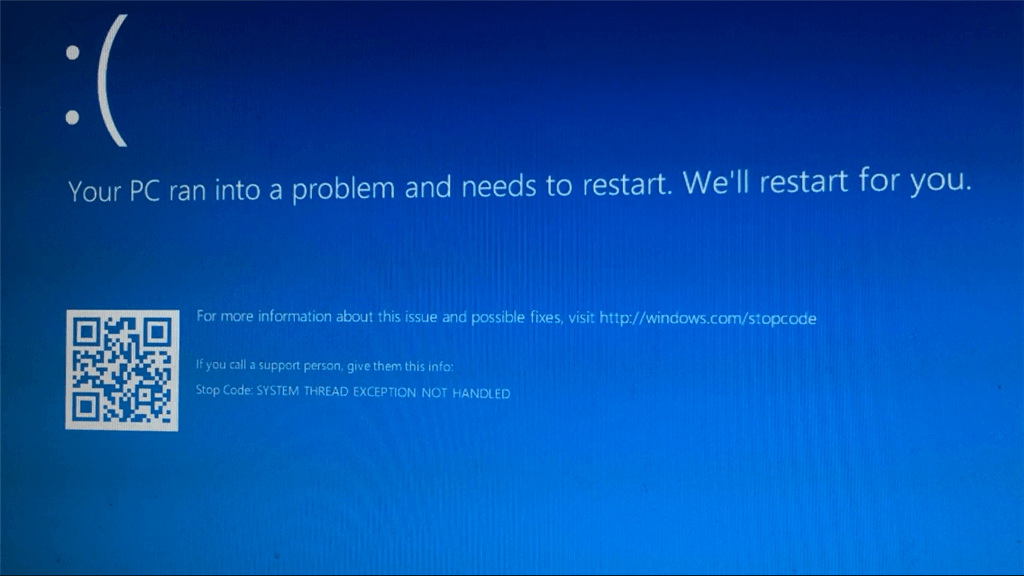
In Windows 11 or 10 devices, like any software, errors are possible for various reasons like defects in system parts, bugs, etc. When incompatible or outdated drivers are available, Windows users may notice one error code in particular- “system thread exception not handled”
But generally, it is more challenging to rectify this error compared to other BSOD types. After practicing many, we have compiled the best solutions we use to fix this internal system issue.
What Causes the “System Thread Exception Not Handled” Error?
This error usually appears when Windows runs into a problem it cannot recover from. It often leads to a blue screen and forces a restart. In most cases, the issue is linked to drivers, system files, or hardware conflicts. Understanding the cause helps you apply the right fix instead of trying random solutions.
- Outdated or incompatible drivers
Old or unsupported drivers can fail to work with newer Windows updates. This often triggers system crashes during startup or regular use. - Corrupted system files
If important Windows files are damaged or missing, the system cannot run properly. This can lead to unexpected errors like this one. - Faulty graphics driver
Display drivers are a common reason behind this issue. A broken or unstable graphics driver can crash the system quickly. - Recent Windows update issues
Sometimes a new update may not install correctly or may conflict with existing drivers. This can cause instability. - Hardware conflicts
New hardware or improperly installed components can create conflicts. The system may fail to recognize or manage them properly. - Overclocking settings
Running your CPU or GPU beyond safe limits can cause instability. This may result in system errors or crashes. - Third-party software conflicts
Some apps, especially security tools or system utilities, can interfere with Windows processes and cause errors. - Damaged or failing hardware
Issues with RAM, hard drive, or other components can lead to system failures. These problems are harder to detect but can trigger this error.
Ways to Fix the System Thread Exception Not Handled Problem in Windows 11/10
One can take multiple tactics to rectify the system thread exception not handled system issue. Here are the standard techniques we have tried that you can also use. For better user experience, we have detailed all steps, so follow them correctly.
Method 1: Run Complete Hardware Diagnostic Memory Check
This particular error can occur if the cause is related to a defective Windows 11 or 10 system memory. There is a Hardware Diagnostic Tool available on these devices. It would be best if you used it to check the condition of your system memory first when you notice the “BSOD thread exception not handled” issue.
How to do this?
Step 1: Press the Start icon from the Windows taskbar on the Homepage.
Step 2: Type in “Windows Memory Diagnostic” in the search bar. Click on the first result.
Step 3: Do as the instructions appear on the screen. Then, click on the “Restart now and check for problems” option when it appears. This will take some time.
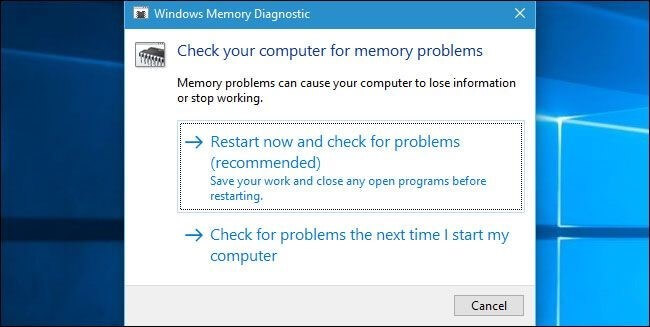
Step 4: After the process completes, the PC system will boot up again.
Step 5: When the system opens to the Homescreen again, press the Windows and X keys on the keyboard to access the Power Menu.
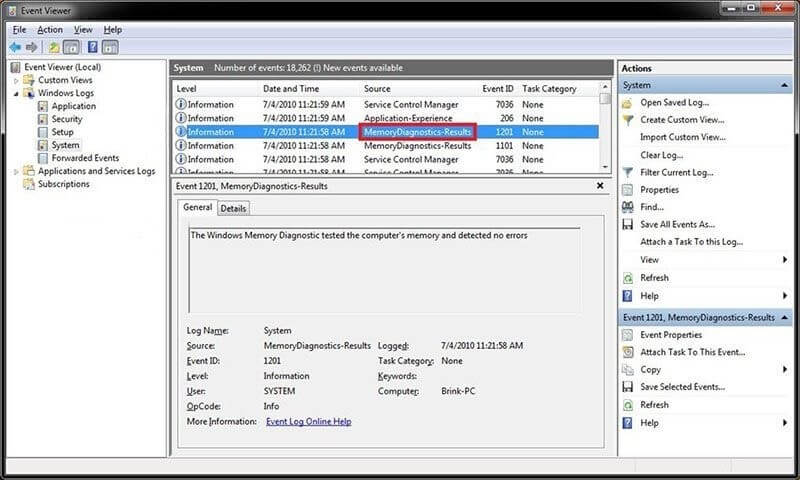
Step 6: Choose the “Event Viewer” option from the selections.
Step 7: Under the next window, scroll through the following path- Windows Log > System. View the memory diagnostics results to find the leading cause behind the “system thread exception not handled” stop code.
Method 2: Booting in Safe Mode
One of the best tactics you can use to fix the BSOD thread exception not handled problem is running the system in Safe Mode first. While booting the system in Safe Mode during the sign-in period, it is essential to follow specific steps carefully.
How to do this?
Step 1: Press the Start menu on the taskbar > click on the Power button.
Step 2: Hold down the “Shift” key on top of the Power button. From the drop-down menu, choose Restart.
Step 3: On the next page, click on Troubleshoot.
Step 4: Select Advanced Options.
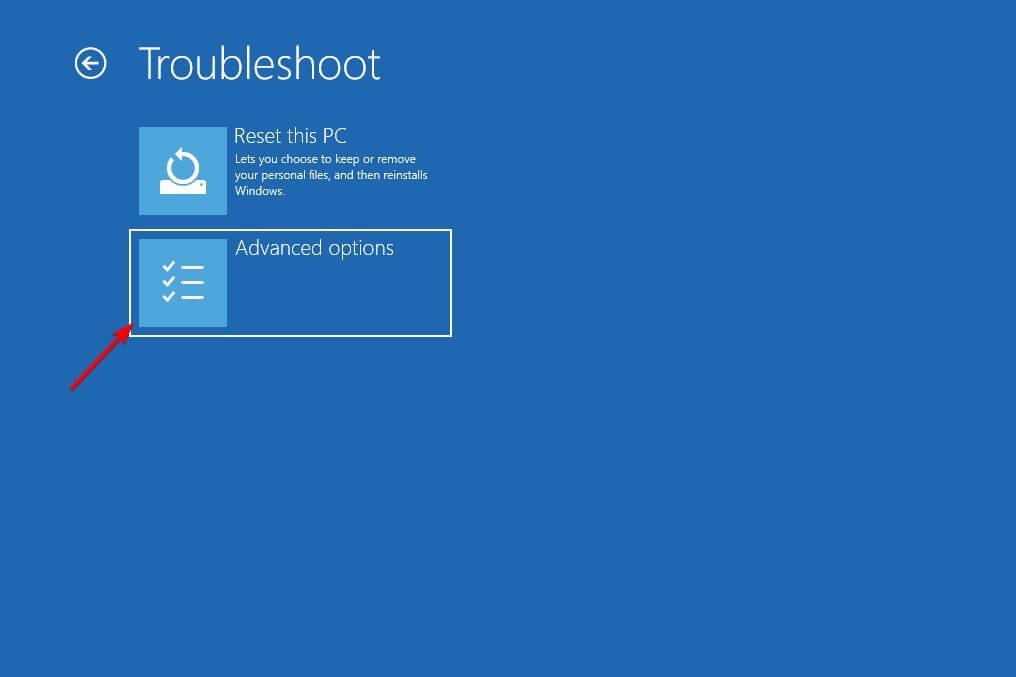
Step 5: In the next window, choose Startup Repair > Restart. The computer will begin booting up again.
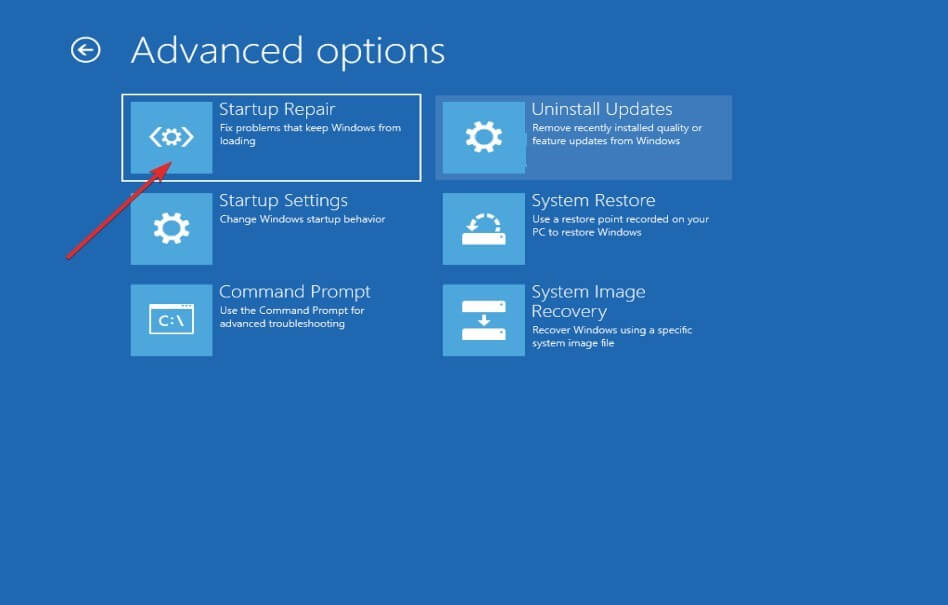
Step 6: Then, hit the ‘4’ key on the computer keyboard. Choose the right displayed menu option. It will shift the system into the Windows Safe Mode version.
Method 3: Find the Responsible Driver for the Defect through Troubleshooter
Knowing the leading cause of this system problem will help you take the proper steps to fix the problem. Here, the Windows Log works as a high-quality troubleshooting feature that effectively finds the damaged driver causing the problem.
How to do this?
Step 1: Press the Win and R keys on the device keyboard.
Step 2: Under the dialog box that appears for the Run action, type “eventvwr” in the text field. Press Enter.
Step 3: Next, scroll and click on Windows Log > Expand the menu > Press the System option.
Step 4: Search for the following file: system_thread_exception_not_handled.
The information on the problematic driver will come up.
For example, the “SYSTEM_THREAD_EXCEPTION_NOT_HANDLED (wificlass.sys) error” result indicates that the main problem is the Wireless driver-centric files.
Method 4: Repair the System Files
Sometimes, Windows users unknowingly store system files that are already corrupted. The presence of these can render the “system thread exception not handled” problem in Windows 11 or 10 PC. At this point, it is best to repair the harmed system files carefully using the Command Prompt solution.
How to do this?
Step 1: Click on the Windows Start icon.
Step 2: Type “Command Prompt” or “cmd” into the text box and then right-click your cursor on the first relevant result.
Step 3: Next, click on the “Run as Administrator” option.
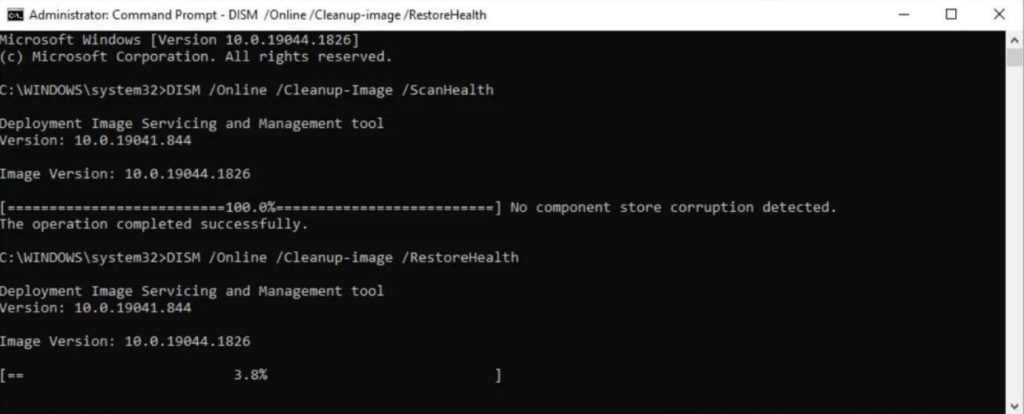
Step 4: When the Command Prompt dialog box opens next, you must add the following command: exe/Online/Cleanup-Image/Scanhealth.
Press Enter.
Step 5: Then, add this command next:
exe/Online/Cleanup-Image/Restorehealth
Again, hit the Enter button.
Method 5: Delete/Update/Rollback Drivers
Again, an outdated driver is the most common reason for the issue in question here. At this point, you must reinstall the proper driver after finding the one causing the problem or update the existing one that is outdated.
The latter is specific to situations where the driver has not undergone any new upgrades for an extended period. Alternatively, if the driver did get a recent update, the right solution will be to roll back the driver. If the driver is damaged beyond repair, deleting it will fix the “system thread exception not handled” error.
The separate steps for each are available in detail here.
How to uninstall damaged drivers?
Step 1: Tap the Start icon on the Windows Homescreen taskbar and type in “Device Manager” in the search bar that appears.
Step 2: Click on the Device Manager option.
Step 3: All the available drivers will appear in a list on the next screen. Users have to view and detect the impaired driver.
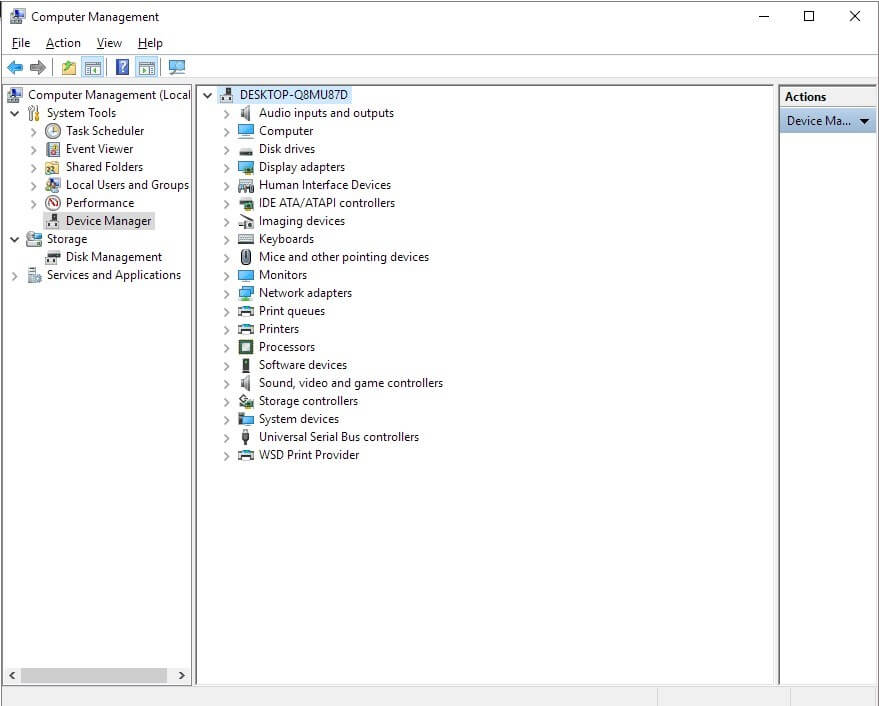
Step 4: Right-click your cursor on top of the driver that induces errors. From the drop-down menu that comes up, click on the Uninstall choice.
How to update the defective drivers?
Step 1: Tap on the Win and R keys on the device keyboard.
Step 2: In the next search field, type the term: devmgmt.msc. Press OK.
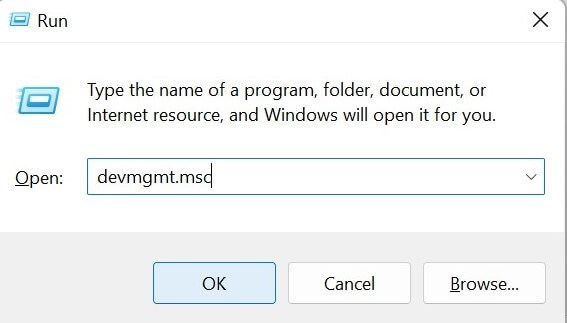
This will access the Device Manager.
Step 3: Choose the driver you are noticing the error in or the one you most recently upgraded, e.g., High-Definition Audio Device.
Step 4: Choose the driver and right-click on it > Press the “Update Driver” option.
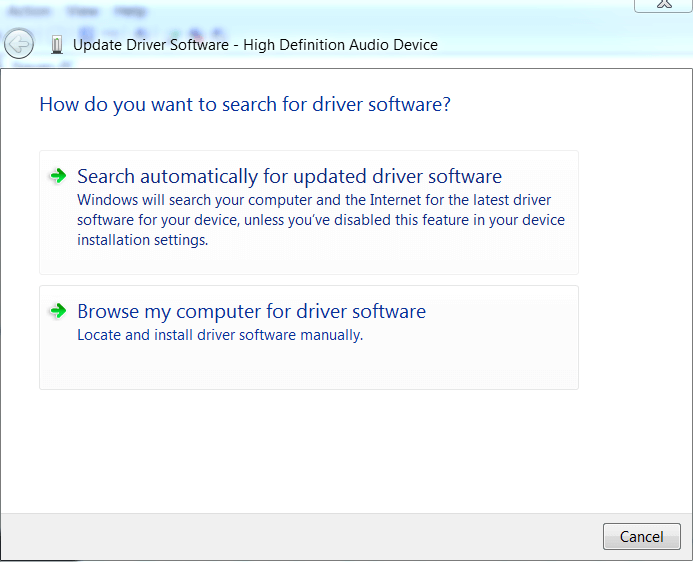
Step 5: In the next window, choose the “Search Automatically for Updated Driver Software” option. The device software will automatically begin the search and install the outdated ones.
How to roll back faulty drivers?
Step 1: Use one of the two sequences mentioned in the previous two sequences for opening Device Manager. There, find the right driver.
Step 2: Right-click on top of the selected driver > Press the Properties option.
Step 3: Access the Driver tab > Rollback Driver.
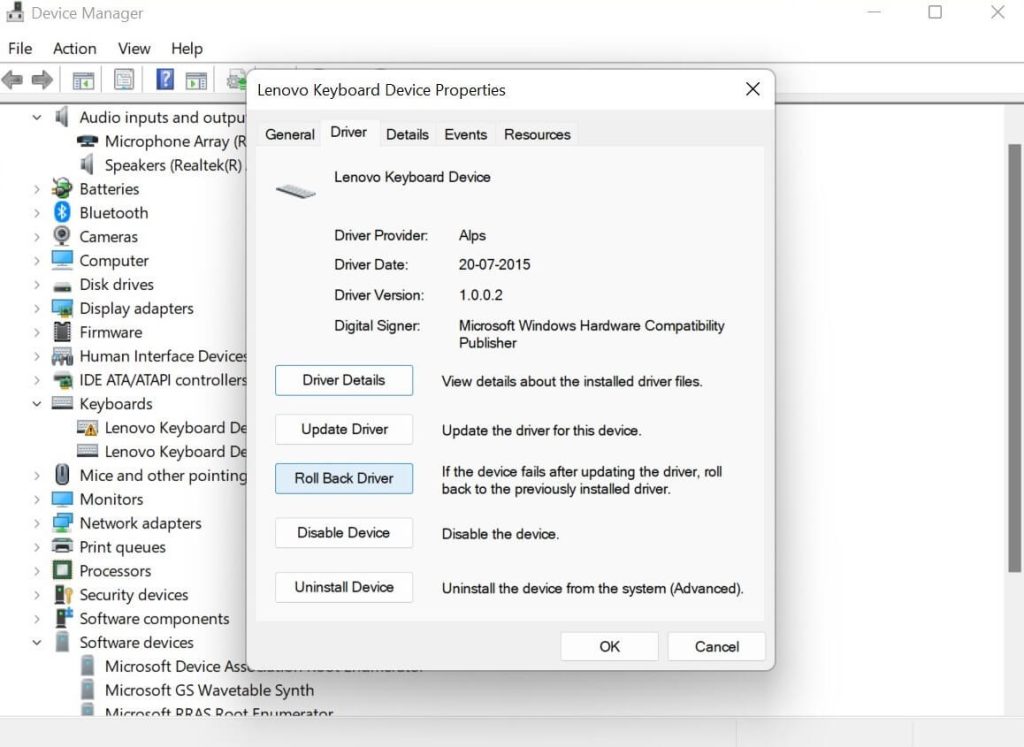
The Windows software will roll back your system to this driver’s most recently updated version.
Method 6: Uninstall any of the Incompatible Programs
A program in the PC operating system that is incompatible with it can cause severe issues in the operating system or device performance. The error of BSOD thread exception not handled can also happen due to this problem.
Comprehending which program is not working well with the Windows 11/10 device is challenging. Typically, one of the most recent ones that users download on their device cause such incompatibility, and the effects are noticeable quickly. So, installing those applications should work. If not, use options like IObit Advanced SystemCare 15 to find out the malfunctioning programs.
How to do this?
Step 1: Click your cursor on the Start menu on Windows 11/10.
Step 2: Choose Settings app > Click on Apps in Windows 10.
In some Windows 11 devices, press on the Apps & Features option under Apps.
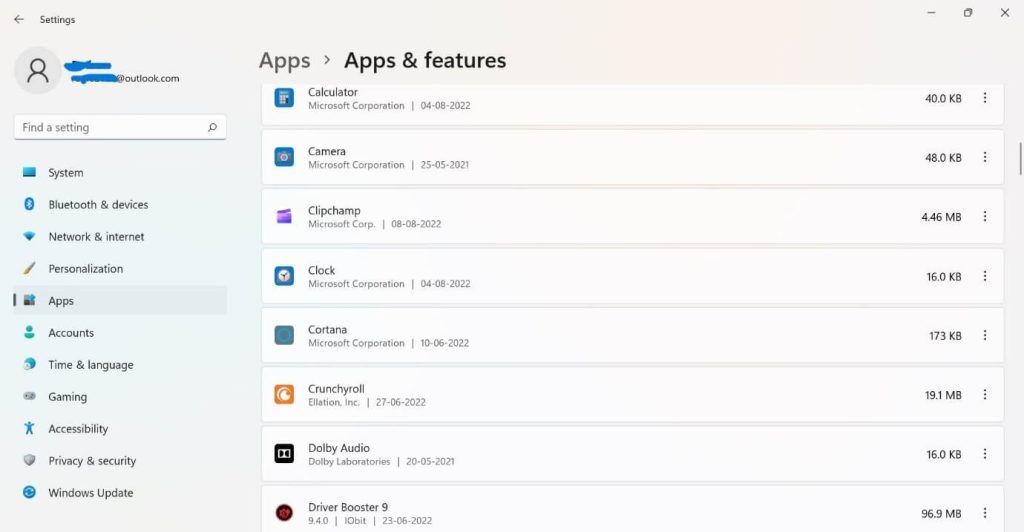
Step 3: A list will appear with multiple options given. Find and select the one program you installed most recently.
Step 4: Click on the program > Press Uninstall.
Method 7: Use SFC for System File Repair
Another technique that you can use to fix the problem at hand is using suitable system tools for it available in the Windows toolkit. DISM and SFC are handy tools that can cure many system issues when used together. The steps for DISM are mentioned in this article under Method 4, so operate that alongside SFC.
Preparing a specific system restore point is crucial when using this method. This is because the commands for DISM/SFC can alter some of the system files.
How to do this?
Step 1: Open the Windows device Start menu.
Step 2: When the search bar appears, type the “cmd” term in it. Press Enter.
Step 3: Right-click your cursor on top of the Command Prompt option > Choose to Run this as an administrator, as mentioned among the options.
Step 4: When the next console comes up, insert “SFC/scannow” and hit Enter.
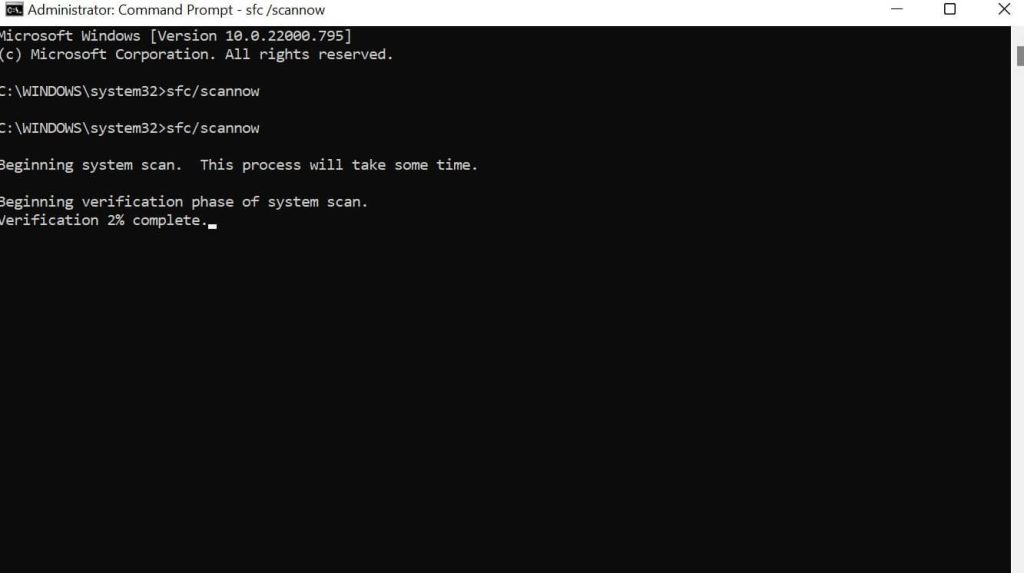
Windows will scan the command for some minutes and replace any corrupted system files available.
Method 8: Perform a complete System Restore
If the methods for fixing the error do not work out, you can restore the system functions entirely. That can repair the problem and return the system to its original condition.
How to do this?
Step 1: Go to the Windows Start menu and type in “Settings” in the search text field.
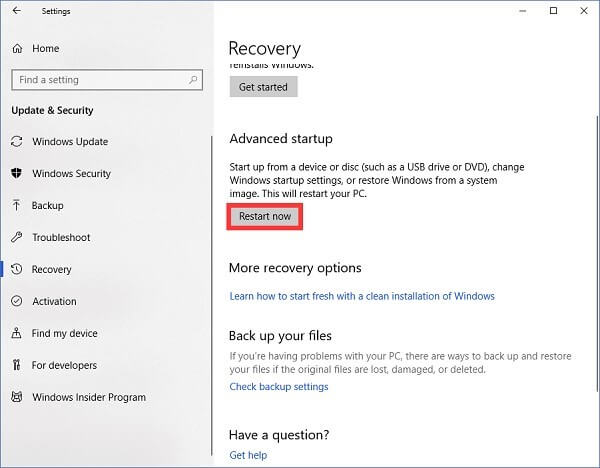
Step 2: Choose the “Updates & Security” option > Tap on Recovery.
Step 3: The Advanced Startup window will open. Press the “Restart Now” choice.
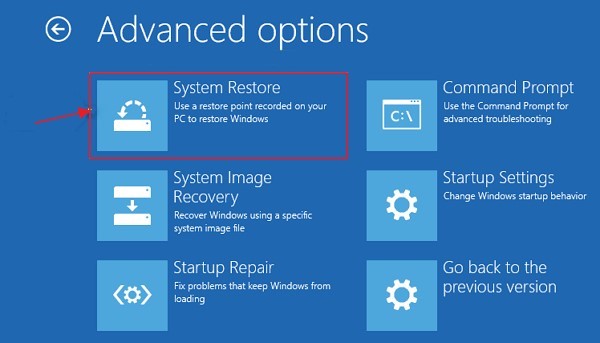
Step 4: Among the options, click System Restore.
Step 5: A window will appear with the account name and password prompt. Insert your details and press Enter. The system restoration will automatically begin.
Conclusion
You can use these methods to recover from the error of the system thread exception in your Windows 11/10 system. Follow the sequences mentioned to reboot your system, repair the defective parts, and repair the older drivers in your system. Then, you will notice better performance on your PC with the error not appearing anymore.
Try these out on your device or take professional help- know the right step to take after carefully considering all of your options.
FAQs
1. Can I fix this error without reinstalling Windows?
Yes, in most cases, you can fix this error without reinstalling Windows. Start by updating or rolling back drivers, especially graphics drivers. You can also run system tools like SFC or DISM to repair corrupted files. Reinstalling Windows should be the last option if nothing else works.
2. Is this error related to viruses or malware?
It is not usually caused by viruses, but malware can still damage system files or create conflicts. Running a full system scan is a good idea to rule out any hidden threats. Keeping your system clean and updated reduces such risks.
3. Does Safe Mode help in fixing this issue?
Yes, Safe Mode is very useful. It starts Windows with only essential drivers and services. This makes it easier to uninstall faulty drivers or software. If your system runs fine in Safe Mode, the issue is likely caused by a driver or third-party program.
Author Bio:
Dinesh Lakhwani 

Dinesh Lakhwani, the entrepreneurial brain behind “TechCommuters,” achieved big things in the tech world. He started the company to make smart and user-friendly tech solutions. Thanks to his sharp thinking, focus on quality and the motto of never giving up, TechCommuters became a top player in the industry. His commitment to excellence has propelled the company to a leading position in the industry.
Popular Post











Recent Post

How To Fix Windows Update Issues Easily On Windows [2026]
Introduction Windows updates play an important role in keeping a computer stable and secure. They bring new features, fix known bugs, and improve overall performance. When updates work as expected, the system runs smoothly. However, when they fail, users often face slow performance, missing features, or security risks. This is why it becomes important to […]

How To Check If Your PC Is Infected? [Complete Guide]
Computers now sit at the center of almost everything we do. Well, yes! From sending emails to watching videos, we depend on them without much thought. Because of this, even a small issue can disrupt daily tasks. One common problem is hidden malware. It does not always show clear signs at first. It can enter […]

Repair Apps And Programs: Repair Apps That Aren’t Working
Computers have become an essential part of everyday life, supporting work, study, communication, and entertainment. Most of these activities rely on apps and programs, so when one stops functioning, even simple tasks can be disrupted. Common problems include error messages, frozen screens, or apps that fail to open. On Windows systems, such issues often arise […]

Troubleshooting Microphone Privacy Settings: Complete Guide
Sound is a basic part of how we use computers today. People attend meetings, record audio, speak to others, and use voice tools almost every day. A working microphone makes all these tasks easy. When the microphone fails, even simple work becomes difficult. Many users first think the device is broken. In reality, the issue […]

Windows Sound Settings – Sound Control Panel: Complete Guide
Sound plays an important role in how we use a computer every day. It supports both work and leisure. You need it for meetings, videos, music, and alerts. When audio fails, even simple tasks become difficult. Many users feel stuck when sound issues appear. This usually happens because they are not familiar with Windows Sound […]

Run a Troubleshooter For PC Issues Windows: Complete Guide
A computer plays an important role in everyday life. People use it for work, study, communication, and entertainment. When a problem appears, it can interrupt everything. Even a small issue can waste time and create frustration. Many users feel unsure about how to fix such problems. They often think they need expert help. In reality, […]
![Adjusting Audio Output Settings Complete Guide [2026]](https://www.techcommuters.com/wp-content/uploads/2026/03/Adjusting-Audio-Output-Settings-Complete-Guide.webp)
Adjusting Audio Output Settings: Complete Guide [2026]
Sound is part of almost everything we do on a computer. It lets you watch videos, join calls, play music, and hear alerts. When the audio stops working the right way, it can interrupt both work and daily use. That is why adjusting audio output settings matters for every user. Many people get unsure when […]

Artificial Intelligence Explained: Concepts, Terminology, Benefits, and Future Trends
Artificial Intelligence, or AI, is basically computers doing things that usually need a human brain. We’re talking about stuff like learning from experience, figuring out problems, understanding language, and making decisions. It’s not magic, just a lot of data, pattern-spotting, and math behind the scenes. Now, AI doesn’t actually think or feel like we do. […]

Resolving Microphone Detection Problems: Latest Guide [2026]
Microphones are important tools in daily life. People use them for office meetings, online classes, interviews, gaming, customer support, and content creation. When a system fails to detect a microphone, communication stops at once. This situation can cause stress and confusion. Many users believe the microphone is damaged. In reality, most problems are simple and […]

How To Switch To A Dark Background Theme In Windows [2026]
Most people spend many hours each day in front of a computer screen. Office work, online classes, editing, browsing, and streaming all require long screen time. A bright white background may look clean at first. However, over time, it can feel sharp and tiring. The strong contrast between white backgrounds and black text may cause […]

