How to Fix Outlook Rules Not Working on Windows 10 and 11

Last updated on February 8th, 2025 at 2:20 am
Introduction:
Microsoft Outlook, with its array of features and organizational tools, has long been a preferred choice for managing our email correspondence. One of the most powerful features of Outlook is its rule system, which allows users to automate email management and boost productivity.
However, what happens when these rules suddenly stop working? It can be frustrating and time-consuming to sort through a flood of incoming messages manually. Fortunately, you’ve come to the right place. In this guide, we will explore the reasons Outlook rules are not working on Windows and provide practical solutions to get them up and running again.
How to Fix Outlook Rules Not Working on Windows 11 and Windows 10?
Whether you’re a seasoned Outlook user or a newcomer to the platform, troubleshooting rule-related issues can be a challenging task. But fear not! We will break down the common culprits that can cause rules to malfunction, and we’ll walk you through step-by-step instructions to resolve these issues on your Windows system.
Solution 1: Configure Outlook Settings
One of the first things you should check when encountering issues with Outlook rules not working is whether the rules themselves are enabled. They might have been inadvertently disabled, causing them to be ineffective.
To verify and enable your Outlook rules, follow these simple steps:
Open the Outlook application on your Windows computer.
Look for the “File” menu located in the top left corner of the Outlook window and click on it.
Within the “File” menu, navigate to the “Info” tab, and you’ll find a section labeled “Manage Rules & Alerts.” Click on this option.
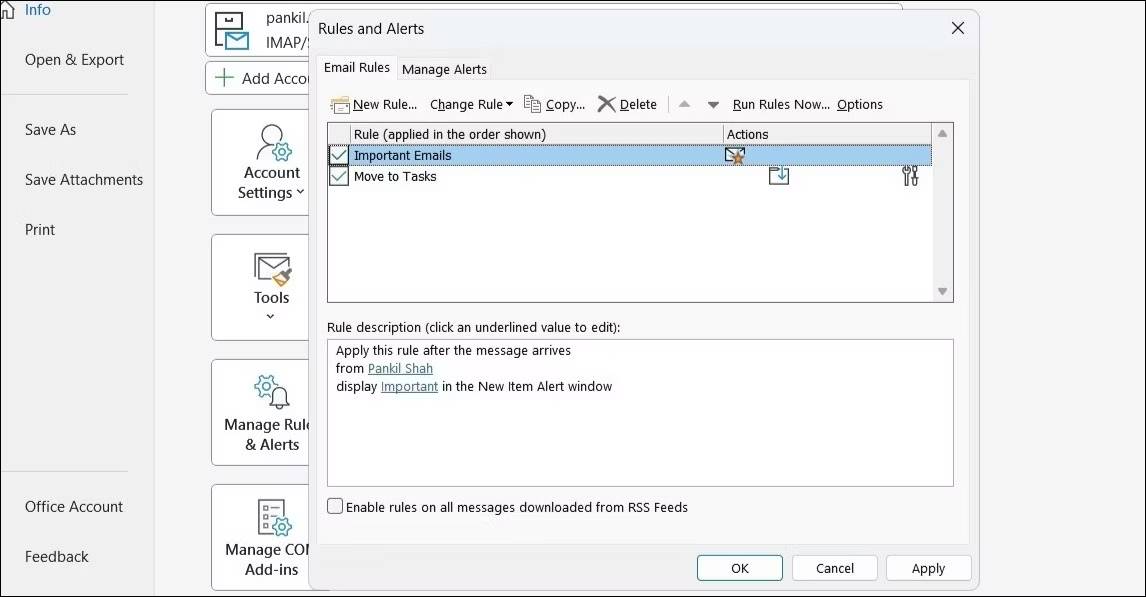
After clicking on “Manage Rules & Alerts,” a new window will appear. In this window, you’ll see several tabs. Look for the tab labeled “Email Rules” and select it. Make sure all the boxes are checked under this section.
Also Read: Here’s How to Stop Receiving Spam Emails (Top 4 Tips)
Solution 2: Delete Unwanted Outlook Rules
If you’re encountering problems with Outlook rules not working, there might be conflicting or outdated rules in your system. Deleting unwanted rules can help streamline your rule management and potentially resolve any issues.
Follow these steps to delete unwanted Outlook rules:
- Open the Outlook app and go to the “File” menu.
- From there, select “Info” and choose “Manage Rules & Alerts.”
- Press and hold the Ctrl key on your keyboard while selecting the rules that you want to remove.
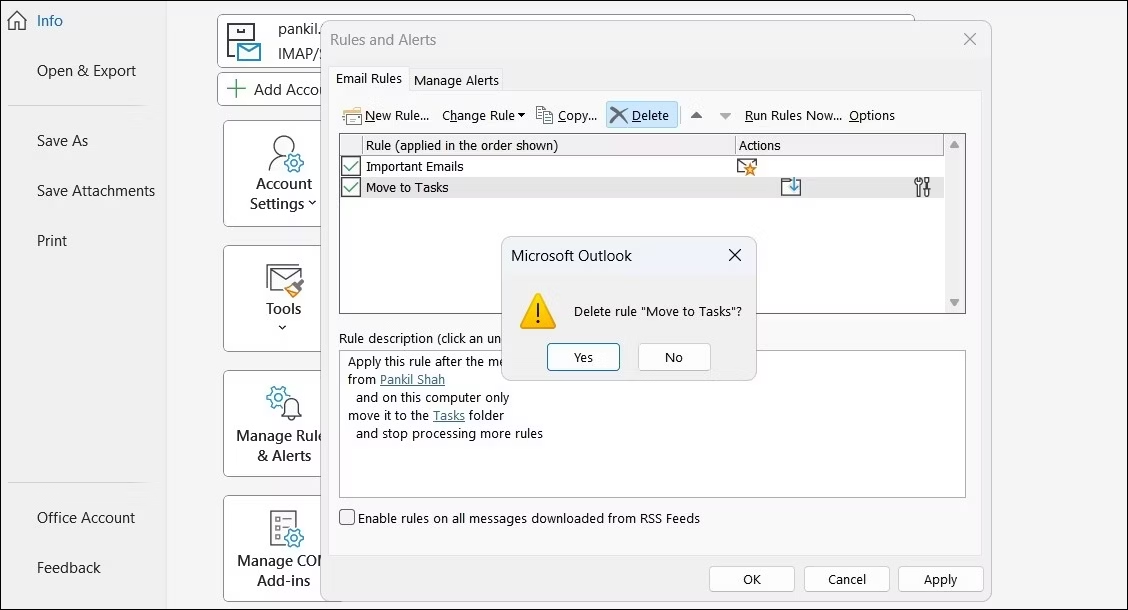
- At the top of the window, click on the “Delete” option.
- When prompted, confirm the deletion by selecting “Yes.”
By following these instructions, you’ll be able to navigate to the rule management section in Outlook, select the unnecessary rules using the Ctrl key, and delete them efficiently.
Solution 3: Reset the Outlook SRS File
To resolve issues with Outlook rules not working, you may need to reset the Outlook SRS (Send and Receive Settings) file, which contains crucial account configurations. If this file becomes corrupted, it can cause problems with your Outlook rules.
To fix this, you can force Outlook to recreate the SRS file by following these steps:
- Press the Win + R keys on your keyboard to open the Run dialog box.
- In the Open field of the Run dialog box, type %appdata%\Microsoft\Outlook and then press Enter.
- A File Explorer window will open, displaying the Outlook folder in your AppData directory.
- Within this folder, locate the file named Outlook.srs.
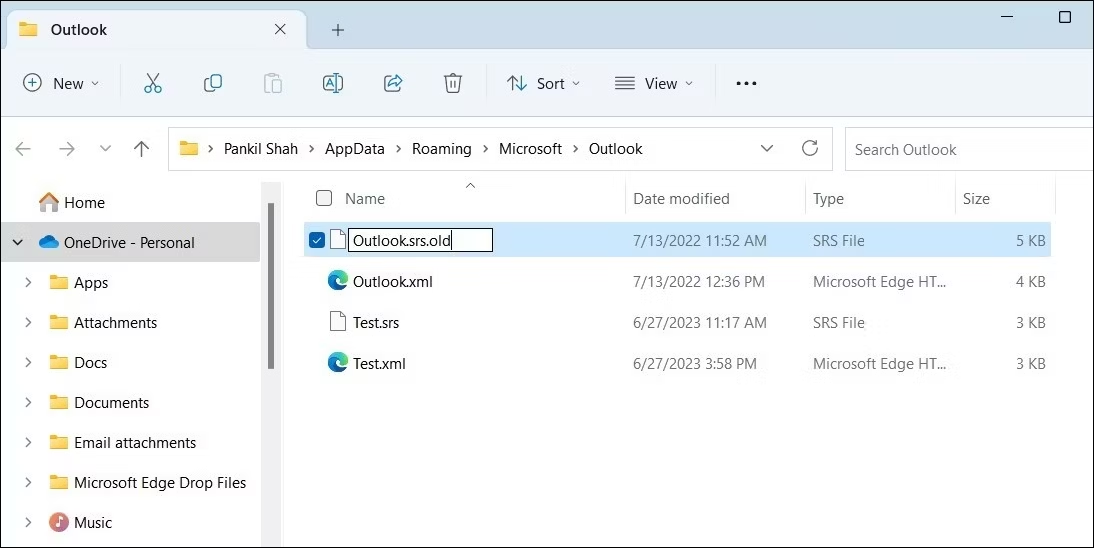
- Select the Outlook.srs file by clicking on it.
- Press the F2 key on your keyboard to initiate the file renaming process.
- Rename the file to Outlook.srs.old, indicating that it is the previous version of the SRS file.
By performing these steps, you are effectively resetting the Outlook SRS file, allowing Outlook to create a new and functional version of the file. This can help resolve any issues related to corrupted SRS files that may be impacting your Outlook rules.
Solution 4: Disable the Stop Processing More Rules Option
If your Outlook rules aren’t working properly, it could be due to the “Stop Processing More Rules” option being enabled. To fix this:
- Open Outlook and go to File > Info > Manage Rules & Alerts.
- Navigate to the Email Rules tab.
- Select the problematic rule.
- Click on “Change Rule” and choose “Edit Rule Settings.”
- Disable the “Stop Processing More Rules” option.

- Save the changes.
By disabling this option, Outlook will continue applying subsequent rules, ensuring that all desired actions are executed correctly.
Solution 5: Enable Cached Exchange Mode
If Outlook rules are still not working properly, activating Cached Exchange Mode can help resolve the issue. Cached Exchange Mode allows Outlook to store a local copy of your mailbox, enabling quicker access to emails and improved rule processing. Follow these steps to activate Cached Exchange Mode:
To fix Outlook rules not working, enable Cached Exchange Mode:
- Open Outlook and go to File > Account Settings.
- Select the email account and click on “Change.”

- Check “Use Cached Exchange Mode.”
- Adjust cache settings if needed.
- Click “Finish” to save the changes.
Enabling Cached Exchange Mode improves performance and enhances rule processing in Outlook, ensuring your rules function properly.
Solution 6: Run the Outlook Inbox Repair Tool
If you’re still facing issues with Outlook rules not working, running the Outlook Inbox Repair Tool can help resolve any potential problems with your Outlook data files. Follow these steps to run the tool:
- Close Outlook to ensure it’s not running in the background.
- Open the Windows File Explorer and locate “SCANPST.EXE.“
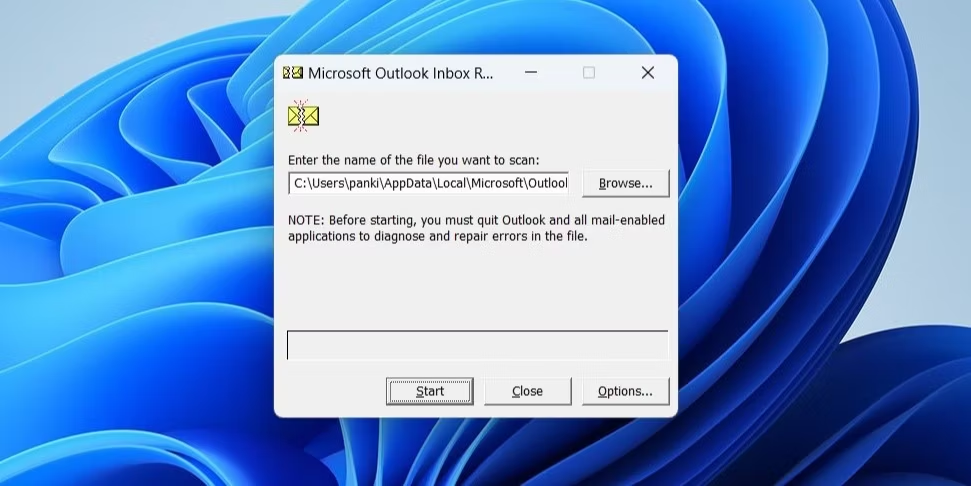
- Launch the Inbox Repair Tool.
- Browse and select your Outlook data file.
- Click “Start” to initiate the repair process.
- Once complete, reopen Outlook and test your rules.
Running the Outlook Inbox Repair Tool can help resolve issues with corrupted data files that may affect your rules.
Solution 7: Update the Outlook App
If you’re encountering issues with Outlook rules not working, it’s important to ensure that you have the latest version of the Outlook app installed. Updates often include bug fixes and improvements that can address rule-related problems. Follow these steps to update your Outlook app:
- Launch Outlook and click on the File menu located in the top-left corner.
- In the left column, select the Office Account tab.
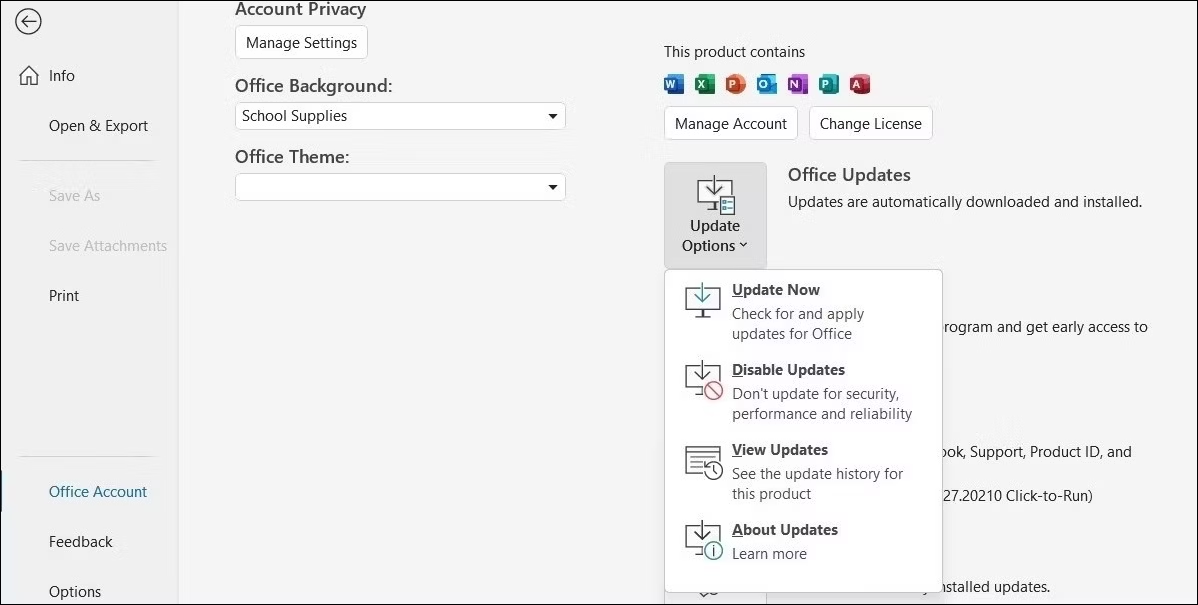
- Click on Update Options, then choose Update Now.
By following these instructions, you can easily access the update options in Outlook and initiate the update process to ensure you have the latest version installed.
Solution 8: Reset All Rules
If none of the previous solutions have resolved the issue, you may consider resetting all rules to start fresh. Here’s how:
- Open the Run dialog box by pressing the Win + R keys on your keyboard.

- Type “Outlook.exe /cleanrules” in the text box and Press the Enter key.
Executing these instructions will initiate a command that removes all Outlook rules at once. This action can be useful if you want to start fresh with your rules or if you’re experiencing issues that require a clean slate.
Conclusion
In conclusion, resolving Outlook rules not working on Windows is essential for efficient email management. By following the troubleshooting steps outlined in this guide, you can regain control of email organization.
Whether it involves enabling Cached Exchange Mode, running the Inbox Repair Tool, or updating the Outlook app, these solutions can help ensure that Outlook rules function seamlessly, allowing users to maximize productivity and streamline their workflow.
Author Bio:
Dinesh Lakhwani 

Dinesh Lakhwani, the entrepreneurial brain behind “TechCommuters,” achieved big things in the tech world. He started the company to make smart and user-friendly tech solutions. Thanks to his sharp thinking, focus on quality and the motto of never giving up, TechCommuters became a top player in the industry. His commitment to excellence has propelled the company to a leading position in the industry.
Popular Post











Recent Post

How to Switch Windows 10 to a Local Account: Complete Guide
Windows 10 allows users to sign in with either a Microsoft account or a local account. When you set up a new computer, the system often suggests using a Microsoft account. This account connects your device to Microsoft services such as Outlook, OneDrive, and the Microsoft Store. It also syncs settings, themes, and passwords across […]

How To Change Default Apps For File Types In Windows
Windows is designed to make using your computer easy. One way it does this is by assigning default apps to different file types. This means when you open a file, Windows automatically opens it with a specific program. For example, photos may open with Photos, music with Groove Music, and PDFs with Edge. These default […]

How To Adjust The Mouse Pointer Speed: Complete Guide
Using a computer every day means you use the mouse a lot. The mouse pointer moves on the screen and helps you click, scroll, and select items. Many people never think about the speed of the mouse pointer. They have used the default setting for years. This can cause small problems over time. A slow […]

How to Change Mouse Scrolling Settings In Windows
A mouse is one of the most used computer tools. People use it every day. They scroll through emails. They scroll through documents. They scroll through websites and images. The movement becomes automatic. Most users do not notice it. That is why problems often go unnoticed. Scrolling problems show up slowly. At first, it feels […]

Keyboard Light Settings: Keyboard Lighting Control [Complete Guide]
Keyboards are no longer simple typing tools. Well, yes! Over time, they have evolved to include features that improve comfort, visibility, and overall experience. One of the most useful features today is keyboard lighting. It helps users work comfortably in low-light conditions. It also reduces strain when typing for long hours. Many users first notice […]

Customizing Pointer Appearance: Complete Guide
The way your mouse pointer looks on your computer may seem like a small detail. But customizing pointer appearance can make using your PC more comfortable and visually appealing. Many users do not realize that they can change the pointer size, color, and style to fit their needs. Whether you want a bigger pointer for […]

How To Choose a Computer Monitor: Monitor Buying Guide
Buying a monitor looks easy. Many people think all screens are the same. That belief causes regret later. A monitor is not just a display. It is a daily tool. You read on it. You work on it. You relax with it. Small problems become big over time. Poor brightness hurts eyes. Bad size causes […]

How To Get Help With File Explorer in Windows 11 [Complete Guide]
File Explorer is one of the most important tools in Windows 11. It is used to open folders, view files, and manage stored data. Almost every action on a Windows computer depends on it in some way. When users open documents, save downloads, or organize photos, File Explorer is always involved. Because it is used […]

How To Fix A Frozen Computer: Complete Guide [Windows 11/10]
A frozen computer is one of the most common problems Windows users face. The screen stops responding. The mouse pointer does not move. Keyboard inputs do nothing. You may hear the fan running loudly. Sometimes the system looks alive, but nothing works. This situation often happens when you are busy or working on something important. […]

How to Upgrade Computer RAM: Complete Guide
Upgrading RAM is one of the simplest ways to improve a computer. It helps the system feel faster and smoother. Apps open quicker. Browsers handle more tabs. Games and tools run with less delay. Many users search for how to upgrade computer RAM because it gives real results without high cost. You do not need […]

