Computer Turns On, But No Display On The Monitor? 9 Ways To Fix
Last updated on October 2nd, 2024 at 9:55 am
Introduction
Computers are a vital part of our daily life in the modern world. We depend significantly on these technological achievements for business, entertainment, and communication. Computers, like other machinery, might, however, malfunction occasionally.
One particularly aggravating issue is when your computer turns on, but there is no display on the monitor. Several circumstances can cause this problem, and it might make you feel helpless. But don’t worry; we’ll look at nine typical solutions to get your computer back up and running.
PC Running But No Display On Monitor: The Problem Occurs In Hardware And Software
Try to understand the potential causes of the problem. You must examine both alternatives when troubleshooting.
Hardware Causes:
● Monitor Error: Sometimes, the issue is not with your computer but with the monitor. Check to make sure the monitor is powered on and plugged in.
● Damaged or unsecured cables: Loose or damaged cables can hamper your computer’s and monitor’s connection. Ensure all cables, including the power cord and any VGA, DVI, HDMI, or DisplayPort cables, are attached securely and in good condition.
Software Causes:
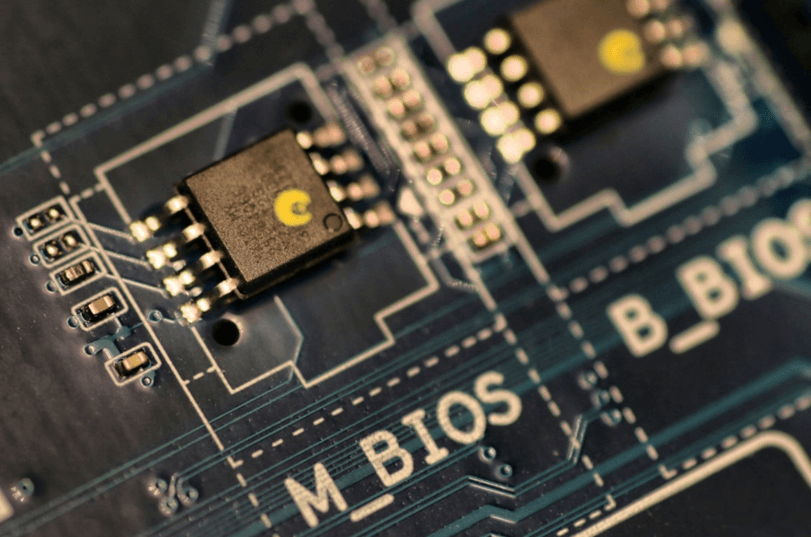
- BIOS/UEFI Configuration: Incorrect BIOS/UEFI settings can cause the PC start to but no display difficulties. Access the BIOS/UEFI by pressing the relevant key during startup (usually Del, F1, F2, F12, or Esc keys) and confirm that your primary display is set correctly.
- Operating System or Driver Problems: An issue of computer turns on but no display on monitor might occur due to faulty or incompatible drivers or system difficulties. You may need to boot into Safe Mode or use a bootable USB drive to repair or replace the operating system.
9 Ways to Fix PC ON But No Display Error
We can now examine the nine solutions to fix a PC running but no display on monitor issue on the monitor after identifying the possible causes.
1. Observe The Monitor:
If your computer turns on but no display on monitor, it must first be turned on and connected correctly to the appropriate channel (such as HDMI, DVI, or VGA) that corresponds to the output of your device. Check your cords, device settings, or the monitor’s handbook for more information if the issue continues. You can follow this step.
Make sure the monitor is turned on and connected to the correct video output port on your computer (VGA, HDMI, DVI, etc). Here are a few things to try!
- Check the monitor by making sure the monitor power cable is securely plugged into the wall outlet and the monitor.
- Check that the monitor is turned on by pressing the power button and look for indicator lights. Ensure the monitor video cable is properly inserted into the output port on the back of the computer and it should click into place.
- Try connecting the monitor video cable to a different video output port on the PC if available. Verify the monitor video input settings match the video connection type (HDMI, DisplayPort, DVI, VGA).
- Inspect the video cable for any bent pins or damage and replace if needed. Refer to the monitor manual to ensure all hardware is connected properly.
2. Examine The Cables:
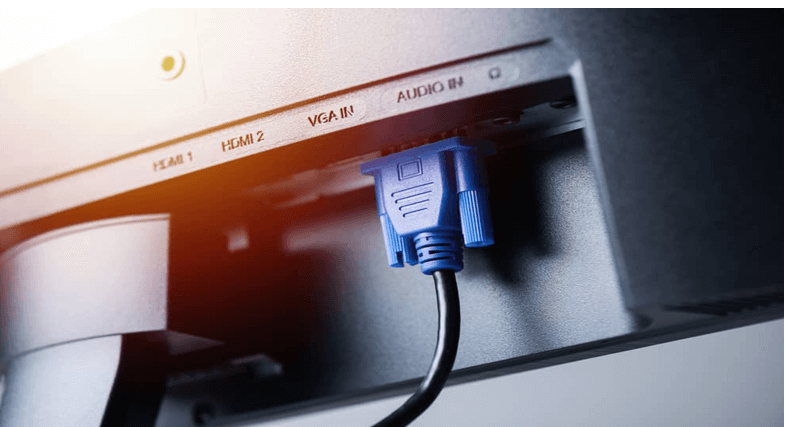
Carefully examine all video, power, and data cables connected between the computer and monitor. Replace any damaged cables. Make sure all connections are secure. Reconnect both ends of each cable firmly. Make sure the video cable is plugged completely into the port on the back of the computer and monitor and screw it in if possible.
Try using a different video cable if available to rule out cable issues. For laptops, verify the display cable is properly seated on both ends where it connects to the motherboard. Avoid running cables over or under power cords to prevent signal interference.
3. Reinstall The Graphics Card:
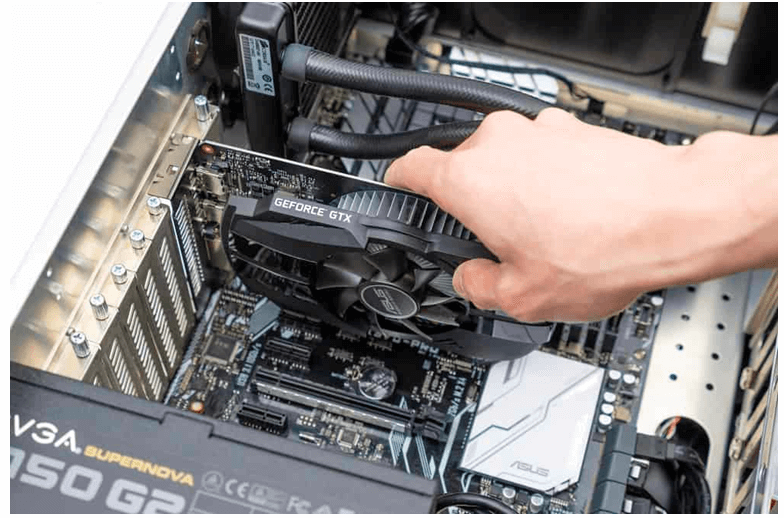
An improperly installed graphics card is a common reason for no display. Turn off the computer, unplug the power cables, then remove and reinsert the graphics card into the PCIe slot. Make sure it is fully seated then replace and firmly connect all power and data cables.
Also, check for any dirt, debris, or obstructions in the PCIe port and graphics card gold contacts and clean if needed. Line up the graphics card with the PCIe slot and firmly but gently press it directly into place until it clicks and locks. Replace and tighten any screws or latches that hold the card in place. Reconnect all necessary power connector cables to the graphics card, making sure they click into place. Reconnect any video cables to corresponding ports on the back of the card.
4. RAM Testing:
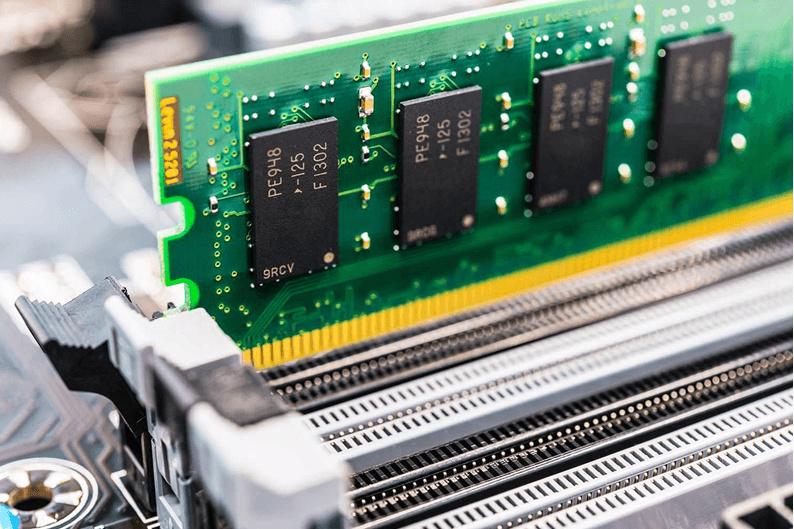
Faulty RAM can sometimes cause display issues. If you have multiple RAM sticks, remove all but one then power on to see if the display appears. Test each stick individually in each slot to identify any bad modules.
Follow these steps to replace RAM:
- Open the PC case and locate the RAM slots on the motherboard.
- Remove all but one RAM stick, making note of which slots they came from.
- Boot the PC and see if the display appears. If not, power down and swap in the other sticks one at a time, testing each.
- If display problems disappear with a specific stick removed, that module is likely defective. Replace it.
- Try reseating problematic RAM sticks by gently removing and firmly reinserting them into their motherboard slots.
- Make sure RAM is inserted completely with retention clips or latches engaged to hold it in place.
5. Examine The Power Supply:
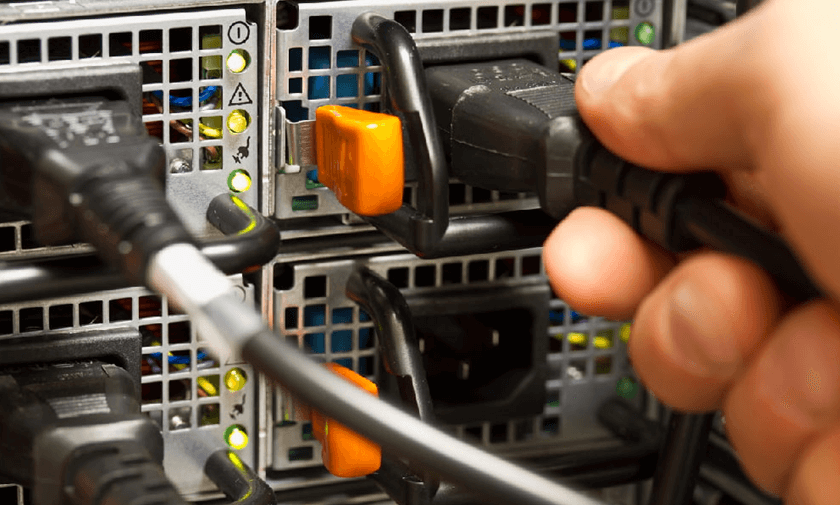
A failed power supply unit (PSU) could cause the computer to turn on but no display on the monitor. A failing power supply may give insufficient power to your system components, resulting in instability. To troubleshoot, you can use a power supply tester to test your PSU or replace it with a known working one if you feel it’s the source of the problem.
An inadequate power supply can fail to deliver enough consistent power to PC components. Use a power supply tester to check the PSU health or swap in a known good unit and see if the no display problem is resolved.
Here are a few things to consider:
- Listen and feel for the power supply fan spin when the PC is turned on to ensure the PSU is active.
- Make sure all power connectors from the PSU are inserted firmly into the motherboard and components.
- Check for any loose, damaged or burnt power cables. Replace if needed.
- Use a multimeter or dedicated power supply tester to measure key voltages and confirm PSU outputs are stable and within spec.
If voltages are abnormal or unstable, have the PSU repaired or replaced immediately.
6. Examine The Motherboard:
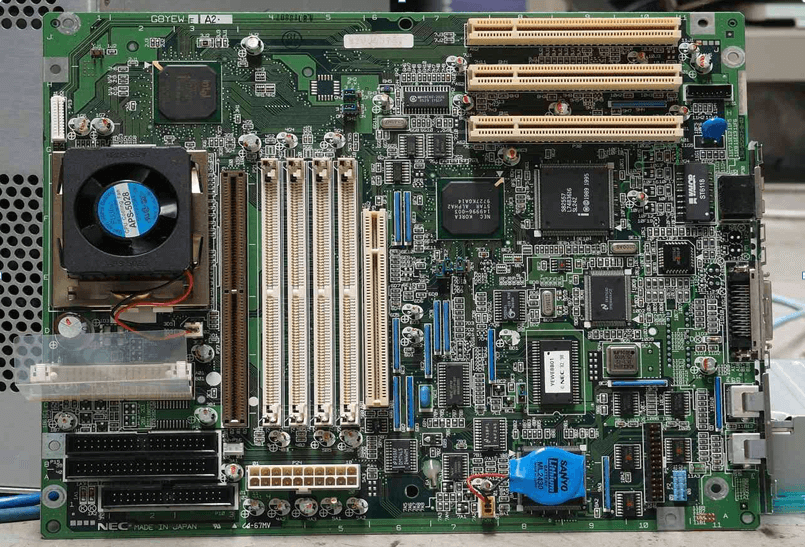
If the PC is on but has no display, inspect the motherboard connections by examining the motherboard closely under bright lighting for damaged components or burnt areas. Check for cracked, bent, or loose connectors on ports and slots like PCIe, RAM, SATA, and the 24-pin ATX power cable. Reconnect all motherboard power cables, data cables, and cards to ensure firm, secure connections.
Remove any dust or debris near ports and slots using compressed air, avoiding moisture or liquids. Visually verify all motherboard stand-offs under the board match the holes to avoid shorts.
7. CPU’s temperature Checking:
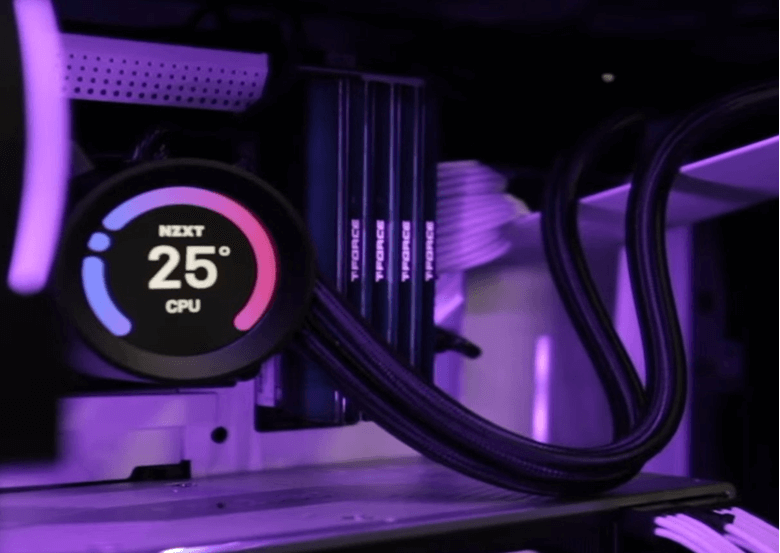
Ensure that the cooler is securely mounted to the CPU and that appropriate thermal paste is present for efficient heat transfer. When your PC starts but has no display, you can check CPU temperature using BIOS or dedicated software that can assist in confirming if overheating is the problem.
Check CPU temperature by downloading hardware monitor software like Speccy or HWInfo to check CPU temps. Boot into BIOS and observe current CPU temperature readings during idle and under load if available. If over 90°C when idle, reapply the thermal paste between the CPU and cooler, cleaning the old paste first. Make sure the CPU heatsink is tightened down properly using diagonally opposite screw pairs.
Also, ensure the CPU fan is running when under load. If not, reconnect the fan power cables. Consider upgrading to a larger CPU cooler or radiator if operating near the max rated temperature.
8. Examine the BIOS/UEFI settings:
Examine BIOS/UEFI display settings by accessing the BIOS settings menu on startup by pressing the BIOS key (F2, F10, Del, etc.). Navigate to display or video-related BIOS submenus and confirm primary display output source is set correctly.
Make sure integrated graphics or PCIe graphics card is set as the primary video output source, depending on your system. If multiple display ports are present, indicate the correct one connected to your monitor. Check that the display resolution matches your monitor’s native resolution spec.
9. Problems With The Operating System Or Drivers:
Boot into Safe Mode by continuously pressing F8 on bootup to access Advanced Boot Options and selecting Safe Mode. If the display works normally in Safe Mode, it indicates a driver, software, or OS issue is likely causing the fault. Use Safe Mode to uninstall problematic applications or roll back recent driver updates.
Update graphics drivers, chipset drivers, and other key hardware drivers to the latest stable versions. Consider refreshing the Windows installation to fix corrupted OS files after backing up data first. As a last resort, clean install Windows to start fresh with up-to-date drivers.
Conclusion
If the computer turns on but no display on monitor, it can be a frustrating problem for every PC user. Initially inspect the display, connectors, graphics card, RAM, and power supply. Then, look at software issues such as BIOS settings and operating system issues. Keep safety precautions in mind. Seek expert assistance if necessary. These nine steps will assist you in resolving the problem and getting your computer back up and running.
Frequently Asked Questions
1. Why does my PC turn on but no display on my monitors?
It might be a loose or disconnected display cable, an old and damaged graphics card, or an issue with your monitor. If you want your monitor to work again, ensure all connections are secure and try a different monitor or cable.
2. Can faulty RAM cause no display?
Sometimes, insufficient RAM can cause a PC on but no display ” issue. Sometimes, RAM corrupts, and your computer may fail to boot correctly. You can try to restart the RAM sticks or check them independently to see if RAM is the problem.
3. Why is the monitor screen blank when I start my computer?
Various conditions, including graphics card faults, loose connections, or software errors, can cause a blank monitor screen at startup. To troubleshoot, make sure your display is turned on and properly connected.
4. How can you diagnose if the computer has no display?
First, check the monitor, cable, and connections to troubleshoot a no-display problem. If satisfactory, try booting into safe mode or using the onboard graphics. Listen for any strange sounds or error codes that might indicate hardware difficulties during startup.
Author Bio:
Dinesh Lakhwani 

Dinesh Lakhwani, the entrepreneurial brain behind “TechCommuters,” achieved big things in the tech world. He started the company to make smart and user-friendly tech solutions. Thanks to his sharp thinking, focus on quality and the motto of never giving up, TechCommuters became a top player in the industry. His commitment to excellence has propelled the company to a leading position in the industry.
Popular Post











Recent Post

How To Change Default Apps For File Types In Windows
Windows is designed to make using your computer easy. One way it does this is by assigning default apps to different file types. This means when you open a file, Windows automatically opens it with a specific program. For example, photos may open with Photos, music with Groove Music, and PDFs with Edge. These default […]

How To Adjust The Mouse Pointer Speed: Complete Guide
Using a computer every day means you use the mouse a lot. The mouse pointer moves on the screen and helps you click, scroll, and select items. Many people never think about the speed of the mouse pointer. They have used the default setting for years. This can cause small problems over time. A slow […]

How to Change Mouse Scrolling Settings In Windows
A mouse is one of the most used computer tools. People use it every day. They scroll through emails. They scroll through documents. They scroll through websites and images. The movement becomes automatic. Most users do not notice it. That is why problems often go unnoticed. Scrolling problems show up slowly. At first, it feels […]

Keyboard Light Settings: Keyboard Lighting Control [Complete Guide]
Keyboards are no longer simple typing tools. Well, yes! Over time, they have evolved to include features that improve comfort, visibility, and overall experience. One of the most useful features today is keyboard lighting. It helps users work comfortably in low-light conditions. It also reduces strain when typing for long hours. Many users first notice […]

Customizing Pointer Appearance: Complete Guide
The way your mouse pointer looks on your computer may seem like a small detail. But customizing pointer appearance can make using your PC more comfortable and visually appealing. Many users do not realize that they can change the pointer size, color, and style to fit their needs. Whether you want a bigger pointer for […]

How To Choose a Computer Monitor: Monitor Buying Guide
Buying a monitor looks easy. Many people think all screens are the same. That belief causes regret later. A monitor is not just a display. It is a daily tool. You read on it. You work on it. You relax with it. Small problems become big over time. Poor brightness hurts eyes. Bad size causes […]

How To Get Help With File Explorer in Windows 11 [Complete Guide]
File Explorer is one of the most important tools in Windows 11. It is used to open folders, view files, and manage stored data. Almost every action on a Windows computer depends on it in some way. When users open documents, save downloads, or organize photos, File Explorer is always involved. Because it is used […]

How To Fix A Frozen Computer: Complete Guide [Windows 11/10]
A frozen computer is one of the most common problems Windows users face. The screen stops responding. The mouse pointer does not move. Keyboard inputs do nothing. You may hear the fan running loudly. Sometimes the system looks alive, but nothing works. This situation often happens when you are busy or working on something important. […]

How to Upgrade Computer RAM: Complete Guide
Upgrading RAM is one of the simplest ways to improve a computer. It helps the system feel faster and smoother. Apps open quicker. Browsers handle more tabs. Games and tools run with less delay. Many users search for how to upgrade computer RAM because it gives real results without high cost. You do not need […]

How To Clean Your Computer Keyboard: Complete Guide
A computer keyboard is touched more than almost any other device you own. It is used during work, study, gaming, and casual browsing. Fingers carry natural oils, sweat, and dirt. Small food crumbs fall between keys without notice. Dust settles each day slowly. Over time, this creates a hidden layer of grime. Many users do […]

