Cleaner One Pro Review – Clean & Optimize Mac

Last updated on August 11th, 2025 at 12:36 pm
If you are struggling with questions like do Mac machines need cleaning? Aren’t they powerful enough to work seamlessly? This post is just for you.
Here, we are going to review a Mac Cleaner offered by Trend Micro which explains why Mac machines need to be optimized.
For no reason, we all clutter our Mac machines and store enormous data, thinking it will handle it all by itself. But trust me Mac machines aren’t that powerful, because they too generate their own junk, for example cache files, duplicate files, etc. These files over time not only slow down Mac’s performance, but also consume unnecessary space. Now to keep your Mac working flawlessly, optimizing and cleaning them is a must.
But, what is it? And why use it? To get an answer read this review.
What is Cleaner One Pro?
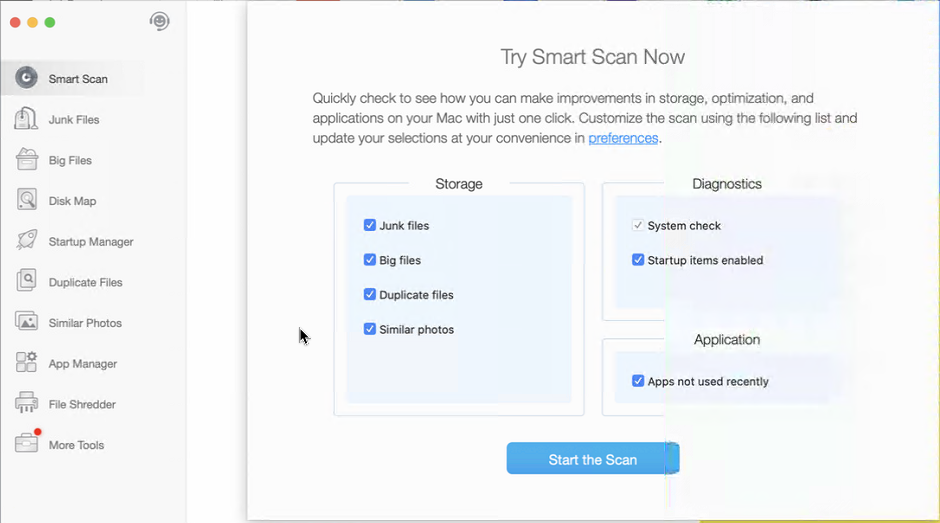
As the name suggests Cleaner One Pro is an all-inclusive cleaning and optimization software for your Mac machines. With an easy-to-use interface, this app helps clean junk files, delete sensitive data, browser history, passwords, tracking cookies, and much more. Using its advanced features like startup manager, application manager, file shredder, duplicate file cleaner, and others you can enhance your Mac’s performance in no time.
Also, the tool is intelligently designed so that no file is ever deleted accidentally. This means, the user has full control and they can decide which files to keep or delete. Moreover, using it you can identify big files, junk files, duplicates, the common reason for unnecessary storage consumption.
To sum up it is a complete Mac tweaking and cleanup tool.
Pros
- Centralized dashboard for ease of use
- The cleaning process works in the background with no notifications or pop-up messages
- Wide range of features all of which are essential for improving performance
- Intuitive interface
- Nicely categorized section
Cons
- No built-in malware cleaner
Highlights
- Duplicate and similar photo cleaner
- Faster scan speeds
- No longer restricted to Apple Sandbox limitations
- Deep cleaning to detect and remove all junk files
- File Shredder to securely delete file making them unrecoverable
Cleaner One Pro – Mac – Review
Before we move into details, one thing that makes Cleaner One Pro the best Mac cleaner and optimizer is its features. Unlike other cleanup utilities, all the features explained in Cleaner One Pro are self-explanatory. This means even if you are not tech-savvy, just by reading the name you will understand what the feature will help perform.
Interface
With an interesting minimalist interface, Cleaner One Pro is an easy-to-use Mac optimization tool. Using this tool, you can check your system status and can run a scan in just a single click. Its dashboard offers all the information related to the detected errors. This helps decide whether to clean errors or not.
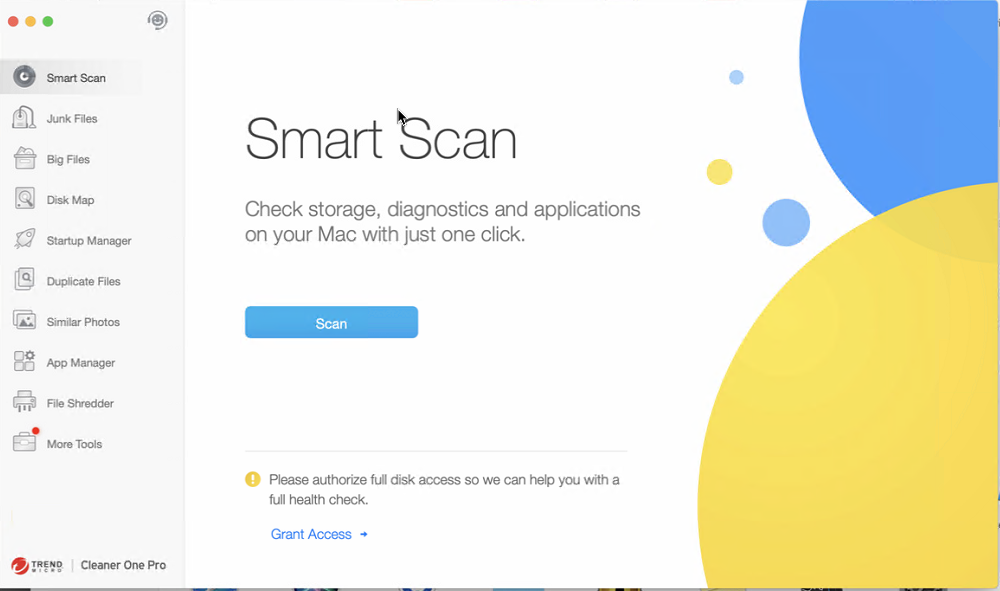
Also, the theme used by Trend Micro is subtle and well designed. The scanning is quick and the buttons are nicely placed. This helps easily perform all the operations without moving here and there.
Junk Files
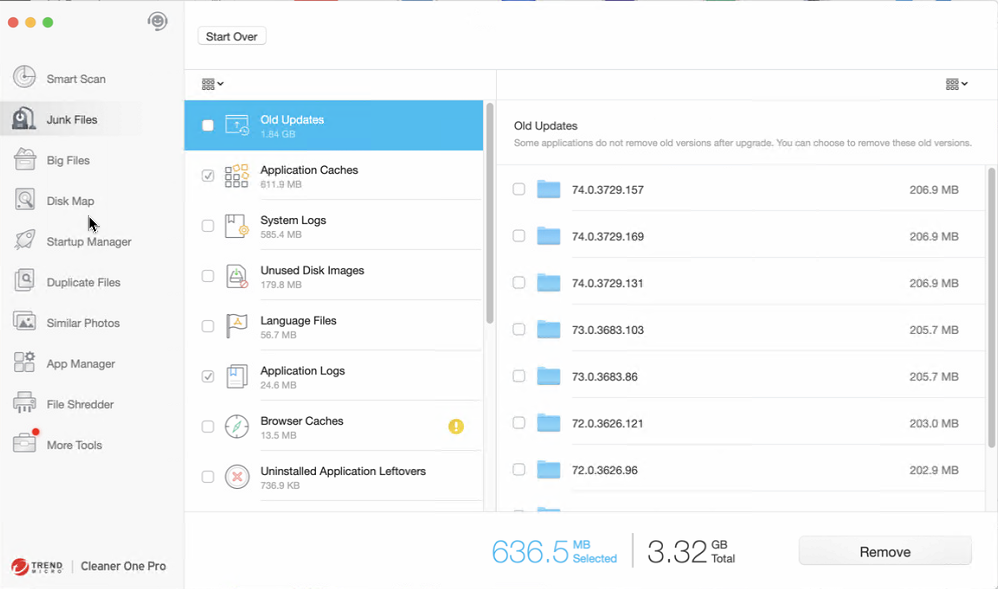
This feature helps detect and clean temporary files, hidden files, leftovers of uninstalled apps, and other trash data that clutters hard disk drives.
Big Files
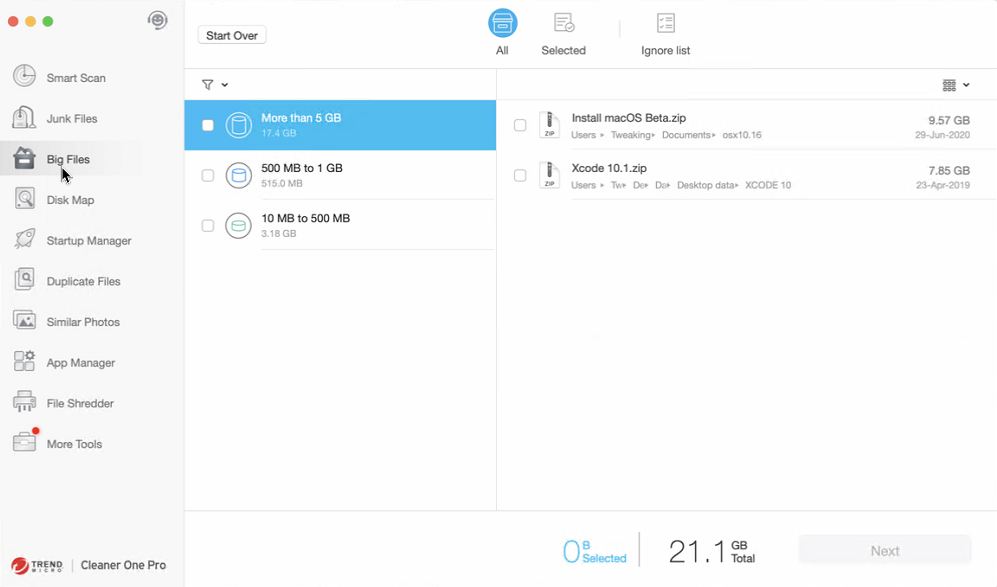
Using this feature, you can easily detect large files that take unnecessary storage space. Also, the files are filtered and organized by size, name, date, and type. For those who forget about the data, this feature is very helpful. Using it they can find old and big files and can remove them if not required.
Disk Map
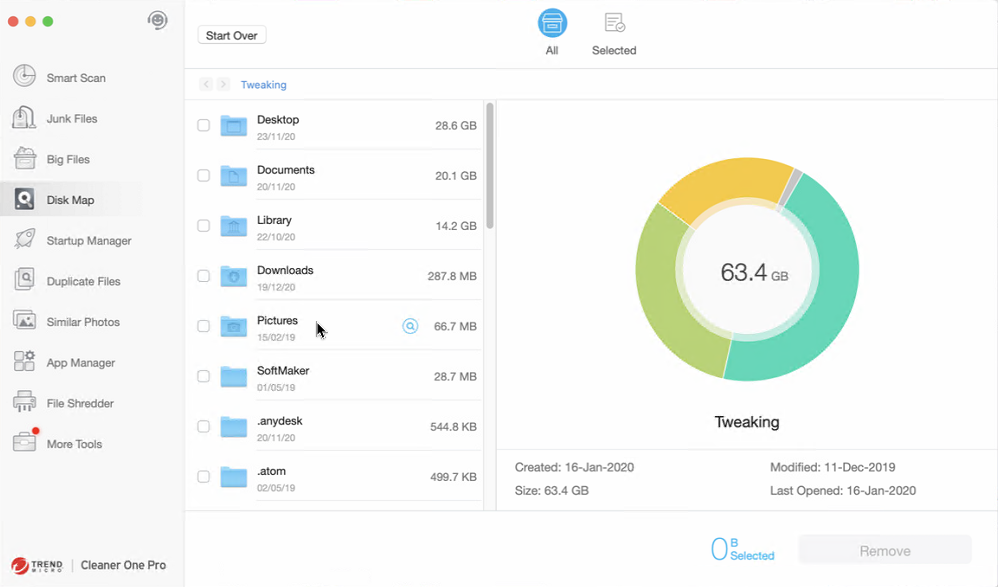
Want to get detailed information about the storage and the disk space? Using the Disk Map, you can get all the information. This feature analyzes storage and shows a breakdown of all files and folders in a colorful way. Using it you can easily manage files and can navigate through each file and folder.
Startup Manager
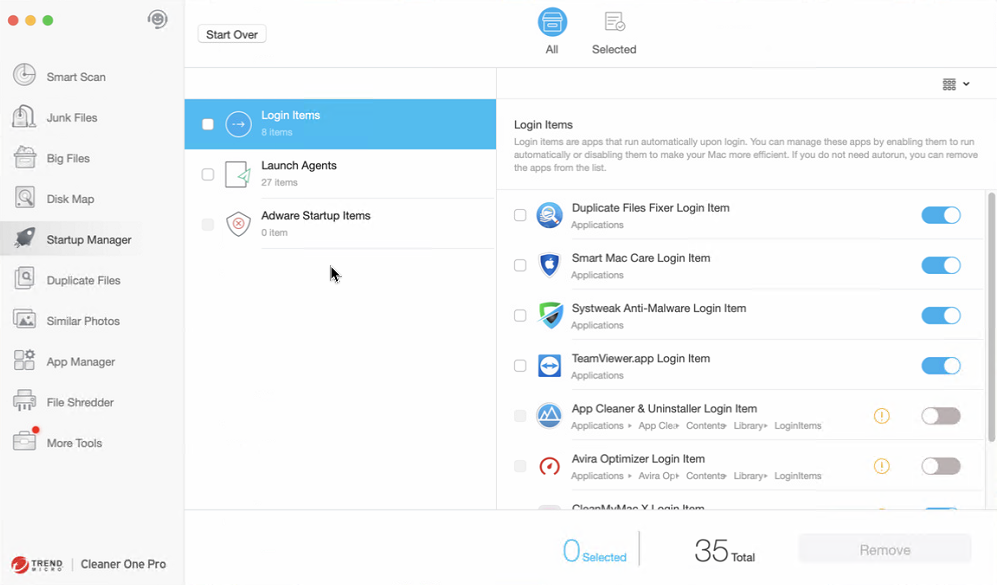
Facing slow boot time issues? No worries using Startup Manager you can easily review, configure, and control programs that run at the boot time. This makes Cleaner One Pro stand out as it helps manage startup items too. Generally, to manage startup items Mac users need to use Activity Manager, and using it for everyone is not easy. So, with the help of the Startup Manager feature, you can skip the Activity Manager and make things simple. This will improve the bootup speed of your PC.
Duplicate Files
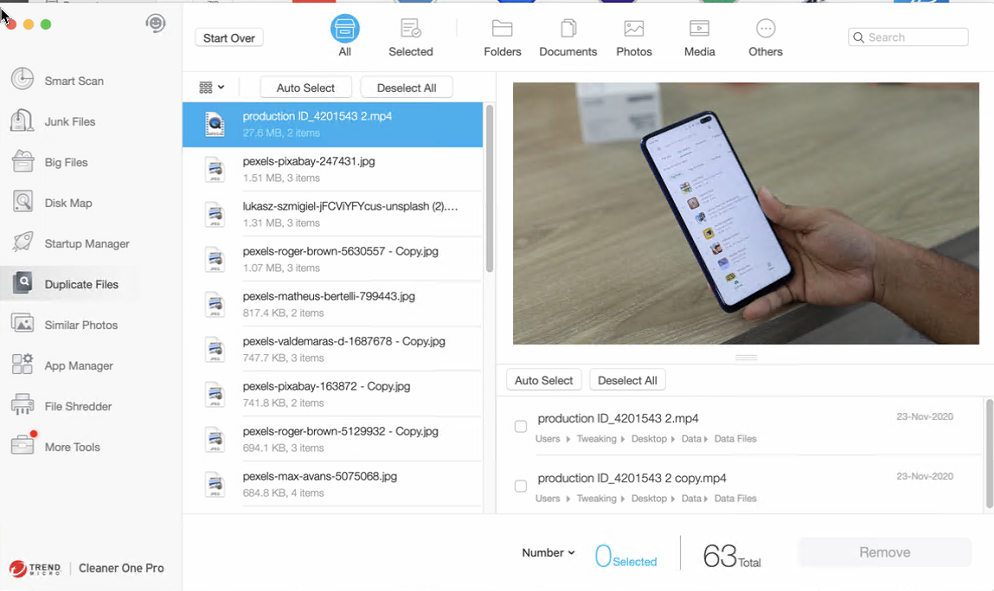
Filter out the duplicate files in just a click with Duplicate Files feature. Using this advanced duplicate finder tool, you can perform a customizable folder search and can filter out the unused file copies in seconds. This not only helps free up disk space but also organizes and manages photo libraries. Moreover, using this feature you can scan and delete duplicate music files and can have a duplicate free music library to enjoy your music collection.
Similar Photos
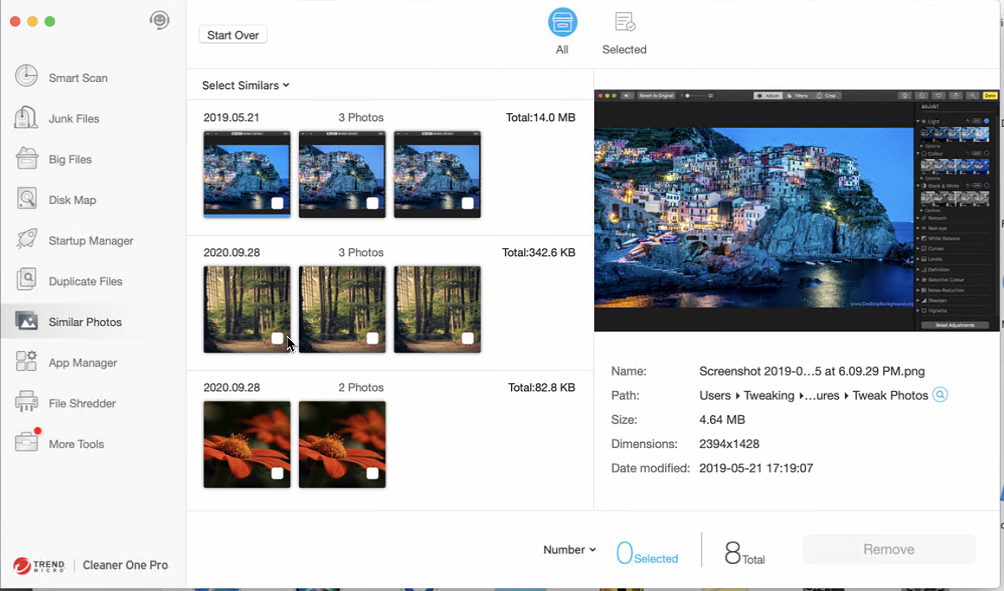
We all have been hearing people say duplicate take unwanted space hence we need to clean them, but what about similar photos? Are they not to be taken care of? Certainly, they also create a lot of junk and occupy unwanted space. Trend Micro understands this; hence it has added a Similar Photos feature in Cleaner One Pro. Using this feature, you can easily detect similar photos. These photos with slight variations like in size or EXIF data will be detected by this module.
This will help tidy up the albums and remove all types of duplicate content.
App Manager
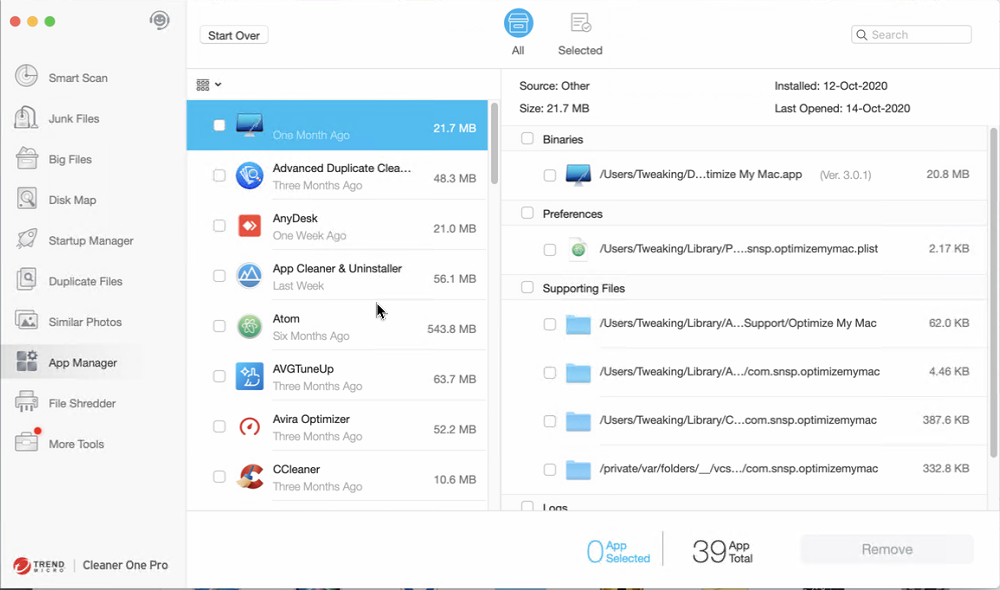
Uninstalling apps without leaving leftovers isn’t easy, due to this people look for uninstall managers. But with Cleaner One Pro this problem is also resolved. Using it you can uninstall third-party apps and associated files easily. Also, you can view all installed apps in one place categorized by name, date, and size. This helps identify unwanted apps and remove them.
Nonetheless, you can delete multiple apps at a time, a feature that no other app offers.
File Shredder
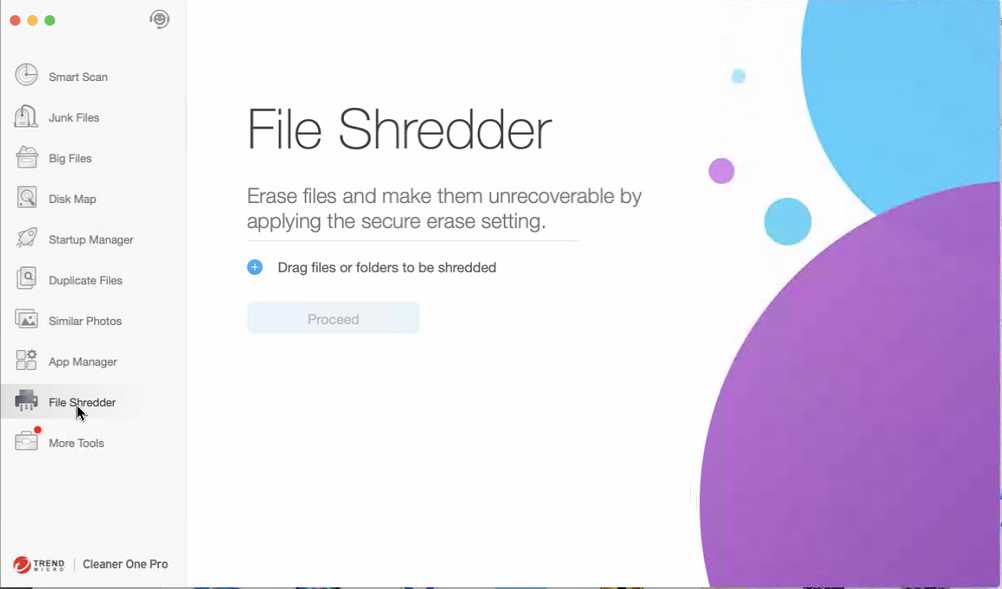
Don’t want anyone to recover the deleted data? Use the File Shredder feature. As the name suggests this feature makes sure no data recovery software can restore deleted files. This means once the data is deleted using this feature it is gone forever and all the chances of data recovery are nullified. Hence, while using this feature please be careful.
More Tools
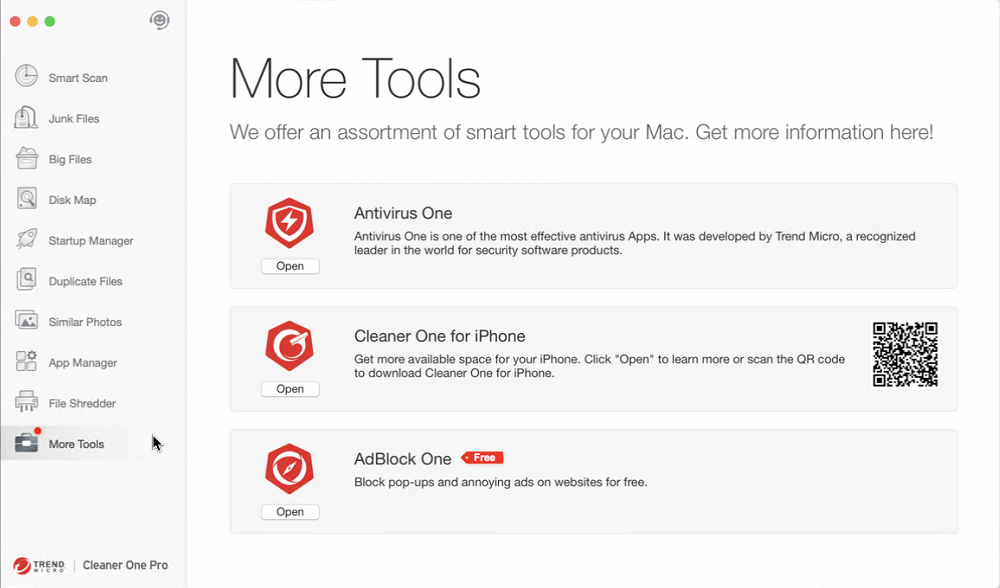
There’s more to Cleaner One Pro by clicking More Tools you can access Antivirus One, Cleaner One for iPhone – that will help free up storage space and optimize device and AdBlock One.
Final Words
All these features and the fast-scanning engine makes Cleaner One Pro the ultimate app for cleaning junk files, unwanted data. It won’t be a hyperbole if we say this program is truly a complete optimization tool. It eradicates the need for other cleaning tools and is light on system resources too. Although the company has put in all the efforts to make Cleaner One Pro effective, you may miss the malware detection feature. If that too is added, then Cleaner One Pro is a win-win deal.
Although, you can check their Premium Security Suite that offers antivirus and malware protection features across all devices, in addition to providing ID and Password security. Whatever the case be still we found this tool to be very effective and a good Mac optimizer and cleaner. Try Cleaner One Pro today and do share your feedback in the comments below.
Author Bio:
Dinesh Lakhwani 

Dinesh Lakhwani, the entrepreneurial brain behind “TechCommuters,” achieved big things in the tech world. He started the company to make smart and user-friendly tech solutions. Thanks to his sharp thinking, focus on quality and the motto of never giving up, TechCommuters became a top player in the industry. His commitment to excellence has propelled the company to a leading position in the industry.
Popular Post











Recent Post

How to Switch Windows 10 to a Local Account: Complete Guide
Windows 10 allows users to sign in with either a Microsoft account or a local account. When you set up a new computer, the system often suggests using a Microsoft account. This account connects your device to Microsoft services such as Outlook, OneDrive, and the Microsoft Store. It also syncs settings, themes, and passwords across […]

How To Change Default Apps For File Types In Windows
Windows is designed to make using your computer easy. One way it does this is by assigning default apps to different file types. This means when you open a file, Windows automatically opens it with a specific program. For example, photos may open with Photos, music with Groove Music, and PDFs with Edge. These default […]

How To Adjust The Mouse Pointer Speed: Complete Guide
Using a computer every day means you use the mouse a lot. The mouse pointer moves on the screen and helps you click, scroll, and select items. Many people never think about the speed of the mouse pointer. They have used the default setting for years. This can cause small problems over time. A slow […]

How to Change Mouse Scrolling Settings In Windows
A mouse is one of the most used computer tools. People use it every day. They scroll through emails. They scroll through documents. They scroll through websites and images. The movement becomes automatic. Most users do not notice it. That is why problems often go unnoticed. Scrolling problems show up slowly. At first, it feels […]

Keyboard Light Settings: Keyboard Lighting Control [Complete Guide]
Keyboards are no longer simple typing tools. Well, yes! Over time, they have evolved to include features that improve comfort, visibility, and overall experience. One of the most useful features today is keyboard lighting. It helps users work comfortably in low-light conditions. It also reduces strain when typing for long hours. Many users first notice […]

Customizing Pointer Appearance: Complete Guide
The way your mouse pointer looks on your computer may seem like a small detail. But customizing pointer appearance can make using your PC more comfortable and visually appealing. Many users do not realize that they can change the pointer size, color, and style to fit their needs. Whether you want a bigger pointer for […]

How To Choose a Computer Monitor: Monitor Buying Guide
Buying a monitor looks easy. Many people think all screens are the same. That belief causes regret later. A monitor is not just a display. It is a daily tool. You read on it. You work on it. You relax with it. Small problems become big over time. Poor brightness hurts eyes. Bad size causes […]

How To Get Help With File Explorer in Windows 11 [Complete Guide]
File Explorer is one of the most important tools in Windows 11. It is used to open folders, view files, and manage stored data. Almost every action on a Windows computer depends on it in some way. When users open documents, save downloads, or organize photos, File Explorer is always involved. Because it is used […]

How To Fix A Frozen Computer: Complete Guide [Windows 11/10]
A frozen computer is one of the most common problems Windows users face. The screen stops responding. The mouse pointer does not move. Keyboard inputs do nothing. You may hear the fan running loudly. Sometimes the system looks alive, but nothing works. This situation often happens when you are busy or working on something important. […]

How to Upgrade Computer RAM: Complete Guide
Upgrading RAM is one of the simplest ways to improve a computer. It helps the system feel faster and smoother. Apps open quicker. Browsers handle more tabs. Games and tools run with less delay. Many users search for how to upgrade computer RAM because it gives real results without high cost. You do not need […]

