Top 10 Screen Recording Software for PC In 2026

Last updated on December 26th, 2025 at 2:38 am
Screen recording has become essential for tutorials, gaming, presentations, and remote work. Whether you’re a content creator or a professional, capturing your screen with clarity and control is key. The right software can make your workflow smoother and your videos more impactful.
But with so many options available, choosing the best screen recorder can be overwhelming. Some tools offer advanced editing, while others focus on simplicity. This guide breaks down the top choices, how to pick the right one, and compares the best five to help you decide.
How to Choose the Right Screen Recorder?
Not all screen recording software is created equal. Your ideal pick depends on your goals—whether you’re recording gameplay, creating tutorials, or hosting webinars. Before you download anything, consider these key factors:
- Purpose: Are you recording games, tutorials, meetings, or presentations?
- Video Quality: Look for HD or 4K support if clarity matters.
- Editing Tools: Built-in editing saves time and boosts productivity.
- Audio Capture: Ensure it records the system and microphone audio.
- User Interface: A clean, intuitive UI makes recording easier.
- File Formats: Check if it supports MP4, AVI, WMV, etc.
- Pricing: Free tools are great, but paid ones offer more features.
- Cloud Integration: Useful for sharing and storing recordings.
Top 5 Screen Recorders Compared
Here’s a quick look at five standout screen recording tools. Each has its strengths, and this table highlights what makes them unique.
| Software | Features | Pros | Cons | Pricing Structure |
| Free Cam | HD recording, noise reduction, direct YouTube upload | Easy to use, no watermark | Limited editing tools | Free |
| ShareX | Custom workflows, GIF creation, multiple capture modes | Open-source, powerful automation | Steep learning curve | Free |
| Movavi Screen Recorder | Scheduled recording, webcam overlay, editing suite | High-quality output, user-friendly | Watermark in free version | Free trial, Paid version ~$39.95 |
| Ezvid | Instant upload to YouTube, voice synthesis, basic editing | Fast setup, built-in editor | No full-screen recording, limited formats | Free |
| TinyTake | Annotation tools, cloud storage, bulk sharing | Great for quick captures, cloud integration | Limited recording time in free version | Free basic, Paid from $29.95 |
Best Screen Recording Software for PC
1. Free Cam
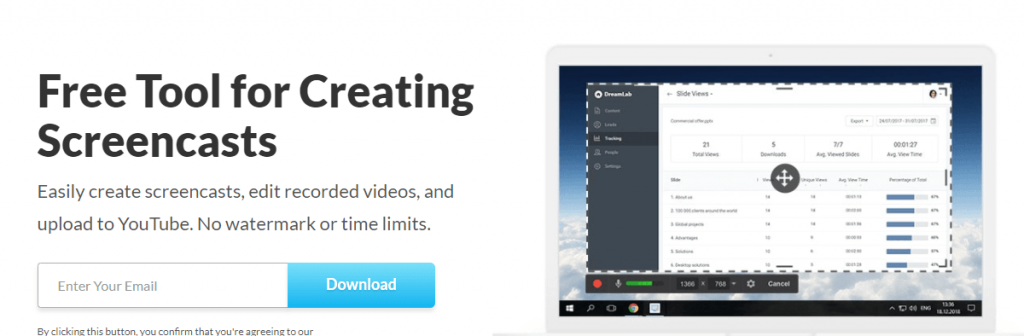
Free Cam is a free screencast platform that allows you to edit your videos and upload them to YouTube. The software doesn’t add watermarks to your content, and it has no time limits. With Free Cam, you can delete background noises and remove unwanted parts of your video. This software is suitable for Windows users but not for macOS operating systems.
Key Features
- Records voice-overs
- Record system sounds
- Turn on mouse click sounds
- Highlights the mouse cursor
- Audio and video tools
Pros
- User friendly
- Excellent sharing capabilities
- Works for both a laptop and a PC
Cons
- The platform seems dated
- Has internal ads
2. ShareX
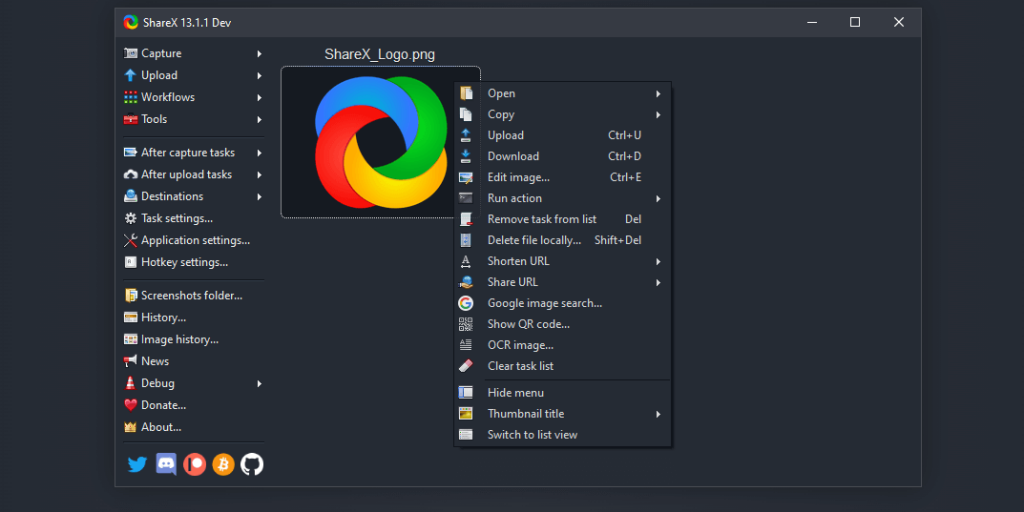
ShareX is a screen capture, file sharing, and productivity tool. You can easily download it to your desktop to start recording your PC screen. It’s feature-rich and supports up to 80 destinations. What’s more, it has 15 capture methods and after-capture tasks such as adding effects or watermarks.
Key Features
- Works for Windows 10
- Available in 13 languages
- 10 upload methods
- 6 after upload tasks
Pros
- Intuitive interface
- Has feature-rich productivity tools
- Excellent performance
- High-quality recording
Cons
- Some settings require additional plugins
- The menu is cluttered with options
3. Movavi Screen Recorder

Movavi Screen Recorder is a software that works for content creators and marketers. It allows you to capture high-quality PC screens, or you can record audio-only. You can also draw on your videos to highlight important sections and schedule your recordings. There are extra features, such as showing your keyboard and mouse, so you can train viewers on what keys to use for certain tasks.
Key Features
- Save videos in full HD or 4K
- Trim, cut, and join clips
- Capture webinars and online calls
- For Windows and Mac users
Pros
- Has quick video editing features
- High-quality recordings
- Easy to use
- Multiple export options
Cons
- Have to purchase the full version to remove the watermark
- No Linux version is available
4. Ezvid
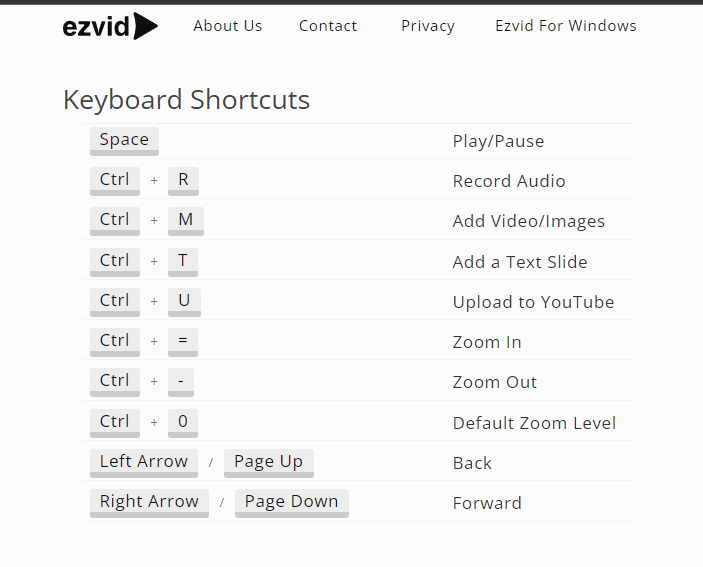
Ezvid is screen capture software designed for Windows users. Once you have your screen set up, simply click the screen capture button to start recording your video. You can add excellent video narrations using the speech synthesis feature. It also comes with video editing tools to create captivating tutorials.
Key Features
- Has free background music
- You can draw on videos to highlight sections
- Has speed control
- Screen capture for games, desktop, and browsers
Pros
- User-friendly interface
- High-quality videos
- Excellent editing tools
- Has keyboard shortcuts
Cons
- 45-minute time limitation on recordings
- Can’t download and save videos
5. TinyTake
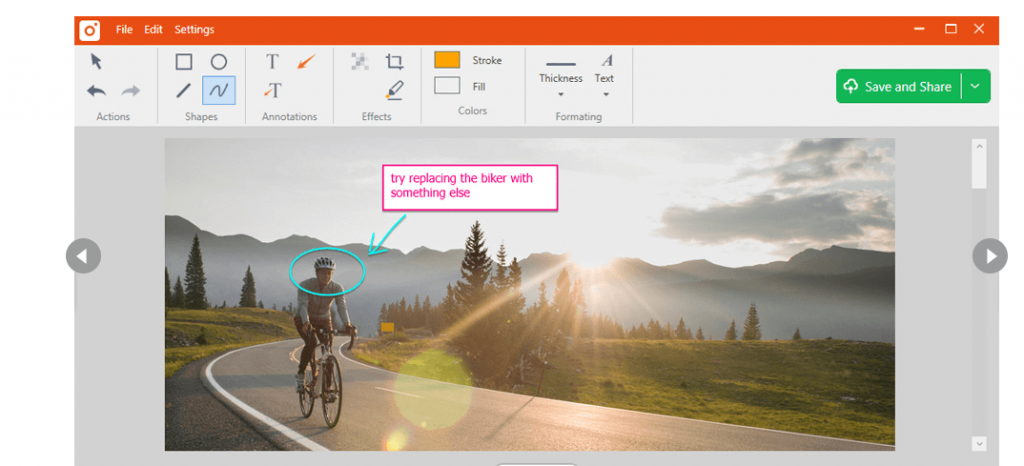
TinyTake is free video recording and screen capture software for Windows and Mac users. The software allows you to record high-quality videos, add comments to content, and share them with your team easily. Simply select the type of screen capture you want to make from the menu to get started.
Key Features
- Markup screenshots with a textbox or arrow
- Up to 120 minutes of recording time
- Capture region, full screen, or window
- Assign custom shortcut keys
Pros
- Excellent editing tools
- User-friendly interface
- Ability to zoom in and out of videos
- Easily save videos onto your PC or laptop
Cons
- Most features are only available on paid versions
- Slow when loading large videos
6. OBS Studio
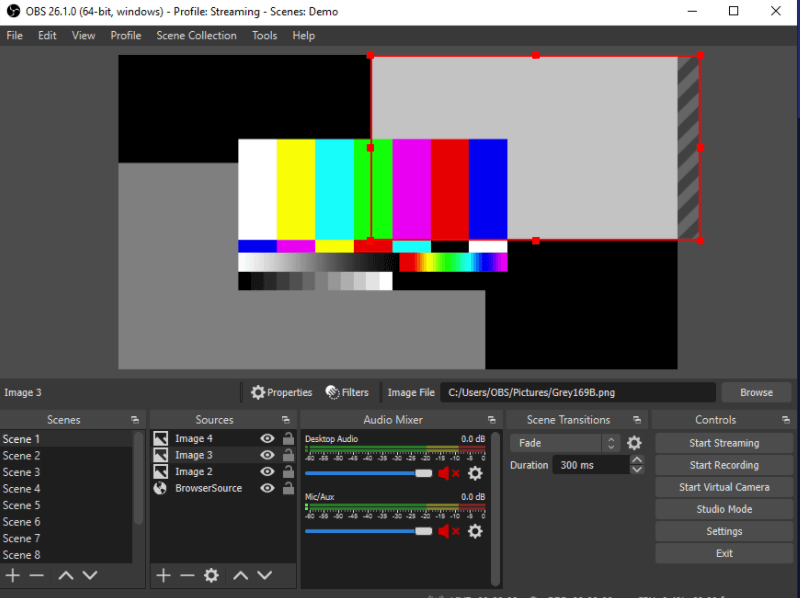
OBS Studio is a free, open-source screen recording platform for Windows, Linux, and Mac users. It’s also designed for live streaming so you can share your screen with a live audience. With OBS Studio, you can set up an unlimited number of scenes you can switch between easily.
Key Features
- Audio mixer with per-source filters
- Settings panel with multiple configurations
- Customizable transitions
- Set hotkeys for any action
Pros
- High-performance video
- You can preview scenes before going live
- The interface is streamlined and easy to use
- Has a Help Portal
Cons
- No customizable color schemes
- Doesn’t allow you to use multiple scene transitions
7. DVDVideoSoft’s Free Screen Video Recorder
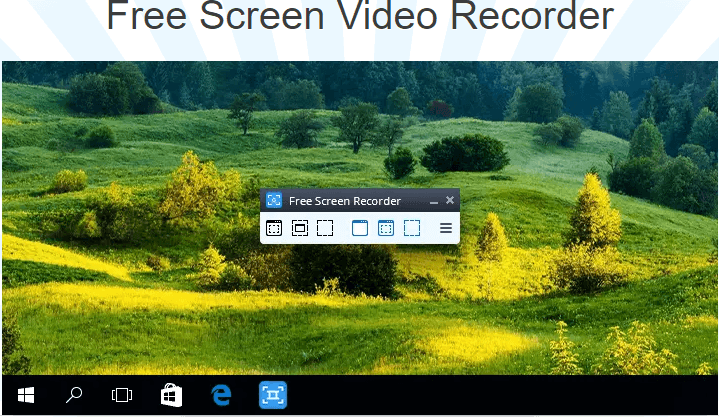
DVDVideoSoft offers a free screen video recorder that also has a screenshot capture tool. You can easily record high-definition screen activities and save them directly onto your PC. With DVDVideoSoft, you can record your full screen or simply a window or object.
Key Features
- Record your screen video to MP4 file
- Contains no spyware or adware
- Highlight your cursor path for clarity
Pros
- Free program to use
- Captures multiple windows and menus
- User friendly
- No watermarks
Cons
- Has intrusive ads
- Can be slow at times
8. CamStudio
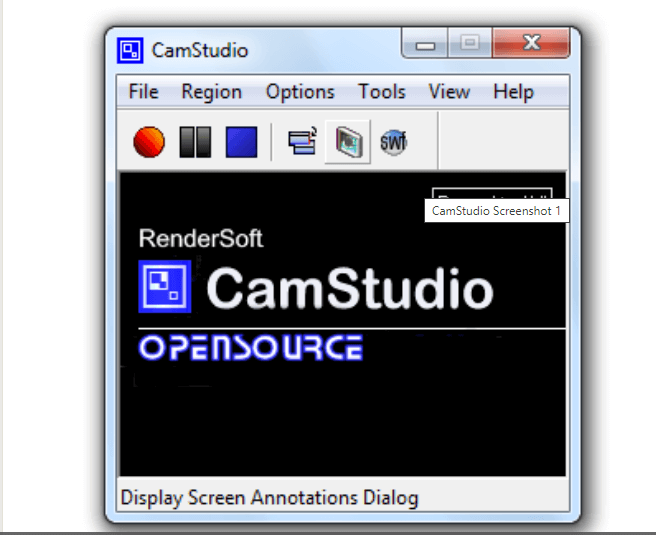
CamStudio allows you to record high-quality screen captures of your PC with excellent audio. With this software, you can create industry-standard AVI video files. This is so you can send videos that are high quality but easy to stream. Use the software to create tutorials or demonstration videos for other software.
Key Features
- Add screen captures to recordings
- Multi-source sound recording
- Cursor hide option
Pros
- No added watermarks
- Webcam recording support
- Doesn’t take up much space on your PC
- Easy to use
Cons
- Lacks technical support
- Offers only the basic tools for screen recordings
9. Apowersoft

Apowersoft is an online screen recorder, or you can download the app onto your device. It doesn’t require a Java Applet, but you’ll need to install a launcher if you’re using the program for the first time. All videos that you record can be downloaded onto your device or uploaded onto YouTube.
Key Features
- Has multiple export formats such as ASF and MP4
- Add webcam into screen recordings
- Edit screencasts in real-time
Pros
- High-quality screen recording
- Save and share videos easily
- Excellent for video tutorials
- No time limits on screen recordings
Cons
- Doesn’t work well on Mac devices
- Uses a lot of PC resources
10. Icecream Screen Recorder
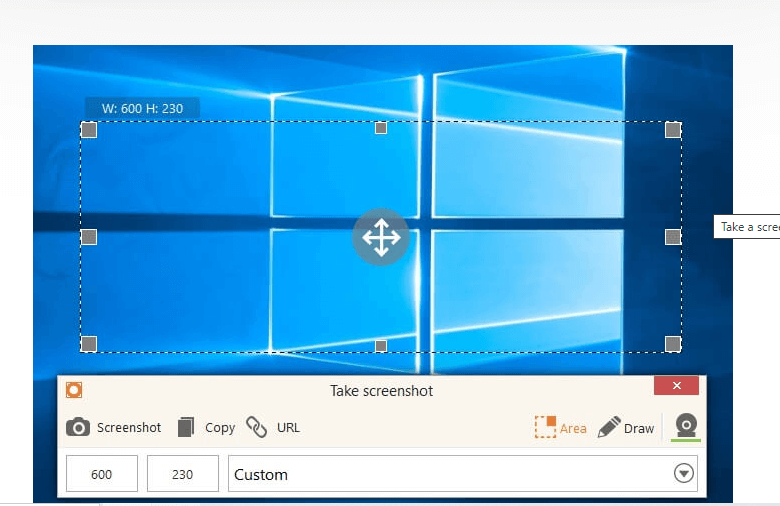
With Icecream Screen Recorder, you can record any area of your screen or you can save it as a screenshot. This program allows you to record Skype calls as well as live streams and webinars. You can download the software for free on your Android, Windows, or Mac device.
Key Features
- Allows you to select the area you want to record
- Record screen with a webcam overlay
- Add your company logo or watermark
Pros
- Download and share videos easily
- User-friendly interface and tools
- High-quality audio and video
- Easy to install
Cons
- Customer service needs to improve
- Not many collaborative tools
Conclusion
Choosing the right screen recording software depends on your needs and workflow. Free Cam and ShareX are excellent for beginners and tech-savvy users who want powerful tools without spending a dime. Movavi and TinyTake offer more polished experiences for those willing to invest.
Ultimately, the best screen recorder is the one that fits your style. Whether you’re teaching, gaming, or collaborating, these tools help you communicate visually with ease. Try a few and see which one feels right for you.
FAQs
1. Can I record both screen and webcam at the same time?
Yes, many screen recorders like Movavi and ShareX support simultaneous screen and webcam recording. This is ideal for tutorials, reaction videos, and presentations.
2. Is there a screen recorder that doesn’t add a watermark?
Absolutely. Free Cam and ShareX are watermark-free even in their free versions. Movavi adds a watermark only in its trial mode, which is removed in the paid version.
3. What’s the best screen recorder for gaming?
For gamers, ShareX is a top pick due to its customizable workflows and high-performance capture. However, if you want simplicity and quick sharing, Ezvid is also a solid choice.
Author Bio:
Dinesh Lakhwani 

Dinesh Lakhwani, the entrepreneurial brain behind “TechCommuters,” achieved big things in the tech world. He started the company to make smart and user-friendly tech solutions. Thanks to his sharp thinking, focus on quality and the motto of never giving up, TechCommuters became a top player in the industry. His commitment to excellence has propelled the company to a leading position in the industry.
Popular Post











Recent Post

How to Switch Windows 10 to a Local Account: Complete Guide
Windows 10 allows users to sign in with either a Microsoft account or a local account. When you set up a new computer, the system often suggests using a Microsoft account. This account connects your device to Microsoft services such as Outlook, OneDrive, and the Microsoft Store. It also syncs settings, themes, and passwords across […]

How To Change Default Apps For File Types In Windows
Windows is designed to make using your computer easy. One way it does this is by assigning default apps to different file types. This means when you open a file, Windows automatically opens it with a specific program. For example, photos may open with Photos, music with Groove Music, and PDFs with Edge. These default […]

How To Adjust The Mouse Pointer Speed: Complete Guide
Using a computer every day means you use the mouse a lot. The mouse pointer moves on the screen and helps you click, scroll, and select items. Many people never think about the speed of the mouse pointer. They have used the default setting for years. This can cause small problems over time. A slow […]

How to Change Mouse Scrolling Settings In Windows
A mouse is one of the most used computer tools. People use it every day. They scroll through emails. They scroll through documents. They scroll through websites and images. The movement becomes automatic. Most users do not notice it. That is why problems often go unnoticed. Scrolling problems show up slowly. At first, it feels […]

Keyboard Light Settings: Keyboard Lighting Control [Complete Guide]
Keyboards are no longer simple typing tools. Well, yes! Over time, they have evolved to include features that improve comfort, visibility, and overall experience. One of the most useful features today is keyboard lighting. It helps users work comfortably in low-light conditions. It also reduces strain when typing for long hours. Many users first notice […]

Customizing Pointer Appearance: Complete Guide
The way your mouse pointer looks on your computer may seem like a small detail. But customizing pointer appearance can make using your PC more comfortable and visually appealing. Many users do not realize that they can change the pointer size, color, and style to fit their needs. Whether you want a bigger pointer for […]

How To Choose a Computer Monitor: Monitor Buying Guide
Buying a monitor looks easy. Many people think all screens are the same. That belief causes regret later. A monitor is not just a display. It is a daily tool. You read on it. You work on it. You relax with it. Small problems become big over time. Poor brightness hurts eyes. Bad size causes […]

How To Get Help With File Explorer in Windows 11 [Complete Guide]
File Explorer is one of the most important tools in Windows 11. It is used to open folders, view files, and manage stored data. Almost every action on a Windows computer depends on it in some way. When users open documents, save downloads, or organize photos, File Explorer is always involved. Because it is used […]

How To Fix A Frozen Computer: Complete Guide [Windows 11/10]
A frozen computer is one of the most common problems Windows users face. The screen stops responding. The mouse pointer does not move. Keyboard inputs do nothing. You may hear the fan running loudly. Sometimes the system looks alive, but nothing works. This situation often happens when you are busy or working on something important. […]

How to Upgrade Computer RAM: Complete Guide
Upgrading RAM is one of the simplest ways to improve a computer. It helps the system feel faster and smoother. Apps open quicker. Browsers handle more tabs. Games and tools run with less delay. Many users search for how to upgrade computer RAM because it gives real results without high cost. You do not need […]

