10 Best Password Manager for Mac 2026 [Latest List]
Last updated on December 23rd, 2025 at 4:23 pm
Introduction:
Using a Mac password manager app is one of the best ways to stay secure online. A good password management app generates strong, unique passwords for all your accounts, remembers them for you, and helps you log in quickly and easily.
When choosing an app to manage passwords on Mac, you’ll want one that is user-friendly, secures your data with encryption, offers useful features like auto-fill and password sharing, and works across all your Apple devices. Compatibility with iOS is especially important to have seamless security on iPhones and iPads. You’ll also want to consider the pricing model, whether you prefer a free or paid solution.
In this article, we will cover the 10 best password managers for Mac in 2026 based on features, security, usability, and value. For each recommendation, we provide a brief overview, key features, pros and cons, and macOS compatibility.
Read on to find the best option for managing passwords on your Mac this year!
10 Best Password Manager Apps for Mac
1. NordPass
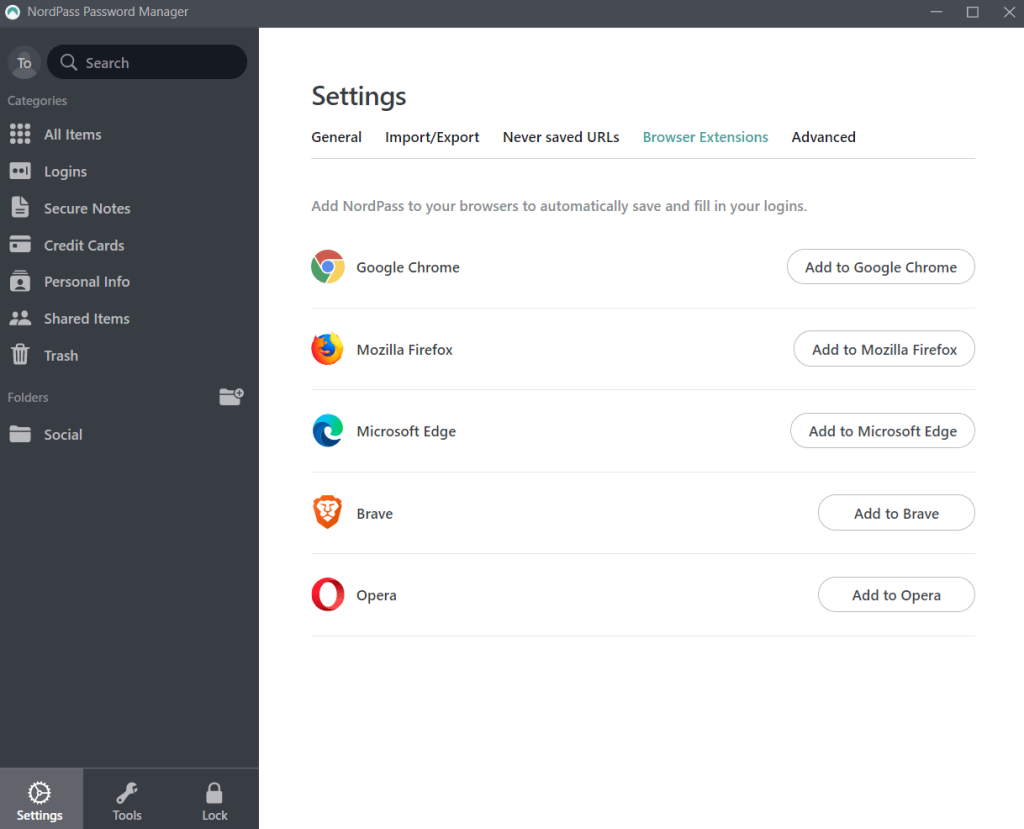
NordPass is a highly secure, user-friendly password manager built with encryption and privacy in mind. An affordable premium password manager, NordPass stands out for its Zero-Knowledge architecture, which ensures not even the developers can access user passwords.
NordPass is one of the most secure password managers available, using top-rated XChaCha20 encryption to protect user data. It has an intuitive interface with features like password auto-fill, offline access to passwords, and dark web monitoring for security breaches. NordPass is an affordable option that seamlessly syncs passwords across Mac, iOS, Android, and Windows devices.
Key Features:
- Powerful password generator
- Secure vault for storing passwords
- Auto-fill features for fast logins
- Two-factor authentication (2FA) for added protection.
- Password sharing capabilities
- Cross-platform compatibility for seamless access.
- Data breach scanner
Pros:
- Very strong security using XChaCha20 encryption
- Affordable premium plans
- Intuitive user interface
- Helpful password strength checker
- Works across multiple devices
Cons:
- Limited free version
- No offline access
macOS Compatibility: 10.10 Yosemite and later
NordPass offers both personal and business plans. The pricing plans for companies start from $1.79 per user / per month and offer a 14-day free trial.
2. LastPass
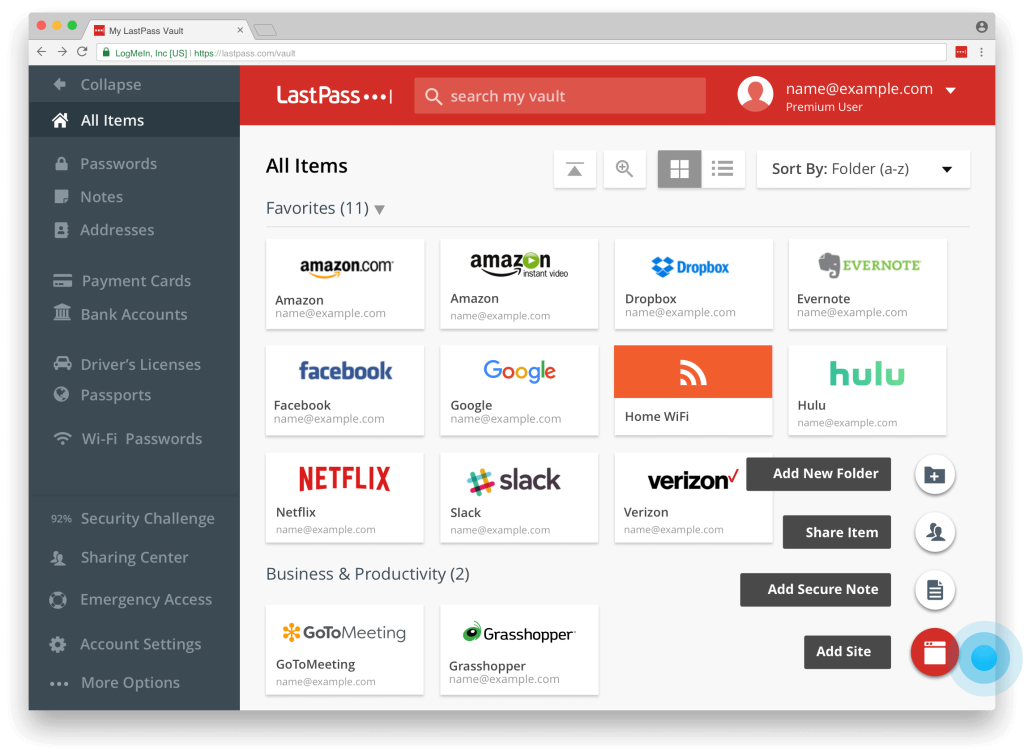
LastPass is one of the most popular and trusted password managers available with extensive features tailored specifically for Apple users. It offers 1GB of encrypted password storage for free.
LastPass is a highly versatile password manager trusted by millions of users globally. It offers robust features tailored for Apple devices like fingerprint/Face ID login, one-click autofill on iOS, and Apple Watch support. LastPass generates and stores secure passwords in a 1GB encrypted vault. The free version covers single-device use while premium adds file storage, sharing capabilities, and emergency access.
Key features:
- Biometric Authentication for Mac
- Password generator and auto-fill
- Secure password sharing
- Security audits for password strength.
- Dark web monitoring
- Apple Watch support
- Families can share passwords
Pros:
- Excellent Apple Watch integration
- Useful sharing capabilities
- Great free offering
- Robust autofill functionality
Cons:
- Mobile use requires a premium upgrade
- Occasional performance issues
macOS Compatibility: 10.10 Yosemite and later
3. DashLane
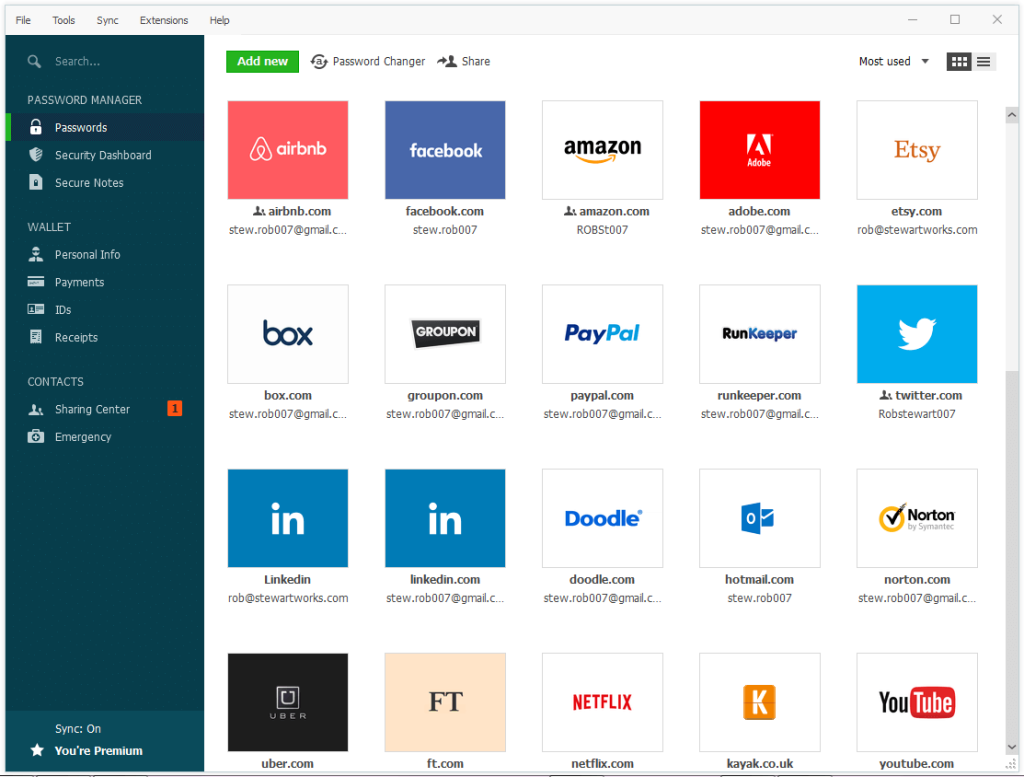
DashLane is a highly-rated password manager with a polished user interface and excellent security features. It makes password management effortless with autofill, solid encryption, and cross-platform syncing.
Dashlane makes password management easy and ultra-secure on Mac. Its user-friendly design includes autofill across browsers/apps, one-click password changing, and digital inheritance. Dashlane’s AES-256 encrypted vault ensures banking details, identities, and other sensitive data remain private. Use it on unlimited devices with high-end security features like VPN and dark web monitoring.
Key features:
- Auto password changer for compromised passwords
- Offers a security dashboard that provides insights into the strength and security of your passwords
- Secure password sharing between devices
- Powerful autofill across browsers and apps
- AES-256 bit encryption for data security
- Emergency access option if the account is ever locked
Pros:
- Very user-friendly design
- Helpful autofill makes password entry easy
- Useful password strength reports
- Digital inheritance capabilities
Cons:
- Expensive premium plan
- Limited free version
macOS Compatibility: 10.12 Sierra and later
4. 1Password
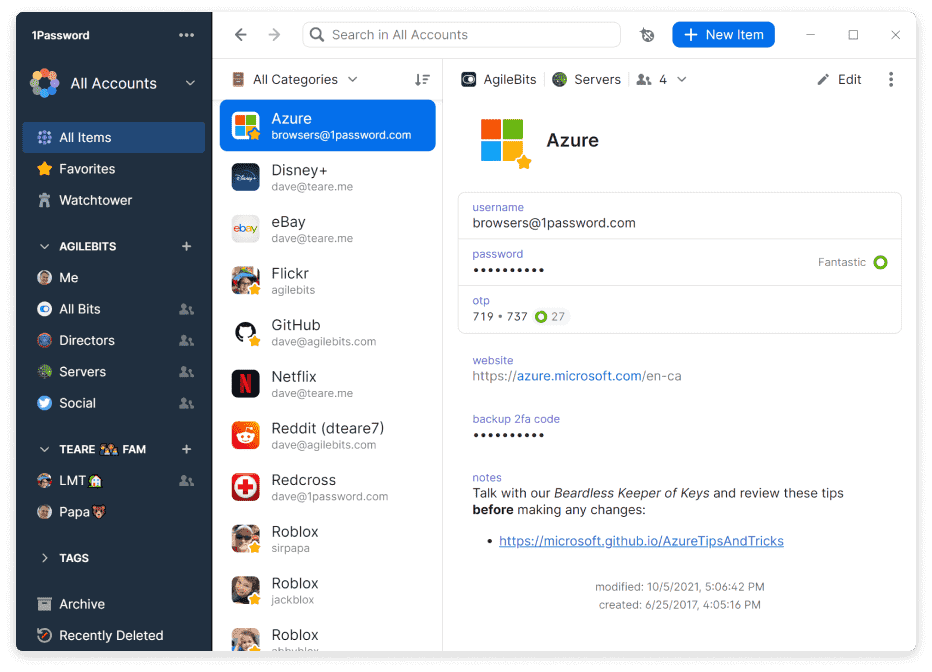
1Password is a versatile, full-featured password manager tailored for Apple users. Excellent encryption and top-rated customer support make it a go-to choice.
1Password combines convenience and cutting-edge security like Secret Key and biometric authentication to keep passwords protected. It offers seamless experiences across Mac, iOS, Windows, and Android. 1Password can store far more than just passwords including secure notes, payment details, identities, and documents. Family plans allow secure password sharing between up to 5 users.
Key features:
- Face ID and Touch ID support
- Includes a Security Watchtower feature that alerts you to compromised passwords
- Secure vault for sensitive documents
- Customizable tags for organizing logins
- Offers a Travel Mode feature that allows you to temporarily remove sensitive data from your devices when traveling
- Excellent customer service
Pros:
- Great security features like Secret Key
- Useful sharing options for families
- Integrates with iOS, Android, Windows
- Excellent customer support
Cons:
- Expensive compared to other options
- No anonymous sign-up
macOS Compatibility: 10.9 Mavericks and later
5. Keeper Password Manager
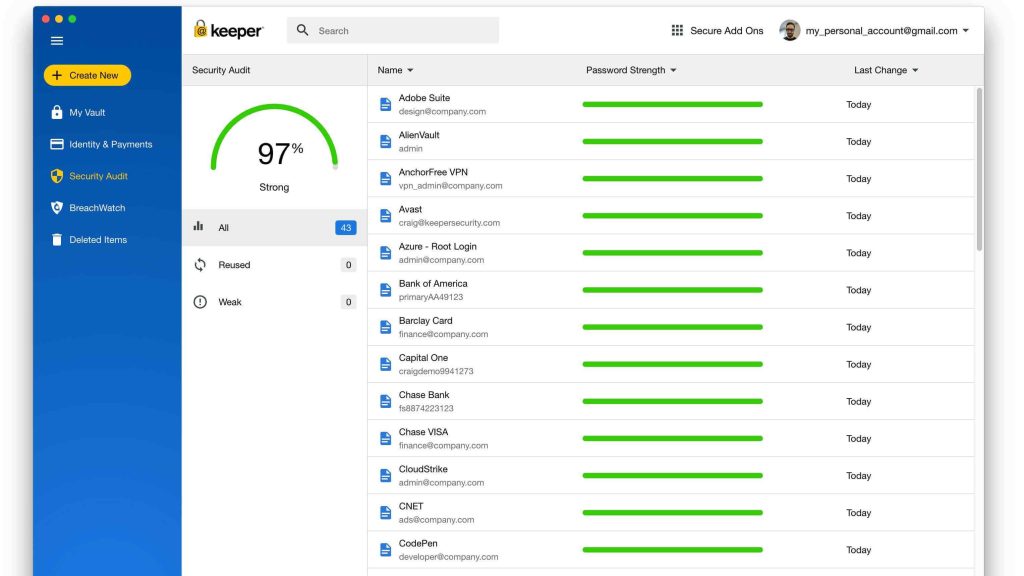
Keeper is a highly secure password manager with extensive features for password management across unlimited devices. It offers one of the most affordable premium plans available.
Keeper provides extensive password management using top-rated security protocols like zero-knowledge encryption. It has powerful autofill capabilities, biometric login, and password generation across all devices. Keeper can store unlimited passwords and offers 10GB of encrypted file storage. It provides digital inheritance and emergency access to ensure account security.
Key features:
- Powerful autofill and password generation
- Biometric authentication
- Extensive zero-knowledge encryption
- Password inheritance and emergency access
- 10GB encrypted file storage
Pros:
- Solid security protocols
- Very affordable premium pricing
- Generous free version
- Excellent iOS and Android support
Cons:
- Dated interface
- Limited organization options
macOS Compatibility: 10.10 Yosemite and later
6. RoboForm
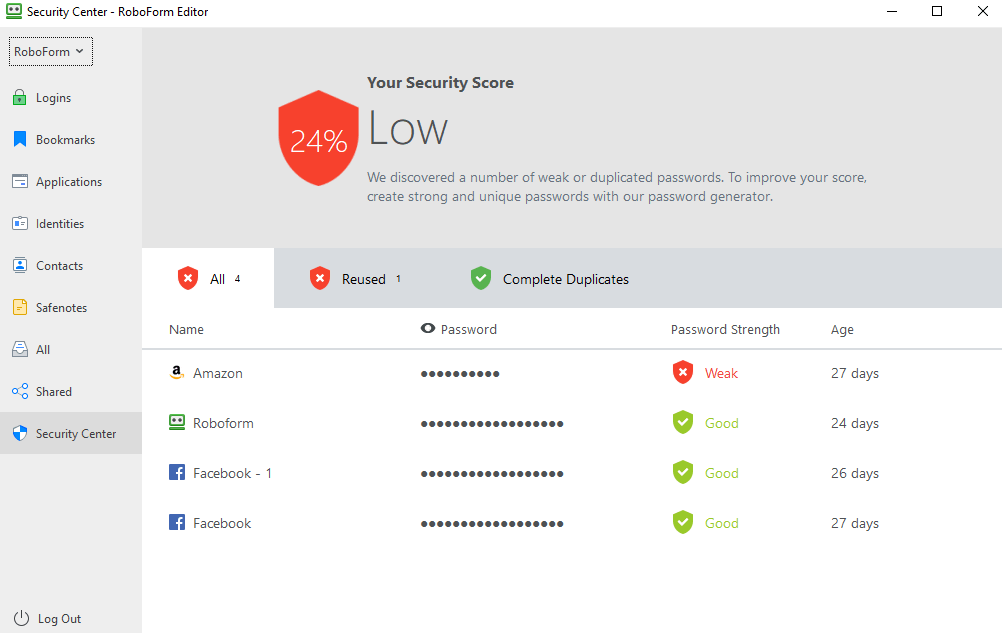
RoboForm is a top-rated freemium password manager with military-grade encryption and support across virtually any device. It’s highly customizable to suit both individual and team needs.
RoboForm securely stores passwords and sensitive information using AES-256 encryption. It offers identity management with profiles for home, work, and apps to auto-fill different logins. Offline mode access ensures reliability. RoboForm syncs seamlessly across Mac, iOS, Android, and Windows with secure sharing.
Key features:
- AES-256 bit encryption
- Biometric authentication options
- Customizable identities for logins
- Offline mode availability
- Cross-platform syncing
Pros:
- Solid free offering with paid upgrades
- Customizable identities and fields
- Great for teams or enterprise use
- Offline availability is a plus
Cons:
- Dated looking interface
- Limited auto-fill capabilities
macOS Compatibility: 10.7 Lion and later
7. Enpass
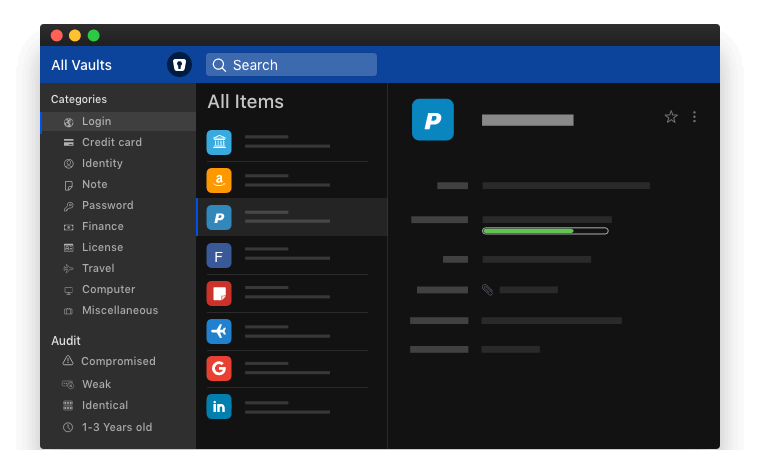
Enpass offers one of the most secure and full-featured password managers for a one-time payment. Cloud sync, offline access, and cross-platform support make it highly versatile.
Enpass uses open-source SQLCipher encryption to provide a secure, offline-accessible password manager. A one-time payment unlocks apps across all devices without subscriptions. Enpass offers secure sharing between family members along with Touch ID integration. Back up encrypted data across cloud storage services or local drives.
Key features:
- Uses open-source SQLCipher encryption
- One-time payment for apps
- Offline access on desktop
- Secure sharing between devices
- Touch ID integration
Pros:
- Highly secure using proven encryption
- Affordable one-time payment
- Excellent iOS/Android support
- Offline access capability
Cons:
- The setup process is less user-friendly
- Weaker password generation
macOS Compatibility: 10.10 Yosemite and later
8. Bitwarden
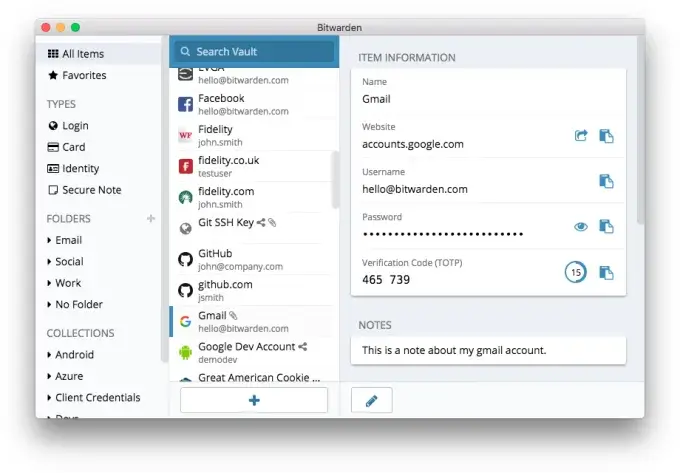
Bitwarden is an open-source password manager providing robust encryption and features for free. The easy-to-use platform offers advanced tools for just $10/year.
The easy-to-use platform offers customizable folders, sharing, and syncing across unlimited devices. Bitwarden can generate passwords, store identity information, and attach encrypted files. Paid plans add advanced tools like password auditing and priority customer support.
Key features:
- Open-source encryption
- Customizable folders and sharing
- Password auditing capabilities
- Apps for unlimited devices
- Secure file attachments
Pros:
- Full-featured free version
- Affordable premium upgrade
- Excellent organization options
- Very strong encryption practices
Cons:
- Limited customer support
- Less user-friendly interface
macOS Compatibility: 10.11 El Capitan and later
9. RememBear – No Longer on App Store
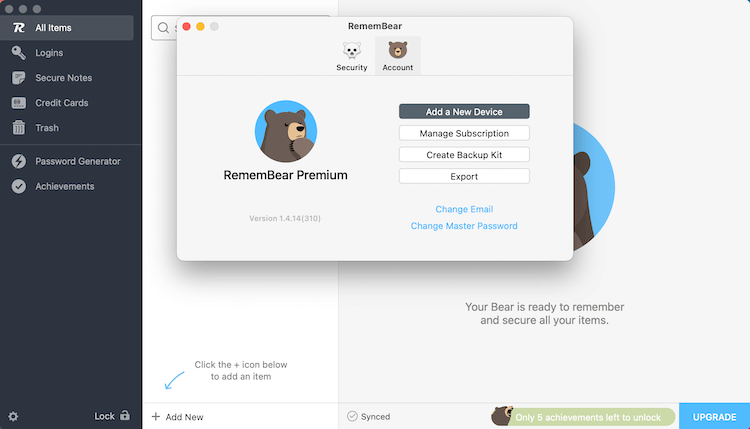
RememBear combines excellent Mac integration with a fun, bear-themed design. It’s ultra-user-friendly while still offering strong security protections.
RememBear takes a user-friendly approach to password management featuring a cute, bear-themed design. It securely generates and stores login credentials using AES-256 encryption with the option for biometric/Face ID access. RememBear makes password management straightforward for families with customizable themes and sharing capabilities across devices.
Key features:
- Cute, bear-focused design
- AES-256 encryption
- Biometric sign-in options
- Customizable themes
- Family sharing plan
Pros:
- Excellent user experience for less tech-savvy
- Fun design for kids and families
- Solid range of features
- Affordable plans
Cons:
- More limited sharing capabilities
- Weaker password generator
macOS Compatibility: 10.10 Yosemite and later
10. Sticky Password
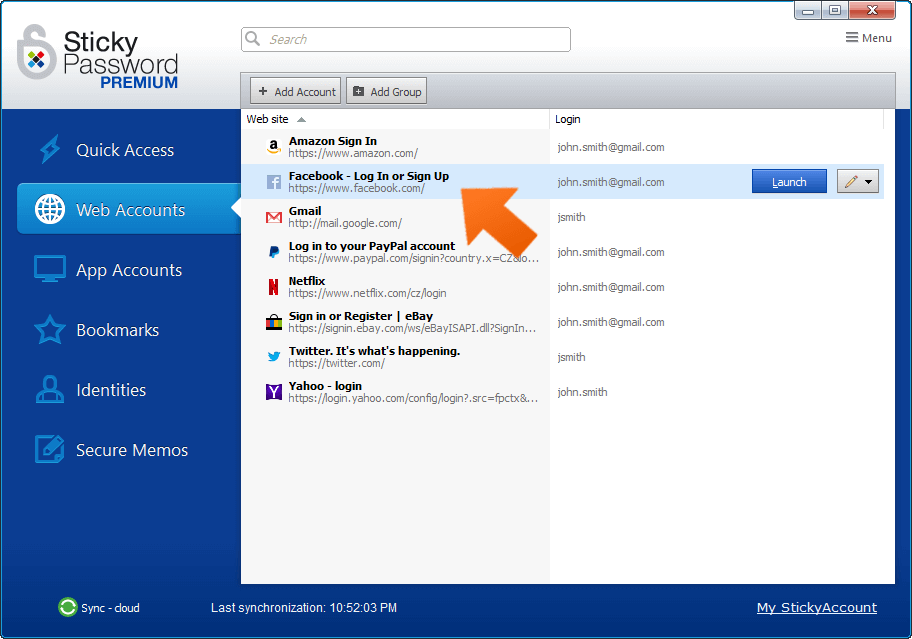
Sticky Password offers robust AES-256-bit encryption with extensive features for just $29.99 per year. Biometric sign-in, cross-device syncing, and secure password sharing make it a powerful option.
Sticky Password offers biometric authentication, unlimited password sharing, and cross-platform syncing between Mac, Windows, iOS, and Android. Users can store data locally or in the cloud. Sticky Password provides solid security protections at an affordable price.
Key features:
- AES-256 bit encryption
- Biometric authentication
- Cloud or local data storage
- Cross-platform support
- Unlimited password sharing
Pros:
- Strong security protections
- Affordable single or family plans
- Option for local-only storage
- Generous features for the price
Cons:
- Clunkier interface than some competitors
- Limited customer support options
macOS Compatibility: 10.8 Mountain Lion and later
Conclusion
Keeping your passwords securely managed is critical for staying safe online with your Apple devices. Any of these excellent password managers for Mac will help you generate stronger passwords, store them safely, and log into accounts quickly.
Consider priorities like user-friendly design, advanced encryption standards, and useful features like autofill and sharing when choosing the best option for your needs. Tools like NordPass, 1Password, and LastPass offer fully featured Mac password managers with excellent security. But more basic tools like Keeper provide solid protection at affordable price points.
With one of these best password managers installed on your Mac, iOS, and other devices, you can breathe easier knowing your logins and data stay protected.
FAQs:
1. Are these password managers compatible with all versions of macOS?
Yes, all the apps listed in the article are designed to be compatible with the latest versions of macOS, ensuring seamless integration and functionality.
2. How secure are these password managers in safeguarding my sensitive information?
These apps employ advanced encryption algorithms and security measures to protect your passwords and personal data. Additionally, many offer features like two-factor authentication and biometric login options for added security.
3. Can I access my passwords across multiple devices with these tools?
Absolutely! Most of the password managers featured in the article offer cross-device syncing capabilities, allowing you to access your passwords securely from your Mac, iPhone, iPad, and even Windows or Android devices, ensuring convenience without compromising security.
Author Bio:
Dinesh Lakhwani 

Dinesh Lakhwani, the entrepreneurial brain behind “TechCommuters,” achieved big things in the tech world. He started the company to make smart and user-friendly tech solutions. Thanks to his sharp thinking, focus on quality and the motto of never giving up, TechCommuters became a top player in the industry. His commitment to excellence has propelled the company to a leading position in the industry.
Popular Post











Recent Post

How to Switch Windows 10 to a Local Account: Complete Guide
Windows 10 allows users to sign in with either a Microsoft account or a local account. When you set up a new computer, the system often suggests using a Microsoft account. This account connects your device to Microsoft services such as Outlook, OneDrive, and the Microsoft Store. It also syncs settings, themes, and passwords across […]

How To Change Default Apps For File Types In Windows
Windows is designed to make using your computer easy. One way it does this is by assigning default apps to different file types. This means when you open a file, Windows automatically opens it with a specific program. For example, photos may open with Photos, music with Groove Music, and PDFs with Edge. These default […]

How To Adjust The Mouse Pointer Speed: Complete Guide
Using a computer every day means you use the mouse a lot. The mouse pointer moves on the screen and helps you click, scroll, and select items. Many people never think about the speed of the mouse pointer. They have used the default setting for years. This can cause small problems over time. A slow […]

How to Change Mouse Scrolling Settings In Windows
A mouse is one of the most used computer tools. People use it every day. They scroll through emails. They scroll through documents. They scroll through websites and images. The movement becomes automatic. Most users do not notice it. That is why problems often go unnoticed. Scrolling problems show up slowly. At first, it feels […]

Keyboard Light Settings: Keyboard Lighting Control [Complete Guide]
Keyboards are no longer simple typing tools. Well, yes! Over time, they have evolved to include features that improve comfort, visibility, and overall experience. One of the most useful features today is keyboard lighting. It helps users work comfortably in low-light conditions. It also reduces strain when typing for long hours. Many users first notice […]

Customizing Pointer Appearance: Complete Guide
The way your mouse pointer looks on your computer may seem like a small detail. But customizing pointer appearance can make using your PC more comfortable and visually appealing. Many users do not realize that they can change the pointer size, color, and style to fit their needs. Whether you want a bigger pointer for […]

How To Choose a Computer Monitor: Monitor Buying Guide
Buying a monitor looks easy. Many people think all screens are the same. That belief causes regret later. A monitor is not just a display. It is a daily tool. You read on it. You work on it. You relax with it. Small problems become big over time. Poor brightness hurts eyes. Bad size causes […]

How To Get Help With File Explorer in Windows 11 [Complete Guide]
File Explorer is one of the most important tools in Windows 11. It is used to open folders, view files, and manage stored data. Almost every action on a Windows computer depends on it in some way. When users open documents, save downloads, or organize photos, File Explorer is always involved. Because it is used […]

How To Fix A Frozen Computer: Complete Guide [Windows 11/10]
A frozen computer is one of the most common problems Windows users face. The screen stops responding. The mouse pointer does not move. Keyboard inputs do nothing. You may hear the fan running loudly. Sometimes the system looks alive, but nothing works. This situation often happens when you are busy or working on something important. […]

How to Upgrade Computer RAM: Complete Guide
Upgrading RAM is one of the simplest ways to improve a computer. It helps the system feel faster and smoother. Apps open quicker. Browsers handle more tabs. Games and tools run with less delay. Many users search for how to upgrade computer RAM because it gives real results without high cost. You do not need […]

