Top 5 IP Webcam Apps for Android 2026
Last updated on December 28th, 2025 at 2:19 am
To keep tab on your kids’ activities or to monitor your pet, the easiest & simplest way is to use the best IP webcam apps if you are using an Android phone. These smart apps come loaded with tons of useful features to help you track all activities of people, places, and your pets. Let’s discuss some of these best IP cameras apps for Android you should try.
What is an IP Webcam App?
An IP webcam app turns your Android phone into a security camera or webcam. It uses your phone’s camera to stream live video over the internet. You can watch the video from anywhere using a web browser or another device.
These apps are great for home security, baby monitoring, or video calls. They work by connecting your phone to your WiFi network. The app creates a web address that you can use to view the camera feed. Some apps also save recordings to your phone or cloud storage.
How To Choose an IP Webcam App?
Picking the right IP webcam app depends on your needs and budget. Look for apps that offer the features you want without being too complex to set up.
- Video Quality: Choose apps that support HD or Full HD recording for clear footage
- Storage Options: Look for cloud storage, local storage, or SD card support
- Motion Detection: Smart alerts when movement is detected save battery and storage
- Night Vision: Essential for monitoring in dark conditions
- Two-Way Audio: Allows you to listen and speak through the camera
- Remote Access: View your camera feed from anywhere with an internet connection
- Battery Life: Apps that work efficiently without draining your phone quickly
- Price: Compare free features vs paid upgrades to find the best value
Advantages and Disadvantages of Using IP Webcam Apps
Advantages:
- Turn any old Android phone into a security camera
- Much cheaper than buying dedicated cameras
- Easy to set up and use
- Access from anywhere with internet
- Motion detection and alerts
- Can record video and take photos
- Multiple viewing options (web browser, apps)
Disadvantages:
- Uses phone battery quickly
- Depends on stable WiFi connection
- Limited storage on phone
- May slow down phone performance
- Security risks if not properly configured
- Some features require paid upgrades
Top 5 Comparison Table: IP Webcam Apps For Android
| App Name | Price | Video Quality | Cloud Storage | Motion Detection | Night Vision | Rating |
| IP Webcam | Free/Pro | Up to 1080p | Optional | Yes | Manual | 4.2/5 |
| DroidCam | Free/Pro | Up to 1080p | No | Basic | No | 4.1/5 |
| AtHome Camera | Free/Premium | Up to 720p | Yes | Smart Detection | Yes | 4.3/5 |
| IP Cam Viewer Basic | Free/Pro | Depends on Camera | Via Camera | Via Camera | Via Camera | 4.0/5 |
| ONVIF IP Camera Monitor | Free/Premium | Up to 4K | Via Camera | Via Camera | Via Camera | 4.2/5 |
Best IP Camera Apps for Android for 2026
We have tested & reviewed over 13 apps before listing the best IP camera apps for Android here. Let’s discuss some of the best features of these apps you should try on your Android device.
1. IP Webcam
Device Compatibility: 4.1 and up
Downloads: 10 Million+
Ratings: 3.9
Price: Free, Contains Ads
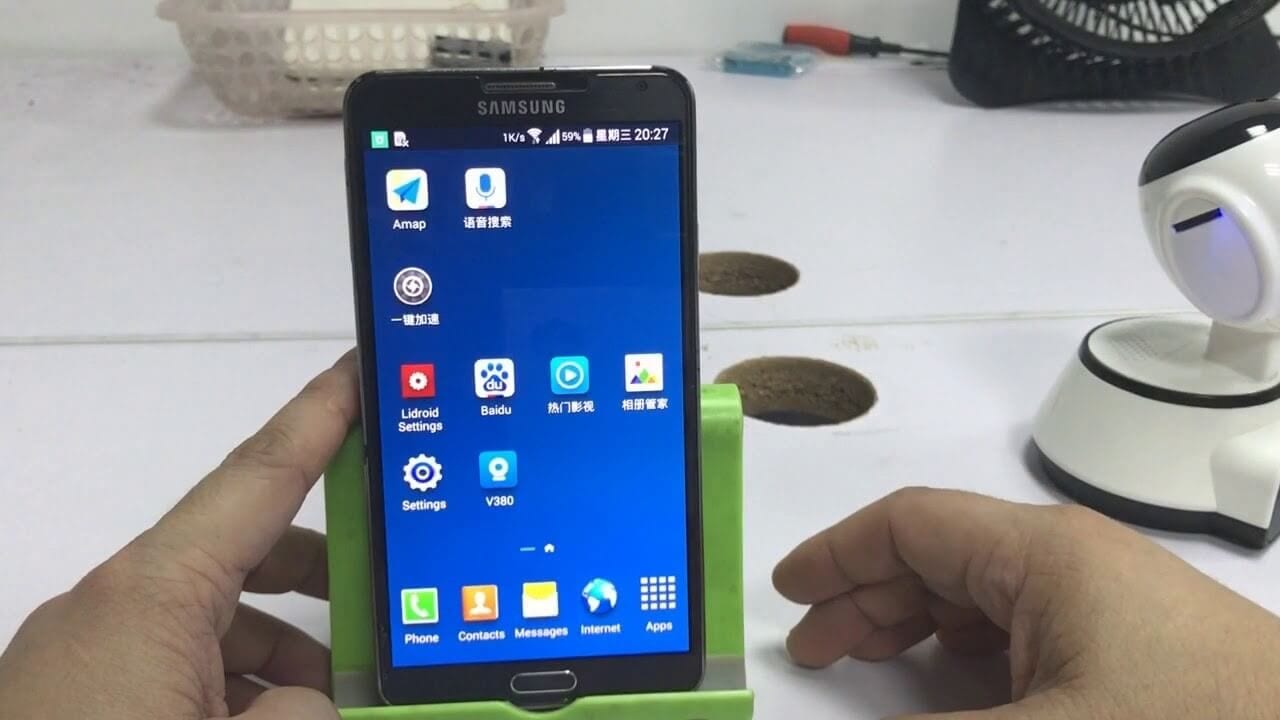
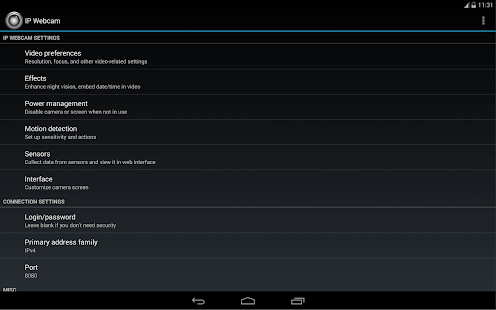
IP Webcam will turn your Android phone into a network camera with numerous viewing options. You can connect to Wi-Fi for better viewing if you don’t have mobile data available. You can view your camera on multiple platforms with web browser or VLC player. For instant global access, it is supported by optional Ivideon cloud broadcasting. You can use this app with third-party MJPG software. It is supported by two-way audio option.
Features of IP Webcam
- Filoader plugin helps you
upload videos to Dropbox, FTP, SFTP, and Email. - You can select from multiple
web renderers including Javascript, Flash, and others. - It supports video recording in
MOV, WebM, MPEG4, or MKV on Android 4.1+ versinon. - It offers taker integration
with motion detection. - It supports sensor data
acquisition with online web graphing.
Pros
- It offers multiple advanced
features like motion detection, night vision, and sound detection that makes it
one of the best IP camera apps for Android.
Cons
- Issues with motion detection
2. DroidCam
Device Compatibility: 5.0 and up
Downloads: 10 Million+
Ratings: 4.6
Price: Free, Contains Ads
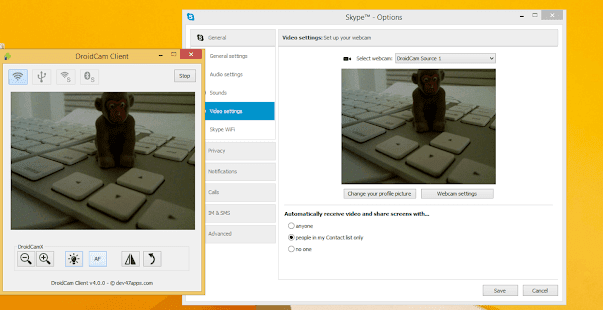
If you want to turn your Android device into a webcam, then try this advanced IP camera app. You can use DroidCam with live streaming/broadcast programs like OBS or with common chat & conference programs. Using an Internet browser, you can use this app as IP webcam virtually on all networks. With webcam drivers installed on your PC, you can connect this app to monitor events on your computer. It supports Windows and Linux clients.
Features of DroidCam
- You can use DroidCam Webcam to chat on your computer with sound and picture.
- You can connect over Wi-Fi or using a USB cable.
- You can use all non-camera apps with DroidCam in the background or turn the screen off to save battery.
- IP web camera with MJPEG access.
- Higher resolution video support via HD mode.
Pros
- It is completely free with no
usage limit or watermarks.
Cons
- Certain issues with the Windows client and USB support.
3. AtHome Camera
Device Compatibility: 4.0 and up
Downloads: 5 Million+
Ratings: 4.2
Price: Free, Contains Ads, offers in-app purchases
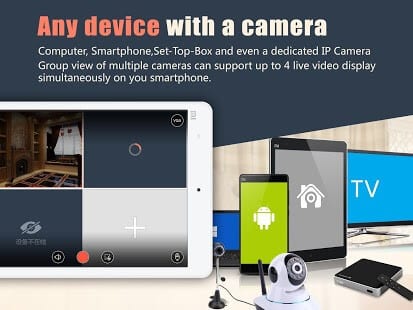
AtHome Camera is an advanced IP webcam app for Android that is designed to deliver instant and effective results. It is trusted by millions of users around the world for a seamless user experience. For better results, it supports human sensing. Supporting smart motion detection, you will get instant push notifications with animated GIF images. Using AtHome Video Streamer, you can turn your old phone, computer, or set-top box into a security camera.
Features of AtHome Camera
- It supports remote monitoring and live streaming over Wi-Fi 3G/4G networks.
- It offers enhanced night vision support.
- It offers a built-in MIC and speaker to communicate easily two-way.
- It offers a multi-view display to help you watch multiple streamers on a single screen simultaneously.
- It offers a highly secure cloud service where you can view videos directly in the Cloud.
Pros
- It uses AI and Deep Learning technologies to deliver the best results every time.
Cons
- Some glitches with live streaming when working on a weak network
4. IP Cam Viewer Basic
Device Compatibility: 4.1 and up
Downloads: 5 Million+
Ratings: 3.7
Price: Free, Contains Ads, offers in-app purchases
Try this smart IP webcam app for Android to remotely access and control your webcam, network recorder, digital video recorder, and IP camera. It supports all major devices, including NVRs and DVRs. With two-way audio and background audio support for many devices, it ensures you get the best results every time you use this app. The in-app motion detection feature of the app works just amazingly to ensure smooth functioning.
Features of IP Cam Viewer Basic
- It offers MJPEG/H265, H264/MPEG4 codec support.
- You can export or import video recordings using email, Dropbox, or an SD card.
- It offers a scan camera capability for automatic driver selection.
- It supports home screen and lock screen widgets.
- Cross-platform support for all your mobile devices.
Pros
- It supports all devices, including Chromecast and Android Wear support.
Cons
- The free version has limited features

5. ONVIF IP Camera Monitor (Onvifer)
Device Compatibility: 4.2 and up
Downloads: 1 Million+
Ratings: 4.4
Price: Free, Contains Ads, offers in-app purchases
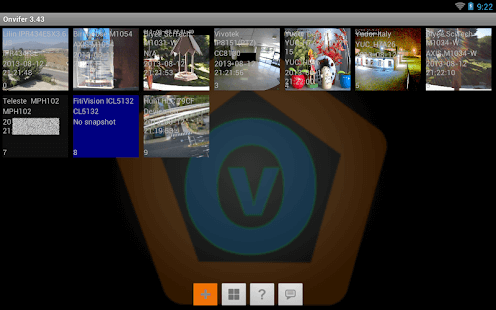
It is one of the highly rated IP camera apps on the Google Play Store that helps you monitor, explore, control, and configure IP cameras. It supports all modern IP camera viewers and works much more than a simple IP camera viewer. You can use this app even if you are a non-English speaker as it supports multiple languages. It supports older cameras via generic MJPEG and RTSP. You can use the IP Centcom version of this app on your Windows computer and phone versions.
Features of ONVIF IP Camera Monitor
- ONVIF is compatible with over
5000 NVT devices. - You can save servers from
complex port configuration and help viewers traverse firewalls using this app. - It records videos in standard
MP4 format. - It offers widgets for instant
access. - It supports multi-view and
helps you view multiple cameras simultaneously.
Pros
- It is easy to set up and offers high-quality streaming.
Cons
- A lot of ads may annoy you.
Conclusion
IP webcam apps offer an affordable way to create a security system using Android devices you already own. The five apps we reviewed each serve different needs, from simple webcam functionality to professional surveillance systems. IP Webcam and AtHome Camera are best for turning phones into security cameras, while DroidCam excels as a PC webcam solution.
When choosing an IP webcam app, consider your main use case, technical skill level, and budget. Free versions work well for basic needs, but premium features like HD video, cloud storage, and smart detection are worth the upgrade for serious security use.
Always ensure your network security is properly configured when using these apps to prevent unauthorized access to your camera feeds.
FAQs
1. Can IP webcam apps work without internet? Y
Yes, most IP webcam apps can work on your local WiFi network without internet access. You can view the camera feed from other devices on the same network using the app’s local IP address. However, you won’t be able to access the camera remotely or use cloud features without an internet connection.
2. Do IP webcam apps drain phone battery quickly?
IP webcam apps do use more battery than normal because they keep the camera and WiFi active continuously. To extend battery life, use lower video quality settings, enable motion detection instead of continuous recording, and keep the phone plugged in for long-term monitoring. Some apps also have power-saving modes that help reduce battery drain.
3. Are IP webcam apps secure and safe to use?
IP webcam apps can be secure if configured properly, but they do create potential security risks. Always change default passwords, use strong WiFi encryption, and avoid exposing the camera to the public internet without proper security measures. Only download apps from trusted developers and read privacy policies to understand how your data is handled.
Author Bio:
Dinesh Lakhwani 

Dinesh Lakhwani, the entrepreneurial brain behind “TechCommuters,” achieved big things in the tech world. He started the company to make smart and user-friendly tech solutions. Thanks to his sharp thinking, focus on quality and the motto of never giving up, TechCommuters became a top player in the industry. His commitment to excellence has propelled the company to a leading position in the industry.
Popular Post











Recent Post

How to Switch Windows 10 to a Local Account: Complete Guide
Windows 10 allows users to sign in with either a Microsoft account or a local account. When you set up a new computer, the system often suggests using a Microsoft account. This account connects your device to Microsoft services such as Outlook, OneDrive, and the Microsoft Store. It also syncs settings, themes, and passwords across […]

How To Change Default Apps For File Types In Windows
Windows is designed to make using your computer easy. One way it does this is by assigning default apps to different file types. This means when you open a file, Windows automatically opens it with a specific program. For example, photos may open with Photos, music with Groove Music, and PDFs with Edge. These default […]

How To Adjust The Mouse Pointer Speed: Complete Guide
Using a computer every day means you use the mouse a lot. The mouse pointer moves on the screen and helps you click, scroll, and select items. Many people never think about the speed of the mouse pointer. They have used the default setting for years. This can cause small problems over time. A slow […]

How to Change Mouse Scrolling Settings In Windows
A mouse is one of the most used computer tools. People use it every day. They scroll through emails. They scroll through documents. They scroll through websites and images. The movement becomes automatic. Most users do not notice it. That is why problems often go unnoticed. Scrolling problems show up slowly. At first, it feels […]

Keyboard Light Settings: Keyboard Lighting Control [Complete Guide]
Keyboards are no longer simple typing tools. Well, yes! Over time, they have evolved to include features that improve comfort, visibility, and overall experience. One of the most useful features today is keyboard lighting. It helps users work comfortably in low-light conditions. It also reduces strain when typing for long hours. Many users first notice […]

Customizing Pointer Appearance: Complete Guide
The way your mouse pointer looks on your computer may seem like a small detail. But customizing pointer appearance can make using your PC more comfortable and visually appealing. Many users do not realize that they can change the pointer size, color, and style to fit their needs. Whether you want a bigger pointer for […]

How To Choose a Computer Monitor: Monitor Buying Guide
Buying a monitor looks easy. Many people think all screens are the same. That belief causes regret later. A monitor is not just a display. It is a daily tool. You read on it. You work on it. You relax with it. Small problems become big over time. Poor brightness hurts eyes. Bad size causes […]

How To Get Help With File Explorer in Windows 11 [Complete Guide]
File Explorer is one of the most important tools in Windows 11. It is used to open folders, view files, and manage stored data. Almost every action on a Windows computer depends on it in some way. When users open documents, save downloads, or organize photos, File Explorer is always involved. Because it is used […]

How To Fix A Frozen Computer: Complete Guide [Windows 11/10]
A frozen computer is one of the most common problems Windows users face. The screen stops responding. The mouse pointer does not move. Keyboard inputs do nothing. You may hear the fan running loudly. Sometimes the system looks alive, but nothing works. This situation often happens when you are busy or working on something important. […]

How to Upgrade Computer RAM: Complete Guide
Upgrading RAM is one of the simplest ways to improve a computer. It helps the system feel faster and smoother. Apps open quicker. Browsers handle more tabs. Games and tools run with less delay. Many users search for how to upgrade computer RAM because it gives real results without high cost. You do not need […]

