Top 10 Folder Lock Software For Windows 10 & 11 [2026]
Last updated on December 29th, 2025 at 3:33 pm
Keeping private files safe on a Windows PC has become more than a convenience. With more sensitive data stored on devices every day, basic system protections are often not enough. Folder Lock software fills that gap by letting you hide, encrypt, or restrict access to specific folders without fuss.
In this article, we look at the best folder lock tools available for Windows 10 and 11 in 2026. You will find practical features, ease of use, and real-world usefulness so you can pick the right protection for your personal or work files.
Before You Start, Know The Answers To These Questions:
Can Folder Lock software protect files from system-level access?
Some advanced folder lock tools can block access even when someone logs in as an administrator. They do this by restricting file-level permissions and adding encryption on top. This makes it harder for others to bypass protection using system tools or safe mode. Basic tools may only hide folders, so checking this feature matters if you share your PC.
Is it safe to lock system or program folders?
Locking system or application folders is risky and not advised. These folders are required for Windows and the software to run correctly. If blocked, programs may fail to start, or the system may behave unpredictably. Folder lock software works best for personal files like documents, photos, backups, and work data.
Do folder lock tools work after Windows updates or upgrades?
Most reliable tools continue working after regular Windows updates. Well-maintained software adapts quickly to new system changes. Problems usually arise with outdated or unsupported tools. Keeping the software updated ensures locked folders remain secure and accessible after upgrades.
How to Choose a Folder Lock Software
Selecting the right folder lock tool depends on what you value most in data protection. Think about your threat level, how often you will access locked files, and whether you need simple hiding or strong encryption. Good software should balance power with simplicity, give you clear controls, and run smoothly on your system without slowing things down. Below are key points to help guide your choice:
- Security level
Look for strong encryption and solid password protection. AES-256 or similar standards help ensure data is hard to breach. - Ease of use
A clean, clear interface speeds adoption. Tools that let you drag and drop folders for locking save time. - Compatibility
Confirm the software works with both Windows 10 and 11, including current updates, without crashing or glitches. - Performance impact
Good tools run quietly in the background. Poorly optimized ones can slow file access or system boot. - Recovery and support
Mistyped passwords happen. Check if recovery options exist and whether support is reachable if you run into issues. - Extra features
Some tools add file shredding, secure backup, or stealth modes. These extras can add real value if you need them. - Price and licensing
Free versions suit casual users, but paid options often unlock stronger security and ongoing updates. - Reputation and updates
Choose tools from known developers with regular updates. This shows ongoing care and quicker fixes for vulnerabilities.
Top 5 Comparison Table
Before deeper reviews, here is a head-to-head look at the leading folder lock tools. These represent a mix of simple and advanced solutions for everyday protection needs.
Top Folder Lock Software at a Glance
| Software | Main Security Method | Ease of Use | Extra Features | Best For |
| IObit Protected Folder | Password + Access Lock | Very Easy | Auto-lock, protection rules | Novices & home users |
| EaseUS LockMyFile | Encryption + Lock | Easy | File shredder, recovery | Balanced protection |
| Folder Lock | Encryption + Hiding | Moderate | Secure backup, wallet | Mixed personal/business |
| Gilisoft File Lock Pro | Encryption | Moderate | USB protection | Users with removable drives |
| File Protect System | Folder protection | Easy | Lightweight, simple | Lightweight basic protection |
10 Finest Folder Lock Software for Windows
We have carefully checked out different types of software to lock folders available, focusing on cost, features, and compatibility. After trying out different software options, we have gathered a list of the top 10 options for folder protection. Here is the list of the best ones we surmised.
1. IObit Protected Folder
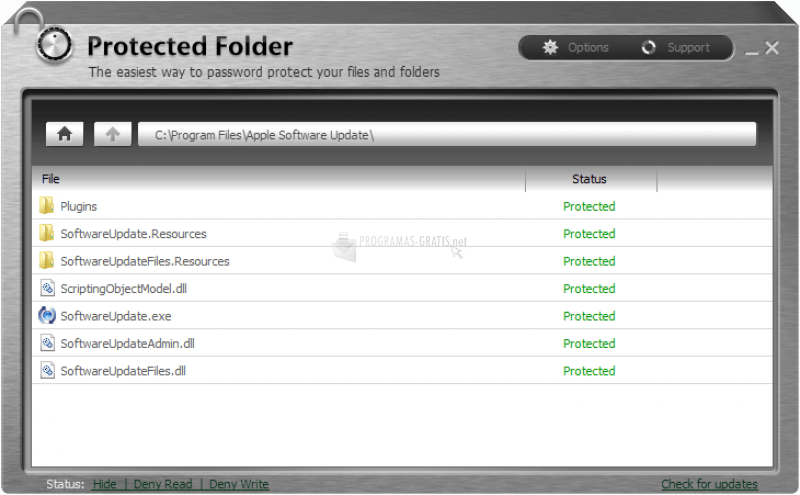
IObit Protected Folder is one of the best options for folder locking tools for Windows. It is effective in safeguarding directories and files efficiently. You can set up permissions for access to folders to avoid unwanted entry. There is advanced protection and privacy mode in place on this software.
Compatibility: Windows 10/8.1/8/7/Vista/XP/2000
Price: $19.95
Features:
- Suitable for hiding specific files.
- Files stay locked even in case of malicious attacks on the system.
- Safeguard files by setting up a password.
- Optimized Privacy Protection Mode.
Pros:
- Simple drag-and-drop feature for the file encryption process
- Easy-to-operate tool
- Supports most Windows versions
Cons:
- Not available for Mac users
2. EaseUS LockMyFile
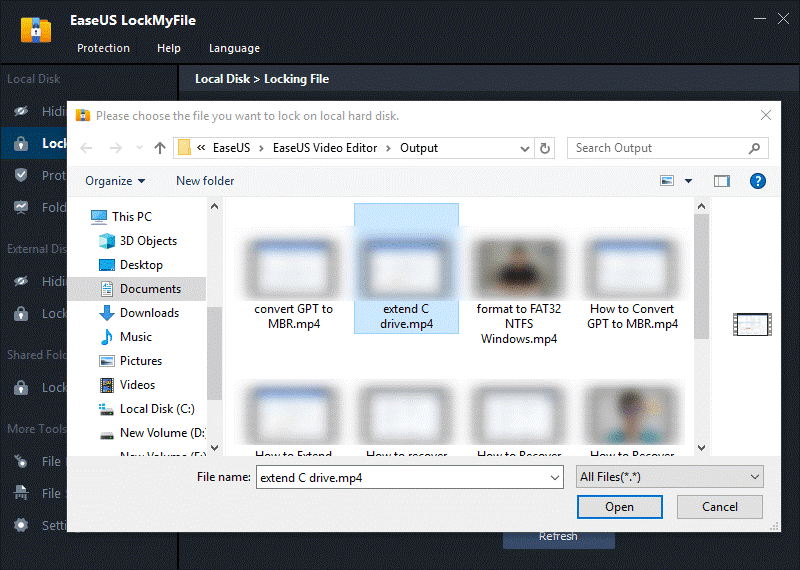
EaseUS LockMyFile is high-quality software that works to password protect folder windows 10 and other versions. The interface here is straightforward and navigable, ensuring a good user experience. Moreover, you can notice which users make changes on your folder and disks through this tool.
Compatibility: Windows 2000/2003/XP/Vista/7/8/10/11
Price: $69.95 for lifetime
Features:
- Encryption benefit for hiding folders from different users.
- Efficient and secure file protection software.
- Protect your folders or files with a strong password.
- AES encryption algorithm encrypts folders and files into EXE/GFL format files.
Pros:
- It has an intense self-protection mode
- Free trial available
- Robust customer support
Cons:
- Some plans are costly
3. Folder Lock
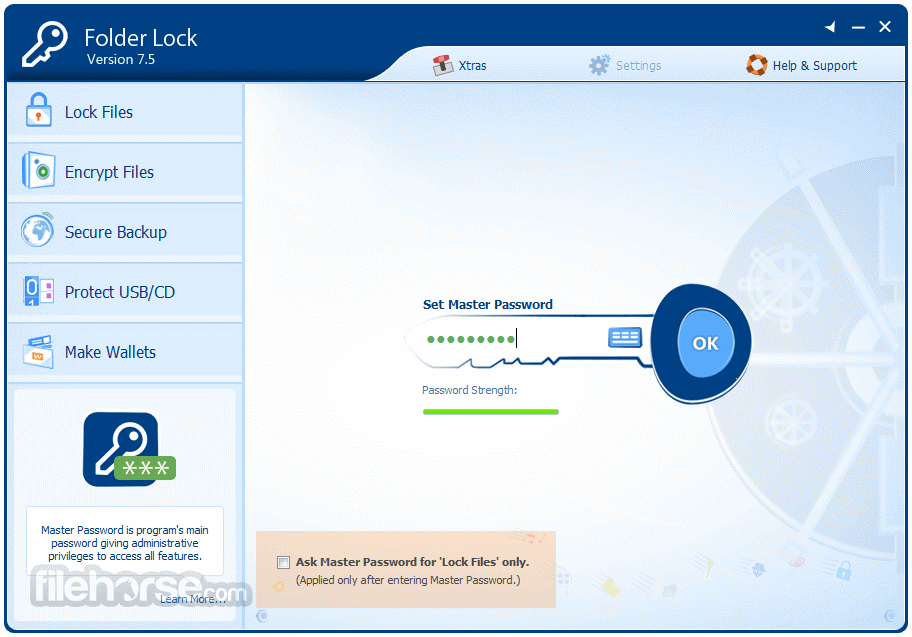
Folder Lock helps password protect folder windows 10 and 8.1, Android, and Mac devices. It is one of the most effective privacy and security tools available due to the high-quality AES 256-bit encryption. It ensures military-grade protection to files.
Compatibility: Windows 10/8.1
Price: Free
Features:
- Users can encrypt sensitive data with this software.
- Backup creation and restoration features are available.
- Password lock files and folders within seconds.
- Clear all system history securely.
Pros:
- AES-grade protection
- Backup and sync all data
- Clean interface
Cons:
- Separate subscription for secure backup
- No encryption for locked files
4. Gilsoft File Lock Pro
This is another top-notch software option available to lock folders. It is effective in safely locking folders and files from outside access. You can apply this software to work on different devices like internal hard drives, external USD hard drives, flash drives, etc.
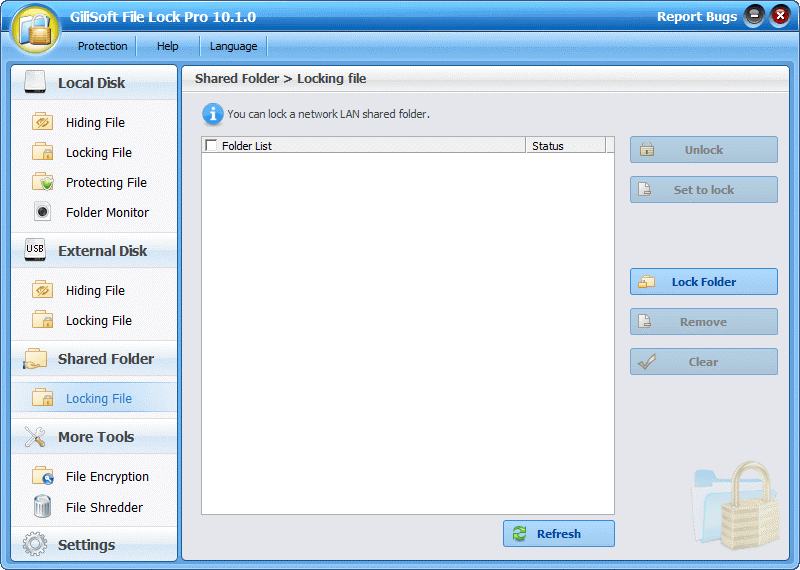
Compatibility: Windows 2000/XP/7/10/11 (32 bits &64 bits)
Price: $29.95 for 1 Year/1 PC
Features:
- Use the Disk Wiper feature to clean out your unused device disk space.
- Note outside access and edits from other users to your folders/disks.
- Password needed to uninstall the tool.
Pros:
- Simple installation process
- Cross-platform
- Affordable costs
- 100% guaranteed system and file protection
Cons:
- Not available for Mac users
5. File Protect System
The data locking software file protect system is highly effective for data and file protection on Windows devices. Users can easily encrypt their files and folders with this tool. There are hash functions available here that allow data alteration in a cipher code format via SHA-256 and Message Digest 5.
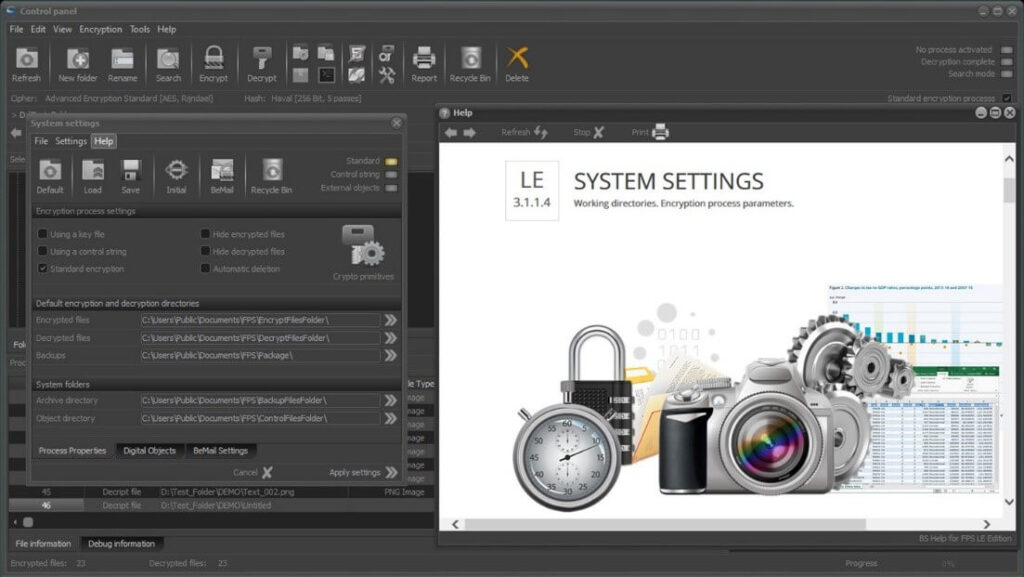
Compatibility: Windows 10 v.14257.0 or higher
Price: Free
Features:
- Users can create file packages for backup for archive crafting.
- Use embedded email clients to exchange your confidential data.
- It can enable the cipher function in PCs.
Pros:
- The ciphering function is attractive to government agencies
- Real-time documentation
- Free trial
Cons:
- Complex interface
6. Wise Folder Hider
Wise Folder Hider is another notable tool Windows user work with to safeguard their data in PCs. It offers a second layer of protection with password safety benefits. They use the Hide feature for private video, files, and photos; it helps hide USB drives.
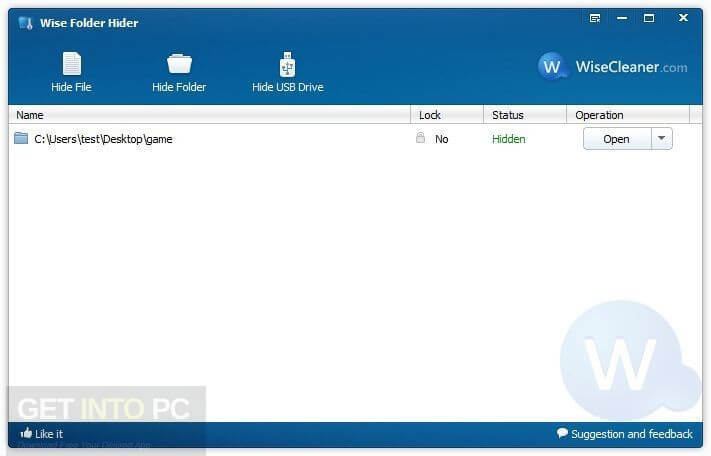
Compatibility: Windows XP/Vista/7/8/10 (both 32-bit and 64-bit)
Price: $19.95
Features:
- You can password protect USB drives, files, and folders.
- Right-click on the directory to hide it.
- File/folder encryption support up to 50 MB.
Pros:
- Double password protection
- Free version available
- Simple interface
Cons:
- Tech support available only on the Pro plan
7. Folder Guard
This folder locking software is available in both paid and free versions. It offers high-level protection on folders and files; you can adjust a password for access. Protect your data from theft with this software.
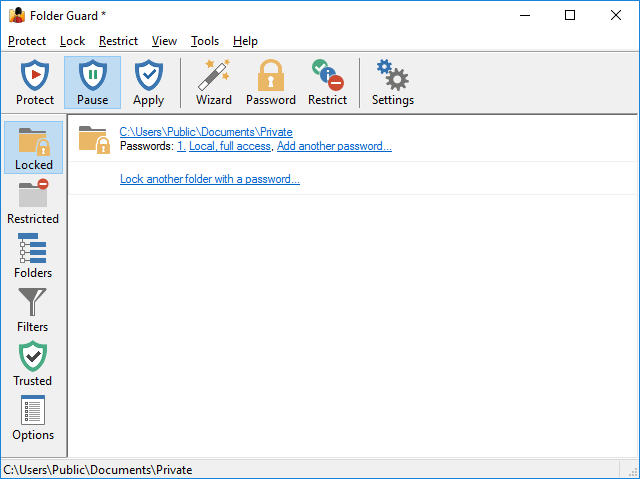
Compatibility: Windows 10/8/7/XP
Price: $39.95 for 2 computers
Features:
- Password protection on files and folders.
- Works to safeguard sensitive data on pen-drives, USB drives, CD/DVDs, and flash drives.
- Password lock the application.
Pros:
- Disable via the control panel
- Monitor access to external drives
- Restrict access to files by their type
Cons:
- No filters in the free version
- Costly
8. Folder Password Lock Pro
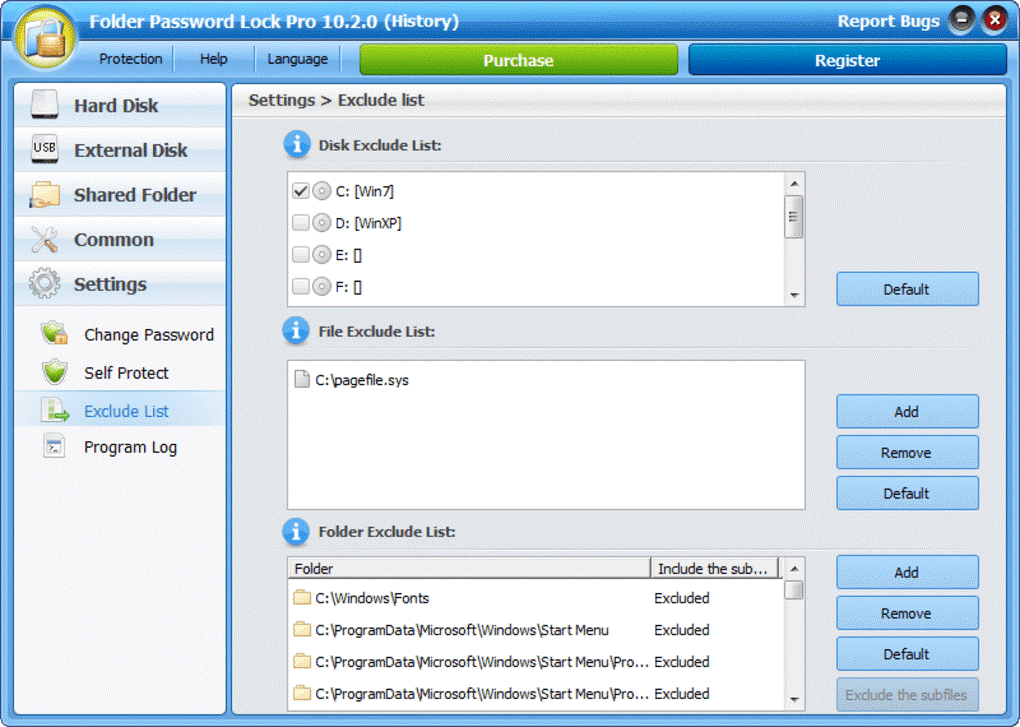
You can use this software to password lock your folders on your PC. Therefore, you can block unwanted access to your folders, and other users cannot modify or delete it quickly. The whole process is easy to do due to the user-friendly interface.
Compatibility: Windows XP/Vista/7/8/10 (64-bit)
Price: Free
Features:
- Lock, encrypt and hide your folders and files.
- Use one password for every folder lock.
- Search for lost passwords through pre-set email.
Pros:
- Email URL works as a backup password
- Protects LAN-centric shared folders
- Supports external devices like USB drives
Cons:
- Can only use one global password
9. WinRAR
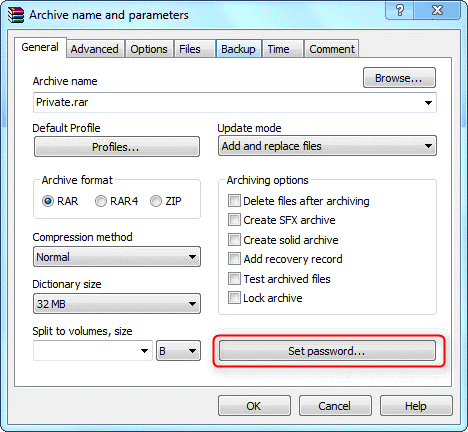
You can easily encrypt data by adding data to the archive. Use WinRAR as a compression tool as well as file encryption software. It works with AES 256-bit keys that allow for high-grade data protection.
Compatibility: Windows 7,8,9,10
Price: $21.00 for each user
Features:
- Supports encrypted and compressed files.
- Works with 256-bit encryption tool (password).
- Supports authentication signature protection.
Pros:
- Simple encryption process
- Strong data protection
- Easy to use interface
Cons:
- Not very affordable
- Lacks many features
10. Secret Folder
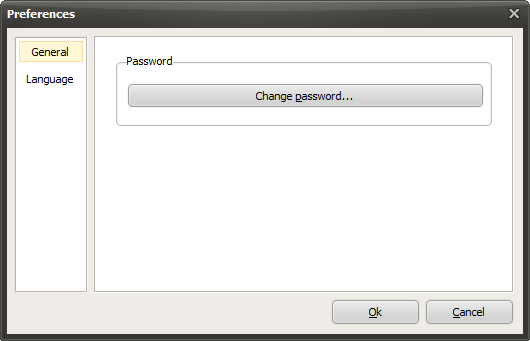
This tool works to hide the complete directory on the PC device. It is easy to use and safeguards against malware and ransomware as well.
Compatibility: Windows Vista / Windows 7, 8, 10
Price: Free
Features:
- It promises unlimited storage protection.
- Separate your private data from public data.
- Safeguards against ransomware and malware.
Pros:
- Convenient usage
- Simple interface
Cons:
- Lacks diverse features
Conclusion
Folder lock software has moved beyond simple hiding. Modern threats, shared machines, and accidental exposure mean you need tools that offer real encryption, reliable access control, and resilience against tampering. The top tools here balance these needs with straightforward controls so you are not fighting the software just to protect your files.
Choose based on how you work and what you protect. If you want a no-nonsense lock tool for everyday use, options like IObit Protected Folder and File Protect System keep things simple. If you handle sensitive business documents or finance records, tools with strong encryption and added features like backup and shredding give you extra assurance. Test a couple of free versions first to see what fits your workflow, then lock down your data with confidence.
FAQs
What is folder lock software, and why use it?
Folder lock software lets you restrict access to files or folders. It adds a layer of control beyond normal user permissions, protecting sensitive data from prying eyes or accidental access.
Will Folder Lock software slow my computer?
Most good tools run quietly with minimal impact. Some heavy encryption or background tasks may use modest resources, but steady performance is common on modern PCs.
Can Folder Lock software protect against hackers?
Yes, strong encryption and access control make it harder for attackers to read your files. However, no single tool stops every threat by itself. Keep your system updated and practice good security habits.
Author Bio:
Dinesh Lakhwani 

Dinesh Lakhwani, the entrepreneurial brain behind “TechCommuters,” achieved big things in the tech world. He started the company to make smart and user-friendly tech solutions. Thanks to his sharp thinking, focus on quality and the motto of never giving up, TechCommuters became a top player in the industry. His commitment to excellence has propelled the company to a leading position in the industry.
Popular Post











Recent Post

How To Change Default Apps For File Types In Windows
Windows is designed to make using your computer easy. One way it does this is by assigning default apps to different file types. This means when you open a file, Windows automatically opens it with a specific program. For example, photos may open with Photos, music with Groove Music, and PDFs with Edge. These default […]

How To Adjust The Mouse Pointer Speed: Complete Guide
Using a computer every day means you use the mouse a lot. The mouse pointer moves on the screen and helps you click, scroll, and select items. Many people never think about the speed of the mouse pointer. They have used the default setting for years. This can cause small problems over time. A slow […]

How to Change Mouse Scrolling Settings In Windows
A mouse is one of the most used computer tools. People use it every day. They scroll through emails. They scroll through documents. They scroll through websites and images. The movement becomes automatic. Most users do not notice it. That is why problems often go unnoticed. Scrolling problems show up slowly. At first, it feels […]

Keyboard Light Settings: Keyboard Lighting Control [Complete Guide]
Keyboards are no longer simple typing tools. Well, yes! Over time, they have evolved to include features that improve comfort, visibility, and overall experience. One of the most useful features today is keyboard lighting. It helps users work comfortably in low-light conditions. It also reduces strain when typing for long hours. Many users first notice […]

Customizing Pointer Appearance: Complete Guide
The way your mouse pointer looks on your computer may seem like a small detail. But customizing pointer appearance can make using your PC more comfortable and visually appealing. Many users do not realize that they can change the pointer size, color, and style to fit their needs. Whether you want a bigger pointer for […]

How To Choose a Computer Monitor: Monitor Buying Guide
Buying a monitor looks easy. Many people think all screens are the same. That belief causes regret later. A monitor is not just a display. It is a daily tool. You read on it. You work on it. You relax with it. Small problems become big over time. Poor brightness hurts eyes. Bad size causes […]

How To Get Help With File Explorer in Windows 11 [Complete Guide]
File Explorer is one of the most important tools in Windows 11. It is used to open folders, view files, and manage stored data. Almost every action on a Windows computer depends on it in some way. When users open documents, save downloads, or organize photos, File Explorer is always involved. Because it is used […]

How To Fix A Frozen Computer: Complete Guide [Windows 11/10]
A frozen computer is one of the most common problems Windows users face. The screen stops responding. The mouse pointer does not move. Keyboard inputs do nothing. You may hear the fan running loudly. Sometimes the system looks alive, but nothing works. This situation often happens when you are busy or working on something important. […]

How to Upgrade Computer RAM: Complete Guide
Upgrading RAM is one of the simplest ways to improve a computer. It helps the system feel faster and smoother. Apps open quicker. Browsers handle more tabs. Games and tools run with less delay. Many users search for how to upgrade computer RAM because it gives real results without high cost. You do not need […]

How To Clean Your Computer Keyboard: Complete Guide
A computer keyboard is touched more than almost any other device you own. It is used during work, study, gaming, and casual browsing. Fingers carry natural oils, sweat, and dirt. Small food crumbs fall between keys without notice. Dust settles each day slowly. Over time, this creates a hidden layer of grime. Many users do […]

