How to Add Multiple Monitors To Your Windows 10/11 Laptop [2026]

Last updated on December 23rd, 2025 at 4:27 pm
Multitasking and productivity are key factors for many individuals. Adding multiple monitors to your Windows 10 or Windows 11 laptop can greatly enhance your workflow, improving your overall efficiency. If you are wondering how to connect 2 or more monitors to your Windows 10 laptop, you are in the right place. Here, we will discuss different methods to connect and set up multiple monitors to your Windows 10 laptop, providing you with the flexibility and convenience you need.
Benefits of Adding Multiple Monitors to a Windows 10/11 Laptop
There are several benefits of connecting multiple monitors to a Windows 10/11 laptop. Some of the main benefits of adding 2 or more monitors to a Windows 10/11 laptop are discussed below:
1. Expanded Screen Real Estate
The substantial increase in screen real estate that comes with adding dual monitors to your Windows 10 laptop or Windows 11 laptop is one of the most obvious advantages. With this larger workspace, users may open many documents, websites, or programs at once and not have to continually flip between them. Professionals who need to access many resources simultaneously, like data analysts, graphic designers, or stock traders, may find this very helpful.
2. Enhanced Productivity
Users can organize their workflow more effectively and produce more when they have several displays. For example, they can use the secondary monitor for monitoring apps, communication tools, or reference materials and have their main activities shown on one screen. This configuration expedites work operations by reducing the amount of time spent moving windows and looking for specific information.
3. Multitasking Flexibility
Users may multitask seamlessly by using many displays to execute multiple tasks at once. A writer may, for instance, use one screen for their writing program and another for research. Programmers may also examine documentation on one monitor while working on their code on another, creating a more organized and fluid work environment.
4. Improved Content Creation
A significant benefit for professionals doing content production tasks like graphic design, video editing, and 3D modeling is having several displays. These people can use the other displays for secondary toolsets, asset libraries, timeline management, and reference photos and dedicate one screen to the main project. This arrangement facilitates faster access to necessary materials without taking up room in the primary workplace, which improves the creative process.
5. Efficient Data Analysis
Multiple monitors allow researchers and data analysts to see big datasets, statistical analysis, and visualization tools at the same time, which is very beneficial. This makes it easier to comprehend the data more thoroughly, which leads to faster insights and more effective decision-making. Analysts can improve analytical productivity and optimize workflow by distributing reports and analytical tools over many screens.
6. Enhanced Gaming Experience
Multiple monitors can be used by gamers to enhance their immersion in the game. Gamers can see more of the in-game world when their field of vision is larger, which enhances their situational awareness and overall gameplay effectiveness. To further improve the gameplay experience, several games also offer multiple monitor configurations for enlarged interfaces, map displays, or peripheral vision.
7. Flexible Display Configurations
Users may personalize how the material is displayed across various displays with Windows’ comprehensive support for multiple monitor setups. Users can customize their display configuration to meet their unique requirements by extending the desktop to create a continuous workspace or by copying the screen to share material in presentations. This adaptability is especially useful in professional settings where different display needs could occur.
8. Collaborative Opportunities
Having numerous monitors in a collaborative work setting might help with information sharing and cooperation. For example, people can display their thoughts and conclusions on various screens during brainstorming or group conversations, which facilitates a more dynamic and interesting flow of information. Moreover, educators may use many monitors to display information and access additional resources in a classroom at the same time.
9. Increased Comfort and Ergonomics
Users can tailor their workspace to improve ergonomics and lessen physical strain by using several displays. People may reduce neck and eye strain by placing the displays according to their preferred viewing positions, creating a more pleasant and environmentally friendly work environment. Furthermore, having the option to arrange reference materials or side projects on several displays may help create a more orderly and visually clear workstation.
Mistakes to Avoid When Adding Multiple Monitors to Your Windows 10/11 Laptop
There are some mistakes that should be avoided when connecting multiple monitors to your laptop. Some of the mistakes to avoid when adding more than 1 monitor to your Windows 10 or Windows 11 laptop are discussed here:
1. Incompatible Hardware
Using unsuitable hardware is one of the most frequent errors made when adding multiple displays to a Windows 10 laptop. Make sure your laptop can support more than one display before attempting to attach more monitors. It’s possible that some older laptops lack the graphics processing power needed to accommodate multiple displays.
2. Incorrect Cables and Adapters
Incorrect cable and adapter selection might result in poor display quality and connection problems. Certain cables and adapters could be needed for different computers and displays in order to create a stable connection.
3. Unsupported Monitor Configuration
Making the error of trying to set up an incompatible monitor setup is another thing to avoid. The maximum number of external monitors that Windows can handle depends on the graphics capability of your laptop.
4. Neglecting Driver Updates
If your Windows laptop has outdated or mismatched graphics drivers, adding more displays may cause problems. Your laptop might not recognize the extra displays or could not show information correctly if the right drivers are not installed.
5. Incorrect Display Settings
Inadequate configuration of the display settings may lead to incorrect screen orientation, mismatched resolutions, or expanded displays that may not function as intended.
6. Power and Bandwidth Limitations
There can be restrictions on the power output and bandwidth that can be used with external screens on some laptops. This may result in problems like flickering screens, a lack of alternatives for resolution, or the inability to connect more than one high-resolution monitor.
How to Add Multiple Monitors To Your Windows 10/11 Laptop
For those who want to know how to connect multiple monitors to your Windows 10/11 laptop, there are many ways to do so. Some of the methods of adding 2 or more screens to your Windows 10 or Windows 11 laptop are discussed here:
Method 1: HDMI or DisplayPort
The most common and straightforward method to connect multiple monitors to your Windows 10 laptop is by using the HDMI or DisplayPort. Most laptops come with at least one of these ports, and modern monitors usually have multiple HDMI or DisplayPort inputs. Follow these steps:
Step 1: Identify the available ports on your laptop and the corresponding ports on your monitors.
Step 2: Connect one end of the HDMI or DisplayPort cable to your laptop’s port and the other end to one of the monitor’s ports.
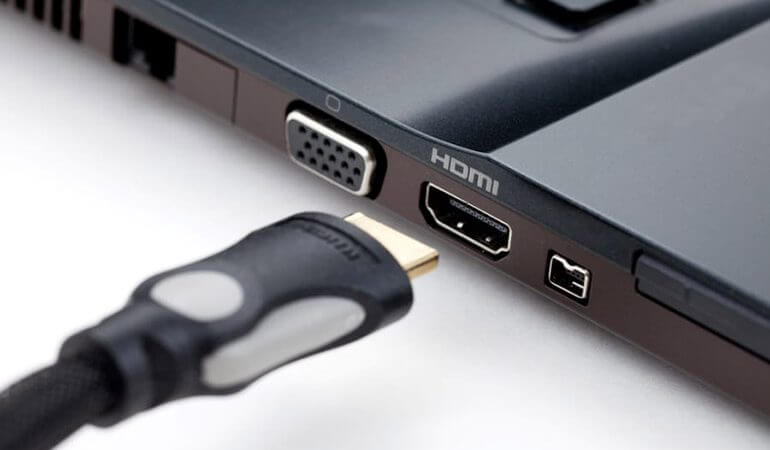
Step 3: Repeat the process for additional monitors, connecting each monitor to a separate port on your laptop.
Step 4: Windows should automatically detect the new monitors. Go to “Settings” > “System” > “Display” to customize the display settings, such as screen resolution and orientation, for each monitor.
Method 2: USB to HDMI or Display Port Adapter
If your laptop lacks the necessary HDMI or DisplayPort ports, you can still connect multiple monitors using a USB to HDMI or DisplayPort adapter. To know how to add multiple displays to your Windows 10 laptop, follow these steps:
Step 1: Purchase a USB to HDMI or DisplayPort adapter that supports multiple monitors.
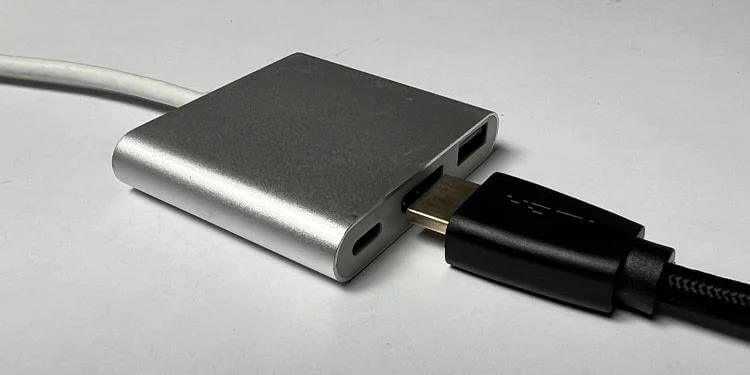
Step 2: Connect the adapter to an available USB port on your laptop.
Step 3: Connect the HDMI or DisplayPort cable from the adapter to the monitors.
Step 4: Install the drivers for the adapter if prompted.
Step 5: Windows 10/11 should automatically detect the additional monitors. Now, adjust the display settings.
Method 3: USB Docking Station
For a more streamlined setup, you can use a USB docking station. This method allows you to connect multiple monitors, along with other peripherals, through a single USB connection. To know how to add multiple screens to your Windows 10 laptop or Windows 11 PC using this method, follow these steps:
Step 1: Purchase a USB docking station that supports multiple monitors.
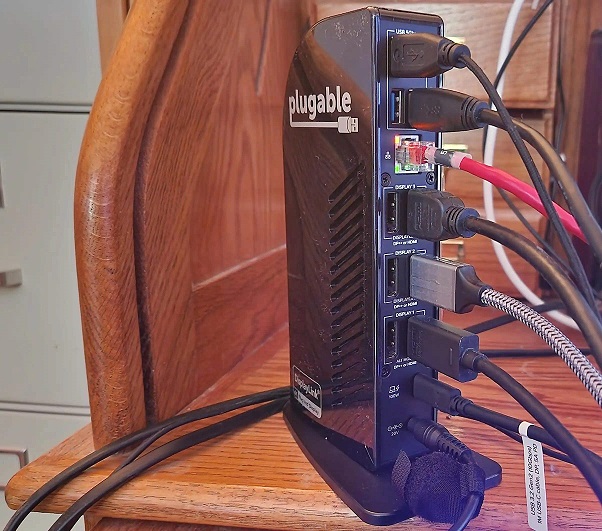
Step 2: Connect the docking station to an available USB port on your laptop.
Step 3: Connect the monitors to the docking station.
Step 4: Install any required drivers for the docking station.
Step 5: Windows 10/11 should automatically detect the additional monitors. Customize the display settings as required.
Method 4: VGA or DVI Ports
If your laptop doesn’t have HDMI or DisplayPort ports, but it has VGA or DVI ports, you can still connect multiple monitors using these older connections. Here’s what you need to do:
Step 1: Identify the VGA or DVI ports on your laptop and the corresponding ports on your monitors.
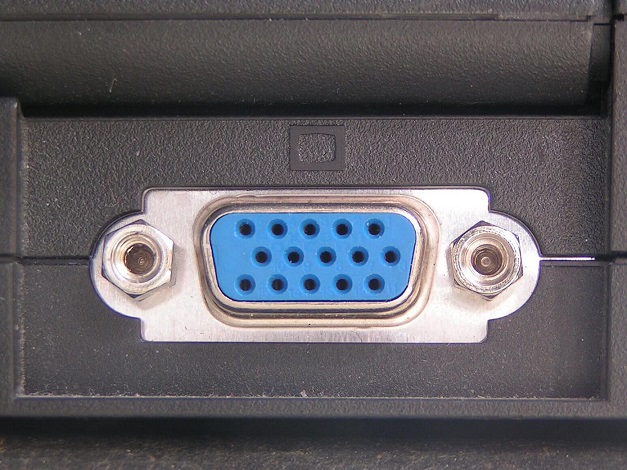
Step 2: Connect one end of the VGA or DVI cable to your laptop’s port and the other end to the monitor.
Step 3: Repeat the process for additional monitors, connecting each monitor to a separate port on your laptop.
Step 4: Windows 10/11 should automatically detect the new monitors. Adjust the display settings accordingly.
Method 5: Wireless Display Adapters
If you prefer a cable-free setup, you can use wireless display adapters. These devices allow you to connect your laptop wirelessly to multiple monitors. Here’s how:
Step 1: Purchase a wireless display adapter compatible with Windows 10 or Windows 11.
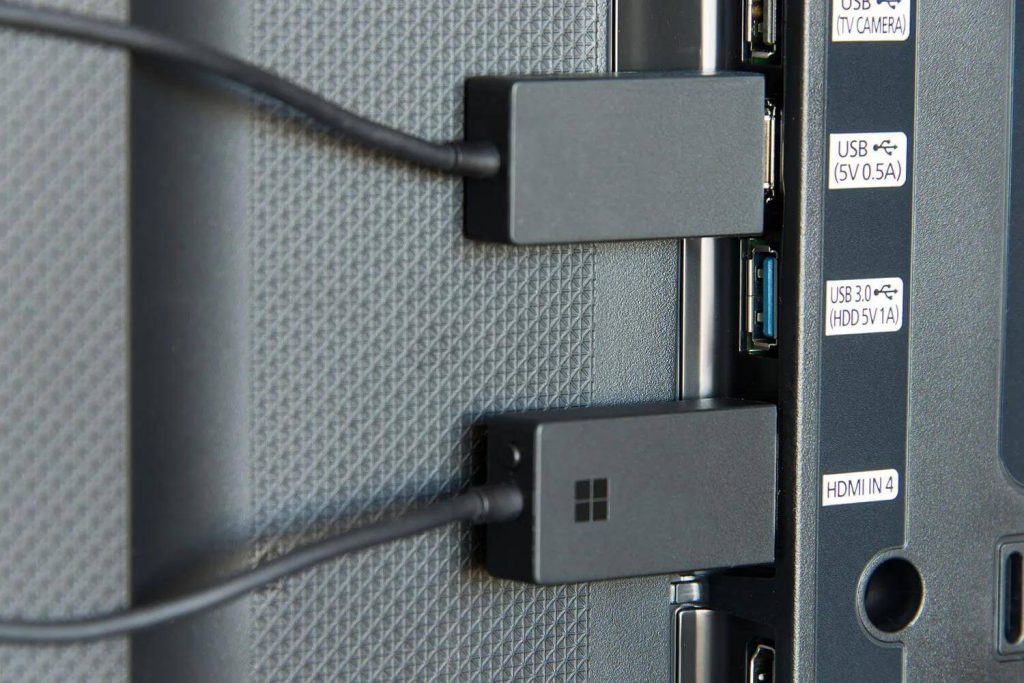
Step 2: Connect the wireless display adapter to the monitors using HDMI or DisplayPort cables.
Step 3: Plug the adapter into a power source.
Step 4: On your laptop, go to “Settings” > “Devices” > “Bluetooth & other devices” and add the wireless display adapter.
Step 5: Windows 10 should detect the connected monitors wirelessly. Customize the display settings as required.
Method 6: Miracast
If your laptop supports Miracast, you can use this wireless technology to connect multiple monitors without any additional hardware. Follow these steps:
Step 1: On your laptop, go to “Settings” > “Devices” > “Bluetooth & other devices” and enable the “Wireless display or dock” option.
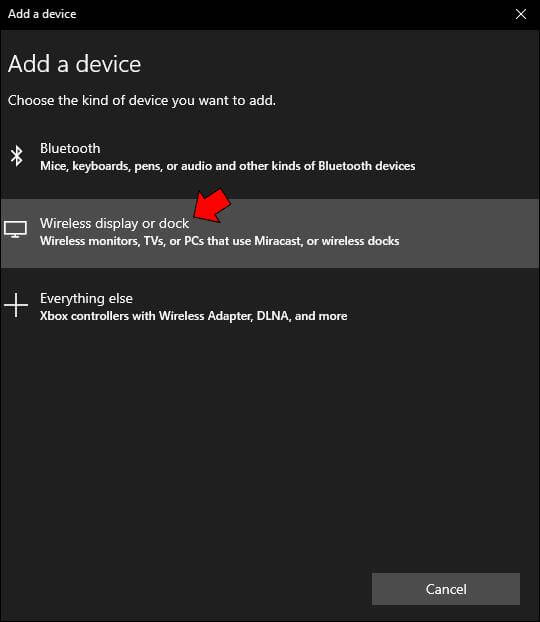
Step 2: On your monitors, make sure they are Miracast-enabled.
Step 3: On your laptop, select the desired monitor from the list of available devices.
Step 4: Windows 10/11 will establish a wireless connection with the selected monitor. Adjust the display settings accordingly.
Conclusion
connecting multiple monitors to your Windows 10/11 laptop can significantly enhance your productivity and multitasking capabilities. Whether you choose a wired or wireless method, the methods discussed here provide various options to suit your specific requirements. Hopefully, you now understand how to add multiple monitors to your Windows 10/11 laptop.
FAQs
1. What hardware do I need to add 2 or more displays to my Windows 10/11 laptop?
To connect multiple monitors to your Windows 10/11 laptop, you will need the necessary hardware, including additional monitors, compatible video cables, such as HDMI or DisplayPort, and a docking station or a multi-monitor adapter, depending on the available ports on your laptop.
2. How many monitors can I connect to my Windows 10/11 laptop?
The number of monitors you can connect to your Windows 10/11 laptop depends on the available video outputs on your laptop and its graphics capabilities. Many modern laptops support connecting up to two additional monitors, while some high-end laptops with advanced graphics cards may support connecting even more displays.
3. What are the different ways to connect multiple monitors to my Windows 10 /11 laptop?
You can add multiple screens to your Windows 10 or Windows 11 laptop using various methods, including HDMI, DisplayPort, and VGA connections. Additionally, docking stations and multi-monitor adapters offer convenient solutions for connecting multiple monitors to laptops with limited video outputs.
4. Do I need to install additional drivers or software to use more than 2 monitors with my Windows 10 laptop?
In most cases, Windows 10 will automatically detect and install the necessary drivers for the additional monitors when they are connected to your laptop. However, for optimal performance and advanced display settings, it is recommended to install the latest graphics drivers provided by themanufacturer of your laptop’s graphics card.
Author Bio:
Dinesh Lakhwani 

Dinesh Lakhwani, the entrepreneurial brain behind “TechCommuters,” achieved big things in the tech world. He started the company to make smart and user-friendly tech solutions. Thanks to his sharp thinking, focus on quality and the motto of never giving up, TechCommuters became a top player in the industry. His commitment to excellence has propelled the company to a leading position in the industry.
Popular Post











Recent Post

How To Fix Issues Downloading from the Microsoft Store On Windows
Introduction: Downloading apps from the Microsoft Store should be a simple task. You open the Store, search for an app, and click install. In most cases, the process works without any problem. However, there are times when the download does not start. In some cases, it may stay stuck at a certain percentage. You may […]

How To Fix Windows Update Issues Easily On Windows [2026]
Introduction Windows updates play an important role in keeping a computer stable and secure. They bring new features, fix known bugs, and improve overall performance. When updates work as expected, the system runs smoothly. However, when they fail, users often face slow performance, missing features, or security risks. This is why it becomes important to […]

How To Check If Your PC Is Infected? [Complete Guide]
Computers now sit at the center of almost everything we do. Well, yes! From sending emails to watching videos, we depend on them without much thought. Because of this, even a small issue can disrupt daily tasks. One common problem is hidden malware. It does not always show clear signs at first. It can enter […]

Repair Apps And Programs: Repair Apps That Aren’t Working
Computers have become an essential part of everyday life, supporting work, study, communication, and entertainment. Most of these activities rely on apps and programs, so when one stops functioning, even simple tasks can be disrupted. Common problems include error messages, frozen screens, or apps that fail to open. On Windows systems, such issues often arise […]

Troubleshooting Microphone Privacy Settings: Complete Guide
Sound is a basic part of how we use computers today. People attend meetings, record audio, speak to others, and use voice tools almost every day. A working microphone makes all these tasks easy. When the microphone fails, even simple work becomes difficult. Many users first think the device is broken. In reality, the issue […]

Windows Sound Settings – Sound Control Panel: Complete Guide
Sound plays an important role in how we use a computer every day. It supports both work and leisure. You need it for meetings, videos, music, and alerts. When audio fails, even simple tasks become difficult. Many users feel stuck when sound issues appear. This usually happens because they are not familiar with Windows Sound […]

Run a Troubleshooter For PC Issues Windows: Complete Guide
A computer plays an important role in everyday life. People use it for work, study, communication, and entertainment. When a problem appears, it can interrupt everything. Even a small issue can waste time and create frustration. Many users feel unsure about how to fix such problems. They often think they need expert help. In reality, […]
![Adjusting Audio Output Settings Complete Guide [2026]](https://www.techcommuters.com/wp-content/uploads/2026/03/Adjusting-Audio-Output-Settings-Complete-Guide.webp)
Adjusting Audio Output Settings: Complete Guide [2026]
Sound is part of almost everything we do on a computer. It lets you watch videos, join calls, play music, and hear alerts. When the audio stops working the right way, it can interrupt both work and daily use. That is why adjusting audio output settings matters for every user. Many people get unsure when […]

Artificial Intelligence Explained: Concepts, Terminology, Benefits, and Future Trends
Artificial Intelligence, or AI, is basically computers doing things that usually need a human brain. We’re talking about stuff like learning from experience, figuring out problems, understanding language, and making decisions. It’s not magic, just a lot of data, pattern-spotting, and math behind the scenes. Now, AI doesn’t actually think or feel like we do. […]

Resolving Microphone Detection Problems: Latest Guide [2026]
Microphones are important tools in daily life. People use them for office meetings, online classes, interviews, gaming, customer support, and content creation. When a system fails to detect a microphone, communication stops at once. This situation can cause stress and confusion. Many users believe the microphone is damaged. In reality, most problems are simple and […]

