











You turn on your PC and wait. And wait. The same laptop that once opened apps in a snap now feels tired. This is not bad luck. It just happens over time. Files pile up. The registry gets messy. Old drivers stay installed long after they are useful. Junk data quietly eats up space on […]
How To Fix Dns_Probe_Started Error [Top 10 Ways]
Introduction:
The DNS_PROBE_STARTED error occurs when your DNS lookups are failing. DNS (Domain Name System) is like the phonebook of the internet—it translates domain names (e.g. google.com) into IP addresses needed to load websites.
When you attempt to visit a website, your device sends a DNS lookup request to your DNS server. If the DNS server is having issues resolving the domain name to an IP address, you’ll get the DNS_PROBE_STARTED error stating that the DNS lookup failed.
The good news is that with a few targeted troubleshooting techniques, you can identify and resolve DNS issues quickly. We’ll cover the most effective ways to troubleshoot and fix the erro so you can get back online.
What is the DNS_Probe_Started Error?
This error message indicates that your device is unable to properly resolve domain names to their correct IP addresses.
DNS stands for “Domain Name System” – this is a global network of servers that translates website names like “wikipedia.org” into the numerical IP addresses needed to locate servers on the internet.
When you try to visit a website, your device sends a DNS query to your configured DNS servers asking to resolve the domain name. If the DNS server fails to provide back the correct IP address, you’ll get a DNS error like DNS_PROBE_STARTED.
What Triggers the DNS_Probe_Started Error: Top Causes
There are a few common culprits that typically lead to the error. Understanding what can cause DNS lookups to fail will help you pinpoint the issue.
Here are the top reasons you may see the error:
- Internet Connection Issues – For your device to send DNS requests and receive DNS records, you need to have an active internet connection. Connectivity problems like a dropped Wi-Fi signal, cable modem issues, or ISP outages can prevent DNS queries from going through.
- DNS Server Problems – Issues with your configured DNS server will lead to DNS lookup failures. If the DNS server is down, unreachable, or incorrectly configured, your device won’t get responses to DNS requests. Public DNS servers can occasionally have downtime.
- Incorrect DNS Settings – Errors in your DNS server IP address settings will cause connectivity issues. If your device or router has incorrect DNS server IPs configured, lookups won’t work.
- Caching Errors – Your device, router, and ISP all cache DNS records locally to speed up lookups. However incorrect or outdated entries can cause DNS_PROBE_STARTED errors if cached data is incorrect.
- Software Conflicts – Other software like VPNs, firewalls, ad blockers, and antivirus programs can sometimes interfere with DNS requests. Misconfigured software tools may block DNS traffic.
- Malware Infections – Viruses, spyware, and malware are common causes of DNS issues. Malicious software can change device DNS settings or infect DNS servers and redirect traffic.
Knowing what can go wrong with DNS lookups helps you determine where to focus your troubleshooting. We’ll now dive into the step-by-step solutions for fixing the error.
How to Fix the DNS Probe Started Error?
1. Check internet connection
The first step is verifying that you have a working internet connection. The DNS_PROBE_STARTED error is often just a symptom of a broader connectivity issue.
Try loading any website—if no pages will load, you likely have an internet connection problem unrelated to DNS. Start by troubleshooting your Wi-Fi, modem, or router. Switching networks or rebooting hardware can resolve transient connection drops.
You can also try connecting another device to your network. If other devices work fine, your individual computer, phone, or tablet may have the issue versus your whole network.
2. Clear DNS cache
Almost all modern operating systems cache DNS lookups locally for performance. But sometimes cached DNS records can become outdated or corrupted, leading to DNS_PROBE_STARTED errors.
Flushing these records forces your device to freshly lookup domain names rather than relying on cached data. Clearing the DNS cache may resolve the issue and is easy to do:
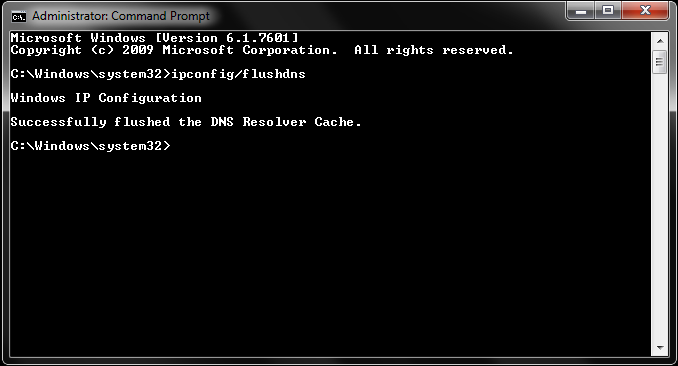
- Windows – Open Command Prompt and run “ipconfig /flushdns”
- Mac – Open Terminal and run “sudo dscacheutil -flushcache;sudo killall -HUP mDNSResponder”
- Linux – Open Terminal and run “sudo /etc/init.d/nscd restart”
- Chromebook – Open Settings and access privacy, then press “Clear DNS Cache”
3. Reset the TCP/IP stack
Resetting your TCP/IP stack restores your network connection protocols to default settings. Like flushing the DNS cache, this can clear any improper configurations or corrupt data that may be causing DNS errors.
On Windows:
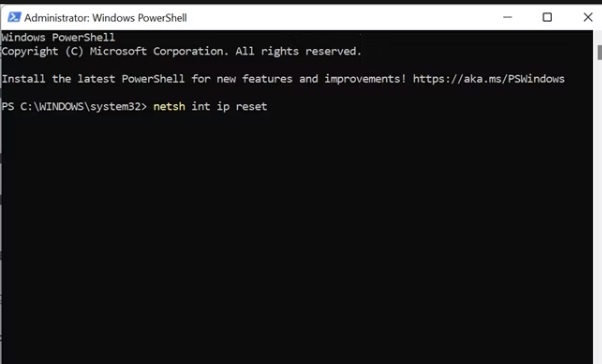
Step 1: Open Command Prompt as administrator.
Step 2: Run “netsh int ip reset”. Restart your computer
On Mac:
Step 1: Open Terminal on your Mac.
Step 2: Type “sudo killall -HUP mDNSResponder”. Restart your computer
4. Flush DNS settings
Flushing your DNS settings forces Windows to discard any manual DNS server IP addresses you may have configured. After a flush, your device will automatically obtain new DNS server settings from your network. This can resolve DNS issues caused by invalid manual settings.
To flush DNS settings on Windows:
Step 1: Open Command Prompt as administrator
Step 2: Run “ipconfig /flushdns”.
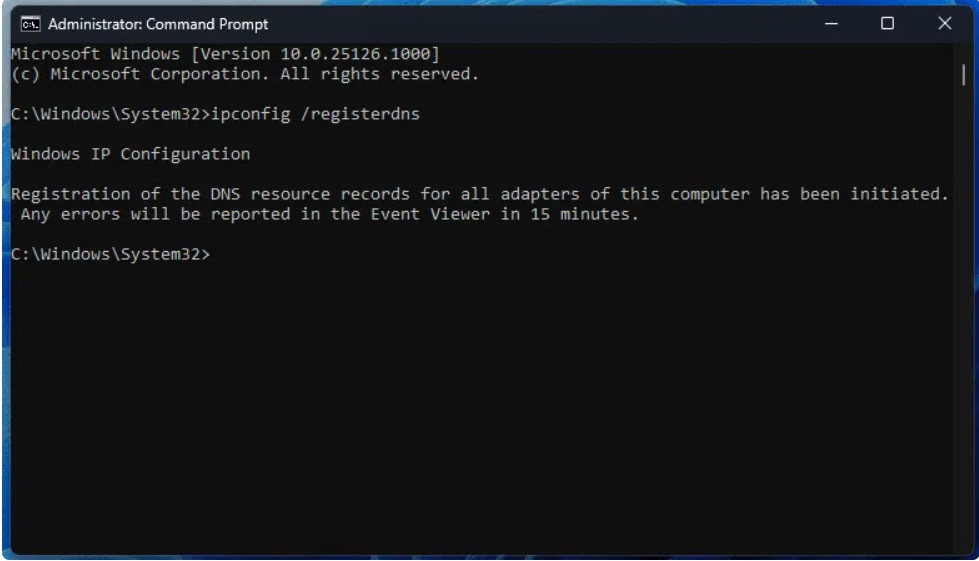
Step 3: Now, run “ipconfig /registerdns”
Step 4: Restart your computer
5. Disable VPN or proxy settings
Using a VPN or proxy server filters your traffic through an intermediary server before reaching the public internet. But sometimes these services can interfere with DNS lookups.
If enabling a VPN or proxy immediately triggers DNS_PROBE_STARTED errors, try disabling the VPN/proxy and testing if websites load normally. Certain VPN or proxy provider configurations may not play nicely with DNS.
6. Restart router and modem
Your network equipment like routers, modems, access points, and switches sometimes require a power cycle to clear up DNS issues. Rebooting can clear any corrupt DNS data cached in router memory.
Restarting your home router and ISP modem is an easy first step before diving deeper into other troubleshooting:
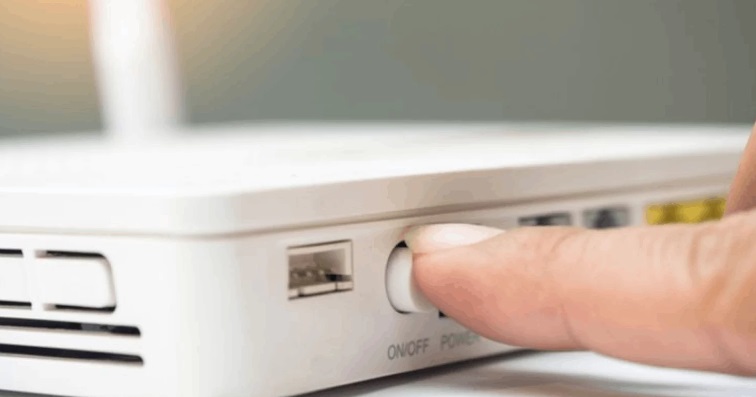
- Unplug your modem and router power cables.
- Wait 30 seconds.
- Plug the modem back in and let fully boot up.
- Plug the router back in and let fully boot up.
See if a fresh boot fixes the DNS errors. If the problem persists, there may be a deeper issue.
7. Update Google Chrome
Keep your Chrome browser up-to-date in case DNS bugs or vulnerabilities have been patched in newer versions.
To update Chrome:
Step 1: Click the three vertical dots in the top right. Go to Help > About Google Chrome.
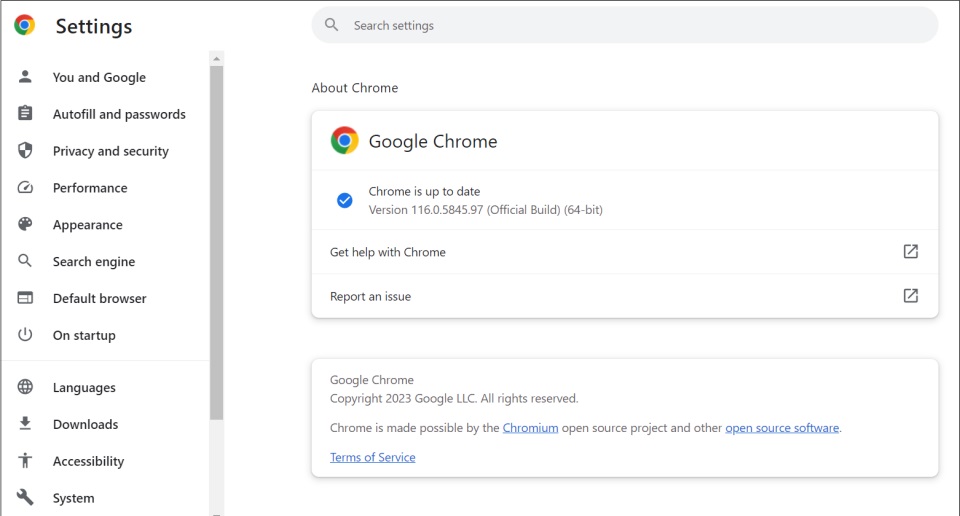
Step 2: Chrome will automatically check for and install any pending updates
Hence, use the latest Chrome version before troubleshooting to rule out any fixed DNS issues.
8. Disable antivirus/security software
Antivirus, anti-malware, and internet security suites can sometimes block DNS requests and cause lookup failures. Windows Security tools in particular are known to occasionally interfere with DNS traffic.
Try temporarily disabling your antivirus or internet security application. If access is restored, you’ll know the software is the issue. You can then reconfigure it to exclude DNS traffic, switch security apps, or adjust firewall policies.
9. Use Google DNS servers
Switching to the public Google DNS servers bypasses your ISP’s default servers which could be the cause of DNS issues. Google’s public DNS service offers reliable worldwide DNS resolution.
To switch to Google DNS:
On Windows:
Step 1: Open Network Adapter Settings.
Step 2: Select your Wi-Fi/Ethernet connection
Step 3: Open Properties and select Internet Protocol Version 4 (TCP/IPv4)
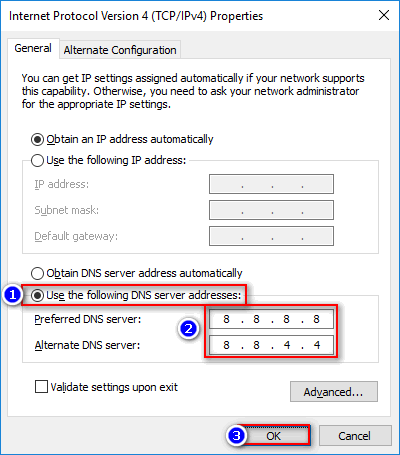
Step 4: Select “Use the following DNS server addresses”. Enter “8.8.8.8” and “8.8.4.4”. Save changes
On Mac:
Step 1: Open System Preferences then Network. Select your active connection
Step 2: Choose the DNS tab
Step 3: Enter “8.8.8.8” and “8.8.4.4” as your DNS servers. Save changes
10. Contact ISP support
If you still see the DNS_PROBE_STARTED error after trying these troubleshooting steps, the cause is likely beyond your home network. Widespread DNS failures indicate a problem with your ISP’s infrastructure.
Contact your ISP’s technical support for assistance—they can check for DNS outages and resolve any issues on their servers. An ISP can also help troubleshoot any equipment or configuration problems.
Conclusion
The DNS_PROBE_STARTED error can stop you from browsing the web and using internet-connected apps. But while frustrating, this DNS issue can usually be resolved with some targeted troubleshooting and tweaking your network settings.
In most cases, the problem is incorrect DNS server settings, corrupt cached data, VPN/proxy interference, or antivirus software conflicts. Clearing your DNS cache and registrations, resetting network adapters, and restarting hardware can get DNS working again.
If you still see DNS failures after trying these fixes, there may be a deeper network issue—contact your ISP for assistance troubleshooting and inspecting their DNS servers and infrastructure. With the right fix, you can get past the DNS PROBE STARTED error and back online.
FAQs:
What does the DNS_PROBE_STARTED error mean?
This error indicates that the DNS lookup for a domain name has failed. Your computer is unable to resolve the website’s domain name to connect and load the page.
Why do I keep getting the DNS PROBE STARTED error?
These errors are generally caused by the same root problems like incorrect DNS settings, software conflicts, malware, or issues with your ISP’s DNS servers. Persistent issues point to an underlying misconfiguration or network problem.
Is The DNS Error dangerous?
No, the error itself is not dangerous or indicates a security issue. It is merely an annoyance that prevents you from browsing normally. However, malware that changes your DNS settings can sometimes trigger this error.
How can I prevent DNS errors?
Keeping your network DNS settings properly configured and using reliable DNS servers like Google Public DNS can help avoid the error. Avoiding malware and keeping antivirus software updated is also important prevention.
Why does DNS_PROBE_STARTED happen on some sites but not others?
Specific sites failing while others work normally point to cached bad DNS data for those domains. Flushing your DNS cache and registrations will allow fresh domain lookups to fix access to those sites experiencing issues.
Author Bio:
Dinesh Lakhwani 

Dinesh Lakhwani, the entrepreneurial brain behind “TechCommuters,” achieved big things in the tech world. He started the company to make smart and user-friendly tech solutions. Thanks to his sharp thinking, focus on quality and the motto of never giving up, TechCommuters became a top player in the industry. His commitment to excellence has propelled the company to a leading position in the industry.
Popular Post
Recent Post

Avast Cleanup PC Cleaner and Optimizer: Everything You Need to Know
A slow computer makes it hard to focus. Programs take too long to open. Free space keeps shrinking until the disk is almost full. This happens to most PC owners at some point. Even new machines can slow down after a while. That is the exact problem cleanup tools are built to solve. They comb […]

Fortect Software Review: The Ultimate PC & Mobile Cleaning, Optimization & Security Tool
Slow computers are a common problem for almost every Windows user. Well, yes! Over time, your PC picks up junk files. These files sit quietly in the background. They take up space and slow things down. Programs open slower. Windows takes longer to boot. Even simple tasks like opening a folder can feel sluggish. There […]

CCleaner PC Optimizer Review: A Complete Guide for Windows Users
If your computer has started to feel slow, you are not alone. Most Windows PCs slow down over time. Junk files pile up. The registry gets messy. Too many apps open when you start your PC. All this adds up and makes even a good machine feel tired. This is where a PC cleaner tool […]

5 Best PC Cleaners for Windows 11 & 10 | Top PC Optimizers
Remember when your PC felt fast? Every click was quick. Every app opened in seconds. Now it feels like a different machine. Windows takes forever to boot. Programs freeze for no reason. Even opening a browser feels like a chore. You are not alone in this. Almost every PC slows down over time. Files pile […]

Auslogics Duplicate File Finder: Full Review and User Guide
A computer quietly gathers clutter over time. This includes duplicate photos, repeated downloads, and forgotten backups hiding in random folders. This buildup slowly eats away at storage and can make even a fast PC feel sluggish. Manually finding and deleting duplicates is tedious. It means checking every folder, comparing file names, and guessing which copies […]

CCleaner Duplicate File Finder: Key Features, Pricing, Step-by-Step Guide and More
Every computer collects junk over time. Right? Well, yes! Photos often get copied twice. Documents get saved in two folders by mistake. Old downloads pile up and never get deleted. This slowly eats up your storage space, and most people do not even notice until their drive is almost full. That is where a duplicate […]

Duplicate File Finder Pro: A Complete Review, Everything You Should Know
Computers collect thousands of files over time. Well, yes! Many of them end up being duplicates created by backups, downloads, or accidental copies. These extra files take up valuable storage space and make it harder to keep everything organized. Finding and removing them manually can take hours. Right? Duplicate File Finder Pro is a tool […]

Top 3 Duplicate File Finder for Windows 11 & Windows 10
If your PC storage keeps filling up even after you delete big files, duplicate files could be the real reason. Most of us save the same photo twice, download a document more than once, or copy a whole folder by mistake. Over months and years, these duplicate files pile up quietly. You do not even […]

Monitor Screen Calibration Guide: Everything You Should Know
Your monitor shows colors every single day. But are those colors actually correct? Most people never stop to check this. They just use the screen as it comes out of the box. This habit can lead to wrong colors in photos, videos, and work files. Colors may look too warm or too cold without you […]

