











Introduction: Antivirus software helps protect Windows PCs from digital threats. It detects viruses, blocks ransomware, and alerts users about unsafe websites. However, some security tools consume too much RAM and CPU power. This can make everyday tasks feel slow. Older laptops and low-end PCs often face this problem. The computer may take longer to start. […]
Fix – Windows 11 Bluetooth Not Working [Updated Guide]
Introduction
Is Bluetooth on Windows 11 giving issues? You have come to the right place. In this post, we will discuss how to fix Windows 11 Bluetooth not working.
Generally, the Bluetooth problems are caused due to some software issues, but they can also be related to hardware malfunctioning. Therefore, before we get into details, let us understand the reasons for the Bluetooth not working issue.
What causes Bluetooth not working issues – Windows 11
- Missing or corrupt Bluetooth driver
- Bluetooth device not properly connected.
- Bluetooth device not in range.
- Either the device or PC is incompatible.
- Problem with hardware.
Now that we have a fair understanding of what can cause Bluetooth connectivity issues. Let us learn how to fix Bluetooth not working issue on Windows 11.
What Causes Bluetooth to Stop Working in Windows 11?
Bluetooth issues in Windows 11 are usually linked to drivers, settings, or system glitches. The feature depends on both hardware and software working together. If one part fails, Bluetooth may stop working, disappear, or fail to connect. Understanding the common causes helps you fix the issue faster.
- Outdated or Corrupted Bluetooth Drivers
Drivers allow your system to communicate with Bluetooth hardware. If they are outdated or damaged, Bluetooth may not function properly. - Bluetooth Service Not Running
Windows uses background services to manage Bluetooth. If the service is stopped or disabled, Bluetooth will not work. - Disabled Bluetooth Settings
Bluetooth may be turned off in system settings. This can make it appear as if the feature is not working. - Windows Update Issues
Some updates may introduce bugs or conflicts. This can affect Bluetooth performance or cause it to stop working. - Device Compatibility Problems
Certain Bluetooth devices may not be fully compatible. This can lead to connection failures or pairing issues. - Power Management Settings
Windows may turn off Bluetooth to save power. This can disable the feature without clear notice. - Interference from Other Devices
Wireless signals from nearby devices can interfere. This may cause unstable or failed connections. - Hardware Faults
A damaged Bluetooth adapter or internal issue can stop detection. This is less common but possible.
Best Ways to Fix Bluetooth Connectivity Issues
1. Check for PC and Bluetooth device compatibility
To check if the PC supports connected Bluetooth devices, follow these steps:
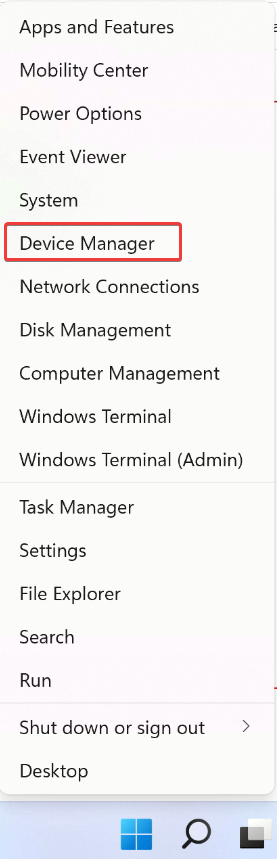
- Press Windows + X > select Device Manager from the context menu.
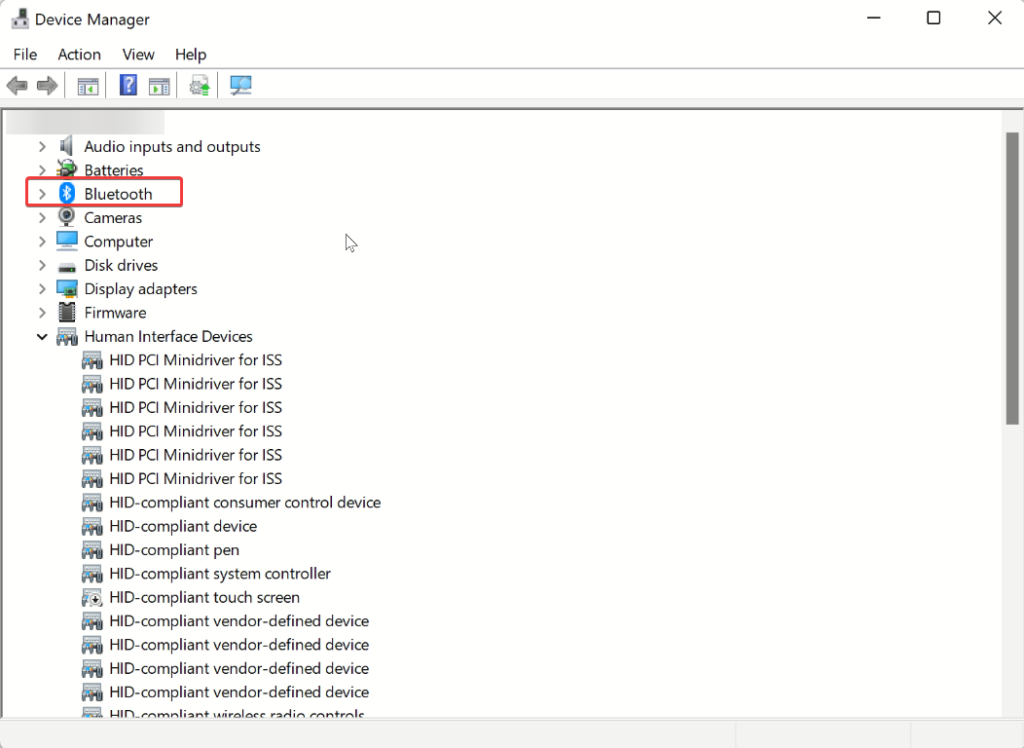
2. Launch the app and look for Bluetooth entry.
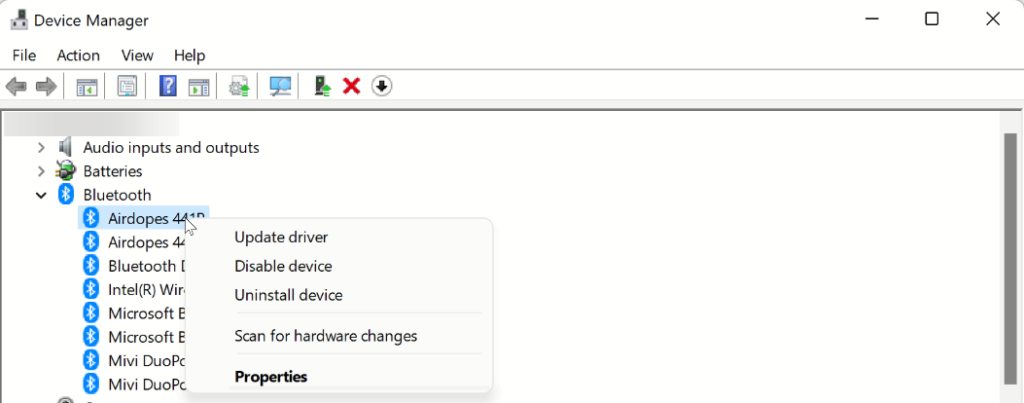
3. To expand, double-click the Bluetooth entry.
4. You will now find a list of supported Bluetooth devices. Here, see if you can see the name of the connected Bluetooth device. If you can see, that means the device is compatible.
In addition to this, double click the Network adapters section and check if the Bluetooth is listed there or not. If it is, this means the device is compatible, and we need to follow other solutions.
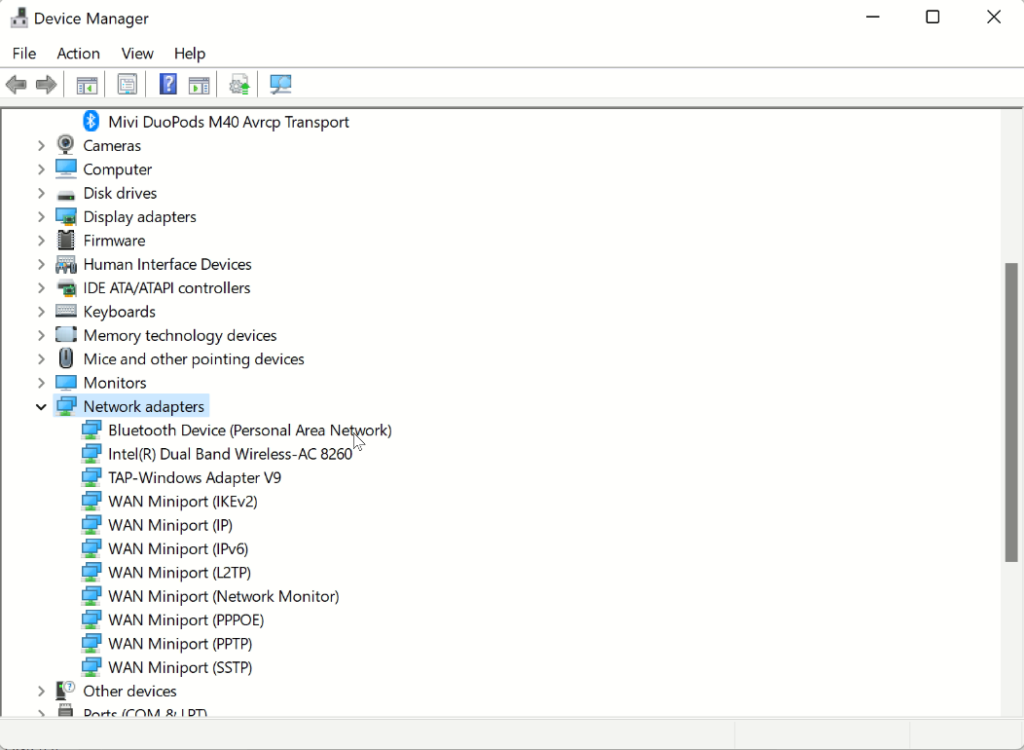
2. Check if Bluetooth is enabled or not –
Without checking whether the Bluetooth is enabled or not, we go around applying other fixes. Therefore, after checking device compatibility, the second step is to check whether Bluetooth is enabled or not and if it is set to Pairing mode or not.
To check, follow these steps:
- Press Windows + A and launch the Action Center.
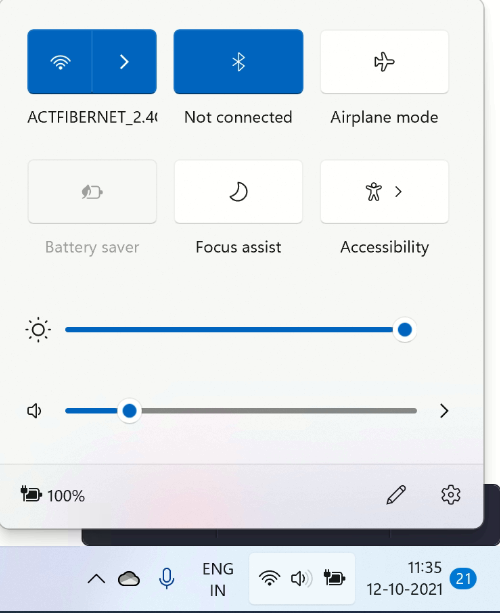
2. Look for Bluetooth tile and see if it appears blue; this means it is enabled vice versa is disabled.
3. If disabled, Turn On the Bluetooth and then try reconnecting the device.
During this time, make sure you check the distance between the PC and the device. Also, try restarting the PC and device; sometimes, this too does the trick.
3. Run Bluetooth Troubleshooter
Just like its previous versions, Windows 11 also provides a built-in troubleshooter. Using it, you can fix various issues in a few clicks.
To run the Bluetooth troubleshooter, follow these steps.
- Press Windows + I to open Windows settings.
- Click System > Troubleshoot option present in the right pane.
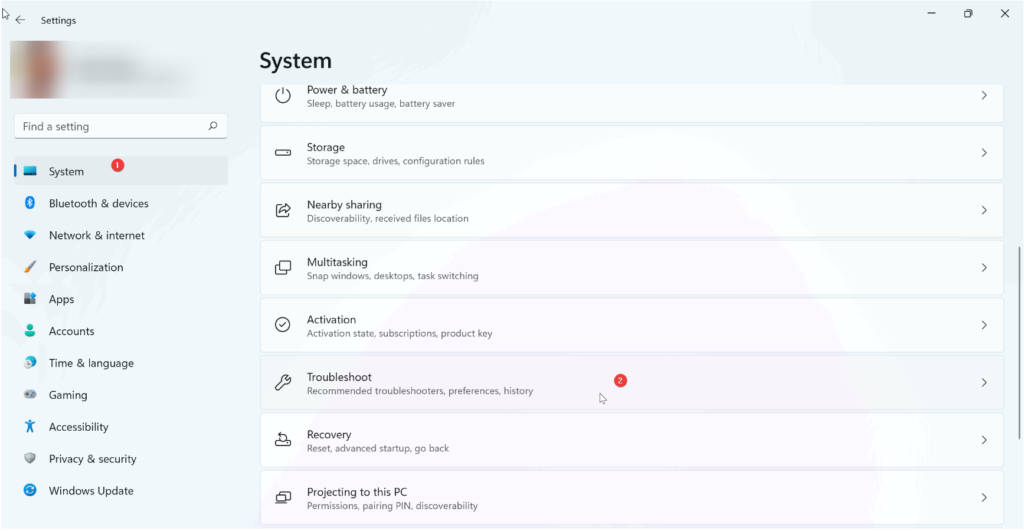
3. Next, click Other troubleshooters.
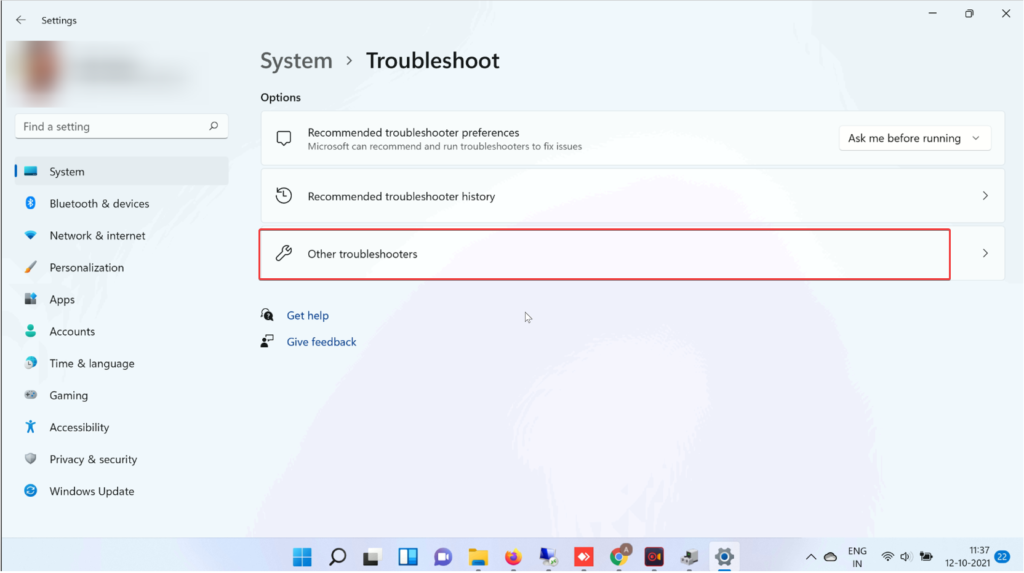
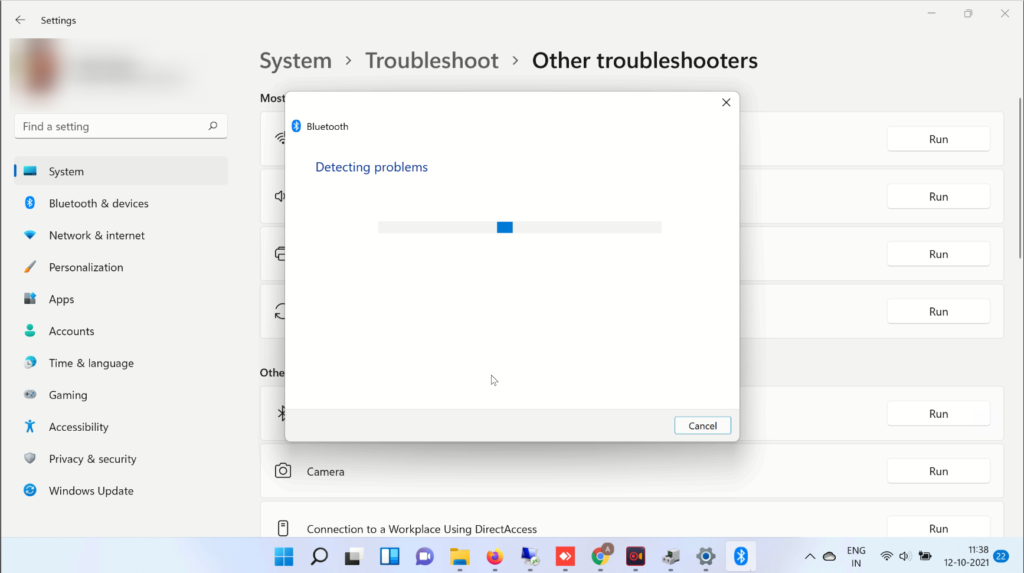
4. Look for Bluetooth and click Run.
5. Follow on-screen instructions and choose the relevant option to finish the process.
4. Restart Bluetooth Service
If none of the methods have worked so far, try restarting Bluetooth Support Service. This will certainly help fix the issue. To use it, follow these steps:
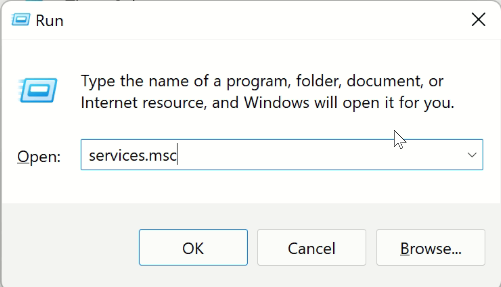
- Press Windows + R > to open the Windows Run window.
- Type services.msc > Ok
- Search for Bluetooth Support Service.
- Double click on it > click the down arrow next to Startup type > Automatic > Start > Apply > Ok.
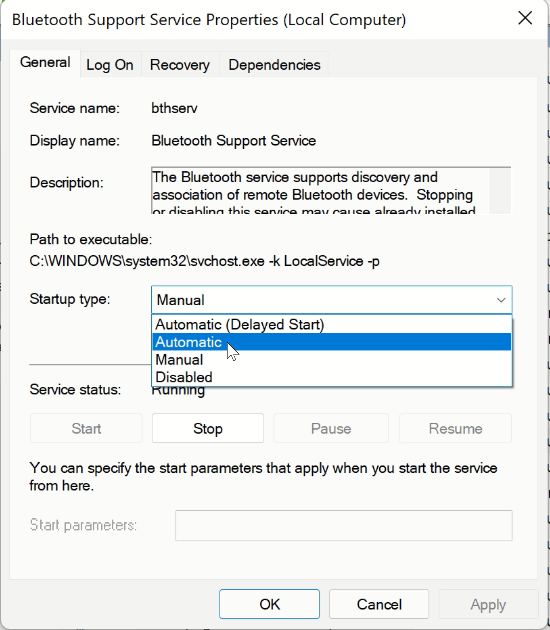
5. Now, check Bluetooth should be working.
5. Update Outdated Driver
If you are running an outdated and corrupt Bluetooth driver, chances of facing Bluetooth issues increase.
To update drivers, you can use a third-party driver updater or use the Device Manager. Here’s how to use it.
- Press Windows + X > Device Manager
- Double click Bluetooth option.
- Look for the Bluetooth device you are facing a problem with.
- Right-click > context menu Update Driver.
- You will now get two options :
- Search automatically for drivers
- Browse my computer for drivers.
Pick the first option and wait for Windows to look for a driver update.
When this is done, restart the PC and enjoy using Bluetooth.
Furthermore, using the Device Manager, you can uninstall drivers. Also, to check for device model number and other details > select the drivers > Properties > Device tab.
You will now get all the driver details.
Author’s Tip
Make sure Bluetooth is turned on and the device is in pairing mode. Restart your system and try reconnecting the device. Many Bluetooth issues are temporary and get fixed with a quick reset. Avoid skipping these basic steps.
Keep your drivers and system updated at all times. Remove unused or old paired devices to avoid conflicts. If the issue started after an update, check for driver updates or reinstall them. A clean and well-managed system reduces the chances of Bluetooth problems and keeps connections stable.
Conclusion
Bluetooth problems in Windows 11 can interrupt everyday tasks. Whether it is connecting headphones, keyboards, or other devices, the issue can be frustrating. Most of the time, the cause is minor and easy to fix. Simple actions like updating drivers or restarting services often solve the problem.
A careful and step-by-step approach works best. Do not rush into complex fixes without checking the basics. Regular updates and system maintenance play a key role in preventing such issues. With proper care, Bluetooth will work smoothly and provide a reliable wireless experience.
FAQs
1. Why is Bluetooth missing from my Windows 11 settings?
This can happen due to driver issues or a disabled Bluetooth adapter. It may also occur if the Bluetooth service is not running. Updating or reinstalling drivers usually helps restore the option.
2. How do I fix Bluetooth pairing problems?
Make sure the device is in pairing mode and within range. Remove the device from saved connections and try pairing again. Restarting Bluetooth services and updating drivers can also resolve pairing issues.
3. Can hardware issues cause Bluetooth to stop working?
Yes, a faulty Bluetooth adapter or internal hardware problem can cause this issue. If software fixes do not work, you may need to check the hardware or seek professional repair.
Author Bio:
Dinesh Lakhwani 

Dinesh Lakhwani, the entrepreneurial brain behind “TechCommuters,” achieved big things in the tech world. He started the company to make smart and user-friendly tech solutions. Thanks to his sharp thinking, focus on quality and the motto of never giving up, TechCommuters became a top player in the industry. His commitment to excellence has propelled the company to a leading position in the industry.
Popular Post
Recent Post

How To Disable Cookies in Browser [Complete Guide]
So, search for a pair of shoes once online. Close the tab. By evening, those same shoes are sitting on your news site, your video app, and even your recipe blog. Nobody placed them there by chance. A cookie did. Well, yes! Cookies are small files that websites place on your device while you browse. […]

How To Disable Background Apps In Windows: 4 Quick Methods
A slow PC rarely gives a warning. One day, it simply takes longer to start. Apps open late. The fan runs loud, even when the screen is almost empty. Most people blame old hardware. Often, that is not the real reason. The real reason is hiding in plain sight. Windows keeps many apps active in […]

How to Activate Windows with a Product Key for Windows 11 & Windows 10
It always shows up at the worst time. You are halfway through a report, or about to join a video call. Then you spot it in the bottom right corner of the screen. Activate Windows. Go to Settings to activate Windows. Initially, an unactivated copy of Windows may seem like a minor inconvenience. Over time, […]

Is Easy Duplicate Finder Worth It? Honest Review
The photos folder looked normal at first glance. Then the storage warning popped up. One trip photo appeared four times. A tax PDF sat in three different folders. Two old setup files were still in Downloads, and each one was over 500 MB. Nobody plans this mess. Copies pile up slowly. A download runs twice. […]

Wise Duplicate Finder Review: Real Results from Wise Duplicate Finder
Read my honest Wise Duplicate Finder review. See features, pricing, pros and cons, and real PC test results. Find out if this free duplicate cleaner can free up your Windows storage.

How to Recover Deleted Files from Pen drive, USB Drive, SD Card
Introduction: On tech forums, you’ll often see posts like this: “I connected my pen drive to my laptop this morning, but the folder was empty. All my college project files had vanished. I don’t have a backup. Can someone help me?” Stories like this are very common. Pen drives, USB drives and SD cards are […]

How To Recover Files Deleted from the Recycle Bin [Windows 11]
Losing a file can happen in seconds. You clear your desktop, hit Delete, and empty the Recycle Bin. Then, just when you need that file again, it seems to have vanished. This guide will walk you through ways to restore files removed from the Recycle Bin. We will begin with simple fixes, then look at […]

Disk Drill Data Recovery Tool Explained: Full Review and Guide
It happens in a split second. You delete a folder by mistake. Your drive stops showing up. A photo album from your last trip just vanishes. And your stomach drops. Lost files feel personal. They are not just data. They are memories, work hours, and sometimes years of effort packed into a few gigabytes. When […]

Recover Deleted Files In Windows 11 With Software & Without
Introduction What is the first thing that goes through your mind the second an important file vanishes from a Windows 11 PC? For most people, it is a mix of panic and disbelief, followed by a frantic click through every folder that file could possibly be hiding in. It happens in a split second: one […]

