5 Essential Privacy Settings For Chrome on Android

Last updated on August 19th, 2025 at 4:44 pm
Android is probably one of the most used smartphone operating systems, whereas the Google Chrome is one of the most widely used browsers. Have you ever considered about the browsing activity of yours and the privacy aspect of it?
Well, browsers primarily focus on providing you with the best possible browsing experience, but you still need to focus on your privacy aspects, as the browser couldn’t do the job for you.
Chrome is no different here, which is why you need to safeguard your privacy by educating yourself with the best privacy settings for Chrome. Continue reading to find out the top 5 privacy settings for Chrome and how to set them up.
Privacy Settings For Chrome on Android
Do you know that Android browsers are usually packed with disabled privacy settings? Well, most of these browsers including Chrome come with privacy settings that are disabled by default, in order to offer you a great and seamless web surfing experience. In order to balance the aspect here and improve your privacy, read the following 5 best privacy settings for Chrome on Android:
Review Site Permissions
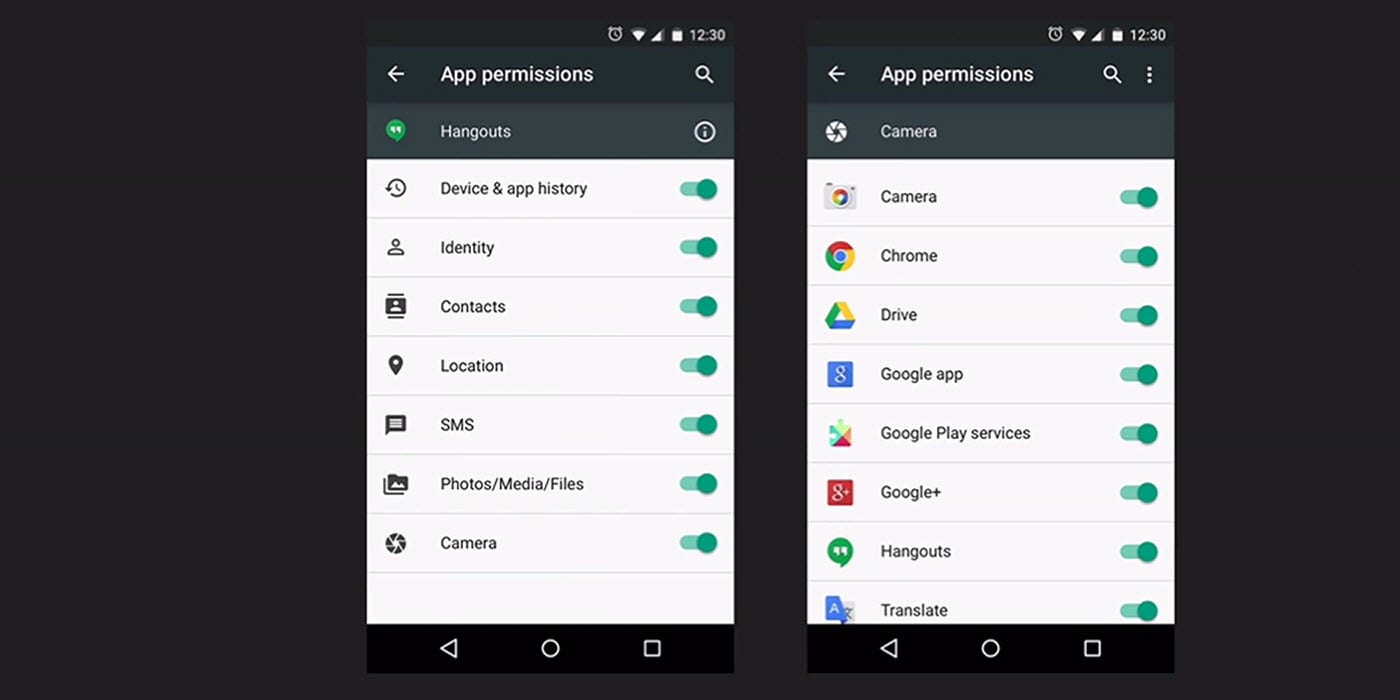
We usually visit different kinds of websites every day for different purposes. But, do you know that every one of these websites generally accesses various kinds of sections of your Android device?! Well, they do, and it’s high time that you review the permissions of these websites to access your information.
These websites may try to access the camera, microphone, clipboard, JavaScript, contacts, and many more of your device. While, most of these websites request to access these departments for legitimate purposes, you still need to be vigilant to avoid becoming victim of any privacy violation or attack.
The best way to ensure the safety of your privacy through chrome for android is to set site permissions to Ask first.
Set Do Not Track
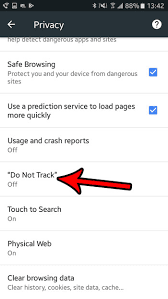
Almost all websites on the internet place cookies on the users’ device to track the usage behavior for different types purposes. Sometimes, this practice may even violate your privacy, which is why you need to set the optimum parameters of this setting.
Chrome for android allows you to enable Do Not Track feature, which asks the websites to stop placing cookies on this user’s device and tracking the activity. Although there’s no rule stating that the website in question must follow this protocol, it still helps you as most of the websites adhere to this feature’s request and stop tracking you and your web browsing activity.
Disable Autofill
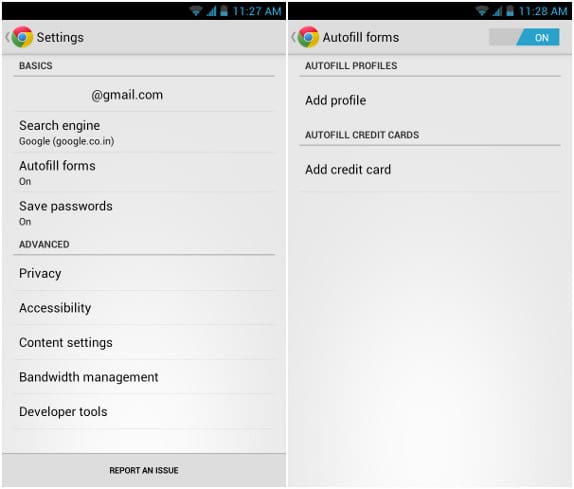
Most of you may have already been using the Autofill feature to seamlessly let the chrome fill up the websites forms automatically. On one side, this feature can help you by leaps and bounds; saving you decent amount of time and energy, the other side reveals that Autofill is a serious privacy vulnerability.
Majority of the people use this feature for sensitive activities such as transactions and related things, which is why it’s essentially important to secure this aspect. By disabling Autofill, you’re denying access of your confidential information to store up on 3rd party services.
Inspect Chrome Sync options
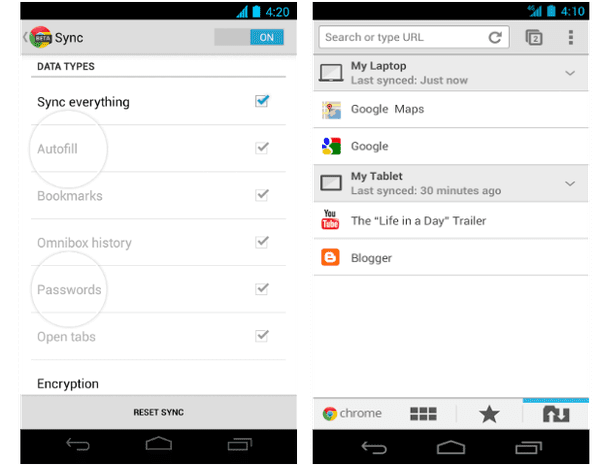
Sync could really benefit you in different aspects, but it also can become your bane under certain circumstances. Chrome is just a part of the larger Google ecosystem, but chrome usually syncs your data with other sections of this ecosystem all the way. Have you ever considered whether this is safe for your privacy?!
Well, it’s not really recommended to sync each and every part of your data such as passwords and other sensitive information. Here, you can use alternative solutions such as password managers and other similar programs other than sync.
Enable Safe Browsing
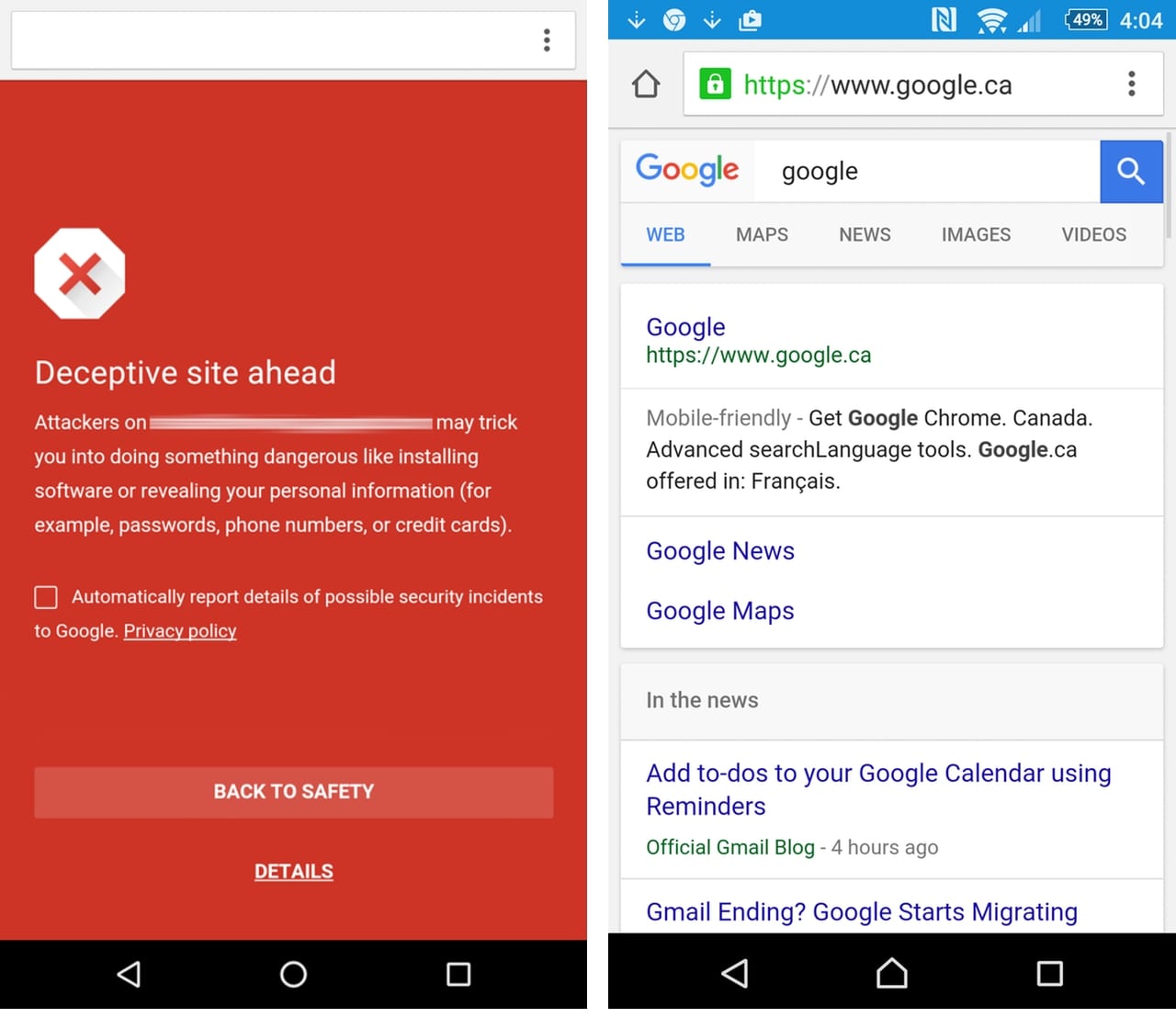
The last five years or so have seen an innumerous attacks on android devices, whether it’s phishing or ransomware. Although these issues are not solely related to android devices, Google still strives hard and eventually rolled out a security feature called Safe Browsing for chrome which alerts you whenever you’re trying to visit any type of malicious and unsecure websites.
By enabling this feature, you can save yourself from different types of privacy/security attacks.
The above-mentioned aspects are considered as some of the best privacy settings for chrome on android by several tech gurus. Make sure that you follow these instructions and enhance your privacy and security whenever you’re browsing internet through chrome on android.
Additionally, you can also consider disabling usage reports and prediction services to tighten up your privacy settings for chrome on android.
Author Bio:
Dinesh Lakhwani 

Dinesh Lakhwani, the entrepreneurial brain behind “TechCommuters,” achieved big things in the tech world. He started the company to make smart and user-friendly tech solutions. Thanks to his sharp thinking, focus on quality and the motto of never giving up, TechCommuters became a top player in the industry. His commitment to excellence has propelled the company to a leading position in the industry.
Popular Post











Recent Post

How To Fix Issues Downloading from the Microsoft Store On Windows
Introduction: Downloading apps from the Microsoft Store should be a simple task. You open the Store, search for an app, and click install. In most cases, the process works without any problem. However, there are times when the download does not start. In some cases, it may stay stuck at a certain percentage. You may […]

How To Fix Windows Update Issues Easily On Windows [2026]
Introduction Windows updates play an important role in keeping a computer stable and secure. They bring new features, fix known bugs, and improve overall performance. When updates work as expected, the system runs smoothly. However, when they fail, users often face slow performance, missing features, or security risks. This is why it becomes important to […]

How To Check If Your PC Is Infected? [Complete Guide]
Computers now sit at the center of almost everything we do. Well, yes! From sending emails to watching videos, we depend on them without much thought. Because of this, even a small issue can disrupt daily tasks. One common problem is hidden malware. It does not always show clear signs at first. It can enter […]

Repair Apps And Programs: Repair Apps That Aren’t Working
Computers have become an essential part of everyday life, supporting work, study, communication, and entertainment. Most of these activities rely on apps and programs, so when one stops functioning, even simple tasks can be disrupted. Common problems include error messages, frozen screens, or apps that fail to open. On Windows systems, such issues often arise […]

Troubleshooting Microphone Privacy Settings: Complete Guide
Sound is a basic part of how we use computers today. People attend meetings, record audio, speak to others, and use voice tools almost every day. A working microphone makes all these tasks easy. When the microphone fails, even simple work becomes difficult. Many users first think the device is broken. In reality, the issue […]

Windows Sound Settings – Sound Control Panel: Complete Guide
Sound plays an important role in how we use a computer every day. It supports both work and leisure. You need it for meetings, videos, music, and alerts. When audio fails, even simple tasks become difficult. Many users feel stuck when sound issues appear. This usually happens because they are not familiar with Windows Sound […]

Run a Troubleshooter For PC Issues Windows: Complete Guide
A computer plays an important role in everyday life. People use it for work, study, communication, and entertainment. When a problem appears, it can interrupt everything. Even a small issue can waste time and create frustration. Many users feel unsure about how to fix such problems. They often think they need expert help. In reality, […]
![Adjusting Audio Output Settings Complete Guide [2026]](https://www.techcommuters.com/wp-content/uploads/2026/03/Adjusting-Audio-Output-Settings-Complete-Guide.webp)
Adjusting Audio Output Settings: Complete Guide [2026]
Sound is part of almost everything we do on a computer. It lets you watch videos, join calls, play music, and hear alerts. When the audio stops working the right way, it can interrupt both work and daily use. That is why adjusting audio output settings matters for every user. Many people get unsure when […]

Artificial Intelligence Explained: Concepts, Terminology, Benefits, and Future Trends
Artificial Intelligence, or AI, is basically computers doing things that usually need a human brain. We’re talking about stuff like learning from experience, figuring out problems, understanding language, and making decisions. It’s not magic, just a lot of data, pattern-spotting, and math behind the scenes. Now, AI doesn’t actually think or feel like we do. […]

Resolving Microphone Detection Problems: Latest Guide [2026]
Microphones are important tools in daily life. People use them for office meetings, online classes, interviews, gaming, customer support, and content creation. When a system fails to detect a microphone, communication stops at once. This situation can cause stress and confusion. Many users believe the microphone is damaged. In reality, most problems are simple and […]

