10 Best Free File Manager Apps For iPhone & iPad 2026

Last updated on December 23rd, 2025 at 4:12 pm
Introduction:
Managing files across different cloud services and local storage on your iPhone or iPad can be a hassle. While iOS has fairly robust built-in file management capabilities through the Files app, many users find they need more advanced functionality. That’s where dedicated file manager apps come in. These apps allow you to access, organize, transfer, and do much more with your files across all your storage locations in one convenient place.
There are many iPad and iPhone apps available to manage files, but quite a few of the better ones require subscriptions or expensive one-time purchase fees. If you just need a simple, free solution for basic file management tasks, there are still some quality options out there. Here are 10 of the best free iPhone and iPad file management apps.
10 Best Free File Manager Apps for iPhone to iPad
1. Documents by Readdle
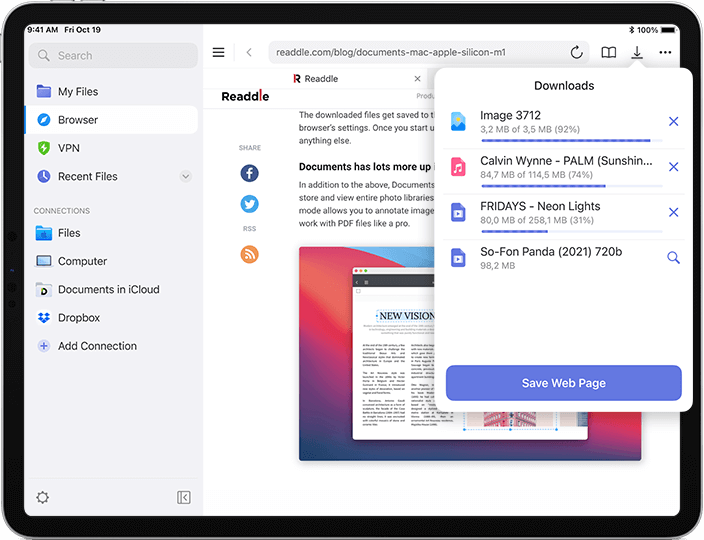
Documents by Readdle is a powerful and full-featured file manager that gives you a file hub for all your documents across services like iCloud, Dropbox, Google Drive, and more. You can download web files, open ZIP and RAR archives, and connect to cloud and local storage all through the app.
The app has a simple and clean interface that makes browsing through folders and files easy. It includes support for viewing over 25 types of files including PDFs, movies, music, text files, and more. You can also listen to audio through the built-in media player. For editing, you can annotate PDFs and edit text files within the app.
Key Features:
- Access files from multiple cloud services and local storage all in one place
- Download web files and open compressed archives
- View over 25 types of file formats including PDFs, media files, and documents
- Built-in PDF viewer and annotation tools
- Text editor for editing text files
- Audio/video player with playlist support
- Connect to cloud storage services like Dropbox, Google Drive, Box, and more
- Connect to local storage like iTunes File Sharing and iOS Files app
Pros:
- Free and full-featured with no ads
- Integrates cloud storage services and local storage seamlessly
- Simple, clean user interface
- Fast and responsive
- Media player and basic editing capabilities
Cons:
- No integration with some popular cloud storage services like OneDrive and iCloud Drive
- Limited editing features compared to paid office suite alternatives
- The user interface can feel somewhat basic compared to premium alternatives
2. File Hub
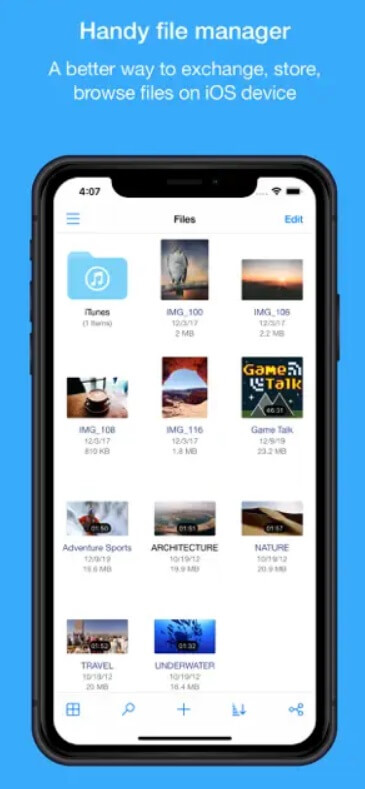
File Hub is a free app for file management on iPhone and iPad designed to simplify accessing your files across multiple cloud services. It has clients for connecting to popular services like Dropbox, Google Drive, OneDrive, Box, and more all within the app.
This free file management app for iOS provides a dual-pane interface for browsing your connected cloud services, as well as any files stored locally on your iOS device. You can easily copy, move, rename, and delete files on any of your connected services. It includes media playback support and can handle ZIP, RAR, and other compressed archives.
Key Features:
- Connect cloud storage services like Dropbox, Google Drive, OneDrive, Box and more
- Dual-pane interface for browsing and managing multiple services at once
- Access and manage local files on your iOS device
- Preview files and playback media within the app
- Extract compressed ZIP, RAR, and other archive files
- Copy, move, rename, and delete files across services
Pros:
- Free with no ads or subscriptions
- Connect all your major cloud services
- Intuitive dual-pane interface for efficient file management
- Handles compressed archives and media playback
- Regularly updated by developers
Cons:
- No advanced editing capabilities for documents or media
- The user interface isn’t as polished as some premium options
- Limited third-party service integrations beyond major cloud providers
3. iCloud Drive
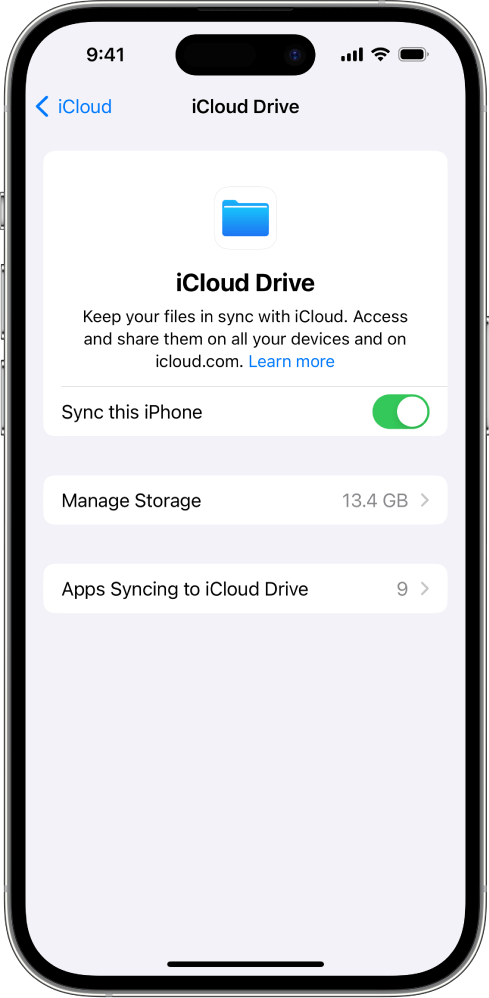
While not a dedicated third-party file manager app, iCloud Drive is Apple’s built-in cloud file hosting and management solution that comes pre-installed on all iPhone and iPad devices. It allows you to store files of any type in the cloud and access them across your Apple devices and even Windows PCs.
iCloud Drive is integrated into the Files app, making it easy to browse, open, and manage your iCloud Drive files right alongside files from other third-party cloud services and local storage. You can organize your iCloud Drive into folders, move and rename files, and share file access with others.
Key Features:
- Cloud file storage and management service built into iOS
- Files stored in iCloud Drive are accessible across all your Apple devices
- Integrated into the Files app alongside other cloud services and local storage
- Native file viewing, playback, and editing integration based on file type
- Easily share files and folders by sending links
- 5GB of free storage with the ability to purchase more iCloud storage
Pros:
- No third-party app required – built right into iOS
- Seamless integration with Apple’s Files app and other apps
- Access your iCloud Drive files across all your Apple devices
- Free 5GB of storage for all Apple users
- Native viewing, editing, and sharing capabilities
Cons:
- Limited base storage (only 5GB free) without purchasing more
- Fewer customization options compared to dedicated third-party file managers
4. File Manager & Browser
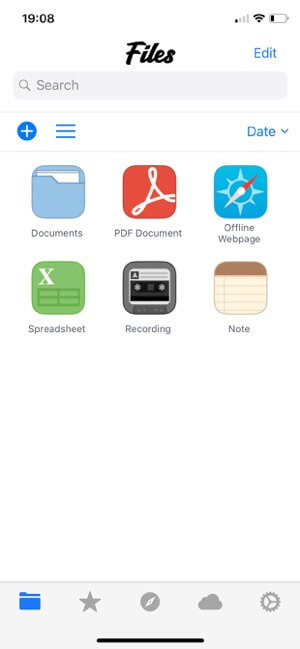
File Manager & Browser is a fairly basic but capable free iPad and iPhone file manager app. It gives you a straightforward interface for browsing through the local files and folders stored on your iPhone or iPad.
While the main focus is on managing your device’s local storage, it also allows you to connect cloud storage services like Dropbox, Google Drive, OneDrive, and Box. The file transfer capabilities offered by this free file management app for iOS let you easily copy files between cloud accounts and your device. It supports viewing PDFs, images, audio, and video right in the app.
Key Features:
- Access and manage local files stored on your iOS device
- Connect third-party cloud services like Dropbox, Google Drive and OneDrive
- Transfer files between cloud services and local device storage
- View PDFs, images, videos, and other common file types in-app
- Extract ZIP, RAR, and other compressed file archives
- Simple, streamlined user interface
- Fully free with no in-app purchases
Pros:
- Easy browsing of your iPhone or iPad’s local file system
- Can connect multiple cloud storage accounts
- Transfer files back and forth between the device and the cloud seamlessly
- Clean, straightforward interface design
- Completely free with no ads or paid features
Cons:
- Limited cloud service integrations beyond major providers
- No advanced editing or annotation capabilities
- The interface feels basic compared to more robust paid options
5. FE FileExplorer Pro
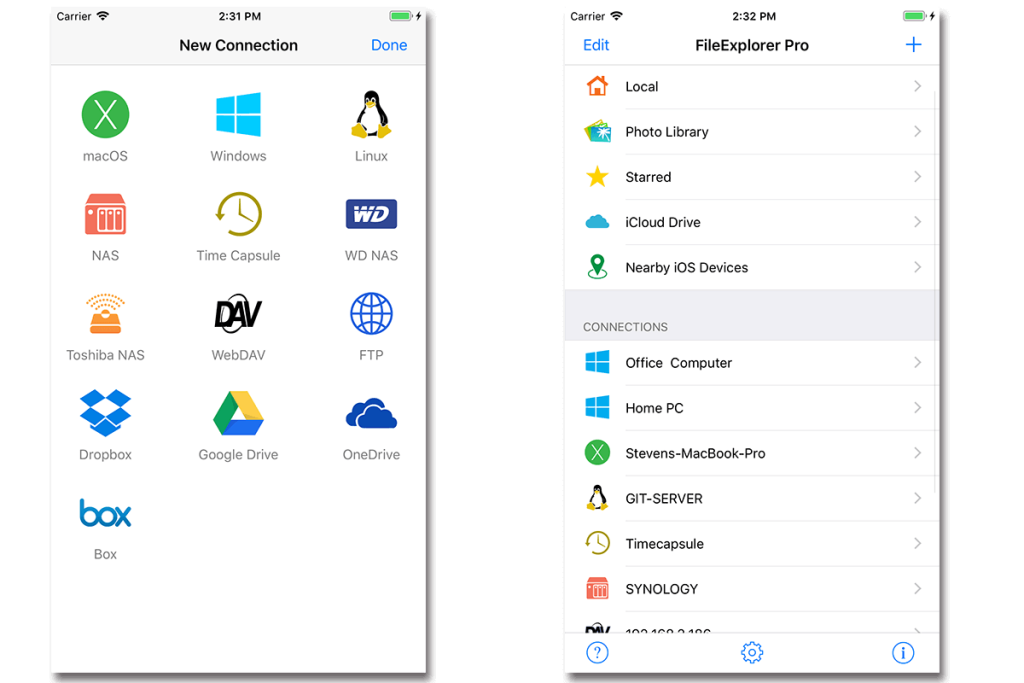
FE FileExplorer Pro is a comprehensive and iPad and iPhone apps to manage files. It provides access to both your device’s local storage as well as the ability to connect a variety of cloud services and remote storage locations.
On top of the core file browsing and cloud integration, FileExplorer Pro includes a built-in web browser, media players, document viewers, and even basic editing capabilities for some file types. You can stream media over WiFi, upload and download from web servers, and decompress popular archive formats.
Key Features:
- Browse and manage local files on your iOS device
- Connect cloud services like Dropbox, Google Drive, and OneDrive.
- Access remote storage via WebDAV, FTP, SMB, and other protocols
- Stream media over WiFi direct to TVs and other devices
- Integrated document viewer for PDFs and Office files
- Basic document editing capabilities
- Built-in web browser and download manager
- Decompress ZIP, RAR, and other compressed file archives
Pros:
- Completely free with no ads or paid version
- Broad integration of cloud services and remote storage protocols
- Media streaming capabilities over a local network
- File viewing and basic editing included
- Feature-rich but still easy to use
Cons:
- Interface design feels a bit dated compared to modern alternatives
- Limited advanced editing tools compared to office apps
- Fewer iOS integrations than Apple’s native Files app
6. Filer Lite
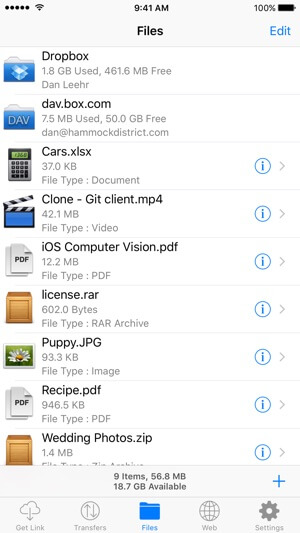
Filer Lite is a scaled-back, ad-supported version of the paid My Files file manager app for iOS. Despite being the free “lite” version, it still offers many essential file management capabilities across both your local storage and cloud services.
The interface provides an easy way to browse through files stored on your iPhone or iPad. You can view PDFs, photos, videos, and other common formats right within the app. It integrates cloud services like Dropbox, Google Drive, and Box so you can manage all your files in one place. If you are looking for free Apps to manage files on iphone and ipad, Filer Lite is an ideal pick.
Key Features:
- Access and manage local files on your iOS device
- Connect cloud storage services like Dropbox, and Google Drive.
- View PDFs, photos, audio, video, and other file types
- Integrated media player
- Extract compressed ZIP archives
- Transfer files between the device and cloud storage
- Search for files across all connected storage locations
- Free with ads (paid version removes ads)
Pros:
- Free file manager with most essential features included
- Fairly comprehensive cloud storage service integration
- Integrated viewers for previewing most common file formats
- Media player for audio and video playback
- Clean, straightforward user interface
Cons:
- Includes ads (must pay to remove)
- Limited advanced features compared to the paid version
- No editing capabilities beyond basic text files
- Fewer integrations with other iOS apps and services
7. File Browser
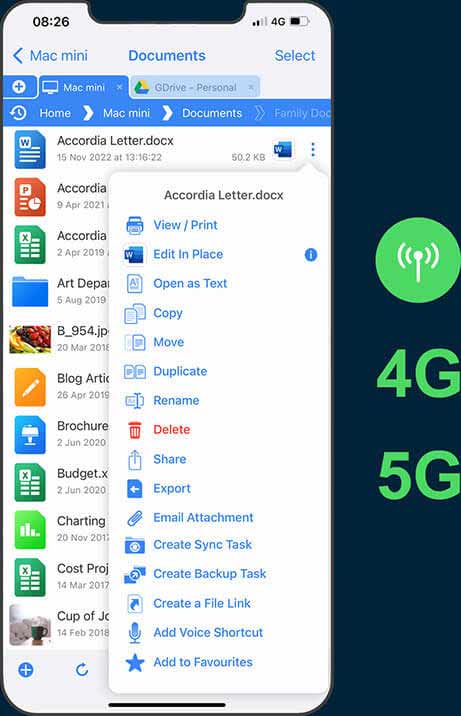
File Browser is another free and open-source file explorer app for browsing and managing files on your iPhone or iPad. It takes a more technical approach compared to many other file managers, providing access to the full raw file system and directory structure.
Beyond local file browsing, File Browser iPad and iPhone file manager app allows you to connect directly to remote servers over protocols like FTP, SFTP, WebDAV, and SMB/CIFS. While it lacks integrations with popular consumer cloud services, it makes up for that with its remote connection abilities. It also has a built-in text editor.
Key Features:
- Access the complete iOS file system including root directories
- Connect to remote servers via FTP, SFTP, WebDAV, and SMB/CIFS
- Dual-pane file browser for easy navigation
- Compress and decompress ZIP, RAR, and other archives
- Built-in text editor for code and plain text files
- View media and PDFs within the app
- Open source with no ads or in-app purchases
Pros:
- Free and open-source file manager
- Direct access to raw file system directories
- Robust remote server connection capabilities over multiple protocols
- Dual-pane interface for efficient browsing
- Simple, streamlined design focused on core functionality
Cons:
- Lacks integration with consumer cloud storage services
- More technical/advanced user experience compared to simpler options
- Limited media handling and no editing beyond plain text files
- Design and features show signs of aging
8. GoodReader
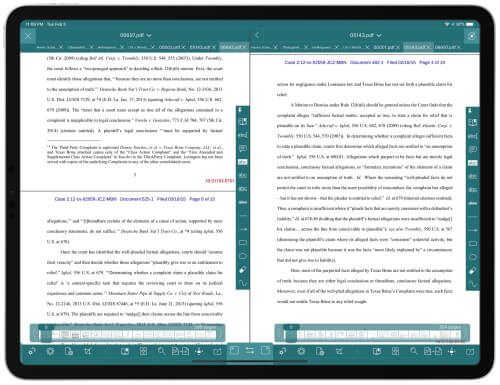
While not a traditional dedicated app for file management on iPhone and iPad, GoodReader is a free and powerful PDF reader for iOS that incorporates some excellent file management capabilities as well. It can connect to cloud services and remote servers to access your files from anywhere.
The focus is on viewing and annotating PDFs, but GoodReader also supports a wide range of other document, media, and archive file types that you can manage directly within the app. You can transfer files between online storage and your local device, organize with file tagging, and utilize other productivity tools.
Key Features:
- View and annotate PDFs with a full set of markup tools
- Access files from online cloud services and servers
- Supports a wide range of file formats including Office docs, media, archives
- Organize files with tags, folders, thumbnails, and more
- Transfer files between cloud services and local device storage
- Share documents via email and more
- Free version with an optional paid upgrade for more features
Pros:
- Excellent PDF viewing and annotation capabilities
- Can access files from all major cloud services and remote servers
- Built-in file management tools for organizing your documents
- Support for a wide range of file types beyond just PDFs
- Free to use base version, paid upgrade optional
Cons:
- Not a dedicated full file manager app – geared more toward PDFs
- The free version is limited, a paid upgrade is required for the full feature set
- The interface feels more complex compared to simpler file organizer apps
- Integration with other iOS apps and services is limited
9. Files HD
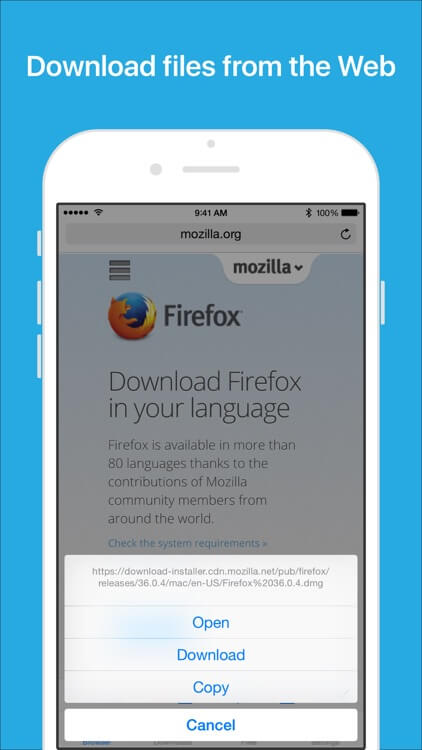
Files HD is a versatile free file explorer and management tool for iPad, taking advantage of the larger tablet screen size. It provides a dual-pane interface for browsing the files on your iPad as well as any connected cloud storage services.
The app gives you the ability to connect popular cloud services like Dropbox, Google Drive, OneDrive, Box, and more right within the app. You can easily transfer files between these cloud accounts and your iPad’s local storage. It includes built-in support for viewing PDFs, Office documents, photos, and media files.
Key Features:
- Dual-pane interface optimized for iPad
- Access and manage files stored locally on your iPad
- Connect all major cloud services including Dropbox, Google Drive, OneDrive
- Transfer files between cloud accounts and iPad local storage
- Integrated viewers for PDFs, Office files, photos, audio/video
- Compressed archive handling with ZIP and RAR support
- Built-in media player with playlist support
Pros:
- Designed specifically for iPad’s larger screen
- Dual-pane interface for efficient browsing and file management
- Broad integration with popular cloud storage providers
- File transfer capabilities between storage locations
- Supports common file formats with integrated viewers
- Clean, modern user interface
Cons:
- No iPhone version (iPad only)
- Limited editing capabilities beyond basic text files
- Lacks some advanced power user features of other managers
- Fewer sharing and other iOS integration options compared to Apple Files
Conclusion
Managing the constantly growing number of files we have spread across multiple devices, cloud services, and local storage can be overwhelming. While iOS has built-in file management capabilities through the Files app, many users find they want more advanced functionality.
The ten apps covered here represent some of the best free file manager solutions available. From Documents by Readdle to FileExplorer Pro to GoodReader, you have access to a wide range of features for accessing your files across all your storage locations.
Whether you need simple cloud integration, remote server access, media streaming, or just enhanced browsing of your local files, there are quality free options to meet your needs. Give a few of these apps a try to find the best iPad and iPhone file manager app.
FAQs:
What are the best free file manager apps for iPhone and iPad?
Documents by Readdle, File Manager Pro, File Hub, iCloud Drive, File Manager & Browser, FileExplorer Pro, File Manager by Minhui, My Files Lite, File Browser, and GoodReader.
Do free file organizer apps work with cloud storage services?
Yes, the majority of free file managers support integration with popular cloud storage services like Dropbox, Google Drive, OneDrive, Box, and more. This allows you to access and manage files across all your cloud accounts in one place.
Can I edit documents and other files within these apps?
Most free apps for file management provide at least basic viewing and previewing capabilities for common file formats like PDFs, Office documents, images, and media files. Some also include lightweight editing features like text editors or PDF annotation tools. However, more advanced editing generally requires purchasing a paid productivity suite.
How do I transfer files between storage locations with these apps?
Nearly all file manager apps make it easy to copy, move, or transfer files between your local device storage and connected cloud services. Many also support direct transfer between multiple cloud storage accounts.
Author Bio:
Dinesh Lakhwani 

Dinesh Lakhwani, the entrepreneurial brain behind “TechCommuters,” achieved big things in the tech world. He started the company to make smart and user-friendly tech solutions. Thanks to his sharp thinking, focus on quality and the motto of never giving up, TechCommuters became a top player in the industry. His commitment to excellence has propelled the company to a leading position in the industry.
Popular Post











Recent Post

How To Find Password Saved on This Computer: Complete Guide
Many people forget their login details at some point. It happens often. We create many accounts every year. Each one needs a username and a password. Over time, it becomes hard to remember all of them. That is why computers offer ways to store login details. These saved details help users sign in faster. They […]

How To Open/Access Computer Management & Advanced Tips
Every Windows computer has many hidden tools. Most users never see them. They only use basic settings. They change wallpapers. They install apps. They adjust sound and display. That is enough for daily work. But problems still happen. The system slows down. Storage fills up. Errors appear without warning. At this stage, normal settings do […]

How To Transfer Photos From Android Phone To PC/Laptop [2026]
Moving photos from a phone to a computer is something most people need to do often. Phones fill up fast. Photos also matter more than apps. You may want a safe backup. You may want to edit images on a bigger screen. This guide explains how to transfer photos from Android to PC without stress. […]
Top 9 Browsers With Built-In VPN – VPN Browser
Online browsing is no longer private by default. Every website collects data in some form. This includes location details, device information, and browsing habits. Over time, this data builds a clear picture of user behavior. Many people are now uncomfortable with this level of tracking. A VPN browser helps reduce this exposure. It adds a […]

AI In Cyber Security: Who is Winning, Hackers or Security Companies
Cybersecurity once followed clear rules. Companies built firewalls. Users created passwords. Antivirus tools scanned files and removed known threats. When an attack happened, security teams studied it and added new rules. This method worked for many years. It created a sense of control and stability. That sense is gone today. Artificial intelligence has changed how […]

The Biggest AI-Run Cyber Attacks Of All Time
Artificial intelligence is now part of everyday technology. It helps people search faster. It improves medical research. It supports businesses in making better choices. But AI is not used only for good purposes. Cyber criminals have also learned how to use it. This has changed the nature of cyber attacks across the world. In the […]

Switch To a Dark Background Theme on Windows: Enable Dark Mode
People often like a screen that feels gentle on the eyes. A darker style softens bright areas and makes long computer sessions easier to handle. It also gives the desktop a cleaner and more modern feel. When you switch to a dark background theme in Windows, the colors shift to deeper shades that reduce glare […]
![Complete Guide on Managing Audio Input Devices [Latest In 2026]](https://www.techcommuters.com/wp-content/uploads/2025/12/Complete-Guide-on-Managing-Audio-Input-Devices.webp)
Complete Guide on Managing Audio Input Devices [Latest In 2026]
People use microphones for meetings, games, classes, recordings, and voice chats, so any problem with the device can interrupt their work. Even a small system error can make the voice weak or stop it fully. This is why knowing the basics of managing audio input devices is helpful for new and experienced users. Windows includes […]

Resetting Audio Settings on Windows 11: Complete Guide
Sound problems can disrupt work, study, or entertainment. Many users face issues where the audio becomes too low, too loud, unclear, or does not play at all. A common way to solve these problems is by resetting audio settings to their original state. This helps Windows rebuild its sound setup from the beginning. Windows 11 […]

Troubleshooting Headphone Detection: Headphones Not Detected/Working
A lot of users run into sound problems at some point. A common one is when the computer does not pick up the headphones. You plug them in, but the speakers keep playing. This can break your focus during work, movies, music, or calls. It also causes confusion because the reason is not always clear […]

