Windows Has Stopped this Device because it has Reported Problems (Code 43)” [9 Ways to Fix]
Last updated on September 16th, 2025 at 2:48 am
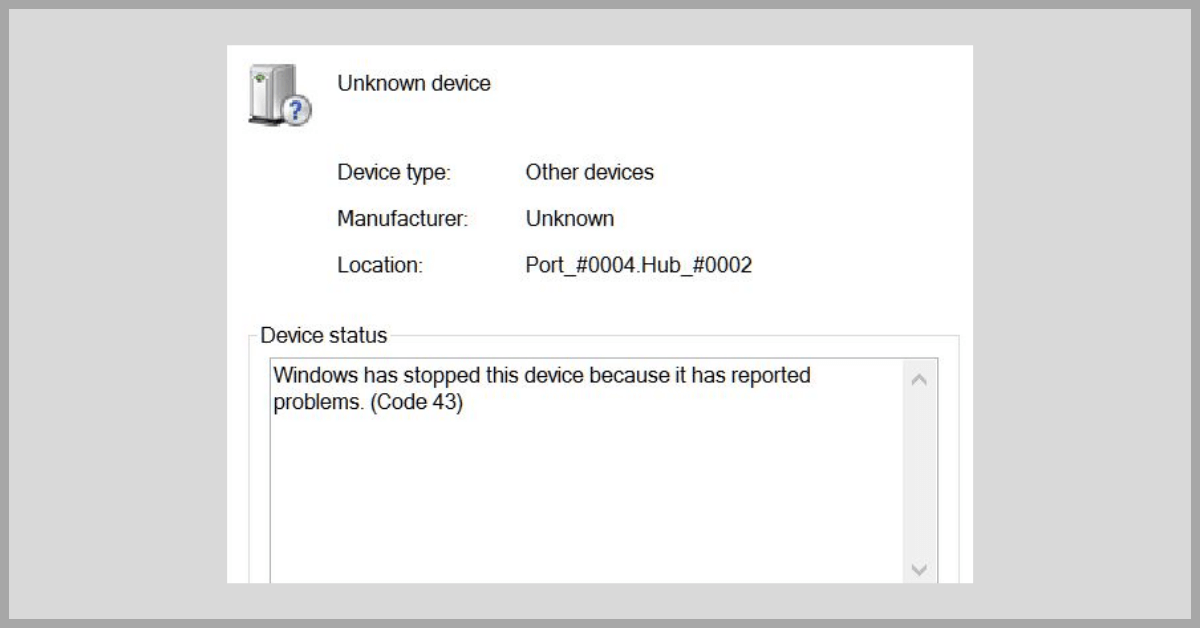
The error message “Windows has stopped this device because it has reported problems (Code 43)” is a common issue that Windows users encounter. This error typically occurs when a connected device, such as a USB drive, graphics card, or other hardware component, malfunctions or encounters compatibility issues. Here, we will explore nine effective methods to fix the code 43 error and get your device up and running again.
An Overview of Code 43 Error
A device driver or hardware problem is usually indicated by a code 43 error, which is a general error message. Usually, a notification indicating that the device has malfunctioned and has been halted appears along with this error. The Device Manager, a built-in application that lets users monitor and control hardware devices and their drivers, is usually where the Code 43 issue appears in Windows operating systems.
The most frequent issue connected to error code 43 is hardware malfunction, including graphics cards, USB devices, and other peripherals. For example, if a graphics card encounters code 43 error, it may result in display issues, poor graphics performance, and system instability. Similarly, USB devices affected by code 43 error may fail to be recognized by the system, leading to connectivity issues and data transfer failures.
Causes of Code 43 Error
A code 43 error can occur due to a variety of reasons. Knowing about the common causes can be beneficial in order to troubleshoot the issue.
1. Outdated or Incompatible Device Drivers
One of the primary causes of code 43 errors is outdated or incompatible device drivers. Device drivers are essential software components that facilitate communication between hardware devices and the operating system. When device drivers are outdated or incompatible with the system or other hardware components, code 43 errors may occur. This may occur when a new device is attached to the computer when hardware configuration changes or system upgrades cause the drivers to become out of current, or both.
2. Hardware Malfunction or Failure
Code 43 errors can also be caused by hardware malfunction or failure. In the event that a hardware component malfunctions or fails, the system may encounter a code 43 problem. This can happen for a number of reasons, including physical harm, electrical problems, or gradual component deterioration.
3. System File Corruption
System file corruption can also lead to Windows code 43 errors. The operating system relies on various system files and configurations to manage hardware devices and software applications. When these system files become corrupted due to factors such as software conflicts, malware, or improper system shutdowns, code 43 errors may manifest as a result.
4. Power Management Issues
Code 43 errors can also be caused by problems with power management, especially when it comes to portable electronics like laptops and tablets. Hardware device behavior can be affected by power management features like sleep mode, hibernation, or power-saving settings. When these features conflict with the operation of specific hardware components, code 43 errors may occur.
5. Software Conflicts and Compatibility Issues
Software conflicts and compatibility issues can contribute to the occurrence of code 43 errors. Errors like code 43 error might occur when many software programs or drivers interact in an incompatible or contradictory manner. This can happen when you install new software, when you apply system updates, or when you modify the settings of drivers and other installed applications.
6. Registry Errors
The system registry is a critical database that stores configuration settings and options for the operating system and installed software. Registry errors can occur due to factors such as improper software installations, incomplete uninstallations, or malware infections. When the registry becomes corrupted or contains invalid entries, it can lead to code 43 errors and other system errors.
7. Overheating and Thermal Issues
The Windows code 43 Error can also be caused by overheating and thermal problems, especially when it comes to hardware elements like CPUs and graphics cards. Hardware components’ performance and stability may be impacted by operating at high temperatures, which may result in mistakes and malfunctions.
8. BIOS and Firmware Incompatibility
The firmware of hardware components and the Basic Input/Output System are essential to the setup and functioning of the system. Code 43 errors can be caused by obsolete BIOS and firmware versions or incompatibility, especially when new hardware is added, or system upgrades are implemented.
9. Malware and Security Threats
Malware and security threats can also contribute to the occurrence of code 43 errors. Malicious software, including trojans, rootkits, and viruses, can disrupt system components and hardware performance, resulting in mistakes and malfunctions.
Why Resolving Code 43 Error Is Important
Resolving a Windows code 43 error is extremely important. From device functionality to system stability and more, there are a lot of reasons why it’s important to fix the problem.
1. Device Functionality
The foremost reason why resolving the code 43 error is important is its direct impact on the functionality of the affected devices. The Code 43error basically stops a gadget from working or severely restricts its ability to function. For example, a graphics card mistake may result in poor graphics performance, display problems, or even the card’s total failure to function. The user’s ability to use the device for gaming, graphic creation, or other typical computer duties is directly hampered by this.
2. System Stability
Another critical aspect affected by the code 43 error is the overall stability of the system. When a hardware component such as a graphics card encounters this error, it can lead to system instability, frequent crashes, or even the infamous “blue screen of death” in Windows-based systems. The repercussions of such instability extend beyond mere inconvenience, as they can result in data loss, interrupted work processes, and an overall compromised computing experience.
3. Productivity and Efficiency
Resolving the code 43 error is crucial for maintaining productivity and efficiency in various professional and personal computing environments. For professionals relying on graphics-intensive applications such as video editing, 3D modeling, or CAD design, a malfunctioning graphics card due to the Code 43 error can bring productivity to a halt. Similarly, in a corporate setting, where USB devices are integral for data transfer and peripheral connectivity, the inability to use these devices due to the error can severely impact workflow and efficiency.
4. Financial Implications
The code 43 error can have significant financial implications for both individual users and businesses. In the case of individual users, the cost of replacing a malfunctioning hardware component can be substantial, especially if the device is out of warranty. For businesses relying on multiple devices affected by the error, the cumulative cost of repairs or replacements can escalate quickly, impacting the bottom line and operational budgets.
5. Data Integrity and Security
Resolving the code 43 error is crucial for maintaining data integrity and security. In scenarios where the error affects storage devices or USB drives, there is a risk of data corruption or loss, potentially compromising sensitive information or critical files. Moreover, the inability to access or utilize security devices such as fingerprint readers or smart card readers due to the error can undermine the overall security posture of a system, leaving it vulnerable to unauthorized access or breaches.
6. User Frustration and Experience
The code 43 error, when unresolved, can lead to immense user frustration and a subpar computing experience. Constant error messages, device malfunctions, and the inability to perform basic tasks can lead to a negative user experience. This is particularly relevant in consumer-facing scenarios, where users expect seamless functionality and performance from their devices. An unsatisfied user base can have detrimental effects on the reputation and trust in a brand or product.
7. Diagnostic Challenges
Resolving the Windows Code43 error presents an opportunity to enhance diagnostic skills and troubleshooting capabilities. The process of identifying the root cause of the error often involves in-depth analysis of hardware configurations, driver compatibility, and system interactions. By addressing the error, users and IT professionals can improve their ability to diagnose and resolve complex hardware-related issues, thereby enhancing their overall technical proficiency.
8. Legal and Compliance Considerations
In certain industries and regulatory environments, the proper functioning of hardware devices is essential for compliance with legal standards and industry regulations. For example, in healthcare settings, medical devices reliant on USB connectivity must function without errors to ensure patient safety and regulatory compliance. Resolving the Code 43 error becomes a critical aspect of meeting these legal and compliance requirements, thereby avoiding potential liabilities and penalties.
Windows has stopped this device because it has reported problems. (code 43)” [9 Ways to Fix]
There are many ways in which a code 43 error can be fixed. Using an effective method to solve the issue can prove highly beneficial.
Method 1: Restart your Computer and Device

Before diving into complex troubleshooting methods, start with the simplest solution – restarting your computer and the problematic device. Sometimes, a simple reboot can resolve temporary glitches or conflicts that cause the code 43 error.
Method 2: Update Device Drivers
Outdated or incompatible device drivers are a common cause of the “Windows has stopped this device because it has reported problems. (Code 43)” error. To update your device drivers, follow these steps:
Step 1: Press the Windows key + X and select “Device Manager”.
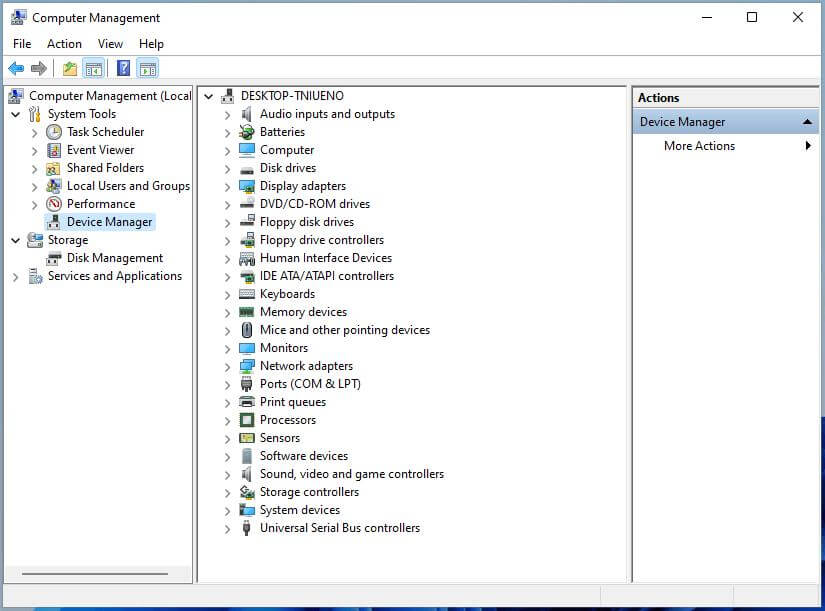
Step 2: Expand the category of the problematic device.
Step 3: Right-click on the device and select “Update driver”.
Step 4: Choose the option to automatically search for updated drivers online.
Step 5: If updates are found, follow the on-screen instructions to install them.
Step 6: Restart your computer after the driver update completes.
Method 3: Roll Back Device Drivers
If the Windows code 43 error started occurring after a recent driver update, it is possible that the new driver is causing compatibility issues. In such cases, rolling back to the previous driver version may resolve the problem. Here’s how to do it:
Step 1: Open the Device Manager.
Step 2: Right-click on the problematic device and select “Properties.”
Step 3: Navigate to the “Driver” tab and click on “Roll Back Driver”.
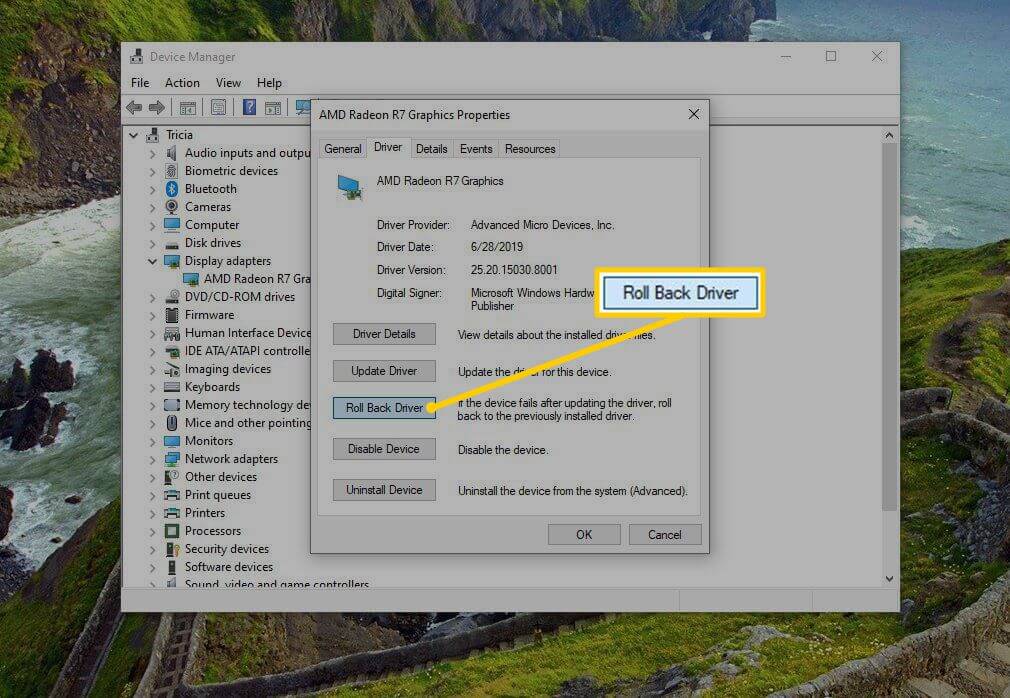
Step 4: Follow the on-screen instructions to complete the rollback process.
Step 5: Restart your computer and check if the error has been resolved.
Method 4: Uninstall and Reinstall the Device
If updating or rolling back the device driver doesn’t fix the “Windows has stopped this device because it has reported problems. (Code 43)“ error, try uninstalling and reinstalling the device. This can help resolve any corruption or conflicts related to the device installation. Follow these steps:
Step 1: Open the Device Manager.
Step 2: Right-click on the problematic device and select “Uninstall device.”
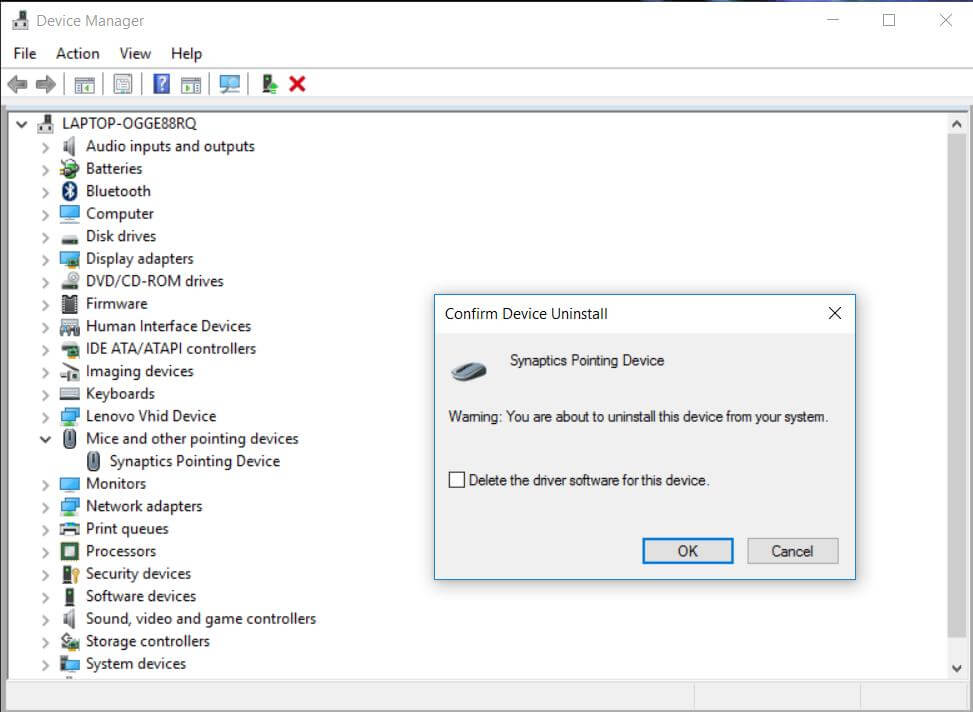
Step 3: Confirm the uninstallation and restart your computer.
Step 4: After the restart, Windows will automatically reinstall the device drivers.
Step 5: Check if the error has been resolved.
Method 5: Disable and Re-enable the Device
Disabling and re-enabling the problematic device can sometimes reset the device configuration and resolve the Windows code 43 error. Follow these steps:
Step 1: Open the Device Manager.
Step 2: Right-click on the problematic device and select “Disable device.”
Step 3: Wait for a few seconds and then right-click on the device again.
Step 4: Select “Enable device” from the context menu.
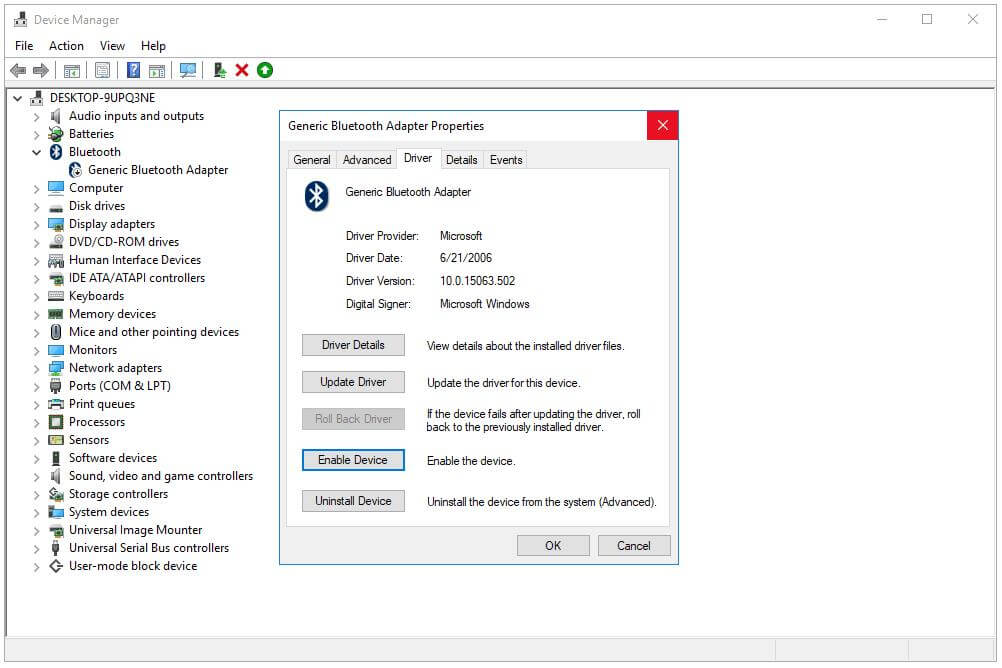
Step 5: Restart your computer and check if the error has been resolved.
Method 6: Run the Windows Troubleshooter
Windows includes a built-in Troubleshooter tool that can help diagnose and fix common hardware issues, including the code 43 error. Here’s how to use it:
Step 1: Press the Windows key + I to open the Settings app.
Step 2: Go to “Update & Security” and select “Troubleshoot” from the left sidebar.
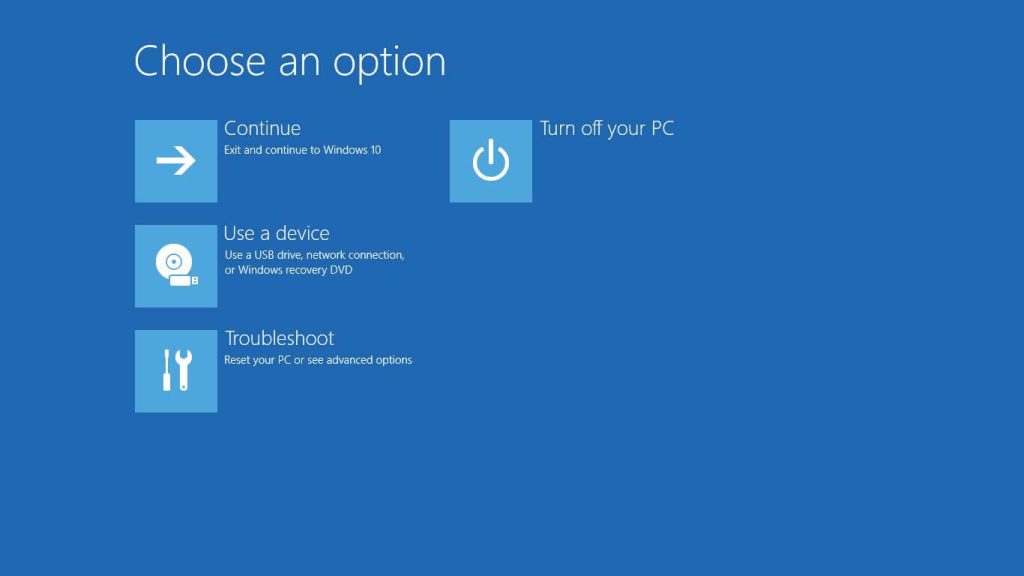
Step 3: Click on “Hardware and Devices” and then select “Run the troubleshooter”.
Step 4: Follow the on-screen instructions and let the troubleshooter detect and fix any issues.
Step 5: Restart your computer and check if the error has been resolved.
Method 7: Check for Windows Updates
Keeping your Windows operating system up to date is crucial for ensuring device compatibility and resolving various errors. To check for updates:
Step 1: Press the Windows key + I to open the Settings app.
Step 2: Go to “Update & Security” and select “Check for updates.”
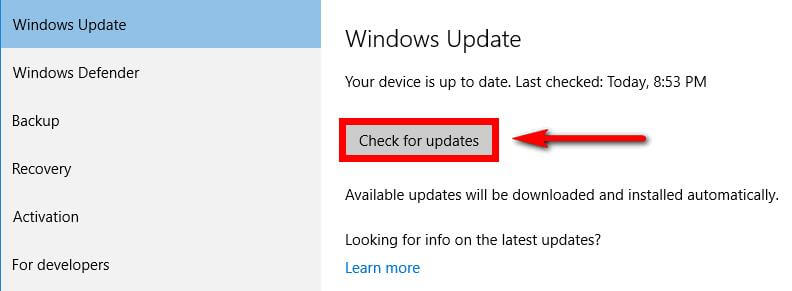
Step 3: If updates are available, click on “Download and install” to install them.
Step 4: Restart your computer after the updates have been installed.
Step 5: Check if the error has been resolved.
Method 8: Perform a System Restore
If the “Windows has stopped this device because it has reported problems. (Code 43)” error started occurring after a recent system change or update, performing a System Restore can help revert your computer to a previous state when the error didn’t exist. Here’s how to do it:
Step 1: Press the Windows key + R to open the Run dialog box.
Step 2: Type “rstrui” and press Enter to open the System Restore wizard.
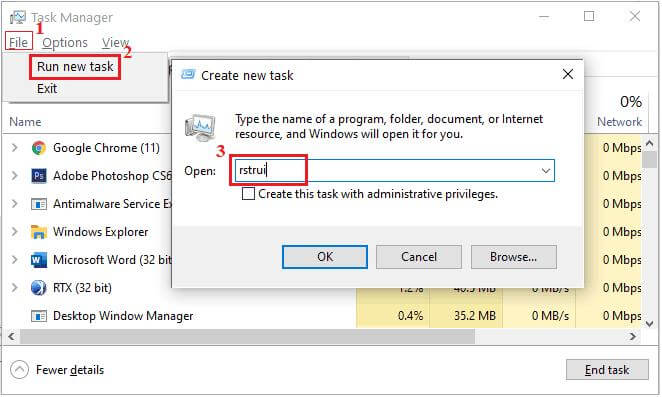
Step 3: Follow the on-screen instructions to choose a restore point and initiate the restore process.
Step 4: After the restoration is complete, your computer will restart.
Step 5: Check if the error has been resolved.
Method 9: Reinstall Windows
If none of the above methods work, you may need to consider reinstalling Windows. This should be your last resort, as it involves erasing all your data and reinstalling the operating system from scratch. Make sure to back up your important files before proceeding.
Conclusion
Encountering the “Windows has stopped this device because it has reported problems. (code 43)” error can be frustrating, but with the methods mentioned above, you should be able to resolve the issue and get your device functioning properly.
Start with the simpler solutions and gradually move towards more advanced troubleshooting methods if needed. Remember to always keep your device drivers and Windows operating system up to date to prevent compatibility issues in the future.
FAQs
1. What Does the Error Message “Windows has stopped this device because it has reported problems? (Code 43)” Mean?
The error message “Windows has stopped this device because it has reported problems. (Code 43)” is a notification from the Windows operating system indicating that a hardware device has encountered an issue. This error is often associated with the Device Manager, where the affected device will be listed with a yellow exclamation mark.
2. What Causes the Error Message “Windows has stopped this device because it has reported problems. (Code 43)”?
There are several potential causes for the “Code 43” error, including outdated device drivers, hardware malfunctions, power supply issues, or conflicts with other hardware devices. Additionally, corrupted system files or incompatible drivers can also trigger this error.
3. How Can I Identify the Device Causing the Error?
To identify the device causing the error, you can navigate to the Device Manager in Windows. Look for the device with the yellow exclamation mark, which indicates that it has reported problems. By examining the properties of the device, you can view the error code and gain insight into the specific hardware component that is experiencing issues.
4. Are There Any Common Devices Prone to the “Code 43” Error?
The “Code 43” error can affect a wide range of hardware devices, including graphics cards, USB devices, network adapters, and other peripherals. Graphics cards are particularly susceptible to this error, especially when encountering driver conflicts or hardware failures.
Author Bio:
Dinesh Lakhwani 

Dinesh Lakhwani, the entrepreneurial brain behind “TechCommuters,” achieved big things in the tech world. He started the company to make smart and user-friendly tech solutions. Thanks to his sharp thinking, focus on quality and the motto of never giving up, TechCommuters became a top player in the industry. His commitment to excellence has propelled the company to a leading position in the industry.
Popular Post











Recent Post

Resolving Microphone Detection Problems: Latest Guide [2026]
Microphones are important tools in daily life. People use them for office meetings, online classes, interviews, gaming, customer support, and content creation. When a system fails to detect a microphone, communication stops at once. This situation can cause stress and confusion. Many users believe the microphone is damaged. In reality, most problems are simple and […]

How To Switch To A Dark Background Theme In Windows [2026]
Most people spend many hours each day in front of a computer screen. Office work, online classes, editing, browsing, and streaming all require long screen time. A bright white background may look clean at first. However, over time, it can feel sharp and tiring. The strong contrast between white backgrounds and black text may cause […]

How to Switch From Local To Microsoft Account On Windows
Many users begin with a local account when they set up a new Windows computer. A local account works only on that single device. It stores settings, files, and preferences locally. It does not connect to online Microsoft services. For basic offline use, it works well. However, as digital needs grow, many users want better […]

How to Switch Windows 10 to a Local Account: Complete Guide
Windows 10 allows users to sign in with either a Microsoft account or a local account. When you set up a new computer, the system often suggests using a Microsoft account. This account connects your device to Microsoft services such as Outlook, OneDrive, and the Microsoft Store. It also syncs settings, themes, and passwords across […]

How To Change Default Apps For File Types In Windows
Windows is designed to make using your computer easy. One way it does this is by assigning default apps to different file types. This means when you open a file, Windows automatically opens it with a specific program. For example, photos may open with Photos, music with Groove Music, and PDFs with Edge. These default […]

How To Adjust The Mouse Pointer Speed: Complete Guide
Using a computer every day means you use the mouse a lot. The mouse pointer moves on the screen and helps you click, scroll, and select items. Many people never think about the speed of the mouse pointer. They have used the default setting for years. This can cause small problems over time. A slow […]

How to Change Mouse Scrolling Settings In Windows
A mouse is one of the most used computer tools. People use it every day. They scroll through emails. They scroll through documents. They scroll through websites and images. The movement becomes automatic. Most users do not notice it. That is why problems often go unnoticed. Scrolling problems show up slowly. At first, it feels […]

Keyboard Light Settings: Keyboard Lighting Control [Complete Guide]
Keyboards are no longer simple typing tools. Well, yes! Over time, they have evolved to include features that improve comfort, visibility, and overall experience. One of the most useful features today is keyboard lighting. It helps users work comfortably in low-light conditions. It also reduces strain when typing for long hours. Many users first notice […]

Customizing Pointer Appearance: Complete Guide
The way your mouse pointer looks on your computer may seem like a small detail. But customizing pointer appearance can make using your PC more comfortable and visually appealing. Many users do not realize that they can change the pointer size, color, and style to fit their needs. Whether you want a bigger pointer for […]

How To Choose a Computer Monitor: Monitor Buying Guide
Buying a monitor looks easy. Many people think all screens are the same. That belief causes regret later. A monitor is not just a display. It is a daily tool. You read on it. You work on it. You relax with it. Small problems become big over time. Poor brightness hurts eyes. Bad size causes […]

