Top 9 Dictation Software for Windows and Mac

Last updated on August 27th, 2025 at 4:40 am
Introduction
Writing is one of the most common practices in the lives of practically everyone, be it for personal or professional reasons. Whether it relates to writing out short lists for the daily chores, financial documents for your business, or a new story you are making, people use computer-based programs to handle this faster instead of traditional handwritten notes.
While computers and much new software have made formatting and writing new documents easy, completing the writing assignments still takes time. If you are leading a busy lifestyle, using automation-centric dictation software for Windows and Mac can ease the process.
Are you wondering about which apps to use? Read this post to know your options.
Best Dictation Software to Use on Windows and Mac
Dictation software types analyze the speech you add through the synced microphone and transcribe them into text. While there are different types of this software available, only some of them match the users’ needs in terms of speech-to-text transcription accuracy, speed, and quality.
Thus, we studied each software carefully while forming this list of the best options for a dictation app for Mac and Windows computers. Here are the top 9 choices we found.
1. Dragon Speech Recognition Solutions
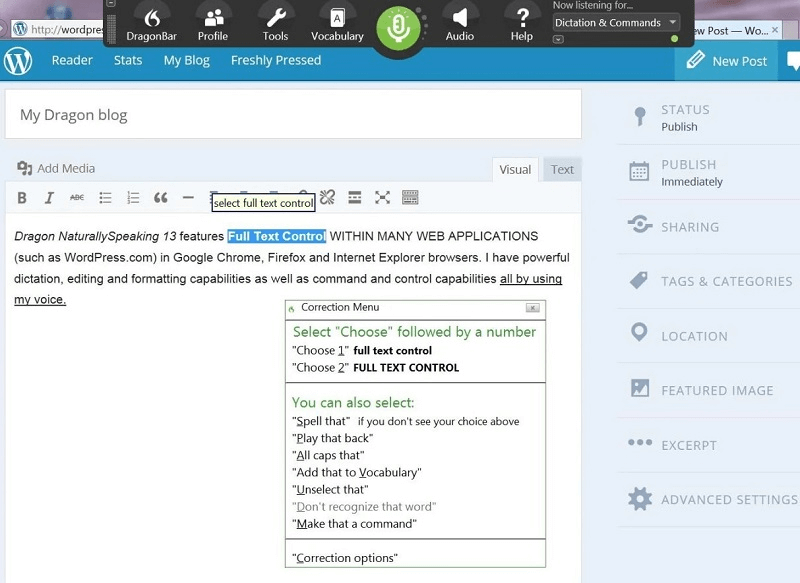
One of the most valuable solutions when it comes to speech recognition and dictation is the software options available at Dragon by Nuance. Different options are available for specific user bases, like Dragon Legal for lawyers and such professionals.
While each version can work as a stand-alone top dictation software for Windows or Mac, their usage quality and dictation software are from the same brand. Some, like Dragon Legal and Dragon Professional have more advanced features given their uses, like automatic transcription.
Price: Dragon Home- USD 200, Dragon Professional/Dragon Legal- Starts at USD 500
Compatibility: Windows, Mac
Features:
- Strong transcription power even with excess sound in the background.
- Choose industry-approved services and packages from Dragon.
- Fast and accurate dictation, even in fast-paced speech.
- Deep learning and AI-integrated software.
Pros:
- Different solutions suit multiple user types.
- Packages available to organizational teams in different sectors.
- Precise voice recognition and transcription.
Cons:
- Costly plans are available.
- Dragon Home does not support automatic transcription.
2. Otter.ai
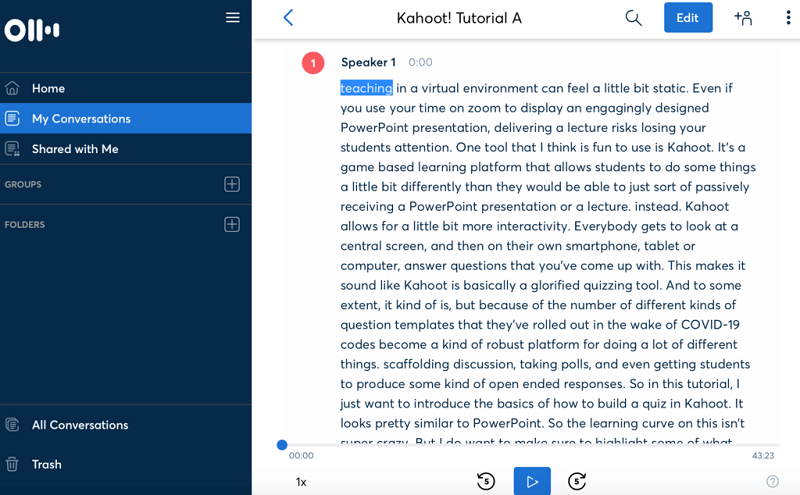
Otter is one of the most accessible platforms available for quick, accurate, and high-quality dictation on Windows and Mac. Enable the microphone setting and begin speaking into it while the software detects your speech and accurately transcribes it into documents.
Price: Basic- Free, Pro- USD 8.33 per month, Business- USD 20 per month, Enterprise- quoted price
Compatibility: Windows, Mac (web-based)
Features:
- Supports BETA for an automated summary.
- Easily record and then transcribe online platform-based meetings.
- Quick and automated takeaways.
- Around 300 monthly audio transcription minutes are supported and counting.
Pros:
- Syncs with other apps.
- Otter Assistant is available for instant support with different functions.
- Transcribe 30 minutes of conversion with the free plan.
Cons:
- Costlier plans allow unlimited transcription only.
- Only Enterprise and Business plan users get RTMP-based live transcription support.
3. Speechnotes
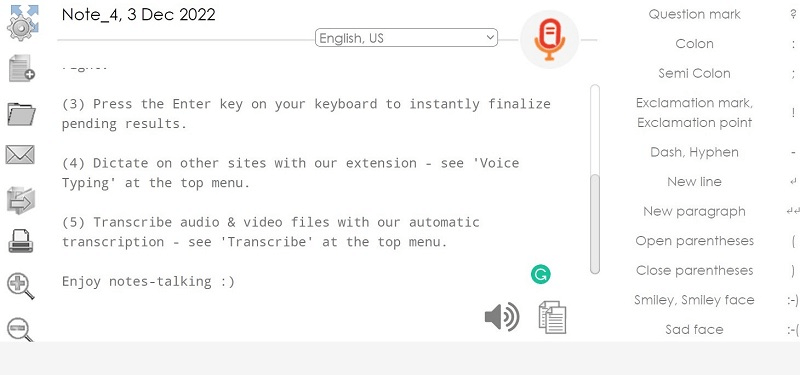
Another high-quality dictation app for Mac or Windows that many people utilize is Speechnotes. This works via any platform, and you have to search for the site online to begin working on it. No installation or registration is necessary, and you can quickly start writing documents of different types with the app through voice-to-text conversion.
Price: Free
Compatibility: Windows, Mac (web-based)
Features:
- Multiple languages are supported.
- Use keyboard shortcuts to start and pause dictation easily.
- Dictated text export is possible to cloud accounts.
- Create customized stamps for the text.
Pros:
- Easy commands are available for punctuation and more.
- Simple UI suitable for all types of users.
- Speech recognition has a fast processing speed.
Cons:
- Only accessible through Chrome browser.
- Automatic transcription and such advanced features require payment.
4. Braina
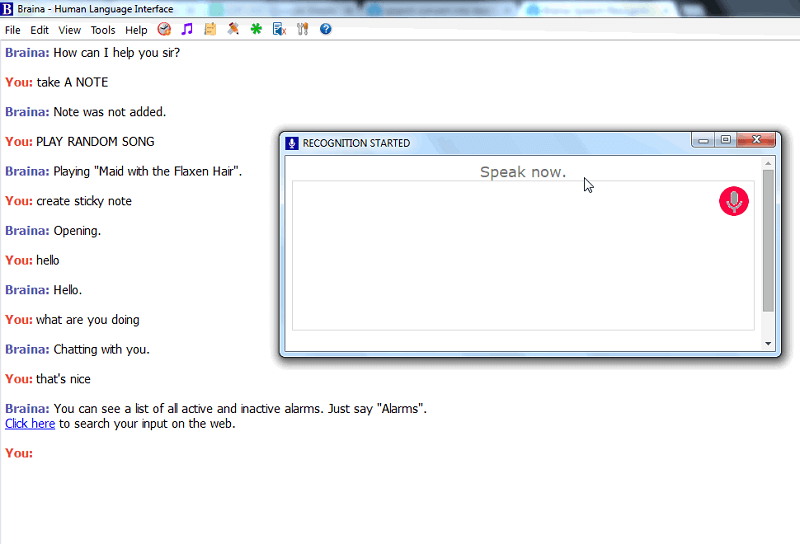
Use this dictation software to write fast, high-quality text through its dynamic speech recognition and transcription service. The software supports different types of high-quality features for speech recognition and accurate translation.
Price: Free
Compatibility: Windows, Mac
Features:
- Customized hotkeys and commands.
- Precise transcription from voice dictation.
- Quickly transcribe mathematical figures and characters.
- Get thesaurus and dictionary support.
Pros:
- Faster typing and transcription.
- Many languages are supported.
- Easy functionality.
Cons:
- Complex for some users.
- Transcription quality requires some updates.
5. SpeechTexter
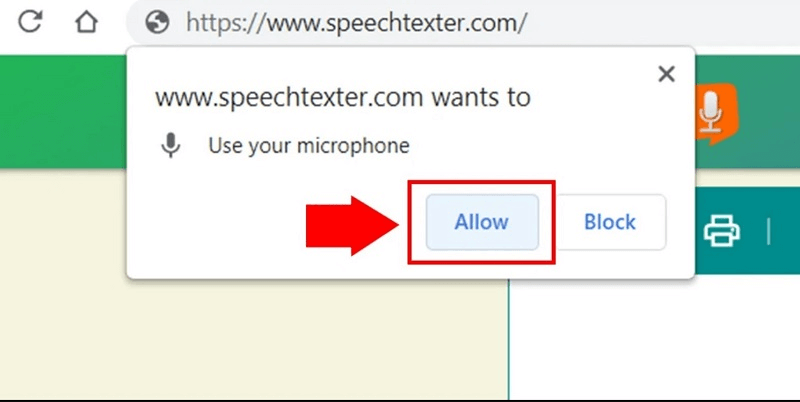
Many users suffering from difficulties like dyslexia can find this particular app very helpful for writing. Using this, one has to speak into the connected microphone, and the software will automatically translate it into commands.
For writing, this app is practical as well and allows users the opportunity to write, edit, and format different types of content.
Price: Free
Compatibility: Any operating system (web-based)
Features:
- Set up customized voice commands.
- Real-time support for continuous voice recognition.
- Create a variety of text documents, like emails, blogs, reports, notes, etc.
- Relatively accurate foreign language word processing and pronunciation.
Pros:
- Around 70+ languages are compatible.
- Fast and simple word processing.
- Mainly browser-based usage.
Cons:
- If you save the translated text, you will retain your file since the servers don’t store them.
- Mainly accessible through Chrome browser.
6. Windows Speech Recognition- in-built Windows feature for Windows 11/10
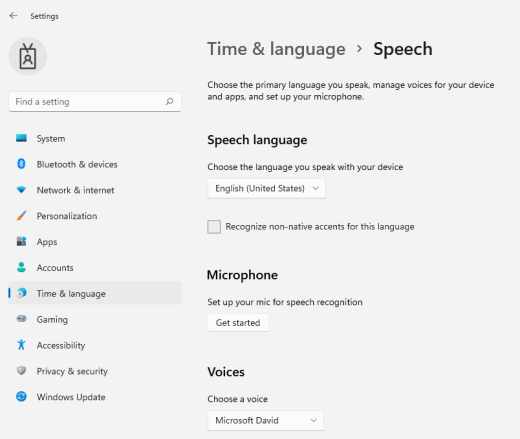
The Windows Speech Recognition feature is an offer from Microsoft that applies to all Microsoft products, like Office documents, etc. You have to enable the functionality on your device through Settings and then make some configuration adjustments based on your requirements.
Then, it is possible to use this for quick voice-based commands and note-writing quickly.
Price: Free
Compatibility: Windows
Features:
- Enable instant voice recognition for system controls.
- Multiple languages are supported.
- Transcription on Microsoft Word, Notepad, etc., is relatively precise.
- Customize the errors without a problem.
Pros:
- Tutorial available for learning the process.
- Shortcuts and hotkey commands are available for many actions.
- Handle all computer processes via voice upon activation.
Cons:
- It only works on Windows 10 and 11 versions.
- The slightly slow learning curve for understanding all features, like the commands.
7. Dictation- in-built Apple software on MacOS 10.15+
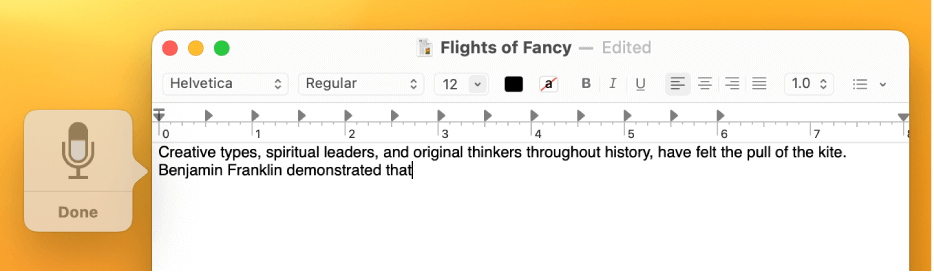
Apple has created the Dictation software fitted in the macOS 10.14 and newer models for simple system-based writing and command management. After activating this feature and ensuring that Siri is enabled, you can use Dictation to use your words to write emails and messages since the software accurately transcribes them.
Price: Free
Compatibility: Mac
Features:
- Choose alternate work the system suggests for inaccurately transcribed words for easy rectification.
- A wide range of commands is available for faster transcription.
- Share pre-recorded audio clips to transcribe.
- Add and remove languages.
Pros:
- Get easy-to-use commands.
- Activate voice-controlled controls for typing documents and messages.
- Easy controls are available for word selection, speech recognition, etc.
Cons:
- Only available to use on macOS 10.14 and newer models.
- All features and languages are only supported in some global locations.
8. Google Docs Voice Typing
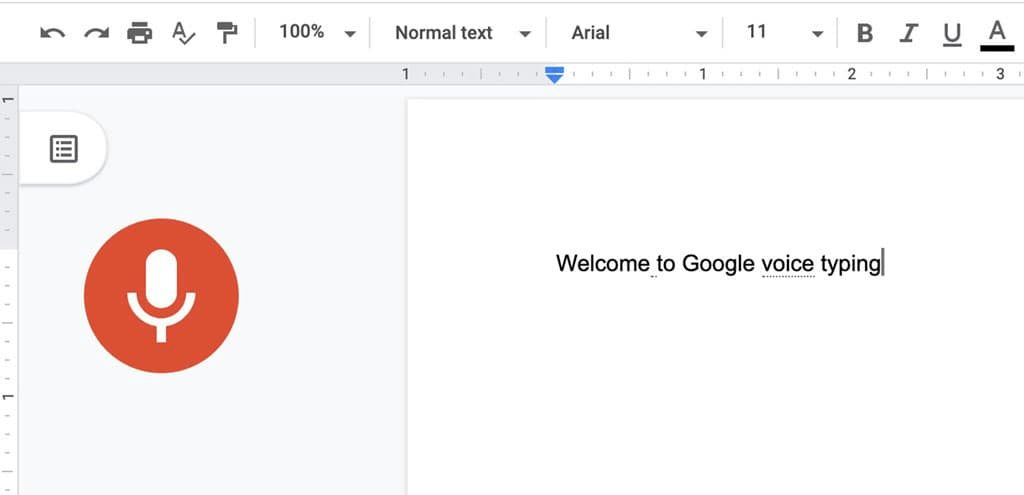
Google Docs and even Google Slides allow this functionality of voice-to-text transcription after you activate it through Chrome browsers. Activate the microphone setting from your System Preferences (Mac) or Control Panel (Windows).
Then, you can utilize the voice-to-text feature here for voice-controlled system commands or typing in Google Docs.
Price: Free
Compatibility: Any operating system (web-based)
Features:
- Resume typing functionality is available.
- Add text easily by voice with accurate transcriptions.
- Multiple commands are available for punctuation and common phrases.
- Edit documents by voice.
Pros:
- Multiple languages are compatible.
- Easy troubleshooting steps in case of errors.
- Quickly add tables and edit them.
Cons:
- Voice commands only apply to Google Docs, not Slides.
- English is the default voice command option.
9. Dictation.io
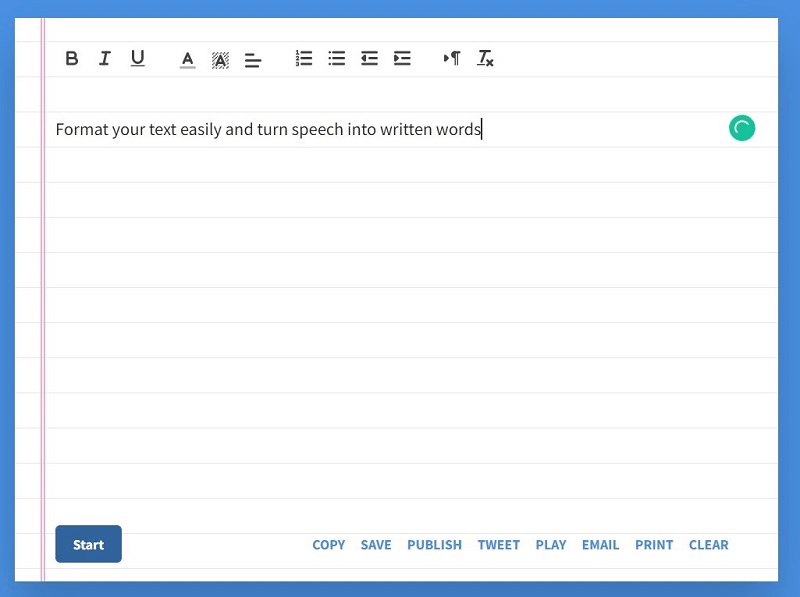
One of the easiest and more user-friendly tools that people can try out for speech-to-text translation is Dictation.io. This is an online tool that is accessible through the Google Chrome browser. You have to enable the built-in microphone as you press the Start button, and the software will analyse and add complete sentences accurately.
This tool supports different types of languages, including many regional dialects. The precision level in the analysis and transcription on Dictation.io is relatively suitable.
Price: Free
Compatibility: Windows/Mac (web-based tool)
Features:
- Supports multiple languages.
- Simple sharing and downloading functions after completing the entire documentation-making work.
- Easy text formatting options, like indentation, alignment, etc.
- Pause clearly in between the speech to indicate punctuation.
Pros:
- Simplified UI for the online tool that anyone can use.
- Email the final file or print the document.
- No additional cost for using the tool.
Cons:
- Mistakes can occur if you don’t dictate in full sentences, as the software will count the pauses in speech to add punctuation.
- Accuracy is mediocre if you are using your system microphone only.
Conclusion
Consider the services the apps and software types offer and their feature quality while you compare which one to choose as your primary dictation app for Mac/Windows. Also, make sure to consider their benefits in performance, precision level, and value for money compared to your requirements.
Try out all or more of these options to decide the software that works best for your professional/person transcription needs.
Author Bio:
Dinesh Lakhwani 

Dinesh Lakhwani, the entrepreneurial brain behind “TechCommuters,” achieved big things in the tech world. He started the company to make smart and user-friendly tech solutions. Thanks to his sharp thinking, focus on quality and the motto of never giving up, TechCommuters became a top player in the industry. His commitment to excellence has propelled the company to a leading position in the industry.
Popular Post











Recent Post

How To Check If Your PC Is Infected? [Complete Guide]
Computers now sit at the center of almost everything we do. Well, yes! From sending emails to watching videos, we depend on them without much thought. Because of this, even a small issue can disrupt daily tasks. One common problem is hidden malware. It does not always show clear signs at first. It can enter […]

Repair Apps And Programs: Repair Apps That Aren’t Working
Computers have become an essential part of everyday life, supporting work, study, communication, and entertainment. Most of these activities rely on apps and programs, so when one stops functioning, even simple tasks can be disrupted. Common problems include error messages, frozen screens, or apps that fail to open. On Windows systems, such issues often arise […]

Troubleshooting Microphone Privacy Settings: Complete Guide
Sound is a basic part of how we use computers today. People attend meetings, record audio, speak to others, and use voice tools almost every day. A working microphone makes all these tasks easy. When the microphone fails, even simple work becomes difficult. Many users first think the device is broken. In reality, the issue […]

Windows Sound Settings – Sound Control Panel: Complete Guide
Sound plays an important role in how we use a computer every day. It supports both work and leisure. You need it for meetings, videos, music, and alerts. When audio fails, even simple tasks become difficult. Many users feel stuck when sound issues appear. This usually happens because they are not familiar with Windows Sound […]

Run a Troubleshooter For PC Issues Windows: Complete Guide
A computer plays an important role in everyday life. People use it for work, study, communication, and entertainment. When a problem appears, it can interrupt everything. Even a small issue can waste time and create frustration. Many users feel unsure about how to fix such problems. They often think they need expert help. In reality, […]
![Adjusting Audio Output Settings Complete Guide [2026]](https://www.techcommuters.com/wp-content/uploads/2026/03/Adjusting-Audio-Output-Settings-Complete-Guide.webp)
Adjusting Audio Output Settings: Complete Guide [2026]
Sound is part of almost everything we do on a computer. It lets you watch videos, join calls, play music, and hear alerts. When the audio stops working the right way, it can interrupt both work and daily use. That is why adjusting audio output settings matters for every user. Many people get unsure when […]

Artificial Intelligence Explained: Concepts, Terminology, Benefits, and Future Trends
Artificial Intelligence, or AI, is basically computers doing things that usually need a human brain. We’re talking about stuff like learning from experience, figuring out problems, understanding language, and making decisions. It’s not magic, just a lot of data, pattern-spotting, and math behind the scenes. Now, AI doesn’t actually think or feel like we do. […]

Resolving Microphone Detection Problems: Latest Guide [2026]
Microphones are important tools in daily life. People use them for office meetings, online classes, interviews, gaming, customer support, and content creation. When a system fails to detect a microphone, communication stops at once. This situation can cause stress and confusion. Many users believe the microphone is damaged. In reality, most problems are simple and […]

How To Switch To A Dark Background Theme In Windows [2026]
Most people spend many hours each day in front of a computer screen. Office work, online classes, editing, browsing, and streaming all require long screen time. A bright white background may look clean at first. However, over time, it can feel sharp and tiring. The strong contrast between white backgrounds and black text may cause […]

How to Switch From Local To Microsoft Account On Windows
Many users begin with a local account when they set up a new Windows computer. A local account works only on that single device. It stores settings, files, and preferences locally. It does not connect to online Microsoft services. For basic offline use, it works well. However, as digital needs grow, many users want better […]

