Switch To a Dark Background Theme on Windows: Enable Dark Mode
People often like a screen that feels gentle on the eyes. A darker style softens bright areas and makes long computer sessions easier to handle. It also gives the desktop a cleaner and more modern feel. When you switch to a dark background theme in Windows, the colors shift to deeper shades that reduce glare and create a calm look.
This change works well at night or in rooms with low light. Some users say it helps them stay relaxed during long tasks because the screen feels less harsh. When you enable dark mode on Windows, you choose a view that suits your comfort, and most apps adjust to match the new style so the whole layout stays neat and steady.
Precautions: Read This Before You Change the Theme
Change the system look with care. Minor display changes can affect text clarity or contrast. Some apps may take time to adjust.
- Check screen brightness
Dark style works best with a steady brightness level. Too high can strain the eyes. - Check the wallpaper
A very bright wallpaper may clash with the darker layout. Pick a calm image. - Check app support
Some old apps do not match the new look well. They may show bright panels. - Check the theme source
If you use a theme from outside the Microsoft Store, download with caution. Some packs may not be safe. - Check your color filter settings
Color filters can change how dark elements appear. Review them before you switch to a dark background theme in Windows. - Restart after changes
A quick restart helps apply the style to all parts of the system. - Check high contrast mode
If high contrast is active, it may override dark colors. Turn it off first. - Know how to revert
Learn how to switch back to light mode. This helps if you want the old look again.
Before You Start, Know The Answers To These Questions
Q1. Why do people prefer darker themes?
Many people choose darker themes because they feel easier on the eyes during long use. A dark desktop reduces bright white areas and creates a calm working space. Some enjoy the visual balance it brings to icons and windows. When you enable dark mode on Windows, you may find the screen feels more gentle, which helps during late work sessions.
Q2. Does dark mode save battery on laptops?
Some modern laptop screens reduce power use when showing darker colors. This is common in OLED displays. A darker style means fewer bright pixels. This can help extend battery time. Your savings may vary, but many users still prefer the style for comfort alone. If you Turn On dark mode, you might gain a little more battery life during long sessions.
Q3. Will dark mode change the look of all apps?
Most modern apps follow the system settings. When you Turn On dark mode, apps that support it will switch. Some old or custom programs may not match the rest of the desktop. They may keep bright panels or mixed colors. This is normal. Many developers update their apps to follow system themes over time.
Q4. Does dark mode affect screen clarity?\
Many users report clear and steady text. Some icons and shapes may look sharper because the background is less bright. Still, results vary with screen quality. If colors look uneven, adjust brightness or contrast. When you switch to a dark background theme in Windows, the overall view usually becomes more balanced.
How To Switch To a Dark Background Theme on Windows
Changing the theme is easy. The system gives you simple tools to manage it. You can pick from built-in styles or use custom ones. Each method gives the desktop a new feel. You only need to follow a few steps to Turn On dark mode.
Method 1. Use the Settings App
The Settings app is the simplest way for most users. It offers clear sections that guide you through the process. Once inside the personalization menu, you can choose a dark color mode that fits your taste.
You can also explore extra themes if you want a unique look. The system shows previews that help you choose the right one. These previews help ensure the colors feel steady and smooth. You can apply them with a single click.
How does this method help
- Easy to find in the Start menu.
- Shows clear previews before you apply the theme.
- Works with most apps at once.
- Safe and built in.
Steps
Step 1. Open Settings and go to Personalization.
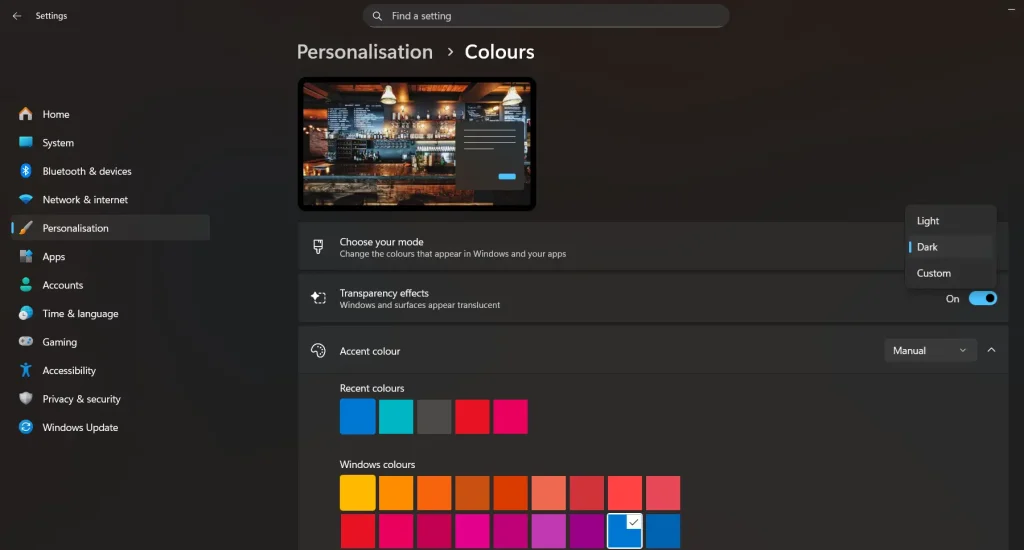
Step 2. Pick Colors and choose the dark style.
Method 2. Use the Theme Section
Themes allow you to adjust many parts of the display in one place. You can pick a theme that is already set to dark. This makes switching faster. The theme section also shows extra packs from the Microsoft Store.
Many users like this method because it gives control over sound schemes, icons, and backgrounds. A dark theme blends all these elements into a single neat package. This helps keep the desktop style steady.
How does this method help
- Offers full theme packs.
- Let’s you match backgrounds with dark colors.
- Connects to the Microsoft Store for more choices.
- Keeps system elements well balanced.
Steps
Step 1. Open Personalization.
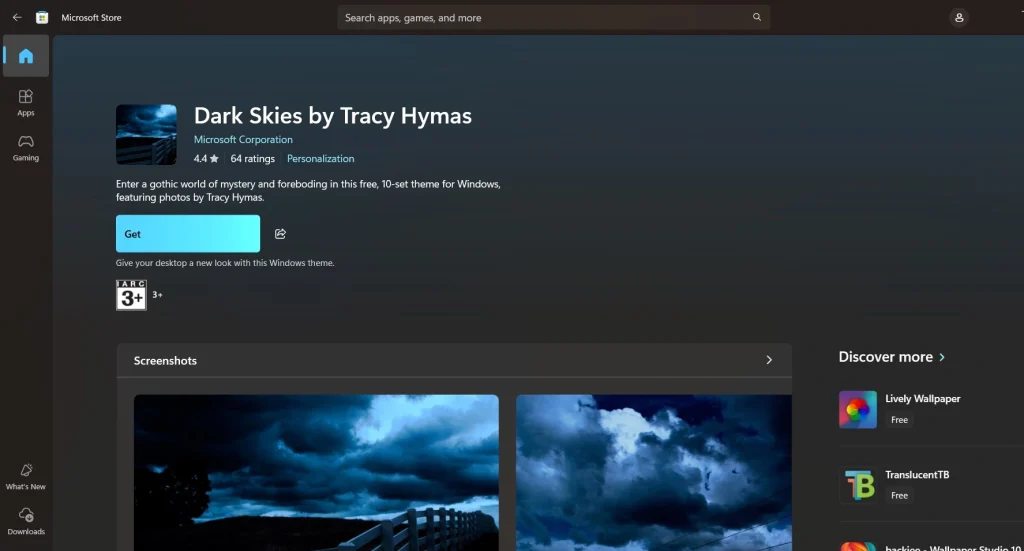
Step 2. Choose Themes and apply a dark pack
Method 3. Use Contrast Themes
Contrast themes are designed for better readability. They use stronger color blocks. Some of these packs use deep tones that look darker than the default style. This helps users who want a big difference between elements.
Contrast themes adjust menus, icons, borders, and panels. They work well for users with vision needs. These themes also keep the system clean and easy to read in low light.
How does this method help
- Improves text visibility.
- Offers rich dark backgrounds.
- Helps users who need a stronger contrast.
- Provides clear borders around items.
Steps
Step 1. Go to Settings and open Accessibility.
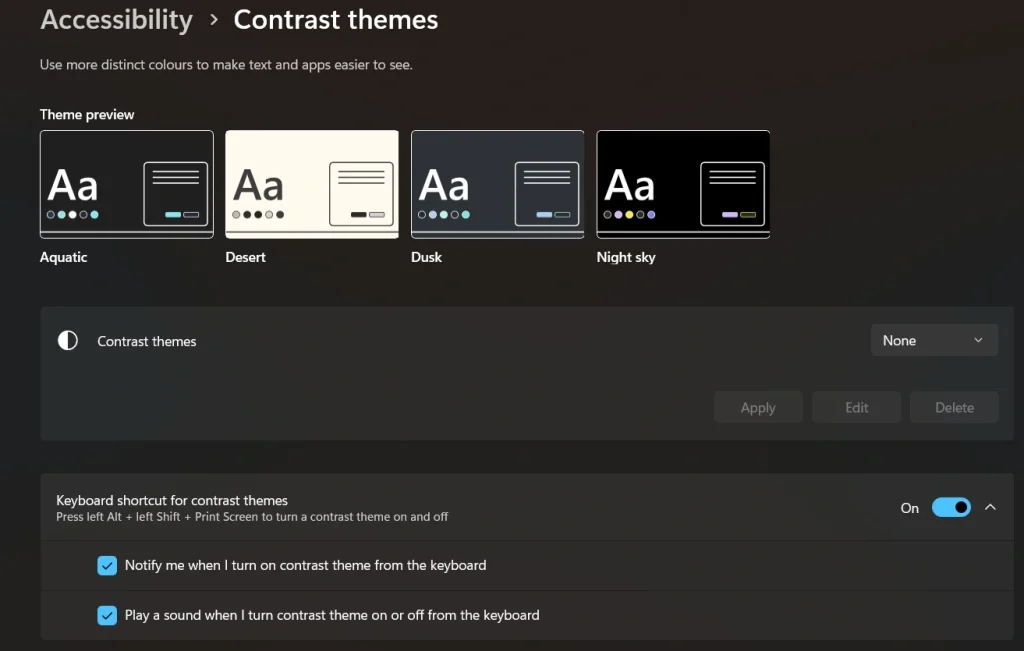
Step 2. Pick Contrast Themes and choose a dark one.
Author’s Tip
Try different tones before you settle on one. Not all dark styles feel the same. Some may look too flat, while others may feel too sharp. Test them during the day and night for the best match. When you enable dark mode on Windows, you may notice how small color changes affect comfort.
If you use more than one monitor, keep the same theme on all of them. This keeps the look balanced. Also, adjust the brightness of each screen to avoid sudden shifts in tone. Your workspace feels steadier and pleasant when all screens match.
Advanced Tips: Make the Most of Dark Mode
Use a few extra settings for the best results. Small changes often improve comfort during long use.
- Adjust the night light
Night light warms the screen tone. It blends well with darker styles. - Change app themes
Some apps have their own dark settings. Match them with the system. - Adjust browser theme
Set your browser to a dark layout to keep your screen consistent. - Use darker wallpapers
A very bright wallpaper breaks the flow. Pick simple dark images. - Change accent color
A calm accent color pairs well with dark backgrounds. - Review text scaling
Dark themes look better with clear medium-sized text. - Check display sharpness
Adjust sharpness for smooth icons and steady text. - Try third-party themes
Explore safe theme packs for more style options.
Conclusion
Dark mode makes the screen feel calm and easy to use. Many people find it helpful for long work sessions. It also gives the desktop a neat and modern feel. When you switch to a dark background theme in Windows, the system adjusts many panels and apps at once.
Take a moment to test different styles. Choose the one that feels best for you. Once you Turn On dark mode, you may enjoy a cleaner look that helps reduce strain. You can always adjust colors again if needed.
FAQs:
1. Is dark mode good for daily work?
Many people use it each day because it feels steady and reduces glare. Some find the softer look pleasant during long tasks. When you enable dark mode on Windows, you can adjust brightness to improve comfort.
2. Can I mix dark mode with light wallpapers?
Yes, but the mix may look uneven. A very bright wallpaper can distract from the darker theme. Try a mild or soft image for balance. Many users find the screen more stable this way.
3. Does dark mode affect game performance?
No. It only changes the system’s look. Games will run the same. The theme change does not affect speed or performance. You can Turn On dark mode without worry.
Author Bio:
Dinesh Lakhwani 

Dinesh Lakhwani, the entrepreneurial brain behind “TechCommuters,” achieved big things in the tech world. He started the company to make smart and user-friendly tech solutions. Thanks to his sharp thinking, focus on quality and the motto of never giving up, TechCommuters became a top player in the industry. His commitment to excellence has propelled the company to a leading position in the industry.
Popular Post











Recent Post

Switch To a Dark Background Theme on Windows: Enable Dark Mode
People often like a screen that feels gentle on the eyes. A darker style softens bright areas and makes long computer sessions easier to handle. It also gives the desktop a cleaner and more modern feel. When you switch to a dark background theme in Windows, the colors shift to deeper shades that reduce glare […]
![Complete Guide on Managing Audio Input Devices [Latest In 2026]](https://www.techcommuters.com/wp-content/uploads/2025/12/Complete-Guide-on-Managing-Audio-Input-Devices.webp)
Complete Guide on Managing Audio Input Devices [Latest In 2026]
People use microphones for meetings, games, classes, recordings, and voice chats, so any problem with the device can interrupt their work. Even a small system error can make the voice weak or stop it fully. This is why knowing the basics of managing audio input devices is helpful for new and experienced users. Windows includes […]
Resetting Audio Settings on Windows 11: Complete Guide
Sound problems can disrupt work, study, or entertainment. Many users face issues where the audio becomes too low, too loud, unclear, or does not play at all. A common way to solve these problems is by resetting audio settings to their original state. This helps Windows rebuild its sound setup from the beginning. Windows 11 […]
Troubleshooting Headphone Detection: Headphones Not Detected/Working
A lot of users run into sound problems at some point. A common one is when the computer does not pick up the headphones. You plug them in, but the speakers keep playing. This can break your focus during work, movies, music, or calls. It also causes confusion because the reason is not always clear […]
How To Re-Pair Bluetooth Earbuds For Stereo Sound on Windows
Wireless earbuds are often paired with computers for rich stereo sound, but things don’t always go smoothly. Sometimes, the system defaults to mono audio or fails to activate the correct playback mode. This can disrupt music, calls, or gaming, making the sound feel flat and lifeless. These glitches usually stem from improper setup. Windows might […]

How To Manage Camera Permissions for App On Windows: Complete Guide [2026]
Many users run into issues when trying to join video calls or online meetings—their camera simply won’t turn on. This can happen for a few reasons: Windows might be blocking access, or the app may not have the correct permissions. These hiccups often lead to confusion and frustration. Fortunately, Windows provides straightforward tools to help […]
![Help With Color Management In Windows Complete Guide [2026]](https://www.techcommuters.com/wp-content/uploads/2025/12/Help-With-Color-Management-In-Windows-Complete-Guide.webp)
Help With Color Management In Windows: Complete Guide [2026]
Color often decides how we experience a picture, a video, a website, or even a simple chart. Many users feel confused when colors look different on each screen. A monitor may show a softer shade while a laptop shows a sharper one. This creates doubt and slows down work. It can also lead to mistakes […]
How To Install Pending Windows Updates Easily On Windows 11
Windows updates keep your computer healthy. They fix problems and improve security. Many people ignore updates because they worry about errors or slow performance. In most cases, the process is simple. You only need to follow a clear routine and give your computer enough time to finish the job. A regular update habit saves you […]

How to Set Up a Secure VPN Connection on Windows In 2026
A VPN helps protect your privacy each time you go online. It hides your real location. It protects your data from unsafe networks. It also keeps your browsing away from unwanted eyes. Many people use it to keep their work safe. Others use it to guard their regular internet use. Windows offers good support for […]
How To Extend Your Battery Life Effectively in Windows
A laptop is useful only when the battery lasts long enough to support your work. When the charge falls too fast, even small tasks feel stressful. You may rush to find a charger. You may feel forced to lower the performance. You may even stop your work in the middle of something important. This can […]

