Keyboard Light Settings: Keyboard Lighting Control [Complete Guide]

Keyboards are no longer simple typing tools. Well, yes! Over time, they have evolved to include features that improve comfort, visibility, and overall experience. One of the most useful features today is keyboard lighting. It helps users work comfortably in low-light conditions. It also reduces strain when typing for long hours.
Many users first notice keyboard lighting when working late at night. Dim rooms make it hard to see keys clearly. Lighting under the keys solves this problem. It gives better visibility without needing an extra lamp. This is where keyboard light settings play an important role.
Lighting is now common across laptops and external keyboards. Students, office users, writers, and gamers all benefit from it. When adjusted properly, lighting helps maintain focus. It also keeps typing smoothly and accurately.
Understanding how lighting works is important. It helps users avoid discomfort and unnecessary battery drain. Proper control turns lighting into a helpful feature rather than a distraction.
Popular Keyboard Lighting Doubts Among Users
Why does my keyboard light turn off automatically?
Keyboard lights often turn off because power-saving features are active. Many laptops and keyboards are designed to save battery when there is no typing for some time. When the system detects inactivity, it reduces or turns off the lights. Some devices also lower the lighting when battery levels drop. You can usually change this behavior in system or keyboard settings.
Can lighting damage the keyboard?
Normal keyboard lighting does not damage the keyboard. LEDs are built to handle regular use over long periods. Problems usually occur only when brightness is kept at the maximum level all the time. Very high brightness can slowly reduce LED lifespan. Using medium brightness is safe and helps the lighting last longer.
Do all laptops support keyboard lighting?
No, not all laptops support keyboard lighting. This feature depends on the laptop model and price range. Many budget laptops do not include backlit keyboards. Some models also include the hardware, but keep it disabled in certain regions. Checking the keyboard icon or product specifications confirms support.
Is RGB lighting useful for work?
RGB lighting is usually not ideal for work environments. Bright colors and moving effects can distract attention and reduce focus. Simple colors like white or soft warm tones work better for reading and typing. For professional use, static lighting helps maintain comfort and productivity over long hours.
Part 1: Understanding Keyboard Lighting Basics

Keyboard lighting refers to small lights placed beneath or around the keys. These lights illuminate letters and symbols. This makes typing easier in dark or poorly lit rooms.
Some keyboards use basic lighting. This usually means a single color, often white. It is designed mainly for clarity. Other keyboards offer advanced lighting. These may include multiple colors, patterns, and effects.
Lighting technology differs by keyboard type. Laptop keyboards often have limited options. External keyboards usually provide more control. Knowing your device helps you understand what is possible.
Keyboard lighting is powered by LEDs. These lights consume little power. However, high brightness levels can still affect battery life. This is why learning to adjust keyboard light settings properly matters.
Part 2: Importance of Keyboard Lighting for Daily Use
Keyboard lighting is more than just a visual feature. It plays a key role in making typing easier and more comfortable. In low-light or dark environments, illuminated keys help users see letters clearly. This reduces mistakes and improves typing accuracy.
For many, keyboard lighting also adds a sense of focus and reduces eye strain during long sessions.
Lighting is useful for different types of users. Students, professionals, writers, and gamers all benefit from it in various ways. Even small adjustments in brightness or color can make a big difference. Understanding its importance helps users make the most of keyboard light settings and keyboard lighting control.
- Improves typing accuracy
When keys are clearly visible, errors are reduced. This is especially helpful in dimly lit rooms or at night. - Reduces eye strain
Soft lighting balances the contrast between screen and keyboard. This prevents eye fatigue during long typing sessions. - Supports night-time work
Users can work comfortably without turning on bright room lights. This avoids disturbing others while working late. - Helps users with vision difficulty
Even gentle lighting makes letters more readable. It improves accessibility for people with weak eyesight. - Enhances focus and productivity
Lighting draws attention to keys without being distracting. This helps maintain concentration on tasks. - Provides aesthetic comfort
Soft, well-adjusted light creates a calm and organized work environment, which feels pleasant while typing. - Reduces errors in professional tasks
For office work, coding, or writing, proper visibility ensures that important documents remain error-free and clean.
Part 3: Types of Keyboard Lighting Systems
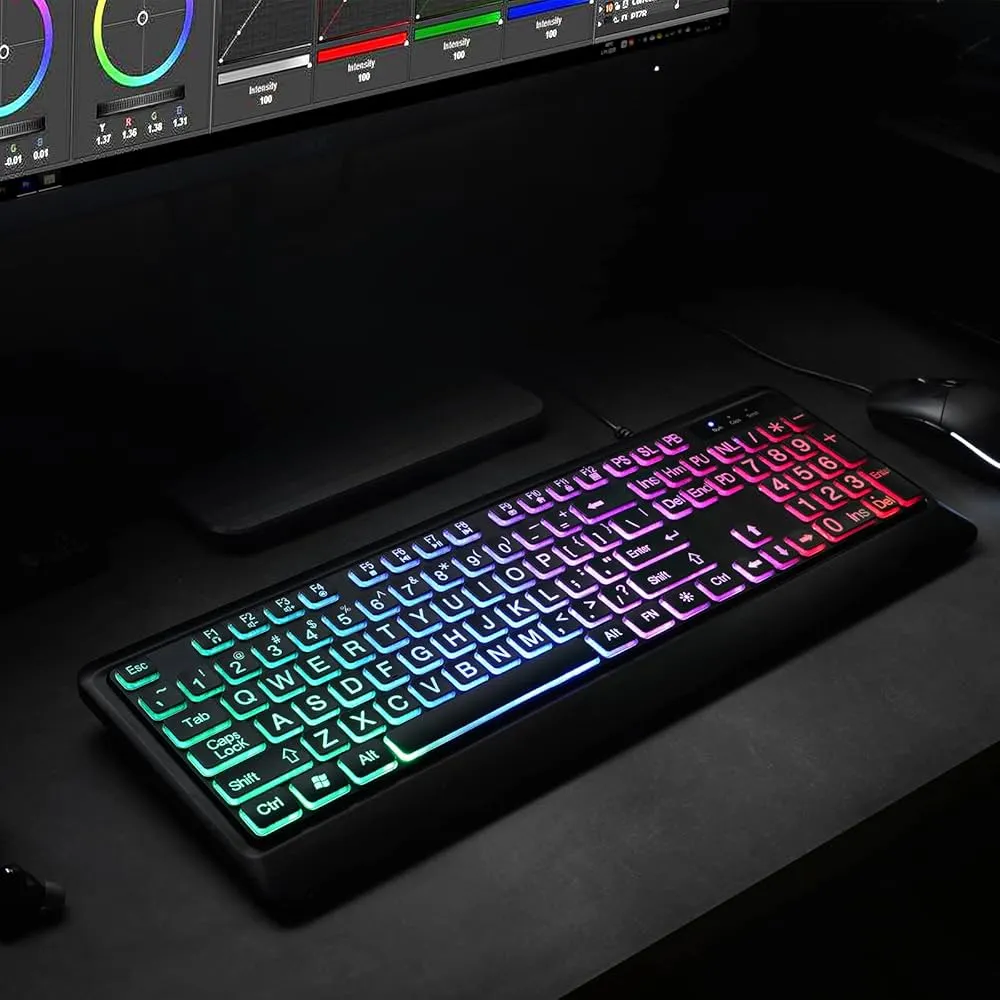
Keyboard lighting systems vary widely, depending on the keyboard type and brand. These lights are not only functional but also add style and customization. Choosing the right lighting system can improve typing comfort and make work or gaming more enjoyable. Knowing the differences helps users understand what options are available for their keyboards.
Lighting types range from basic single-color LEDs to advanced RGB setups. Each type has its advantages and limitations. Some focus purely on visibility, while others offer full customization and interactive effects. Understanding the types of keyboard lighting systems makes it easier to adjust keyboard light settings and keyboard lighting control effectively.
- Single-color lighting
This is the most basic type, usually using white or soft blue light. It improves visibility in dark environments and is energy-efficient. Most laptops and budget keyboards use this system. - Multi-color lighting
This system allows users to switch between a few fixed colors. It adds a personal touch without being too complex. Multi-color lighting is often found in mid-range keyboards. - RGB lighting
RGB lighting provides full color customization. Each key can display different colors, and patterns like breathing, waves, or reactive typing are possible. This system is popular among gamers and creative professionals. - Dynamic or reactive lighting
Some keyboards respond to typing or software activity. Keys can change color when pressed or react to certain applications. This adds a visual effect while typing or gaming. - Zone-based lighting
Keys are divided into zones, and each zone can have a different color. This helps highlight important keys for work or gaming and reduces distractions. - Adjustable brightness levels
Many keyboards allow multiple brightness levels. Users can choose a soft glow for night use or a brighter light for clarity in darker environments.
Part 4: How Keyboard Light Settings Are Managed

Keyboard light settings allow users to change how lights behave. This includes brightness, on and off states, and timing.
On laptops, lighting is often controlled using function keys. Pressing a specific key combination cycles brightness levels. Some laptops allow only limited adjustments.
External keyboards usually come with dedicated software. This software allows deep customization. Users can create profiles for different tasks.
Operating systems also influence settings. Updates may change how lighting behaves. Understanding keyboard light settings helps avoid confusion after updates.
Part 5: Keyboard Lighting Control Features Explained
Keyboard lighting control refers to managing all lighting aspects. This includes brightness, color selection, and effects.
Some keyboards support automatic lighting. Lights turn off after inactivity. This saves power and extends LED life.
Advanced control options allow application-based lighting. For example, lights change based on active software. This feature is helpful for professionals.
Good keyboard lighting control focuses on comfort first. Excessive effects may look appealing. However, they often distract during work.
Part 6: Keyboard Backlight Settings Across Devices

Keyboard backlight settings vary by device type and brand. Laptop keyboards usually support simple brightness levels. Users cycle through these levels.
External keyboards rely on desktop applications. These allow users to save profiles. You can quickly switch between work and leisure modes.
Keyboard backlight settings are affected by drivers. Outdated drivers can cause lighting issues. Keeping software updated helps avoid problems.
Some operating systems limit lighting features. This is common with generic keyboards. Understanding keyboard backlight settings helps set realistic expectations.
Part 7: Common Problems With Keyboard Lighting
Keyboard lighting can be very helpful, but sometimes issues may appear. Most problems are easy to fix if you know the cause. Understanding common problems saves time and prevents frustration. It also helps you adjust keyboard light settings properly.
Problems may appear on both laptops and external keyboards. They can be caused by software, hardware, or improper settings. Some issues are simple, like uneven brightness, while others may need driver updates or software adjustments.
Knowing the common problems helps you find quick solutions.
- The lights are not turning on
This is often caused by the keyboard being disabled or the lighting turned off in settings. Checking keyboard light settings or pressing the function keys usually fixes it. - Uneven or dim lighting
Some keys may appear brighter than others. This happens due to LED placement or dust under keys. Cleaning the keyboard or adjusting the brightness can improve it. - Lighting turns off automatically
Many keyboards have power-saving modes. Lights may turn off when the keyboard is inactive. Adjusting sleep settings or lighting timers can prevent this. - Software is not detecting the keyboard
External keyboards may not work with their software. This usually happens if drivers are missing or outdated. Installing the correct drivers restores control. - Lighting effects are not working
Advanced RGB effects may fail if profiles are corrupted. Resetting the software or creating a new profile can fix this. - The battery drains faster than expected
High brightness or always-on lighting can reduce battery life. Lowering brightness or using timed lighting saves power. - Color settings are not saving
Sometimes chosen colors reset after a restart. This happens due to software glitches or missing permissions. Updating software or saving profiles properly solves the problem.
Part 8: Precautions Before Adjusting Keyboard Lighting
Before changing lighting options, follow these precautions to avoid damage or discomfort.
- Read the official manual
Manufacturers provide specific guidance. This avoids unsupported changes. - Avoid full brightness at all times
High brightness reduces LED lifespan. Moderate levels are safer. - Use trusted software only
Third-party tools may cause system issues. - Save current profiles
Always back up settings before making changes. - Update keyboard firmware carefully
Do not interrupt updates. Interruptions may cause failure. - Monitor battery usage
Lighting consumes power. Balance brightness wisely. - Check compatibility
Not all software supports every keyboard. - Make gradual changes
Testing one setting at a time avoids confusion.
Part 9: Tips for Effective Keyboard Lighting Use
Smart lighting improves comfort and productivity. These tips help achieve that balance.
- Adjust the brightness to the room lighting
Dim rooms need softer light. - Use neutral colors for work
White or warm tones help focus. - Reduce lighting during long sessions
Lower light reduces eye strain. - Turn off effects when working
Static lighting minimizes distraction. - Save profiles for different tasks
Switch easily between modes. - Sync lighting with system theme
Consistency improves visual comfort. - Turn off the lighting when idle
This saves power and extends lifespan. - Test comfort over time
Adjust slowly based on usage.
Author’s Tip
Many users think brighter lighting means better performance. This is not true. Over time, strong light tires the eyes. Soft lighting supports longer focus.
Years of keyboard use show one pattern. Simple lighting wins. Minimal brightness with clear visibility works best for most users.
Instead of chasing effects, focus on comfort. Your keyboard should fade into the background. When lighting works well, you forget it exists.
Balance is key. Test settings over days, not minutes. Your eyes will tell you what works best.
Conclusion
Keyboard lighting has become an essential feature. It supports comfort, accuracy, and long work sessions. Proper setup matters more than visual effects.
Understanding keyboard light settings helps users avoid strain and distraction. Small adjustments make a noticeable difference.
With proper keyboard lighting control, you create a balanced work environment. Lighting should support, not overwhelm.
Learning and managing keyboard backlight settings ensures better usability. Simple choices often lead to the best experience.
FAQs
Does keyboard lighting affect typing speed?
Keyboard lighting does not directly increase typing speed, but it can improve accuracy. When keys are clearly visible, users make fewer mistakes. This builds confidence while typing, especially in low-light conditions. Fewer errors mean less time spent correcting text, which can slightly improve overall typing speed over time.
Can keyboard lighting be disabled completely?
Yes, keyboard lighting can usually be disabled completely. Most laptops and external keyboards provide an option to turn off lighting through function keys or software settings. Disabling the lights helps save battery power and reduces distractions. It is useful when lighting is not needed.
Is lighting useful in daylight?
Keyboard lighting is usually not very useful in daylight. Natural or room light already provides enough visibility for the keys. In bright environments, keyboard lights may not be noticeable at all. Lighting is most helpful in dim or dark spaces where keys are hard to see.
Author Bio:
Dinesh Lakhwani 

Dinesh Lakhwani, the entrepreneurial brain behind “TechCommuters,” achieved big things in the tech world. He started the company to make smart and user-friendly tech solutions. Thanks to his sharp thinking, focus on quality and the motto of never giving up, TechCommuters became a top player in the industry. His commitment to excellence has propelled the company to a leading position in the industry.
Popular Post











Recent Post
Keyboard Light Settings: Keyboard Lighting Control [Complete Guide]
Keyboards are no longer simple typing tools. Well, yes! Over time, they have evolved to include features that improve comfort, visibility, and overall experience. One of the most useful features today is keyboard lighting. It helps users work comfortably in low-light conditions. It also reduces strain when typing for long hours. Many users first notice […]

Customizing Pointer Appearance: Complete Guide
The way your mouse pointer looks on your computer may seem like a small detail. But customizing pointer appearance can make using your PC more comfortable and visually appealing. Many users do not realize that they can change the pointer size, color, and style to fit their needs. Whether you want a bigger pointer for […]

How To Choose a Computer Monitor: Monitor Buying Guide
Buying a monitor looks easy. Many people think all screens are the same. That belief causes regret later. A monitor is not just a display. It is a daily tool. You read on it. You work on it. You relax with it. Small problems become big over time. Poor brightness hurts eyes. Bad size causes […]

How To Get Help With File Explorer in Windows 11 [Complete Guide]
File Explorer is one of the most important tools in Windows 11. It is used to open folders, view files, and manage stored data. Almost every action on a Windows computer depends on it in some way. When users open documents, save downloads, or organize photos, File Explorer is always involved. Because it is used […]

How To Fix A Frozen Computer: Complete Guide [Windows 11/10]
A frozen computer is one of the most common problems Windows users face. The screen stops responding. The mouse pointer does not move. Keyboard inputs do nothing. You may hear the fan running loudly. Sometimes the system looks alive, but nothing works. This situation often happens when you are busy or working on something important. […]

How to Upgrade Computer RAM: Complete Guide
Upgrading RAM is one of the simplest ways to improve a computer. It helps the system feel faster and smoother. Apps open quicker. Browsers handle more tabs. Games and tools run with less delay. Many users search for how to upgrade computer RAM because it gives real results without high cost. You do not need […]

How To Clean Your Computer Keyboard: Complete Guide
A computer keyboard is touched more than almost any other device you own. It is used during work, study, gaming, and casual browsing. Fingers carry natural oils, sweat, and dirt. Small food crumbs fall between keys without notice. Dust settles each day slowly. Over time, this creates a hidden layer of grime. Many users do […]
Computer Mouse Buying Guide for Beginners and Advanced Users
Buying a mouse looks easy at first. Many people think all mouse work the same way. Well, that idea often leads to regret later. A mouse affects comfort, speed, and daily work. It matters for office tasks, gaming, design, and study. The right choice reduces strain and improves control. The wrong one feels annoying every […]

How To Overclock a Computer: A Complete Guide
Overclocking is the process of making your computer run faster than its factory settings. It mainly affects the processor, graphics card, and sometimes memory. Many people choose this method to improve performance without buying new hardware. It is popular among gamers, video editors, and users who run heavy software. When done properly, overclocking can give […]

How To Find Password Saved on This Computer: Complete Guide
Many people forget their login details at some point. It happens often. We create many accounts every year. Each one needs a username and a password. Over time, it becomes hard to remember all of them. That is why computers offer ways to store login details. These saved details help users sign in faster. They […]

